Set up configuration settings
Open eLMS has over 900 different configuration settings. Details of each is detailed below.
📘 Instructions
To change any of the following configuration settings follow these steps:
Log in as an admin.
Login as an Administrator and go to System Setup/Defaults/Settings.
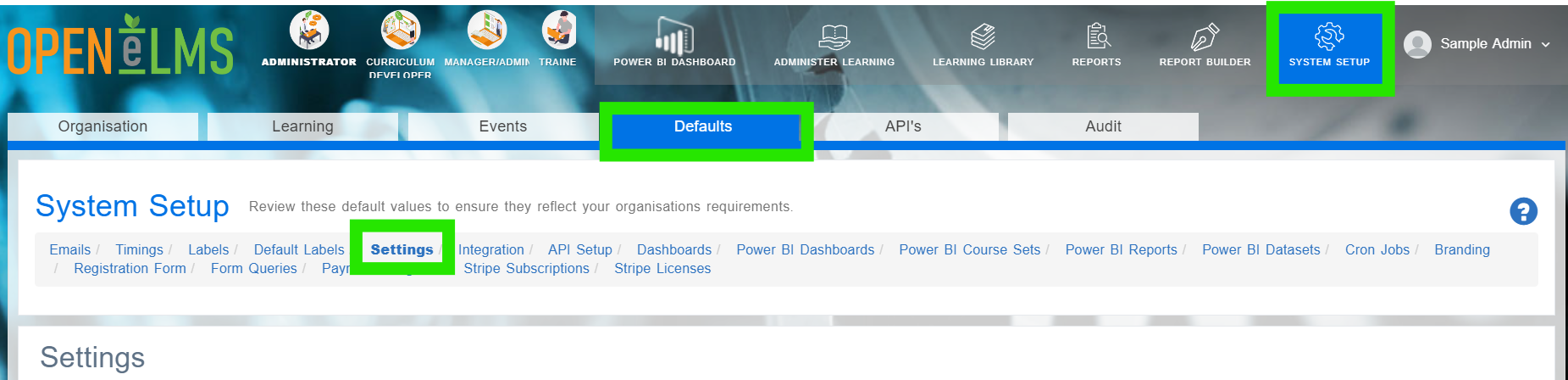
Search for the appropriate configuration item as listed below.
Name | Key | Default | Description |
Allow Registration | allowRegistration | TRUE | This adds registration button on the login screen. |
Default role for registered user | defaultRegisterRole | 12 | This is the default role ID given to every new user when registering. |
Default role for imported ILR users | defaultIlrRole | 12 | Default role for imported users using ILR import. |
Refresh training when resource completed not first assigned. | refreshCompletedAt | TRUE | A true setting calculates the due date as the refresher time period added onto the date the course was completed |
Default UKPRN | defaultUKPRN | 10002230 | UK provider reference number (UKPRN). |
Default UKPRN in previous year | defaultPrevUKPRN | 0 | UK provider reference number (UKPRN). |
Default Username label on login screen. | defaultUsernameLabel | Leaving default configuration blank maintains the label 'username' on the login screen. Adding value to Configuration value will change the label “username” to the new value. | |
Learner Reference Number iteration. | learnerReferenceNumberIteration | 137501102480 | Suffix iteration for the Learner reference number (part of the ILR). e.g.: "domain000001". |
Learner Reference number first part. | learnerReferenceNumberId | Default prefix number (first 6 numbers) in Learner reference number (part of the ILR) is changed by altering this value. | |
Show social log-in buttons on log-in page. | showSocialLoginButtons | TRUE | Show "Log in with Facebook" and "Sign in with Google" buttons on login page |
Send refresh learning e-mails | sendRefreshEmail | TRUE | When learning resource is refreshed, send email to learner as reminder. |
Allow Learner to refresh Learning | allowLearnerRefreshLearning | TRUE | A true setting indicates when a learning has been completed and asks to reset quiz score |
Allow Learner to add Blog Entry | allowAddBlogEntry | TRUE | A true setting allows a user to add upload 'blog entry' |
Enable API for site. | allowApi | TRUE | Allow Learner to add Blog Entry as new learning type. That can be assigned to other learners by managers |
Training/work ratio | Training/work ratio | 0.2 | This is the proportion of work time for every programme where training is carried out - this is 0.2 or 20% of UK apprenticeships. |
Allow SCORM Container to be played | allowSCORMContainerPlayer | FALSE | Allow SCORM container downloaded from site to be enabled/functioning. |
Demo User Interface | isDemoAccess | TRUE | This will allow any user to access to a site without registering using a demo or guest account. A demo button will be added to the login screen to allow this. |
Demo User ID | demoUserId | FALSE | If demo User Interface is enabled, valid user's ID must be specified. Demo user will be logged as that user. |
Mandatory duration | mandatoryDuration | This ensures that a duration for resources that learner wants to sign off is entered when adding learning resources to the system. | |
School Field | schoolField | TRUE | A true setting gives the option to specify 'school' when adding a new user |
Allow Learner Edit ILR | allowLearnerEditILR | FALSE | |
Sign off text | signOffText | I agree that the information provided here is an accurate account of what has taken place and completed during my work hours. | When the configuration description is altered, the newly altered text appears when a user is signing off |
Emergency contact details | showEmergencyContactDetails | TRUE | A true setting gives the option when adding a new user to add 'emergency contact details' |
Visa Eligibility Checks | showVisaEligibilityChecks | TRUE | A true setting gives the option when adding a new user to add 'Visa Eligibility checks' |
Frequency in days by which automated email alerts are sent out | apprentixEmailReminderFrequency | 0 | This applies to learning resources assigned to standards, programmes and qualifications only. The number represents how often in days emails will be sent out as reminders for resources that are not completed. First email will be sent out set days before expected completion date. Look in timings configuration for more information. |
Make Meetings Optional | isMeetings | FALSE | A false configuration value gives the option for a line manager to confirm scheduled meetings with learners when on the 'Modules and Learning Resources' page |
Make Manage Bookings Optional | isManageBookings | TRUE | A true configuration value gives the option for a line manager to make and manage bookings on the 'Modules and Learning Resources' page |
Show QA filter in learners interface | isLearnerQAFilter | This shows QA feedback to the learner if set to true in the 'Progress' button. This is indicated by thumbs up/thumbs down icons in the learning programme interface. | |
Learning Aim Reference Service URL | learnerAimReferenceURL | Direct link to Learning Aim Reference Service ZIP file within each learner's ILR. See the help file How to Add Link to Learning Aim Reference Service (when using ILR) for further information. | |
Disable lazy loading functionality | disableLazyLoading | FALSE | Lazy loading will load in thumbnail images when they are displayed. Setting this value to true will increase the time it takes for the learner interface to load in, but images will be available instantly when scrolling around the learner's interface. |
Contact Name | BillingContactName | Acme | This sets the billing company name. This is a setting which applies to interaction with the accounting system - Xero - only. |
Contact ID | BillingContact_ID | 450b860c-878b-4dc9-b0b6-123a45b6g7h8 | This is the ID which links the system to the Xero billing system API. This is a setting which applies to interaction with the accounting system - Xero - only. |
Billing Contact First Name | BillingFirstName | This is the contact first name for the person to whom invoices are sent. This is a setting which applies to interaction with the accounting system - Xero - only. | |
Billing Contact Last Name | BillingLastName | This is the contact last name for the person to whom invoices are sent. This is a setting which applies to interaction with the accounting system - Xero - only. | |
Billing Email Address | BillingEmailAddress | This is the email of the person dealing with invoices. This is a setting which applies to interaction with the accounting system - Xero - only. | |
Currency Billing | BillingDefaultCurrency | GBP | This sets the default currency. This is a setting which applies to interaction with the accounting system - Xero - only. |
Demo Version Billing | BillingisDemo | FALSE | This decides whether the system is in a demo state or is ready for billing. This is a setting which applies to interaction with the accounting system - Xero - only. |
Frequency of Billing | BillingRepeats_Months | 3 | This sets the frequency of when invoices are sent out in months. A value must be set - minimum 1 month. This is a setting which applies to interaction with the accounting system - Xero - only. |
Next Invoice Date of Billing | BillingNext_Invoice | 1 Oct 2019 | This sets the date of the next invoice, leave blank if you want the system to calculate this for you from the date the system goes live. This is a setting which applies to interaction with the accounting system - Xero - only. |
Billing Charge by Time | BillingisChargebyTime | TRUE | This means that the system is charged for by the time period, rather than per student registered (only set true for Apprentix charging agreements pre Aug 2019.) This is a setting which applies to interaction with the accounting system - Xero - only. |
Billing Telephone Number | BillingTelephone | N/A | This is the number of the person dealing with invoices. This is a setting which applies to interaction with the accounting system - Xero - only. |
Membership Billing | BillingisMembership | FALSE | This sets up membership and all the related services. This is a setting which applies to interaction with the accounting system - Xero - only. |
Unlimited Courses Billing | BillingisUnlimitedCourses | FALSE | This enables the client to full access to all Open eLMS' curated courses. This is a setting which applies to interaction with the accounting system - Xero - only. |
Jackdaw Version Billing | BillingJackdawVersion | JACKDAWCMS | This is the maximum Open eLMS Creator version of the system which the administrator is allowed to assign to anyone. This is a setting which applies to interaction with the accounting system - Xero - only. |
Traffic light system for next Due Date | nextDueTrafficLight | 4 | When a line manager views the 'Check Progress' table, green indicates the 'Next Due date' is more than 4 weeks from when viewed, amber represents the 'Next Due date' to be less than 4 weeks away, whilst red signifies the due date has been passed (overdue). The 4 week period can be customised here - enter the desired number of weeks. |
Allow importing users without email | allowEmptyEmailImport | TRUE | A true setting assigns a computer generated email for an imported user. |
How many years logging data is retained | loggingDataRentention | 6 | Audit data is logged in the administrator’s audit reports. This data is deleted after the amount of years shown in the configuration value. |
This will turn on all email sending features | enableEmailFunctionality | If you want to enable all emails on the system, set this to true, to disable, set to false | |
Manage Responsibilities and Committees for non-SMCR sites. | showResponsibilitiesAndCommittees | FALSE | Responsibilities and committees functionality allows managers to assign a record of these responsibilities to learners. This assists managers identify training needs of their assigned personnel. |
Enable Competencies/"Gamification" functionality. | competenciesGamification | TRUE | The learner board demonstrates to the learner how they are performing (in terms of CPD points awarded) when compared with their tot ten cohorts. |
Show Latest Releases | showLatestReleases | FALSE | This shows the latest 10 learning resources added to the system which have promo images attached to them. Edit a learning resources to add a promo image (jpg : 330 wide, 600 high). |
Add CRM Fields to Company data | companyCrm | TRUE | This adds fields to the Company(e.g. products and contact details) which allows administrators to monitor sales activity for each company. |
Session timeout for inactivity | sessionTimeout | 1 | Number of hours after which a user is logged out of the system due to inactivity. |
Uses dates in ILR record for standard. | linkIlrToUserProgramme | TRUE | If this value is true, then the programme dates entered into the system will be replaced by the ILR record dates. This setting applies to UK Government apprenticeships. |
Allows adding files to email templates. | enableEmailAttachments | TRUE | When activated, multiple files can be added to email templates as attachments. |
Maximum size allowed to be added to templates (MB). | emailAttachmentsSize | 5 | The amount is the limitation set on the combined file size per email template in MB. If file or files exceed specified limits, no new files can be added to template. |
Shows type dropdown for uploads. | enableUploadType | TRUE | |
Moodle Link | moodleLink | Open eLMS can be combined with Moodle so it can use the learning resources in that LMS but track them in Open eLMS (progress is tracked in both systems.) Enter the URL of the Moodle location to enable this functionality. | |
Default Power BI Dashboard | powerbi_dashboard_url | https://app.powerbi.com/groups/me/reports/95088606-b47e-4e12-86be-f32e43c720b0/ReportSection | Open eLMS can be integrated with Microsoft's Power BI so a live data feed is sent directly to the Management Information System. Use this URL for your preferred dashboard (copy from the address bar in the browser window.) |
Disable specific resource types | disableResourceTypes | classroom,moodle_course,google_classroom,microsoft_teams,zoom_meeting,event | To disable specific resource types input slug, separated by comma. Ex: "e_learning,youtube,webpage,classroom,book_cd_dvd,on_the_job,upload,blog_entry,reflective_log,vimeo,moodle_course,google_classroom,zoom_meeting,microsoft_teams,event,h5p,jamboard" |
Script from Olark | olarkCode | This will integrate the Olark chat engine within Open eLMS. Add the integration code from Olark in Value field to activate this feature. | |
Enable Olark code. | enableOlark | FALSE | This adds the Olark chat integration to the Open eLMS system. Olark needs to be purchased separately. |
Enable Schedule. | enableSchedule | TRUE | Enable the calendar feature in the manager interface. The calendar allows managers to schedule training events. |
Default Lesson duration when assigning lessons to class/departments | lessonDuration | 60 | When creating a new leaving event (e.g. lesson, meeting etc.) in the calendar, the system will set the length of the learning event to this duration. |
Enable changes to learner intrface. | learnerInterfaceV2 | TRUE | Setting this value to false will remove the Schedule, Assignments and Progress buttons on the learner's menu. Set this value to false if the requirement is for a simple interface which does not incorporate learning programmes or booking on learning events. |
Enable feedback form and list for learner. | enableFeedback | TRUE | Set this value to true to allow learners to give feedback on learning resources. This consists of a comments field and a 5 star rating system. |
When this is enabled, learner will also see list of feedback by other users. | enableFeedbackList | TRUE | When this is true, learner will see any feedback submitted by other learners. |
Off the job hours toggle for reviews. | offTheJobHoursForReviews | FALSE | This setting generally only needs to be switched on if monitoring UK Government Apprenticeships. Setting this value to true will display a checkbox for the manager when signing off work to mark the work as 'of the job' so it is not counted towards apprenticeship completion calculations. |
Show profile picture in leaderboards or random assigned icon. | enableLeaderBoardImages | TRUE | If this value is set to true the leaderboard list will show either a profile picture or, if that is not available, a randomly assigned icon. |
Show leaderboard list/table. | enableLeaderBoardList | TRUE | Set this value to true to show a leaderboard on the learner's data page. Accessed via the 'Progress' button on the learner's menu. |
Zoom App Client Id | ZoomClientId | xXqoQMhdS0mcTnt4UeTQw | This is the 'ClientID' string connecting the system to the Open eLMS Zoom web app. Do not change this value - i.e. xXqoQMhdS0mcTnt4UeTQw |
Zoom App Client Secret | ZoomClientSecret | This is the 'Client Secret' string connecting the system to the Open eLMS Zoom web app. Do not change this value as it is set by Open eLMS.. | |
How many minutes before to send e-mail reminder about starting scheduled event to users | scheduleReminderLead | 15 | This is the time before a scheduled event is about to start when an email reminder is sent to the learner. The system checks every 5 minutes as to whether to send the email, with this in mind, it is advised that the time should always be in excess of 10 minutes. |
Enable youtube playlist import into learning library | importYoutubePlaylist | TRUE | Set this value to true to allow management to import YouTube playlists into the learning library. This method of adding video is much quicker than adding YouTube videos manually, as it automatically imports thumbnail images, titles and keywords directly from the video author. |
Jackdaw Billing Version | jackdawVersion | JACKDAW | This is the Open eLMS Creator billing version, do not change this value as it will result in the authoring system not working. |
Show video title over thumbnail for YouTube resources | forceYoutubeTitleOverThumbnail | TRUE | If this value is true, the learning title will be shown over thumbnail in the learners' interface. It is recommended that this value is set to true if importing YouTube playlists. |
Hide Curriculum | hideCurriculum | FALSE | This hides the calendar feature for all users. The calendar allows managers to schedule training events and learners to enrol on training. Do not hide this if using Open eLMS Classroom features for arranging webinars or blended classroom lessons. |
MS Teams App Client Secret | TeamsClientSecret | 3yrR[RZ_2nuF82gwtKTUBMJjYCstxw]: | This is the 'Microsoft Teams Client Secret' string connecting the system to Teams. Do not change this value - i.e. 3yrR[RZ_2nuF82gwtKTUBMJjYCstxw]: |
MS Teams App Client Id | TeamsClientId | 68a2742e-92f8-471a-b1c4-7251ca5b2fa9 | This is the 'Microsoft Teams Client Secret' string connecting the system to Teams. Do not change this value - i.e. 68a2742e-92f8-471a-b1c4-7251ca5b2fa9 |
Black Colour Scheme | isBlackColourScheme | TRUE | This colour scheme shows the training with a dark background - making this false will show a light background and dark icons/writing. |
Private API key for Anders Pink | AndersPinkApiKey | Adding this key will add the Anders Pink news feed into the Open eLMS system for the learners to review. Anders Pink will need to be purchased through Open eLMS, this key can be obtained from https://anderspink.com/export-settings/ . | |
Category Filter in Learners interface | isCategroyFilter | TRUE | Set this to true to add a category filter to the learner’s interface. This allows the learner to select and then display one expanded category at a time. |
Add learner landing page | isLearnerLandingPage | FALSE | Setting this to true will set a landing page showing pictures of all learning categories which have an image assigned to them. Ensure there are images attached to all categories first (via Admin > System Setup > Organisation > Companies > Edit.) |
Learner landing page description | learnerLandingPageDescription | Welcome to the Open eLMS learning system. Select a category below to start learning, else choose from the options at the top of the screen. | This text is displayed on the learner's interface on the first screen after logging in. The text is positioned below the logo and above the landing page category images. This does require the configuration item "IsLearnerLandingPage" be be true. |
Default time zone | defaultTimezone | Europe/London | The time zone is used for Used for interface adjustments. Time zone settings require the |
Thumbnail redesign in Learners interface | thumbnailRedesign | FALSE | If this value is set to true, the learners' interface displays learning thumbnails with an image on one side and the learning title on the other. This option is selected if a cleaner, whiter interface is required. Alter the connected configuration item: thumbnailRedesignFont to change the font to match company branding. |
Font used in thumbnail redesign, learners interface | disableLookOvers | FALSE | It is recommended that this item should be false. This function will become obsolete and won't be used for new clients. |
Disable Look Overs button/functionality in Learners profile for managers | makeResourcesLinktoHome | FALSE | Setting this variable to true will allow the learner to navigate to the Home screen (where categories are displayed if activated) when pressing on the resources link in the header bar. If this value is false then the user navigates to the standard 'Netflix-style' interface. It is recommended that this value remains false. |
Make Resources link to Home | googleAnalyticsCode | Google Analytics can be linked with Open eLMS by adding Google Analytics tracking code here. To do this you will need to first sign up for a Google Analytics account. (You’ll need a Gmail account to do it!) Then copy your Google Analytics tracking ID/code: In your GA account, head to Admin in the bottom left corner of the page. Click 'Create Property' and follow the instructions until you click 'Create' (unless you already have a property connected) Under 'Choose a platform,' select Web. Add your URL and stream name under 'Set up your web stream.' Click the settings icon, click 'Show advanced options' under 'Page views.' Deselect the 'Page changes based on browser history events' checkbox. Disable the 'Site search' toggle and click save. Click 'Create stream' and copy the tracking code/measurement ID and paste it here to track activity in Google Analytics. | |
Google Analytics | enableGoogleAnalytics | FALSE | Setting this to true will enable the Google Analytics code. The key googleAnalyticsCode will need to be defined first, check out this configuration option first. |
Enable Google Analytics code. | hideCurriculumLearner | FALSE | This hides the programme breakdown on the left hand side of the learner's interface. Learners can still select a learning programme, but the breakdown of outcomes and criteria for each programme are not listed. |
Hide Curriculum for Learner | learnerCategoryLandingMaxColumns | 3 | This configuration items contains the number of columns on the learning category page. Select a number from 2 to 4. Only set this value if the key - isLearnerLandingPage - is set to true. |
Maximum items per row in Learner category landing page. | enableUserFieldAlertSystem | FALSE | Set this to true if there is a requirement for learners to be automatically be chased up to complete their registration details. List of field names which - when empty - will create a monthly alert asking the user to complete all registration fields. |
Enable User field alert system. | userFieldAlertSystemInterval | 30 | This is the interval at which the user fields are checked (in minutes) to see if any alerts need to be sent. Only adjust this setting if enableUserFieldAlertSystem is true. |
User field alert system alert interval/check. | userFieldAlertSystemIntervalRunTime | Holds the date (in string form) when the last alert was sent. This is used in reporting and does not need to be edited. | |
User field alert system alert sent time/date | userFieldAlertSystemMonitoredFields | If the registration field alert system is enabled (i.e. enableUserFieldAlertSystem = True) then the fields for checking are added here. if any of the fields have not completed been, then a reminder email will be sent to the selected users. Some sample field names are: 'DateOfBirth,fname,lname,email,extended_Gender__c,extended_Salutation,extended_Year_of_Onset__c,extended_Employment_Status__c,extended_Health_Consent__c,country_id,Postcode" - do check with Open eLMS prior to setting these variables'. | |
List of fields in user table, monitored for completion | hideResourcesInLesson | TRUE | Set this value to true to hide the hide learning resources which are otherwise listed in lessons. It is advised to set this to true in order to clean the interface and avoid confusion (where a learning resource can be access directly and via a lesson.) |
Hide learning resources in lessons | allowRemoteRegistration | FALSE | This allows users to register on a remote site. To enable this the following code will need to be inserted into the third party website: i.e. <iframe src="https://openelms.e-learningwmb.co.uk/SITEDOMAIN/register" width="100%" height="100%" frameborder="0" title="Registration form, embedded"></iframe> Change "SITEDOMAIN" with your LMS' domain name (usually you company name - "acme" etc.) |
Remote Registration in iframe | startupCourseID | The start up course is usually used to add an orientation course to the system so learners will know what to do first. If this value has been defined then this course will play on start up whenever a new user accesses the system i.e. This will no longer show IF the course status = Completed. If this is the case, the user will go into the home page as normal. Go to the Learning Library and look at the first column, this will list the course ID. | |
Startup Course ID | learnerLandingPageNameCentered | FALSE | Should this value be set to true, then the category landing page will have its name centred, if false then the label will be left justified. This setting only takes effect if isLearnerLandingPage is set to true. |
Centre category labels | go1clientID | This ID connects the GO1 learning repository to Open eLMS via OAuth. GO1 has the largest library of digital learning content globally. Contact Open eLMS for details on how to purchase Go1 and set this setting. | |
Go1 client ID | go1clientSecret | ******** | This password connects the GO1 learning repository to Open eLMS via OAuth. GO1 has the largest library of digital learning content globally. Contact Open eLMS for details on how to purchase Go1 and set this setting. |
Go1 client secret | go1GrantCode | ******** | This code connects the GO1 learning repository API. GO1 has the largest library of digital learning content globally. Contact Open eLMS for details on how to purchase Go1 and set this setting. |
Go1 authorization code | go1AuthToken | ******** | This token connects the GO1 learning repository API. GO1 has the largest library of digital learning content globally. Contact Open eLMS for details on how to purchase Go1 and set this setting. |
Go1 Auth token | go1AccessToken | ******** | This setting connects the GO1 learning repository API. GO1 has the largest library of digital learning content globally. Contact Open eLMS for details on how to purchase Go1 and set this setting. |
Go1 Refresh token | Go1 Refresh token | ******** | This setting connects the GO1 learning repository API. GO1 has the largest library of digital learning content globally. Contact Open eLMS for details on how to purchase Go1 and set this setting. |
Go1 Access token expires in | Go1 Access token expires in | 0 | This setting connects the GO1 learning repository API. GO1 has the largest library of digital learning content globally. Contact Open eLMS for details on how to purchase Go1 and set this setting. |
Go1 Access token type | Go1 Access token type | This setting connects the GO1 learning repository API. GO1 has the largest library of digital learning content globally. Contact Open eLMS for details on how to purchase Go1 and set this setting. | |
Automatically install resources from authenticated GO1 library | go1InstallResourcesCron | FALSE | This setting connects the GO1 learning repository API. GO1 has the largest library of digital learning content globally. Contact Open eLMS for details on how to purchase Go1 and set this setting. |
Salesforce base url for accessing API services. | salesforceApiURL | This setting connects the Salesforce API so data can be written to and read from this CRM system. Contact Open eLMS for details on how to set up Salesforce from within Open eLMS. | |
Salesforce client_id | Salesforce client_id | This setting connects the Salesforce API so data can be written to and read from this CRM system. Contact Open eLMS for details on how to set up Salesforce from within Open eLMS. | |
Salesforce code | Salesforce code | This setting connects the Salesforce API so data can be written to and read from this CRM system. Contact Open eLMS for details on how to set up Salesforce from within Open eLMS. | |
Salesforce client secret | Salesforce client secret | This setting connects the Salesforce API so data can be written to and read from this CRM system. Contact Open eLMS for details on how to set up Salesforce from within Open eLMS. | |
Salesforce access token | Salesforce access token | This setting connects the Salesforce API so data can be written to and read from this CRM system. Contact Open eLMS for details on how to set up Salesforce from within Open eLMS. | |
Salesforce access token expiration time, unix | salesforceAccessTokenExp | This setting connects the Salesforce API so data can be written to and read from this CRM system. Contact Open eLMS for details on how to set up Salesforce from within Open eLMS. | |
Salesforce signature | salesforceSignature | This setting connects the Salesforce API so data can be written to and read from this CRM system. Contact Open eLMS for details on how to set up Salesforce from within Open eLMS. | |
Salesforce scope | salesforceScope | This setting connects the Salesforce API so data can be written to and read from this CRM system. Contact Open eLMS for details on how to set up Salesforce from within Open eLMS. | |
Salesforce instance url | salesforceInstanceUrl | This setting connects the Salesforce API so data can be written to and read from this CRM system. Contact Open eLMS for details on how to set up Salesforce from within Open eLMS. | |
Salesforce ID | salesforceId | This setting connects the Salesforce API so data can be written to and read from this CRM system. Contact Open eLMS for details on how to set up Salesforce from within Open eLMS. | |
Salesforce token type | salesforceTokenType | This setting connects the Salesforce API so data can be written to and read from this CRM system. Contact Open eLMS for details on how to set up Salesforce from within Open eLMS. | |
Salesforce issued at | salesforceIssuedAt | This setting connects the Salesforce API so data can be written to and read from this CRM system. Contact Open eLMS for details on how to set up Salesforce from within Open eLMS. | |
Salesforce Id Token | salesforceIdToken | This setting connects the Salesforce API so data can be written to and read from this CRM system. Contact Open eLMS for details on how to set up Salesforce from within Open eLMS. | |
Salesforce Refresh Token | salesforceRefreshToken | This setting connects the Salesforce API so data can be written to and read from this CRM system. Contact Open eLMS for details on how to set up Salesforce from within Open eLMS. | |
Show Criteria completion percentages | showCriteriaCompletion | This setting connects the Salesforce API so data can be written to and read from this CRM system. Contact Open eLMS for details on how to set up Salesforce from within Open eLMS. | |
Salesforce SOAP credentials | salesforceSoapCredentials | This setting connects the Salesforce API so data can be written to and read from this CRM system. Contact Open eLMS for details on how to set up Salesforce from within Open eLMS. | |
Launch button text in Learners interface | launchResourceText | Launch resource | This is the default button text which launches a learning resource within the learner's interface. Suggested alternatives are "Open", "Run Learning" etc. Remember, this button serves many different purposes from opening elearning to editing an uploaded document, so make this label as generic as possible (unless Open eLMS is being used for a highly specialised requirement.) |
Skip "existing learning" prompt in Learners interface. | learnerSkipUploadPrompt | TRUE | Set this to true to NOT show the "Select an existing learning resource or add new" dialogue box when uploading in Learners interface. For usability reasons, it is recommended to set this value to true. |
Show gauge in Learners interface | learnerProgressGauge | TRUE | Setting this value to true will display the programme progress gauge for learners. This widget will appear at the top left of the learner`s interface next to the search text box. |
Hide Curriculum Matching | hideCurriculumMatching | FALSE | Setting this value to true will hide the functionality to allow learners to match their submitted work to parts of the curriculum. Set this to true if you want managers to match work to programme criteria or are not using programmes (i.e. allowing learners to simply upload learning resources directly to each learning portfolio.) |
eLearning button style | buttonStyle | silver_cube | Rebrands the SCORM player. |
Promo Image gradient | promoGradient | TRUE | Setting this value to true will display a fading out on any learning resource promotional images visible to the learner. This makes the 'Netflix style' learning experience appear more professional BUT it can be flagged up as an accessibility problem. Set this to false if you are worried about failing any automated accessibility checks. Note that in real life scenarios setting this to true will have little effect on accessibility. |
Include Credas Forms | IncludeCredasForms | TRUE | This activates the Credas form builder within Open eLMS. |
Tab Title | LMSTitle | This is the title used in the browser window or tab at the top of the screen. This will identify your company name when accessing the system. Use an entry such as "Acme - LMS". | |
Welcome text in log-in screen | DefaultWelcomeText | This is the html text entry which will replace the default text on the login screen. This text can contain HTML code (e.g. <p>, <href> etc.). You do not need to define this if using Single Sign On as the sole method of accessing the system. | |
Custom Microsoft Teams redirect URL | TeamsRedirectUrl | This setting is defined by Open eLMS. Should you need to change this value, contact your Open eLMS account manager first. | |
Open eLMS Classroom | isOpeneLMSClassroom | TRUE | If this value is true then the system is able to schedule Smart Classroom events within the calendar scheduling system. Only set this to false if you are not using any part of the Open eLMS Classroom functionality - i.e. running the system as a traditional LMS and not tracking or scheduling live events. |
Hide Home Button | hideHomeButton | FALSE | If this value is true then the home button in all manager's top menus is no longer visible. The explainer screen to which this link leads (which gives an overview of each role) is no longer used. |
Hide Home Button | hideHomeButton | TRUE | Set this value to false to make visible the home button in the top menu of all management dashboards. This home button will lead to an explainer screen that lists all roles assigned to the user, with details on what each role does. It is advised to set this to true UNLESS the majority of managers have not had training on what each role does. |
Enforce Default Role | EnforceDefaultRole | FALSE | If set to true, then the default role (see defaultIlrRole) is used the first time a learner logs in. Set this value to true if you want users to all have a consistent experience when logging in. It is advised that in most installations to leave this value as false, since users will usually remain using the same role each time they log in. |
Enforce Default Role | EnforceDefaultRole | FALSE | If set to true, then the default role (see defaultIlrRole) is used each time a learner logs in - regardless of the previous logged in role. If the user does not have permissions to access the default role then they log in normally. It is advised to set this to false since users generally want to continue using the system in the last role they logged in as. |
Show old MAYTAS import option | enableMaytasImport | FALSE | Maytas is a third party IRL system related to Government Apprenticeships. This value should be set to false unless there is a specific need to import users from the Maytas system. |
Show “contact your colleagues“ section in Learner interface When Launch Conversation is clicked. | enableContactYourColleagues | TRUE | Setting this to true makes a button visible in the top left of the learner's interface which allows them to contact learners (on the same learning programmes) and trainers (assigned to them). The system shows the contact details including Teams, Zoom, Skype and email where applicable. |
Enable Learner landing page grouping categories using Programme. | enableProgrammeTitlesLearnerLandingPage | TRUE | If the landing page is activated for the learner (i.e. isLearnerLandingPage = true) then this option will group all categories on that landing page by the respective assigned programme for the learner. It is advised to set this to true if you envisage most learners to have more than one programme of learning to attend to. |
Data for Badgr API | BadgrApiKey | ******** | This is the API key for connecting your installation of Open eLMS with the Badgr open badge standard. Use Badgr to create badges which you can award to learners through achievements in Open eLMS (completing elearning resources, programmes or gaining competencies via CPD points) and can then display them on third party applications e.g. LinkedIn, websites, CVs etc. These badges act as lifelong learning achievements which learners can take with them when they leave the LMS. Badgr uses OAuth2 for most operations. As an API client user, you may obtain an OAuth2 Bearer Token on behalf of your own Badgr user account using a password-based grant, or you can obtain such auth tokens on behalf of many users by registering your own Connected App. See more about registering for an app key and secret here - https://community.canvaslms.com/t5/Canvas-Badges-Badgr/Developers-Build-an-app-that-integrates-with-the-Badgr-API/ta-p/528727. Your first step is to visit the site https://eu.badgr.com/auth/login to create an account or log in to find your API key (if outside Europe you will need to select the appropriate region). |
Status of Badges API | badgesEnabled | TRUE | This enables badges on Open eLMS. Ensure badges are enabled first by defining the configuration key BadgrApiKey first. |
Badgr API Region | badgrRegion | eu. | Ensure your region (which matches where you registered Badgr) matches the values of either: Us (defaulT), AU, CA or EU. European clients would register at https://eu.badgr.com/auth/login , whilst canadian clients would register at https://ca.badgr.com/auth/login. If you have not already done so, your first step is to visit the site which matches your region and register there: https://badgr.com/auth/login |
Task list shows calendar entries only | TasksShowByDefaultCalendarEntriesOnly | TRUE | Setting this value to true limits the tasks shown on the learners' calendar to events. Setting this value to false will include all deadlines (as well as events). These entries will not appear on the manager's event calendars. It is advised to set this value to true, otherwise the number of entries can overwhelm some learners (especially if many learning resources are due on the same date.) Remember learning resource warning will appear in email alerts and in the Assignments section of the learners' interface - so including them in the calendar is largely unnecessary. |
Task list sorted by expected completion date | TasksSortedbySoonestExpectedCompletionDate | TRUE | Setting this value to true will sort these tasks by the latest task first, if false then the earliest task will be the first listed (i.e. the one that the user is most behind with.) |
Task list filtered by a selected type when loads | TasksDefaultSelectedTaskType | The list of assigned tasks in the Assignments section (navigate by selecting the Assignments button in the learner interface) wil be filtered by the selected field by default. Use this when you want learners to focus on particular assignments over others (e.g. 'Uploads' which can be more indicative of homework tasks or a 'Training' review etc.) It is generally advised to leave this entry as blank unless you have a specific requirement for this screen. | |
Multifactor Authentication | enableMFA | FALSE | Make this value true to enable Multi Factor Authentication for all role types. Multi Factor Authentication (MFA) will require users to authenticate their identity using the Google or Microsoft Authenticator app on their mobile phones. Only make this value true if you consider the data collected to be important in line with GDPR and other privacy requirements. Not all users will have access to their mobile phones or find this form of authentication confusing, so do bare this in mind. if you want to disable this feature for particular roles, then edit the role and select to "Disable MFA for this role" |
Use Jamboards | allowJamboards | TRUE | This allows learners and managers to access a shared Google whiteboard in events (i.e. Jamboards). Make sure the values of GoogleJamboardClientId and GoogleJamboardClientSecret are set before enabling this feature. |
Google Jamboard Client Id | GoogleJamboardClientId | This allows learners and managers to access a shared Google whiteboard in events (i.e. Jamboards). Make sure allowJamboards is true and GoogleJamboardClientSecret is also defined. | |
Google Jamboard Client Secret | GoogleJamboardClientSecret | ******** | This allows learners and managers to access a shared Google whiteboard in events (i.e. Jamboards). Make sure allowJamboards is true and GoogleJamboardClientId is also defined. |
Jamboard Template FileId | JamboardTemplateFileId | This loads in a default starting template which is then used as a shared Google whiteboard in events (i.e. Jamboards). Add the URL for the Jamboard you want to use as a template. Make sure allowJamboards is true to activate this feature. | |
Jamboard Redirect Url | JamboardRedirectUrl | Make sure allowJamboards is true to activate this feature. | |
Custom Programme Status | addCustomProgrammeStatus | TRUE | Set this value to true to allow each user to be defined by additional customisable statuses. The status is attached to the learner (not programs) and can be seen at the top of each learner's Progress page (obtained by managers drilling down into each learner's details.) This allows more granularity to the standard Not Started, In Progress and Completed statuses applied to learners; this does not replace these core statuses. |
Hide Programme status from learner progress view | hideProgrammeStatusFromLearnerProgressView | FALSE | Set this value to true to hide the programme status from learner Progress view (obtained by selecting Progress on the learner's menu. |
Show only assigned categories for Learner. | showOnlyAssignedCategories | TRUE | Set this to true to only display categories that are linked with resources assigned to each learner. |
Show calendar tasks | showCalendarTasksOnly | TRUE | On the learner's Assigned Tasks, setting this value to true will list only the calendar tasks in this list by default. |
Submit Assessment Text | submitAssessmentText | Thank you for filling in these end of module questions. | Change this text to alter the feedback given in the dialogue box to the learner once an assessment has been submitted. This can include risk assessments/audits, surveys and skill scans. |
Group Teams | isGroupCountries | FALSE | Set this to true to create a link between Teams and sub-Teams, so if a team is selected, then only sub teams from that team can be selected. By default this is set to 'false' and cities are grouped by country instead. |
Help Video | HelpVideoURL | This is the help video which plays when a learner presses on the help button on the header of the learner's interface. This video can be replace with any other, it is recommended that this is done if there are particular issues with needing to change the branding on the video, or the installation involves customisations not reflected in the standard help video. | |
Peer to Peer Video | isPeertoPeerVideo | TRUE | Setting this value to true, will enable learners to communicate with each other with Teams, Zoom, Skype and/or email from within the Open eLMS learner interface via the chat button at the header of the learner interface to the right of the search text box. |
Approve learners before use. | isApproveLearners | TRUE | If this is set to true, then any user who registers on the system will need to be approved before using the system. Administrators can track the approval status on their dashboard by viewing the 'Approved' column on the 'Administer Learning > Add Learners' data view. |
Password Expiry in Days | PasswordExpiryDays | Entering a number here will set a number of days after which a password will need to be refreshed for each user of the system. The user will get warned of this on logon and will need to press on Forgotten password to generate a new password.. | |
Password Maximum Attempts | PasswordMaxAttempts | Only use this option if you are using manual logins (i.e. not single sign-on - SSO.) Entering a number here will limit the number of access attempts allowed. After exceeding the number of tries the user will get the following message "You have unsuccessfully tried to access this account too many times. You will need to reset your password by accessing the forgotten password link in order to gain access to this account again." | |
H5P Client Id | H5P_CLIENT_ID | emilelchananreisserweston-a8432 | H5P is a gamification authoring system which allows users to create learning to add to the Open eLMS Learning Library from directly within Open eLMS. Change the LTI configuration if H5P is purchased by your organisation to your own client ID. You will need to obtain this ID from H5P. |
H5P Client Secret | H5P_CLIENT_SECRET | ******** | H5P is a gamification authoring system which allows users to create learning to add to the Open eLMS Learning Library from directly within Open eLMS. Change the configuration if H5P is purchased by your organisation to your own secret key. You will need to obtain this key from H5P. |
H5P LTI 1.1 Url | H5P_LTI_URL | H5P is a gamification authoring system which allows users to create learning to add to the Open eLMS Learning Library from directly within Open eLMS. Change the configuration if H5P is purchased by your organisation to your own LTI url You will need to obtain this url from H5P. | |
Specify domains that can embed site. | allowIframeEmbedFromDomains | If you are allowing third party sites to embed registration forms, for security reasons you may want to validate the URLs first. Do do this add the list of URLs which are allowed to embed the registration from in an iframe e,g. 'self', example.com, *.example.net | |
Enable disabled users on Import. | reEnableUsersOnImport | TRUE | Set this to true of there is a requirement to enabled users on the system as a result of an import (both automated or manual.) For if set to true, if a user was disabled on system, then that user will be enabled back to an active status. If this is set to false, then any duplicates in the import will be kept as disabled. Set this to true if your imports will only ever include active user accounts. |
Payments Engine. | PaymentsEngine | TRUE | If set to true then cost settings are enabled to interact with the system’s configured payments engine. If this is set to false, then costings will not be visible for all learning items. |
Redirect learner back to lesson upon closing learning resource that is part of lesson. | redirectBackToLesson | TRUE | Set this value to true to return learners to the lesson (if opening a learning resources within a lesson) rather than the learning resource summary view. It is advised that this value remains true since otherwise it can confuse the learner since there is no direct route back to the lesson after closing the learning resource. |
Power Bi Client ID | powerbi_client_id | 15546212-d144-4e64-9348-bafb260e496c | Linking Open eLMS to Power BI will create the datasets used within Open eLMS directly within Power BI. This means that live data can be shared with Power BI from the Open eLMS data source. Management Information dashboards can give a live view on learning progress without ever needing to open Open eLMS. To activate this functionality log into Microsoft Azure. |
Power Bi Client Secret | powerbi_client_secret | aLUVU3t_.KHqXopzF6ncy?:Xjdxps6S7 | Linking Open eLMS to Power BI will create the datasets used within Open eLMS directly within Power BI. This means that live data can be shared with Power BI from the Open eLMS data source. Management Information dashboards can give a live view on learning progress without ever needing to open Open eLMS. To activate this functionality log into Microsoft Azure. |
Power Bi Azure username | powerbi_azure_username | Linking Open eLMS to Power BI will create the datasets used within Open eLMS directly within Power BI. This means that live data can be shared with Power BI from the Open eLMS data source. Management Information dashboards can give a live view on learning progress without ever needing to open Open eLMS. To activate this functionality log into Microsoft Azure. | |
Power Bi Azure password | powerbi_azure_password | Linking Open eLMS to Power BI will create the datasets used within Open eLMS directly within Power BI. This means that live data can be shared with Power BI from the Open eLMS data source. Management Information dashboards can give a live view on learning progress without ever needing to open Open eLMS. To activate this functionality log into Microsoft Azure. | |
Show Team And Sub-team field when registering new user.. | registerShowCountry | FALSE | This adds the fields 'Team' and 'Sub-Team' to the registration page if this value is set to true. If manual registration is not being used (i.e. Single Sign On is used exclusively or 'allowRegistration' = false), then do not worry about this value since registration will not be accessible. |
Show Company field when registering new user.. | registerShowCompany | TRUE | This adds the 'Company' field to the registration page if this value is set to true. If manual registration is not being used (i.e. Single Sign On is used exclusively or 'allowRegistration' = false), then do not worry about this value since registration will not be accessible. |
Email Alert for Mandatory Training. | allowMandatoryTrainingEmailAlert | FALSE | Setting this value to true will send each course recipient an email telling them of the assigned learning. If learners are using the system infrequently (annual training etc.) then it is a good idea to activate this feature. Most clients will want to set this value to false to avoid information overload. |
Send emails when directly assigned learning is overdue. | Allowemailalertassignedlearningoverdue | FALSE | If this value set to true, then any learning which has been directly assigned to a learner (i.e. not through a programme) becomes overdue if not completed by that time and the learner gets a periodic email with details of all overdue learning.. If not using learning programmes for the majority of learning (which schedules alerts) then it is advisable to change this value to 'true'. |
Block specified IPs or range. | ipBlock | For security reasons (ISO 27001, GDPR compliance etc.) it is advisable - where there is a security concern - to limit access to the site to pre-designated IP addresses. Specify IP or IP range to block from accessing site. | |
Default Learner Screen. | DefaultLearnerScreen | Learning | The default learner screen is "Learning". Set to "Calendar", "Tasks" or "Learning" to change the screen the learner loads in once logged in or presses the home link. Consider these other configuration options which affect the learner's user experience:
|
Custom Company Status | addCustomCompanyStatus | FALSE | Setting this value to true allows each company in the system to be defined by additional customisable statuses. You can go in as admin and edit a company status (Admin > Organisation > Company > Edit) and add from the drop down selection menu after 'Name'. Company status is listed to the right of Programme Status on the employee record and can be included in reports. |
Certificate top message. | CertificateMessageTop | One Stop e-Learning Solution | This message appears on each certificate below the logo. This text is usually the company's strapline or details about the Learning Management System (e.g. 'Every little helps', 'Acme LMS' etc.) |
Certificate bottom first message. | CertificateMessageBottom1 | 124 City Road, London EC1V 2NX | This message appears on each certificate in the bottom left hand corner. This text is usually the company's address, but can be anything required. |
Certificate bottom second message. | CertificateMessageBottom2 | This message appears on each certificate in the bottom right hand corner. This text is usually the company's email and web address, but can be anything required. | |
Enable Global Outlook integration. | enableGlobalOutlookIntegration | FALSE | Add all events to a single (global) Outlook calendar. The GlobalOutlookIntegrationSecurityToken options must also be set. |
Global Outlook integration security token. | GlobalOutlookIntegrationSecurityToken | This security token used to add all events to each users' calendars. Use this link to generate a token https://lms.e-learningwmb.co.uk/base_business/./teams/globaloutlooktoken | |
Add all events to Outlook. | addAllEventsToOutlook | FALSE | Set this to true to automatically add all a learner's enrolled events to their Outlook calendar. This will only work if enableGlobalOutlookIntegration is true and GlobalOutlookIntegrationSecurityToken contains a valid security token. |
Visit types not mapped to programme. | VisitTypesNotMapped | Specify any meeting visit type which should NOT be mapped to learning programmes. Some meeting types will contain no formal learning, for example, and therefore not needed to be counted towards on the job learning (a necessary requirement for some programmes of learning e.g. apprenticeships). The default values only allow Development Coaching Session or Training visits to be mapped, | |
Allow Learners to delete uploaded evidence | allowLearnersToDelete | FALSE | Set this to true to allow Learners to delete uploaded evidence once it has been uploaded. If this value is false, then only managers can delete evidence once it has been uploaded. You may want to leave this value as false to prevent learners from accidentally deleting work. |
Show 6 sublevels of department | showSevenDepartmentSubLevels | FALSE | Set this value to true will create 7 nested levels of each department location, each connected to each other e.g. London, Southwark, Tooley Street, Building A, Zone B, Room 2, Desk Y) |
Allow learner to change refresh interval. | allowLearnerChangeRefreshInterval | FALSE | Set this value to true to allow the learner to edit the interval (in days) during which the learning resource must be completed again. (i.e. the status resets to ‘Not Started’ and a new record is created.) Normally this value will be set to false if refresher dates are statutory requirements (i.e. security and safety training needs to be repeated annually). Setting this to true will give the learner additional control over the learning experience but is only advised if the system is not being used to meet statutory training needs. |
Allow manager to change refresh interval. | allowManagerChangeRefreshInterval | FALSE | Set this value to true to allow the manager to edit the interval (in days) during which the learner’s learning resource must be completed again. (i.e. the status resets to ‘Not Started’ and a new record is created.) Editing of this refresher period gives managers flexibility in customising when learners need to repeat any mandatory training etc. Set this value to true if you do not feel you need to standardise the training refresher period across the entire organisation. |
Hide review button | hideReviewButton | TRUE | This hides the old style 'Review' reporting functionality from the Manager’s view of the learner record which has been superseded by customised events. Do NOT set this value to false unless you have been using this functionality previously, consult Open eLMS before doing so as it is highly unlikely that it will be needed and will otherwise cause users to be confused. |
When user is imported with specified department, they are automatically disabled. | DisableUserDepartmentOnImport | Specify the exact department name in the value field if you wish to automatically disable users, with that department, during import. This is the opposite of EnableUserDepartmentOnImport which can be used in concert with this configuration setting. This functionality is used to disable users during a single import process - without having to run a separate leavers import. This import process can be set up to run automatically via a CRON task which looks for data from an SFTP location and imports the data. | |
When user is imported with specified department, they are automatically enabled. | EnableUserDepartmentOnImport | Specify the exact department name in the value field if you wish to automatically enable users, with that department, during import. This is the opposite of DisableUserDepartmentOnImport which can be used in concert with this configuration setting. This functionality is used to disable users during a single import process - without having to run a separate leavers import. This import process can be set up to run automatically via a CRON task which looks for data from an SFTP location and imports the data. | |
Allow Learners and Managers to define Credits at the upload level. | learnersDefineEvidenceCredits | FALSE | Setting this value to true will allow managers and learners to both set how many course credits any work is worth when it is being uploaded. Set this to true in cases where you want to give learners undertaking qualification programmes to have the maximum control over awarded credits. |
Alternative User IDs. | alternativeIdsEnabled | FALSE | If this value equals true then this allows more than one account to be shown on the same learner interface which share the same Alternative ID. So the same learner interface could show learning for multiple employee IDs at the same time. This may be used if - for example - an employee is employed by the same organisation but for different jobs (e.g. local councils employing the same person in a groundskeeper and gardener job but with different employee IDs for each job.) |
Allow Learner Uploads. | allowLearnerUploads | TRUE | Making this value false will prevent any learners from uploading files to the system. This will hide the upload (plus) button to the right of the search box for the learner. If you are not using Open eLMS as an eportfolio system then this value can be set to false. Most clients will use the system to upload data even if not part of a formal learning process, it is recommended to keep this value as true. |
Microsoft Application Client Id. | MicrosoftAppClientId | 68a2742e-92f8-471a-b1c4-7251ca5b2fa9 | You need to define the MicrosoftAppClientId and MicrosoftAppClientSecret to integrate MS Services. Currently these values are set using eLearning WMB’s MS Azure values for demonstration purposes only. To create the app, log in to https://portal.azure.com and create an app. Then set the value in Open eLMS Configuration settings for the MicrosoftAppClientId to its client id and set MicrosoftAppClientSecret. Give this app the correct permissions (i.e. accessing Teams, One Drive, PowerBi, Outlook calendar, etc.) and set up the following redirect urls: https://lms.e-learningwmb.co.uk/msintegration/teams (to enable teams integration) |
Microsoft Application Client Secret. | MicrosoftAppClientSecret | ******** | You need to define the MicrosoftAppClientId and MicrosoftAppClientSecret to integrate MS Services. Currently these values are set using eLearning WMB’s MS Azure values for demonstration purposes only. To create the app, log in to https://portal.azure.com and create an app. Then set the value in Open eLMS Configuration settings for the MicrosoftAppClientId to its client id and set MicrosoftAppClientSecret. Give this app the correct permissions (i.e. accessing Teams, One Drive, PowerBi, Outlook calendar, etc.) and set up the following redirect urls: https://lms.e-learningwmb.co.uk/msintegration/teams (to enable teams integration) |
Replace line breaks in Outlook calendar emails with HTML tags. | UseHTMLLineBreaksInOutlook | TRUE | Line spacing in event descriptions (e.g. for bullets in the description text box) will appear on a single line in Outlook emails. This can be corrected by replacing new lines with <BR/> tags by setting this value to true. In order not to ruin the formatting of email templates in existing systems, set this value to false; else if a new system, set this value to true. |
Track Time for Learning Resources. | isTrackLearningResourceTime | TRUE | Set this value to true to track time on each learning resource. Time tracking is a necessity for some types of learning programmes (e.g. apprenticeships) and can provide useful data. Do not use this functionality however if not committed to tracking all learning times (i..e enforce the requirement for learners and course administrators to enter the completion times for each learning resources undertaken, otherwise the data will be unreliable. |
Enabled the Civica Payments Engine | isCivicaPaymentsEngine | FALSE | Setting this value to true will allow learning to be purchased from the system using the Civica payments engine. |
Civica Default General Ledger Code | civicaDefaultGeneralLedgerCode | This is the default general ledger code used for third party Civica payments. The system otherwise records the ‘Learning Resource Code’ if it is defined. | |
Civica Payments Engine Request URL | civicaPaymentsEngineRequestURL | https://www.civicaepay.co.uk/TESTSITEURLNEEDED/Paylinkxmlui/Default.aspx | This is the request URL for the third party Civica Payments Engine. Contact Civica for this URL if required. |
Civica Vat code relating to product | civicaPaymentsEngineVatCode | 5 | This is the VAT payment code for the third party Civica Payments Engine. Vat code relating to product, default to use is 05 zero rated [01|Standard|20.00] [03|Fuel rate|5.00] [04|Out of scope|0.00] [05|Zero rated|0.00] [06|Exempt:0.00] Contact Civica for further details if required. |
Learning outside the learning programme is visible when first logging in. | isLearningOutsideProgrammeVisibleonFirstLogin | TRUE | This setting affects the learner's filter on the learning interface. Set this value to false if you want to focus the learner purely on learning programmes i.e. learning resources assigned directly to each learner (not part of the selected programme) will not be visible when first logging in. The learner can subsequently make such learning resources visible themselves by checking on the filter checkbox. |
Completed learning is visible to learners when first logging in. | isCompletedLearningVisibleonFirstLogin | TRUE | This setting affects the learner's filter on the learning interface. If set to true then completed learning resources are visible to the learner when first logging in. |
In progress learning is visible to the learner when first logging in. | isInProgressLearningVisibleonFirstLogin | TRUE | This setting affects the learner's filter on the learning interface. If this is set to true then the learning which is in progress is visible to learners when first logging in. |
Not started learning resources are visible when first logging in. | isNotStartedLearningVisibleonFirstLogin | TRUE | This setting affects the learner's filter on the learning interface. If this is set to true then the learning which has not been started is visible to learners when first logging in. |
Learning which is locked is visible to learners when first logging in. | isLockedLearningVisibleonFirstLogin | TRUE | This setting affects the learner's filter on the learning interface. If this is set to true then the learning which is locked (unti precursor training is completed) is visible to learners when first logging in. |
Enrollable learning is visible to learners when first logging in. | isEnrollableLearningVisibleonFirstLogin | FALSE | This setting affects the learner's filter on the learning interface. If this is set to true then the learning which is enrollable (i.e. anyone using the system can browse such learning and use it) is visible to learners when first logging in. |
Refresher learning is visible to learners when first logging in. | isRefresherLearningVisibleonFirstLogin | FALSE | This setting affects the learner's filter on the learning interface. If this is set to true then Refresher learning (i.e. learning which needs to be repeated periodically) is visible to learners when first logging in. |
Mandatory learning is visible to learners when first logging in. | isMandatoryLearningVisibleonFirstLogin | FALSE | This setting affects the learner's filter on the learning interface. If this is set to true then the learning which is mandatory (i.e. learning in a mandatory category or which has been defined as mandatory at the learning resource level) is visible to learners when first logging in. |
Nudged learning is visible to learners when first logging in. | isFavouriteLearningVisibleonFirstLogin | FALSE | This setting affects the learner's filter on the learning interface. If this is set to true then the learning which is nudged (i.e. any learning which has been made as a 'favourite' by the learner or manager) is visible to learners when first logging in. |
Programme if assigned is displayed when first logging in. | isProgrammeFilterVisibleonFirstLogin | FALSE | This setting affects the learner's filter on the learning interface. If this is set to true then the programme filter is visible to learners when first logging in. Use this if the emphasis of the learning is on completing learning programmes. |
Enable Impersonate Learners by Admin functionality. | enableImpersonate | TRUE | Set this value to true to allow Administrators to impersonate Learners. This is useful if the administrator needs to log in to troubleshoot a learner's issues. This functionality can be accessed by the administrator from the System Setup > Organisation > Users > Actions > Impersonate User. We recommend setting this value to true. |
Single Sign On Button URL | SingleSignOnButtonURL | Add a URL here to create a button on the login page which will take users to the system via SSO ( e.g. https://lms.e-learningwmb.co.uk/[YOURDOMAIN]/saml ). If you have SSO activated on your system then it is recommended to define this value. There will be situations where users who have SSO access will reach this registration page and need an access point to the system. | |
Allow Unique Email For User. | uniqueEmailPerUser | TRUE | The email field is unique in user table by default, set this to false to allow importing multiple users with same email. In most cases this value should be set to true. |
Allow Learners to customise dates on their prorgammes | allowLearnerAdjustDates | FALSE | Set this value to true to allow learners to customise dates on their programmes. Generally you will want management to control delivery dates, but you in case you want users to select their own deadlines from the Progress view of their data, then set this to true. |
Send Civica Data | allowSendCivicaData | FALSE | If set to true, then a data dump of all sales via civica are sent to a named party. Define CivicaManagerEmail to receive this data. Define CivicaFrequencyDays to define how frequently this csv file is sent. |
Civica Manager Email | CivicaManagerEmail | Define CivicaManagerEmail to receive Civica data periodically. See allowSendCivicaData to activate this functionality. Define CivicaFrequencyDays to define how frequently this csv file is sent. | |
Civica Frequency Days | CivicaFrequencyDays | Define CivicaFrequencyDays to define how frequently this csv report is sent out. See allowSendCivicaData to activate this functionality. Define CivicaManagerEmail to record where the data is sent to. | |
Show reset custom completion dates button | showResetCustomDatesButton | none | Selecting the role level (admin or manager) which will add a button to allow the user to edit all custom completion dates for all users in a given programme. The button shows up in the learning program/edit modal window. This is useful for bulk editing the dates assigned to learners on the learning programme, normalising them for all learners. It is advised that this is only used to correct data errors, rather than making it a permanent feature of the system. |
Custom functionality to replace usercode field value data | fixUserCodeOnImport | FALSE | Should you need to replace an employee ID that starts with 1xxx…into 01xxx… then activate this option. This is required in many council HR systems in the UK, where the first '0' is stripped from the import by Excel during processing. It is very rare that this value will need to be made true. See fixUserNameOnImport too. |
Show reset custom completion dates button for users | showUserResetCustomDatesButton | FALSE | Set this value to true, to show the button which allows managers to reset all custom completion dates for a particular user in a given assigned learning programme to those dates specified by the programme's original timings. This value should generally be set to false in order to cause confusion. The main reason for having this function is to correct data errors within the system and generally will not be needed. |
Optional Programme selection | optionalResourceProgrammeLink | FALSE | When a learner uploads a document etc. - if using programmes and this value is false - then the document must be matched to a programme before the upload can be completed. Set this value to false to allow documents to be uploaded without this being necessary. Set this value to true if not using programmes to sort your ePortfolio, instead relying on the filtering of learning by categories. It is a good discipline to leave this value false, to mandate the proper sorting of the eportfolio by the learner. |
This is the start time of shown in all calendars throughout Open eLMS | CalendarStartTime | 800 | This is the start time of shown in all calendars throughout Open eLMS. This value defaults to 0800 if not set. |
This is the end time of shown in all calendars throughout Open eLMS | CalendarEndTime | 1800 | This is the end time of shown in all calendars throughout Open eLMS. This value defaults to 1800 if not set. |
Show learning recommendations | showRecommendations | TRUE | Open eLMS uses heuristics to examine what learning your peers have undertaken and make recommendations for future learning based on that data. This is the basis for the creation of machine learning generated recommendations, which can be shown by making this option true. Recommendations will be visible at the top of the learner's view of all learning in the system. |
Show all events to all Managers | listAllEventsToManagers | TRUE | Set this value to true to allow managers to see all events (even those not assigned to them) within the list view of events. This should be set to true, as it allows managers to assign their own personnel onto courses ran by third parties. The calendar view still allows managers to administer their own learning courses that they are running themselves. |
Number of recommendations to show | RecommendationsNumber | 10 | This limits the number of recommendations generated by machine learning (not the number of recommendations can be below this number on any given day.) Remember to set showRecommendations to true to see any recommendations. |
Test Email Account | testEmailAccount | If this value is set then all emails generated by the system will go to this account. This field is populated when in testing mode to prevent all test accounts getting emails when setting up and testing the system. Empty this field when you are ready to launch the system and are happy with the way the system is sending out emails. | |
Company field in registration page is mandatory | registerMandatoryCompany | FALSE | Setting this value to true will make the company field in the registration page mandatory. Remember to activate the registration (allowRegistration = true) for this setting to come into effect. |
Maximum time cron task is allowed to run before it is killed, minutes | CrontTaskKillTime | 120 | CRON tasks are server side automated tasks which generate data within Open eLMS. In some cases CRON tasks can run for a long time, or even indefinitely. THis is bad since it will take up server resources and eventually cause the system to go down. Open eLMS will close any CRON task after a period of time in order to prevent this from happening. The default time is 2 hours, this can be increased to a ceiling of 5 hours, or reduced to a minimum of 20 minutes. |
Outlook Request Response | OutlookRequestResponse | TRUE | If set to true, then Outlook will request all participants on an event to inform the event owner whether they will attend or not. This process will be handled by Outlook automatically. enableGlobalOutlookIntegration must be true and the system connected, before this feature can be used. |
Set Small Promo Image. | setSmallPromoImage | FALSE | When the learner selects any thumbnail image of any learning, a promo image will then display at the top of the screen. If this is set to true then a smaller promo image will be used, allowing for more space for the text describing the selected learning. |
to not open last Learning resource on login | isBrowsebyDefault | TRUE | If this value is set to true, then this puts the system in browse mode when first loading in (i.e. this hides a promo image of the last selected learning resource when the user first logs into the system.) |
Custom functionality to replace username field value data | fixUserNameOnImport | FALSE | Should you need to replace an username that starts with 1xxx…into 01xxx… then activate this option. This is required in many council HR systems in the UK, where the first '0' is stripped from the import by Excel during processing. It is very rare that this value will need to be made true. See fixUserCodeOnImport as well. |
Use usercode if username is missing during user import. | importUserCodeForMissingUsername | FALSE | Set this to true if users are imported without the username being present in the import file AND there is usercode in table. This then sets up the username using the user code instead of the email. |
Overwrites email from field to all emails sent out from system | defaultEmailFromName | If this value is left empty then the name used in the 'from' field in automated emails uses the email address of the user who enters the email . Alternatively enter an email address so all emails are sent from a group email address e.g. training@acme.com. | |
Hide learning on Learners view after x days, after completion. | LearningResourceVisibleDays | 90 | This number indicates the number of days after which any learning on the learner’s view and calendar will be hidden. The Progress view will continue to show all events/learning resources view. Note this is important to add this number with a large data set as it will greatly speed up response times. It is recommended that this value is set at the most 90 days. |
Hide events on Learners view after x days, after completion. | EventsVisibleDays | 50 | This number indicates the number of days after which any event (lesson/meeting etc.) on the learner’s view and calendar will be hidden. The Progress view will continue to show all events/learning resources. Note this is important to implement with a large data set as it will greatly speed up response times. It is recommended that this value is set at the most to 50 days. |
Hide Meet and Zoom | hideMeetingAndZoom | TRUE | Set this value to true to hide Teams and Zoom from the learning resources ('Netflix style') learner view. Learners do not need to browse these meetings in the interface and as such this value should be kept at true. |
Nightly user data export | enableNightlyUserDataExport | FALSE | Setting this value to true will export enabled user data as a CSV file, every night. Contact Open eLMS for more information on how to receive this file. |
API Access Token | APITokenAccess | 06f66f21a95f09ea875b2acbfa8d375d | This is the access token for using the Open eLMS API. More details on the API can be found at https://openelms.com/support/open-elms-api/ |
Sends alerts to system administrator if there is problem with any Cron task. | cronTaskDebug | FALSE | Setting this to true will send an email alert to the Open eLMS system administrator if there are problems with any Cron task. This is a setting controlled by Open eLMS and set to true in cases where there are issues with the Open eLMS CRON tasks. |
Attach Assigned Managers to Uploads | AttachManagerstoUploads | Set this value to true to allow learners and managers to assign managers to an upload so they can deal with issues such as offering advice on the work or marking it. The four options will allow users to assignors at different access levels applied universally to all uploads:
A blank value will remove the option to assign a manager completely. | |
Shows checkbox "Schedule Periodic Reports" for programmes. | FALSE | Setting this value to true will show a checkbox "Schedule Periodic Reports" which will allow these now redundant reports to be seen on the Assignments' tab in the learner's interface. It is recommended to make this value false unless reviewing these old-style reports is mission critical. | |
Display and edit expected completion date inside resource view | showEditExpectedCompletionDateResource | TRUE | Set this value to true to display the due date with the learning resource details. It is advisable to leave this value as true as this is valuable information for the learner. |
Hide QA Reports | HideQAReports | TRUE | Set this value to true to hide all system references to old style QA reports (made by Quality Assurers but now phased out). This functionality can be switched on to reference QA data pre 2022 (Aphrodite release) if required. |
Hide forms from learner | HideFormsLearner | FALSE | Set this value to true to hide the form button from learners if no forms are in the system. The functionality allows learners self-serve the processing for forms, by accessing forms via the Upload (or plus button) button on the main learning interface. |
Hides the Resources Need Attention button on the header | hideResourcesNeedAttentionHeaderButton | FALSE | Set this value to true to hide the Resources Need Attention button on the header of the ('Netflix style') learner view. This button alerts learners when submitted work has been reviewed, this may not be needed in cases where the learning experience does not require feedback from managers (e.g. LMS only serves elearning and not manually marked work.) |
Hides the Help button on the header | hideHelpHeaderButton | FALSE | Set this value to true to hide the Help button on the header of the ('Netflix style') learner view. You may consider that the interface does not need a learner's help, if so then this can be removed. Note you can customise the help video by editing HelpVideoURL configuration key. |
Hides the Learning button on the header | hideLearningHeaderButton | FALSE | Set this value to true to hide the Learning button on the header of the ('Netflix style') learner view. This does the same task as the main company logo and can be removed, so long as the configuration key 'isLearnerLandingPage' equals to false. |
Hides the Calendar button on the header | hideCalendarHeaderButton | FALSE | Set this value to true to hide the Calendar button on the header of the ('Netflix style') learner view. Learners do not need this if you are not setting learning events (Open eLMS Classroom) or including deadlines within the calendar. |
Hides the Assignments button on the header | hideAssignmentsHeaderButton | FALSE | Set this value to true to hide the Assignments button on the header of the ('Netflix style') learner view. This is a list view of the schedule information, so it is not mission critical and can be hidden if not wanted or you are not booking any live meetings etc. |
Hides the Progress button on the header | hideProgressHeaderButton | FALSE | Set this value to true to hide the Progress button on the header of the ('Netflix style') learner view. This allows learners to get a more detailed view on their data. If your main goal is to keep everything simple, then set this value to 'true'. |
Hides the Reports button on the header | hideReportsHeaderButton | FALSE | Set this value to true to hide the Reports button on the header of the ('Netflix style') learner view. This button allows organisations to distribute reports to learners, if you are not using this functionality in Admin > Review > Custom Reports > Distribute - then you can set this value to 'true'. |
Hides the learner's due date when selecting learning in the learning interface | hideLearnerDueDate | FALSE | Set this value to true to hide the learning due date for the selected learning resource or lesson. This value will be set to false in almost all cases (some users of skills may not want the learner to be aware of this since they cannot effect the result.) |
Hides the learner's sign off when selecting learning in the learning interface | hideLearnerDueDate | FALSE | Set this value to true to hide the learner's sign off for the selected learning resource or skill. This value will be set to false in almost all cases (some users of skills may not want the learner to have the responsibility of signing off learning - this especially applies to skills monitoring programmes.) |
Hides the learning status from selected learning in the learning interface | hideLearnerStatus | FALSE | Set this value to true to hide the learning status for the selected learning resource or lesson. This value will be set to false in almost all cases (some users of skills may not want the learner to be aware of this since they cannot effect the result.) |
Hides the learning details tab when selecting learning in the learning interface | hideLearnerDetails | FALSE | Set this value to true to hide the learning details tab for the selected learning resource or lesson. This value will be set to false in almost all cases (some users may wish to do this to clean the interface for the end user.) |
Protect session against fixation | sessionProtection | TRUE | This will add more security layers to prevent session fixation. Session fixation is an attack that permits an attacker to hijack a valid user session. It is advisable to leave this value as true in order to pass penetration tests. |
All links in email templates will go through SSO | redirectAllLinksThroughSSO | FALSE | Set this to true if your company is using SSO. This will direct any link to a learning resource through the SSO system then redirect back to original URL. If this value is set to false, learners using SSO will not be able to navigate directly to files within the system from external links. |
Notify system administrator about duplicated emails being sent out. | duplicatedEmailCheck | TRUE | Set this to true should you want administrators to check for multiple emails going to the same person. It is a good idea to set this value to true to avoid email queries resulting in spamming the recipient with multiple emails. |
Set limit of duplicated emails allowed to go out in same day. | duplicatedEmailLimit | 2 | It is important to prevent automated email systems from spamming recipients. Set this to a low value to prevent multiple emails being sent out to same person with same content goes in the same day. We advise setting this value to 2. |
Help Video on the bottom of role select page | RolesListHelpUrl | If hideHomeButton is set to false, then a home screen for management is visible which allows them to see a description of each role available to them. There is a link to a help video at the bottom of this screen. - this can be customised to link to any video or webpage that is desirable. This is useful for adding custom advice to users of the system. | |
Approve user automatically when user is paid for | ApproveEventUserAfterPayment | TRUE | This makes any management approval unnecessary if a payment has been made by the user to enrol on an event. It is advisable to set this value to true if the system is taking payments, else the system will take money off the learner but then may not be able to fulfil the service. |
Days since last review - warning threshold | daysSinceLastReviewWarningThreshold | Set this value in days, so it will warn each user so that they need to book a follow up review with their manager. For instance if learners are required to have 3 monthly reviews, then set this value to 90. | |
Default message that is shown when user registers and needs administration approval. | userRegisterWaitingForApprovalMessage | Thank you for setting up your account, before you can begin using the site, your account needs to be approved by System Admin. We may need to contact you for further details to do this. | Should isApproveLearners be set to true, then set this message in order to warn any registrants that they will need to wait for administration approval prior to accessing the system. |
Ask the user for feedback when completing the learning resource. | askForFeedbackOnComplete | FALSE | Set this value is true to automatically directed the learner to the feedback form once the learning is completed. It is advisable only to set this value to true if you want feedback on all learning after completing each resource. |
Hides the learner's sign off when selecting learning in the learning interface | hideLearnerSignOff | FALSE | Set this value to true to hide the learner's sign off for the learning resources or skills. This value will be set to false in almost all cases (some users of skills may not want the learner to have the responsibility of signing off learning - this especially applies to skills monitoring programmes.) |
Organisation field in registration page is text | RegisterCompanyText | FALSE | When true, this will allow that user enters free text for organisation during registration and this will be created in the system as new organisation (or if the text matches existing organisation with the same name, the user will be added to it). The default value for registrations is false so that the organisation is selected from a list. |
Show wrap specific options for graph | showGraphFilterForWrap | FALSE | Setting this value to true will show dynamic department filter for graph. It is recommended in most cases to leave this value as false. |
Enforce learners to sign off skills | isLearnerSkillsSignOff | FALSE | This setting is used on Skills Monitoring Programmes only. Setting this value to true will require learners to attest that they have achieved the skill (as well as management.) This will turn the skill green on the management interface. Setting it to false will remove the sign off from the learner interface completely. The default value for this setting is false, in line with blue light services requirements. |
Adds Yammer Integration | isYammer | FALSE | Selecting true for this option will add the Yammer social media integration; this can be added to events (forming related groups in Yammer) and accessed via the trainee’s toolbar. Note integration with Microsoft 365 is needed to enable this as well: see keys Microsoft Application Client Id and Microsoft Application Client Secret for further information. |
Sign-Off completed Skills Programme | SignOffCompletedSkillsProgramme | TRUE | Set this value to true to ensure that all skills in a skills monitoring programme are set to "Complete" before the entire programme can be signed off. This value is set to true - please note that this setting is ignored if SignOffAutomatedSkillsMonitoring is set to false. |
Disable form sign off signature in forms | formSignatureDisable | FALSE | Disable the handwritten form signature in forms, a simple checkbox will be used to sign-off forms. |
Automatic Sign-Off of Skills Monitoring Programmes | SignOffAutomatedSkillsMonitoring | FALSE | Set this value to true if you want skills monitoring programmes to automatically set to ‘Complete’ once all associated skills are set to a completed status. Setting this to false will display a manual sign-off option. This value is set to true by default in line with standard blue light settings. |
Show `share` button in learner interface for resources. | showShareResourceSsoUrl | TRUE | This button will copy the learning resource url in the user's clipboard so it can be shared with other learners. The share button appears in the learner's interface by the learning resource name. We recommend to set this value to true. |
Hide legacy Programmes reporting | HideLearningProgrammesReporting | FALSE | Set this value to true to hide the old style programmes reporting from users who create reports. It is recommended to leave this value as False if you are upgrading from an old version of Open eLMS (pre Coeus) since you will want some functionality to be bought forward into the new version. |
Hide legacy Lesson Resources reporting | HideLearingResourcesReporting | FALSE | Set this value to true to hide the old style learning resources reporting from users who create reports. It is recommended to leave this value as False if you are upgrading from an old version of Open eLMS (pre Coeus) since you will want some functionality to be bought forward into the new version. |
Restrict Queries on Events | eventQueryBuilderRestriction | TRUE | Set this value to true to restrict access to the query builder on events to administrators and any manager added to event. It is advised to set this value to true, else other managers can edit the query and add users to the event. |
Zoom Verification Token | ZoomVerificationToken | JXrY2wj0TFafy7yioW3mzw | This is the 'Zoom Verification Token' string connecting the system to the Open eLMS Zoom web app. Do not change this value - i.e. JXrY2wj0TFafy7yioW3mzw |
Event Reminder Advance Notification Interval | eventReminderAdvanceNotificationInterval | 1,7 | Send reminder interval measured in days for an automated email called "Event Reminder Advance Notification" (editabled in System Setup > Defaults > Emails). This email will be sent to all meeting attendees in the denoted number of days prior to the event starting. |
Loading Animation | loadingAnimation | gears.svg | This is the name of the loading image which appears between screens. To review the options for changing this, go to Admin > System Settings > Branding to review the options displayed in this order: block-pulse.svg, circles-warp.svg, circles.svg, dna.svg and gears.svg. |
Manual URL | manualAdminURL | https://docs.google.com/document/d/1my5uV3i2xezHQeZ44nltTjRTBDnjmd4HvWqGYXT8Ocs | This is the link to the system manual available via the administrator's profile menu. The default manual is linked at https://docs.google.com/document/d/1my5uV3i2xezHQeZ44nltTjRTBDnjmd4HvWqGYXT8Ocs but this can be changed to a custom branded manual or branded document should you wish to do this. |
Knowledgebase URL | globalHelpURL |
| This is included in the menu or all roles to access the support knowledgebase. The default URL is . |
Legacy Reporting | showLegacyReportsManageButtons | TRUE | Legacy reporting include 'Learning Resource' and 'Learning Programme' reports. These are being phased out and can be disabled by making this false. A value of true will show the respective "Add view" and "Report visibility" buttons. |
Assigned Learning Email Alert | sendEmailsCronAssignTask | TRUE | Setting this value to true will send email alerts to users in departments, jobs and groups when they are assigned Learning Resources. |
Show Linked Accounts for All Roles | showLinkedAccountsInUserMenuAllTheTime | FALSE | If set to true, linked accounts will be shown for all user roles, not only learner interface. This will allow users who are logged in as managers, admins etc. to switch to another (linked account) in the system. Note users can have linked accounts by sharing Alternative User IDs; the configuration value alternativeIdsEnabled needs to be true to start enabling this functionality. |
Allow emails to be used as user IDs | enableEmailUserLogin | FALSE | Set this value to true to use the email as a unique user ID for logging in. Note that this is not the same as using emails in the username/employee ID fields. If alternative user IDs are used so that a user can have linked accounts with the same email (check alternativeIdsEnabled is set to true for this to happen), then when logging in using email, the first linked account will be found and user logged into that, unless any of linked accounts are defined as primary. |
Replace usernames with employee IDs on import | userImportReplaceUsernameWithEmplyeeId | FALSE | If set to true, this can be used to change usernames for users, replacing them with the employee IDs when importing data. The username (and employee_id) field from spreadsheet will be used to look up users in the Open eLMS system, if the username is different than the employee_id specified in spreadsheet, then username in user table will be replaced with employee_id. This is used for data correction and should not be set to true unless you have consulted Open eLMS support first. |
Enforce unique usernames | uniqueUsernamePerUser | TRUE | Username field is unique in user table, set this to false to allow importing multiple users with same username. Set this to false if alternativeIdsEnabled is set to true, this allows alternative IDs which sets up multiple users with the same username but a different alternative ID. Under such circumstances accounts are linked and users can switch from one to another. |
Share learning button | showShareResourceUrl | TRUE | This button will copy the resource url into the learners clipboard so they can paste it elsewhere to share the information. |
Do not close submitted assessments | AssessmentNoClose | TRUE | If set AssessmentNoClose to true, the assessment will keep open when submitted if submitting assessments before the last screen of any eLearning course. It is advised to set this to true. |
Hide launch button for skills | hideLaunchSkills | TRUE | When doing skill management programmes, the skills will display on a learner's dashboard. These skills can have a launch button next to them but this will not do anything so it is advisable to keep this value set to true. |
Automatically Send Start Up Instruction Emails | enableAutomaticStarUpInstructionEmails | FALSE | Setthis value to true to automatically send start up instructions to newly added users either via registration or via import. This value should only be set to true once the system is launched. ALso check any "Welcome .." emails in System Settings > Defaults > Emails to see that they are enabled and have the correct messaging prior to setting this value to true. |
Snooze sign off form | enableSnoozeSignOffForm | FALSE | If set to true , this then lets managers snooze for a certain amount of time when a form should be signed off. This delays system messaging and feedback to all parties completing the form. It is suggested that this value is set to false to avoid clutter on the form. |
Fire service user fields | ExtraUserFieldsWatchAndPosRef | FALSE | This adds to extra fields called 'Position Reference' and 'Watch' to the user details. These are specific to fire services and this value can be set to false in 99% of cases. |
Learner landing page font size | learnerLandingPageDescriptionFontSize | 16 | This will set font size for text on the screen as well as text show above the landing page category images. isLearnerLandingPage needs to be set to true for this change to be visible. |
Lesson due date overwrites learning resources | forceLessonDueDateToResource | FALSE | Lessons are a batch or collection of learning resources. Learning resources can have separate sign off dates depending on their refresh rate, when they were individually assigned or in accordance with an associated learning prorgamme's timing. Lessons can have a separate due date which does not coincide with the learning resource due date. Set this value to true if you want all learning resource dates to display the associated lesson's due date instead. Setting this value to largely due to personal preference and how learning is set up, leave this as false and change to true dependent upon user feedback. |
Assign linked accounts to managers | assignAllLinkedUsersToAllLinkedManagers | FALSE | Set this to true if you are using linked accounts (alternativeIdsEnabled is set to true) and you want any user assigned to a manager to be cross-assign all linked accounts as well. This defaults to false and is dependent upon how managerial responsibility in your organisation works. |
Assign programmes with imported linked events | assignUsersToProgrammeDuringEventImport | FALSE | If you are importing events into the system which has a linked programme, then assign the associated programme to the learner for who you are importing the event. This is only relevant if importing linked events which make up part of a programme and that programme would for some reason no already be assigned to the learner. This is a fairly unique use case and it is recommended to leave this value as false. |
Anonymous password reset message | PasswordResetAnonymousMessage | FALSE | Set this to true if you do not want the username to be sent with the password reset message. Change this in line with your organisation's security policy. |
Managers view assigned user with same emails | ManagerAccessToLinkedUsers | TRUE | In the event you are using linked accounts (alternativeIdsEnabled is set to true) then set this value to true for a manager to see all users who have linked accounts. This can be left as true (as will not affect most cases). Check the value of assignAllLinkedUsersToAllLinkedManagers to see how this is set - if set True then this value should be left as true. |
Only user lessons in learning library | eventsListLessonsOnlyFromLibrary | FALSE | Lessons can be created in one of two ways: they can be created in the Learning Library OR then can be created when an event is created and learning resources are added to it, this lesson can be saved for reuse later. Set this value to true to restrict the lessons to those created in the library, this will give you greater control over learning content but will not allow normal trainers to add to the library of learning. We recommend leaving this as false and switching it to true if the amount of lessons added becomes uncontrollable. |
email active time period | systemEmailSendingTime | 08:00-17:30 | Set value in the following 24 hour format "HH:mm-HH:mm" for when emails should be sent out. All emails will be pushed to that time window - this will not stop emails from being sent out. |
Sort learning categories by order parameter | sortLearningCategoriesByOrder | FALSE | Set this value to true to create a 'Sorting Order' field when defining categories in System Setup > Learning > Categories. This will manually set the order of presentation other than alphabetical (which is the default setting.) |
Sign off form text | formSignOffText | Sign Off | This is the text shown for forms with a signature needed. The default text of 'Sign Off' will do in most cases. |
Registration form configuration | registrationFormFields | To modify use: System Setup > Defaults > Registration Form | |
Embed Power BI | isEmbeddedPowerBI | FALSE | Setting this value to true will embed a Power BI dashboard to the interface (rather than linking to a separate Power BI installation, requiring licences etc.). Please contact Open eLMS in order to purchase this service prior to switching this service on, you will otherwise be charged. |
Approve emails | approveEmailQueueItems | FALSE | Administrator will need to approve any outgoing email in Email Queue list, Audit section. Set this to true whilst testing the system. Note all emails will be sent in the queue when this is set back to false. |
Emails to receive system error alerts | sendInternalErrorToEmails | It is a good idea to set this email address(es) as your internal technical support email. Note this should not be an Open eLMS support email as these are Internal Server Error associated with your IT infrastructure (CRON jobs, data connectivity etc.). A generic error internal server message is sent out indicating an unexpected condition was encountered. | |
Authorization token to access http://openelms.ai | openelmsAiLinkToken | Authorization token to access openelms.ai | |
Cron Import Failure Email | cronImportFailureEmail | This configuration sets the email to receive alerts when the scheduled user import processes encounter failures. Note this should not be an Open eLMS support email as these are Internal Server Error associated with your internal IT infrastructure or data structure. Ensure sendInternalErrorToEmails is set to true for these emails to be received. | |
Purge audit records days | PurgeAuditRecordsDays | [{"name": "TableHistory","value": 365},{ "name": "EmailHistory", "value": 365 }, { "name": "UserLearningModuleArchive", "value": 365 }] | This configuration settings determines the number of days after which audit records will be purged from the system. It is important to purge records to prevent the filling up of disk space and slowing down of the entire system. Open eLMS recommends using the 365 day mark as a good compromise between data accountability and system performance. |
Show cancellations on events | isShowCancellationsOnEvents | FALSE | Set this value to true to show any learners who have cancelled the event once it was assigned to them. Managers will be able to access their reason for cancelling (which would have been sent in an email.) |
Enable Credly | EnableCredlyBadge | FALSE | Credly is a third party badging system. By setting this setting to true, you can assign Credly badges to user when learning resource complet |
Credly Organisation ID | CredlyOrganizationID | This is needed to enable the Credly badging system. Obtain the Credly Organization ID from the Credly website | |
Credly Token | CredlyAuthorizationToken | ******** | Obtain the Credly Authorization Token from Credly website |
Refresher Notification Timings | RefresherNotificationTimings | 3,15,30,60,90 | This list of timings is the number of days before a learning resource is due when an email alert will be sent to the learner. |
Booking Deadline | BookingDeadline | [{"name": "DeadlineHours","value": 24},{ "name": "DeadlinePassedMessage", "value": "The booking deadline has passed as it is too near the starting time for the event. A booking cannot be made through the system." }] | Set a default time - in hours - before the event time during which a course cannot be enrolled on. For instance if the value was 24, then no bookings on the event can be made a day before the event is due to start. Set a default deadline passed message to display in the system |
Event Drop Off Deadline | EventDropOffDeadline | [{"name": "EventDropOffDeadlineHours","value": 1},{ "name": "EventDropOffDeadlineMessage", "value": "The event drop-off deadline has already passed since it's too close to the event's starting time. You are unable to drop-off at this point. Please reach out to your manager for assistance." }] | Configure a default time window in hours before the event starts, during which course drop-offs are not allowed. For example, if the value is set to 1, no drop-offs will be permitted within 1 hour of the event. "EventDropOffDeadlineMessage" is used to set the default alert message displayed in the system when an event drop-off deadline has passed. |
HR Data SFTP Host Name | SFTPHRHost | This is the hostname of the SFTP location to save a local copy of the file be synchonised with the user table in Open eLMS. This will run overnight and import whatever data is in that location. | |
HR Data SFTP PORT Number | SFTPHRPort | 22 | This is the port of the SFTP location to save a local copy of the file be synchonised with the user table in Open eLMS. This will run overnight and import whatever data is in that location. |
HR SFTP username | SFTPHRUsername | sp-openelms | This is the username of the SFTP location to save a local copy of the file be synchonised with the user table in Open eLMS. This will run overnight and import whatever data is in that location. |
HR SFTP password | SFTPHRPassword | ******** | This is the password of the SFTP location to save a local copy of the file be synchonised with the user table in Open eLMS. This will run overnight and import whatever data is in that location. |
SFTP HR Client Upload Location | SFTPHRClientUpload | /home/sp-openelms/Exports/openelms/EmployeeData/ | SFTP HR Client Upload Location SFTPHRClientUpload (This is the client’s location to fetch the data and save as a local copy of the file to be synchronized with the user table in Open eLMS. This will run overnight and import whatever data is in that location.) |
SFTP HR default system Location | SFTPHRSystemLocation | hr/ | SFTP HR default system Location SFTPHRSystemLocation (This is default location to save a local copy of the file be synchonised with the user table in Open eLMS. This will run overnight and import whatever data is in that location.) |
Microsoft Application Client Id for PowerBi. | powerbiDashboardClientId | 15546212-d144-4e64-9348-bafb260e496c | You need to define the MicrosoftAppClientId and MicrosoftAppClientSecret to integrate MS Services. Currently these values are set using Open eLMS’s MS Azure values for demonstration purposes only. To create the app, log in to https://portal.azure.com and create an app. Then set the value in Open eLMS Configuration settings for the MicrosoftAppClientId to its client id and set MicrosoftAppClientSecret. Give this app the correct permissions (i.e. PowerBi) and set up the following redirect urls: |
Microsoft Application Client Secret for PowerBi. | powerbiDashboardClientSecret | You need to define the MicrosoftAppClientId and MicrosoftAppClientSecret to integrate MS Services. Currently these values are set using Open eLMS’s MS Azure values for demonstration purposes only. To create the app, either provide details of your company's app or ask Open eLMS to log in to https://portal.azure.com and create an app. Then set the value in Open eLMS Configuration settings for the MicrosoftAppClientId to its client id and set MicrosoftAppClientSecret. Give this app the correct permissions (i.e. PowerBi) and set up the following redirect urls: Open eLMS can do this for you should you wish to use its integrated Power BI service. | |
Use Outlook Venues | useOutlookVenues | Set this to true to use venues defined in Outlook to learning events. Venues are set up in Outlook with a mailbox as with any person in the system but the type property as ‘resource’. This relies on resources being set up correctly in Outlook (not part of the Open eLMS functionality) with availability kept up to date. | |
Outlook Room Access Token | OutlookRoomAccessToken | This token allows system users to use venues defined in Outlook to check for room availability. useOutlookVenues will need to be set to true for this to be operational. | |
OutLook Room Refresh Token | OutLookRoomRefreshToken | This token allows system users to use venues defined in Outlook to check for room availability. useOutlookVenues will need to be set to true for this to be operational. | |
Microsoft TenantI D | MicrosoftTenantID | This ID is used for setting up venues within Open eLMS that interact with Outlook. Contact Open eLMS to add a a value as part of an integration process with Outlook. | |
SFTP HR Decryption Private Key | SFTPHREncriptionKey | This is the decryption key for the SFTP location used to save a local copy of the file that will be synchronized with the user table in Open eLMS. This process will run overnight and import any data found in that location. | |
SFTP HR Decryption Private Key Password | SFTPHREncriptionPassword | This is the decryption key password for the SFTP location used to save a local copy of the file that will be synchronized with the user table in Open eLMS. This process will run overnight and import any data found in that location. | |
Maximo credentials | maximoCreds | ||
Onboarding Sign-off Form Workflow | OnboardingSignoffFormWorkflow | This form "Onboarding Sign-off Form" has been created and is supplied for the purposes of signing-off the Individualised Learner Record in accordance with the UK Government Apprenticeship process (or for dealing with any other onboarding requirement). An alternative form can be changed to match any onboarding process desired. | |
Civica Payments Engine. | civicaPaymentsEngine | FALSE | These are the credentials required for integrating Maximo. IBM's Maximo is part of a next generation asset management system. |
GlobalPaymentsEngine | globalPaymentsEngine | FALSE | If set to true then cost settings are enabled to interact with the system’s configured payments engine. This information will allow the correct credentials to be shown in System Setup > Defaults > Payments Engine |
Enabled the Global Payments Engine | isGlobalPaymentsEngine | FALSE | If set to true then cost settings are enabled to interact with the system’s configured payments engine. This information will allow the correct credentials to be shown in System Setup > Defaults > Payments Engine |
Global Payments Engine Account Reference | globalPaymentsEngineAccountReference | This is the account reference used for Global Payments needed for integrating the payments system with Open eLMS. The system otherwise records the ‘Learning Resource Code’ if it is defined. This information is also present in the at System Setup > Defaults > Payments Engine. | |
Global Payments Engine Request URL | globalPaymentsEngineRequestURL | Request URL for Global Payments Engine required for integration with Global Payments. The system otherwise records the ‘Learning Resource Code’ if it is defined. This information is also present in the at System Setup > Defaults > Payments Engine. | |
Global Payments Engine Merchant ID | globalPaymentsMerchantID | Merchant ID for the Global Payments Engine. The system otherwise records the ‘Learning Resource Code’ if it is defined. This information is also present in the at System Setup > Defaults > Payments Engine. | |
Global Payments Engine Account ID | globalPaymentsAccountID | internet | Account ID for the Global Payments Engine. The system otherwise records the ‘Learning Resource Code’ if it is defined. This information is also present in the at System Setup > Defaults > Payments Engine. |
Global Payments Engine Shared Secret | globalPaymentsSharedSecret | ******** | Shared Secret for Global Payments Engine. The system otherwise records the ‘Learning Resource Code’ if it is defined. This information is also present in the at System Setup > Defaults > Payments Engine. |
Standard currency codes | globalPaymentCurrencyCode | CAD | Standard currency codes used in Global Payments (e.g. CAD - Canadian Dollars). The system otherwise records the ‘Learning Resource Code’ if it is defined. This information is also present in the at System Setup > Defaults > Payments Engine. |
Show Form Reporting on Main Interface | ShowFormReportingOnMainInterface | FALSE | If this value is set to true, then the form reports that are completed will be displayed on the learner's interface via the Reports button on the header. |
Default H5P Passmark Score | h5pPassMark | 80 | Global H5P pass mark score that needs to be reached for microlearning H5P learning resource is marked as completed. |
Global Payments Rebate Password | globalPaymentsRebatePassword | ******** | Global Payment rebate password for refund |
Hide enrollable learning resources if there is a 100% discount applied to the company | Hide100PercentDiscountedEnrollableLearningResources | TRUE | Set this value to true if you wish to use the LMS to both provide assigned learning resources to your learners (by directly assigning them to learners) AND sell learning resources to third parties. This setting prevents internal users being overwhelmed with learning resources that do not apply to them. |
Show Employee ID field in default reports as filter field. | showEmployeeIdInReports | TRUE | Use employee ID in reports for filtering. |
AI Chat Link | AIChatLink | This is the link to the first line of support from Open eLMS. Consult the chat bot regarding any query you have about Open eLMS. | |
Query Help Text | SQLQueryHelpText | Enter a SQL query here to filter the data on any parameter you would like, some example queries include: 1) SELECT users.id as user_id from users join custom_field_values on custom_field_values.type_id=users.id JOIN fields on fields.id=custom_field_values.field_id where fields.slug='employee_status' and custom_field_values.type="user" and custom_field_values.value="Active"; 2) SELECT users.id as user_id from users join custom_field_values on custom_field_values.type_id=users.id JOIN fields on fields.id=custom_field_values.field_id where fields.slug='union' and custom_field_values.type="user" and custom_field_values.value="NONUNION"; 3) SELECT users.id as user_id from users join custom_field_values on custom_field_values.type_id=users.id JOIN fields on fields.id=custom_field_values.field_id where fields.slug='job_role' and custom_field_values.type="user" and custom_field_values.value="Specialist"; | This text guides the user in inputting SQL queries into the system to assign learning. Change the text to include any standard queries which your organization may use. |
Show extra fields for learning resources/lessons | showExtraResourceFields_TDG | TRUE | Target Catalogue - multi select box, Delivery Provider Type - drop-down, Group/Department Code - drop-down |
Show Events in Learning View | ShowEventsineLearningView | TRUE | Set this value to true if you wish to make learning events visible in the main learning view. If this is set to false the learner will need to use the calendar to view events or click on lessons which require a connected event enrolllment. |
Hide Custom Field for Learning Resource | HideCustomFieldLearningResource | FALSE | Make this value true to prevent administrators for adding custom fields to Learning Resources in Admin > Defaults > Configuration settings. |
Hide Custom Field for Lessons | HideCustomFieldLessons | FALSE | Make this value true to prevent administrators for adding custom fields to Lessons in Admin > Defaults > Configuration settings. |
Hide Custom Field for Learning Programs | HideCustomFieldLearningProgrammes | FALSE | Make this value true to prevent administrators for adding custom fields to Learning Programs in Admin > Defaults > Configuration settings. |
Standard currency symbol | globalPaymentCurrencySymbol | $ | Standard currency symbol used throughout the system. |
Separate the Distribution and Assignment of Forms and Form Reports | SeparateDistributionAssignFormsandFormReports | FALSE | Should managers need to separate the assignment and distribution of forms (e.g. managers get assign form reports but not learners) then this value should be set to true. |
Forms Awaiting Sign Off Email Reminder Frequency | AwaitingSignOffFormReminder | daily | This configuration sets the frequency of Email remainder send to the users for Forms Awaiting Sign Off, Based on this configuration value will be sending email remainder to the user who have forms awaiting sign off |
Make it mandatory to select a processing manager for uploads. | selectProcessingManagerIsMandatory | FALSE | Make it mandatory to select a processing manager for learners' uploads. Works in tandem with the configuration AttachManagerstoUploads |
Configuration to Hide/Show Email History in Learner Interface. | showEmailHistoryOnLearnerInterface | TRUE | If true then this displays the Email History in Learner Interface in the Progress screen. |
Show event visit types in the Events listing table. | showEventVisitTypes | FALSE | Set this value to true to display the event visit types in the events table in a user's progress screen. This allows for better visibility on the data for organisations where 'Visit Type' for meetings (e.g. 'Initial Assessment', 'Development', 'General Admin') are an important factor in managing learners. |
Change Resource Completion Date Based On Event Date | changeResourceDateWhenEventDateChange | TRUE | Setting this value to true will ensure that any lesson which is associated with an event (i.e. has 'Open in events only' checked in its settings) will complete when the associated event has completed. It is recommended to set this value to true to avoid lessons remaining incomplete when the associated event has completed; this means that related learning resources do not have to be completed or if the lesson is empty it has a route to achieving a completion status. |
Editable Maximum and Minimum Limits for Outlook Venues | isEditableMaxMinOutlookVenueLimts | TRUE | Set this to true this allows managers to edit the maximum and minimum limitations on the event once these figures are populated by Outlook. This means that rooms can be reconfigured to allow more or less people rather than strictly sticking to constraints defined within Outlook venue data. |
Roles not to be overwritten during the import | RolesNotOverwrittenDuringImport | 41,44,60 | When importing users into the system, either via the Admin > Systems Setup > Organisation > Users > Import Users or automatically via a CRON task, the roles will be overwritten by data in that import. Set these roles not to be overwritten during any import of the data (manual or automated.). By default the values of 41 (super administrator, 44 (curriculum developer) and 60 (manager) are used. These can be removed if importing the role from the HR database and more 'protected' roles can be added. Check the Admin > Systems Setup > Organisation > Roles to look up the role ID for each role. |
Enable Maximo functionality | enableMaximo | TRUE | If true and "Maximo credentials" has data, learning item status will update connected Maximo instance. |
Power BI Dashboard Viewer Role ID. | powerbiDashboardViewerRoleID | Fix to show Power BI Dashboard on Dashboard Viewer Role. This is only defined in cases where there is a role defined JUST to show the Power BI dashboard. | |
Hide Not Applicable Learning in Queries | HideNotApplicableLearning | TRUE | Set this value to true to hide from the users ePortfolio any learning which has a query attached that is in turn not applicable to the current learner. For example, a learner could start his job as a “Junior Programmer” and gets assigned a “C++ for beginners” course which is assigned to all people with a “Junior Programmer” job through a query attached to that learning. A few years later he becomes a systems analyst, this course is no longer applicable (so if this value is true) it is now no longer visible on the learner’s ePortfolio although is visible via the progress tab and on reporting. |
Remove Not Applicable Learning in Queries that is not completed | RemoveNotApplicableNotCompletedLearning | TRUE | Only user lessons in learning library |
Only user lessons in learning library | eventsListLessonsOnlyFromLibrary | FALSE | Lessons can be created in one of two ways: they can be created in the Learning Library OR then can be created when an event is created and learning resources are added to it, this lesson can be saved for reuse later. Set this value to true to restrict the lessons to those created in the library, this will give you greater control over learning content but will not allow normal trainers to add to the library of learning. We recommend leaving this as false and switching it to true if the amount of lessons added becomes uncontrollable. |
Hide Custom Field for Lessons | HideCustomFieldLessons | FALSE | Make this value true to prevent administrators for adding custom fields to Lessons in Admin > Defaults > Configuration settings. |
Default Username label on login screen. | defaultUsernameLabel | Leaving default configuration blank maintains the label 'username' on the login screen. Adding value to Configuration value will change the label “username” to the new value. | |
Show social log-in buttons on log-in page. | showSocialLoginButtons | FALSE | Show "Log in with Facebook" and "Sign in with Google" buttons on login page |
Welcome text in log-in screen | DefaultWelcomeText | This is the html text entry which will replace the default text on the login screen. This text can contain HTML code (e.g. <p>, <href> etc.). You do not need to define this if using Single Sign On as the sole method of accessing the system. | |
Multifactor Authentication | enableMFA | FALSE | Make this value true to enable Multi Factor Authentication for all role types. Multi Factor Authentication (MFA) will require users to authenticate their identity using the Google or Microsoft Authenticator app on their mobile phones. Only make this value true if you consider the data collected to be important in line with GDPR and other privacy requirements. Not all users will have access to their mobile phones or find this form of authentication confusing, so do bare this in mind. if you want to disable this feature for particular roles, then edit the role and select to "Disable MFA for this role" |
Password Expiry in Days | PasswordExpiryDays | Entering a number here will set a number of days after which a password will need to be refreshed for each user of the system. The user will get warned of this on logon and will need to press on Forgotten password to generate a new password.. | |
Password Maximum Attempts | PasswordMaxAttempts | Only use this option if you are using manual logins (i.e. not single sign-on - SSO.) Entering a number here will limit the number of access attempts allowed. After exceeding the number of tries the user will get the following message "You have unsuccessfully tried to access this account too many times. You will need to reset your password by accessing the forgotten password link in order to gain access to this account again." | |
Allow emails to be used as user IDs | enableEmailUserLogin | FALSE | Set this value to true to use the email as a unique user ID for logging in. Note that this is not the same as using emails in the username/employee ID fields. If alternative user IDs are used so that a user can have linked accounts with the same email (check alternativeIdsEnabled is set to true for this to happen), then when logging in using email, the first linked account will be found and user logged into that, unless any of linked accounts are defined as primary. |
Manage Responsibilities and Committees for non-SMCR sites. | showResponsibilitiesAndCommittees | FALSE | Responsibilities and committees functionality allows managers to assign a record of these responsibilities to learners. This assists managers identify training needs of their assigned personnel. |
Enable Schedule. | enableSchedule | TRUE | Enable the calendar feature in the manager interface. The calendar allows managers to schedule training events. |
Hide Home Button | hideHomeButton | FALSE | Set this value to false to make visible the home button in the top menu of all management dashboards. This home button will lead to an explainer screen that lists all roles assigned to the user, with details on what each role does. It is advised to set this to true UNLESS the majority of managers have not had training on what each role does. |
Allow manager to change refresh interval. | allowManagerChangeRefreshInterval | FALSE | Set this value to true to allow the manager to edit the interval (in days) during which the learner’s learning resource must be completed again. (i.e. the status resets to ‘Not Started’ and a new record is created.) Editing of this refresher period gives managers flexibility in customising when learners need to repeat any mandatory training etc. Set this value to true if you do not feel you need to standardise the training refresher period across the entire organisation. |
Show Learning item ID in Learner profile, Programme and Lesson Resources section | ShowLearningIDLearnerProfile | FALSE | Show Managers button on the learner's progress view so they can see the list of their direct line managers. |
Show managers button on learner view | viewMangersFormLearnerView | TRUE | Show Managers button on the learner's progress view so they can see the list of their direct line managers. |
Group Teams | isGroupCountries | FALSE | Set this to true to create a link between Teams and sub-Teams, so if a team is selected, then only sub teams from that team can be selected. By default this is set to 'false' and cities are grouped by country instead. |
Approve learners before use. | isApproveLearners | FALSE | If this is set to true, then any user who registers on the system will need to be approved before using the system. Administrators can track the approval status on their dashboard by viewing the 'Approved' column on the 'Administer Learning > Add Learners' data view. |
Enable disabled users on Import. | reEnableUsersOnImport | TRUE | Set this to true of there is a requirement to enabled users on the system as a result of an import (both automated or manual.) For if set to true, if a user was disabled on system, then that user will be enabled back to an active status. If this is set to false, then any duplicates in the import will be kept as disabled. Set this to true if your imports will only ever include active user accounts. |
Custom Company Status | addCustomCompanyStatus | FALSE | Setting this value to true allows each company in the system to be defined by additional customisable statuses. You can go in as admin and edit a company status (Admin > Organisation > Company > Edit) and add from the drop down selection menu after 'Name'. Company status is listed to the right of Programme Status on the employee record and can be included in reports. |
Show 6 sublevels of department | showSevenDepartmentSubLevels | FALSE | Set this value to true will create 7 nested levels of each department location, each connected to each other e.g. London, Southwark, Tooley Street, Building A, Zone B, Room 2, Desk Y) |
When user is imported with specified department, they are automatically disabled. | DisableUserDepartmentOnImport | Specify the exact department name in the value field if you wish to automatically disable users, with that department, during import. This is the opposite of EnableUserDepartmentOnImport which can be used in concert with this configuration setting. This functionality is used to disable users during a single import process - without having to run a separate leavers import. This import process can be set up to run automatically via a CRON task which looks for data from an SFTP location and imports the data. | |
When user is imported with specified department, they are automatically enabled. | EnableUserDepartmentOnImport | Specify the exact department name in the value field if you wish to automatically enable users, with that department, during import. This is the opposite of DisableUserDepartmentOnImport which can be used in concert with this configuration setting. This functionality is used to disable users during a single import process - without having to run a separate leavers import. This import process can be set up to run automatically via a CRON task which looks for data from an SFTP location and imports the data. | |
Alternative User IDs. | alternativeIdsEnabled | FALSE | If this value equals true then this allows more than one account to be shown on the same learner interface which share the same Alternative ID. So the same learner interface could show learning for multiple employee IDs at the same time. This may be used if - for example - an employee is employed by the same organisation but for different jobs (e.g. local councils employing the same person in a groundskeeper and gardener job but with different employee IDs for each job.) |
Allow Unique Email For User. | uniqueEmailPerUser | TRUE | The email field is unique in user table by default, set this to false to allow importing multiple users with same email. In most cases this value should be set to true. |
Use usercode if username is missing during user import. | importUserCodeForMissingUsername | FALSE | Set this to true if users are imported without the username being present in the import file AND there is usercode in table. This then sets up the username using the user code instead of the email. |
Show Linked Accounts for All Roles | showLinkedAccountsInUserMenuAllTheTime | FALSE | If set to true, linked accounts will be shown for all user roles, not only learner interface. This will allow users who are logged in as managers, admins etc. to switch to another (linked account) in the system. Note users can have linked accounts by sharing Alternative User IDs; the configuration value alternativeIdsEnabled needs to be true to start enabling this functionality. |
Replace usernames with employee IDs on import | userImportReplaceUsernameWithEmplyeeId | FALSE | If set to true, this can be used to change usernames for users, replacing them with the employee IDs when importing data. The username (and employee_id) field from spreadsheet will be used to look up users in the Open eLMS system, if the username is different than the employee_id specified in spreadsheet, then username in user table will be replaced with employee_id. This is used for data correction and should not be set to true unless you have consulted Open eLMS support first. |
Enforce unique usernames | uniqueUsernamePerUser | TRUE | Username field is unique in user table, set this to false to allow importing multiple users with same username. Set this to false if alternativeIdsEnabled is set to true, this allows alternative IDs which sets up multiple users with the same username but a different alternative ID. Under such circumstances accounts are linked and users can switch from one to another. |
Assign linked accounts to managers | assignAllLinkedUsersToAllLinkedManagers | FALSE | Set this to true if you are using linked accounts (alternativeIdsEnabled is set to true) and you want any user assigned to a manager to be cross-assign all linked accounts as well. This defaults to false and is dependent upon how managerial responsibility in your organisation works. |
Managers view assigned user with same emails | ManagerAccessToLinkedUsers | TRUE | In the event you are using linked accounts (alternativeIdsEnabled is set to true) then set this value to true for a manager to see all users who have linked accounts. This can be left as true (as will not affect most cases). Check the value of assignAllLinkedUsersToAllLinkedManagers to see how this is set - if set True then this value should be left as true. |
Payments Engine. | PaymentsEngine | TRUE | If set to true then cost settings are enabled to interact with the system’s configured payments engine. If this is set to false, then costings will not be visible for all learning items. |
Standard currency codes | globalPaymentCurrencyCode | GBP | Standard currency codes used in Global Payments (e.g. CAD - Canadian Dollars). The system otherwise records the ‘Learning Resource Code’ if it is defined. This information is also present in the at System Setup > Defaults > Payments Engine. |
Global Payments currency symbol | currencySymbol | £ | Standard currency symbol used throughout the system. |
Standard currency symbol | globalPaymentCurrencySymbol | £ | Standard currency symbol used throughout the system. |
Standard Currency Codes | currencyCode | GBP | Standard currency symbol used throughout the system. |
Billing Menu Symbol | billingMenuSymbol | £ | Standard currency symbol used in the billing menu. |
Custom Programme Status | addCustomProgrammeStatus | FALSE | Set this value to true to allow each user to be defined by additional customisable statuses. The status is attached to the learner (not programmes) and can be seen at the top of each learner's Progress page (obtained by managers drilling down into each learner's details.) This allows more granularity to the standard Not Started, In Progress and Completed statuses applied to learners; this does not replace these core statuses. |
Hide Programme status from learner progress view | hideProgrammeStatusFromLearnerProgressView | TRUE | Set this value to true to hide the programme status from learner Progress view (obtained by selecting Progress on the learner's menu. |
Show reset custom completion dates button | showResetCustomDatesButton | No one | Selecting the role level (admin or manager) which will add a button to allow the user to edit all custom completion dates for all users in a given programme. The button shows up in the learning program/edit modal window. This is useful for bulk editing the dates assigned to learners on the learning programme, normalising them for all learners. It is advised that this is only used to correct data errors, rather than making it a permanent feature of the system. |
Show reset custom completion dates button for users | showUserResetCustomDatesButton | FALSE | Set this value to true, to show the button which allows managers to reset all custom completion dates for a particular user in a given assigned learning programme to those dates specified by the programme's original timings. This value should generally be set to false in order to cause confusion. The main reason for having this function is to correct data errors within the system and generally will not be needed. |
Hide Custom Field for Learning Programs | HideCustomFieldLearningProgrammes | FALSE | Make this value true to prevent administrators for adding custom fields to Learning Programs in Admin > Defaults > Configuration settings. |
Traffic light system for next Due Date | nextDueTrafficLight | 4 | When a line manager views the 'Check Progress' table, green indicates the 'Next Due date' is more than 4 weeks from when viewed, amber represents the 'Next Due date' to be less than 4 weeks away, whilst red signifies the due date has been passed (overdue). The 4 week period can be customised here - enter the desired number of weeks. |
Enable Competencies/"Gamification" functionality. | competenciesGamification | FALSE | The learner board demonstrates to the learner how they are performing (in terms of CPD points awarded) when compared with their top ten cohorts. |
Show profile picture in leaderboards or random assigned icon. | enableLeaderBoardImages | TRUE | If this value is set to true the leaderboard list will show either a profile picture or, if that is not available, a randomly assigned icon. |
Show leaderboard list/table. | enableLeaderBoardList | FALSE | Set this value to true to show a leaderboard on the learner's data page. Accessed via the 'Progress' button on the learner's menu. |
Configuration to Hide/Show Email History in Learner Interface. | showEmailHistoryOnLearnerInterface | TRUE | If true then this displays the Email History in Learner Interface in the Progress screen. |
Show event visit types in the Events listing table. | showEventVisitTypes | FALSE | Set this value to true to display the event visit types in the events table in a user's progress screen. This allows for better visibility on the data for organisations where 'Visit Type' for meetings (e.g. 'Initial Assessment', 'Development', 'General Admin') are an important factor in managing learners. |
Hide QA Reports | HideQAReports | TRUE | Set this value to true to hide all system references to old style QA reports (made by Quality Assurers but now phased out). This functionality can be switched on to reference QA data pre 2022 (Aphrodite release) if required. |
Allow Registration | allowRegistration | TRUE | This adds registration button on the login screen. |
Default role for registered user | defaultRegisterRole | 3 | This is the default role ID given to every new user when registering. |
Default role for imported ILR users | defaultIlrRole | 3 | Default role for imported users using ILR import. |
Learner Reference number first part. | learnerReferenceNumberId | Default prefix number (first 6 numbers) in Learner reference number (part of the ILR) is changed by altering this value. | |
Demo User Interface | isDemoAccess | FALSE | This will allow any user to access to a site without registering using a demo or guest account. A demo button will be added to the login screen to allow this. |
Demo User ID | demoUserId | If demo User Interface is enabled, valid user's ID must be specified. Demo user will be logged as that user. | |
School Field | schoolField | FALSE | A true setting gives the option to specify 'school' when adding a new user |
Emergency contact details | showEmergencyContactDetails | FALSE | A true setting gives the option when adding a new user to add 'emergency contact details' |
Visa Eligibility Checks | showVisaEligibilityChecks | TRUE | A true setting gives the option when adding a new user to add 'Visa Eligibility checks' |
Enable User field alert system. | enableUserFieldAlertSystem | FALSE | Set this to true if there is a requirement for learners to be automatically be chased up to complete their registration details. List of field names which - when empty - will create a monthly alert asking the user to complete all registration fields. |
User field alert system alert interval/check. | userFieldAlertSystemInterval | 30 | This is the interval at which the user fields are checked (in minutes) to see if any alerts need to be sent. Only adjust this setting if enableUserFieldAlertSystem is true. |
User field alert system alert sent time/date | userFieldAlertSystemIntervalRunTime | Holds the date (in string form) when the last alert was sent. This is used in reporting and does not need to be edited. | |
List of fields in user table, monitored for completion | userFieldAlertSystemMonitoredFields | If the registration field alert system is enabled (i.e. enableUserFieldAlertSystem = True) then the fields for checking are added here. if any of the fields have not completed been, then a reminder email will be sent to the selected users. Some sample field names are: 'DateOfBirth,fname,lname,email,extended_Gender__c,extended_Salutation,extended_Year_of_Onset__c,extended_Employment_Status__c,extended_Health_Consent__c,country_id,Postcode" - do check with Open eLMS prior to setting these variables'. | |
Remote Registration in iframe | allowRemoteRegistration | FALSE | This allows users to register on a remote site. To enable this the following code will need to be inserted into the third party website: i.e. <iframe src="https://openelms.e-learningwmb.co.uk/SITEDOMAIN/register" width="100%" height="100%" frameborder="0" title="Registration form, embedded"></iframe> Change "SITEDOMAIN" with your LMS' domain name (usually you company name - "acme" etc.) |
Specify domains that can embed site. | allowIframeEmbedFromDomains | Do do this add the list of URLs which are allowed to embed the registration from in an iframe e,g. 'self', example.com, *.example.net | |
Show Team And Sub-team field when registering new user.. | registerShowCountry | FALSE | This adds the fields 'Team' and 'Sub-Team' to the registration page if this value is set to true. If manual registration is not being used (i.e. Single Sign On is used exclusively or 'allowRegistration' = false), then do not worry about this value since registration will not be accessible. |
Show Company field when registering new user.. | registerShowCompany | TRUE | This adds the 'Company' field to the registration page if this value is set to true. If manual registration is not being used (i.e. Single Sign On is used exclusively or 'allowRegistration' = false), then do not worry about this value since registration will not be accessible. |
Company field in registration page is mandatory | registerMandatoryCompany | FALSE | Setting this value to true will make the company field in the registration page mandatory. Remember to activate the registration (allowRegistration = true) for this setting to come into effect. |
Default message that is shown when user registers and needs administration approval. | userRegisterWaitingForApprovalMessage | Thank you for setting up your account, before you can begin using the site, your account needs to be approved by System Admin. We may need to contact you for further details to do this. | Should isApproveLearners be set to true, then set this message in order to warn any registrants that they will need to wait for administration approval prior to accessing the system. |
Organisation field in registration page is text | RegisterCompanyText | FALSE | When true, this will allow that user enters free text for organisation during registration and this will be created in the system as new organisation (or if the text matches existing organisation with the same name, the user will be added to it). The default value for registrations is false so that the organisation is selected from a list. |
Registration form configuration | registrationFormFields | To modify use: System Setup > Defaults > Registration Form | |
Hide review button | hideReviewButton | TRUE | This hides the old style 'Review' reporting functionality from the Manager’s view of the learner record which has been superseded by customised events. Do NOT set this value to false unless you have been using this functionality previously, consult Open eLMS before doing so as it is highly unlikely that it will be needed and will otherwise cause users to be confused. |
Hide legacy Programmes reporting | HideLearningProgrammesReporting | FALSE | Set this value to true to hide the old style programmes reporting from users who create reports. It is recommended to leave this value as False if you are upgrading from an old version of Open eLMS (pre Coeus) since you will want some functionality to be bought forward into the new version. |
Hide legacy Lesson Resources reporting | HideLearingResourcesReporting | FALSE | Set this value to true to hide the old style learning resources reporting from users who create reports. It is recommended to leave this value as False if you are upgrading from an old version of Open eLMS (pre Coeus) since you will want some functionality to be bought forward into the new version. |
Legacy Reporting | showLegacyReportsManageButtons | FALSE | Legacy reporting include 'Learning Resource' and 'Learning Programme' reports. These are being phased out and can be disabled by making this false. A value of true will show the respective "Add view" and "Report visibility" buttons. |
Show Employee ID field in default reports as filter field. | showEmployeeIdInReports | TRUE | Use employee ID in reports for filtering. |
Block specified IPs or range. | ipBlock | For security reasons (ISO 27001, GDPR compliance etc.) it is advisable - where there is a security concern - to limit access to the site to pre-designated IP addresses. Specify IP or IP range to block from accessing site. | |
Protect session against fixation | sessionProtection | TRUE | This will add more security layers to prevent session fixation. Session fixation is an attack that permits an attacker to hijack a valid user session. It is advisable to leave this value as true in order to pass penetration tests. |
Anonymous password reset message | PasswordResetAnonymousMessage | FALSE | Set this to true if you do not want the username to be sent with the password reset message. Change this in line with your organisation's security policy. |
Single Sign On Button URL | SingleSignOnButtonURL | Add a URL here to create a button on the login page which will take users to the system via SSO ( e.g. https://lms.e-learningwmb.co.uk/[YOURDOMAIN]/saml ). If you have SSO activated on your system then it is recommended to define this value. There will be situations where users who have SSO access will reach this registration page and need an access point to the system. | |
All links in email templates will go through SSO | redirectAllLinksThroughSSO | FALSE | Set this to true if your company is using SSO. This will direct any link to a learning resource through the SSO system then redirect back to original URL. If this value is set to false, learners using SSO will not be able to navigate directly to files within the system from external links. |
Hides the learner's due date when selecting learning in the Learner Interface | hideLearnerDueDate | FALSE | Set this value to true to hide the learning due date for the selected learning resource or lesson. This value will be set to false in almost all cases (some users of skills may not want the learner to be aware of this since they cannot effect the result.) |
Hides the learner's sign off when selecting learning in the Learner Interface | hideLearnerDueDate | FALSE | Set this value to true to hide the learner's sign off for the selected learning resource or skill. This value will be set to false in almost all cases (some users of skills may not want the learner to have the responsibility of signing off learning - this especially applies to skills monitoring programmes.) |
Hides the learning status from selected learning in the Learner Interface | hideLearnerStatus | FALSE | Set this value to true to hide the learning status for the selected learning resource or lesson. This value will be set to false in almost all cases (some users of skills may not want the learner to be aware of this since they cannot effect the result.) |
Hides the learner's sign off when selecting learning in the Learner Interface | hideLearnerSignOff | FALSE | Set this value to true to hide the learner's sign off for the learning resources or skills. This value will be set to false in almost all cases (some users of skills may not want the learner to have the responsibility of signing off learning - this especially applies to skills monitoring programmes.) |
Enforce learners to sign off skills | isLearnerSkillsSignOff | FALSE | This setting is used on Skills Monitoring Programmes only. Setting this value to true will require learners to attest that they have achieved the skill (as well as management.) This will turn the skill green on the management interface. Setting it to false will remove the sign off from the learner interface completely. The default value for this setting is false, in line with blue light services requirements. |
Sign-Off completed Skills Programme | SignOffCompletedSkillsProgramme | TRUE | Set this value to true to ensure that all skills in a skills monitoring programme are set to "Complete" before the entire programme can be signed off. This value is set to true - please note that this setting is ignored if SignOffAutomatedSkillsMonitoring is set to false. |
Automatic Sign-Off of Skills Monitoring Programmes | SignOffAutomatedSkillsMonitoring | FALSE | Set this value to true if you want skills monitoring programmes to automatically set to ‘Complete’ once all associated skills are set to a completed status. Setting this to false will display a manual sign-off option. This value is set to true by default in line with standard blue light settings. |
Hide launch button for skills | hideLaunchSkills | TRUE | When doing skill management programmes, the skills will display on a learner's dashboard. These skills can have a launch button next to them but this will not do anything so it is advisable to keep this value set to true. |
Task list sorted by expected completion date | TasksSortedbySoonestExpectedCompletionDate | TRUE | Setting this value to true will sort these tasks by the latest task first, if false then the earliest task will be the first listed (i.e. the one that the user is most behind with.) |
Task list filtered by a selected type when loads | TasksDefaultSelectedTaskType | The list of assigned tasks in the Assignments section (navigate by selecting the Assignments button in the learner interface) wil be filtered by the selected field by default. Use this when you want learners to focus on particular assignments over others (e.g. 'Uploads' which can be more indicative of homework tasks or a 'Training' review etc.) It is generally advised to leave this entry as blank unless you have a specific requirement for this screen. | |
Do not close submitted assessments | AssessmentNoClose | TRUE | If set AssessmentNoClose to true, the assessment will keep open when submitted if submitting assessments before the last screen of any eLearning course. It is advised to set this to true. |
Session timeout for inactivity | sessionTimeout | 1 | Number of hours after which a user is logged out of the system due to inactivity. |
Default time zone | defaultTimezone | Europe/London | The time zone is used for the processing of backend tasks etc so they run at times of the least system activity. |
Maximum time cron task is allowed to run before it is killed, minutes | CrontTaskKillTime | 120 | CRON tasks are server side automated tasks which generate data within Open eLMS. In some cases CRON tasks can run for a long time, or even indefinitely. THis is bad since it will take up server resources and eventually cause the system to go down. Open eLMS will close any CRON task after a period of time in order to prevent this from happening. The default time is 2 hours, this can be increased to a ceiling of 5 hours, or reduced to a minimum of 20 minutes. |
Lesson due date overwrites learning resources | forceLessonDueDateToResource | FALSE | Lessons are a batch or collection of learning resources. Learning resources can have separate sign off dates depending on their refresh rate, when they were individually assigned or in accordance with an associated learning prorgamme's timing. Lessons can have a separate due date which does not coincide with the learning resource due date. Set this value to true if you want all learning resource dates to display the associated lesson's due date instead. Setting this value to largely due to personal preference and how learning is set up, leave this as false and change to true dependent upon user feedback. |
email active time period | systemEmailSendingTime | 08:00-17:30 | Set value in the following 24 hour format "HH:mm-HH:mm" for when emails should be sent out. All emails will be pushed to that time window - this will not stop emails from being sent out. |
Refresher Notification Timings | RefresherNotificationTimings | 3,15,30,60,90 | This list of timings is the number of days before a learning resource is due when an email alert will be sent to the learner. |
Default date format across the system. | defaultDateFormat | DD/MM/YYYY | This is the default date format used by the system overwriting the system default. |
Hide Curriculum Matching | hideCurriculumMatching | TRUE | Setting this value to true will hide the functionality to allow learners to match their submitted work to parts of the curriculum. Set this to true if you want managers to match work to programme criteria or are not using programmes (i.e. allowing learners to simply upload learning resources directly to each learning portfolio.) |
Attach Assigned Managers to Uploads | AttachManagerstoUploads | Set this value to true to allow learners and managers to assign managers to an upload so they can deal with issues such as offering advice on the work or marking it. The four options will allow users to assignors at different access levels applied universally to all uploads:
A blank value will remove the option to assign a manager completely. | |
Make it mandatory to select a processing manager for uploads. | selectProcessingManagerIsMandatory | FALSE | Make it mandatory to select a processing manager for learners' uploads. Works in tandem with the configuration AttachManagerstoUploads |
Configuration to Hide/Show Work Flow in Learner Interface | showWorkflowOnLearnerInterface | FALSE | Hides workflow |
Default Learner task view | defaultLearnerTaskView | Learning Resources | Shows Learning resources in the list |
These settings will be edited by Open eLMS in line with each client’s needs during the implementation of the system.
📋 Related articles
- Page:
- Page:
- Page:
- Page:
- Page: