Custom Fields
Custom fields may need to be added in order to collect data for each form. These fields are assigned to either the:
User
Event
Programme
Company
Department
Location
Instructions
Go to Learning Library › Forms.
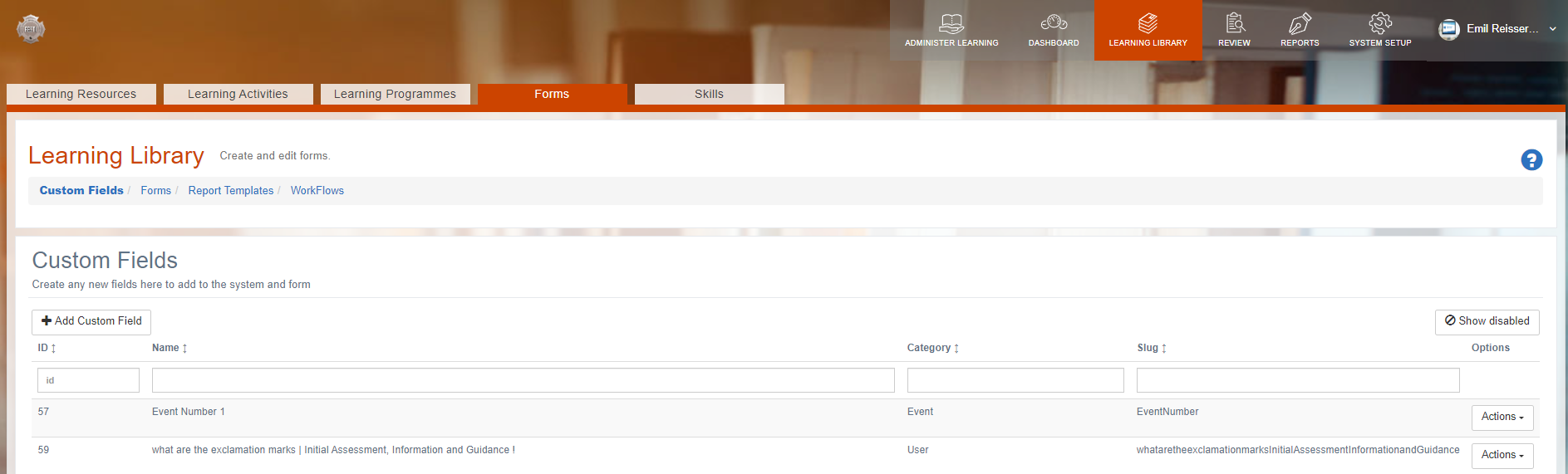
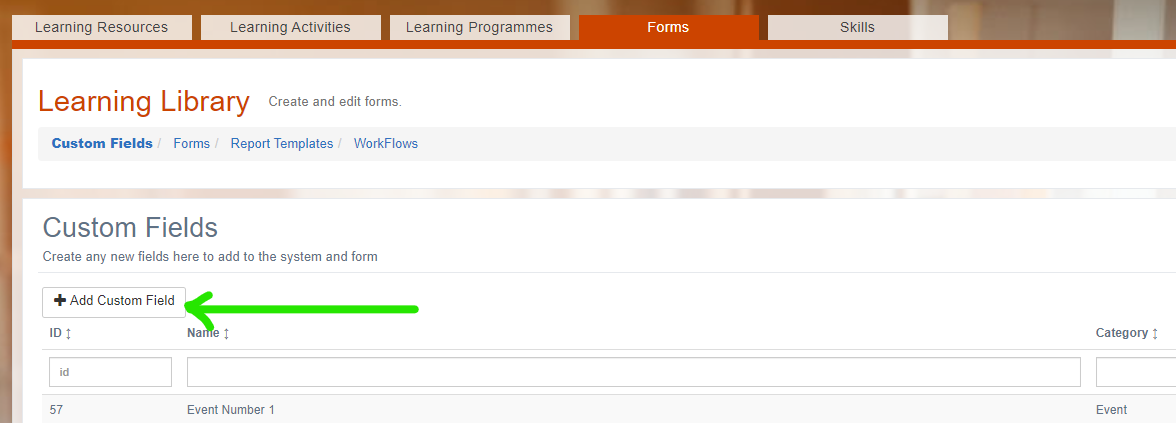
Select the Add Custom Field button.
Give the field a Name for reference.
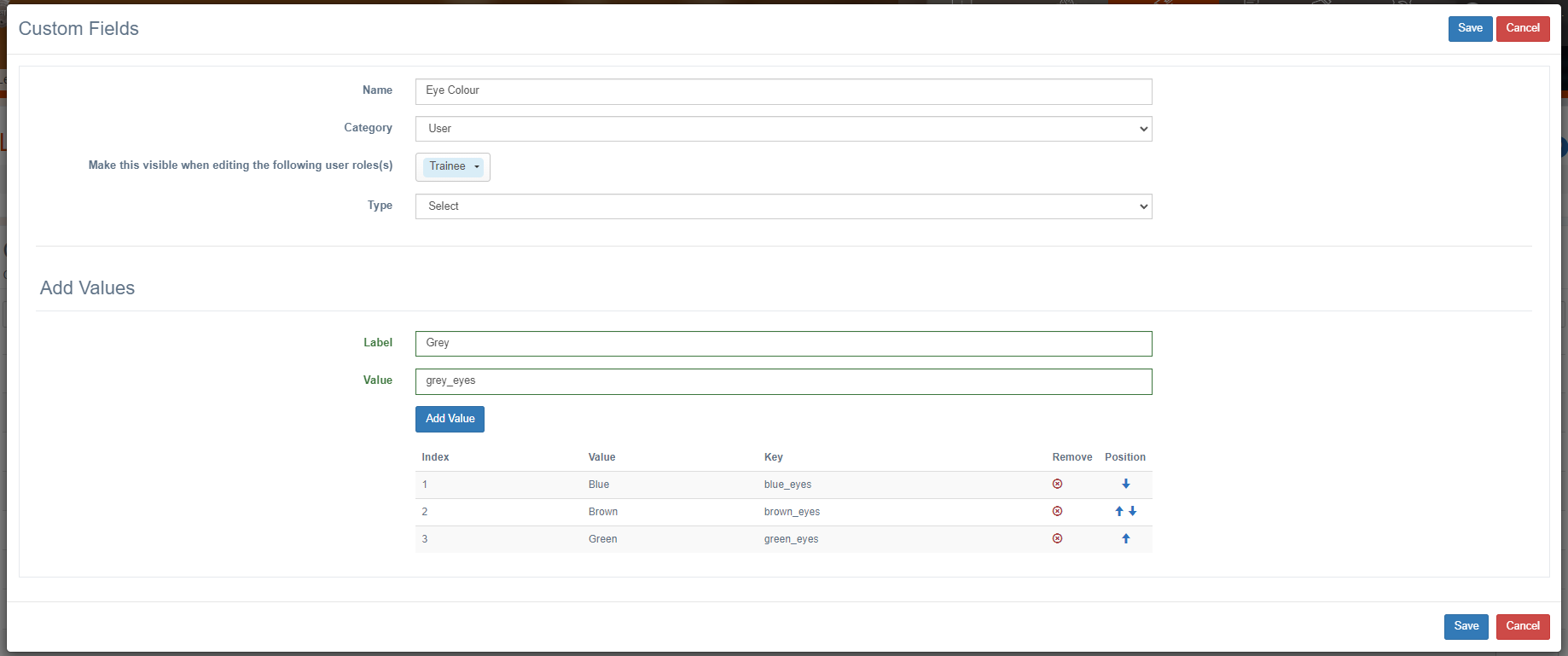
Select the Category, this is vital in order to collect and report on the data correctly. Below is a list of the data categories and a description of when they should be used.
User
For collecting data directly about the user (eye colour, marital status, favourite ice-cream etc.)Event
For collecting data directly about a single event (e.g. country where event is taking place, location etc.)Programme
For collecting data directly about the programme (level of study, tutor in charge etc.)Company
For collecting data directly about the company (legal status, registered address etc..)Department
For collecting data directly about the department (primary function, head of department etc.)Location
For collecting data directly about the location (postcode, timezone etc.)
There should be only one data point of each entry so that there is a one to one relationship between each user/event/programme/company/department/location and this field.Select the roles who should see these fields under the heading Make this visible when editing the following user roles(s). This will allow each of the selected roles to edit this field on any form.
Select the correct type and define any options accordingly. Note the Header type does not collect data for the field, instead it is used as a separator on the form to separate one group of data from another.
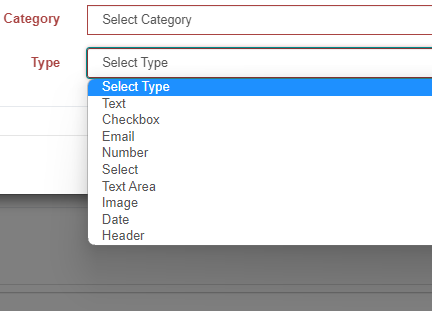
Many custom fields can be used outside the forms (e.g. a custom user field can be configured to collect data under the User Profile.
Related articles
- Page:
- Page:
- Page:
- Page:
- Page: