Add images to eLearning using the Open eLMS AI editor
Adding images is very easy, you can upload your own photos etc to tailor the eLearning to your precise requirements.
📘 Instructions
Follow these instructions step by step…
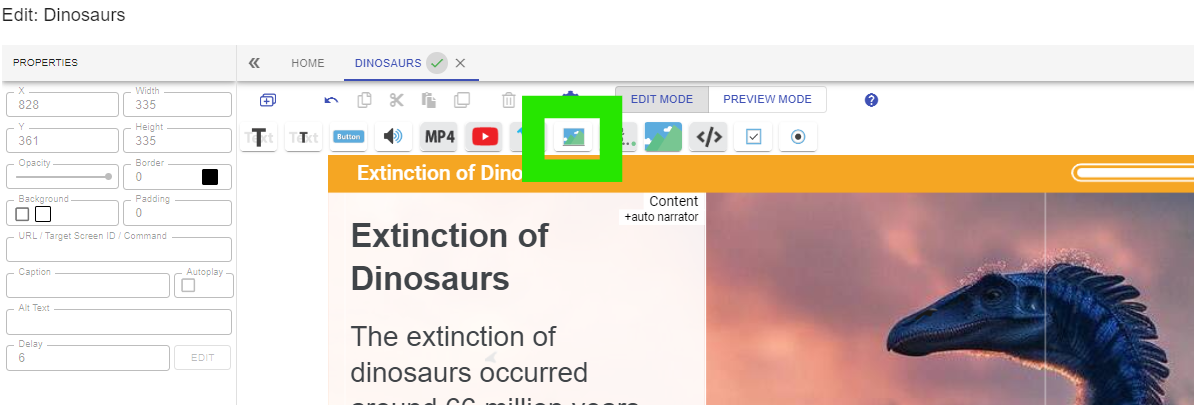
Open the eLearning page you want to add an image to and select the image button on the toolbar.
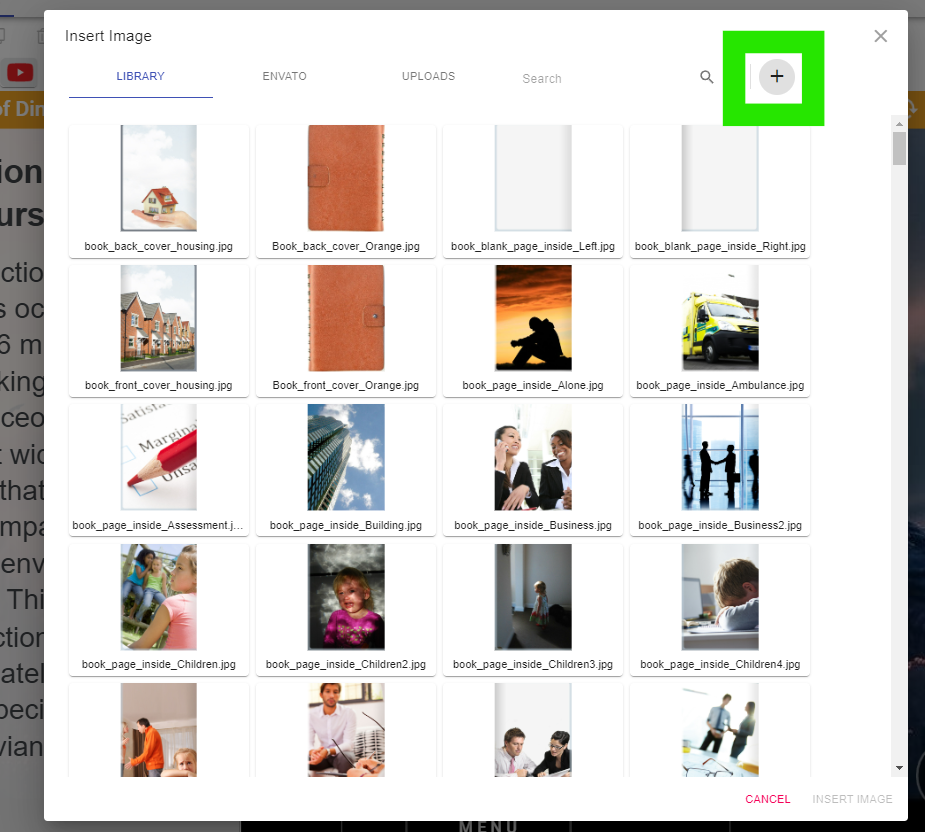
Press the Plus button to upload your own image.
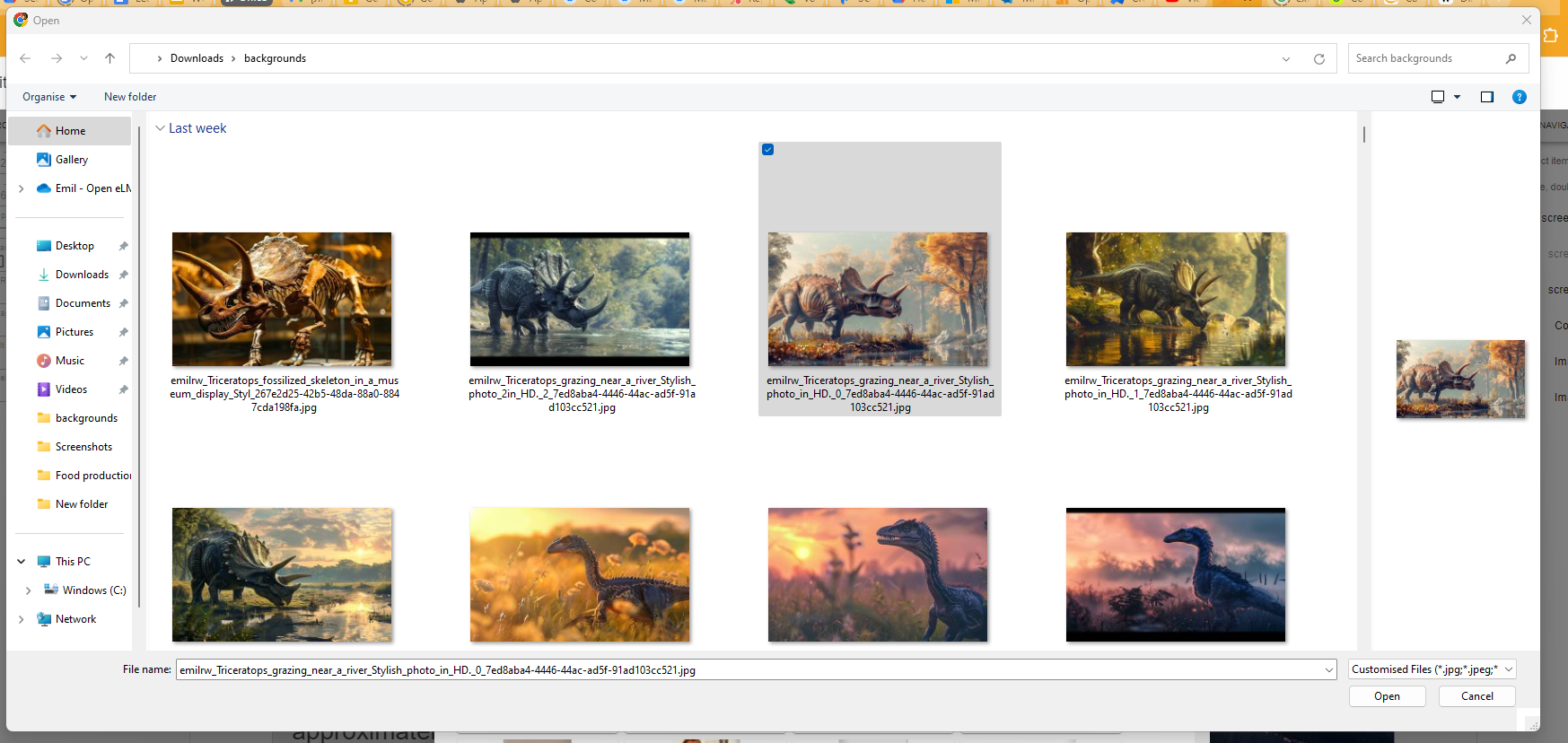
Select the desired image to upload.
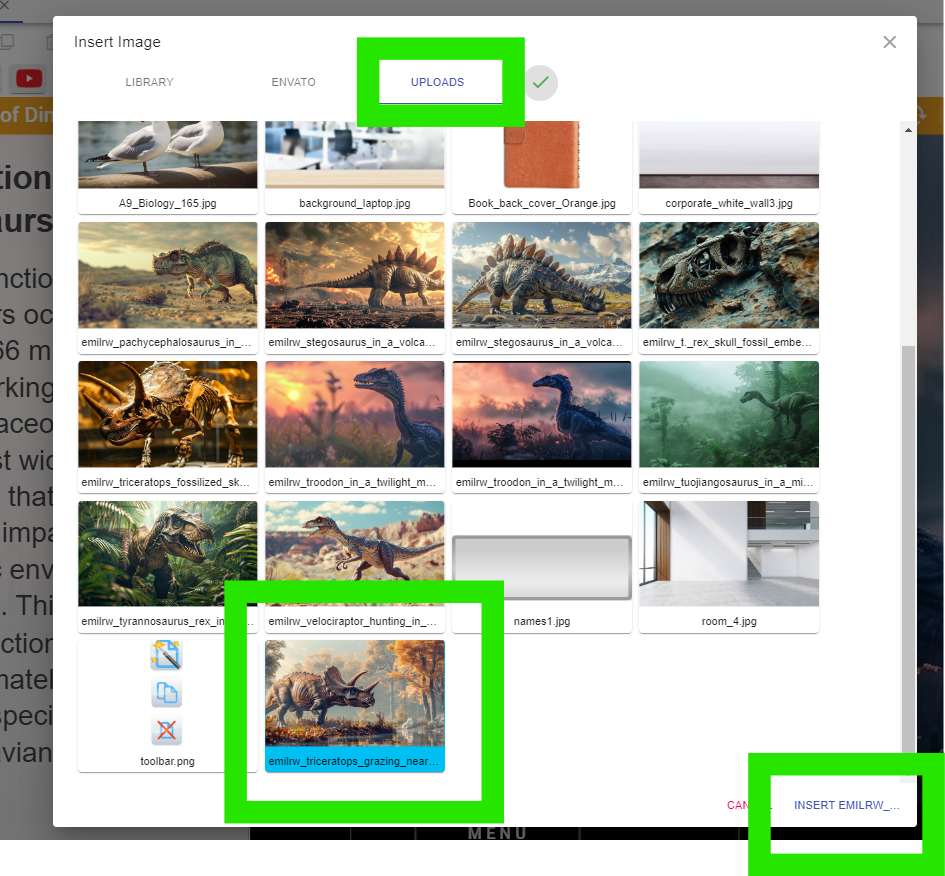
Select the UPLOADS tab and select the uploaded image for inclusion on the page.
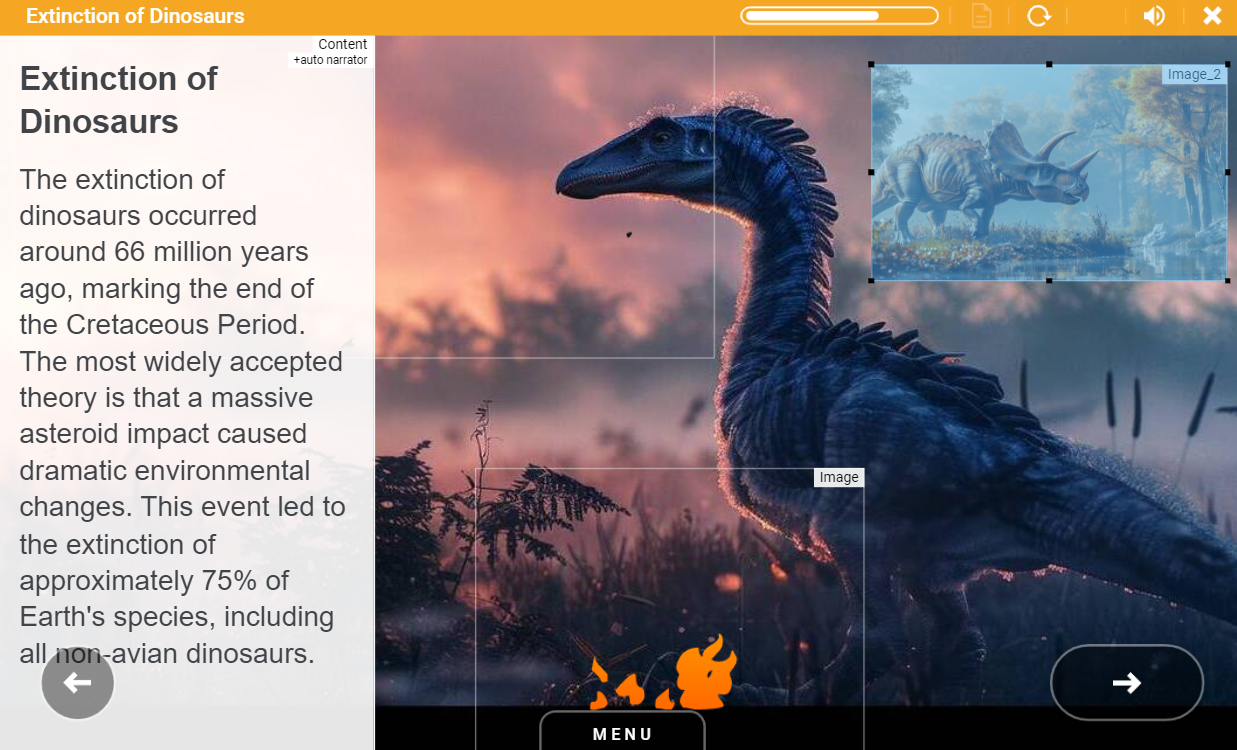
Resize the image and postion it on screen.
Optimise all images used in the system. Uploaded images can include PNG format (useful for small images with transparent backgrounds) and JPGs (we recommend that they are saved at a maximum of 500 pixels by 500 pixels and at a quality level of 70.
📋 Related articles
- Page:
- Page:
- Page:
- Page:
- Page: