Open eLMS Forms: Complete User Guide
Overview
Open eLMS Forms is a powerful data collection and workflow management tool that allows administrators and managers to create customizable forms for learner assessment, feedback collection, progress tracking, and administrative processes. Forms can be configured with sign-off workflows, custom fields, and automated assignment rules to streamline organizational processes.
Table of Contents
Getting Started
Accessing Forms
To access the Forms functionality in Open eLMS:
Log in as an Administrator
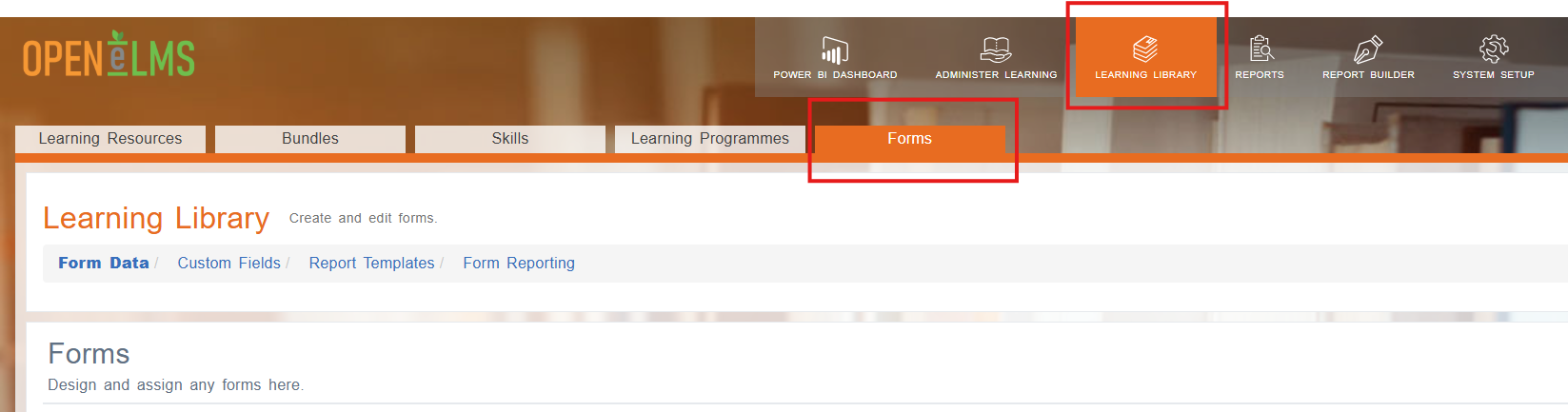
Go to Learning Library › Forms
Form Types
Open eLMS supports various types of forms:
Learner Assessment Forms - For progress reviews and evaluations
Feedback Forms - For course and event feedback
Risk Assessment Forms - For health and safety compliance
Administrative Forms - For data collection and reporting
Sign-off Forms - For formal approval processes
Creating Forms
Step 1: Create a New Form
Navigate to Learning Library > Forms tab
Select Form Data link
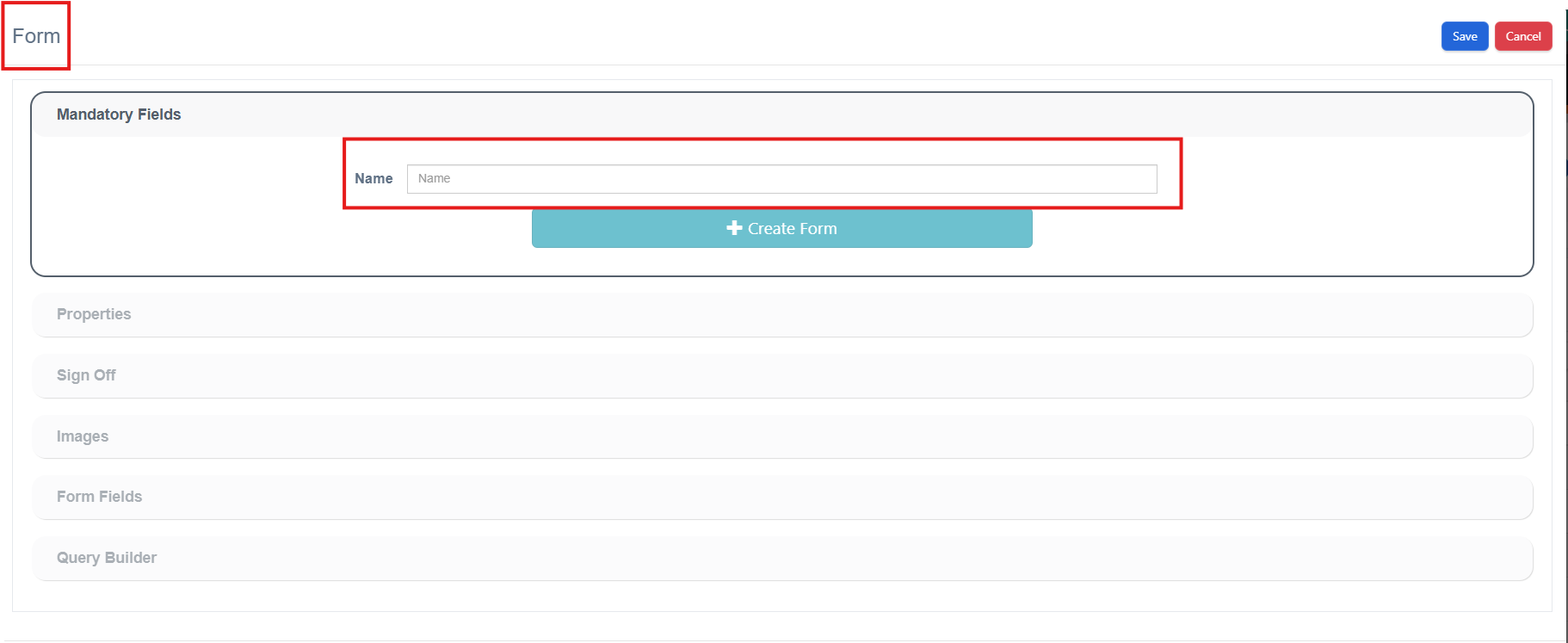
Click Add Form button
Give your form a descriptive Name

Step 2: Configure Form Properties
Configure the following properties based on your needs:
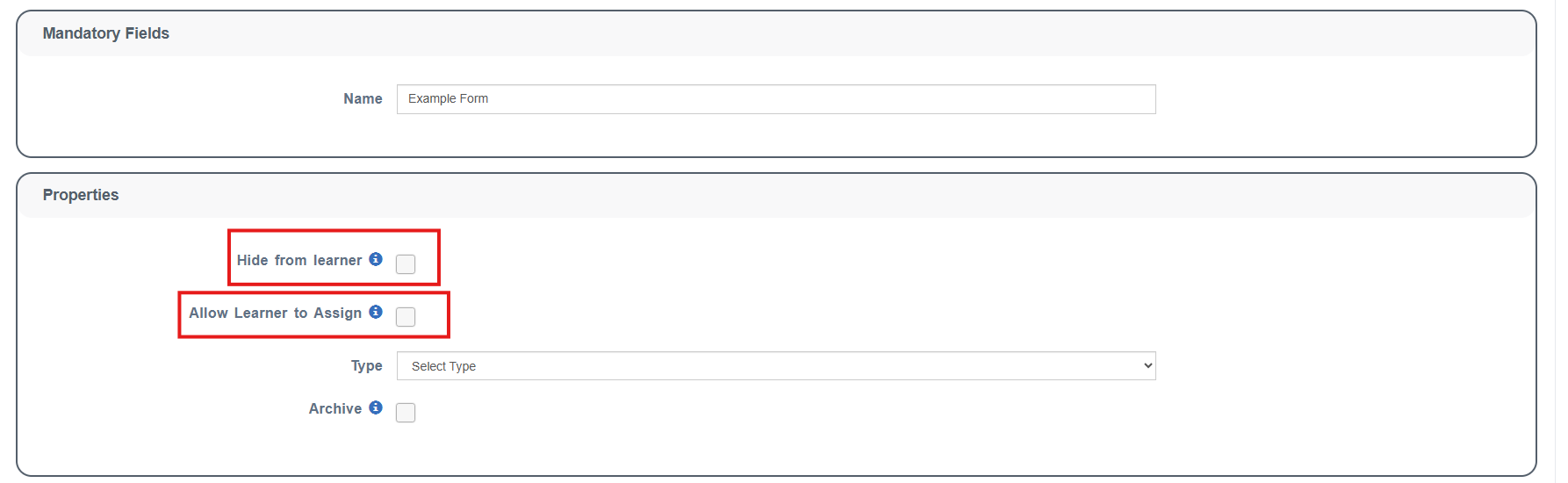
Hide from learner
✅ Check if the form contains confidential information about the learner
Used for: Career reviews, disciplinary records, manager-only assessments
❌ Uncheck for forms learners should complete themselves
Allow learners to assign
✅ Check to let learners select this form themselves
Appears in the learner interface for self-assignment
Type Dropdown
After configuring "Allow learners to assign", you'll see a Type dropdown with the following options:
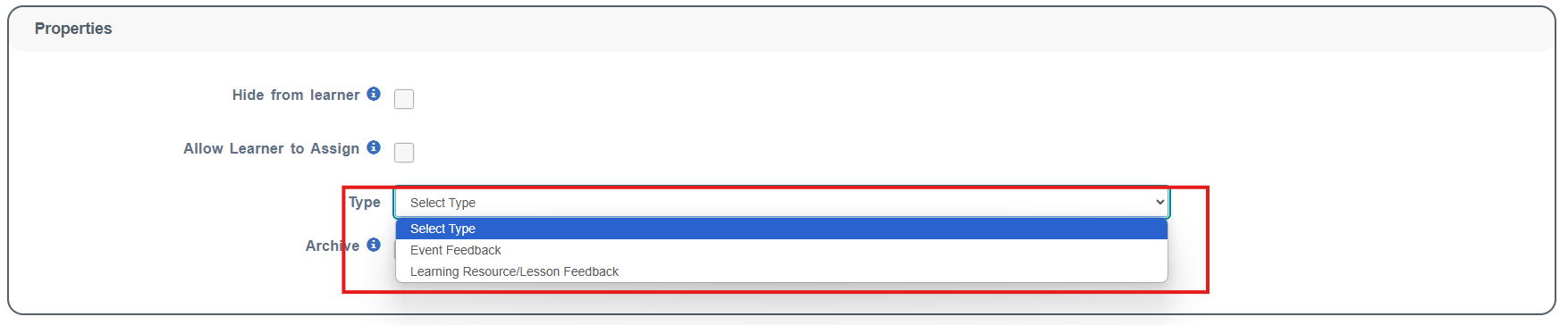
Event Feedback: Select this for forms specifically linked to events (webinars, classroom sessions)
- Assign to user who has attended an event
✅ Required for event feedback forms (when Type is set to "Event Feedback")
Links form to specific events (webinars, classroom sessions)
Learning Resource/Lesson Feedback: Select this for forms specifically linked to learning content and course evaluations
- Learning Resource/Lesson Feedback Form
✅ For feedback specifically linked to learning content (when Type is set to "Learning Resource/Lesson Feedback")
Used for course evaluations and learning assessments
Leave blank/default: If the form is not intended for event or learning resource feedback, simply leave this at the default setting
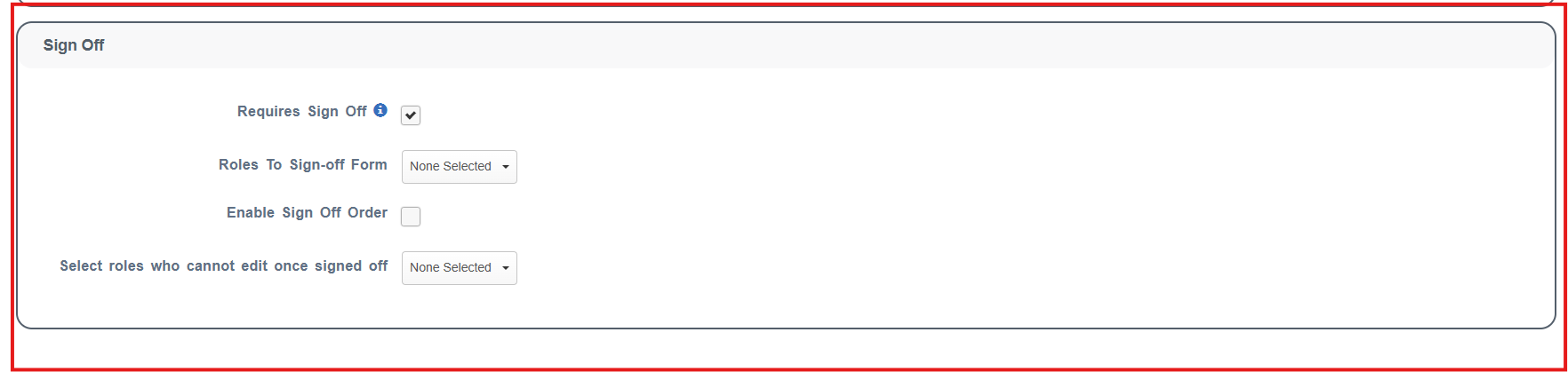
Requires Sign Off
✅ Check for formal approval processes
Creates a workflow involving learner and management
❌ Uncheck for simple feedback forms
When "Requires Sign Off" is enabled, additional options become available:
Add Roles for Sign Off:
Select which roles must sign off the form (e.g., Learner, Manager, Trainer, Administrator)
Multiple roles can be added to create multi-stage approval processes
Enable Sign Off Order:
✅ Check to enforce a specific sequence for sign-offs
When enabled, email notifications trigger in the selected order
Useful for hierarchical approval processes (e.g., Learner → Manager → Administrator)
❌ Uncheck if sign-offs can happen in any order
Select roles who cannot edit once signed off:
Choose which roles lose editing permissions after completing their sign-off
Prevents accidental changes after approval
Can be configured per role (e.g., learners cannot edit after signing, but managers retain editing rights)
Helps maintain integrity of the approval process
Step 3: Add Form Fields
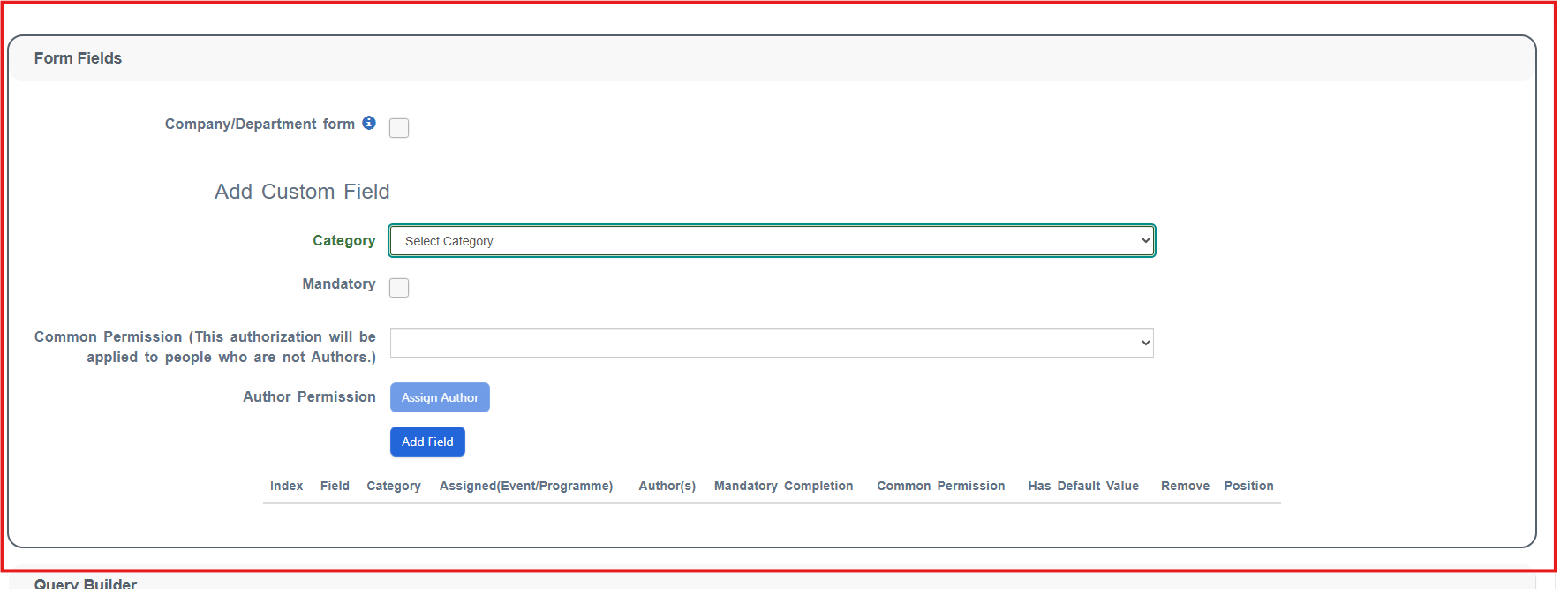
NB: Company/Department Form
✅ Check for location or organizational audits
❌ Usually unchecked for individual learner forms
When checked: Responsibility is shared rather than individual
Add Custom Field section
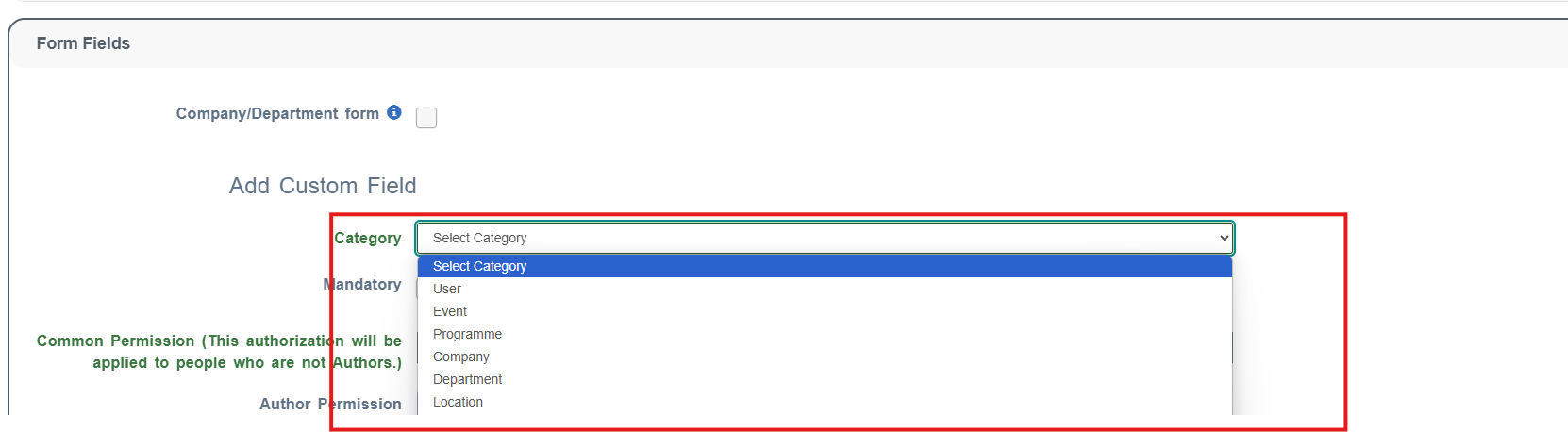
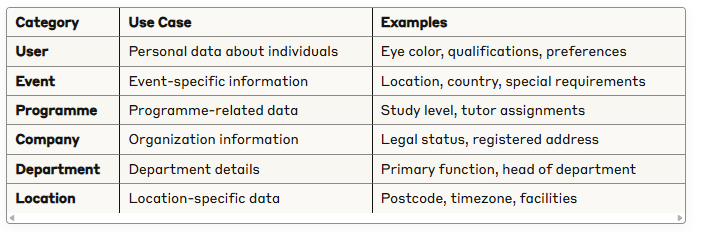
Select field category: Choose which category the form fields will be selected from:
User: For personal data about individuals
Event: For event-specific information
Programme: For programme-related data
Company: For organization information
Department: For department details
Location: For location-specific data
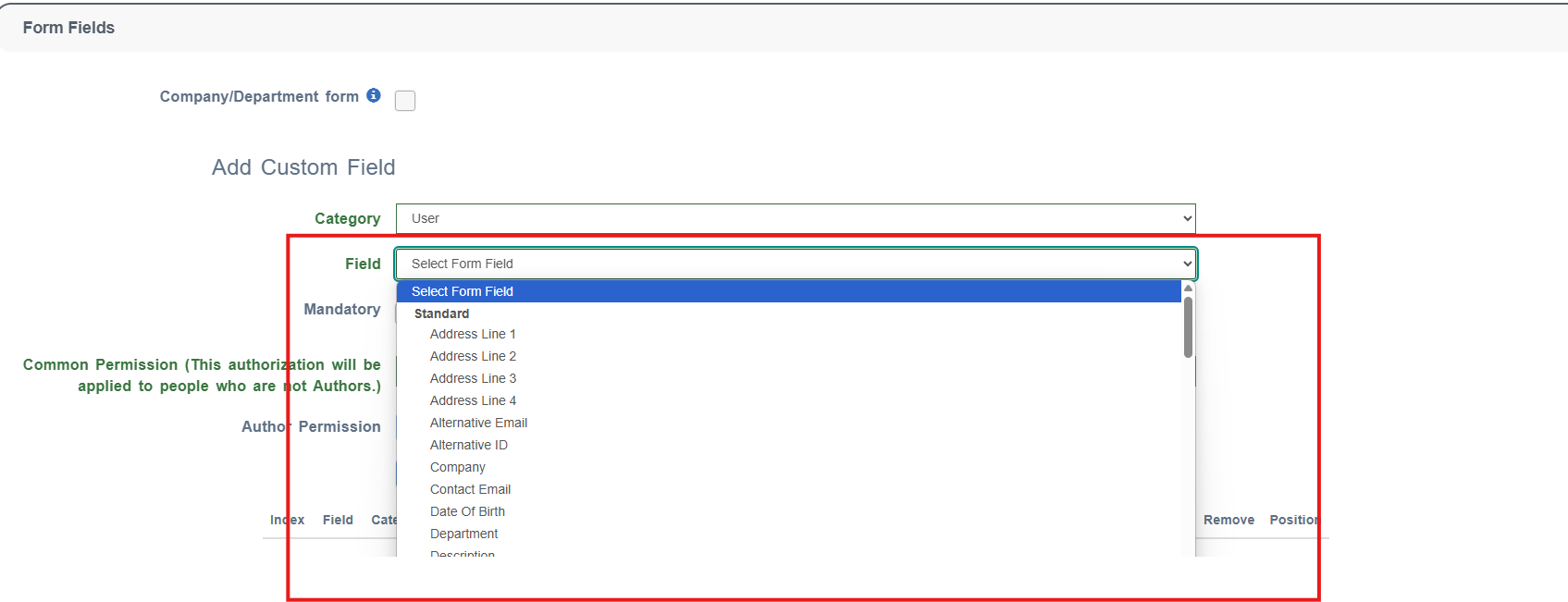
Select from existing system fields or from created custom fields (steps on how to do this are in the next section) within the chosen category:
Configure field permissions:
Mandatory: Must be completed i.e. user cannot complete form without completing this field
Common Permission: Same permissions for all roles (read/write/hide)
Author Permission: Role-specific permissions (e.g., learner views, manager edits)
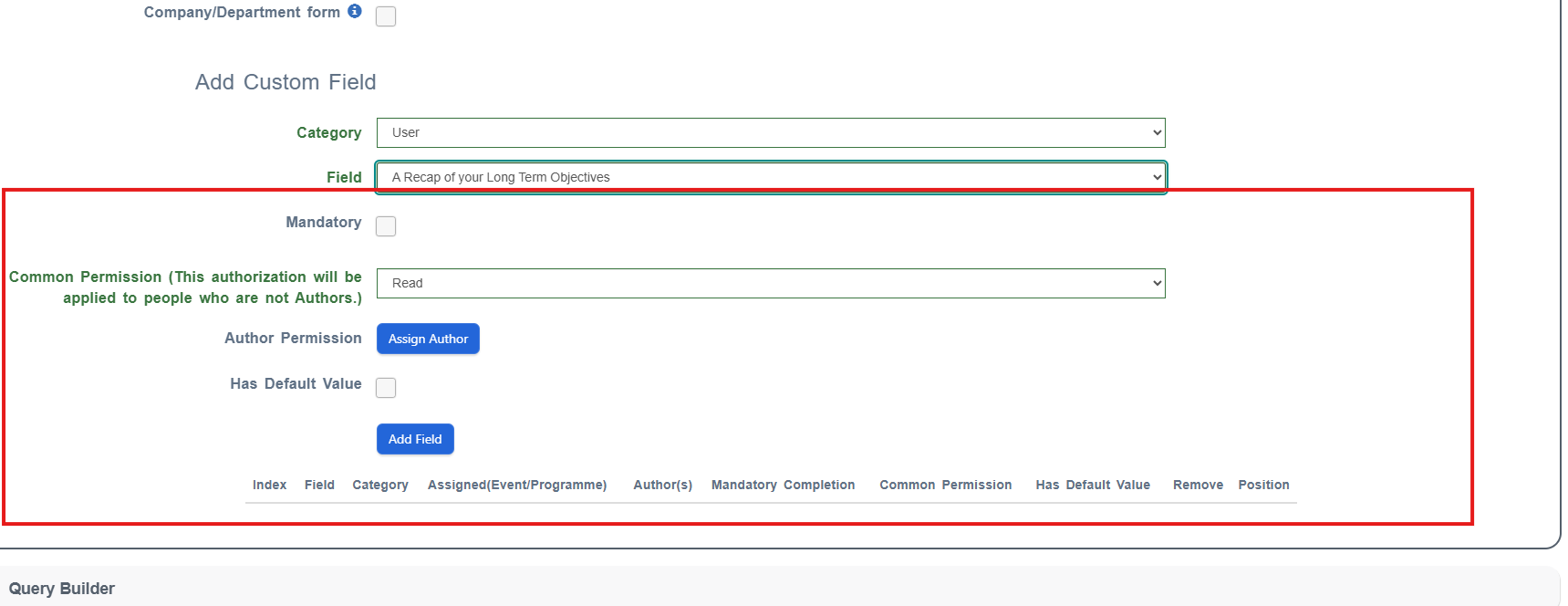
Has Default Value (optional):
✅ Check to set a default value for the field
When checked, a dropdown appears with the following options:
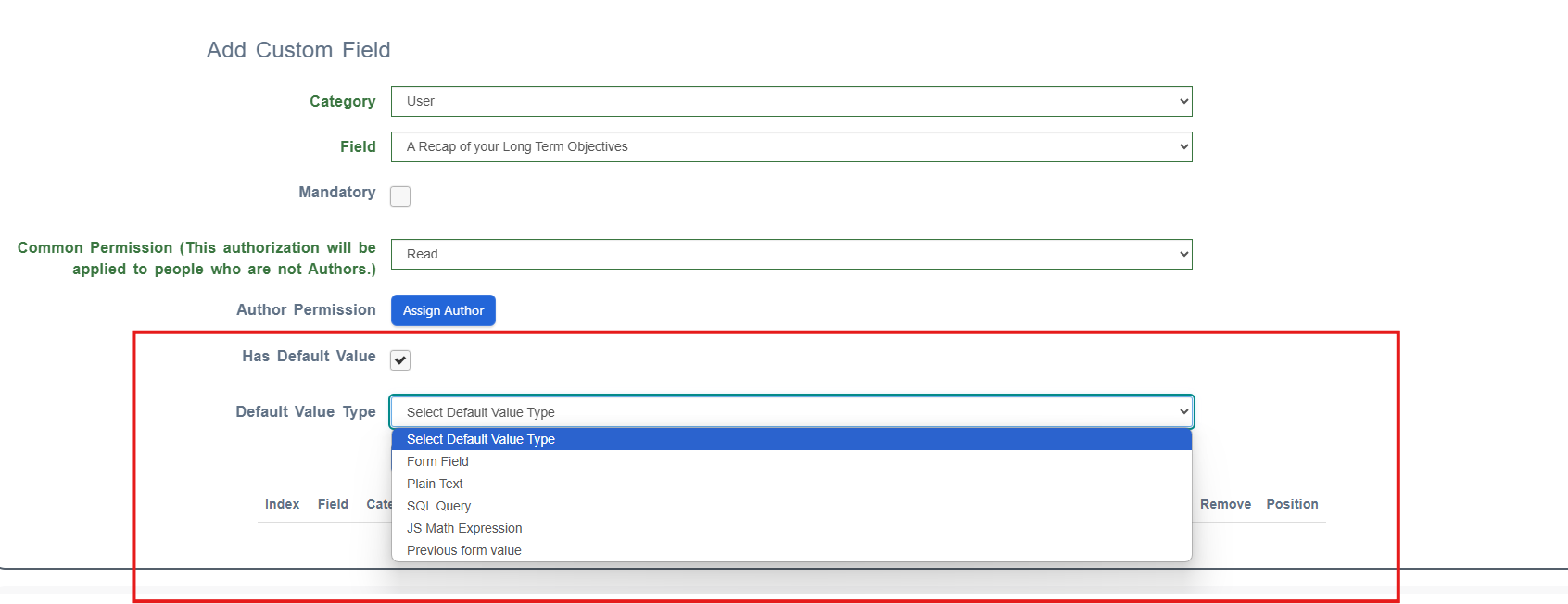
Form Field:
Can take previous or current values from any field on any other form currently live on the system
Useful for carrying forward data between related forms
Example: Automatically populate learner details from enrollment form to progress review form
Plain Text:
Enter a static default value that will appear in the field
Users can modify this value when completing the form
Example: Default text like "To be completed" or standard responses
SQL Query:
Add a custom database query to populate the field
Advanced option for dynamic data population
Requires technical knowledge of database structure
JS Math Expression:
Use JavaScript mathematical expressions for calculated fields
Can perform calculations based on other field values
Example: Automatically calculate totals, percentages, or derived values
Step 4: Save and Configure Assignment
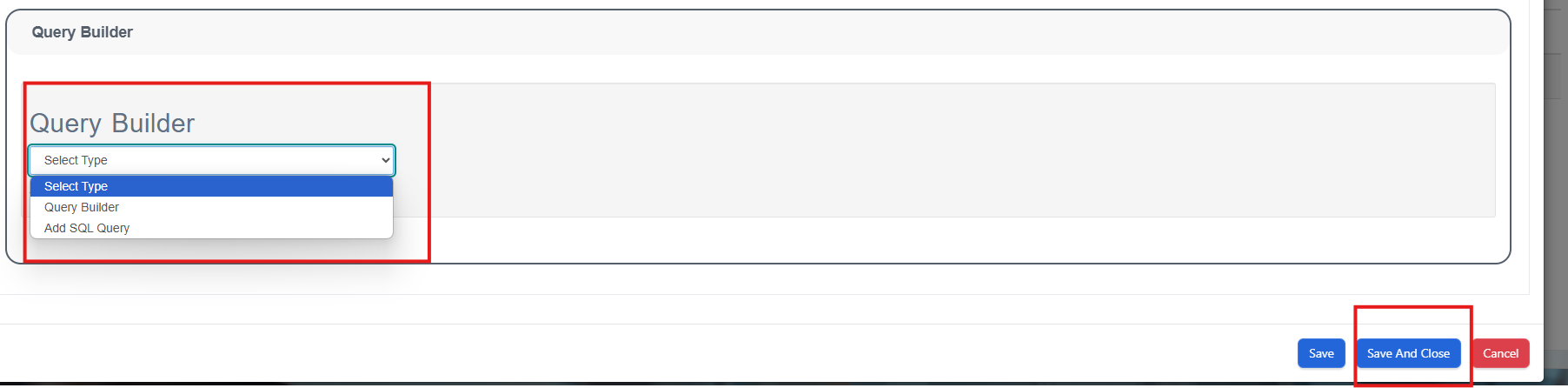
Add a Query Builder rule for automatic assignment (optional)
Click Save and Close
Custom Fields
Custom fields allow you to collect specific data for your organization's needs.
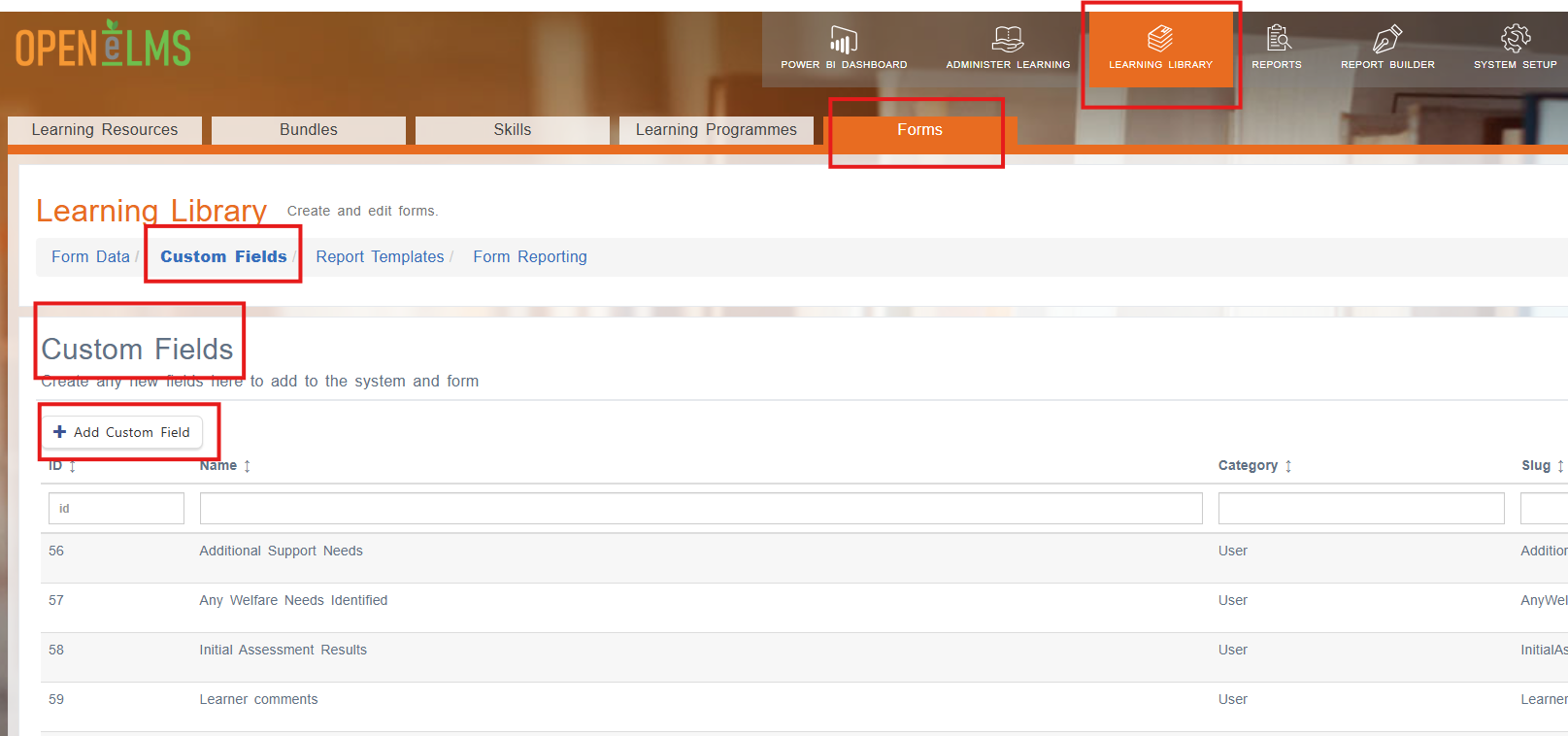
Creating Custom Fields
Go to Learning Library > Forms tab
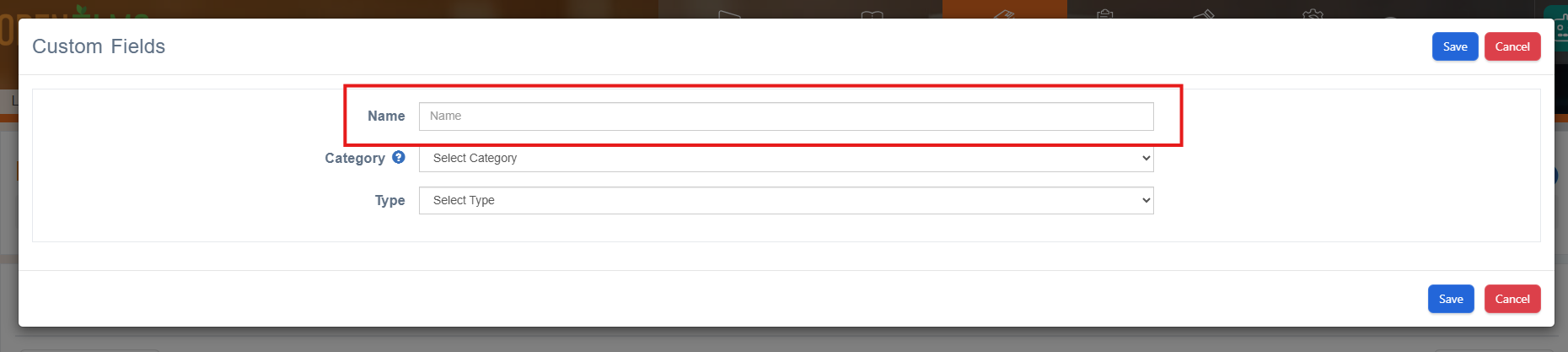
Click Add Custom Field button
Provide a descriptive Name
Field Categories
Choose the appropriate category for your data:

Make This Visible in Specific Category Section
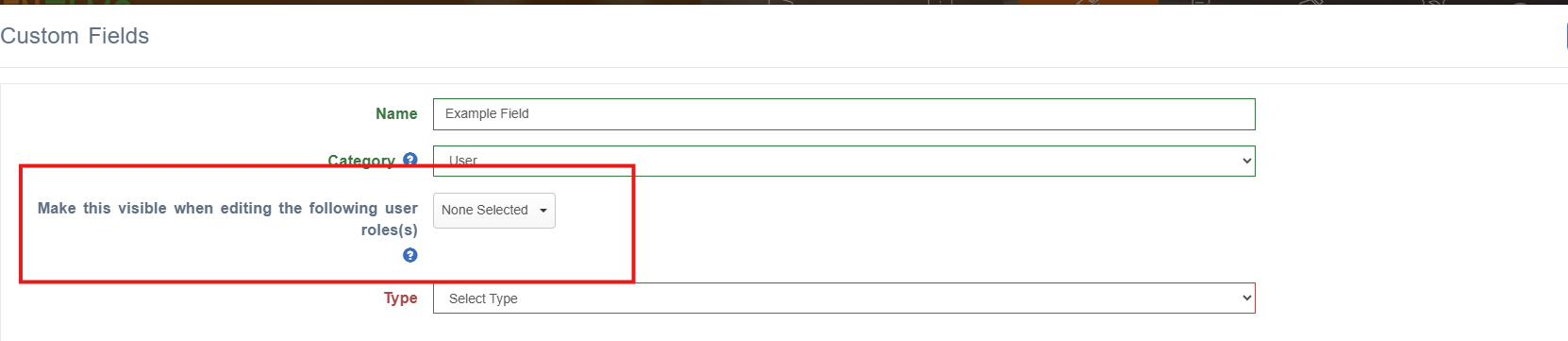
When selecting a category, an additional option appears: "Make this visible in specific category section"
✅ Check this option to make the field appear in two places:
As a Form Field option when building forms
As a custom field in the relevant system section
Examples:
User category field with this checked: Appears in forms AND on the edit user profile page for learners
Event category field with this checked: Appears in forms AND in the event setup/editing interface
Department category field with this checked: Appears in forms AND in department management pages
❌ Uncheck this option if you only want the field to be available for forms and not appear elsewhere in the system
Benefits of enabling this option:
Dual functionality: Use the same field for both forms and general data management
Consistency: Ensures the same data structure across different system areas
Efficiency: Avoid creating duplicate fields for the same purpose
Field Types
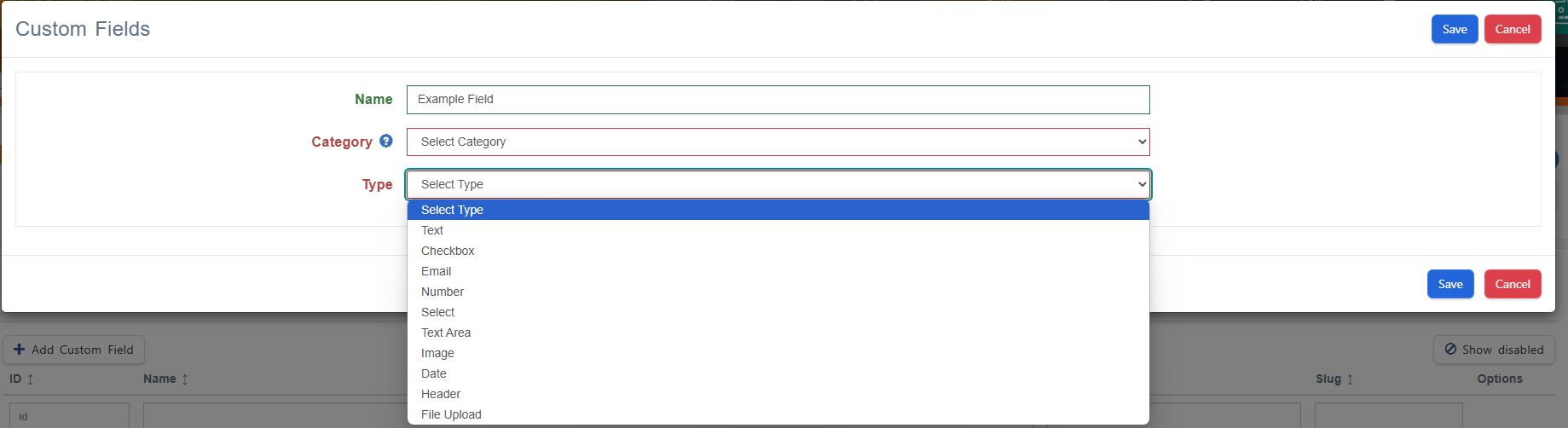
Text: Single line text input
Textarea: Multi-line text input
Select: Selection from predefined options
Checkbox: Yes/no or multiple selections
Date: Date picker
Number: Numeric input
File Upload: Allows users to attach files to the form
Header: Section separator (doesn't collect data)
Role Visibility
Configure which user roles can see and edit each field (examples below):
Learner: End users taking courses
Manager: Line managers and supervisors
Administrator: System administrators
Trainer/Coach: Training staff
Form Assignment
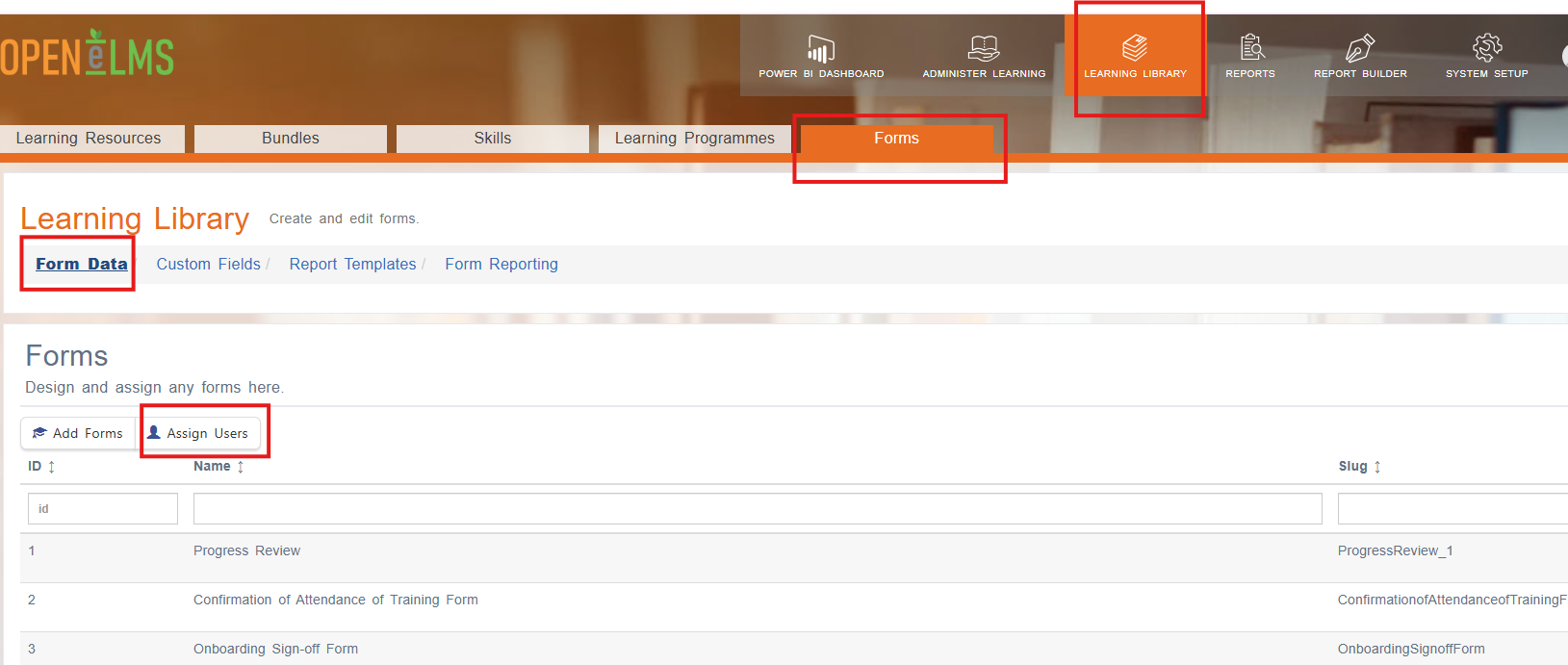
Method 1: Manual Assignment
Navigate to Learning Library > Forms tab
Select Forms link
Click Assign Users button
Select your form and target users:
Departments: Assign to entire departments
Groups: Assign to specific user groups
Jobs: Assign based on job roles
Employees: Assign to individual users
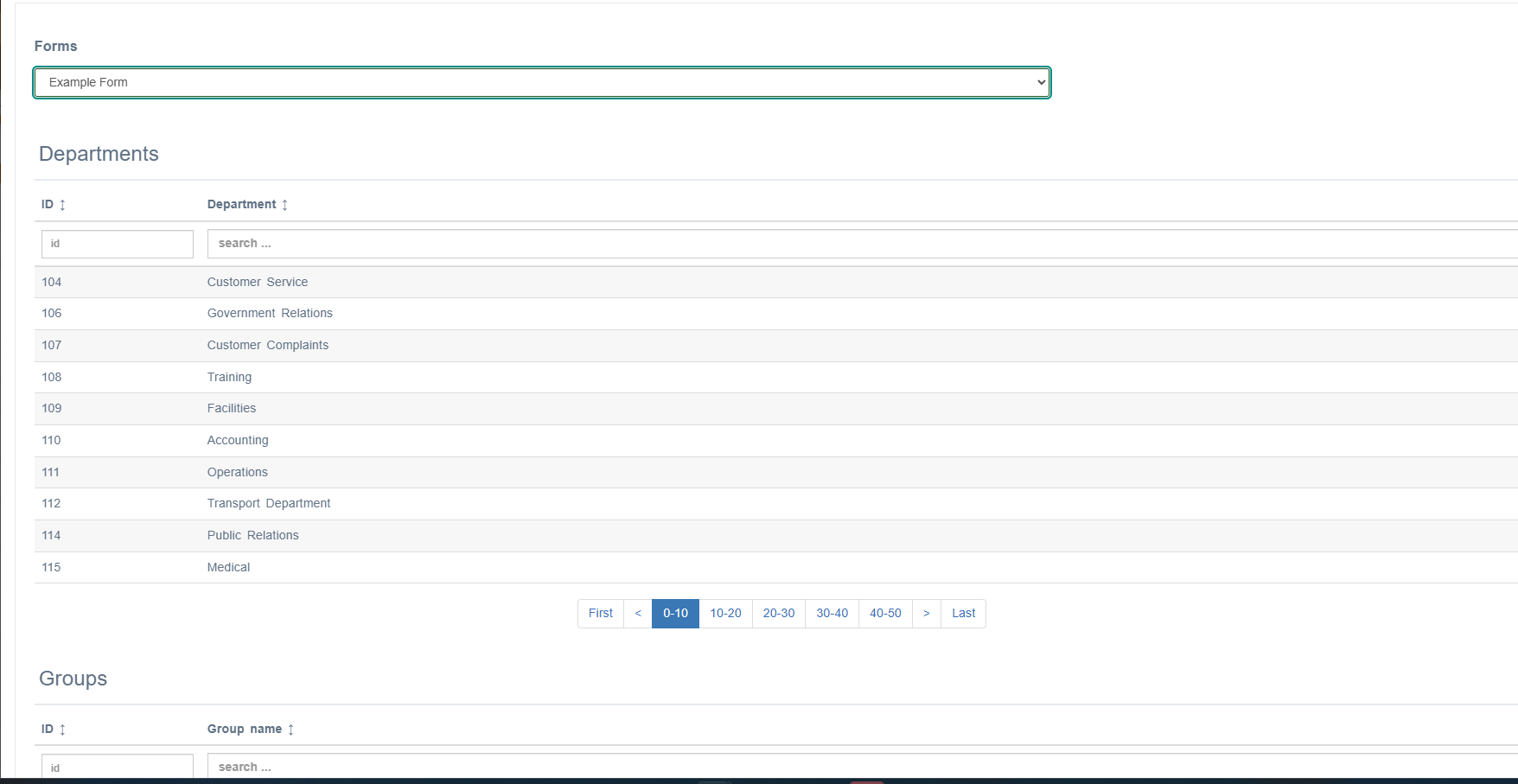
Note: Forms may take several minutes to appear on learner accounts.
Method 2: Query-Based Assignment
Query-based assignment allows automatic form assignment based on specific criteria. This is configured within the Edit Form interface of the form you want to set up with automatic assignment.
To set up a query:
Navigate to the form you want to configure
Click Edit Form
Scroll to the Query Builder section
Configure your assignment criteria
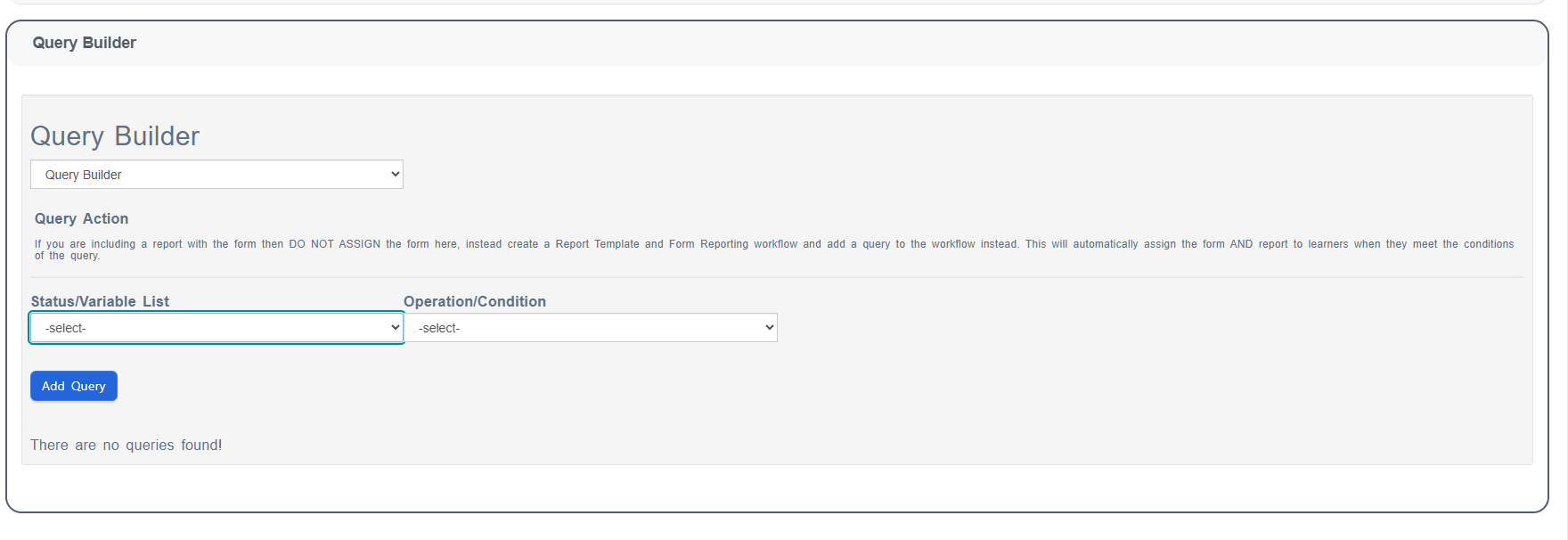
Available query elements include:
Organisation:
Company membership
Department assignment
Group membership
Job roles
Location-based criteria
Programmes:
Learning programme enrollment
Programme completion status
Programme start/end dates
Timing-Based Criteria:
Days since a resource was completed
Time elapsed since course enrollment
Days until programme completion
Specific date ranges
Form Status:
Completion status of other forms
Sign-off status of related forms
Form submission dates
Resource Status:
Learning resource completion
Resource progress percentage
Assessment results
Event attendance status
Example Query: Automatically assign a "Progress Review Form" to all learners in the "Engineering Department" who completed "Health & Safety Training" more than 30 days ago.
Method 3: Workflow Assignment
Assign workflows (which include multiple forms and reports) for comprehensive processes:
Go to Learning Library > Forms tab
Select Workflows link
Click Assign Users
Select workflow and target users
Form Templates
Overview
Form Templates allow clients to create custom-designed forms using their own branding and layout while mapping data from Open eLMS forms using field keys. These templates can be used to generate professional PDF outputs that maintain organizational branding and formatting standards.
What are Form Templates?
Form Templates enable organizations to:
Design custom layouts: Use your own form designs and branding
Map form data: Link Open eLMS form fields to template positions using
%%field_name%%keysGenerate PDF outputs: Create professional printable documents
Maintain branding: Ensure forms match organizational standards
Key Features
Custom Design Freedom: Upload your own form designs
Field Mapping: Use
%%field_name%%syntax to map any form fieldPDF Generation: Professional PDF output for printing or sharing
User Profile Integration: PDFs accessible via the forms area in user profile pages
Workflow Integration: Templates can be added to Form Workflows
Creating Form Templates
Step 1: Design Your Template
Create your form design - you can use a Word document or Google Doc
Include field placeholders using the
%%field_name%%syntax where data should appear
Step 2: Configure Field Mapping
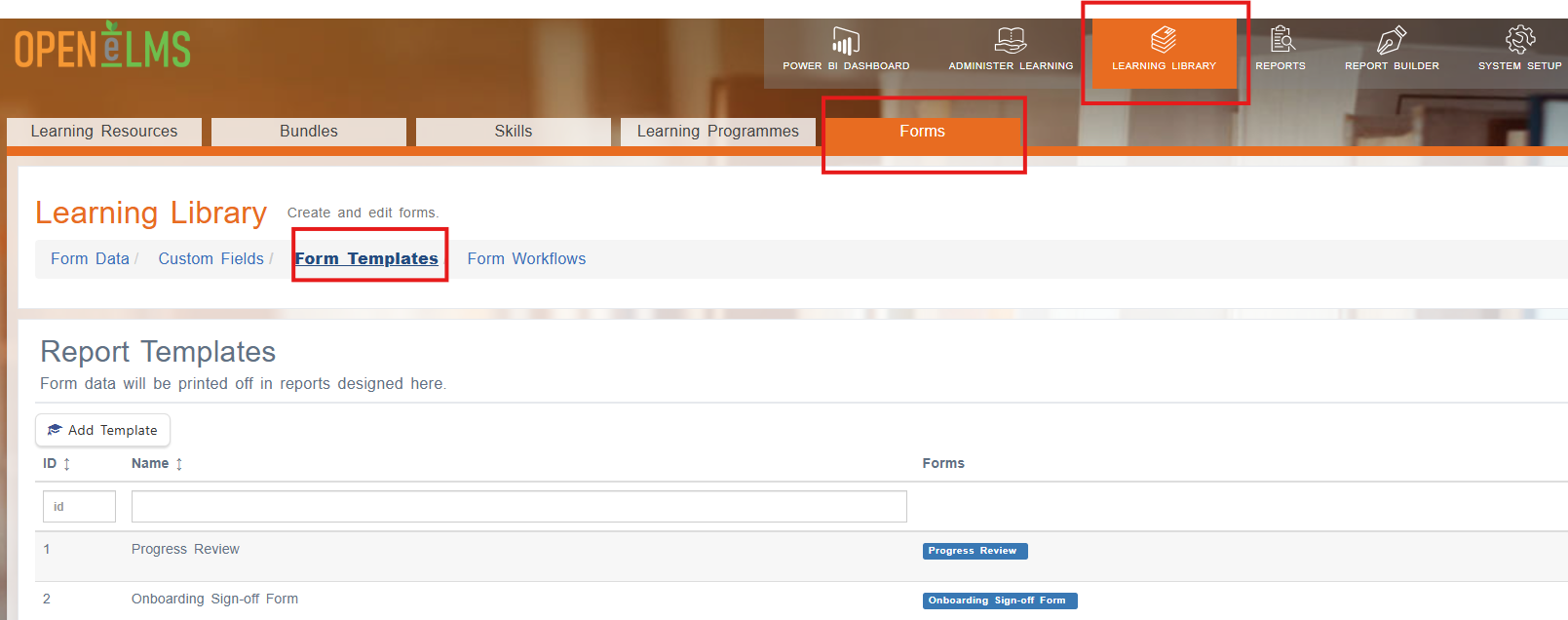
Navigate to Learning Library > Forms tab
Select Form Templates link
Click Add Template button
Upload your template design
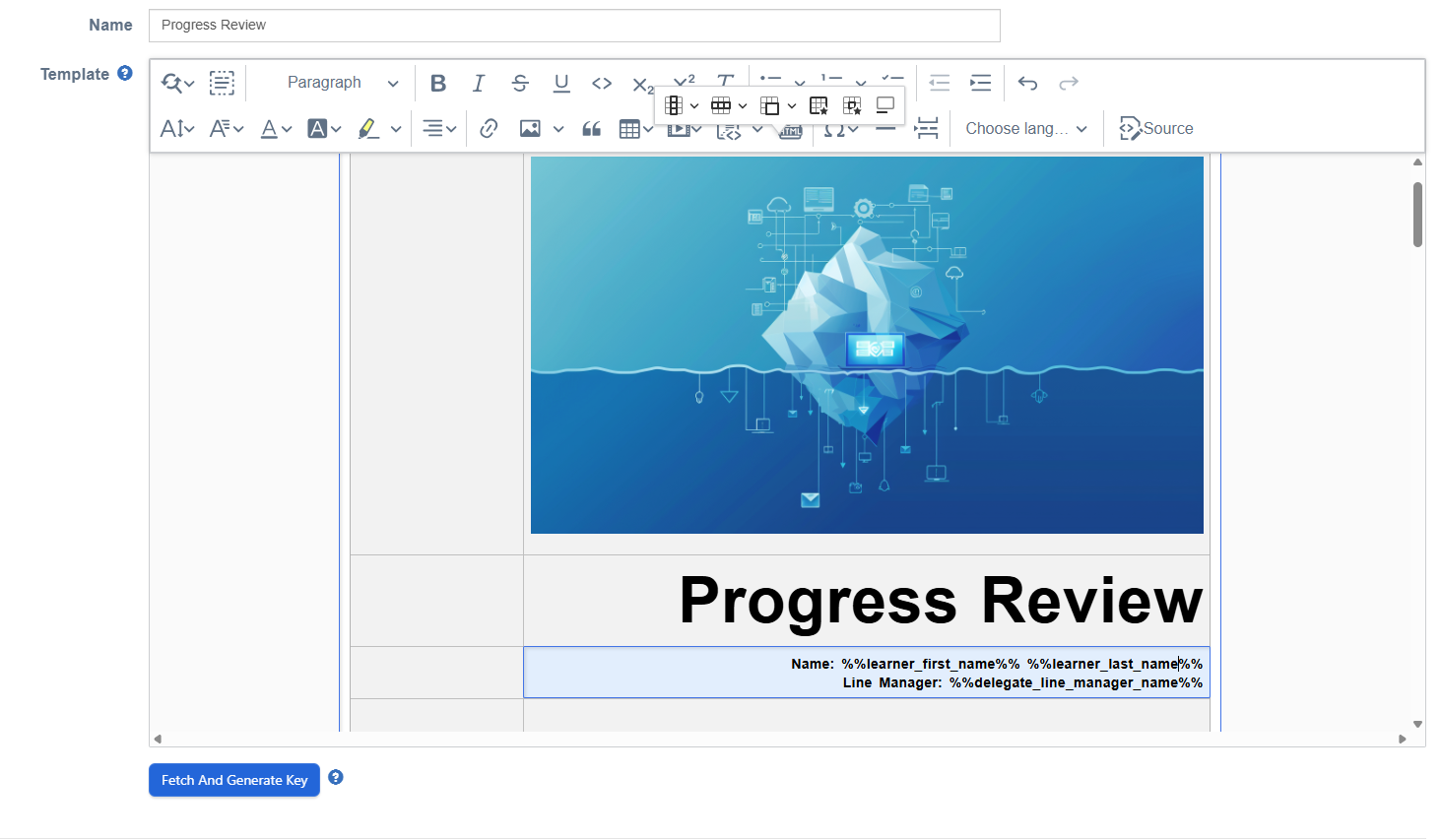
Configure field mappings:
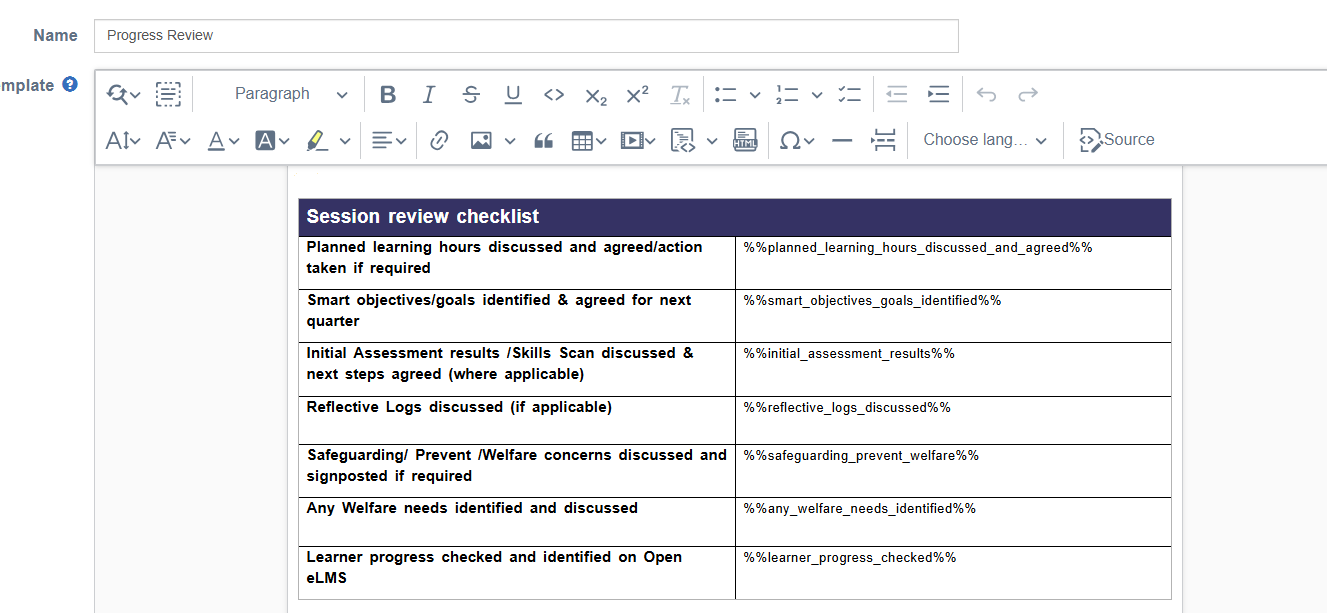
Field Key Syntax: %%field_name%%
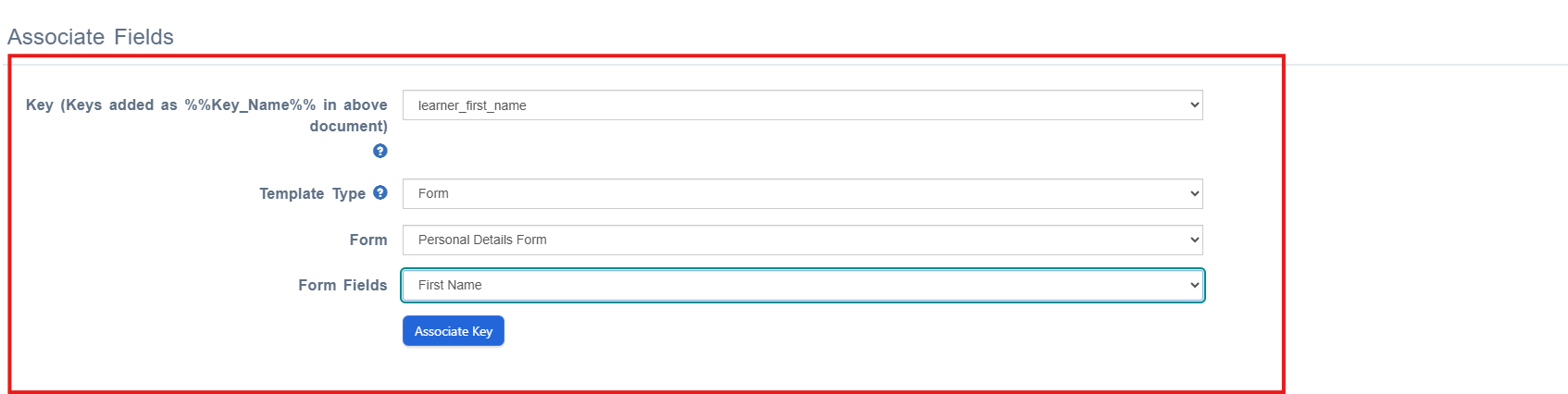
You can map any field into the template by using the %%example%% syntax and utilizing the Fetch and Generate Key button, which provides options to choose which specific form and field you want to map.
Using the Fetch and Generate Key Button:
Click the Fetch and Generate Key button in the template editor
A dropdown appears showing all the
%%fields found in your documentSelect the
%%field%%placeholder you want to configureChoose the source form containing the field you want to map
Select the specific field from that form
Press the Associate Key button to complete the mapping
Form Workflows
What are Workflows?
Workflows combine multiple forms and reports into a single assignable process, streamlining complex documentation requirements.
Benefits
Simplified assignment: One workflow includes all required documentation
Consistent processes: Standardized procedures across the organization
Automated reporting: Combined data from multiple forms
Reduced administrative overhead: Assign once instead of multiple times
Creating Workflows
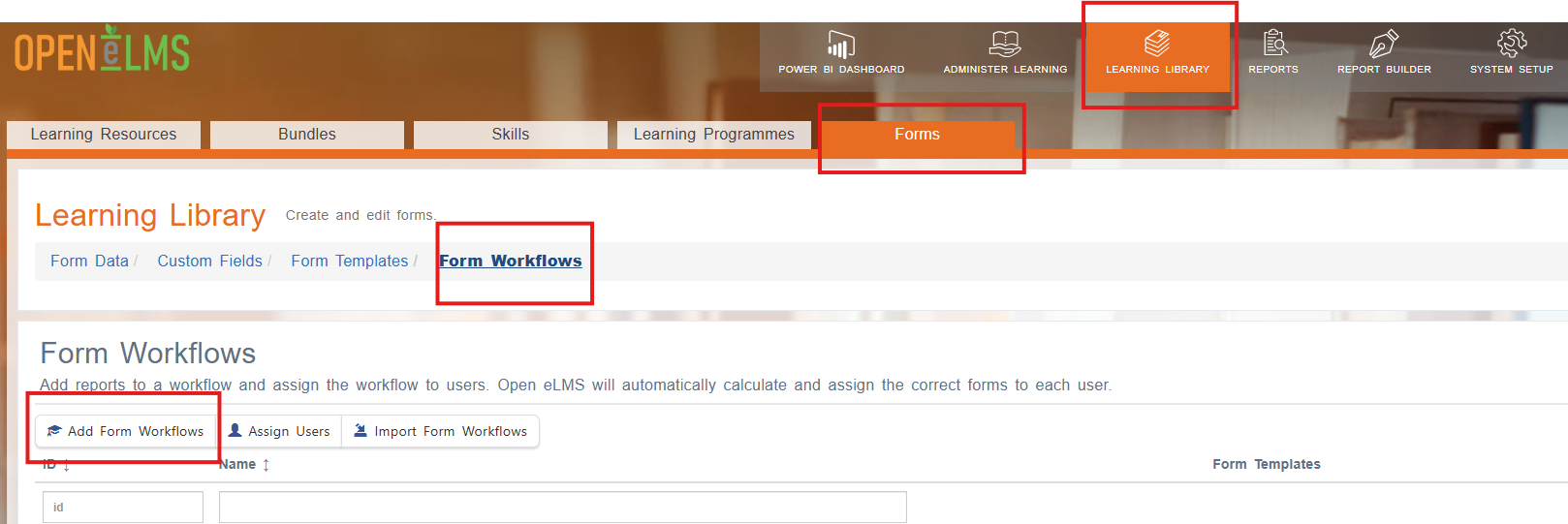
Workflows must be created after Form Templates have been set up, as templates can be included in workflow processes.
Step-by-Step Process:
Navigate to Learning Library > Forms tab
Select Workflows link
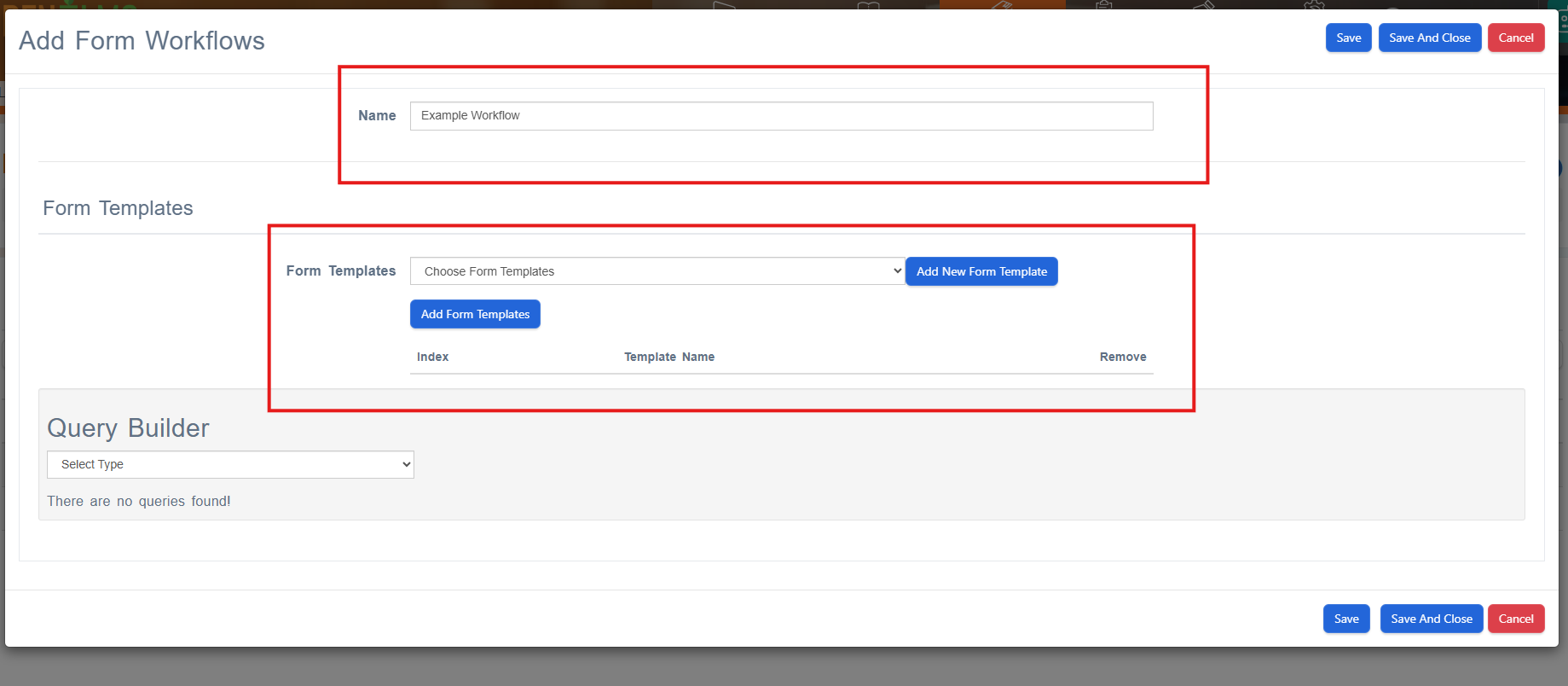
Click Add Workflow button
Create a name for the workflow (descriptive name for easy identification)
Choose from available Form Templates:
Select one or more templates to include in the workflow
Templates will be combined into a single assignable process
Each selected template can generate its own PDF output
Workflow Assignment Options:
Once created, workflows can be assigned through three methods:
Direct Assignment from Form Workflows Area:
Assign to specific users, departments, groups, or jobs
Manual assignment for targeted distribution
Event Configuration Integration (see Event Integration instructions below):
Add workflows to Event Types or Event Visit Types
Automatic assignment when users register for events
Query Builder Assignment:
Set up automatic assignment rules based on criteria
Dynamic assignment based on user attributes or actions
Event Integration
Workflows can be mapped to Events to automatically add forms to specific events or meetings:
Configuration Process:
Create your workflow following the steps above
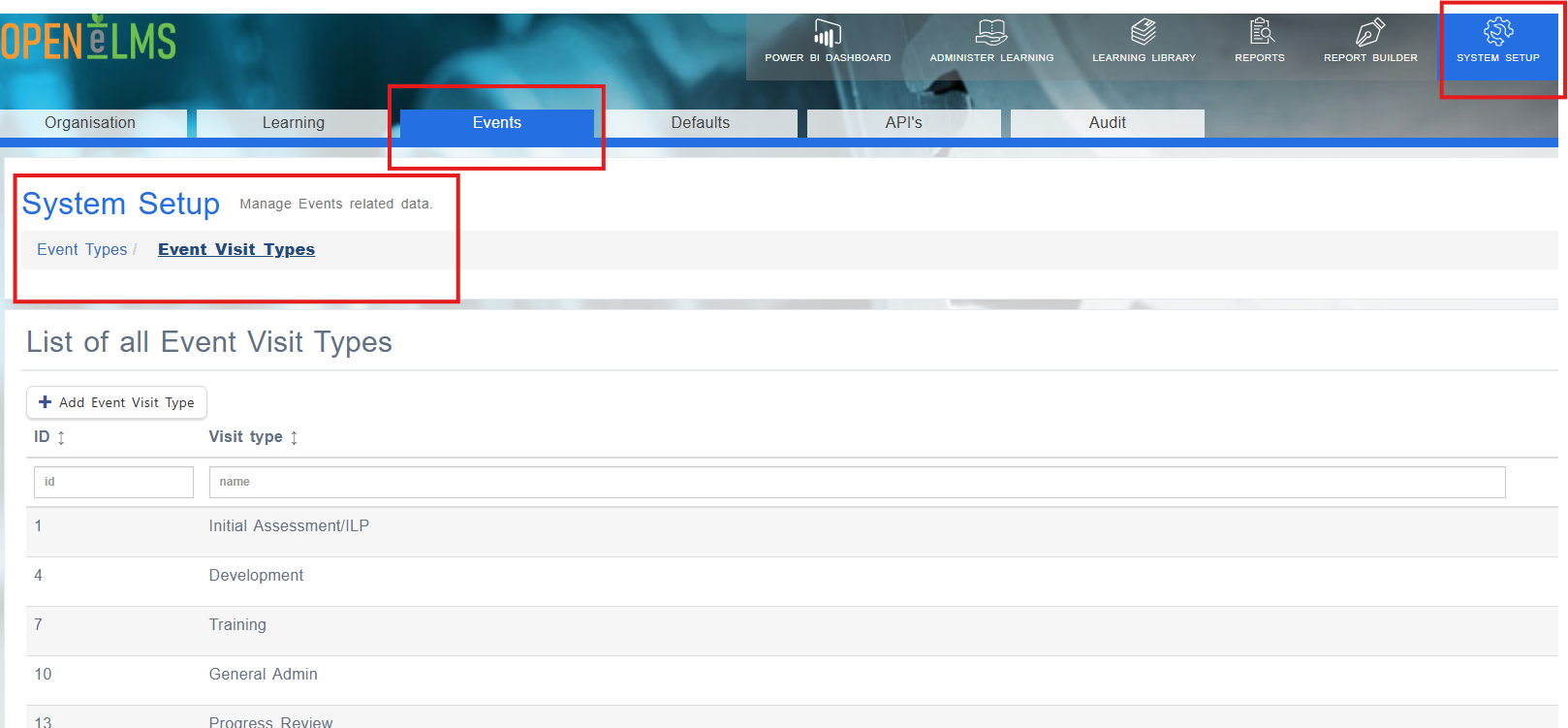
Navigate to System Setup > Events
Access Event Types or Event Visit Types configuration
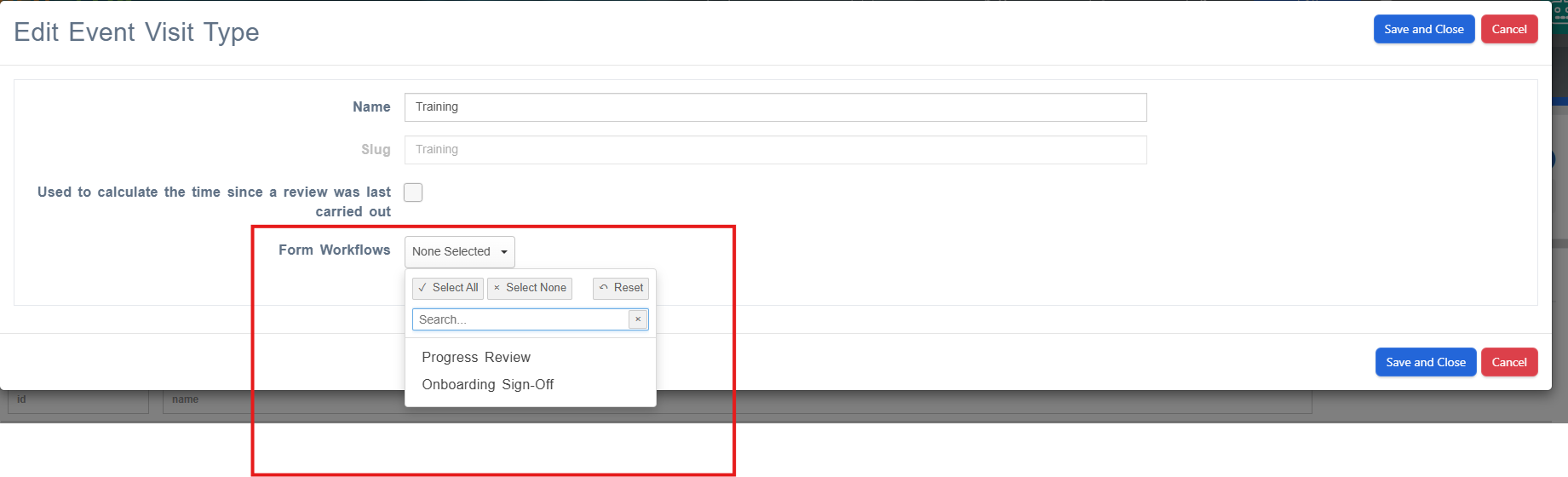
Edit the specific event type or visit type you want to configure
In the edit section, select the workflow from the available created workflows
Save the configuration
Automatic Assignment: Once an event is added to the system with an attached workflow:
Forms are automatically assigned to all users registered for that event
No manual form assignment required
Consistent process ensures all event attendees receive the same forms
Form Sign-Off Process
Overview
The sign-off process enables formal approval workflows where multiple parties must review and approve form submissions.
For Learners
Complete the form with all required information
Submit for approval - form status changes to "Awaiting Sign-off"
Receive notifications about approval status
Make revisions if requested by approvers
For Managers/Approvers
Access sign-off dashboard:
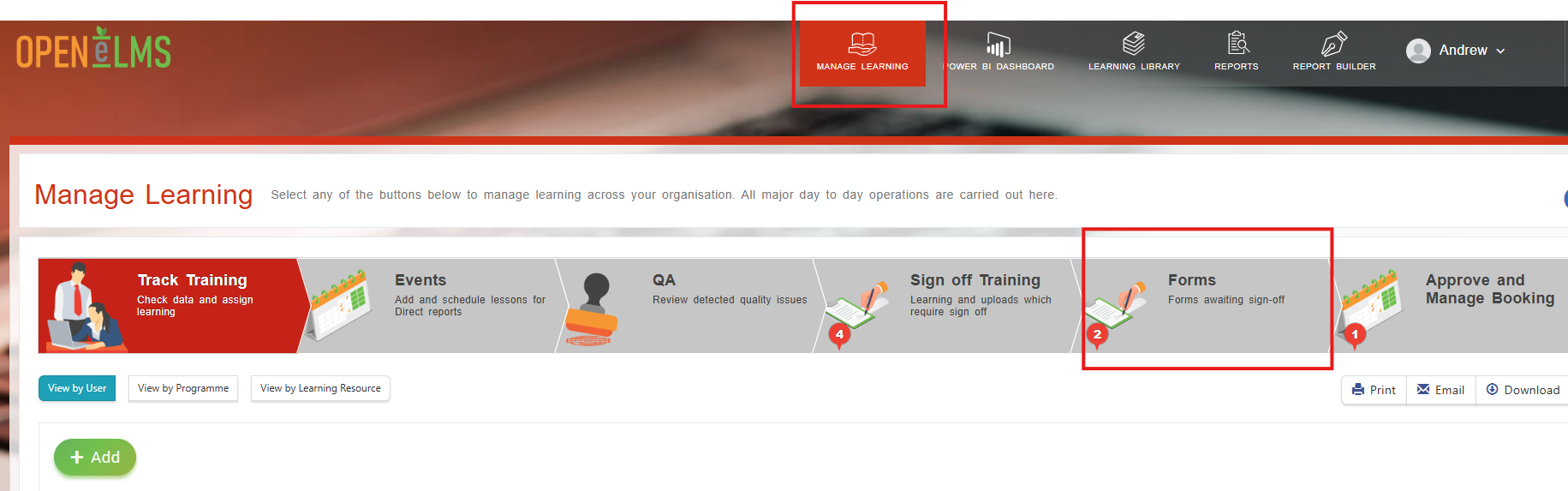
Go to Manage Learning
Select Forms option
Review pending forms:
Browse forms awaiting approval
Open the form from its row to review details
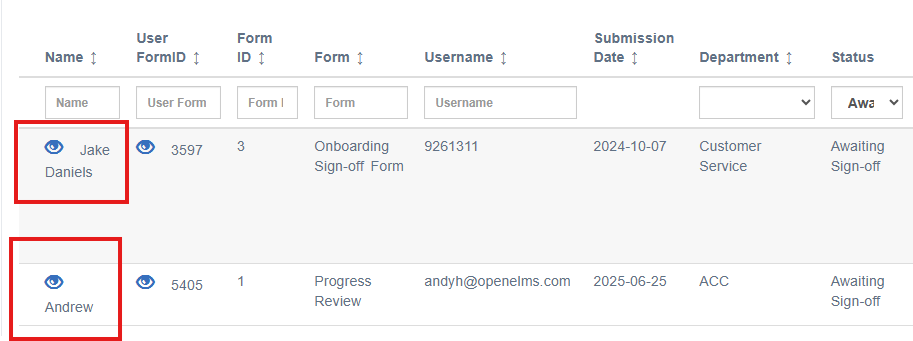
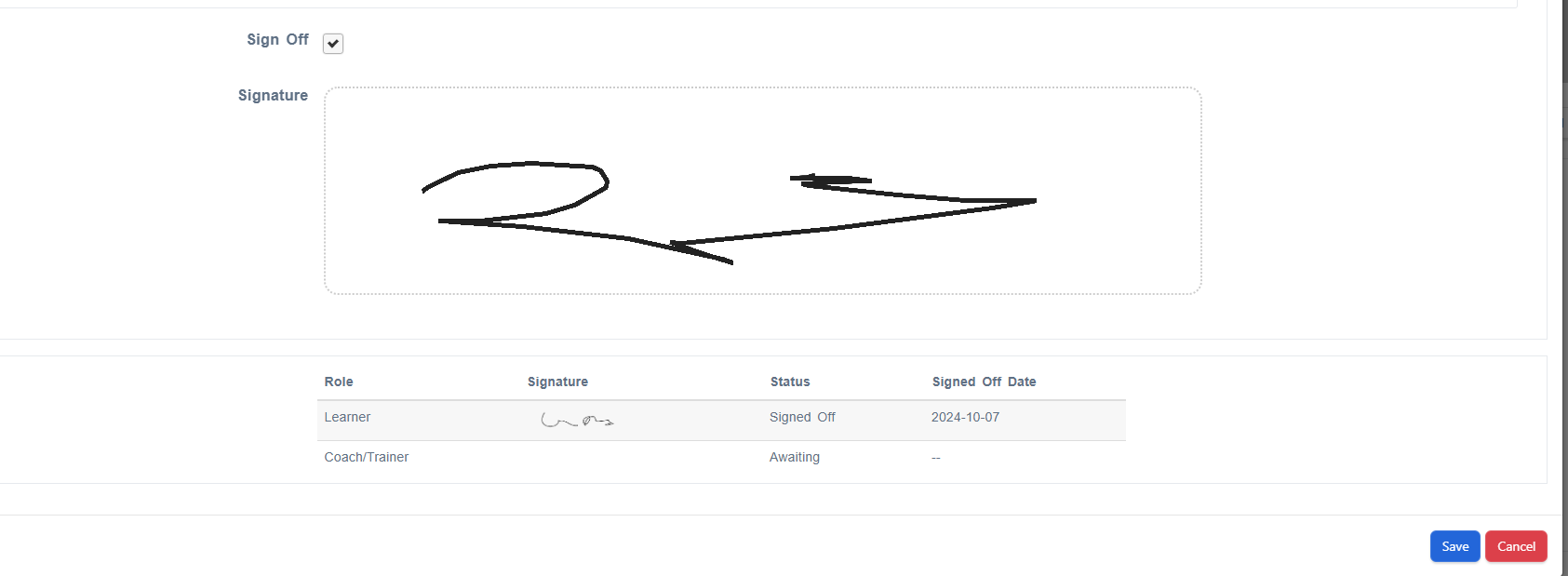
Take action:
Review: Review the completed fields
Sign Off: Use the sign off area to complete actions
Administrator Management
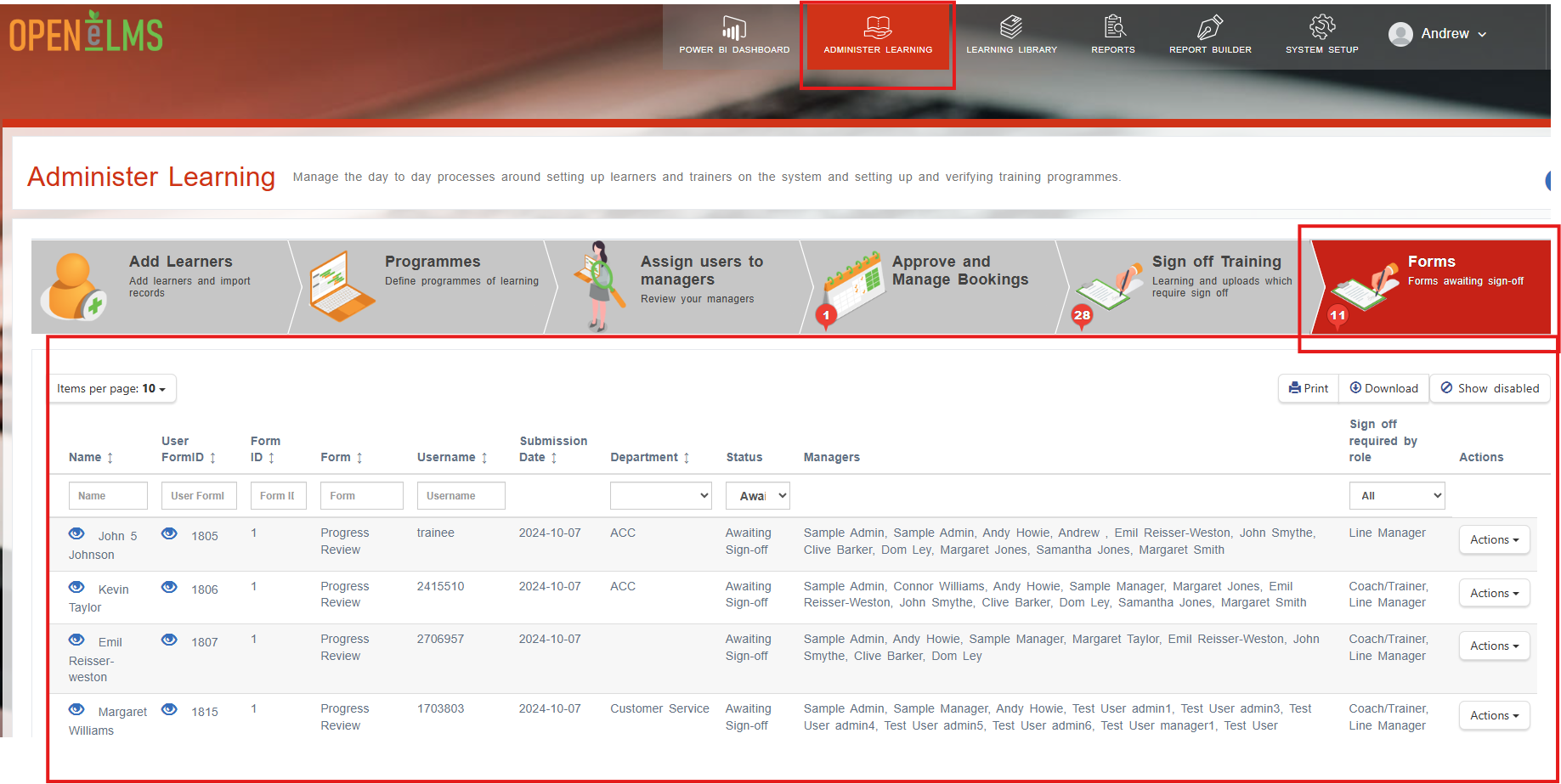
Administrators can monitor all sign-offs:
Go to Administer Learning > Forms
Select Forms tab
View comprehensive overview:
Form names and owners
Submission dates
Current status
Roles awaiting sign-off
Admin Actions:
Download reports: Export form data as CSV
Disable forms: Prevent further changes
Edit forms: Make administrative updates
Monitor progress: Track approval workflows
Form Audit and Logging
Overview
Open eLMS provides comprehensive audit functionality that allows administrators to track all actions performed on forms. This creates a complete audit trail for compliance, monitoring, and troubleshooting purposes.
Accessing Form Logs
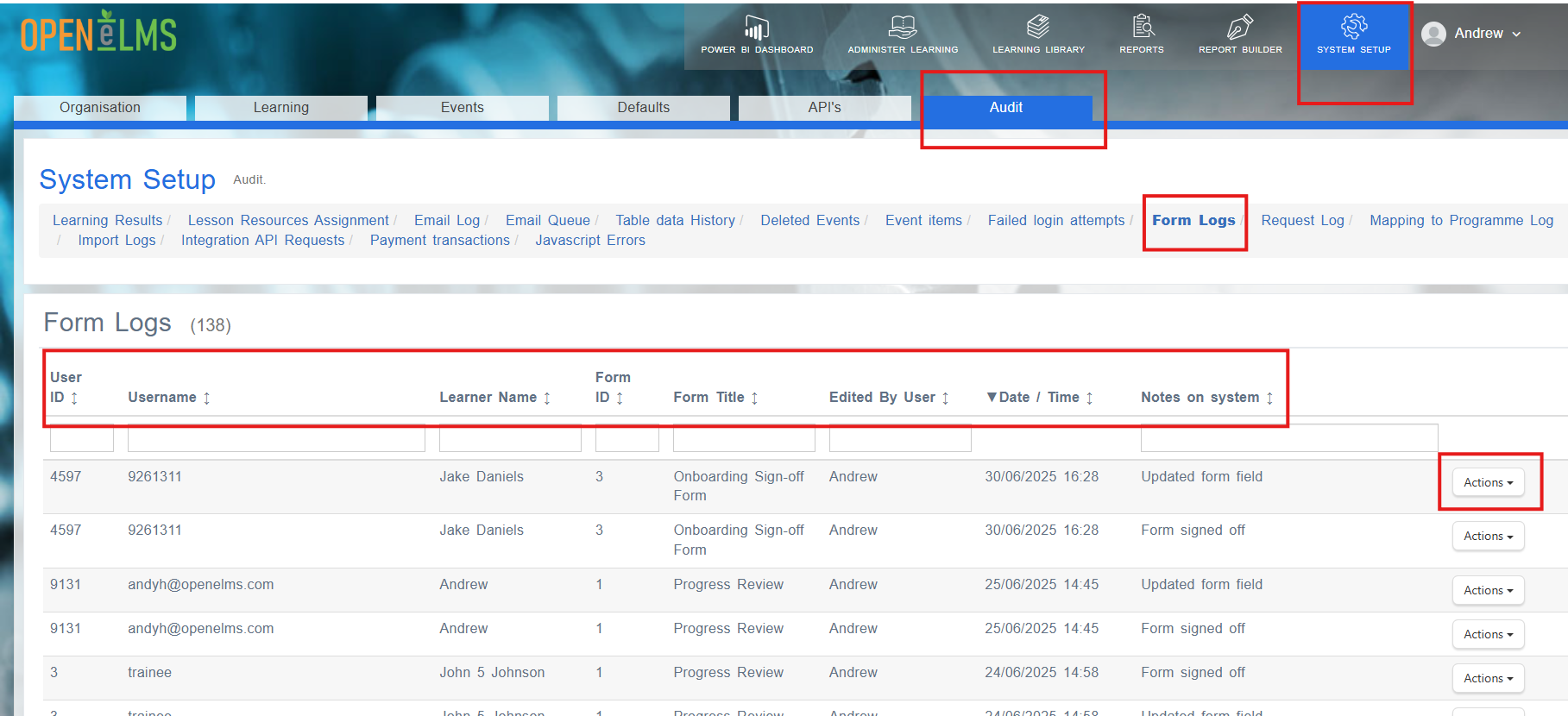
Navigation Path:
Log in as an Administrator
Go to System Setup
Select Audit
Choose Form Logs
Audit Information Captured
The Form Logs section displays the following information for every form action:
Core Log Data
Learner Name: Who performed the action
Form ID: Unique identifier for the form
Form Title: Descriptive name of the form
Edited By: User who made the changes (may differ from learner name for admin edits)
Date/Time: Exact timestamp of when the action occurred
Notes: Any notes or comments associated with the action
Detailed Action Breakdown
Each log entry includes an Actions button that provides:
Form Log Breakdown: Detailed view of what was changed
Captured Fields: Shows all field values at the time of action
Field-Level Changes: What data was modified, added, or removed
User Context: Additional information about who made the changes
System Information: Technical details about the action
Types of Actions Logged
The audit system captures various form-related activities:
Form Completion Actions
Initial form submission
Form completion and finalization
Partial saves and draft submissions
Form abandonment tracking
Edit and Modification Actions
Field value changes
Form data updates
Administrative modifications
Bulk data changes
Sign-Off Actions
Approval submissions
Rejection notifications
Sign-off completions
Workflow progression steps
Assignment Actions
Form assignments to users
Workflow implementations
Query-based auto-assignments
Manual assignment changes
UK Apprenticeship Compliance
Overview
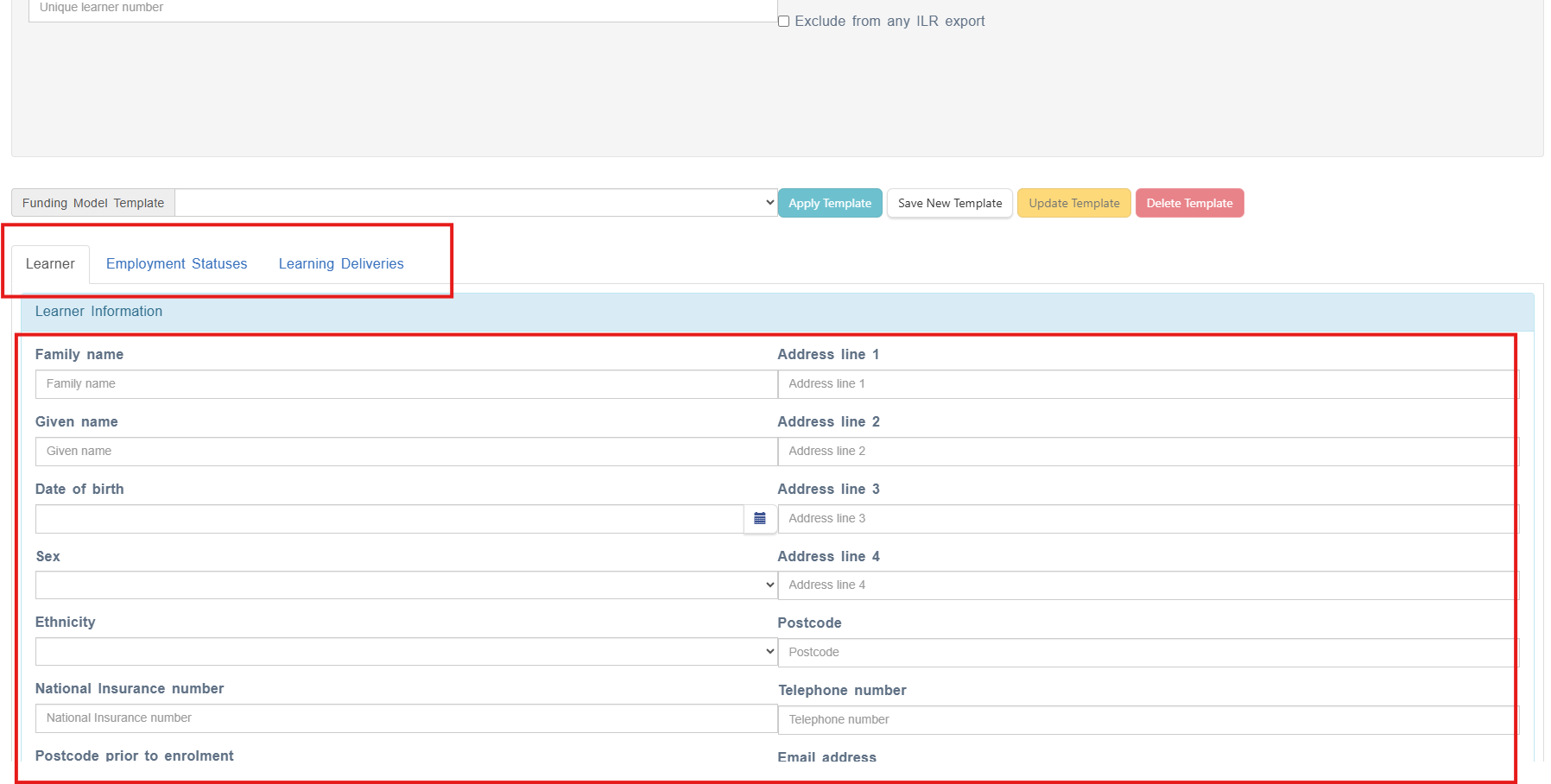
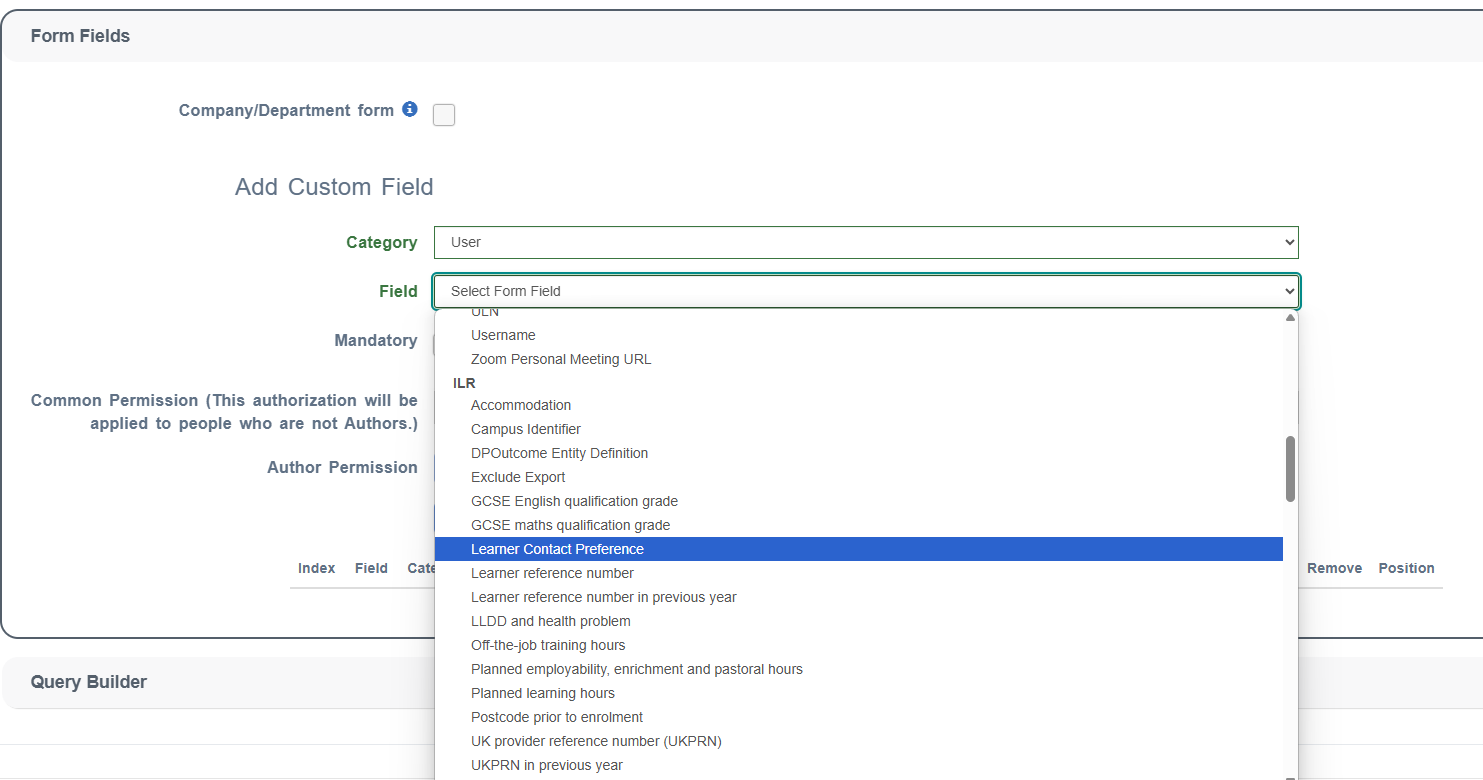
Open eLMS provides specialized support for UK Apprenticeship providers through integrated Individualised Learner Record (ILR) functionality. Forms can be configured to capture and manage all required ILR data fields, ensuring compliance with Education and Skills Funding Agency (ESFA) requirements while streamlining the apprenticeship management process.
Available ILR Fields
Open eLMS includes comprehensive ILR field mapping:
Learner Information
Unique Learner Number (ULN): 10-digit unique identifier
Learner Reference Number: Internal provider reference
Family Name/Given Names: Full learner identification
Date of Birth: For age calculations and funding rules
Sex: Male/Female classification
Ethnicity: 31 ethnicity categories as per ILR specification
LLDD Health Problem: Learning difficulty or disability assessment
Programme Data
Learning Aim Reference: Links to specific apprenticeship standards
Learning Aim Title: Full qualification name
Learning Start Date: When learning commenced
Learning Planned End Date: Expected completion date
Learning Actual End Date: When learning was completed
Completion Status: In learning, completed, withdrawn
Outcome: Achievement grades and final results
Source of Funding: Levy, non-levy, co-investment, loans
Employment Information
Employment Status: Employed, unemployed, not seeking, not known
Employment Status Monitoring: Additional employment data
Employer Identifier: UKPRN or company registration numbers
Small Employer: Indication for funding calculations
Employment Outcome: Post-completion employment status
Learning Support
Learning Support Cost: Financial support provided
Learning Difficulty Assessment: Support needs evaluation
Reasonable Adjustment Flag: Accessibility accommodations
Configuring ILR-Compliant Forms
Step 1: Map Required Fields
Identify ILR requirements for your apprenticeship standard
Create custom fields that correspond to ILR data elements
Use appropriate field types:
Date fields: For start dates, end dates, birth dates
Dropdown fields: For standardized codes (ethnicity, employment status)
Number fields: For ULN, costs, hours
Text fields: For names, references, free text
Step 2: Configure Field Validation
Set mandatory flags for required ILR fields
Configure dropdown options using ESFA-approved codes
Set date ranges to prevent invalid dates
Add help text explaining ILR requirements
Step 3: Set Permissions
Configure role-based access:
Assessors: Can update progress and outcomes
Data managers: Can edit learner and programme data
Employers: Limited access to employment-related fields
Learners: View-only access to their own data
Common ILR Form Types
Apprentice Enrollment Form
Essential fields for new apprentice registration:
ULN validation and capture
Personal details (name, DOB, ethnicity)
Learning aim and programme details
Employment status and employer information
Prior attainment levels
Learning support requirements
Progress Review Forms
Regular assessment forms including:
Learning progress against milestones
Skills development tracking
Employment status updates
Additional support needs
Planned vs actual progress
Evidence links and portfolios
Completion and Achievement Forms
Final assessment capturing:
Actual end dates
Final outcomes and grades
Employment outcomes post-completion
Certification details
Destination data
Troubleshooting
Common Issues and Solutions
Forms Not Appearing for Learners
Cause: Assignment processing delay
Solution: Wait 5-10 minutes after assignment
Check: Verify user is in correct department/group
Sign-Off Emails Going to Wrong Recipients
Issue: Weekly reminder emails sent to users who already signed off
Current Known Issue: System may send reminders to managers who completed their sign-off when form is actually awaiting learner signature.
Workaround:
Manually check form status before acting on reminder emails
Contact support if issue persists
Form Data Not Saving
Check: All mandatory fields are completed
Verify: User has appropriate permissions
Try: Refresh browser and retry
Contact: Support if data continues to be lost
Assignment Issues
Verify: User has correct role permissions
Check: Department/group membership is accurate
Confirm: Form settings allow assignment to user type
Getting Help
For technical issues:
Check this guide for solutions
Contact your system administrator
Submit support ticket via the Open eLMS help system
Email support@openelms.com for urgent issues
Best Practices
Form Design
Keep forms focused: One purpose per form
Use clear field names: Avoid technical jargon
Group related fields: Use headers for organization
Make instructions clear: Include help text where needed
Test thoroughly: Verify all permissions and workflows
Assignment Strategy
Use workflows: Instead of individual forms when possible
Leverage queries: For automatic assignment based on criteria
Plan timing: Consider workload when assigning multiple forms
Communicate clearly: Inform users about new form requirements
Sign-Off Management
Set clear expectations: Define approval timelines
Monitor regularly: Check for bottlenecks in approval process
Provide training: Ensure approvers understand their responsibilities
Document processes: Maintain clear procedures for complex workflows
Data Management
Regular exports: Backup form data periodically
Archive old forms: Remove outdated forms from active use
Monitor usage: Track which forms are being used effectively
Review permissions: Regularly audit who can access what data
UK Apprenticeship Compliance
Map to ILR requirements: Ensure all mandatory ILR fields are captured
Use standardized codes: Apply ESFA-approved values for dropdown fields
Regular ILR exports: Schedule monthly exports for funding claims
Data validation: Implement checks to ensure ILR data quality
Audit compliance: Regular reviews to ensure forms meet current ILR specifications
Training provider oversight: Ensure assessors understand ILR implications of form data
Security Considerations
Limit access: Only grant necessary permissions
Use confidential flags: For sensitive information
Regular audits: Review who has access to confidential forms
Training: Ensure users understand data protection requirements
Conclusion
Open eLMS Forms provides a flexible and powerful system for data collection, assessment, and workflow management. By following this guide and implementing the recommended best practices, you can create efficient, secure, and user-friendly form processes that support your organization's learning and development goals.
For additional support or advanced configuration requirements, contact your Open eLMS administrator or the support team