Change system labels
The labels used in the system for parameters may not match those used in your organisation (e.g. you may use the term "Cost Centre" instead of "Department".) To rectify this you can change any of the labels used in the system. By customizing labels, you can ensure a consistent user experience that aligns with your organization's terminology and branding.
Labels
Labels in Open eLMS allow you to customize the text used throughout the platform. This customization ensures that your organization's specific terminology and branding are consistently applied, providing a seamless user experience.
Log in as an Administrator and go to System Setup > Defaults > Labels.
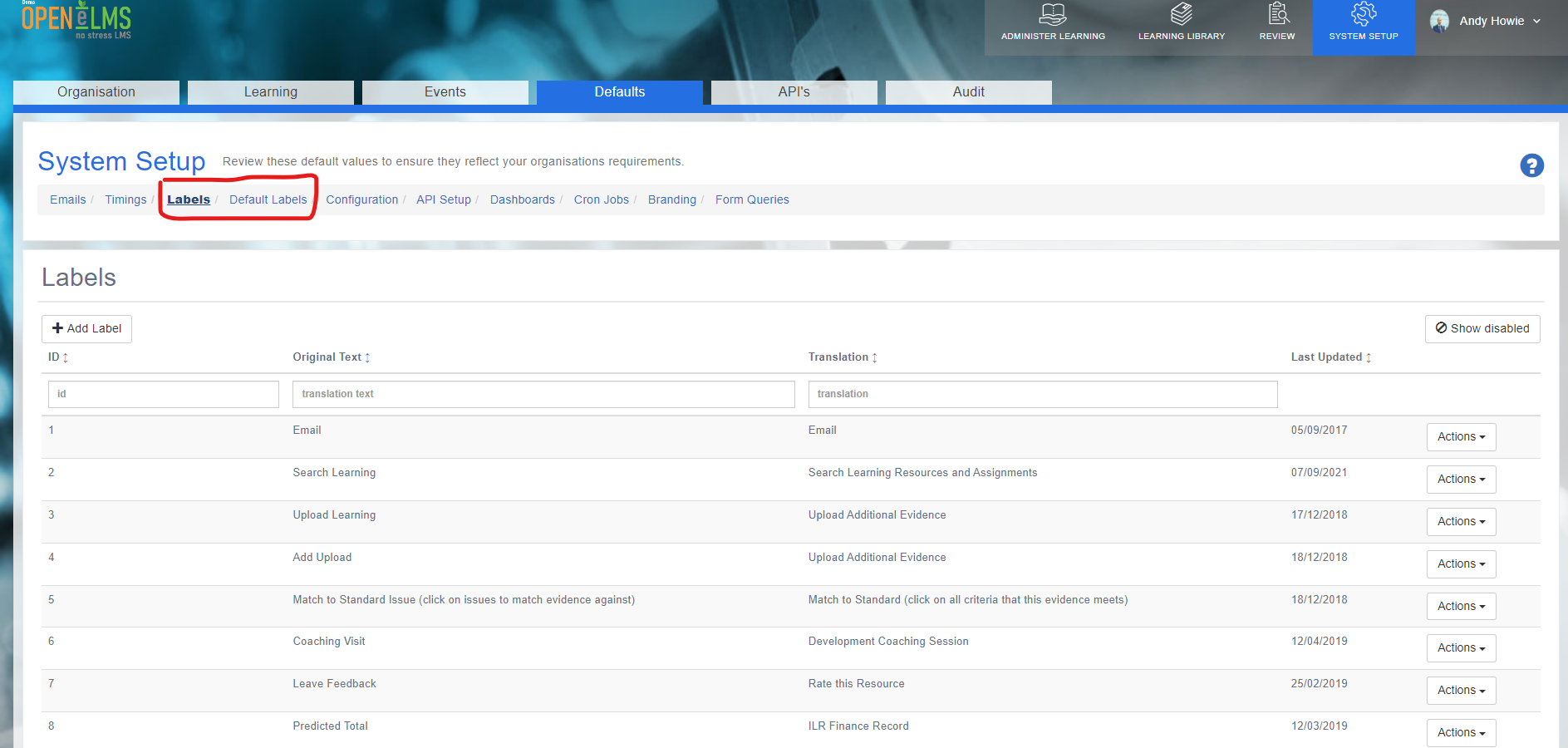
Press [+ Add Label]
Type in the word you want changed ('Original Text') and the 'Translation' below it. Open eLMS will now make the translation once you have logged in and out of the system.
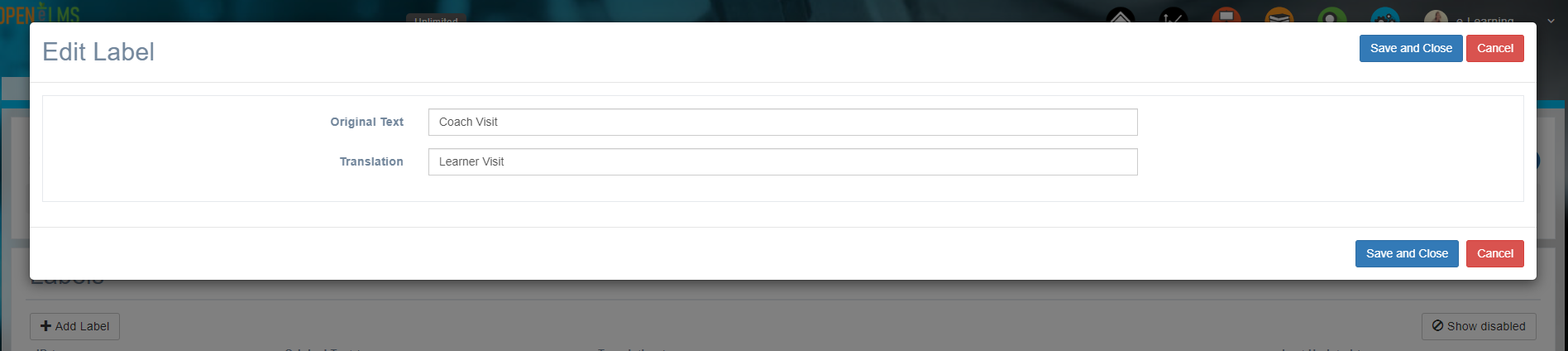
4. If you need to Edit an existing label, simply use the Actions button next to the label you want to edit.
Default Labels
Default labels in Open eLMS are pre-defined text elements that represent various aspects of the platform, such as events, tasks, and competencies. Managing default labels ensures a consistent and organized system that reflects your organization's preferred terminology.
To manage default labels in Open eLMS, follow these steps:
Click on the 'Default Labels' tab.
Browse the list of available default labels or use the search bar to find a specific default label.
Click the 'Edit' button next to the default label you wish to update.
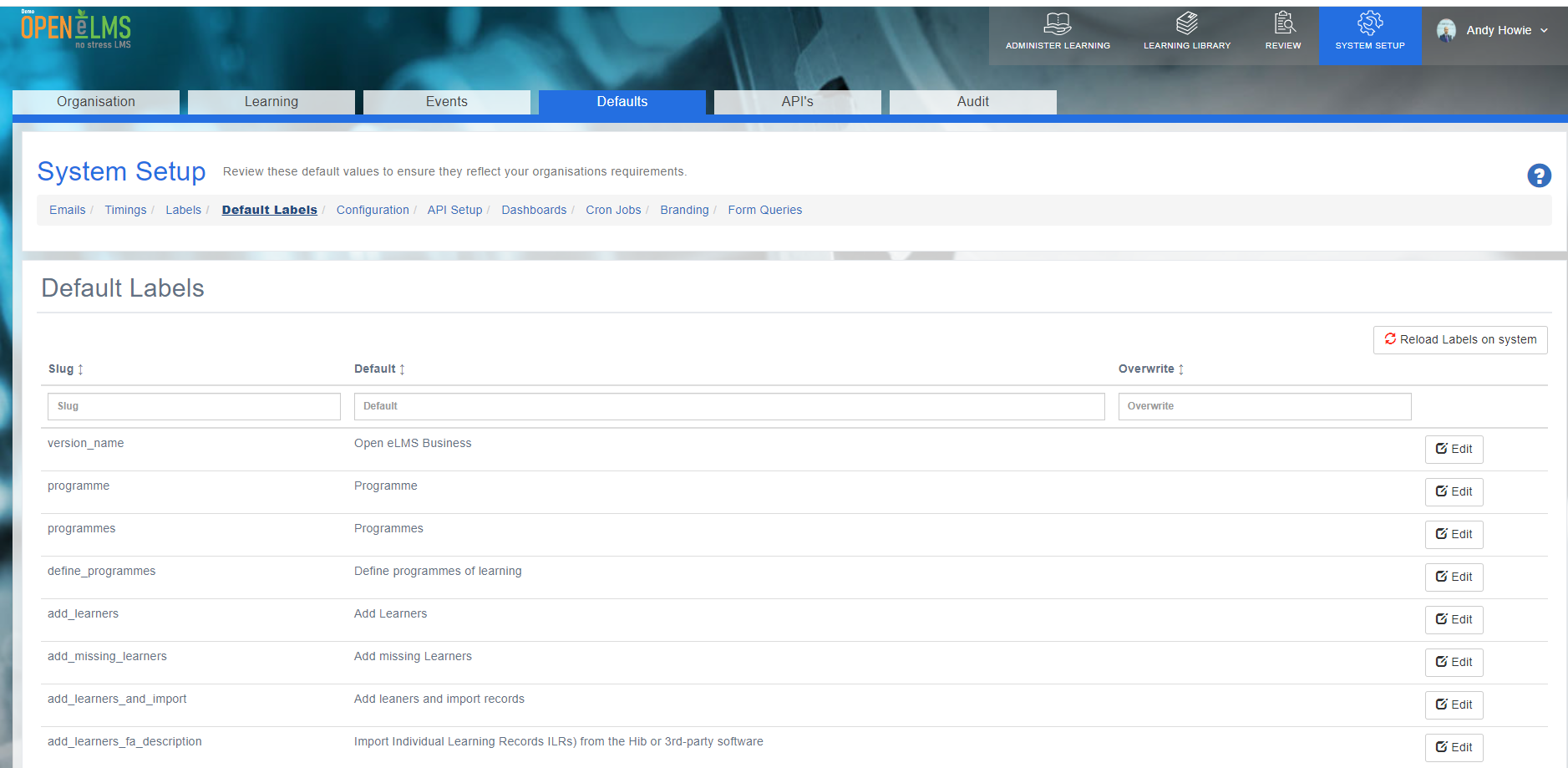
Modify the default label's text to match your organization's preferred terminology.
Click 'Save' to apply the changes to the default label.
If you cannot find the terminology you need in the 'Default Labels' section, you can add new labels in the 'Labels' section, as described earlier in this article.
Related articles
- Page:
- Page:
- Page:
- Page:
- Page: