Change a role's settings
Roles are largely pre-defined with your installation and will have been customised by the account manager following an initial briefing; the permissions behind each role can be edited if required.
📘 Instructions
Follow these instructions to alter the permissions behind each role.
Log in as admin and go to System setup > Organisation > Roles
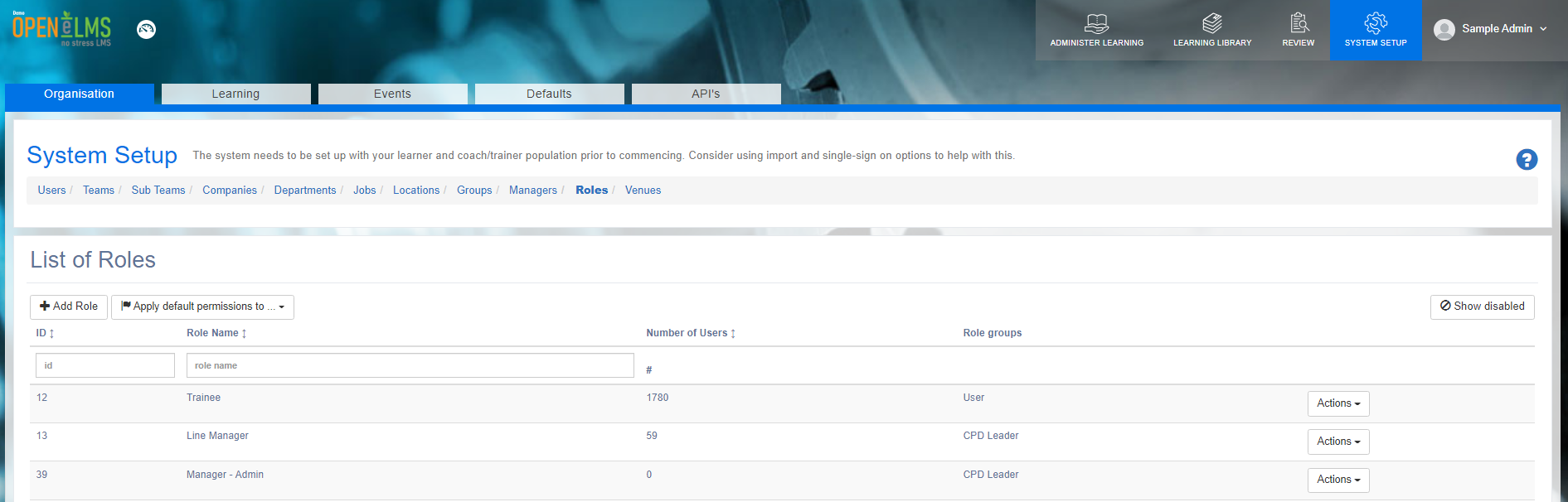
Select to Edit a role. Note this will be passworded - you need to contact support@openelms.com to get access. This is since editing permissions is not advised as it can have far reaching ramifications. Feel free to contact the support outlining what you want to do and the support team can make appropriate changes for you.
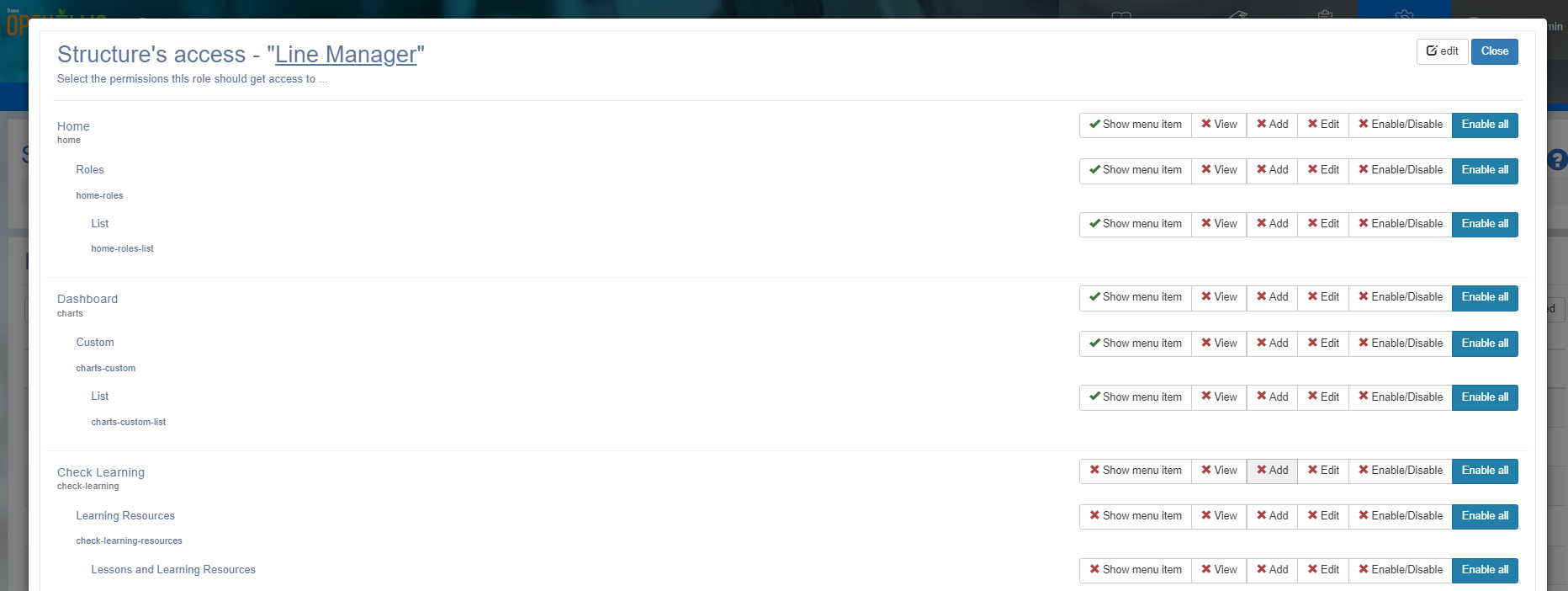
Any of the permissions listed can be changed, each permission is clearly labelled on the left hand side of the screen and their respective permission value is on the right side of the screen.
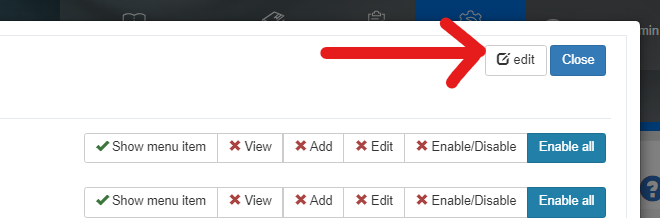
Press Edit.
Here you can define the Role Group; this effects the interface
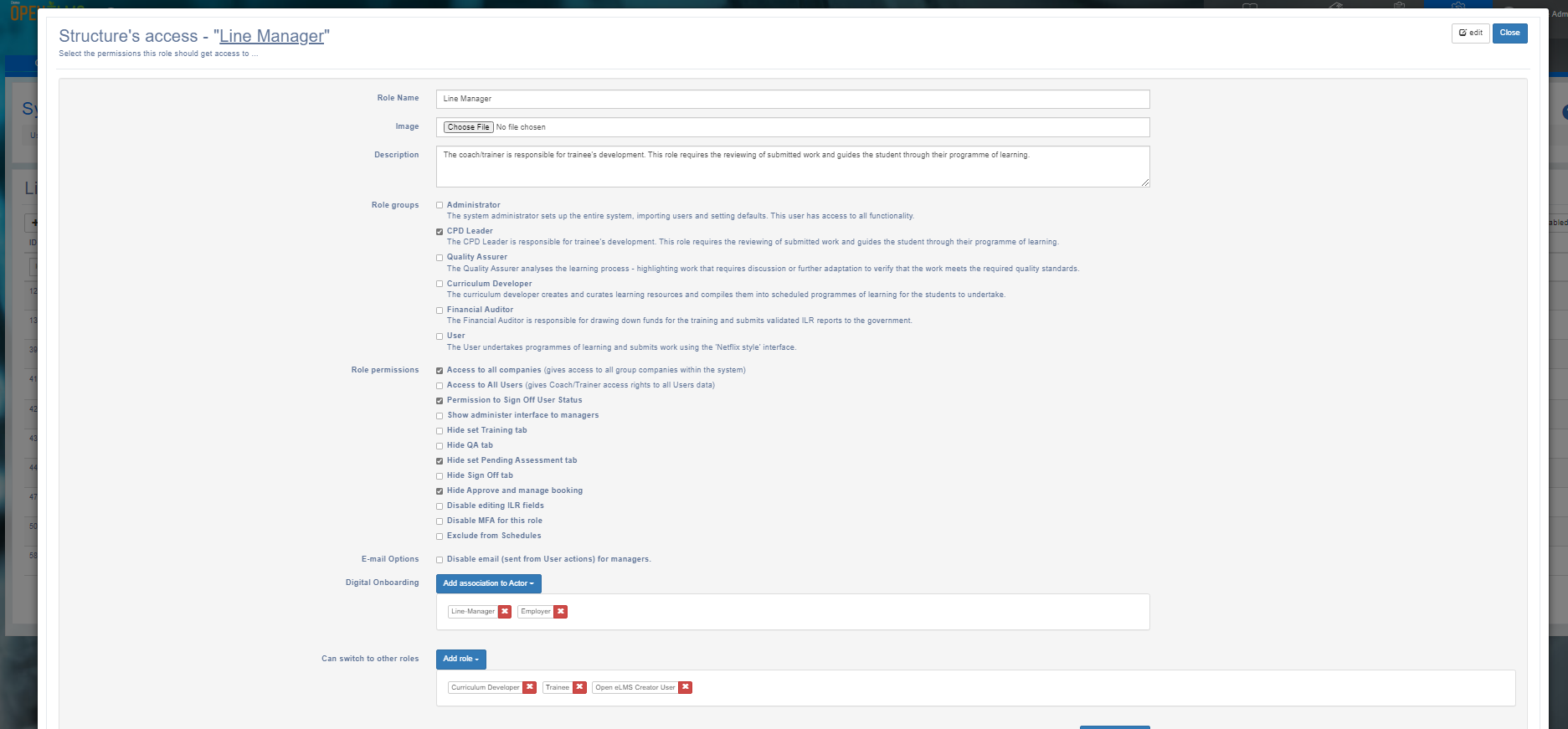
(i.e. the actions menu tabs across the screen).
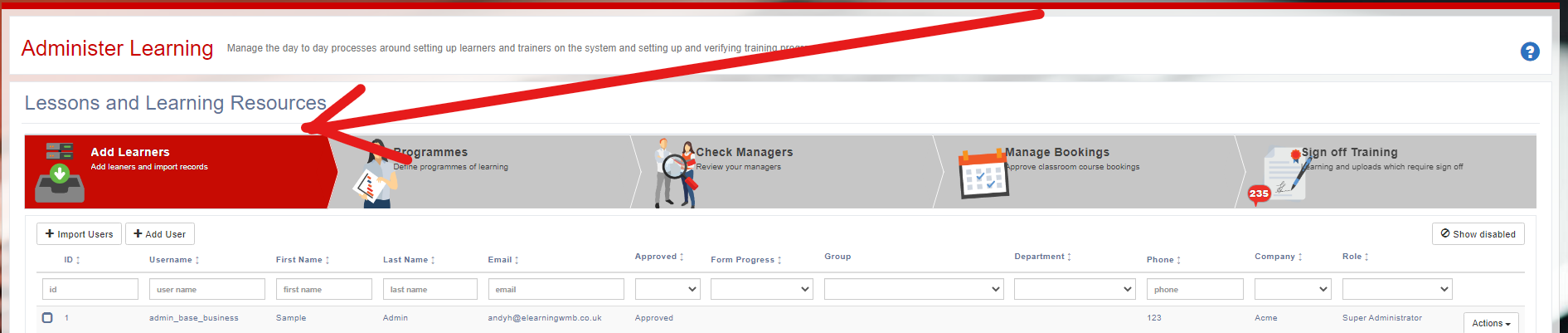
The Role permissions allow you to alter some global interface settings for this role type (see all user data, hide selected menu tabs etc.)
eMail Options allow certain roles not to get email alerts.
Digital onboarding allows interfaces to be built with digital forms from Open eLMS Forms (check whether you have purchased this add-n).
Can switch to other roles allows this role to select other (e.g. an admin can select the other roles as well as the core admin role.

Do not forget to click on Save and Close after making any changes.
It is highly recommended that you do not change the default permission settings in step 2 unless you are sure you know the ramifications of the changes you are making. If you want to proceed try changing one setting at a time and then testing the effect of this change.
📋 Related articles
- Page:
- Page:
- Page:
- Page:
- Page: