How to add Programmes/Pathways from the Curriculum Developer Role
How to add Programmes/Pathways from the Curriculum Developer Role

This guide provides instructions on how to add programmes or pathways to the system. Follow the steps below to add new programs and set up the necessary details required.
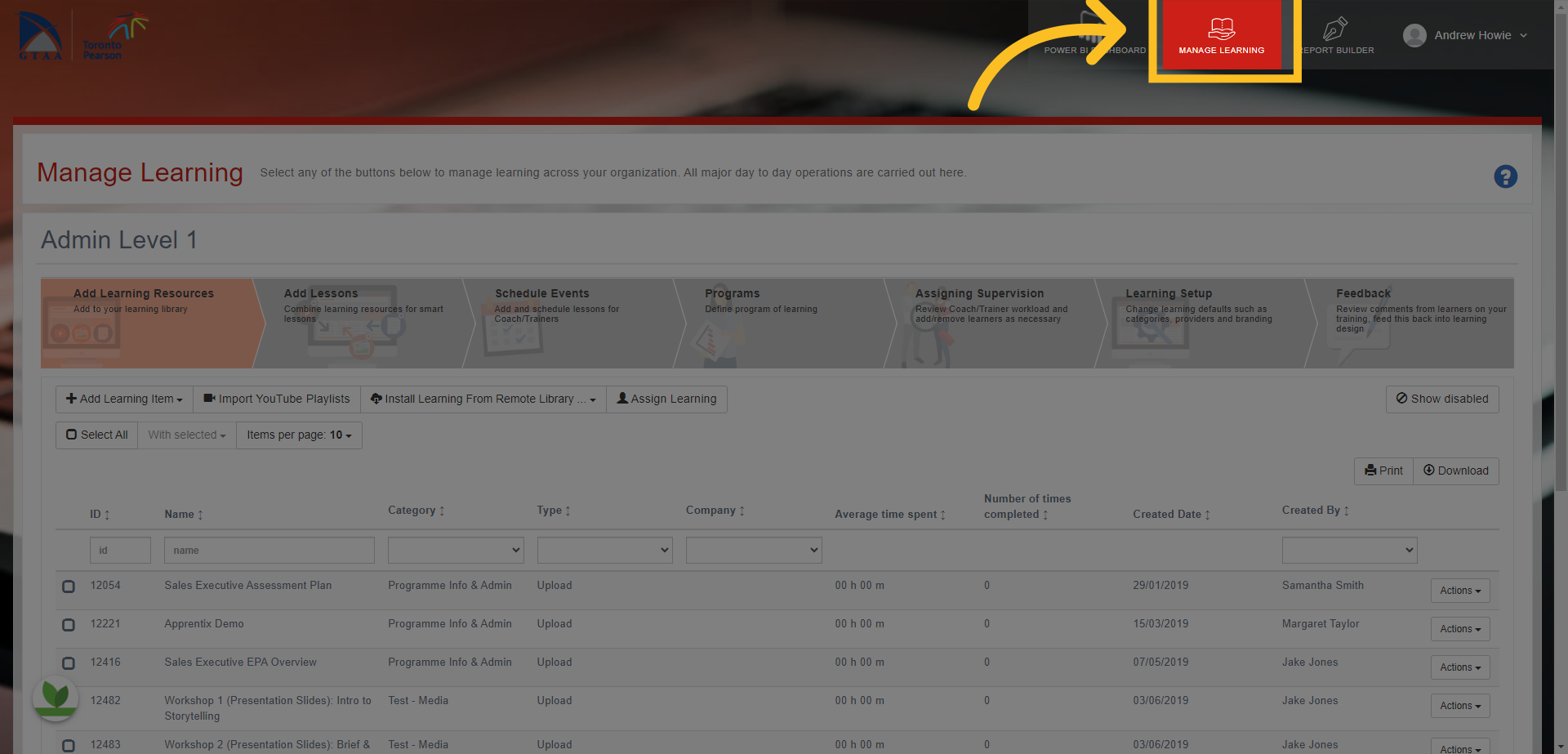
1. Click on the 'Manage Learning' tab at the top of the screen
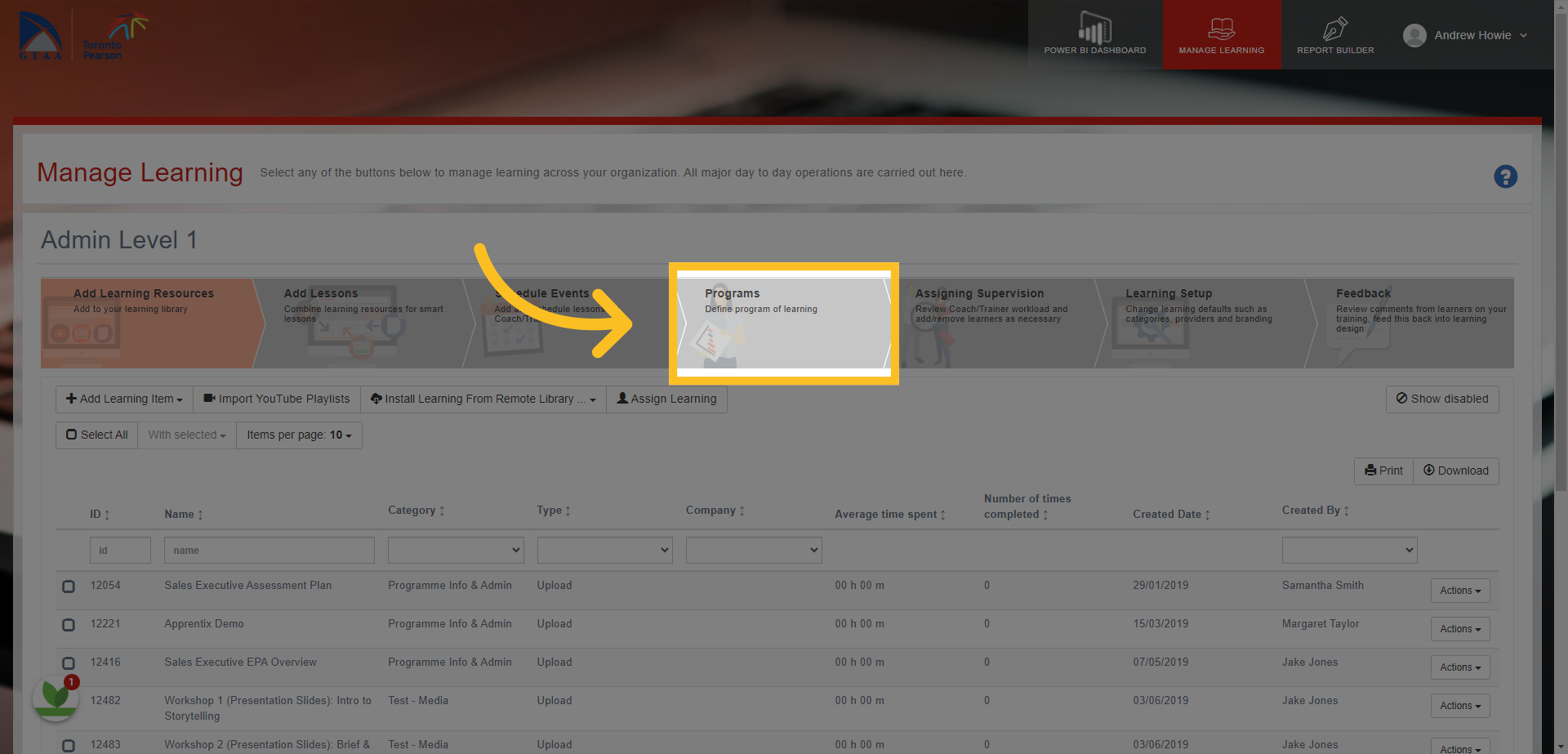
2. Then click on the 'Programs' tab here
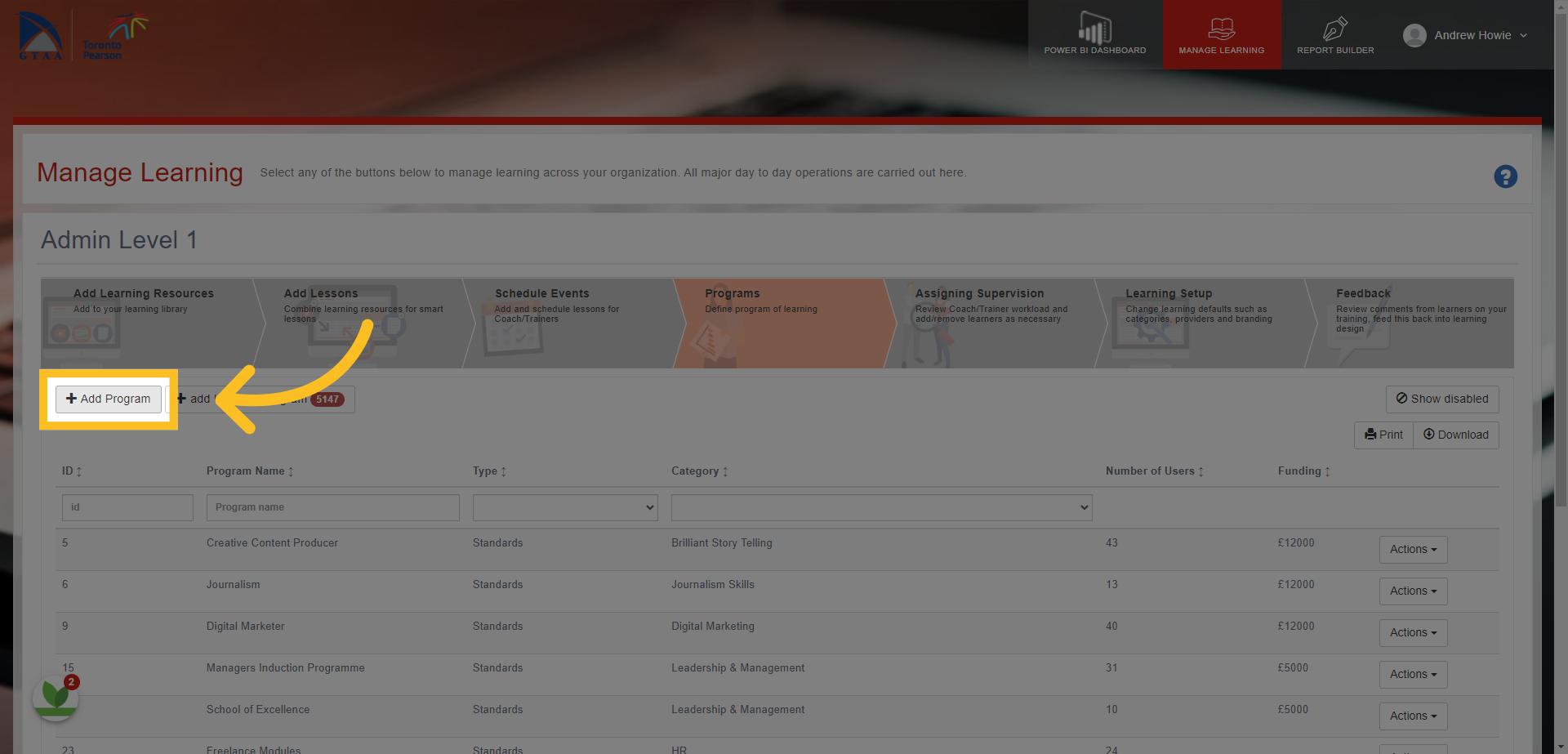
3. Click on the 'Add Program' button
4. This opens the 'Add Program' template.
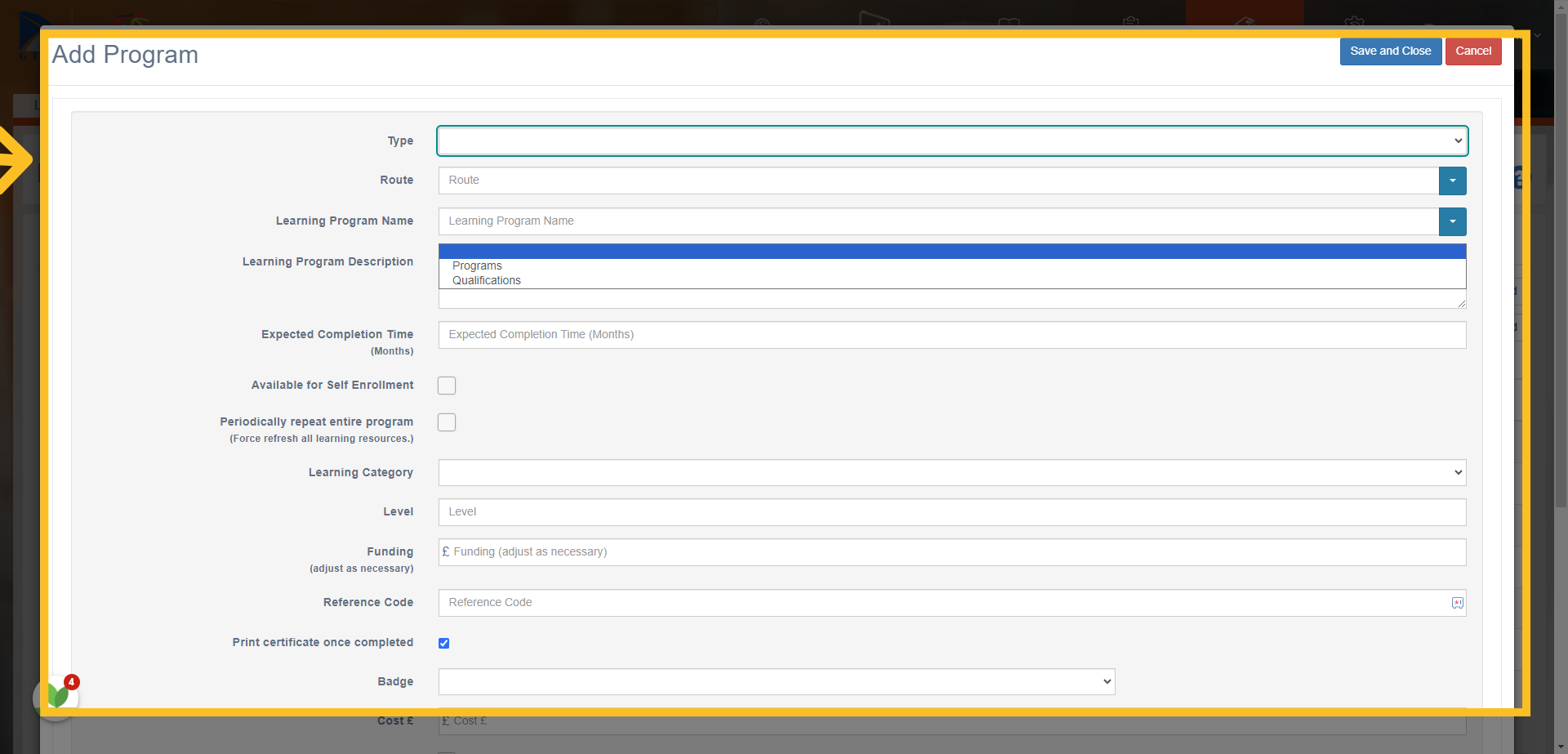
5. In the Type box - select 'Programs'.
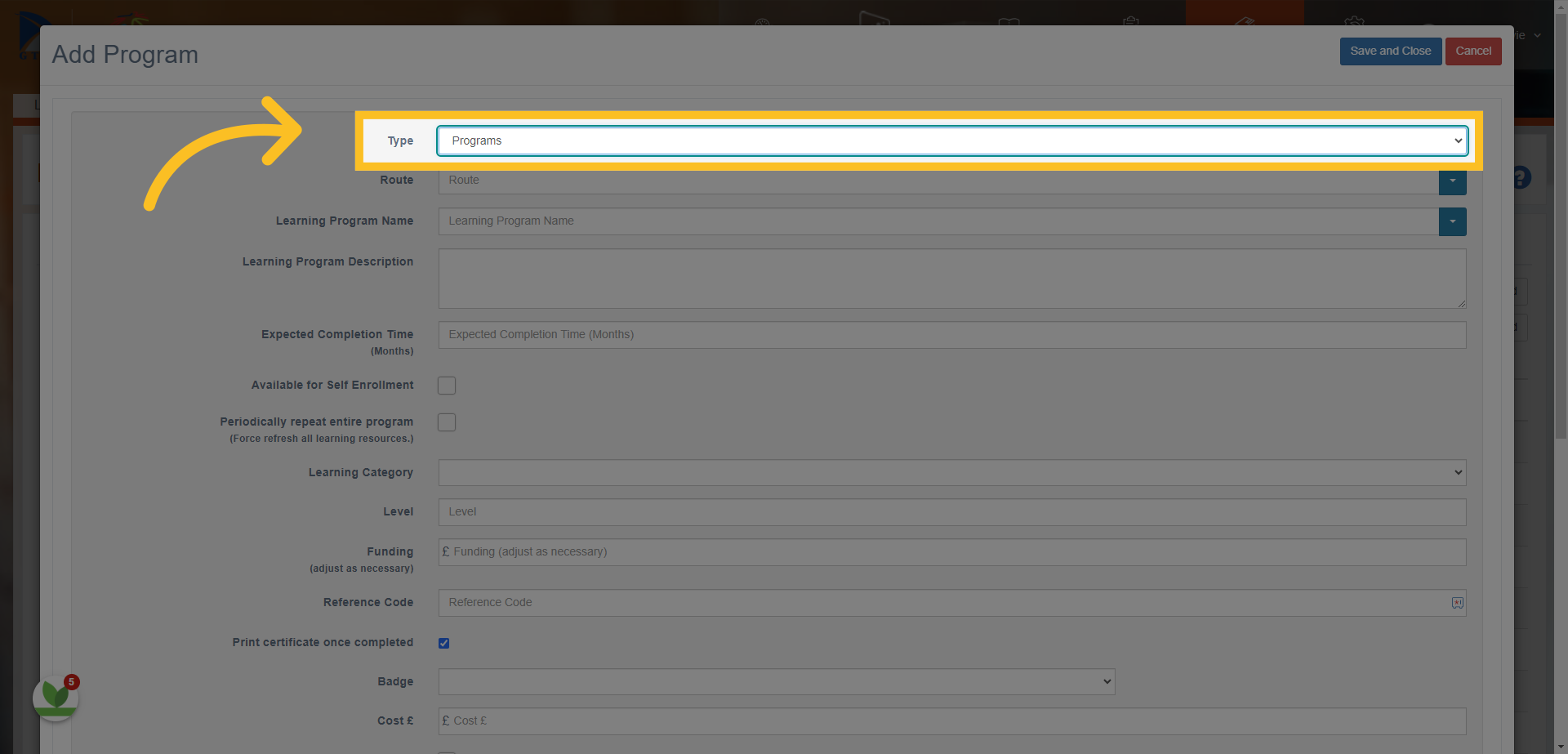
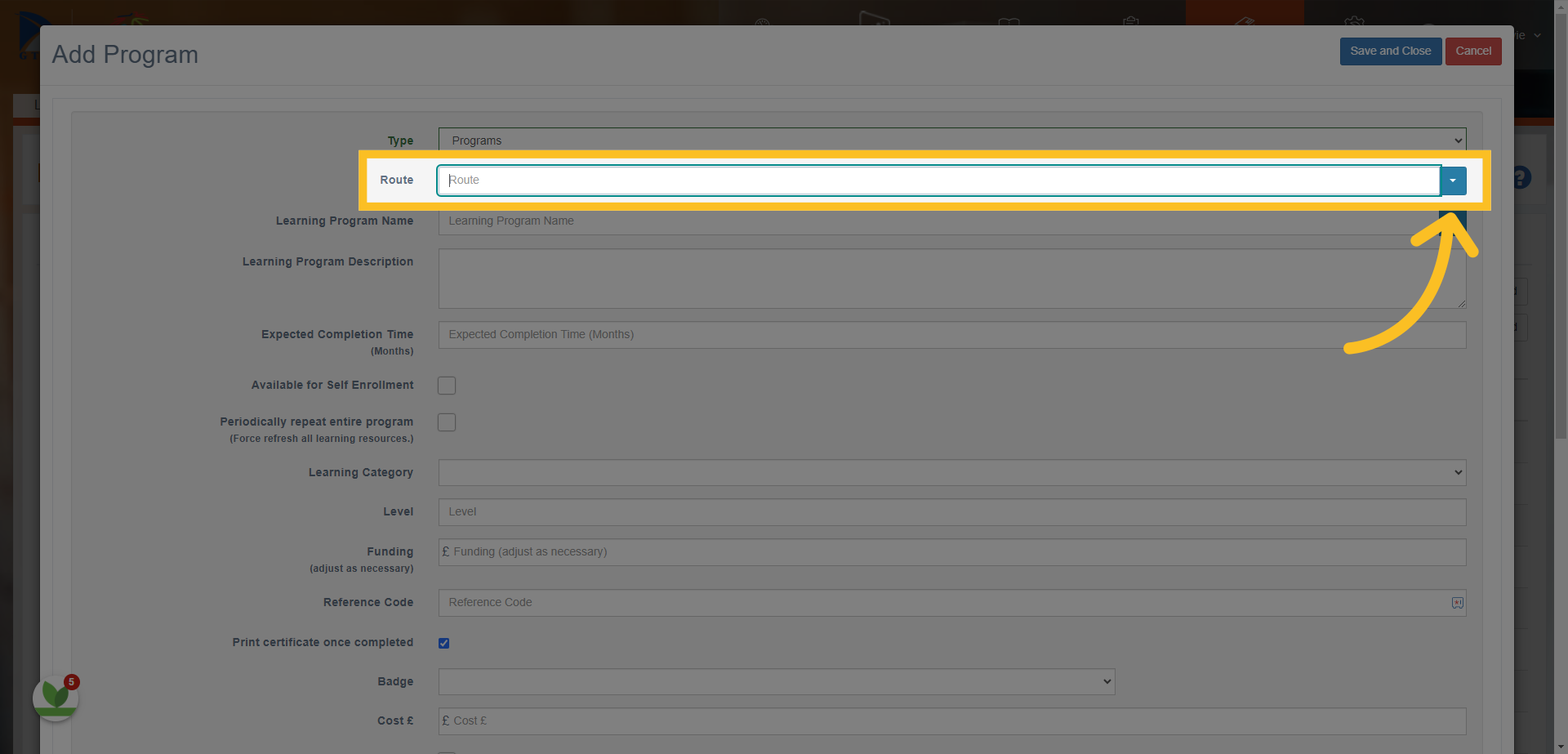
6. Choose a suitable 'Route' from the selection in the dropdown menu - this appears when you open the dropdown.
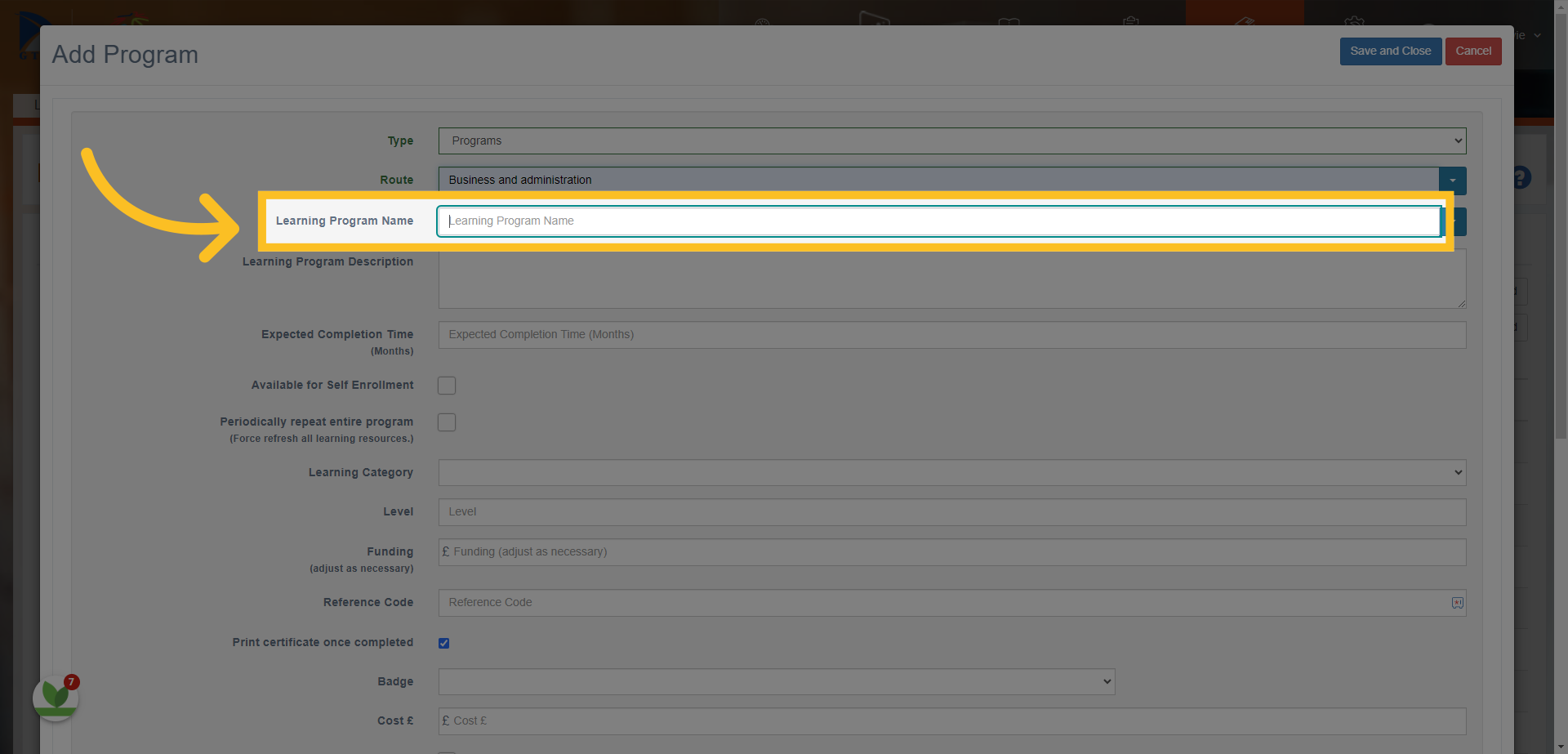
7. Enter the name of your program here.
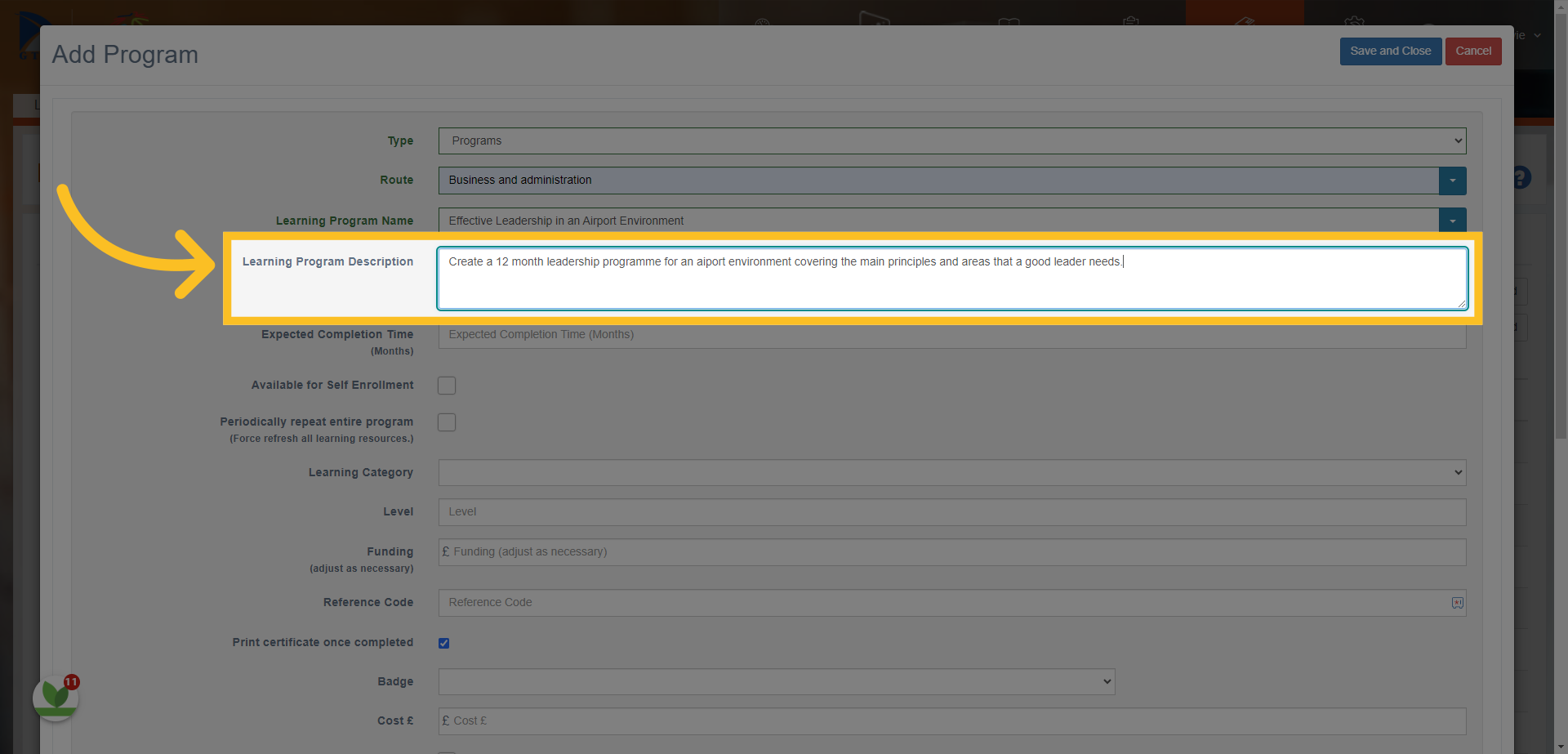
8. Write out the description of the programme. NB: If you are going to use AI to help generate the outline of the program, then use this as a 'prompt' to help the AI with the details of the course and what you need to cover.
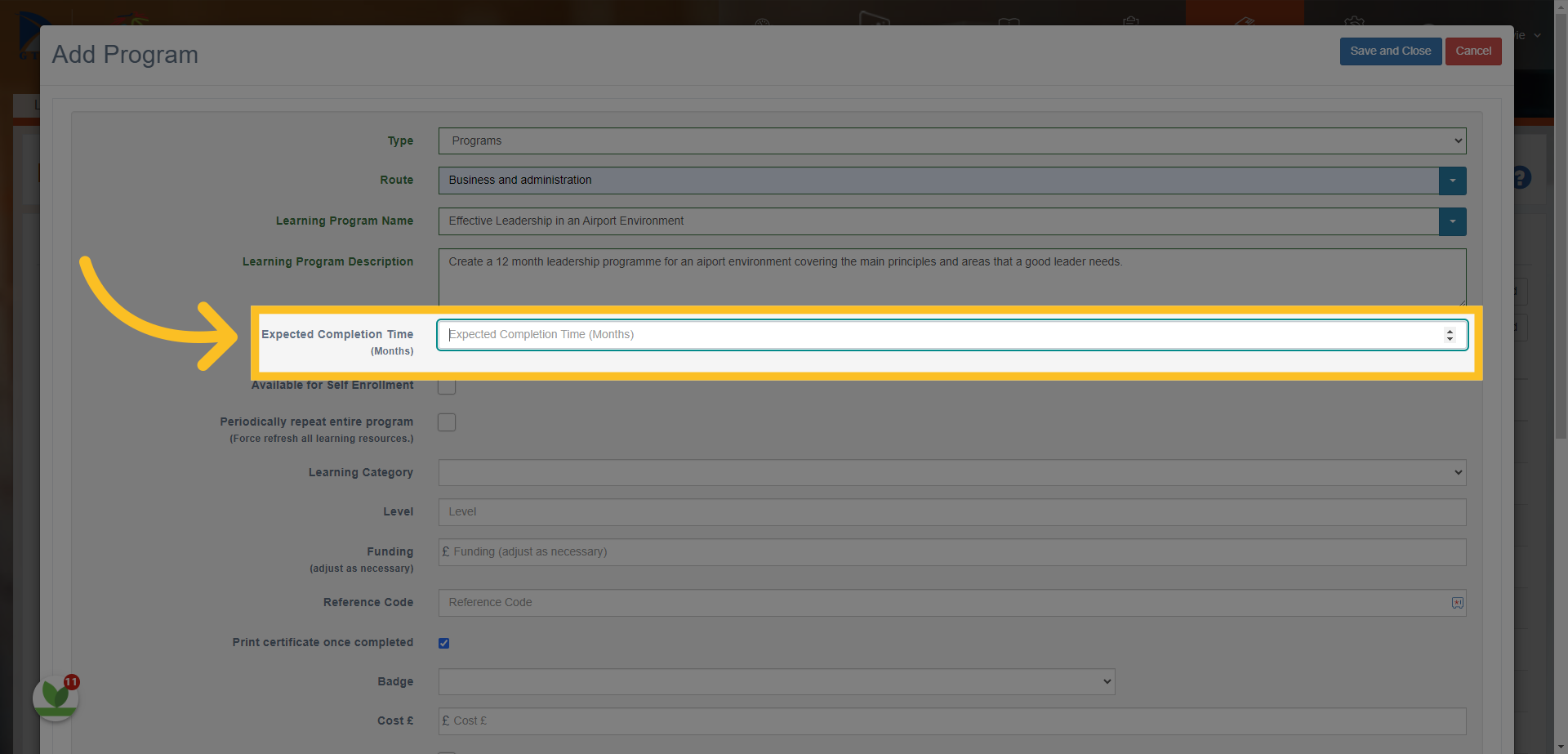
9. In the 'Expected Completion Time' box - write the expected program length (in months).
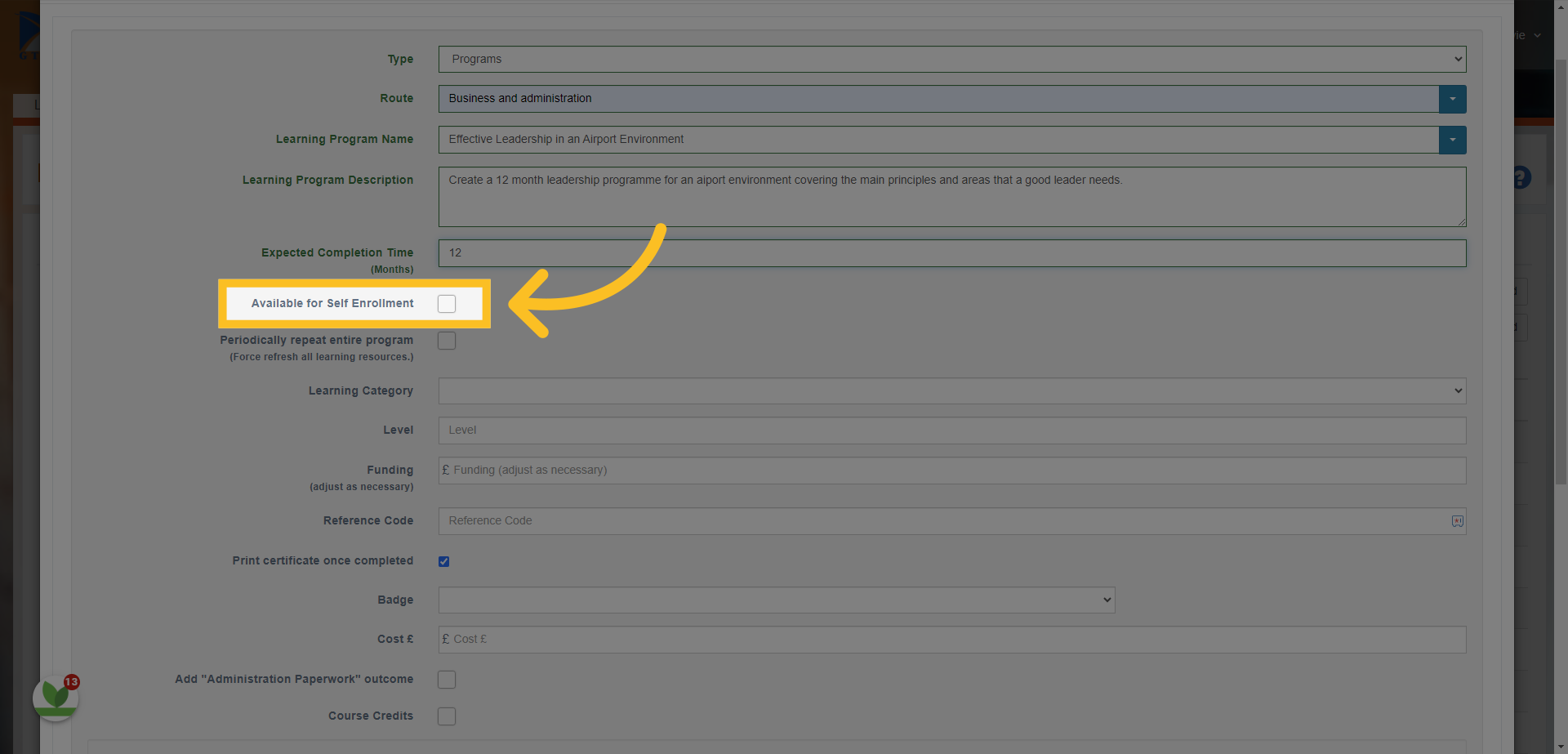
10. 'Available for Self Enrollment' - if checked then all users will have access to enroll on the program.
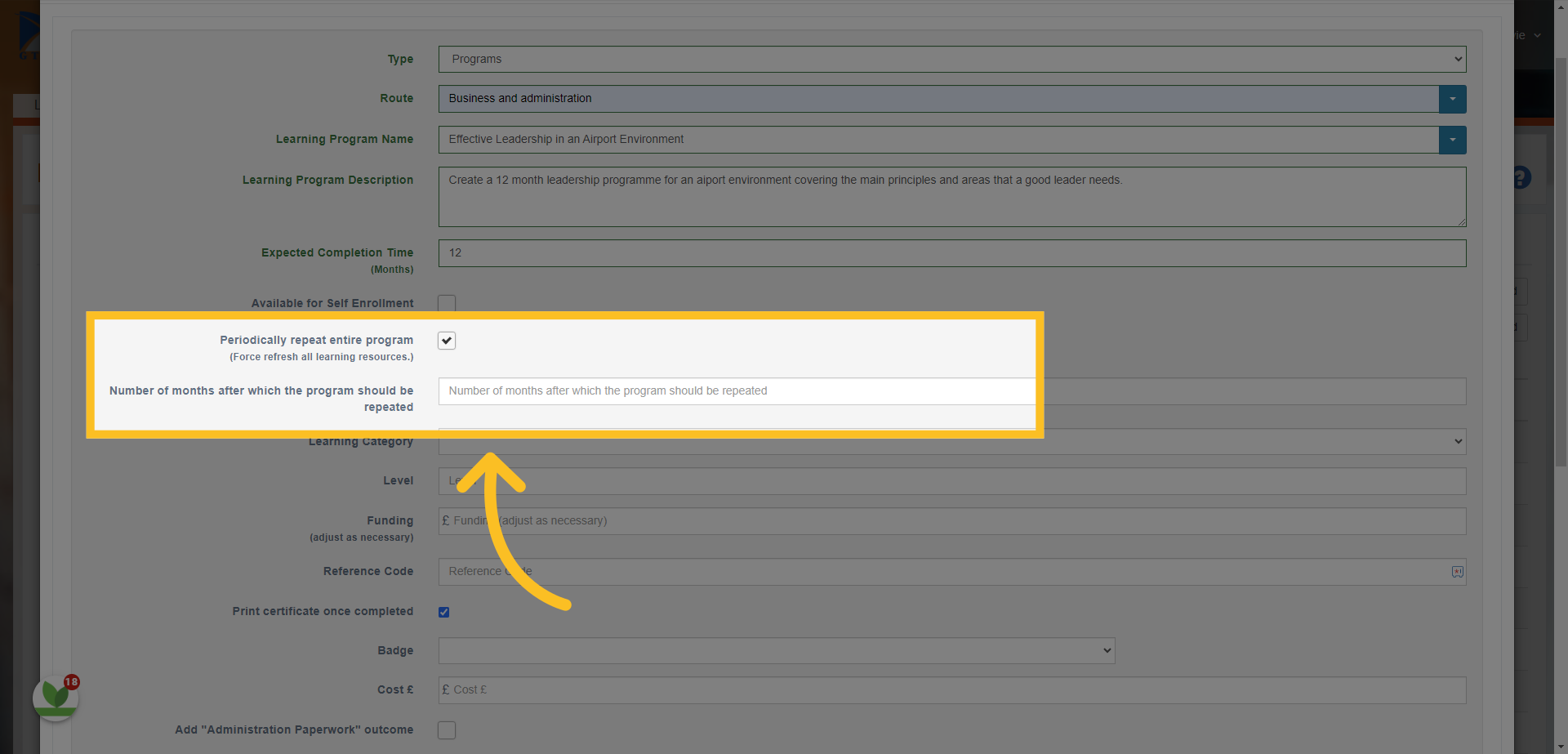
11. 'Periodically repeat entire program' - You can repeat an entire program after a set amount of time by checking the box. You can then set how many months after completion to repeat the program. NB: By using this option, all resources mapped to the program will be refreshed once the repeat period is activated..
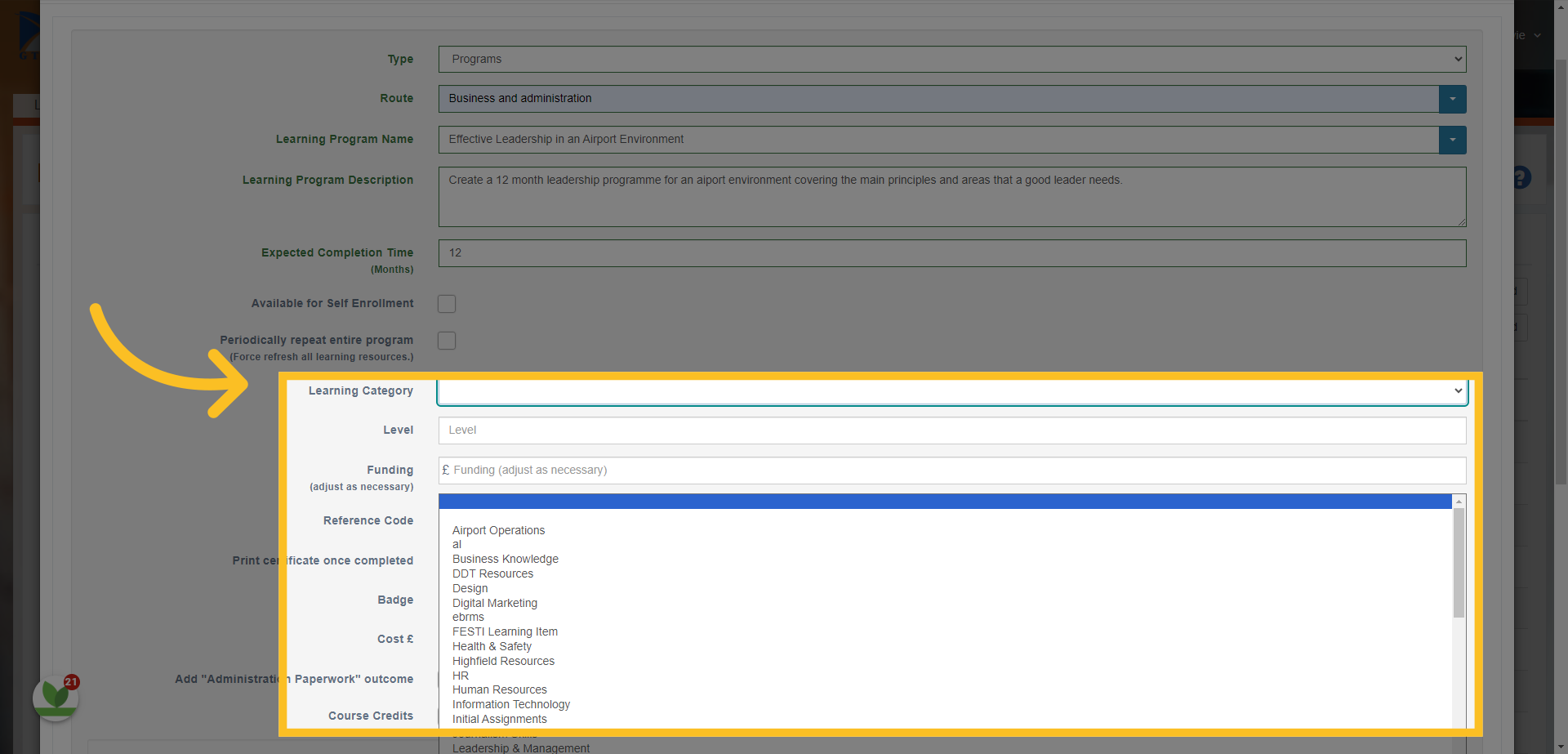
12. Choose a category to map the program from the drop down selection.
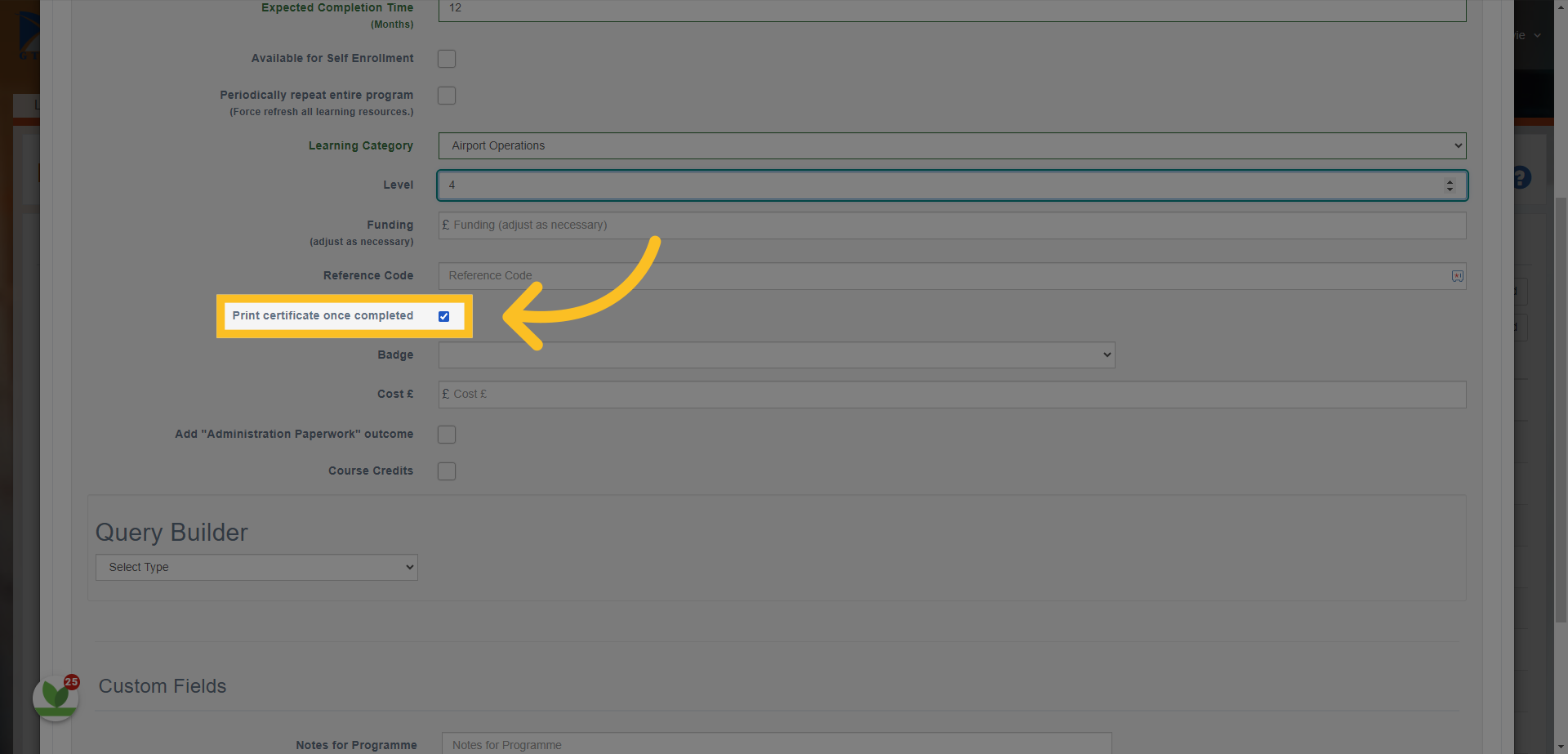
13. Check this option if you want to allow the learner to print a certificate upon completion of the program.
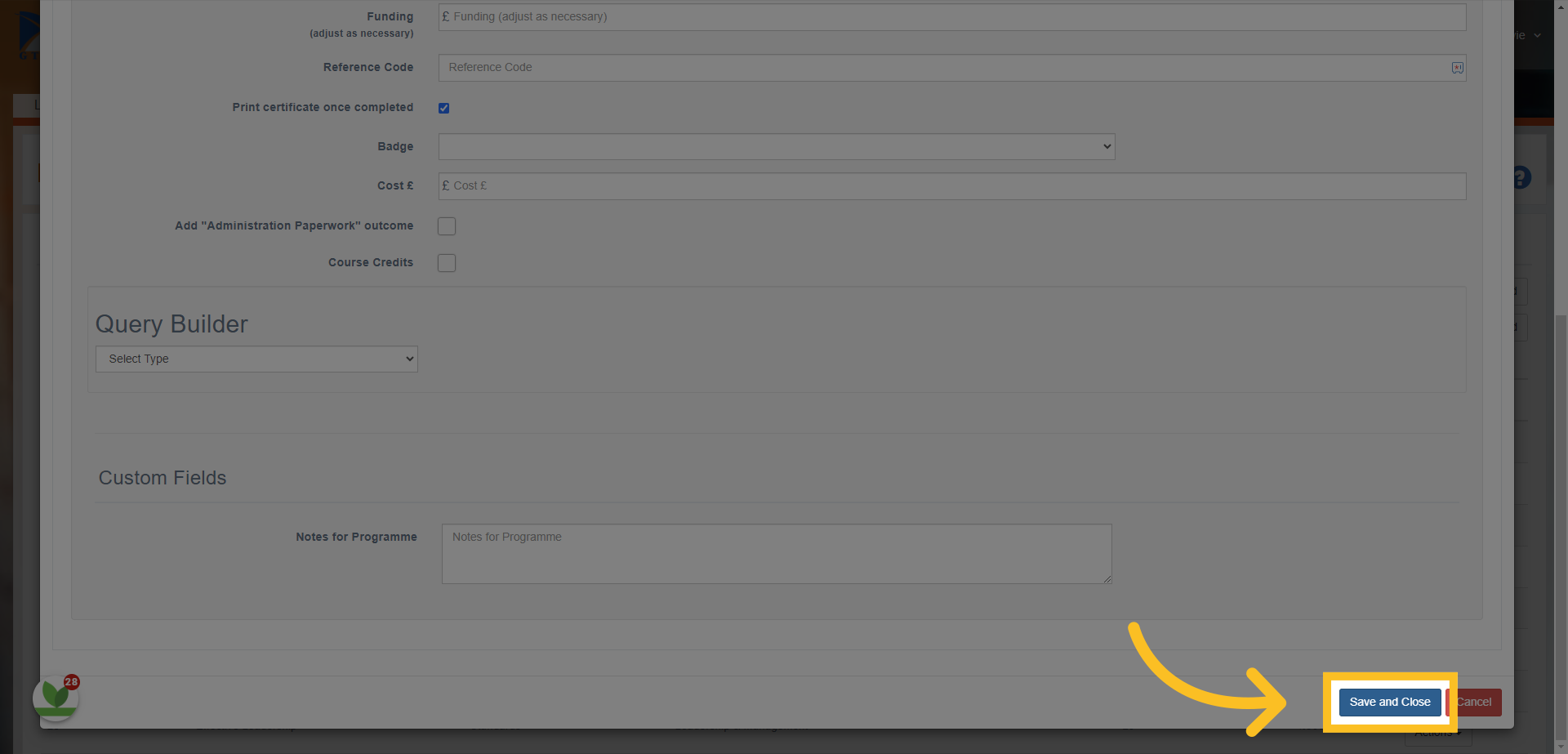
14. Once these steps have been completed, you can then click the 'Save and Close' button.
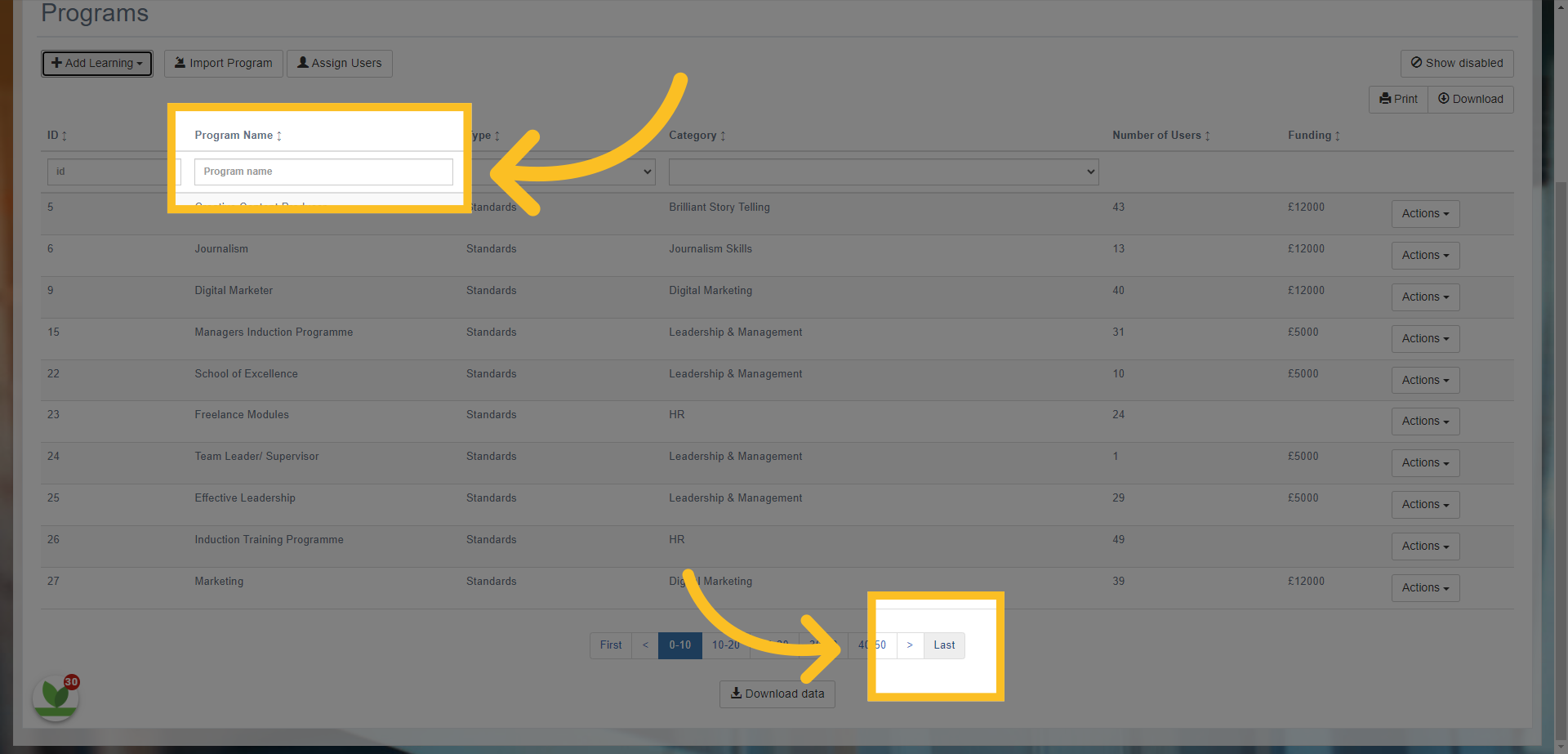
15. This will bring you back to the 'Learning Programs' screen - you can then find the program by either typing in the program name box or clicking the 'Last' button at bottom of page.
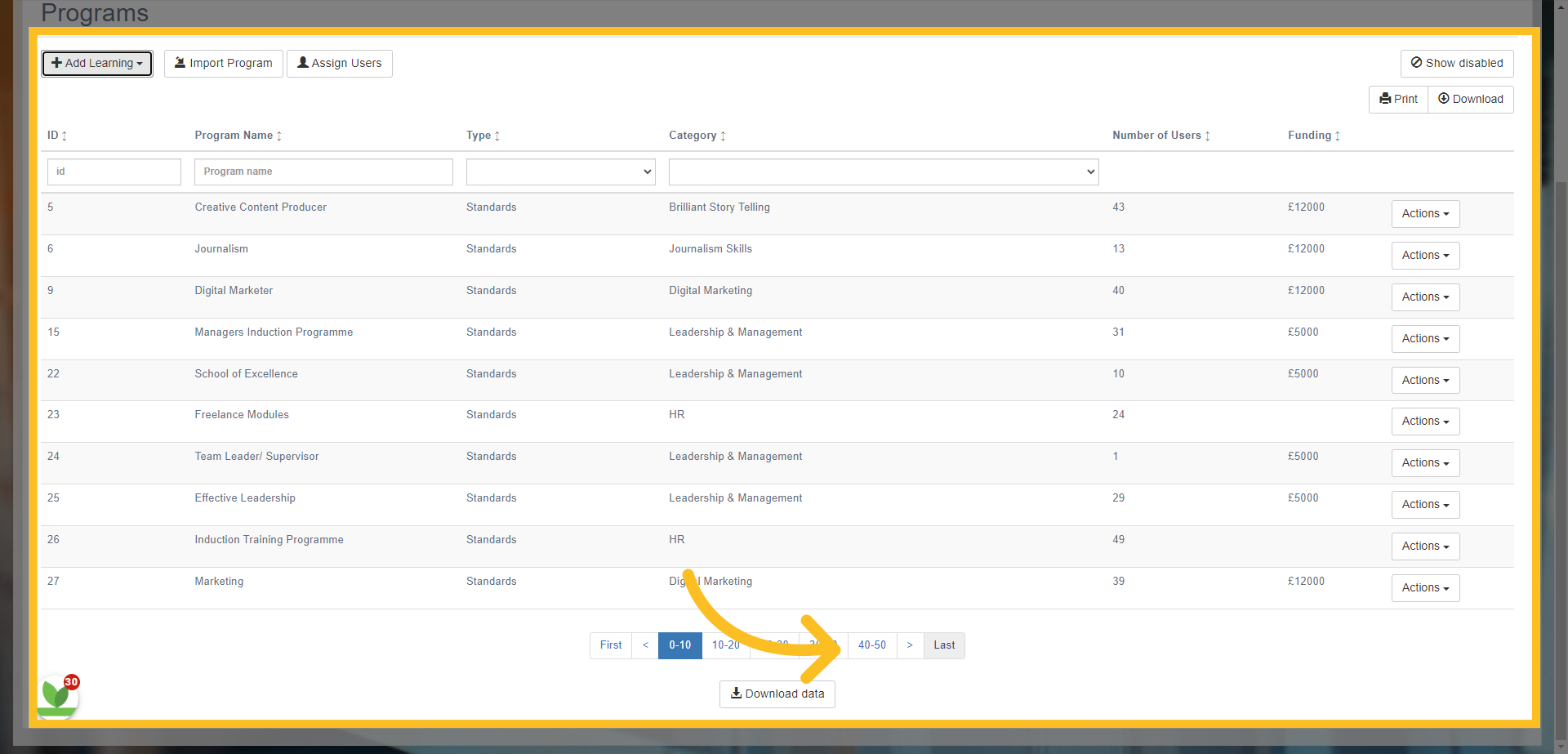
16. Click "Last"
...
17. Once you've found the program, click on the 'Actions' button.
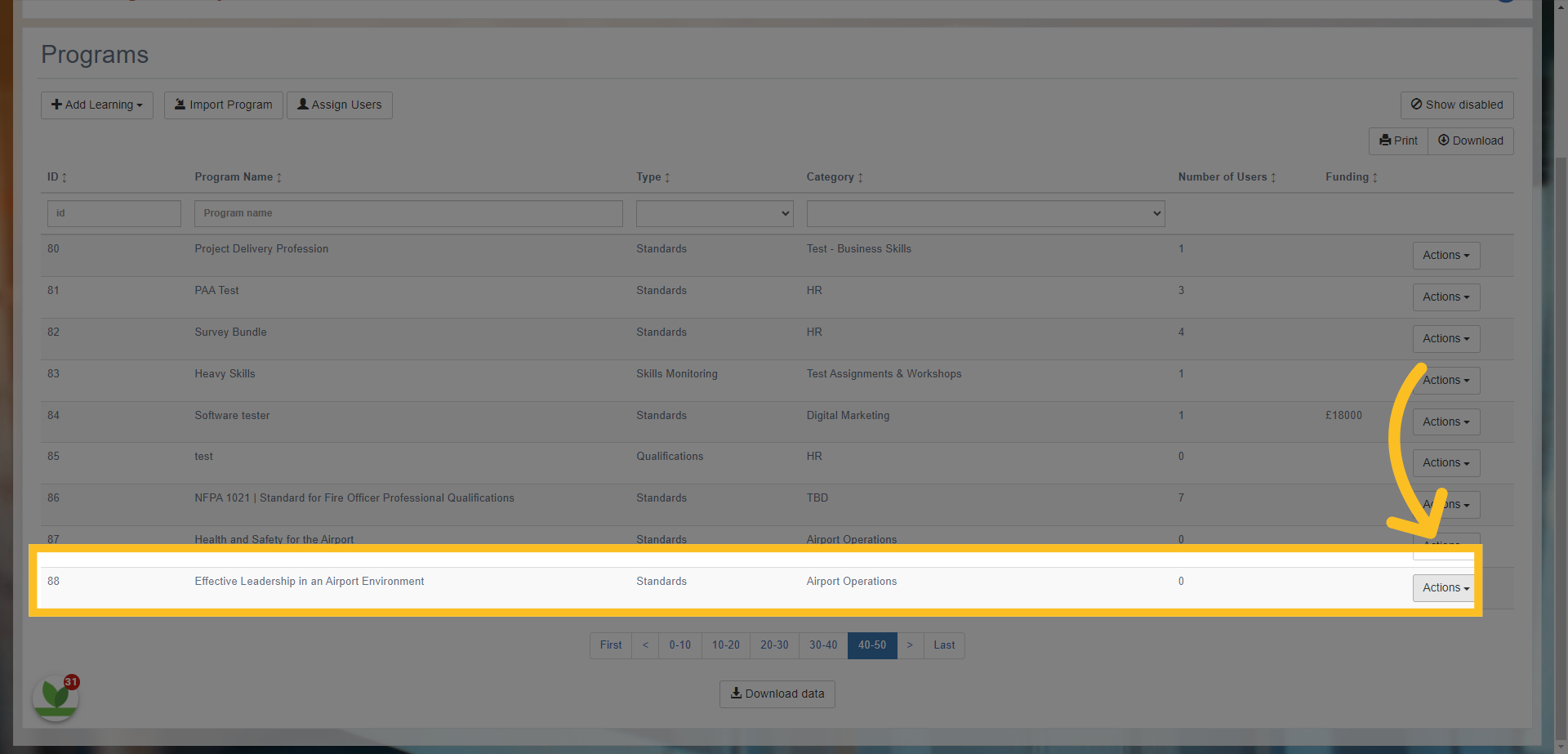
18. Then click the 'Edit' option.
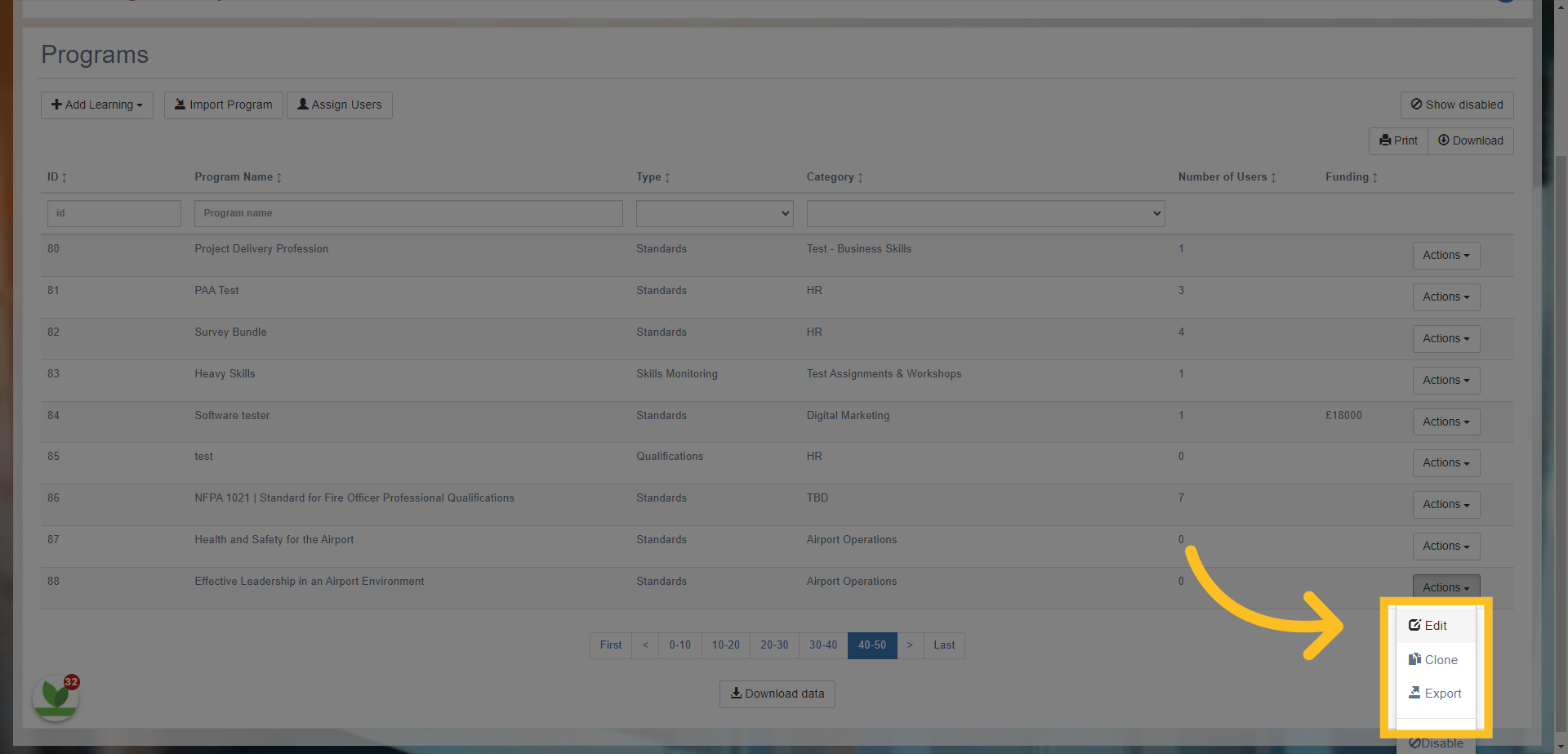
19. This opens the program you have created. We will now look at some of the next steps you need to do in order to add more details to your program.
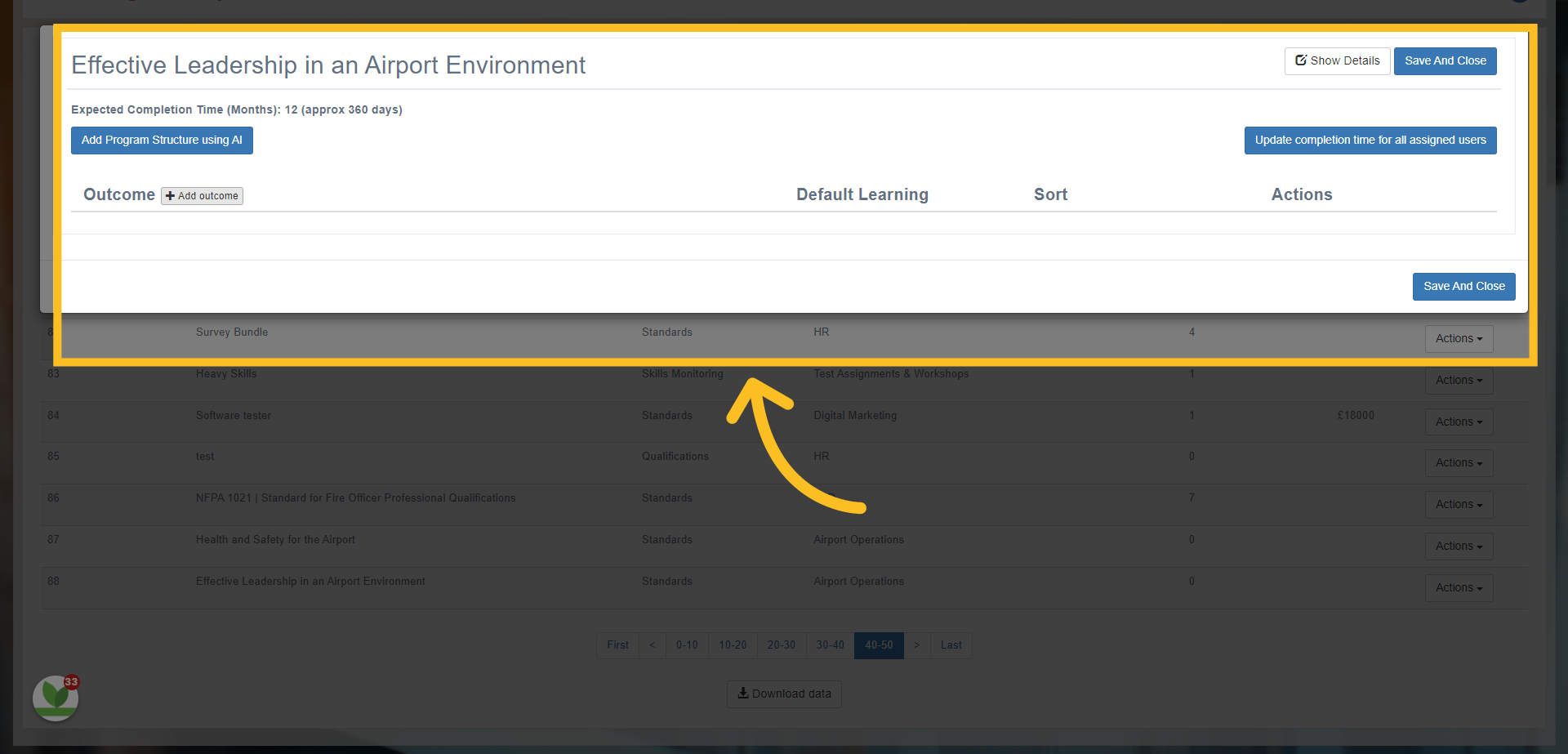
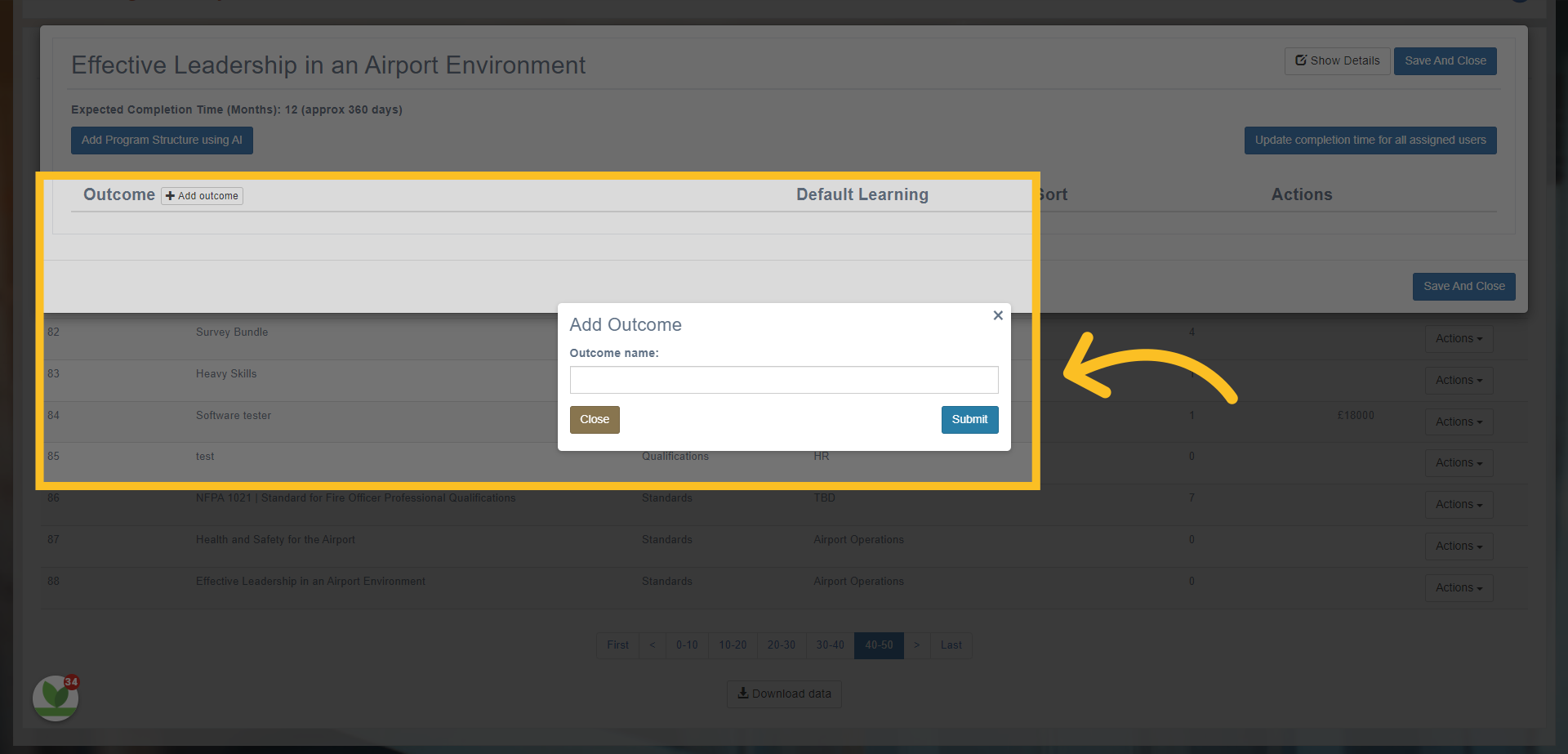
20. You can choose to 'Add Outcomes and Criteria' manually by clicking +Add outcome button.
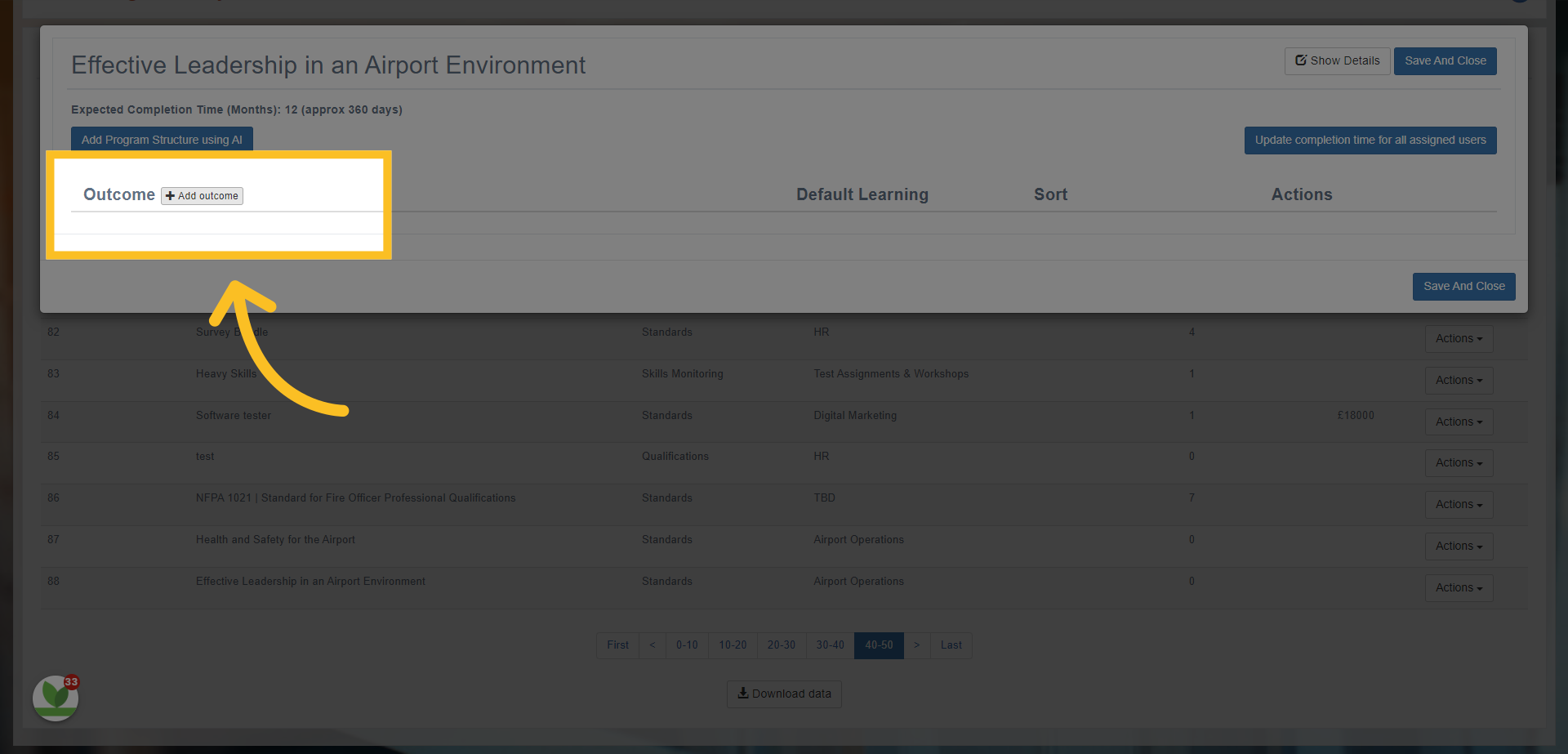
21. Add the name of the Outcome here and click the Submit button.
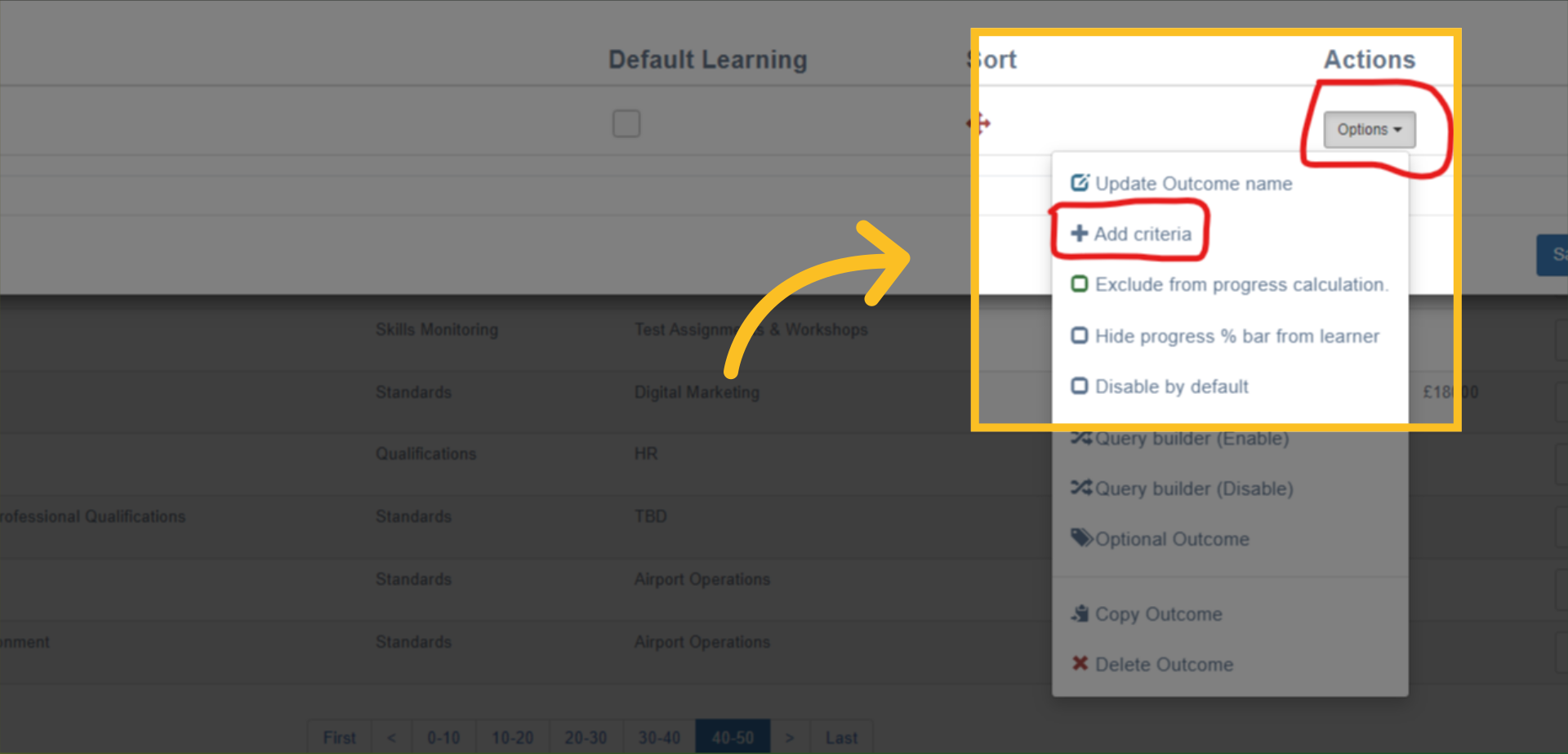
22. Once you've entered the name of the outcome - click on the Options button and select the +Add criteria button.
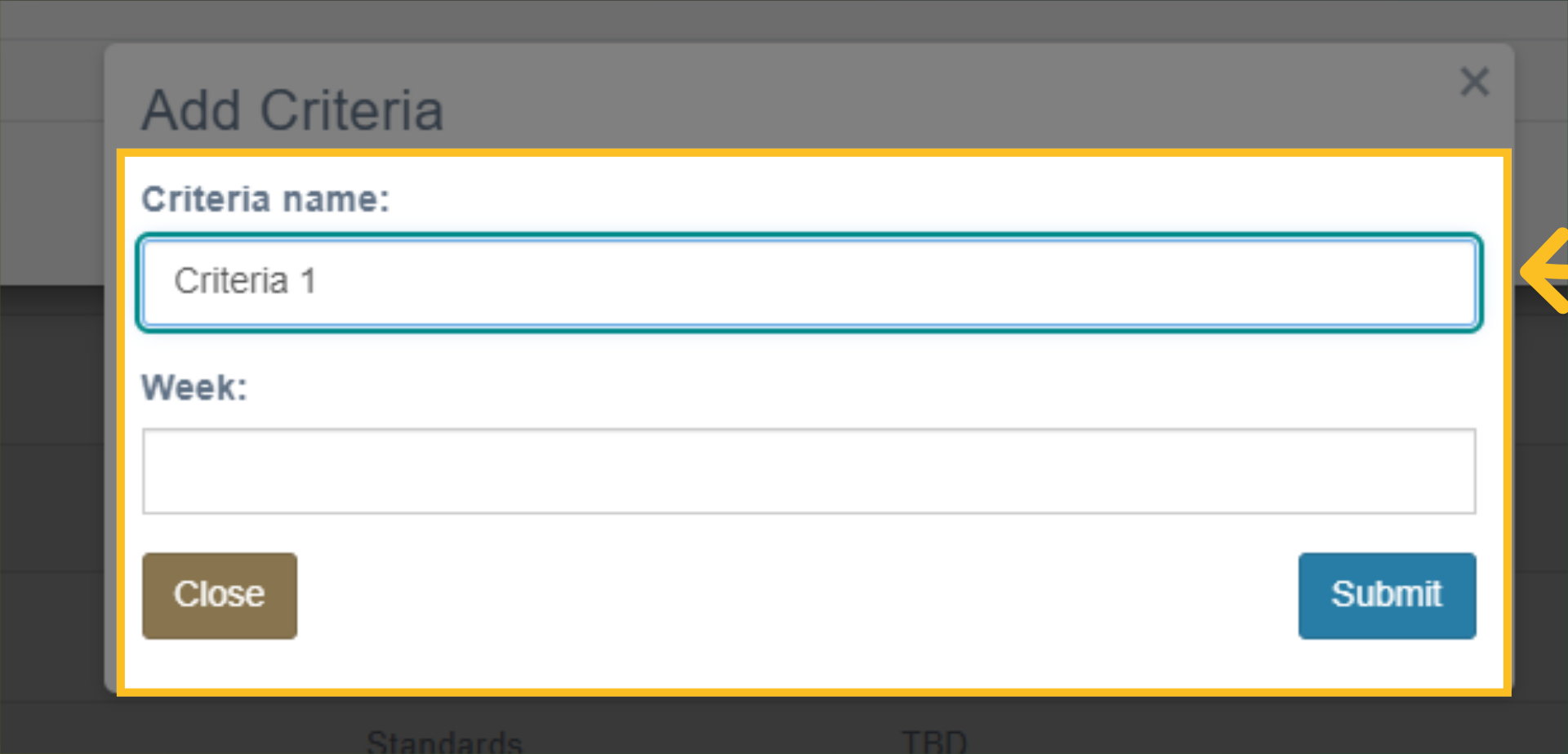
23. Enter the name of the criteria and click the Submit button. NB: You can leave the week box empty.
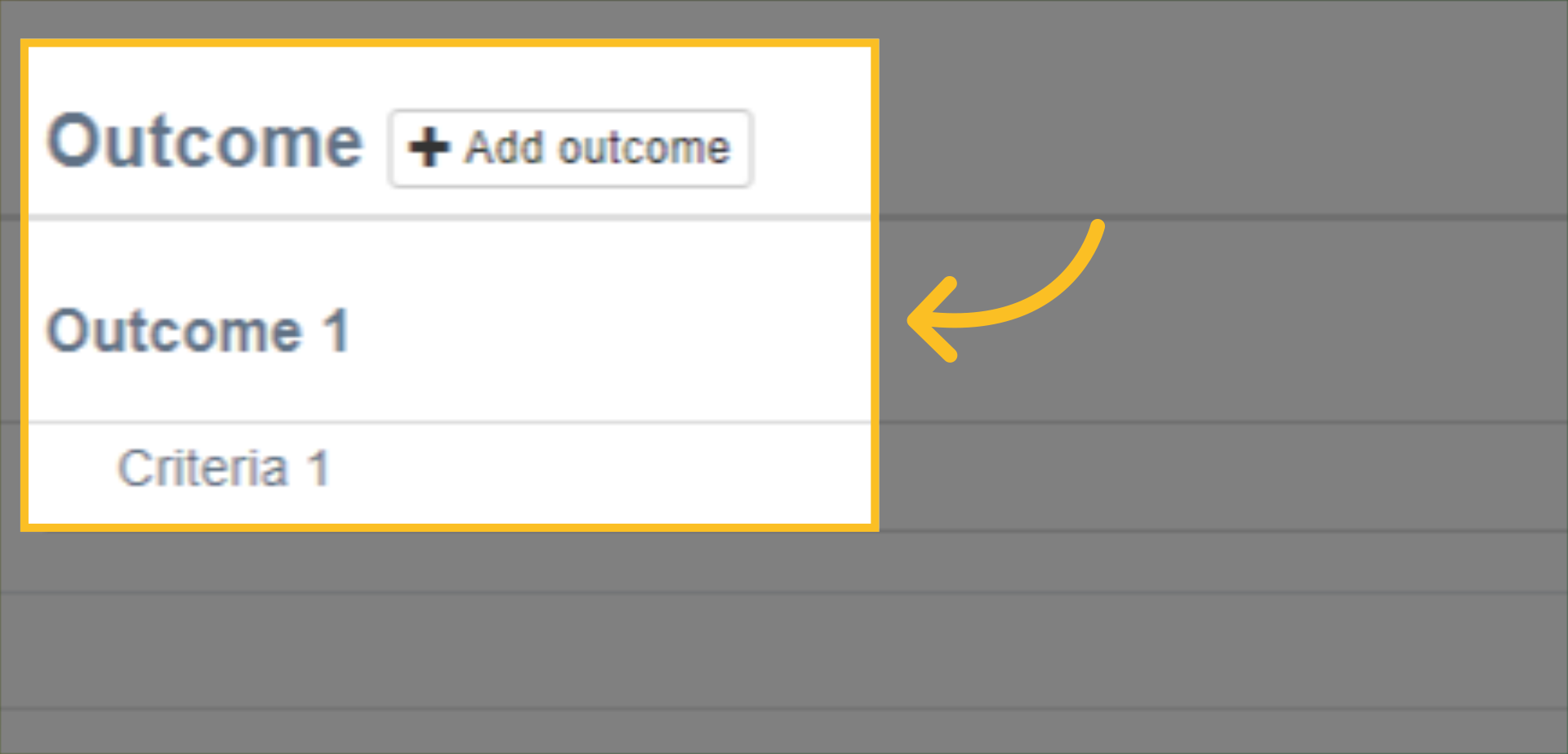
24. Simply repeat these steps to add further Outcomes and Criteria to the program.
25. Alternatively, you can use the 'Add Program Structure using AI' button - this will use the program description/prompt you entered when orignally setting up the program (see step 9).
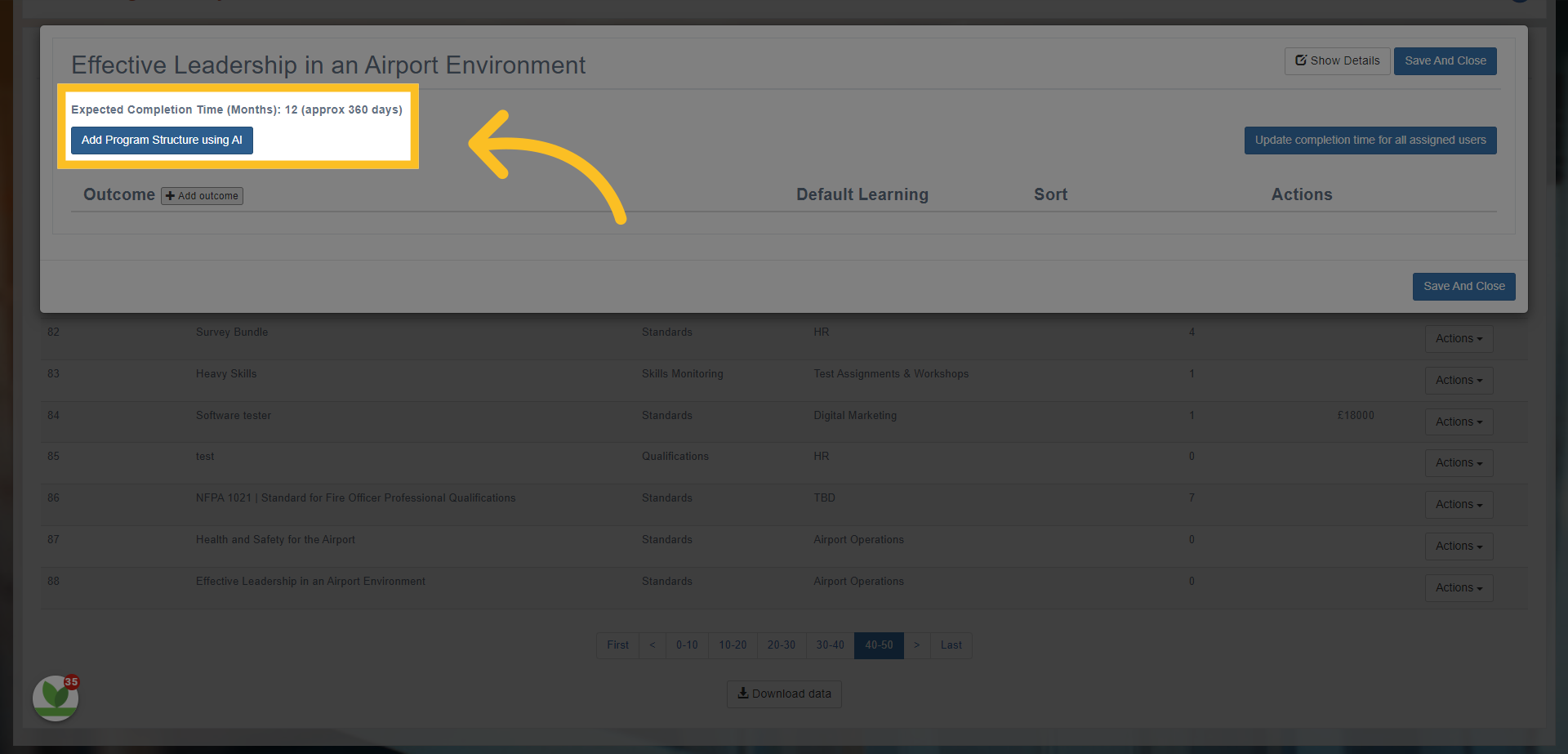
26. Example
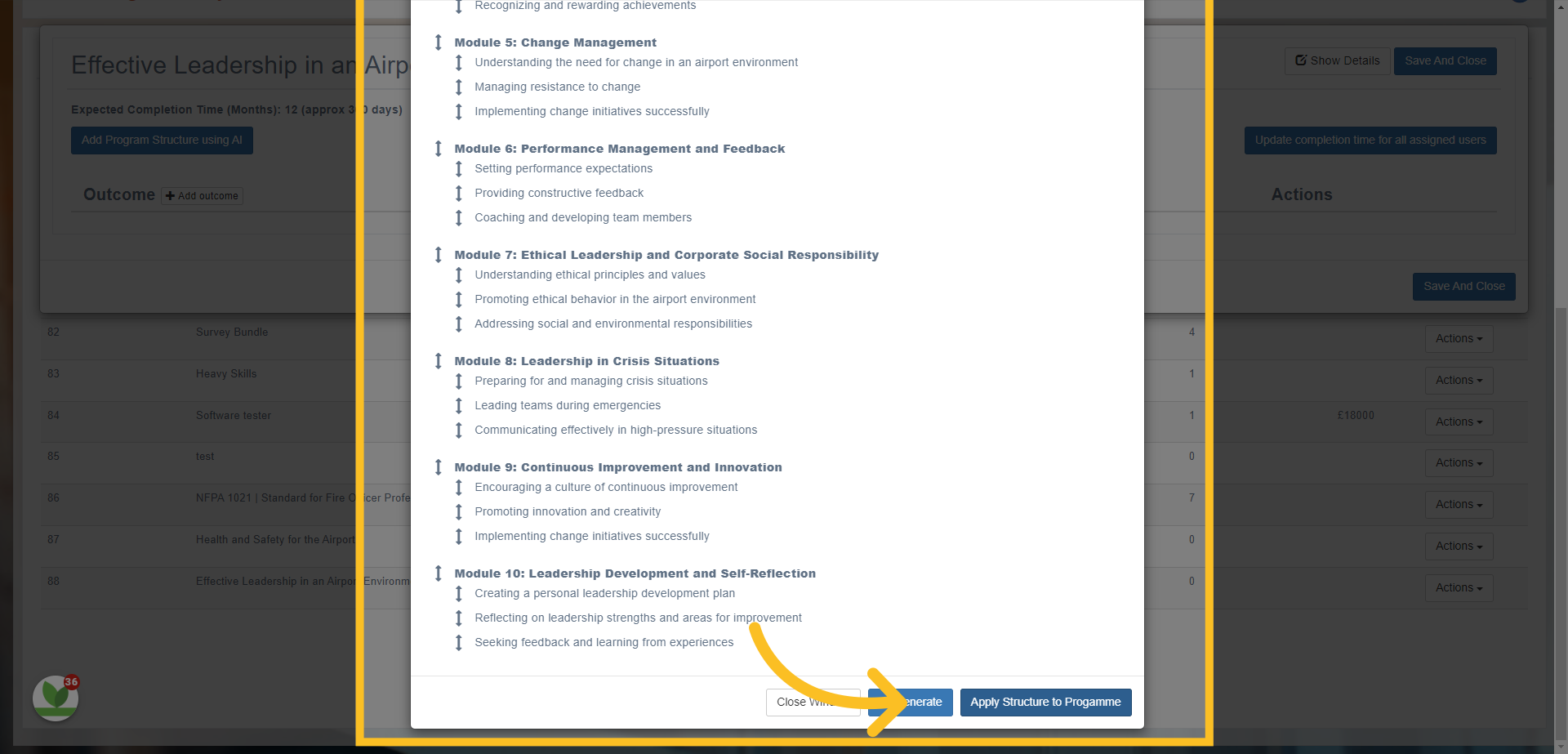
27. You can either choose the 'Re-generate' option if you want AI to create a new version from the description OR you can choose the 'Apply Structure to program' to add this structure to your program.
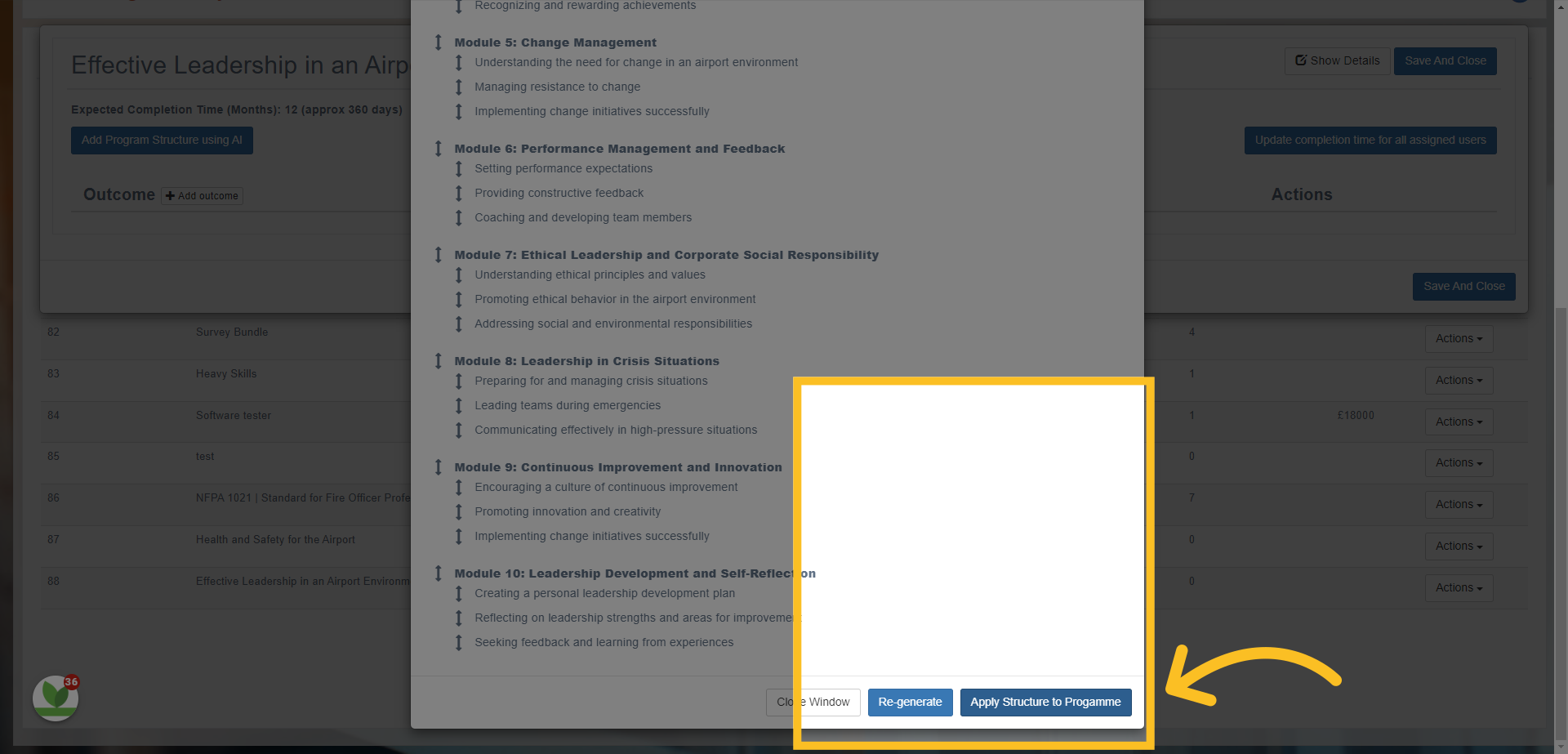
28. As with Step 23 - click on the Options button next to the Outcomes to edit the Outcome Name or Add further criteria.
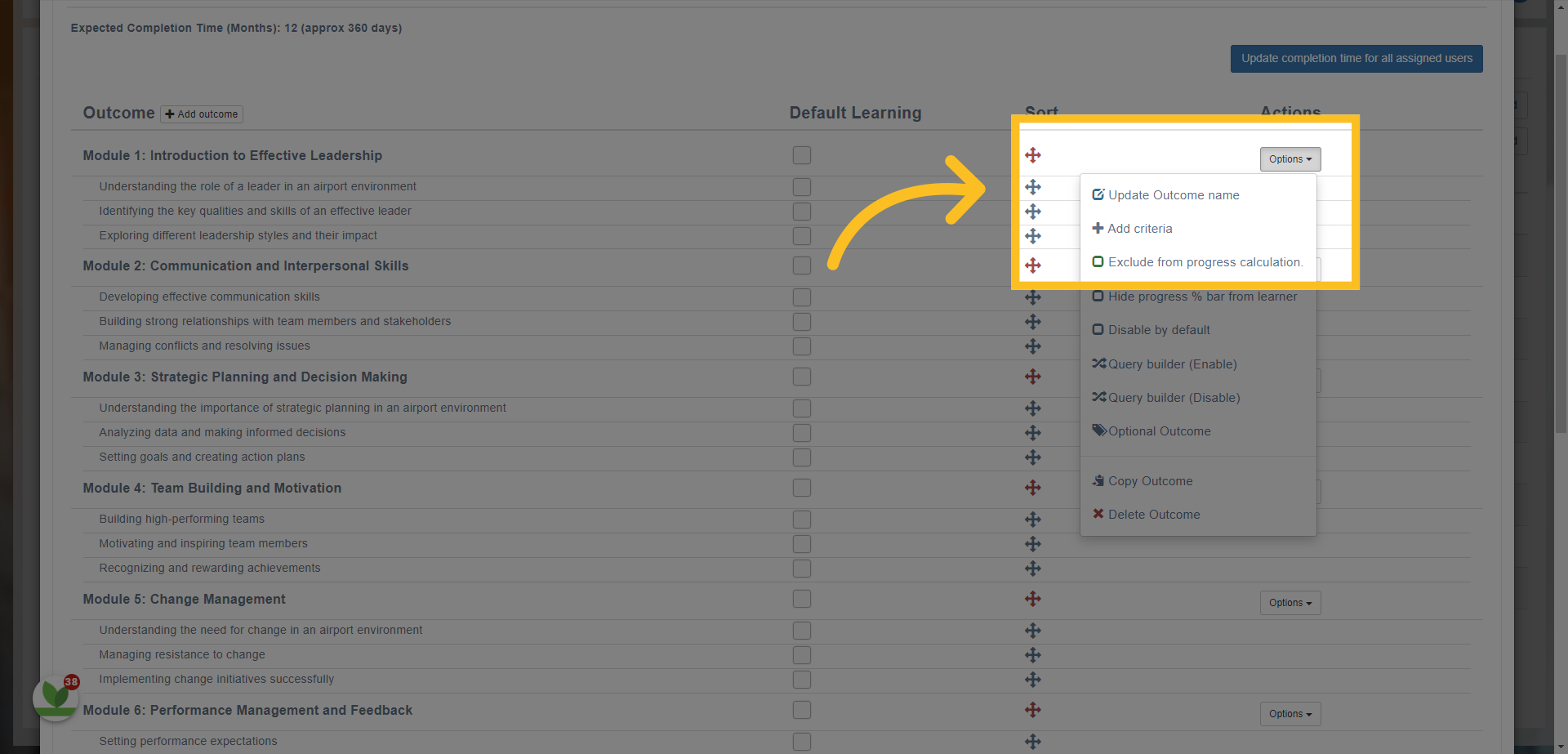
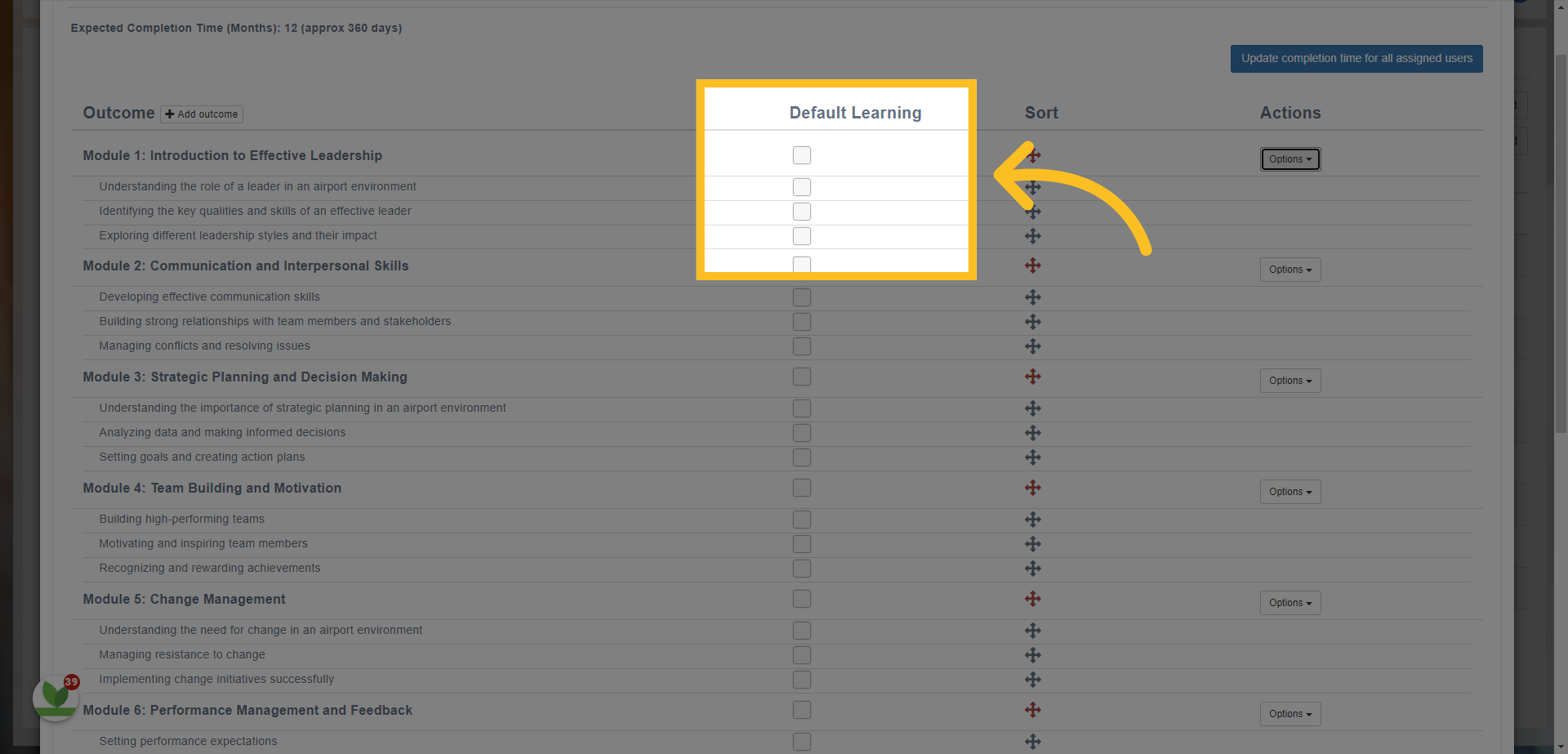
29. To map resources and/or lessons to the program - simply click on the boxes (Default Learning) next to the criteria you've created.
30. This opens the 'Work Window' template.
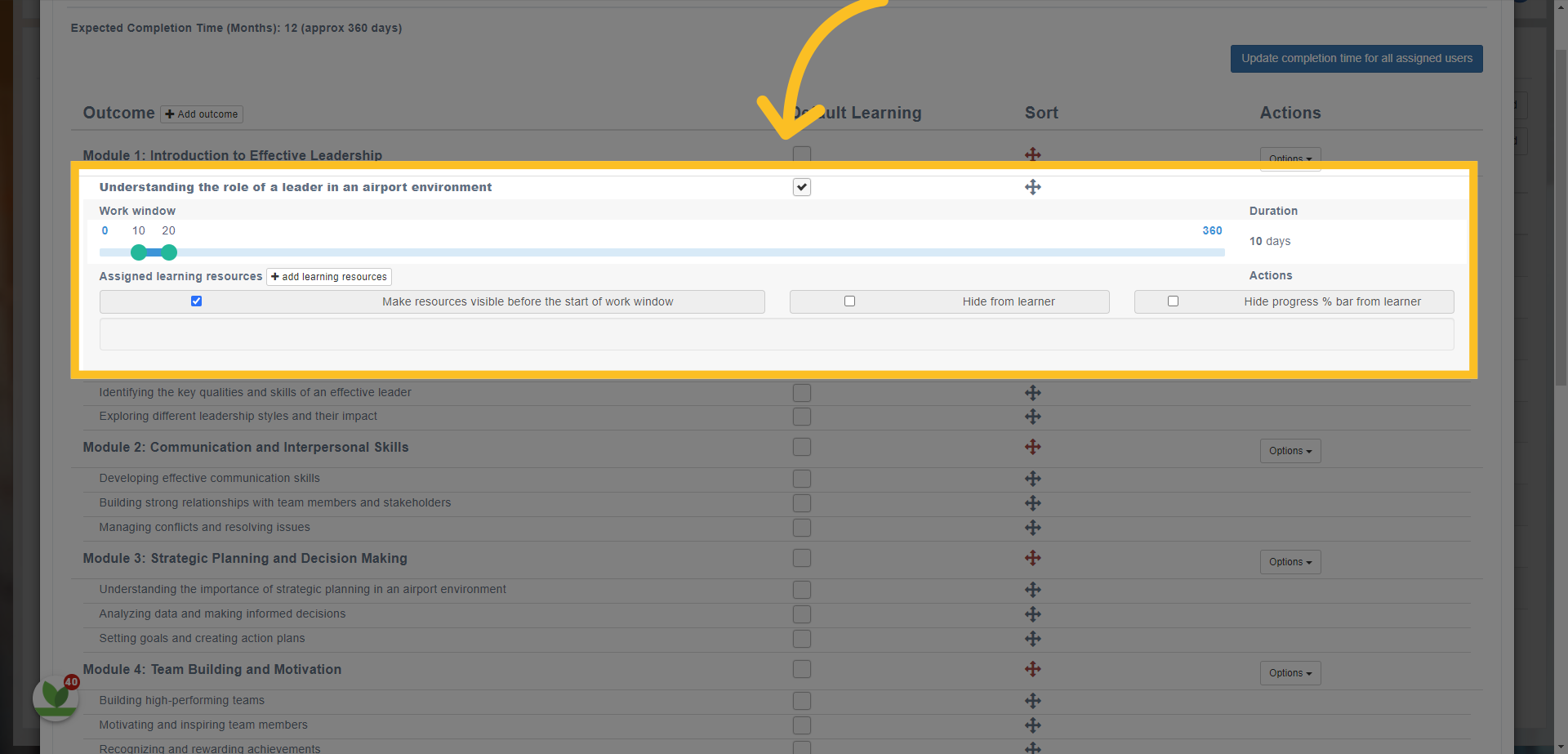
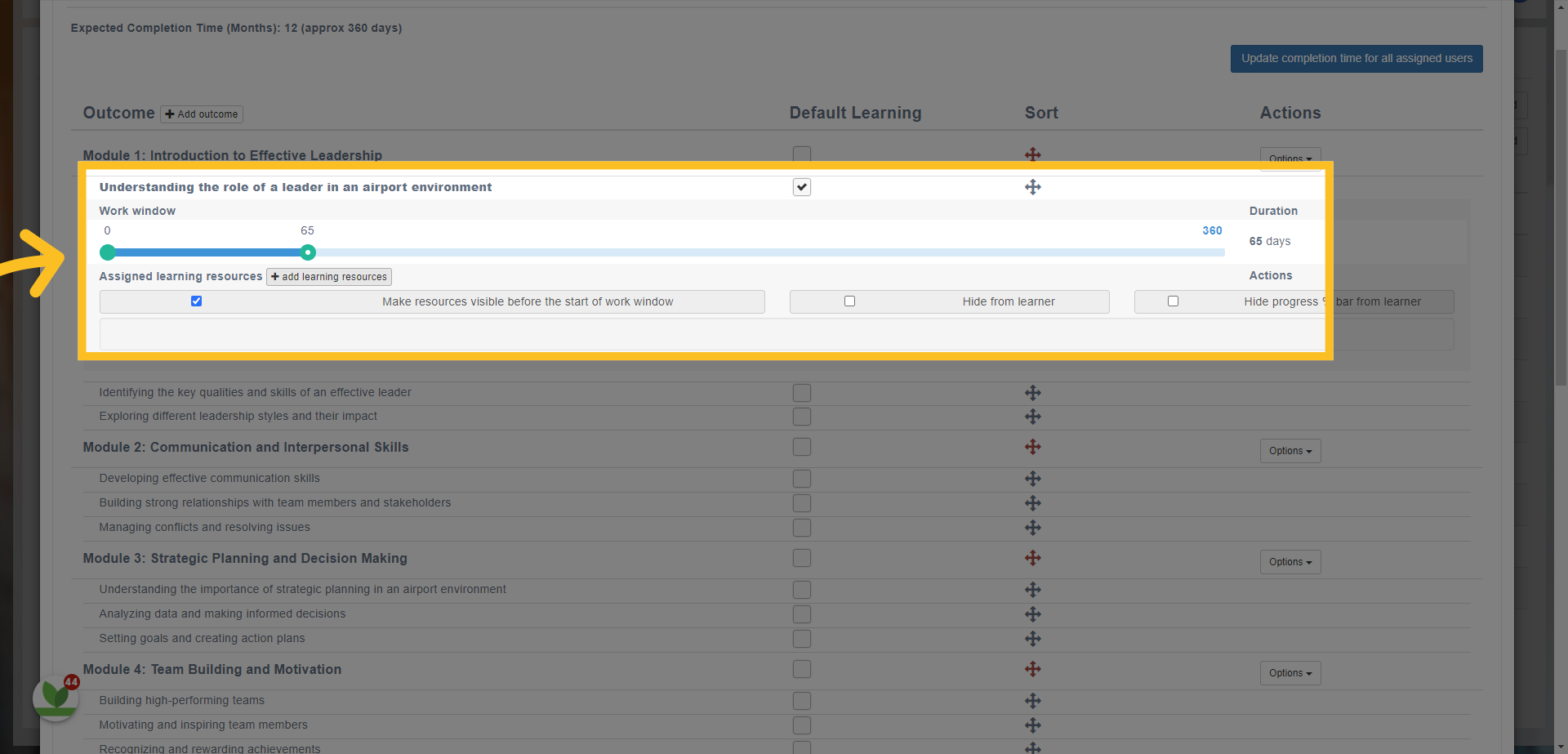
31. This is where you can set when you'd like the criteria to start and end (expected start and completion dates for this part of the program).
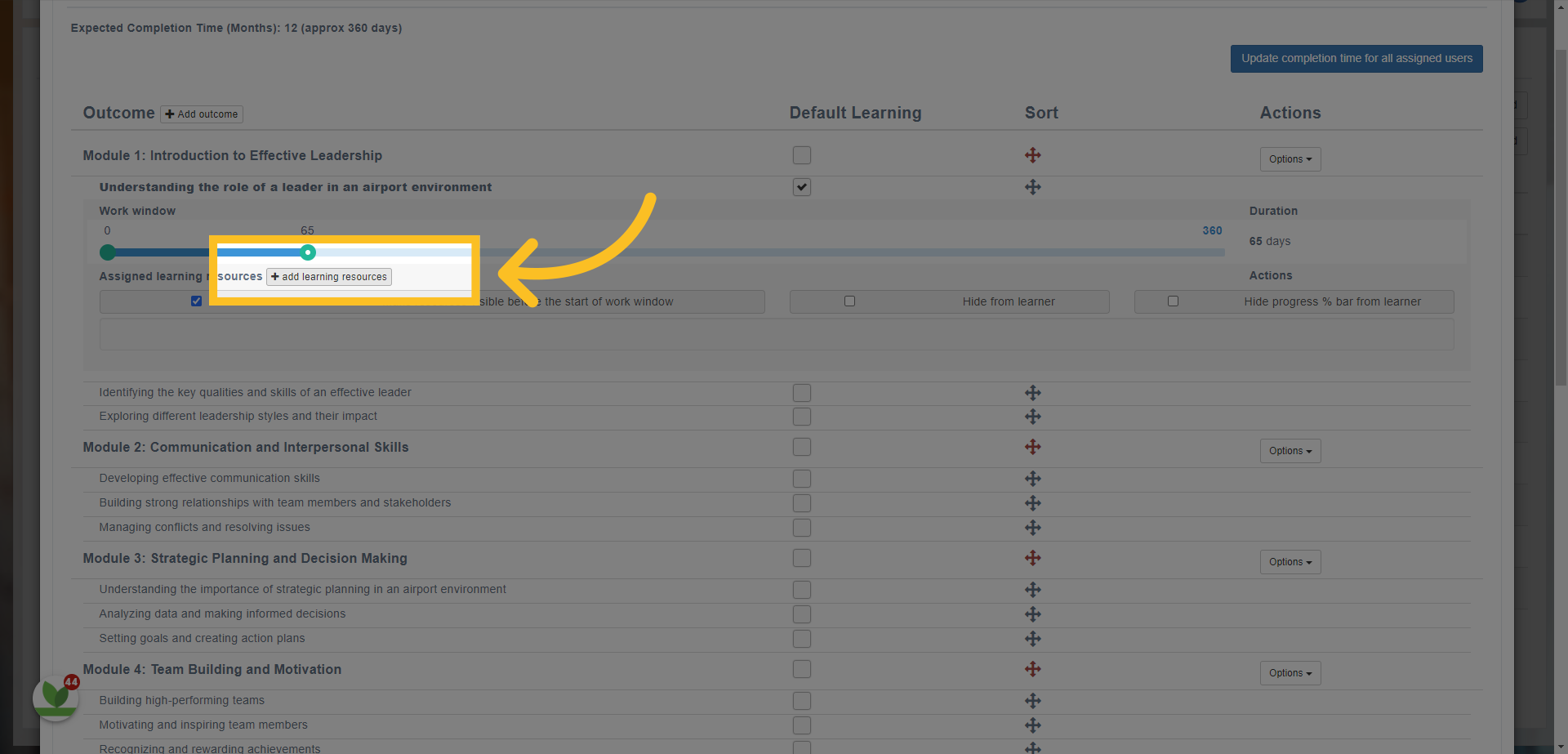
32. Use the 'add learning resources' button to map resources and/or lessons from your learning library to the program.
33. You can search for your learning items by name, category and type.
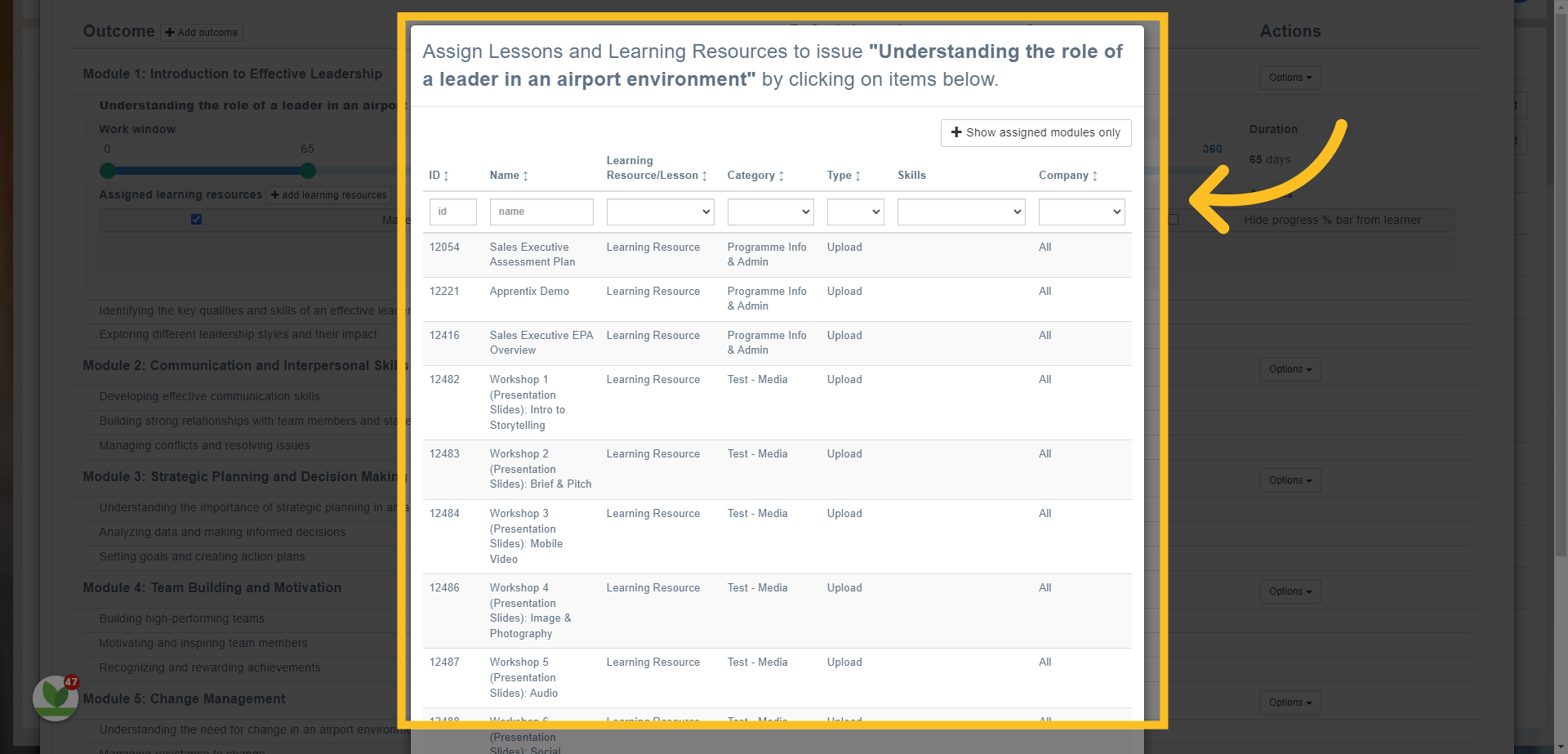
34. Click and highlight as many relevant resources as you need.
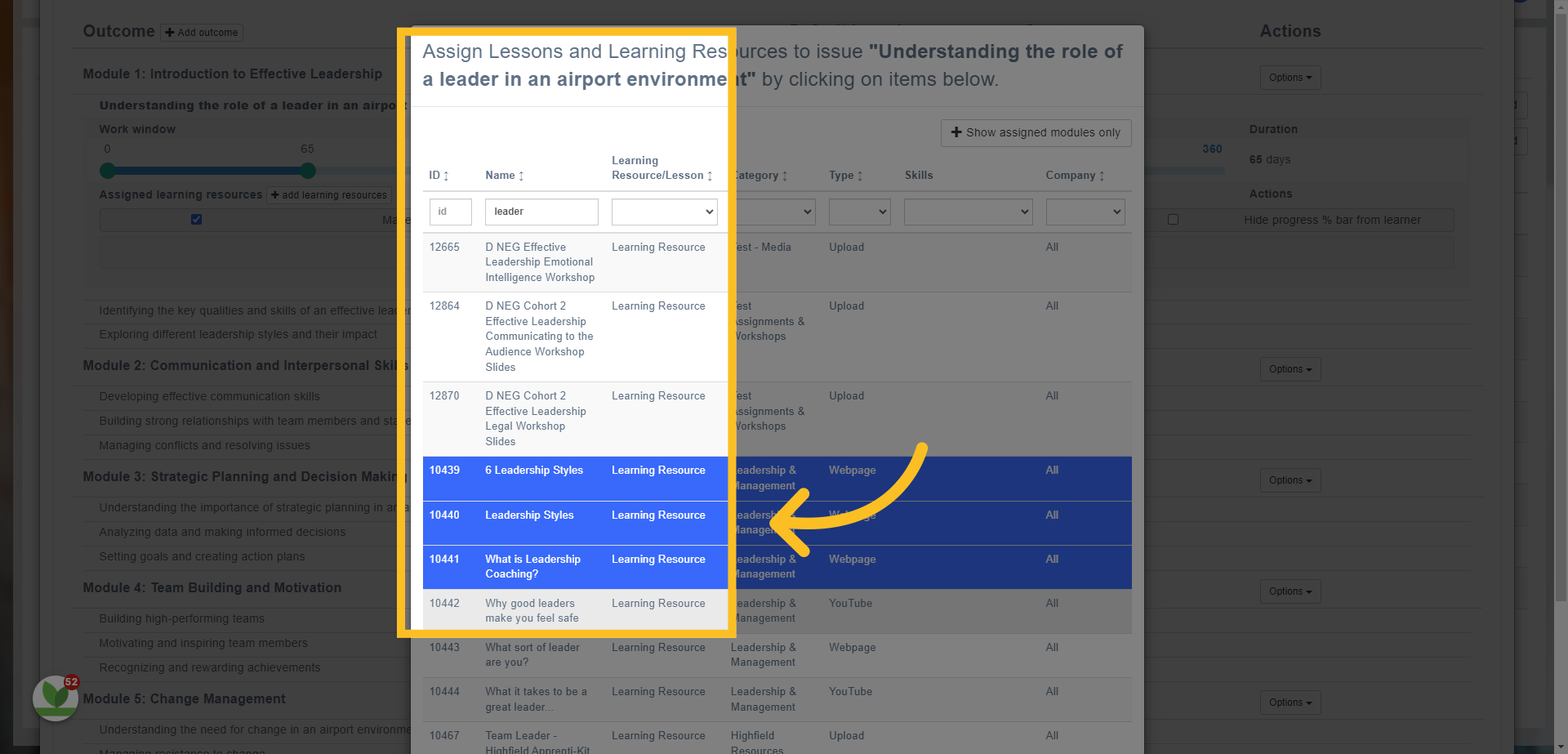
35. Then click 'Close Window'.
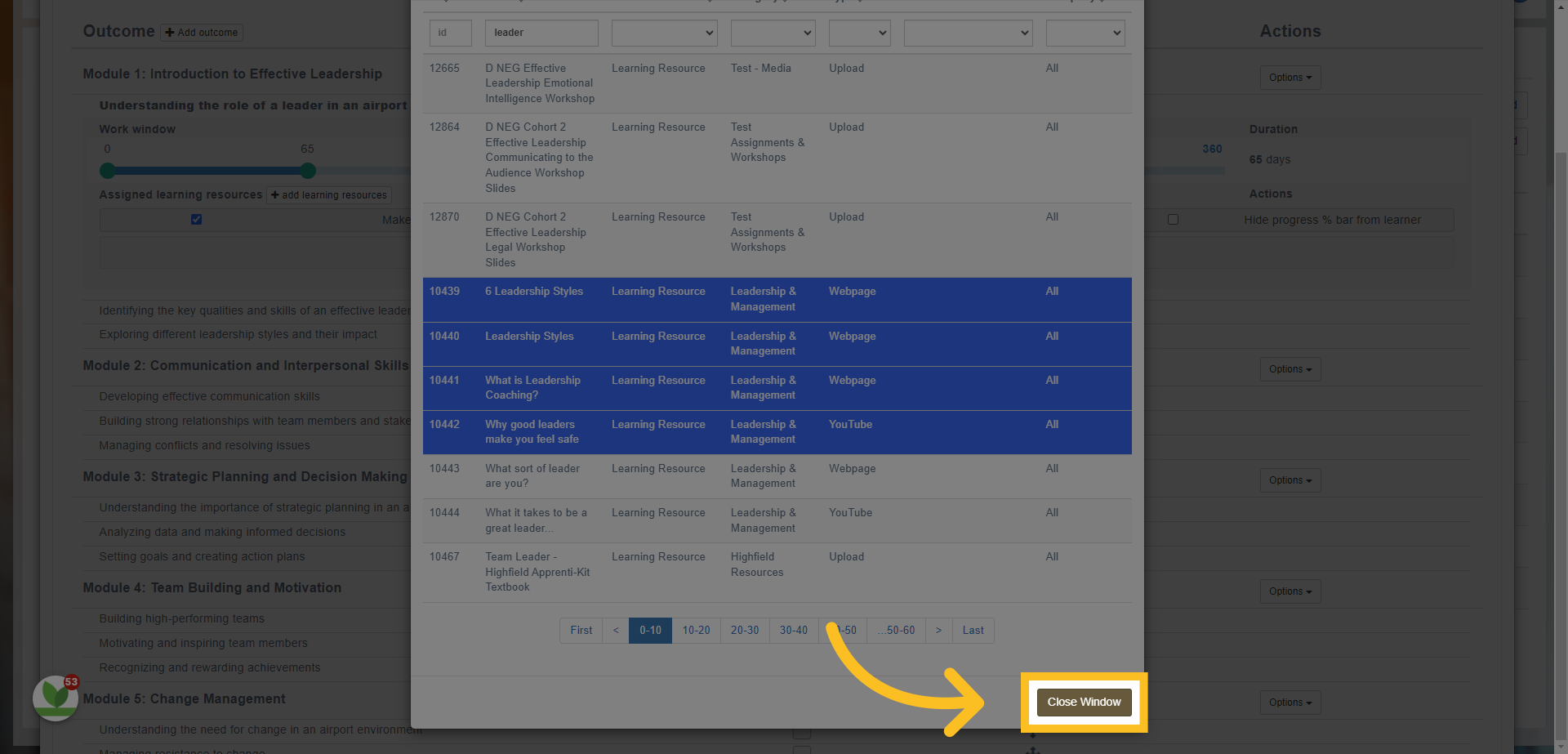
36. These resources will now be mapped to the program.
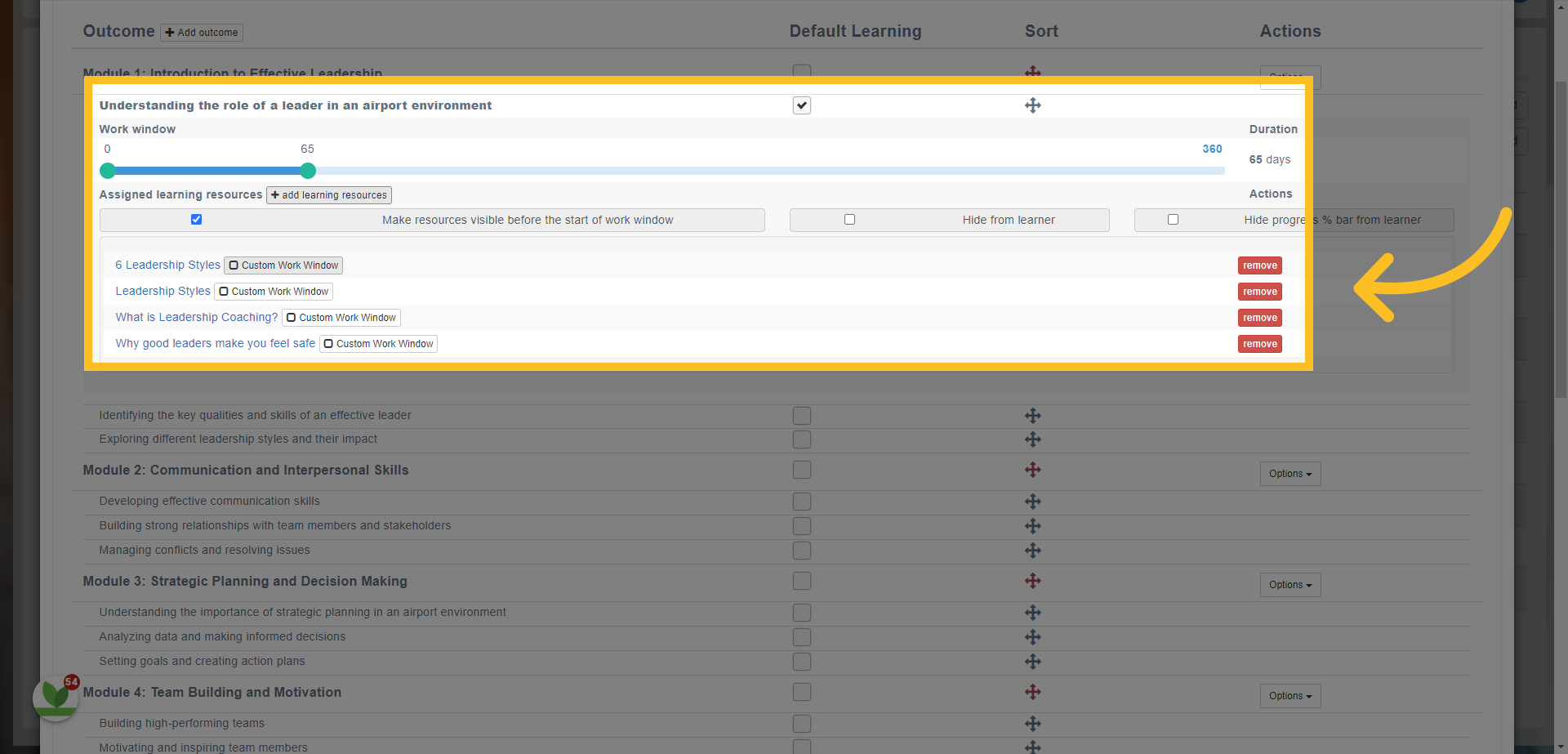
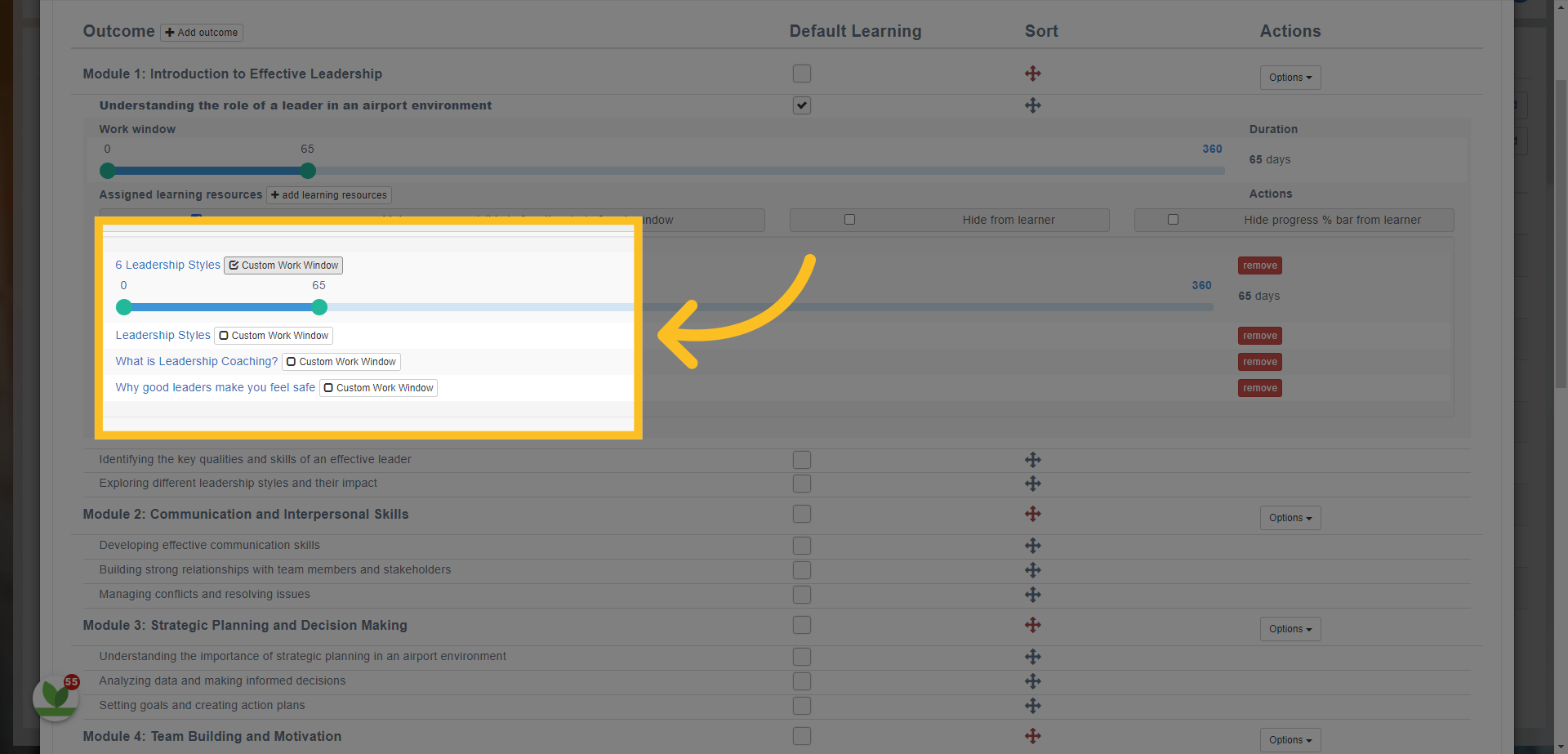
37. You can also customise the work windows for individual resources or lessons by checking the 'Custom Work Window' box next to the resource.
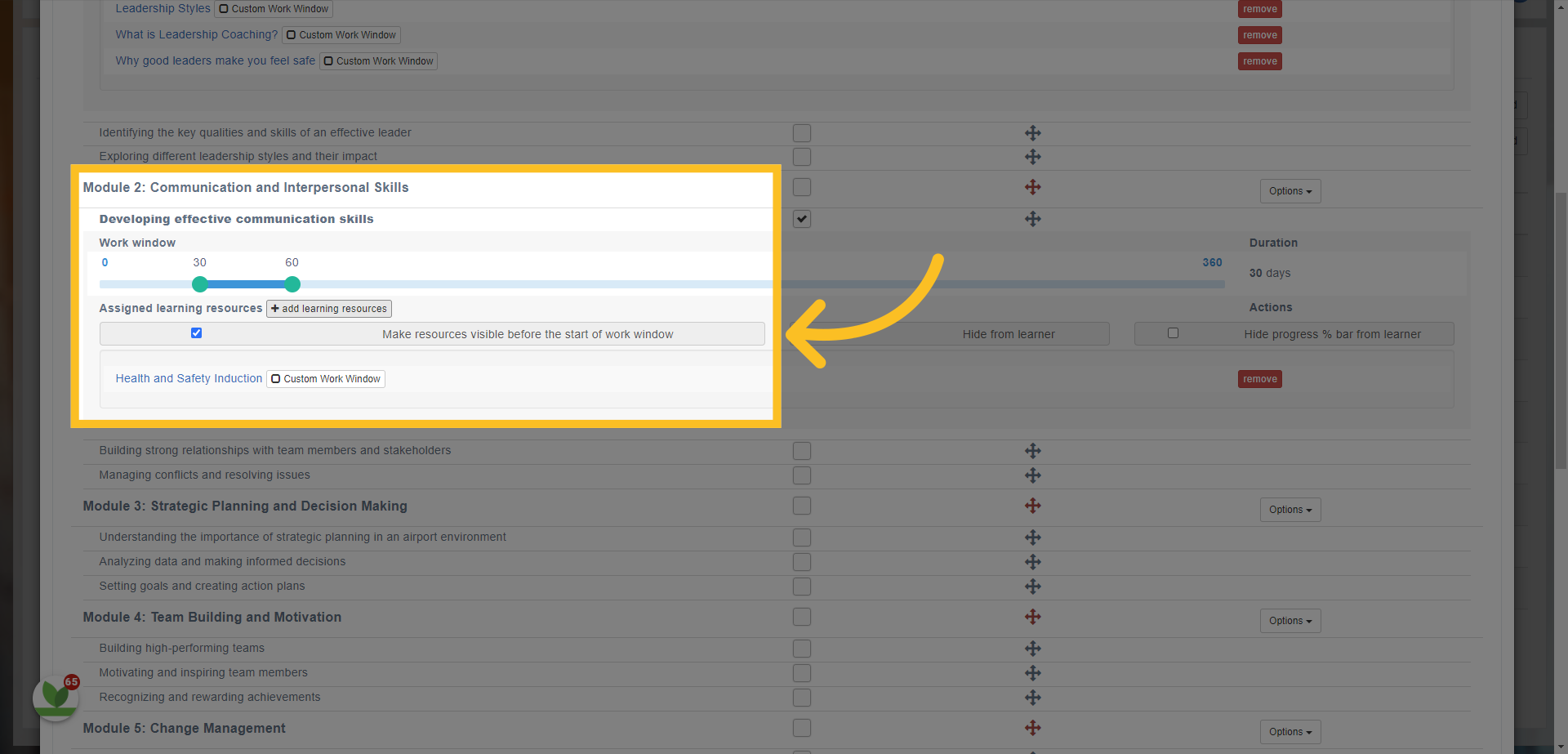
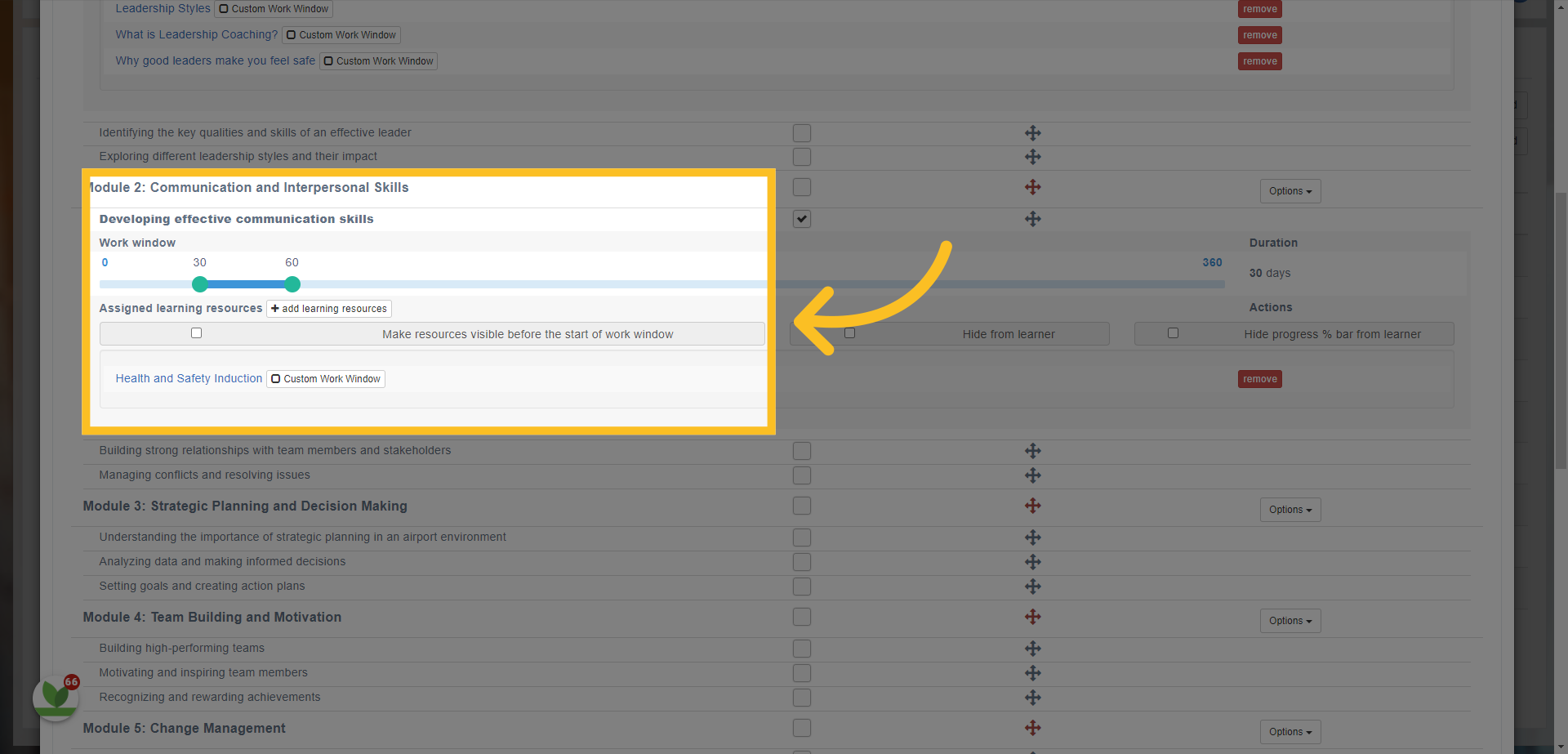
38. You can also hide resources to the learner before the start of the work window or make them visible from the start of the program by using the 'Make resources visible before the start of the work window'.
39. In this example, the resources would not be available or seen by the user until day 35 of the program. An email will notify them that new resource/s have been assigned to them.
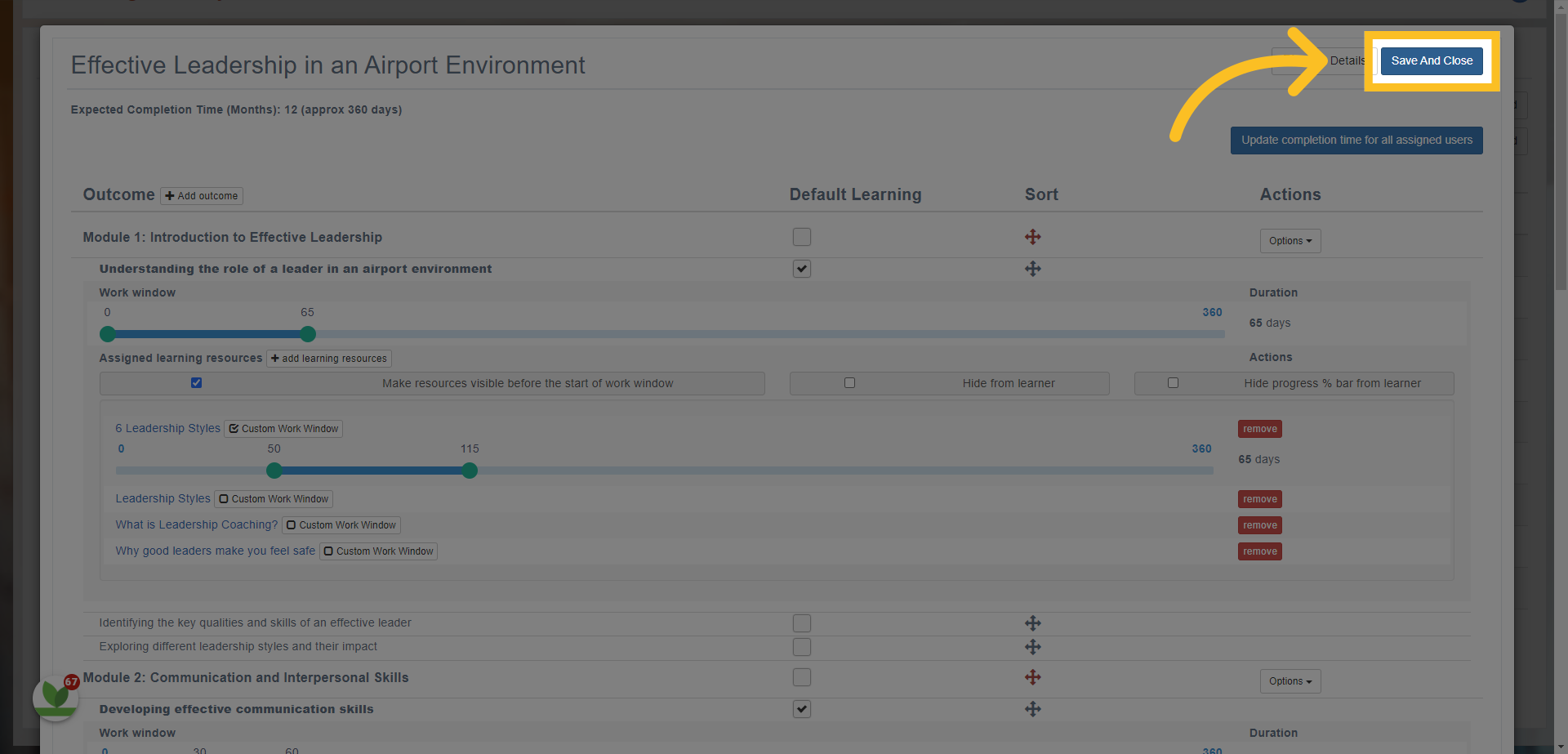
40. Once you have set up the program, click on the 'Save and Close' button at the top of the screen.
41. You can also map resources or lessons to your programs by finding the resource/s in your learning library
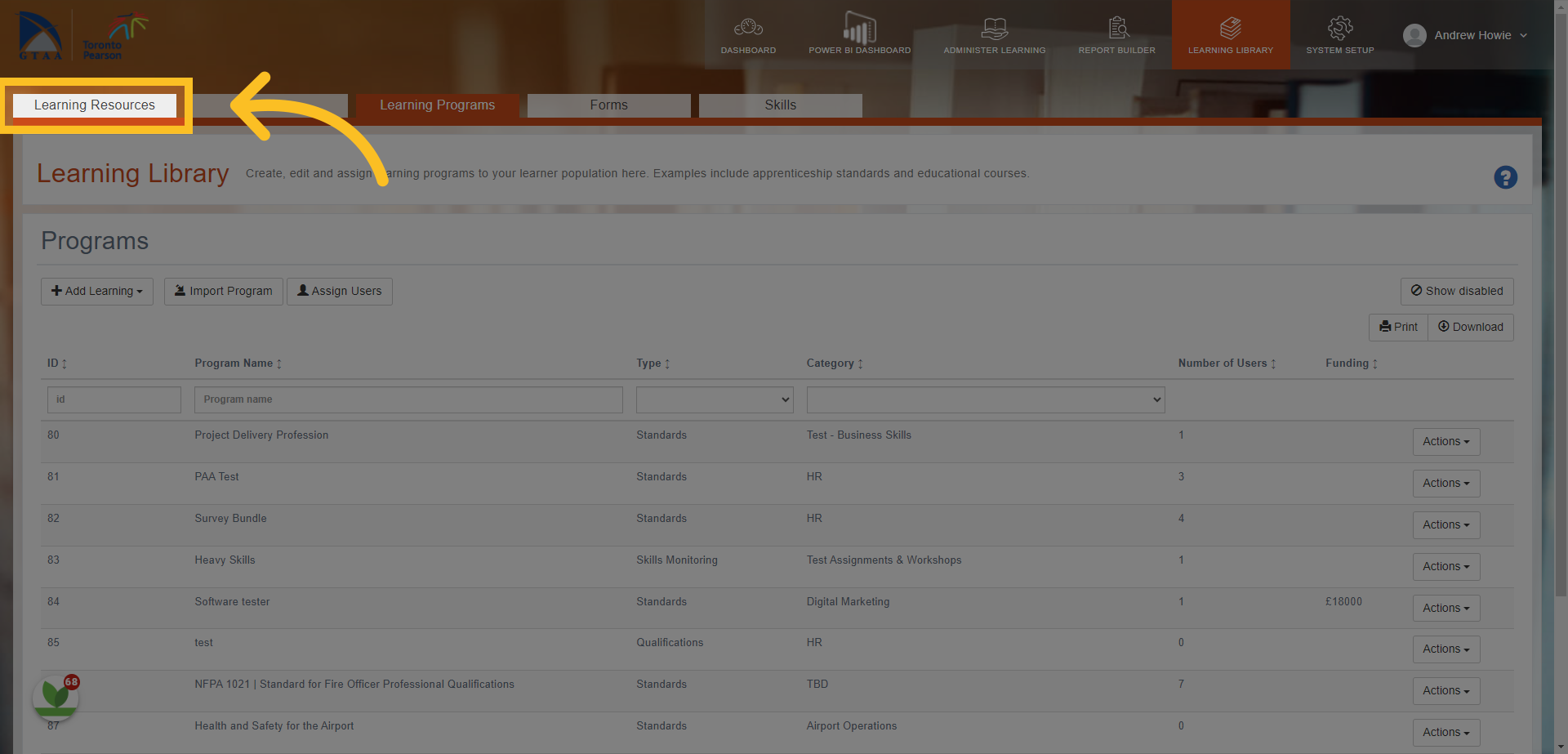
42. Search for the learning items by name, category or type.
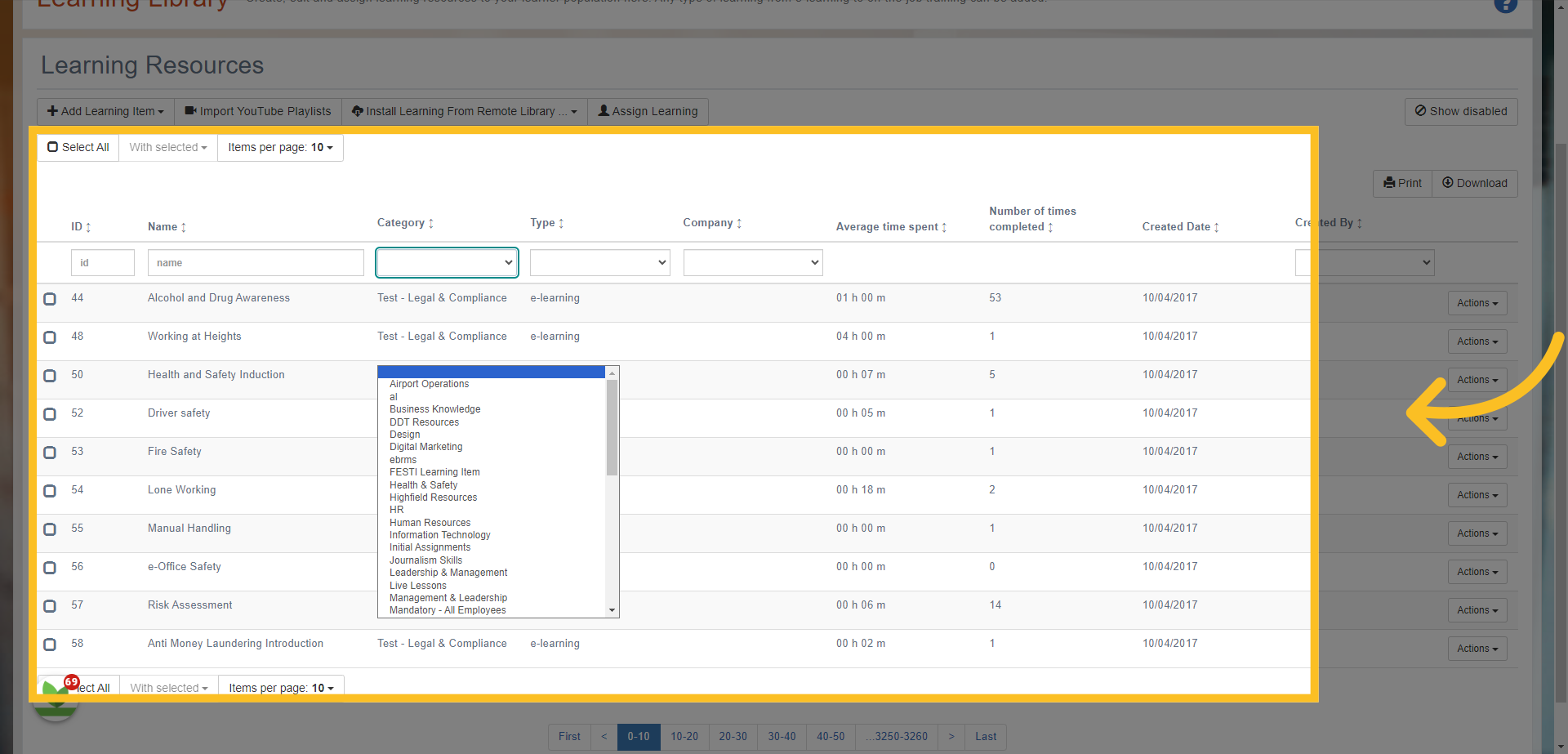
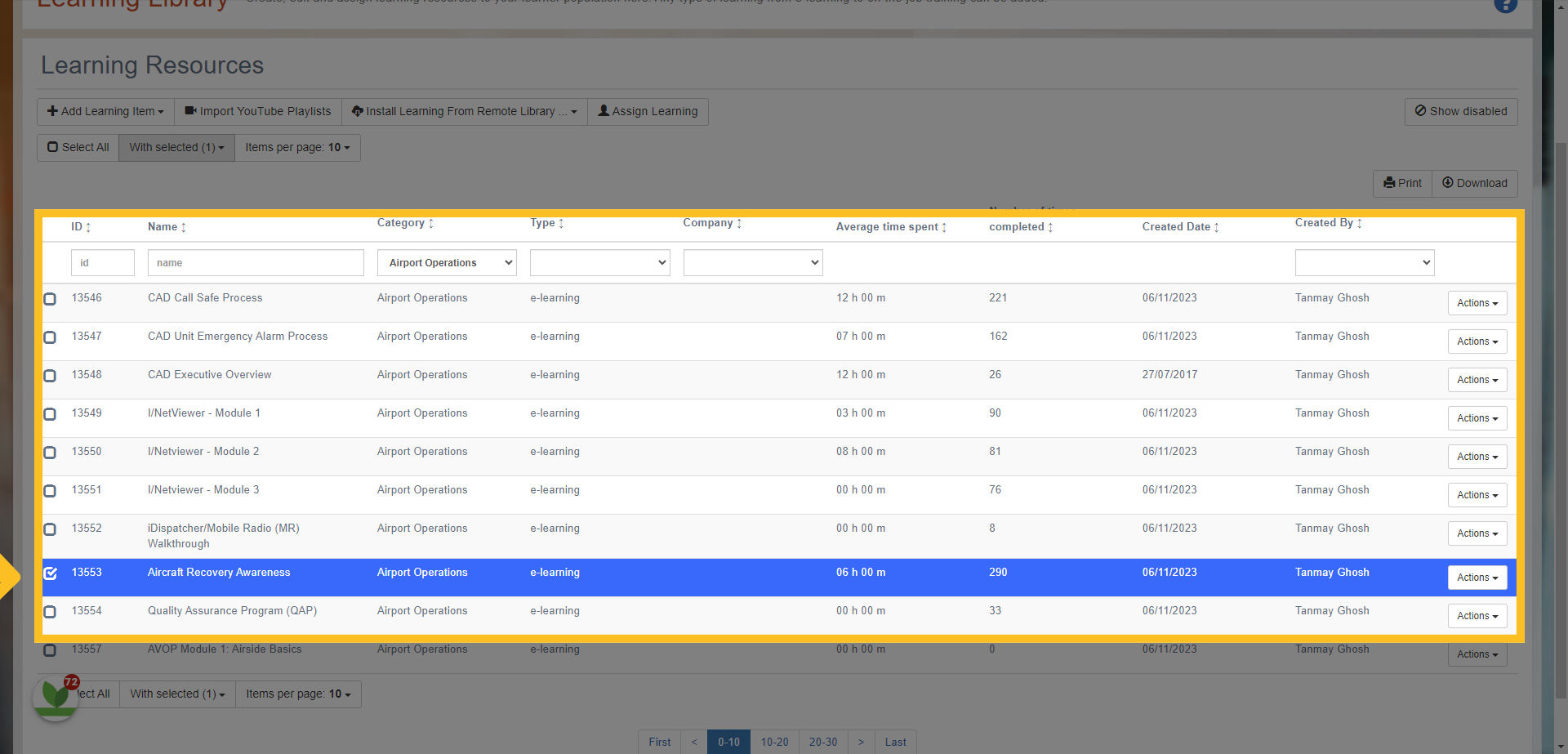
43. Select the item or items you want to use by checking on the box next to the resource.
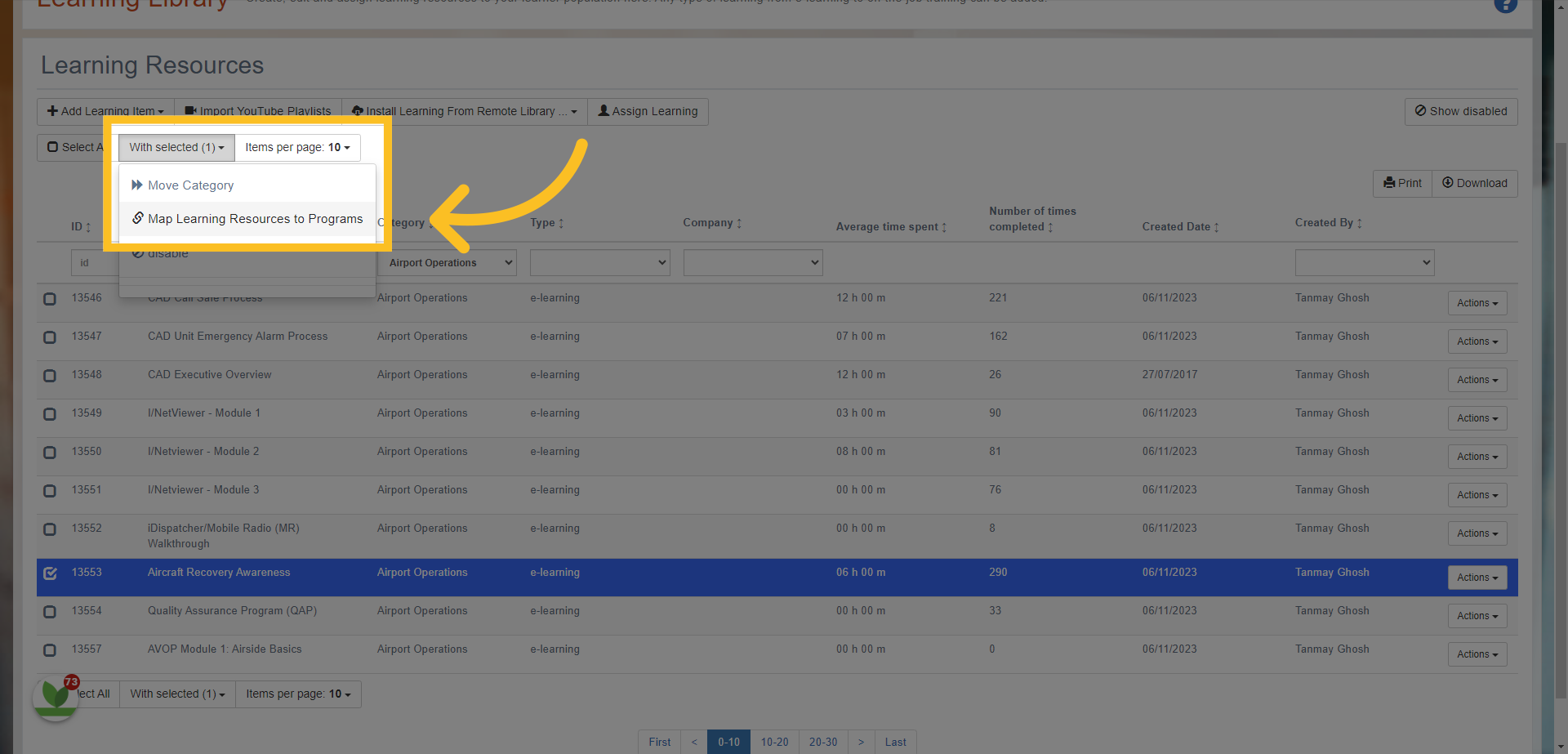
44. Click on the 'With selected' button and then choose 'Map Learning Resources to Programs'.
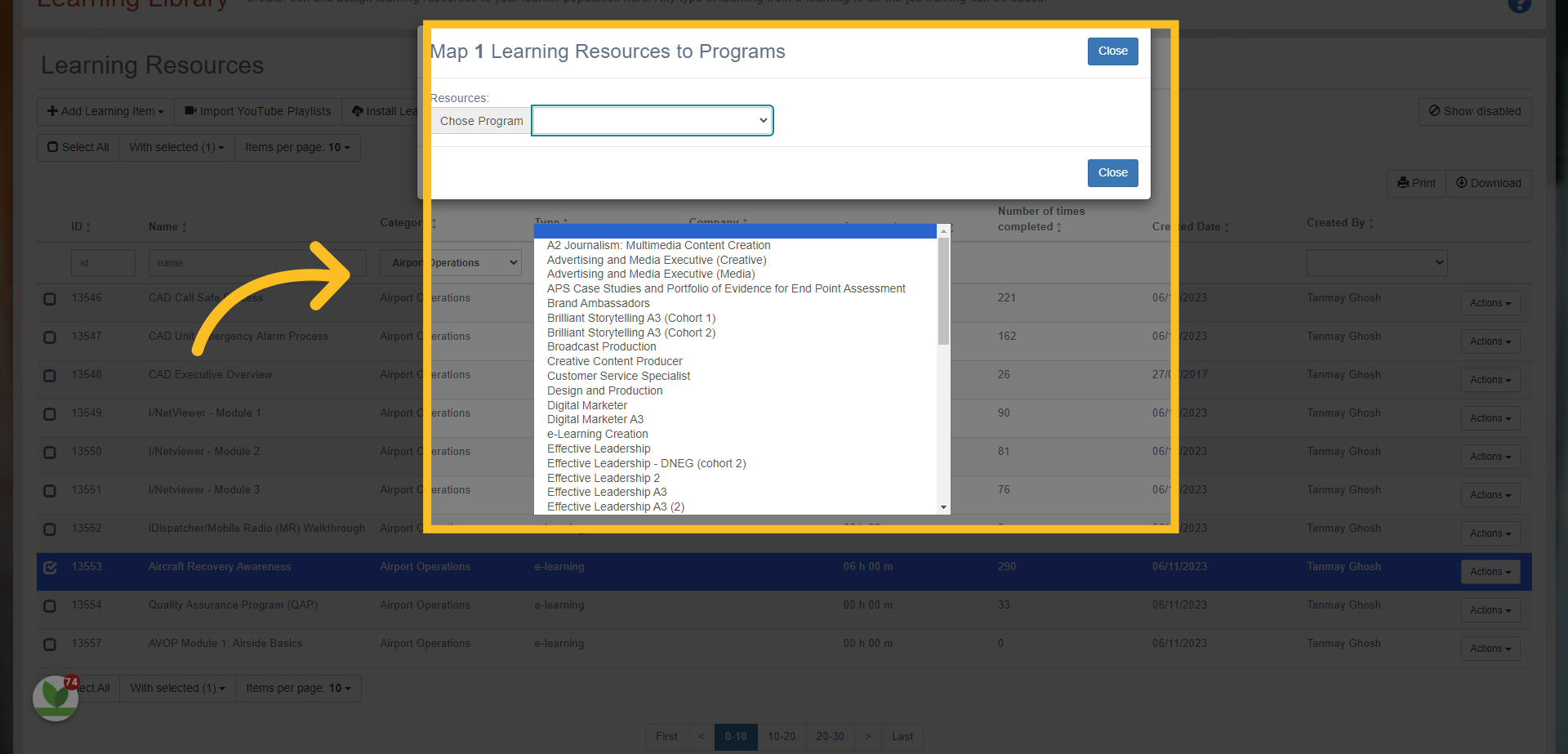
45. Choose the program you want to map the resource/s to from the drop down selection.
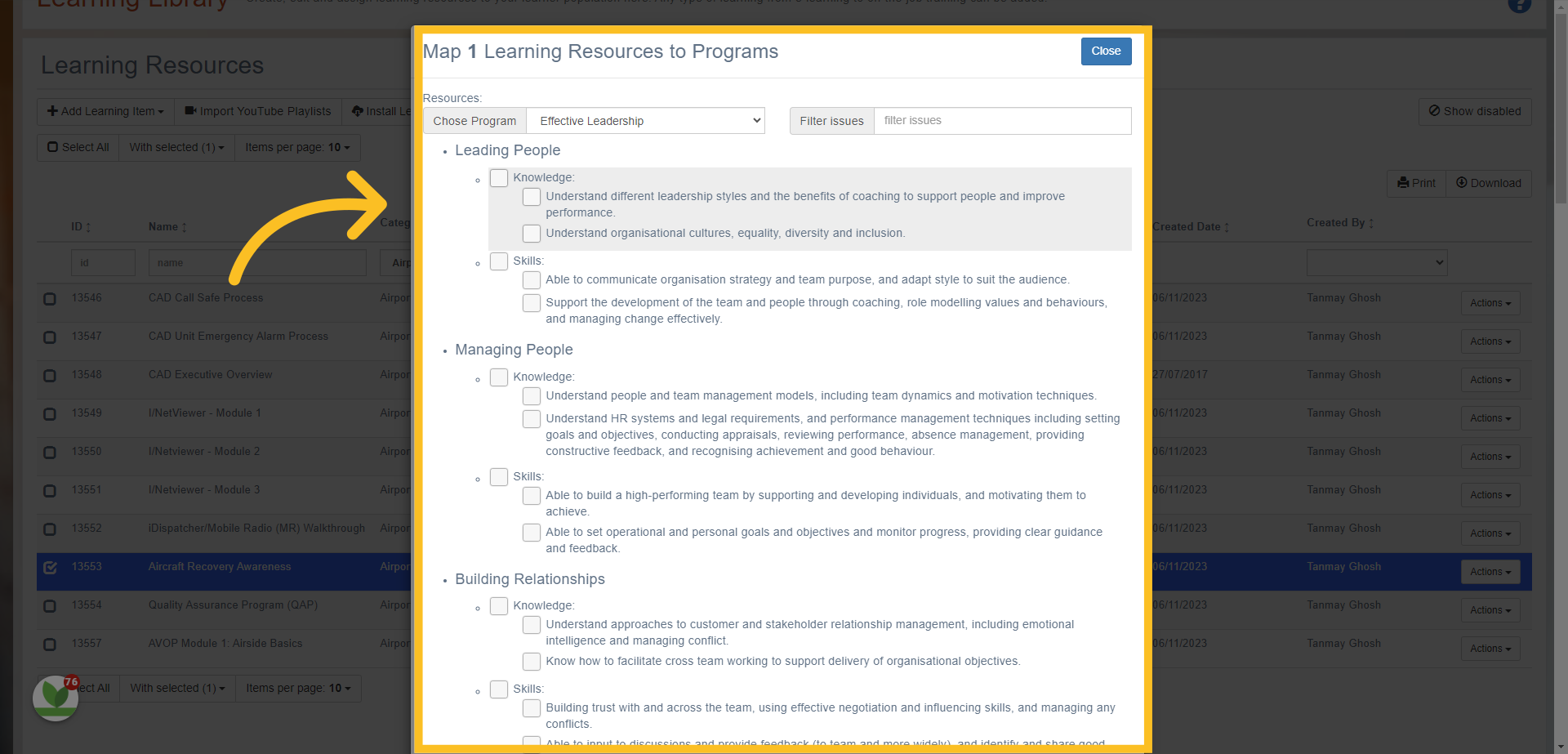
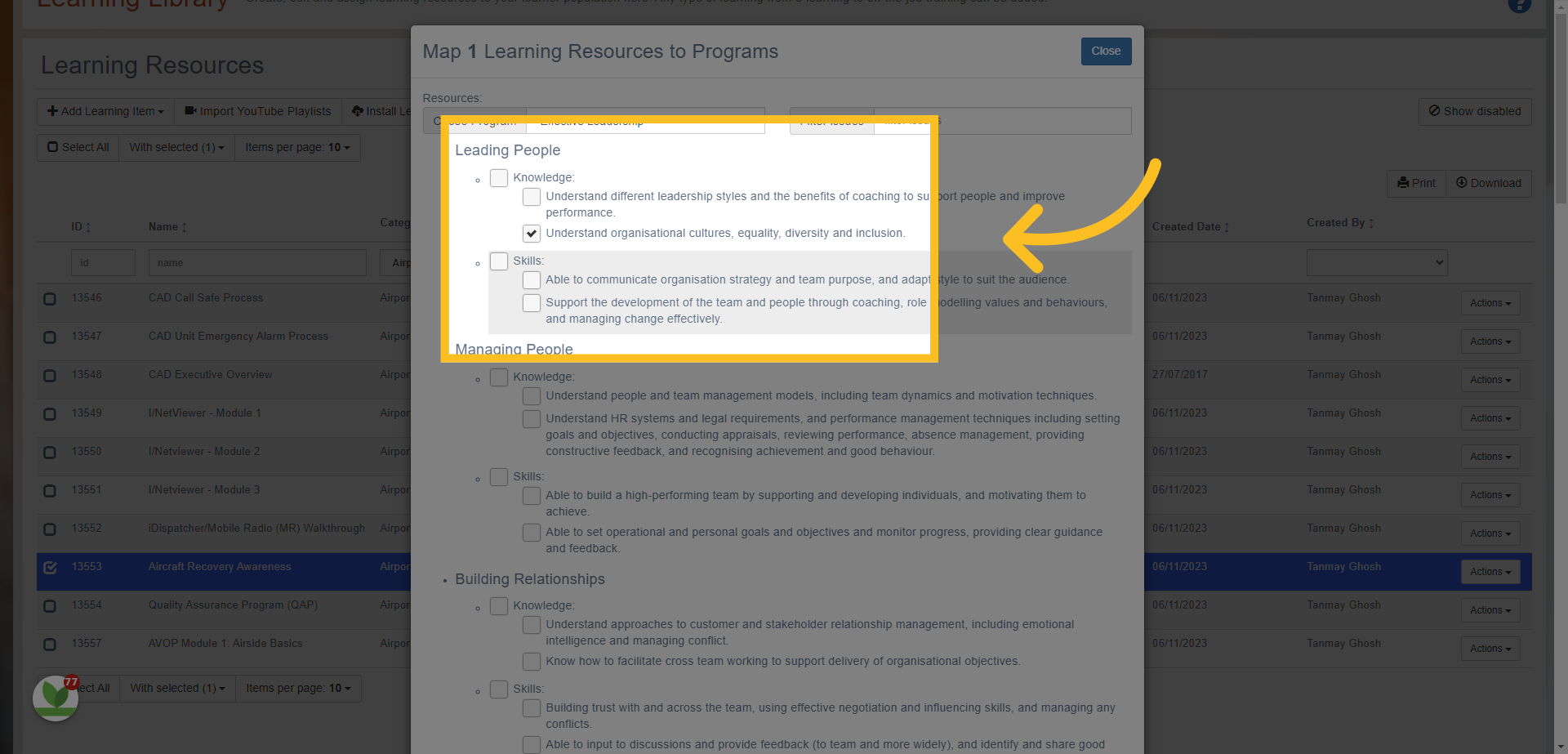
46. You can select which areas of the program the resource/s need to be mapped against (check the relevant boxes). Once done, simply click the 'Close' button.
47. NB: Follow the same procedure if you want to map lessons to the program - simply find the lesson or lessons in the 'Lessons' tab in the Learning Library and follow the same steps.
In this guide, you learned how to add programs/pathways in to the system. The steps covered adding program details, setting completion time, adding learning resources, and mapping resources to programs. Use this guide to effectively manage and organize your training programs/pathways.