Use Chat GTP to Create eLearning Titles
This article shows you how you can break down a large subject areas (e.g. a GCSE exam course) to create a suitable number of eLearning course prompts for Open eLMS AI.
📘 Instructions
Follow these instructions step by step:
Step 1: Use ChatGPT to Get Topics
Note below the bold text is changed for different subjects
Give me a single list of topics in History which will cover all main exam boards for GCSE namely AQA, Edexcel (Pearson), OCR and Eduqas (WJEC). This should be a single list with no overlap of topics - but all topics across all boards should be covered. Give a brief description of each topic.
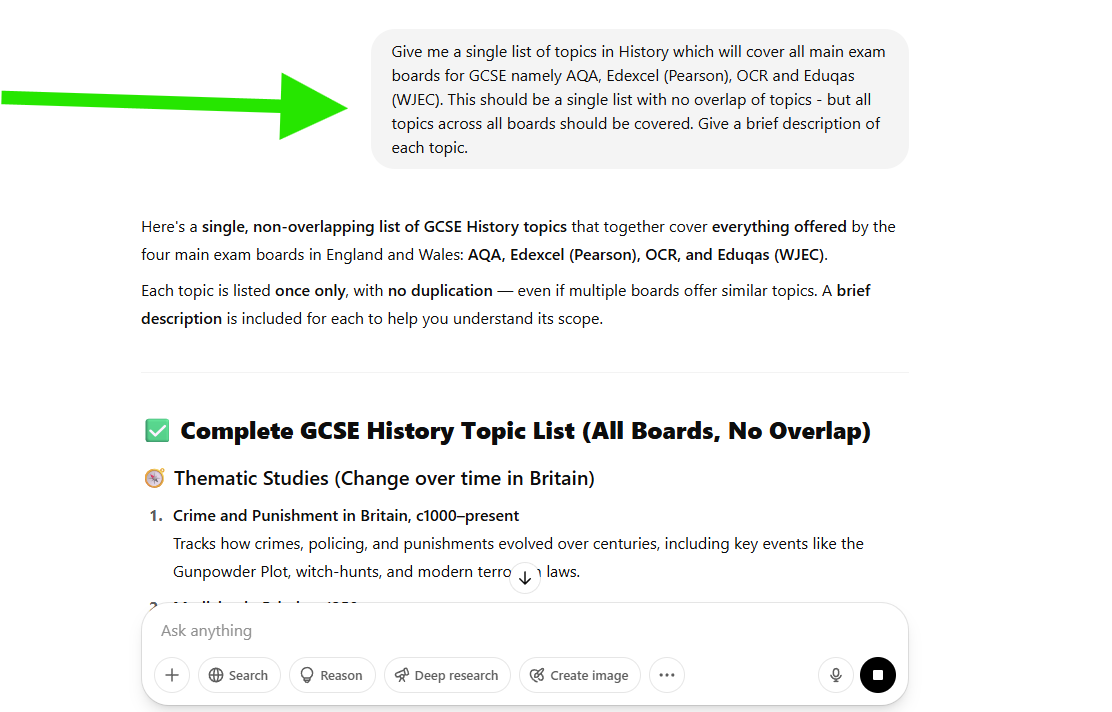
This produces a total of 32 topics.
Step 2: For Each Topic we need 5 eLearning Courses
Note below the bold text is changed for different topics
Create 6 eLearning course title with descriptions for GCSE history students studying the following “Crime and Punishment in Britain | c1000–present | Britain | Tracks how crimes, policing, and punishments evolved over centuries, including key events like the Gunpowder Plot, witch-hunts, and modern terrorism laws”. Give a course description for each - do not include bullet points.
You must ask for eLearning course titles etc from the same chat in Chat GTP you created the original list from so it has the context of what you are trying to do - i.e. create GCSE curriculum courses. You select the right chat here.
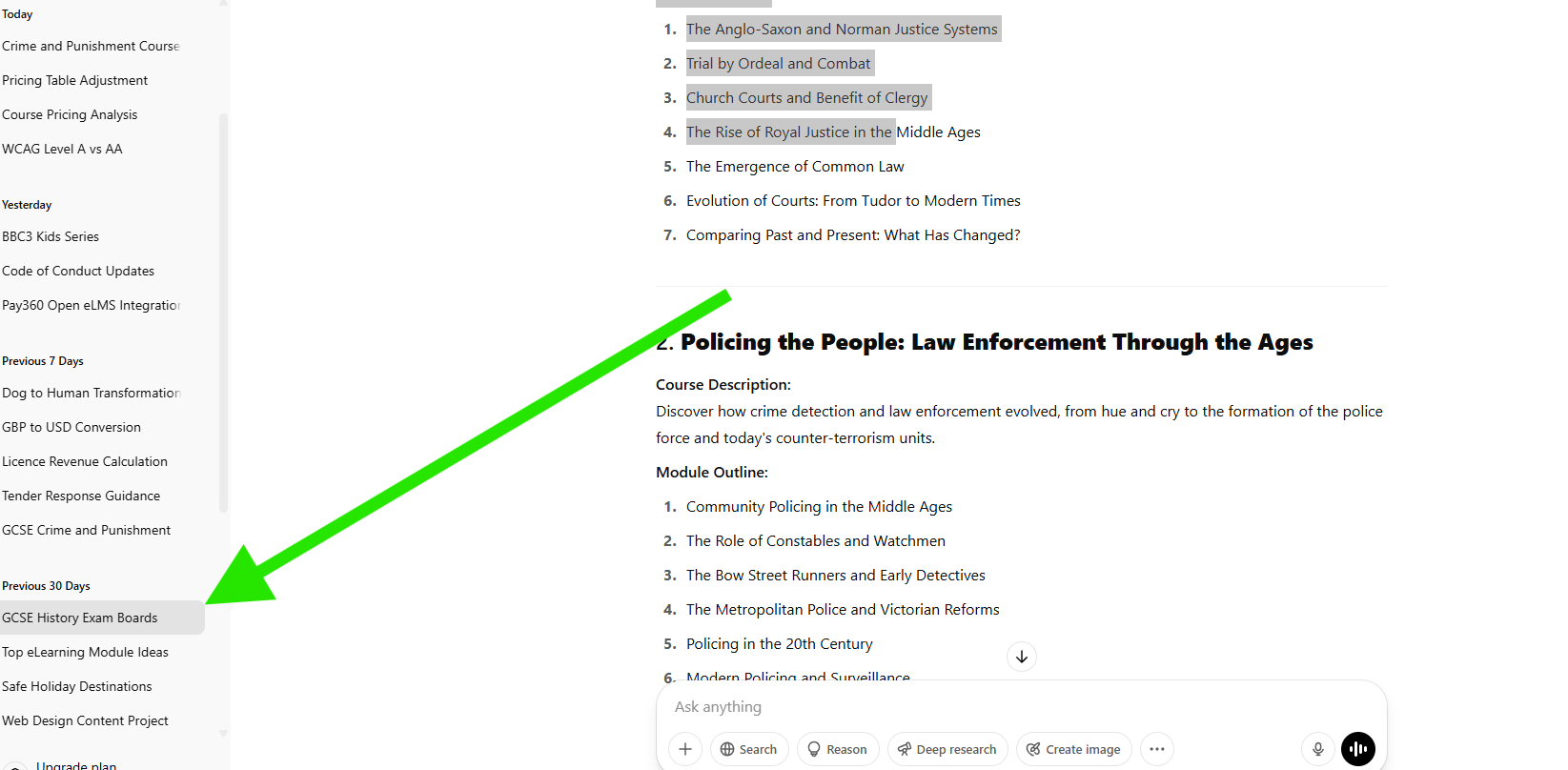
Step 3: Take each eLearning Course outline and use it with Open eLMS AI
Take the description generated and paste it into Open eLMS AI. For instance below - note the Course Length MUST be In Depth as shown:
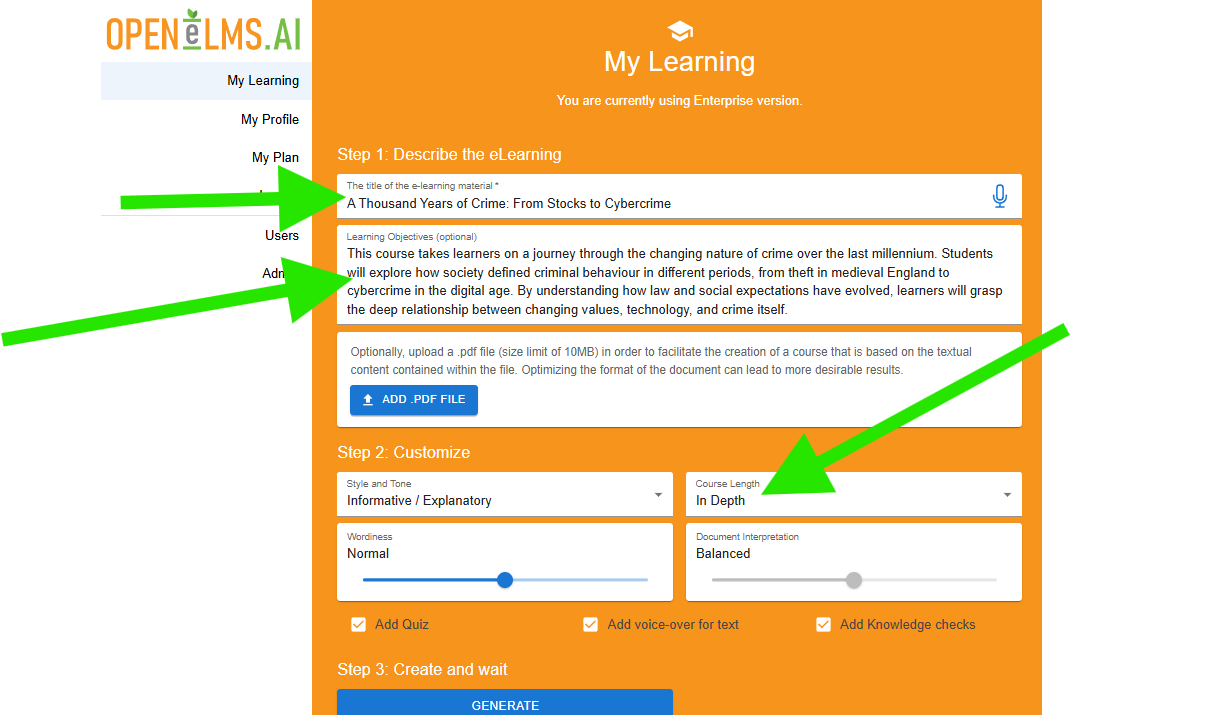
Then press generate. Repeat this process for each course so you have a list generating at the same time.
Step 4: Edit the eLearning
Edit the eLearning as shown. No need to check the text - just make sure images and animation look OK (remove animation if not suitable and generate new backgrounds- that is all).
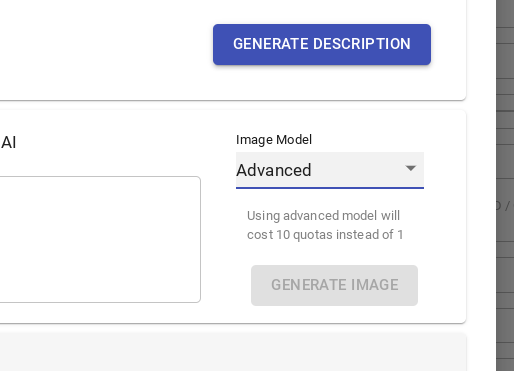
If you need to create a new background image use the Advanced image option and make it photorealistic where possible.
This process will be automated soon within Open eLMS.
📋 Related articles
- Page:
- Page:
- Page:
- Page:
- Page: