Add Open eLMS AI eLearning to a webpage
Open eLMS AI eLearning can be embedded into an Adobe Captivate eLearning course if edited with Adobe Captivate v 11 (known as ‘Classic’); this is not available for some reason in the latest versions of Captivate. These instructions explain how this is done.
📘 Instructions
Follow these instructions, you will need an Articulate Rise account to do this.
Open you web editing tool.
Navigate to the area in the system where you want to add the eLearning. This may involve dragging an HTML widget onto the editing environment.
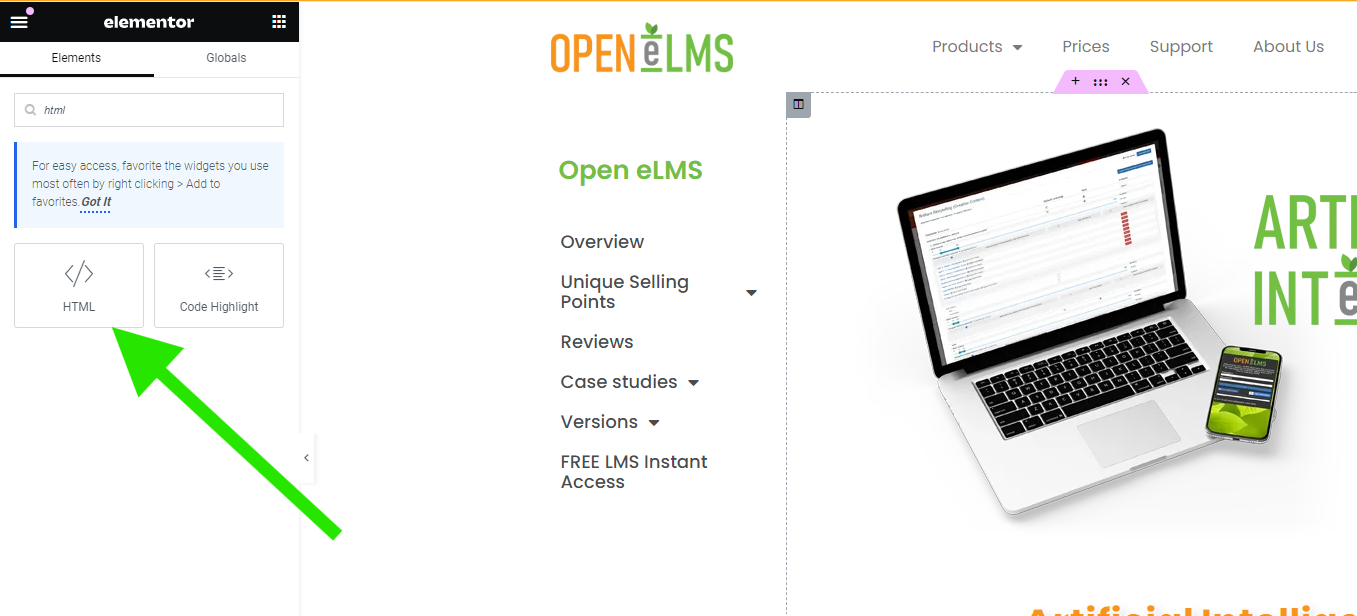
Paste the iframe code (changing the scr URL value - copy it from Open eLMS AI to match your course.)
<iframe width="560" height="315" src="https://demo.openelms.ai/embed/e6709401b442d61.32901750/" title="Open eLMS AI eLearning" frameborder="0" allow="accelerometer; autoplay; clipboard-write; encrypted-media; gyroscope; picture-in-picture; web-share" referrerpolicy="strict-origin-when-cross-origin" allowfullscreen></iframe>
Resize the Web Object: Resize and position the Web Object on the slide to match where you want the iframe content to appear.
Preview: You can preview the project to see how the web content appears in your course.
Preview the course - note Open eLMS courses are designed to work across devices so no change to the eLearning is needed to accommodate within a Captivate course.
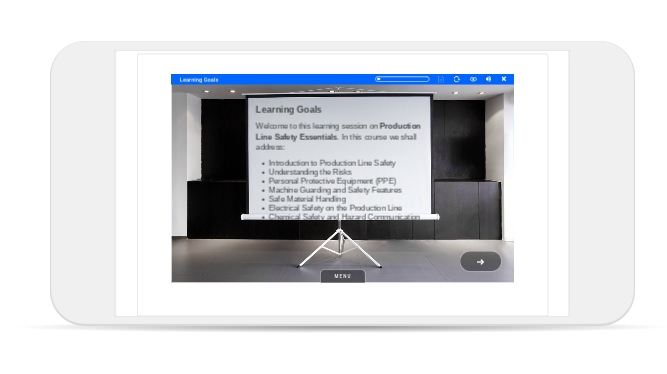
Open eLMS AI can also be exported as a stand-alone SCORM file for importing directly into a Learning Management System.
📋 Related articles
- Page:
- Page:
- Page:
- Page:
- Page: