Add sound to a screen using the Open eLMS AI Editor
Open eLMS has really good AI generated voiceover, but you may wish to add your own. For this reason you can add MP3 files which will load for each screen instead of playing the text to voice AI generated audio.
📘 Instructions
Follow these steps …
Record your audio for each screen and save the audio as mp3 files. You can use any audio recording software for this - we use Audacity or Altap Salamandar for studio work.
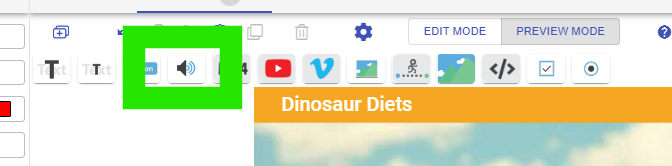
Press the audio button for the desired screen.
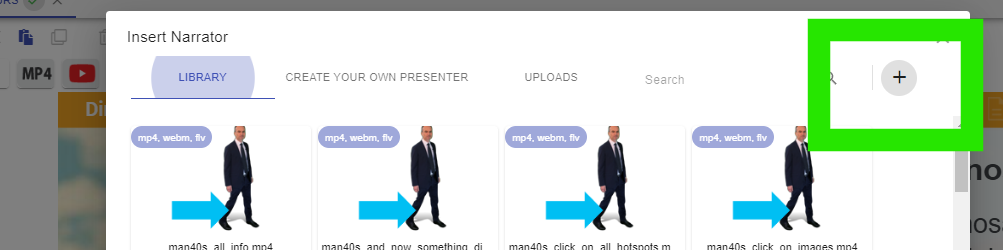
You will see a load of default video presenters (these can be used instead of audio if desired.) Assuming you want to upload your own audio, press the Plus button.
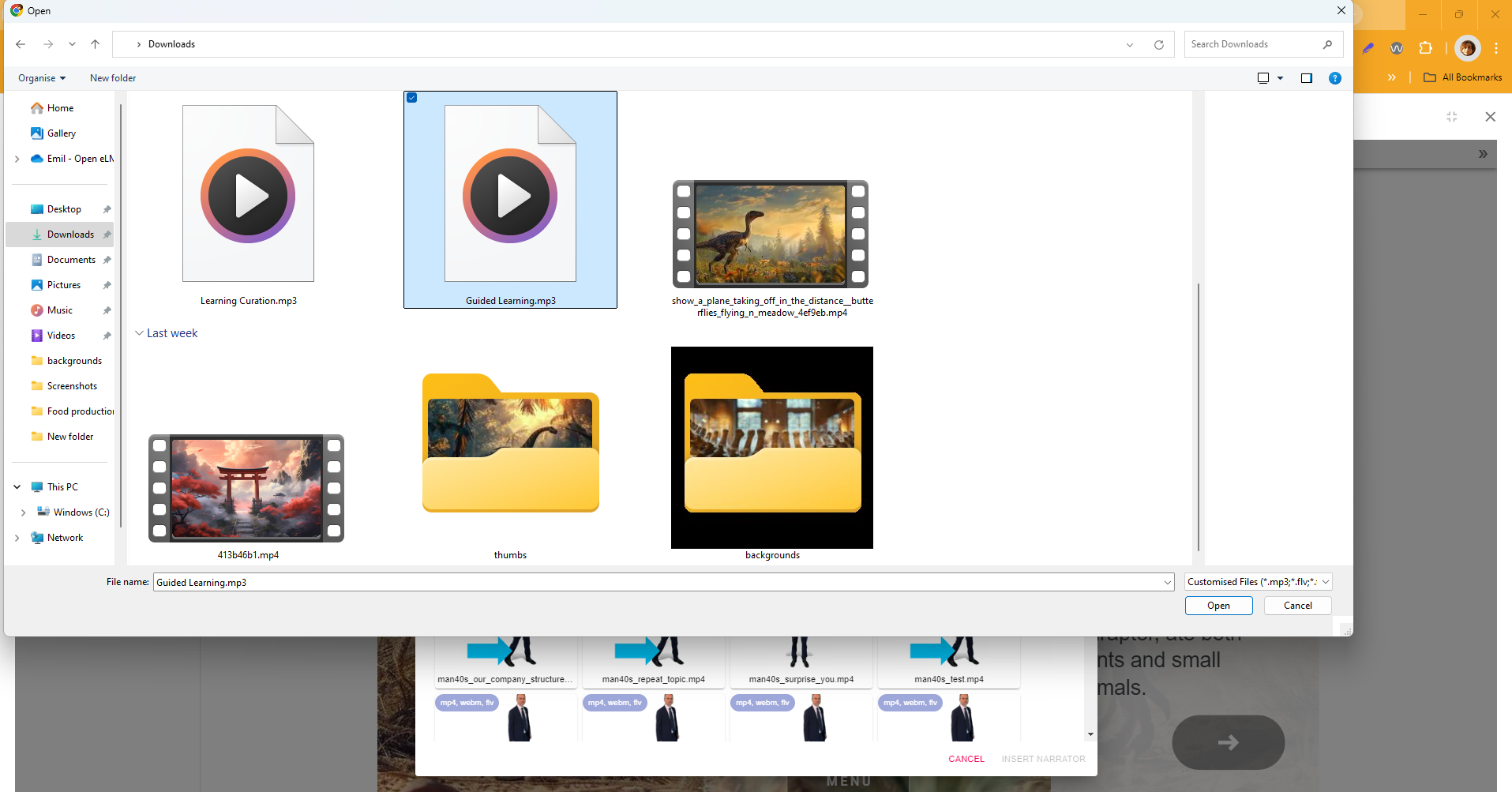
Upload your mp3 file.
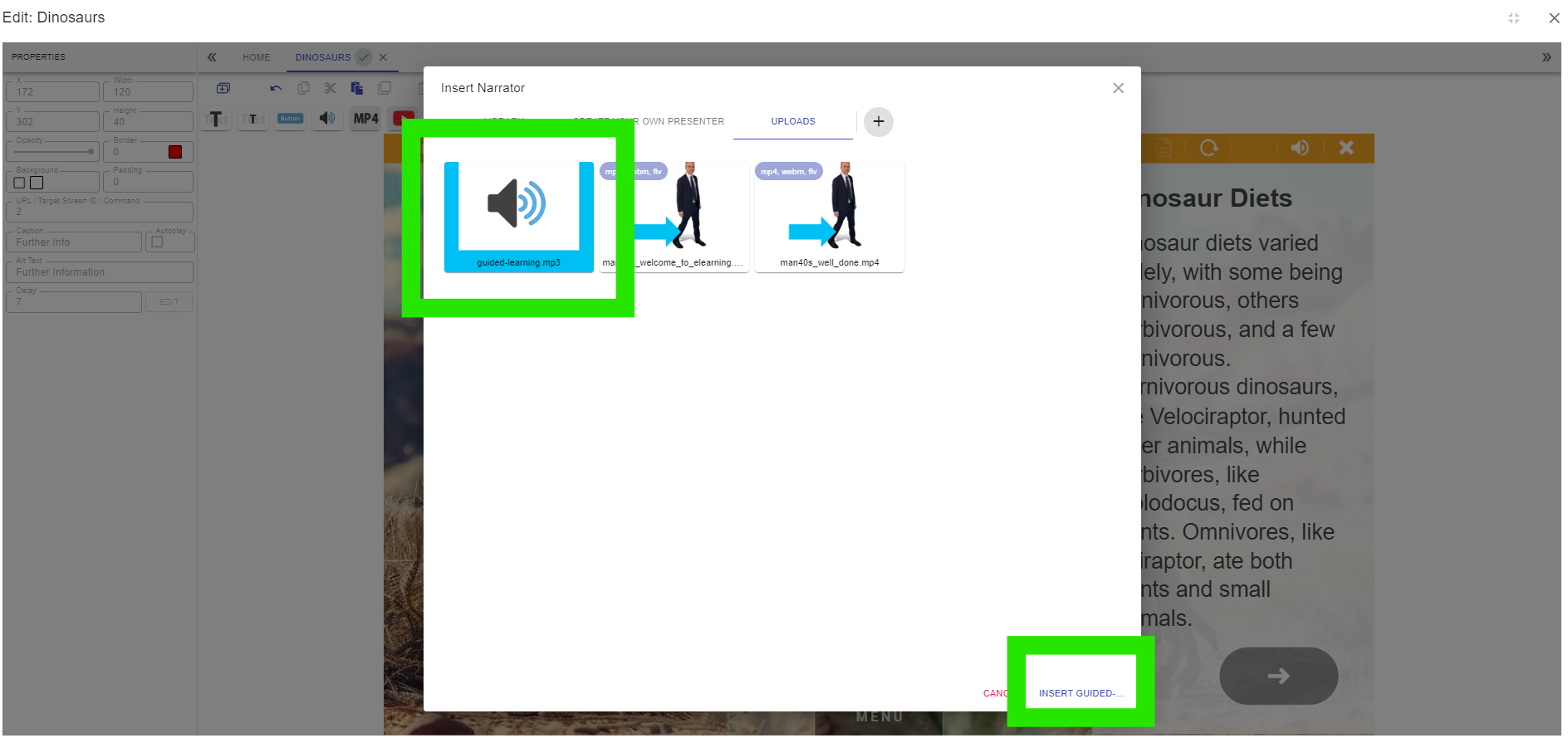
Go to the Uploads tab and select the uploaded mp3 file and press Insert.
This will now play when the screen loads in.
Make sure you remove any autogenerated audio from text on the screen.
📋 Related articles
- Page:
- Page:
- Page:
- Page:
- Page: