Set up Google Analytics
Open eLMS will automatically link with Google Analytics and track visits to your Open eLMS site.
📘 Instructions
To achieve this link, code needs to be pasted into the configuration setup and activated with Open eLMS.
Follow these steps:
Enable Google Analytics by logging into Open eLMS as an administrator and go to System Setup > Defaults > Integration.
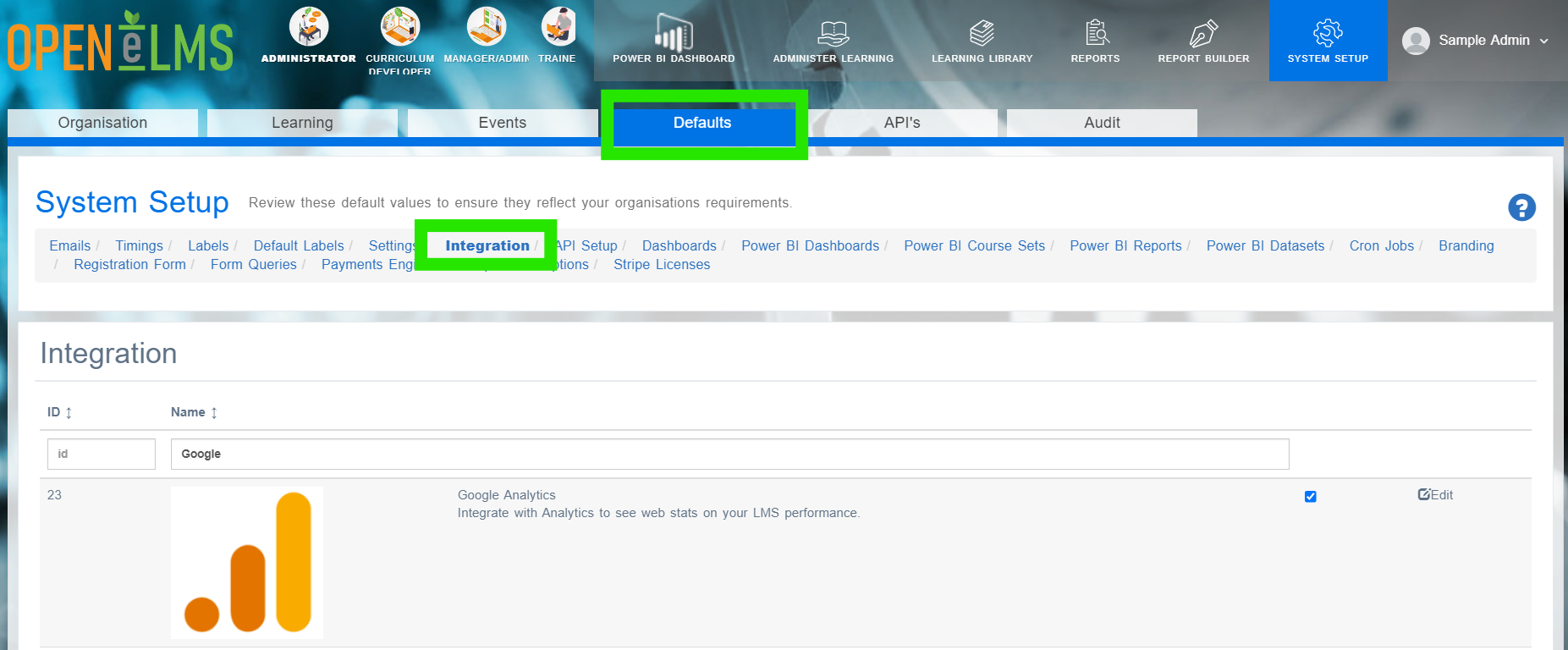
Change Enable Google Analytics to “true”.
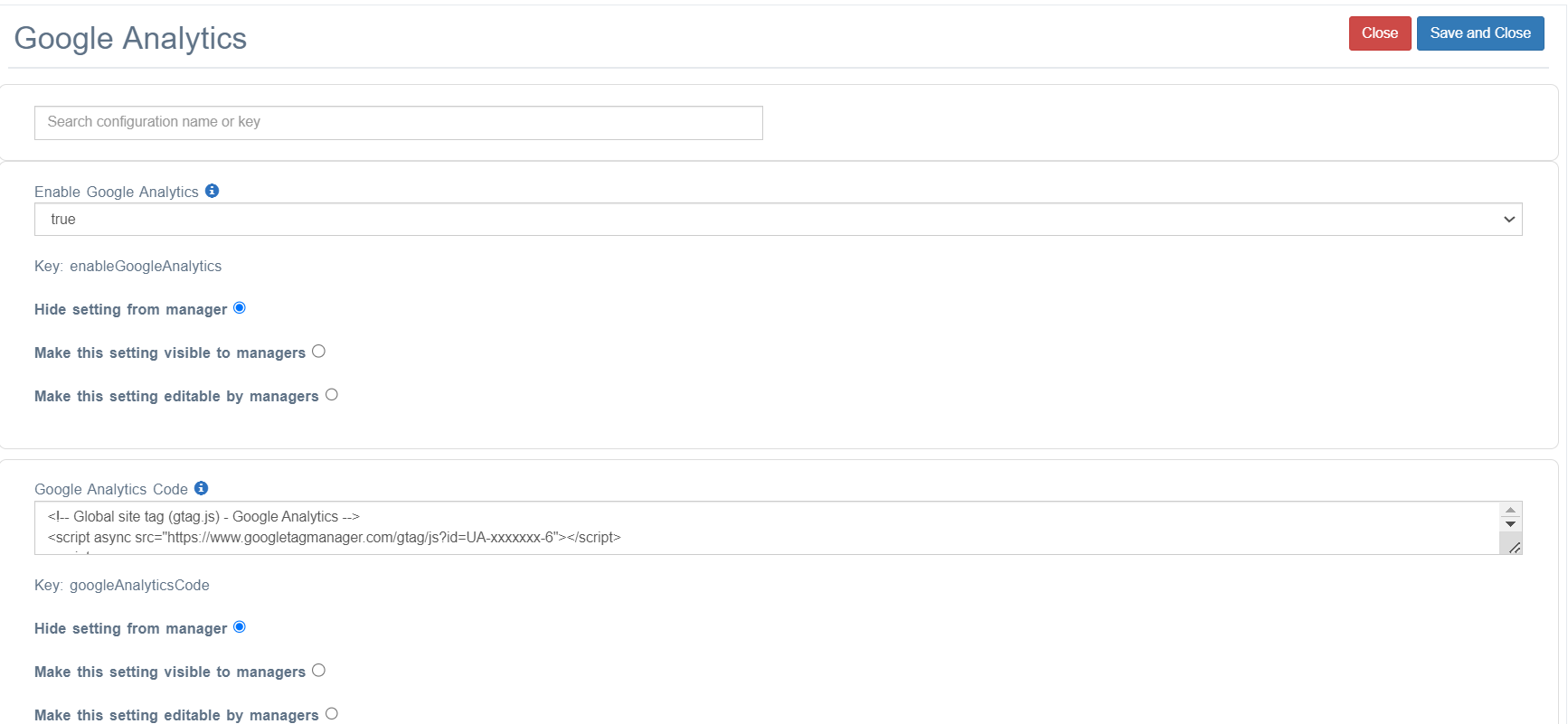
Edit the Google Analytics code.
The Google Analytics code can be found by following the instructions below:
Sign in to your Analytics account.
Click Admin.
Select an account from the menu in the ACCOUNT column.
Select a property from the menu in the PROPERTY column.
Under PROPERTY, click Tracking Info > Tracking Code.
Copy this code and paste it into Open eLMS under the Google Analytics code configuration item.
📋 Related articles
- Page:
- Page:
- Page:
- Page:
- Page: