Add Forms
Forms select system fields and custom fields and collate them into one place for data collection.
Instructions
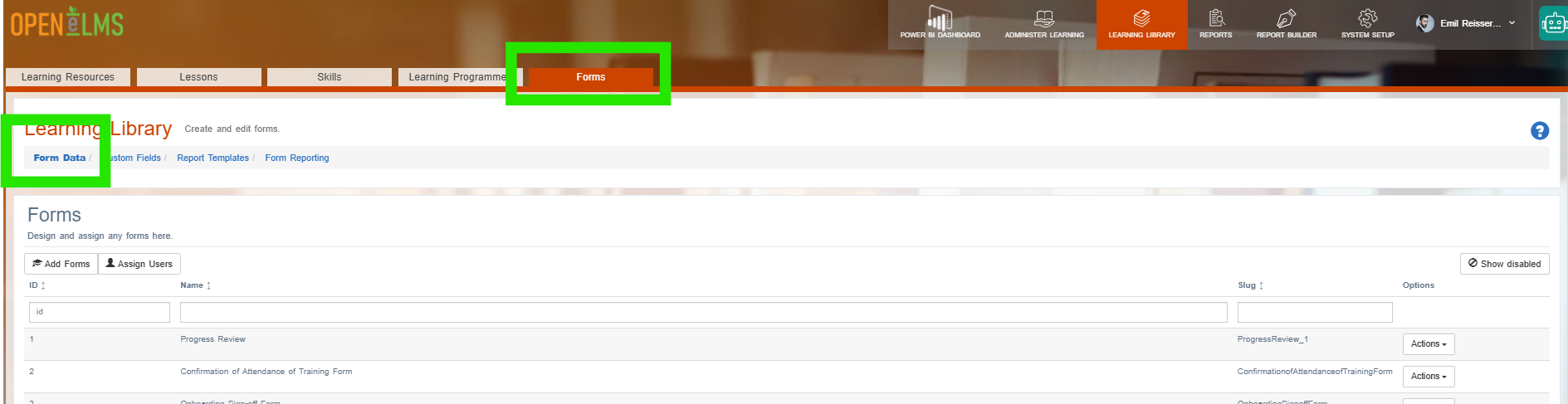
Go to Learning Library › Forms.
Select the Form Data link.
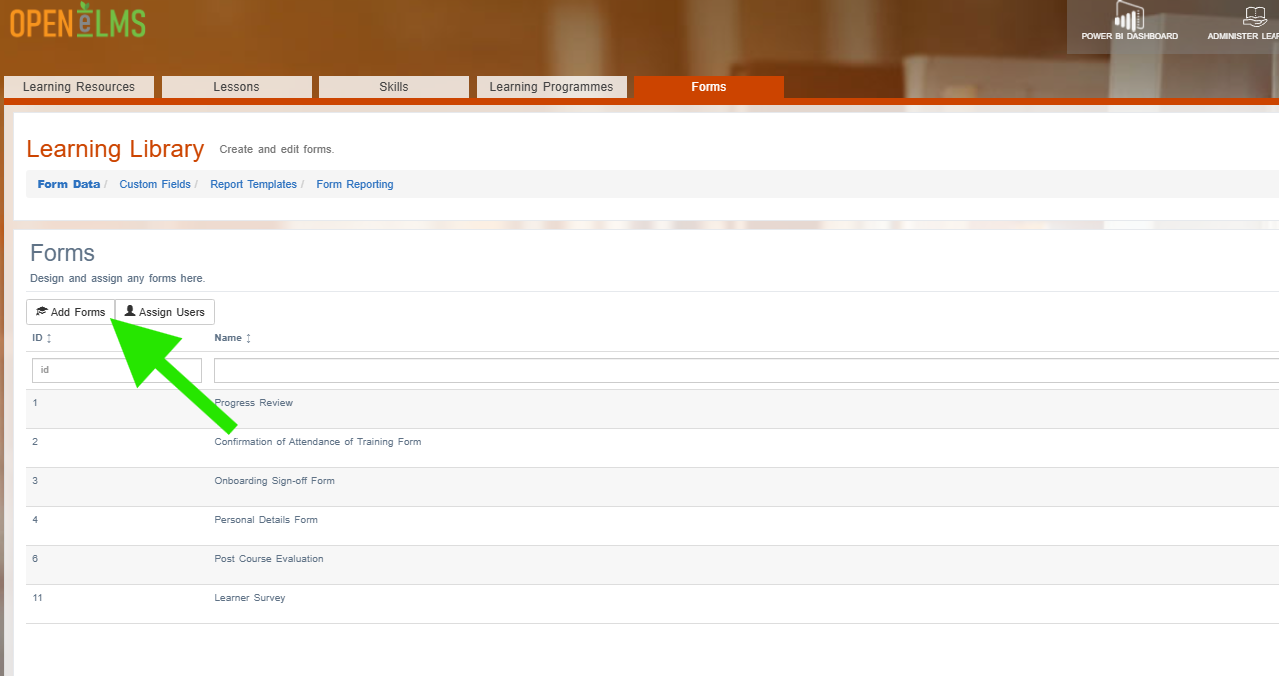
Select the Add Form button.
Give the form a Name for reference.
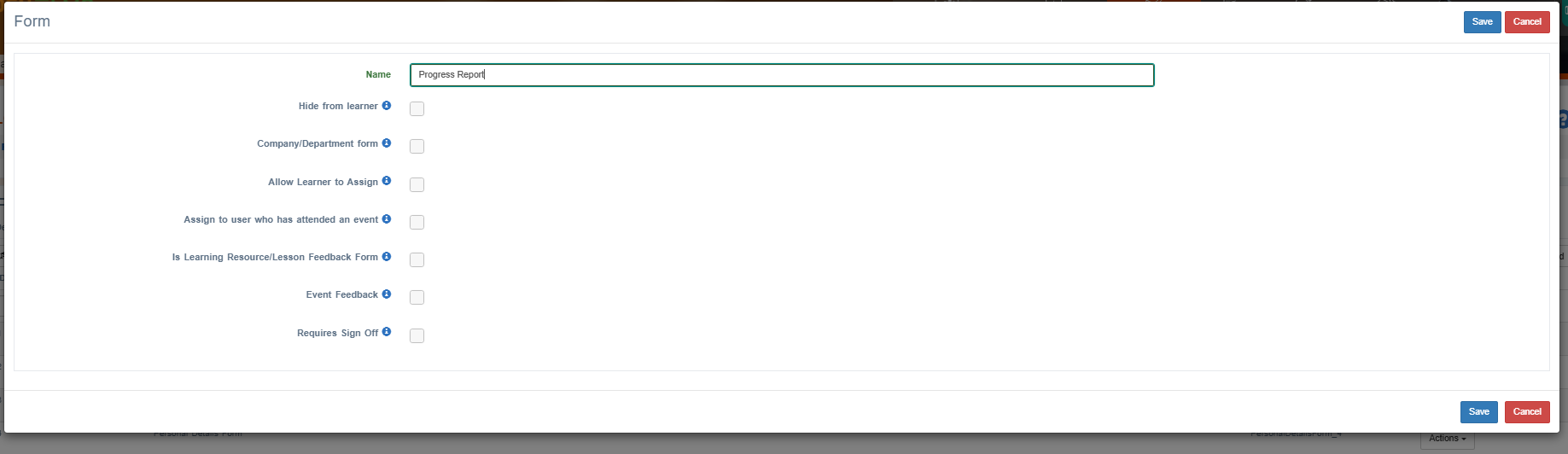
We then change the properties of the form which have the following meanings:
Hide from learnerThis is checked if we want the entire form to contain data about the learner, but we do not want the learner to see this form. This can be the results of a confidential career review or a complaint about the learner etc.
Company/Department Form
This is checked if you are obtaining information about the place rather than the person answering the form (i.e. an location or company audit) - generally this is rarely checked. If checked then responsibility for the form does not lie with an individual, instead it can be shared.
Allow learners to assign
This allows learners to select the form themselves from the learner interface
Assign to user who has attended an event
This is required for feedback forms specifically for attending events (e.g. webinars or classroom sessions).
Learning Resource/Lesson Feedback Form
This is for feedback forms specifically linked to a Learning Resource or Lesson (e.g. learning feedback).
Event Feedback
This restricts access to the form to managers/coach/trainers of the linked event.
Requires Sign Off
Check this if the form requires a formal sign-off process involving the learner/trainee and management (i.e. it is not for the learners to comment about the associated event).Press Save to reveal the Add Custom Field section. Select fields to be included in the report. The add fields.
Select whether the field is
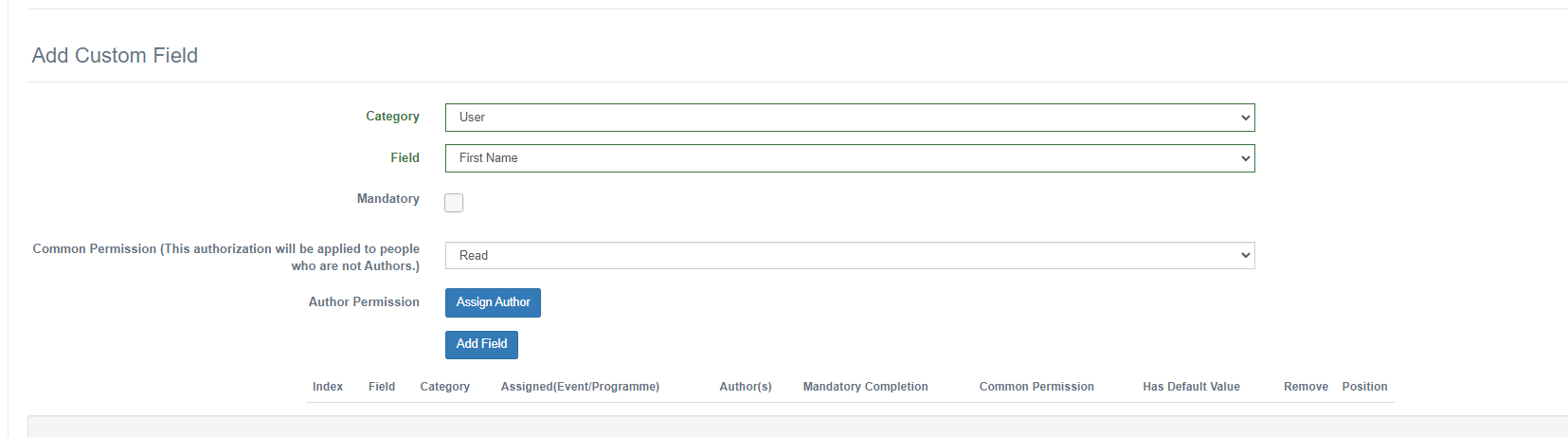
Mandatory - i.e. it must be filled in
Common Permission - i.e. all roles have the same defined permission (read, write or hide
Author Permission - this defines the permission of a particular role who is editing the form. For instance you may want the learner to view their ‘overall summary’ field but want the manager to be able to edit it.Then press the Add Field button. The field will appear in the list below, repeat this process for all field data that needs collecting.
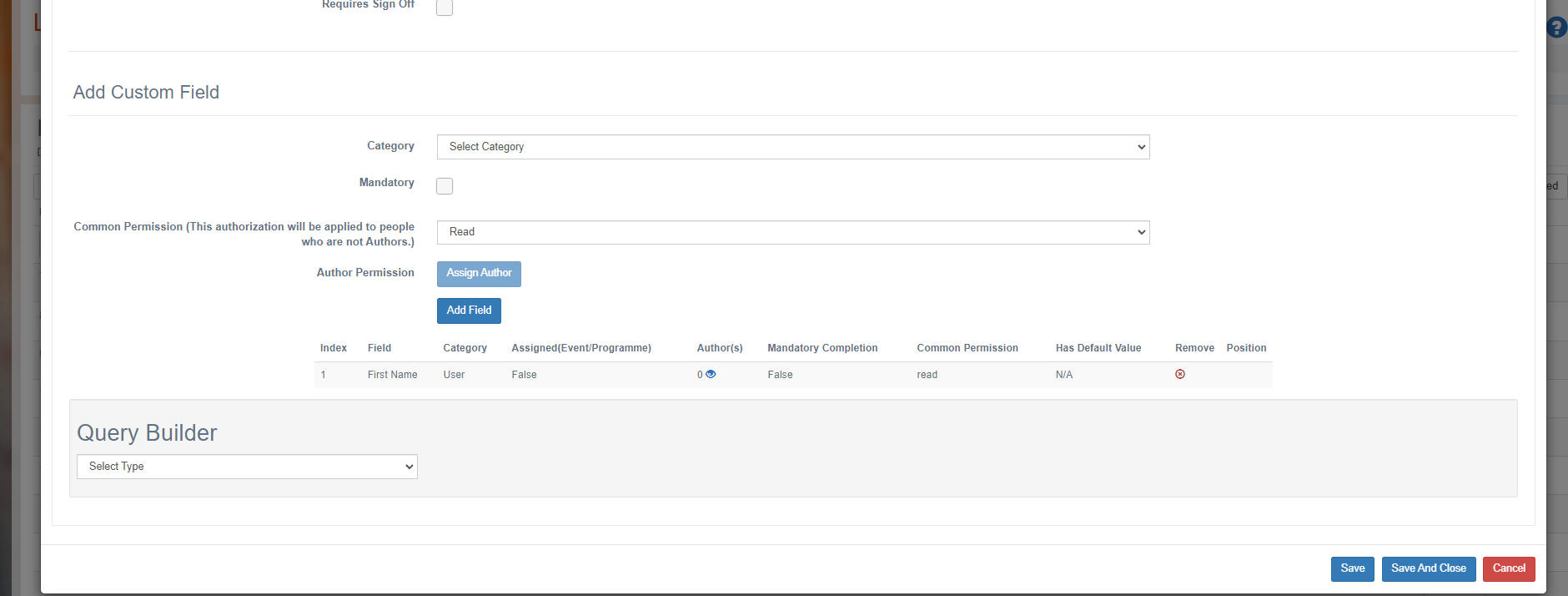
Add a query in the Query Builder to add a group of people to this form if required.
Once done, press Save and Close to save the form.
Many custom fields can be used outside the forms (e.g. a custom user field can be configured to collect data under the User Profile.
An overview of form data is described here - https://youtu.be/nXlEctXLKGs
Related articles
- Page:
- Page:
- Page:
- Page:
- Page: