Change the Web Address URL of your LMS
Your LMS instance will be provided by us in the form https://lms.e-learningwmb.co.uk/example or https://openelms.e-learningwmb.co.uk/example. Some clients prefer to use their own domains (e.g. http://www.example.com).
Instructions
These instructions will show you how to achieve this.
Copy the server address of your LMS instance (i.e. leave out the domain name you are using as shown.) This will usually be openelms.e-learningwmb.co.uk or lms.e-learningwmb.co.uk.

Click on the Windows button on bottom left of the screen and type Command. This will launch the command prompt.
Type in ping openelms.e-learningwmb.co.uk or ping lms.e-learningwmb.co.uk depending upon the server you are using and press enter. This will give you the IP address of the server. In the case below it is 145.239.253.13
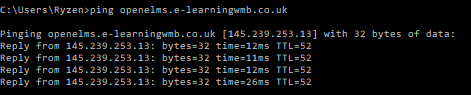
More recent installations will have an IP of 20.90.112.47.Change the DNS settings of your domain to point to this IP Address. If you are unsure as to how to do this, contact your service provider and they will send instructions. Usually this is a self-service item for a hosting company’s clients.
Contact us at support@elearningwmb.com with details of the domain name in order to complete the set up.
You must contact eLearning WMB at step 5 for this process to be completed. The service will continue to run on the old URL until this is done. We can do this over the weekend but will need advance notice before Thursday on any given week to do this.
Related articles
- Page:
- Page:
- Page: