Edit eLearning created using Open LMS AI
Any feature of Open eLMS AI generated eLearning is editable post generation. This is thanks to the feature rich editor supplied with Open eLMS AI.
📘 Instructions
Follow these step by step instructions to edit the eLearning …
Access to the course editor can be edited in one of two ways:
Open eLMS AI Interface
Log in at https://openelms.ai/login and scroll down to the desired course and select the edit button under the Final Step heading.
Open eLMS LMS Interface
Go to the Learning Library, find the course you want to edit and select Actions > Open eLMS Creator.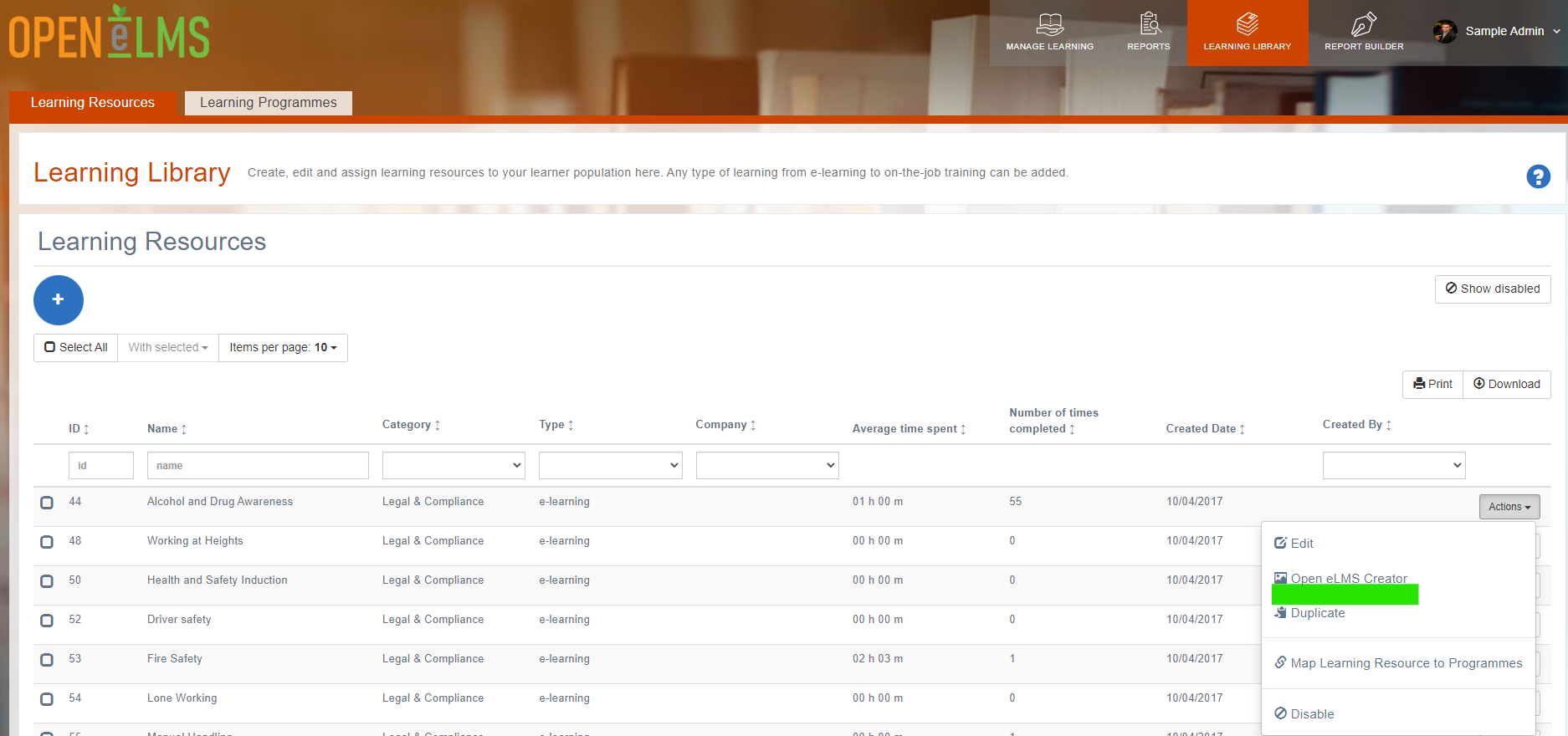
Screen Overview
The screen is split into 4 areas
Properties: This is where the properties for any selected object are displayed. Here you can see the properties for the text box are displayed (dimensions, position, timings etc.)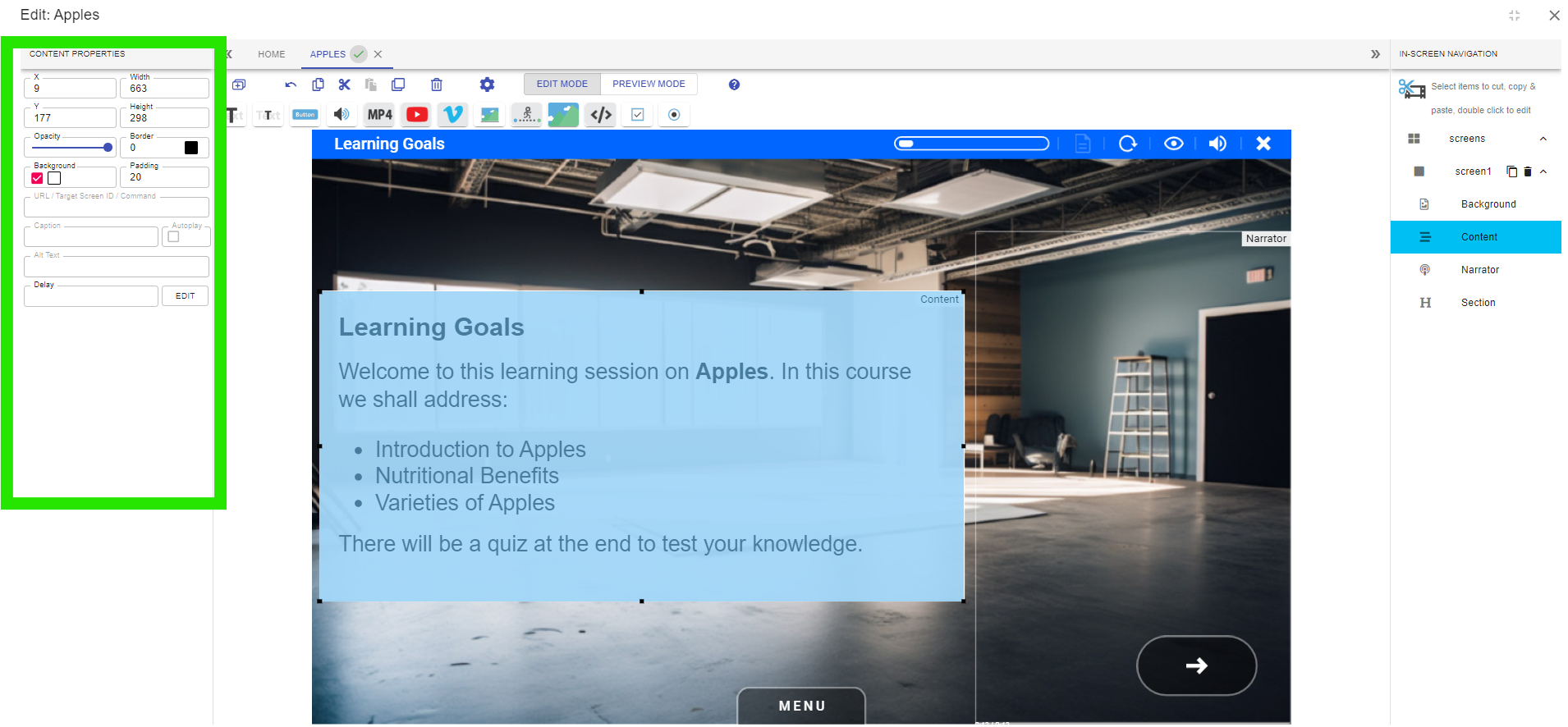
Toolbar: These are tools you can use to add content to the eLearning (text, images etc.) as well as global settings and operational tools such as cut, copy and paste.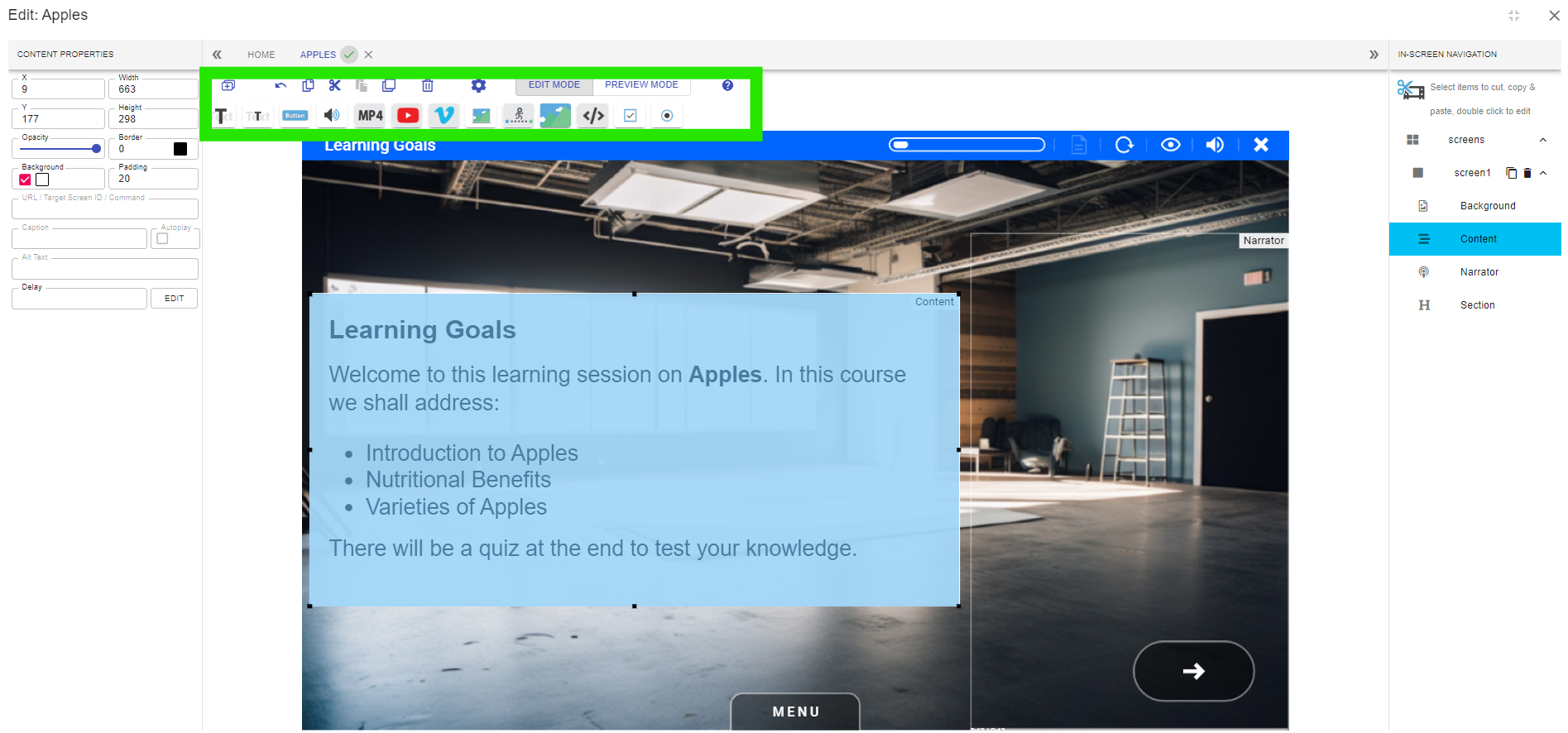
In Screen Navigation: A topic can be made up of a number of steps (like sub-steps within a slide). You can add and remove steps to expand/contract any topic.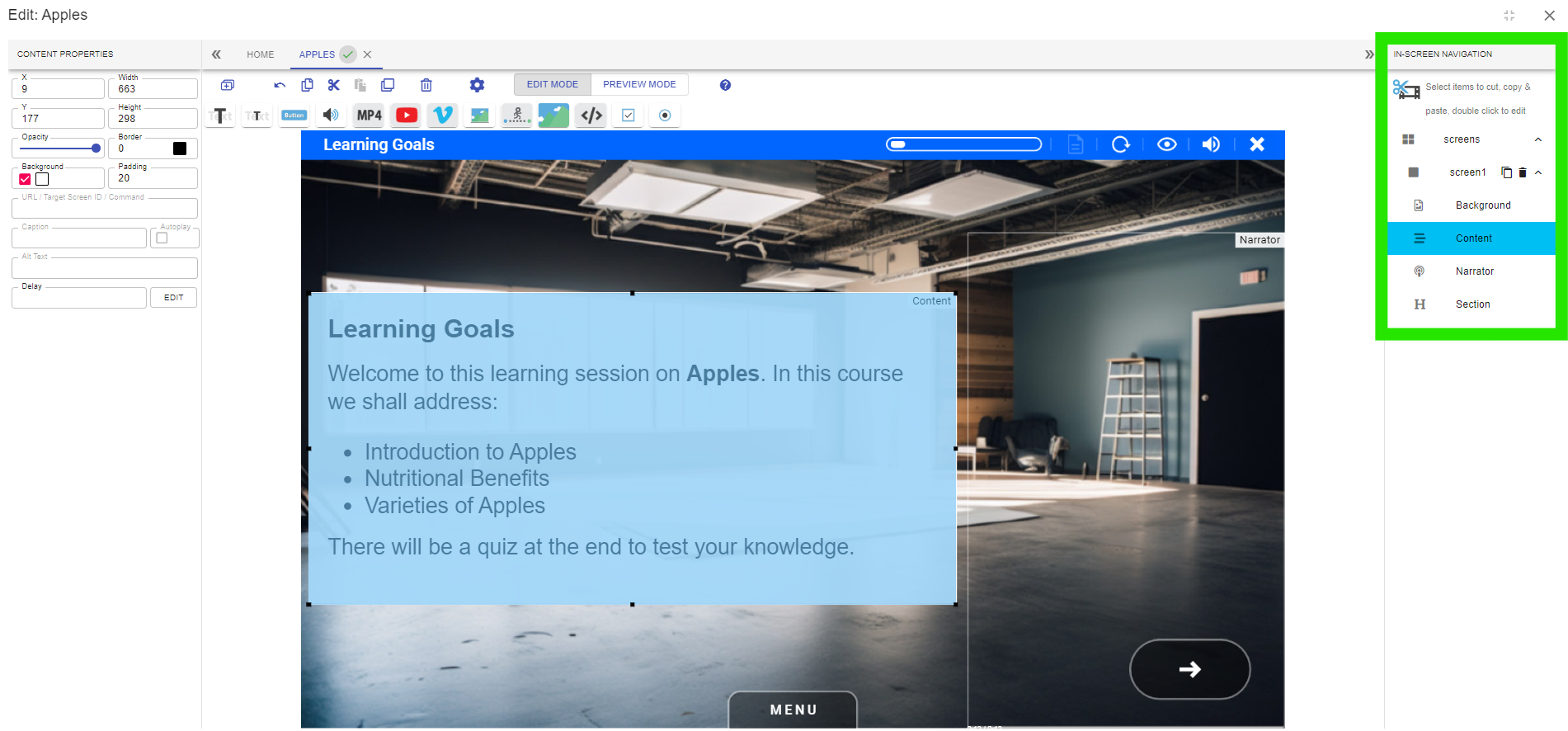
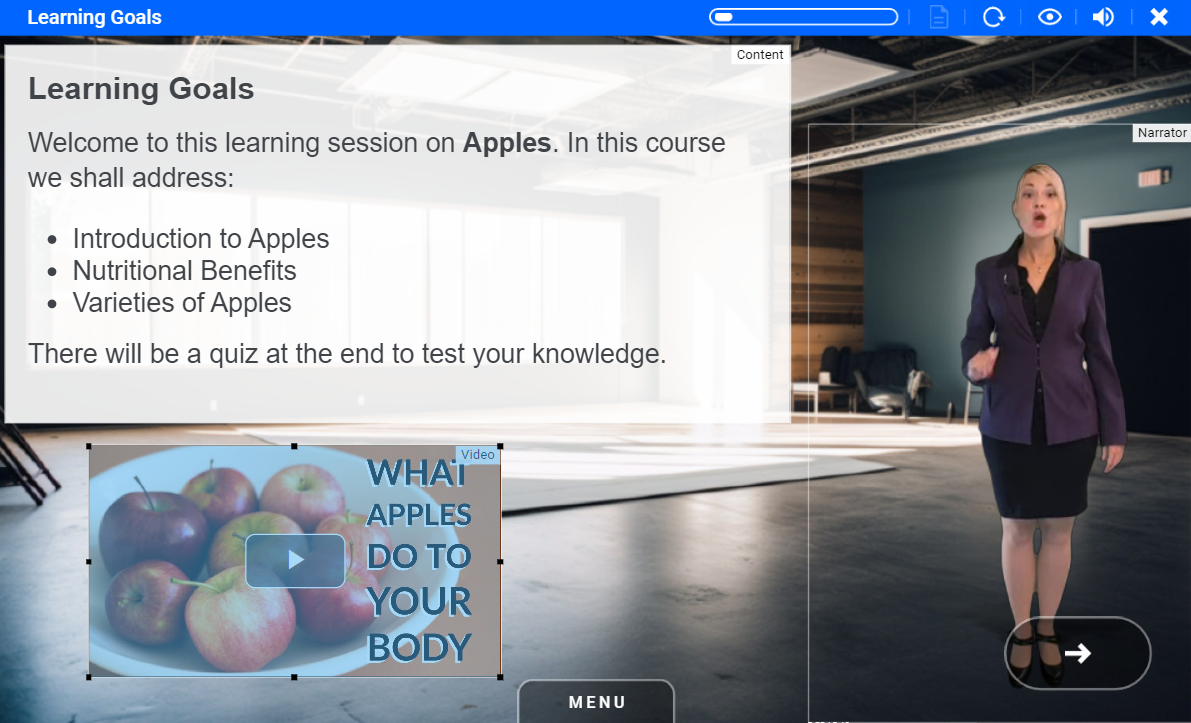
Preview Area: This is a preview of the design. You can drag and drop elements to new positions and resize them.
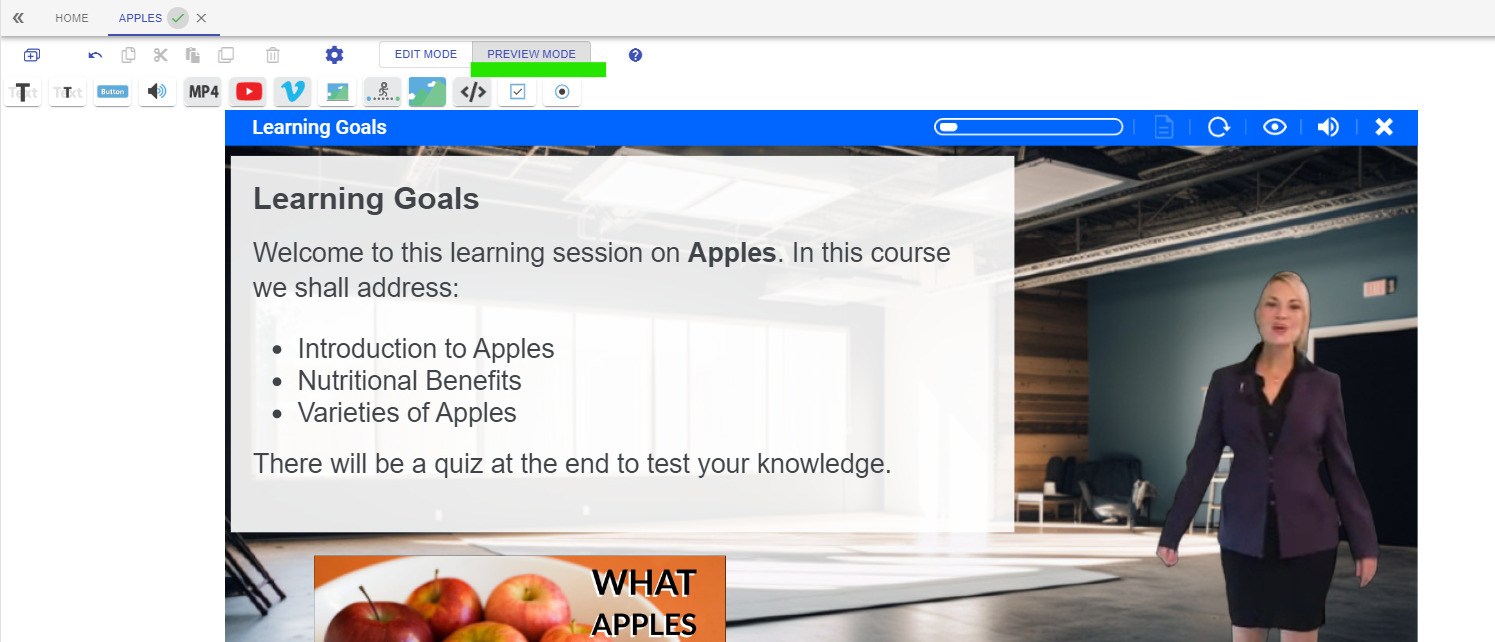
If you add buttons to the screen (for more interactivity) then you can preview their behaviour by adopting Preview Mode (this removes editing functionality.
Menu: The menu is where the editor can select any topic to navigate directly to.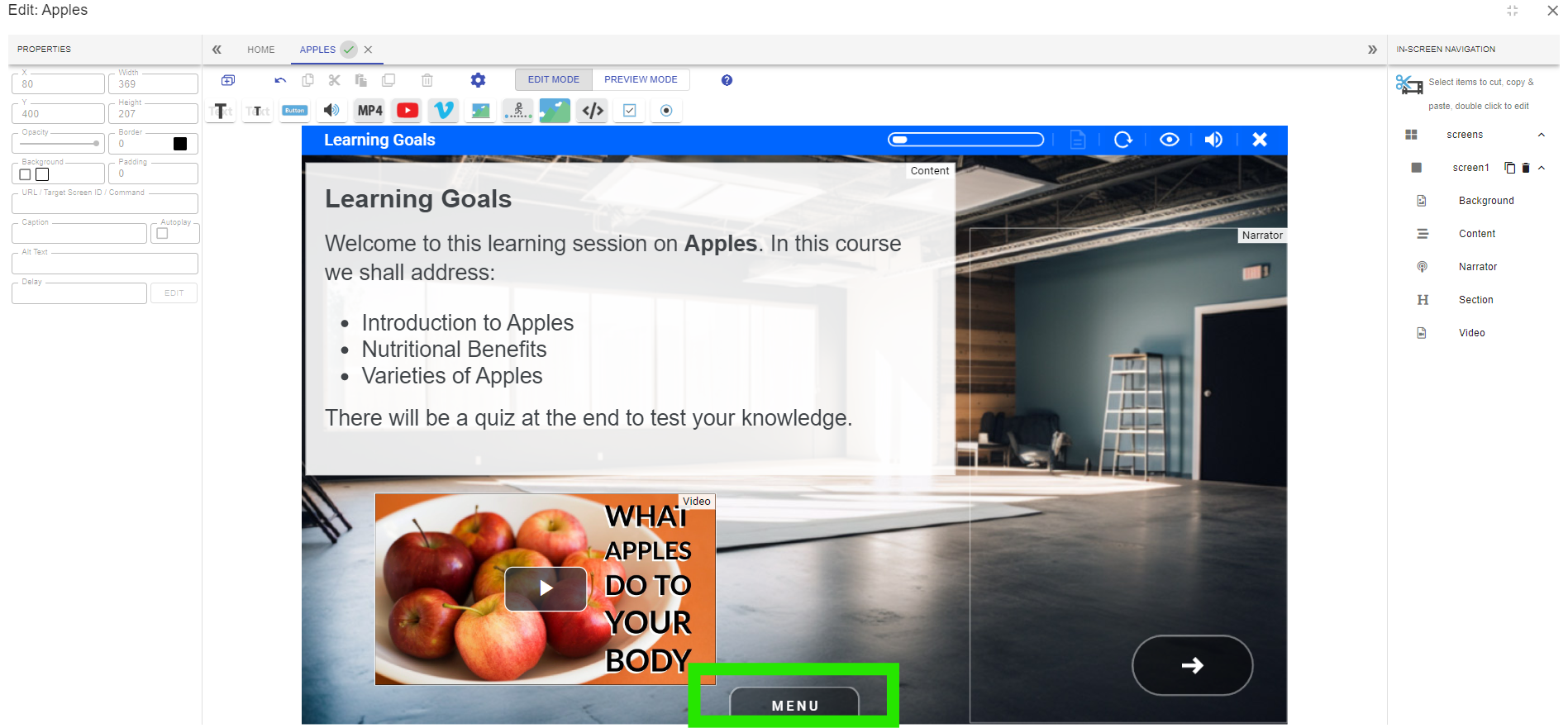
Note editors can also duplicate or delete topics and reposition them using the drag and drop controls.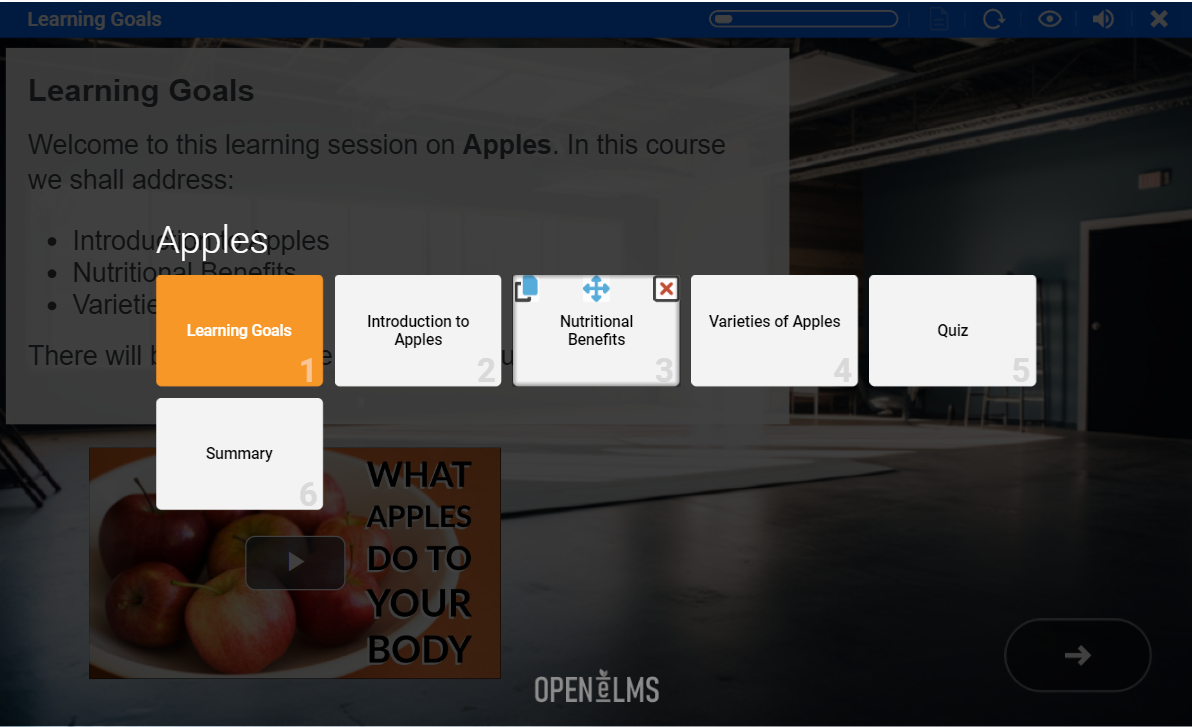
Further descriptions of all features in greater detail are available elsewhere.
📋 Related articles
- Page:
- Page:
- Page:
- Page:
- Page: