How to send Bulk or Individual Emails as an Administrator in Open eLMS
How to send Bulk or Individual Emails as an Administrator in Open eLMS
This guide will walk you through the steps of How to send Bulk or Individual Emails as an Administrator in the system.
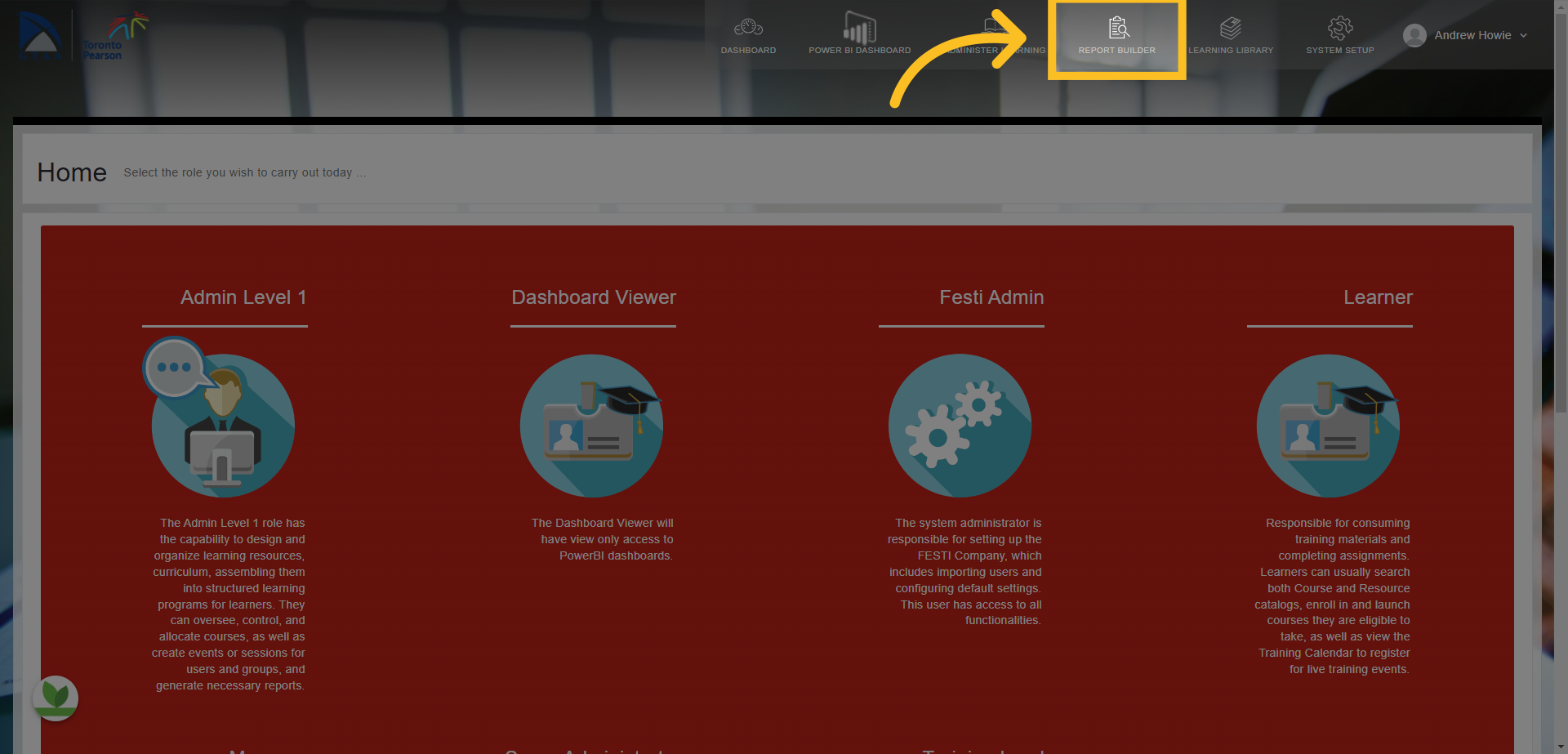
1. Click on the 'Report Builder' tab at the top of the screen.
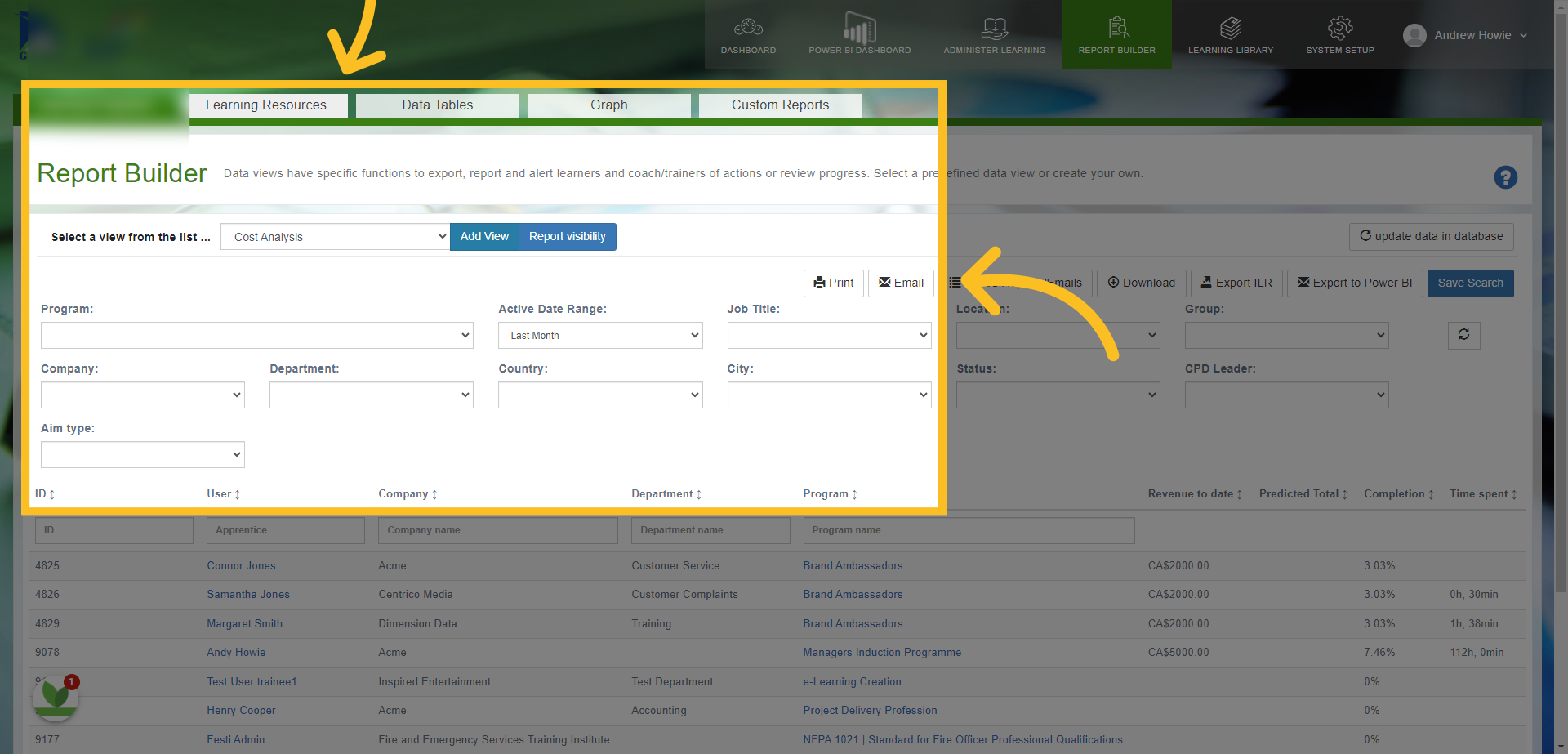
2. You can use the email feature from any reports available to you in the Learning Program or Learning Resources tabs in the Report Builder area.
3. You can search for different reports in the drop down lists and filter the information accordingly.
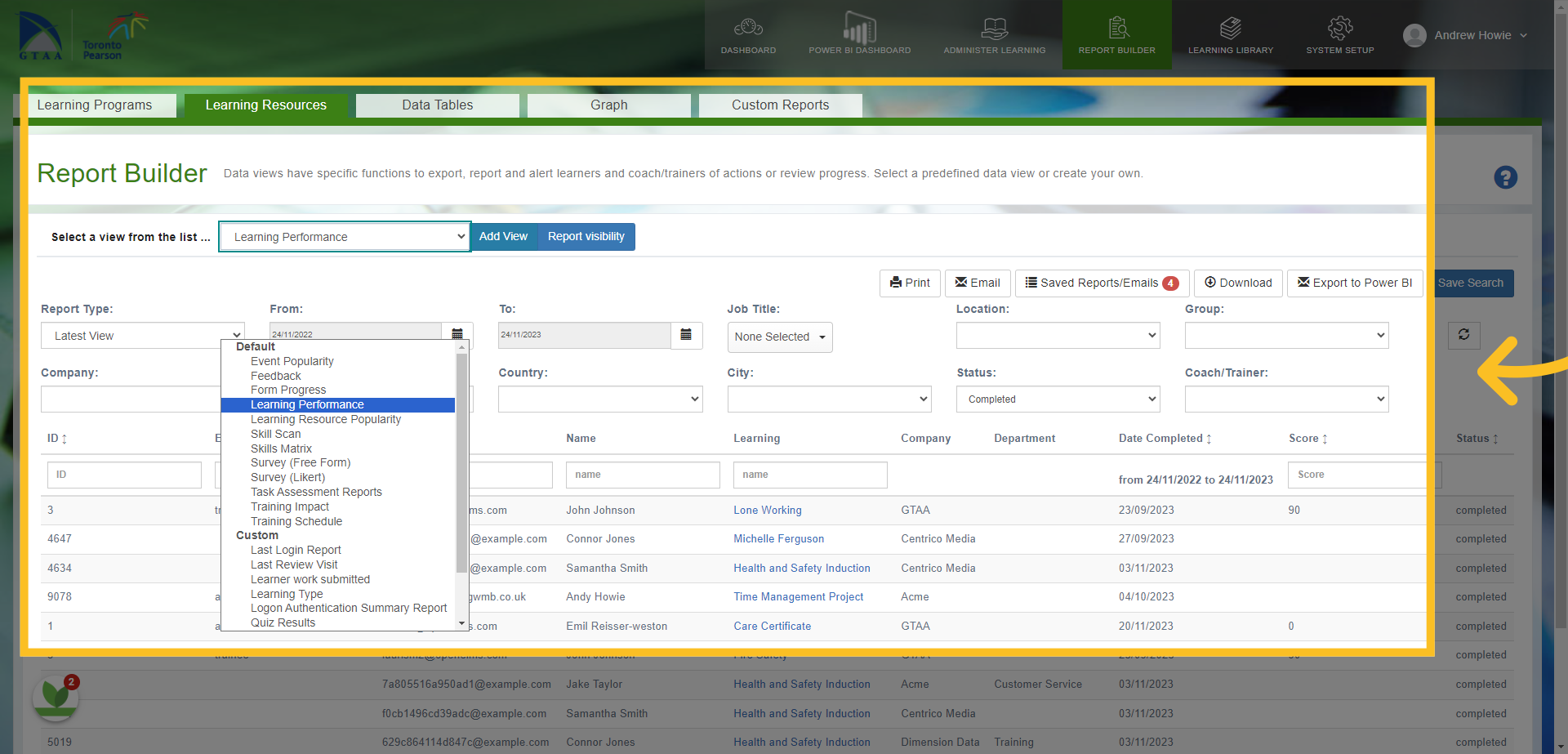
4. Use the different filters available to search for the users you want to send an email to. In this example, we are looking for anyone who hasn't completed the Health and Safety Induction Course and have gone past their expected completion date.
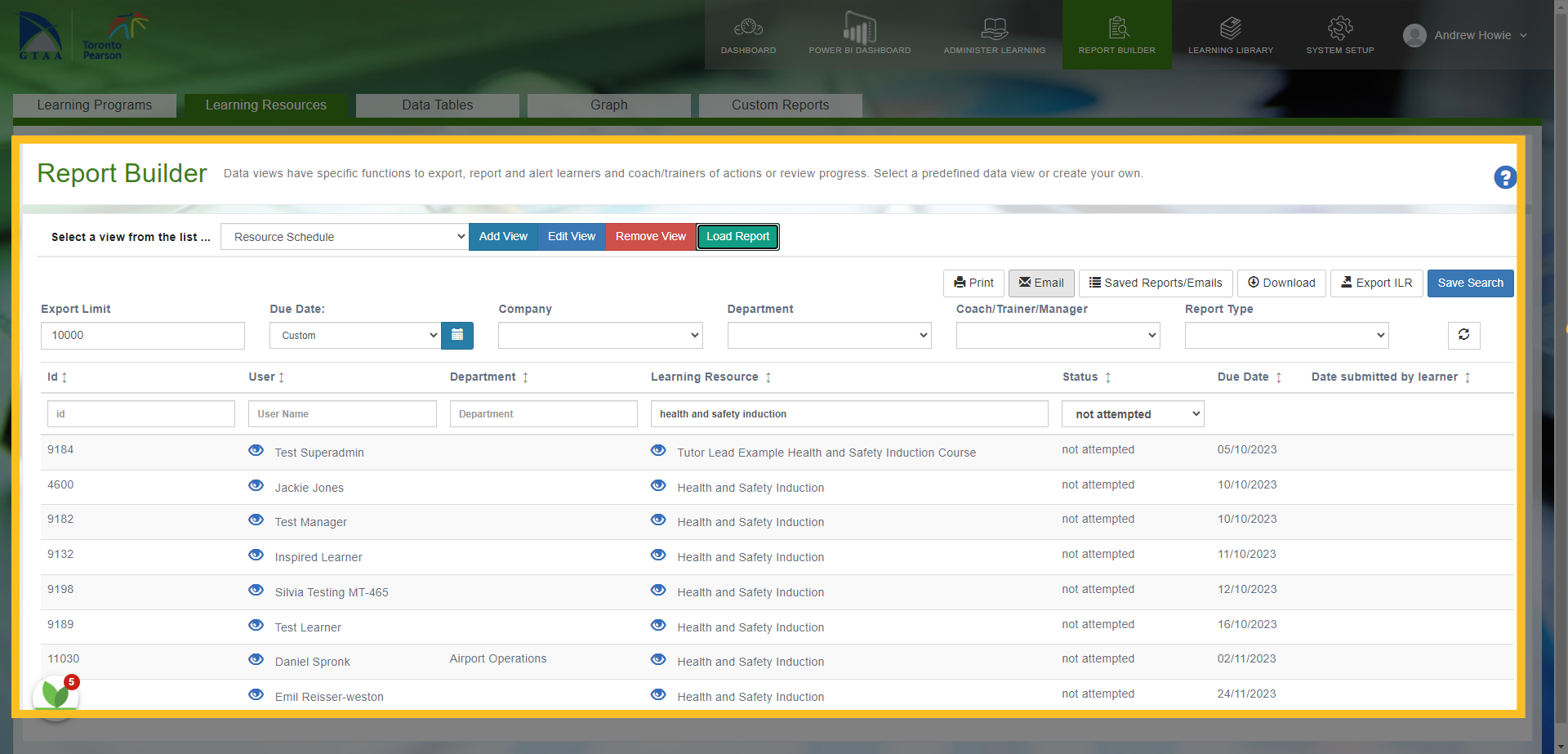
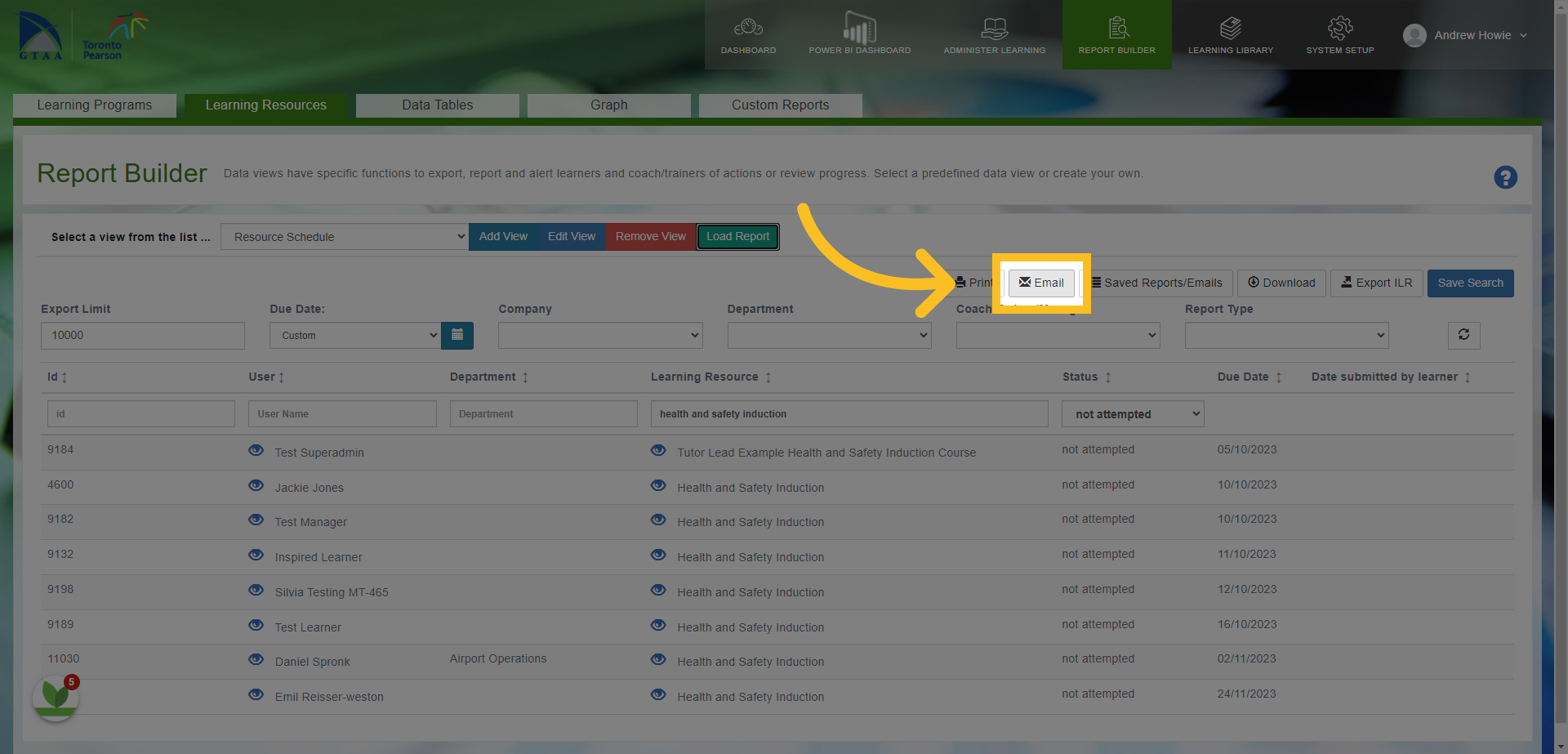
5. Once you've filtered the list to who you want to send the email to, click on the email button.
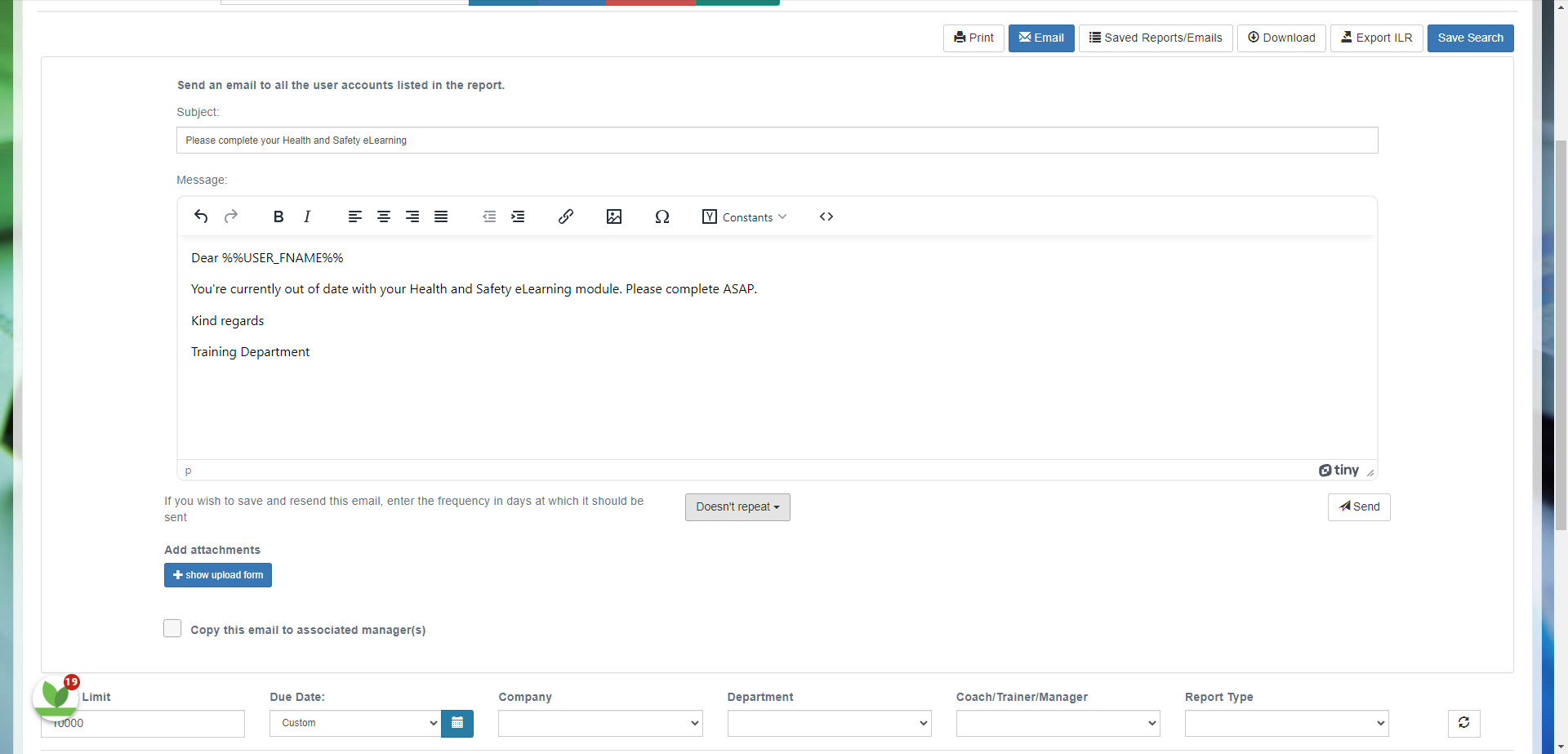
6. This opens the email sending template.
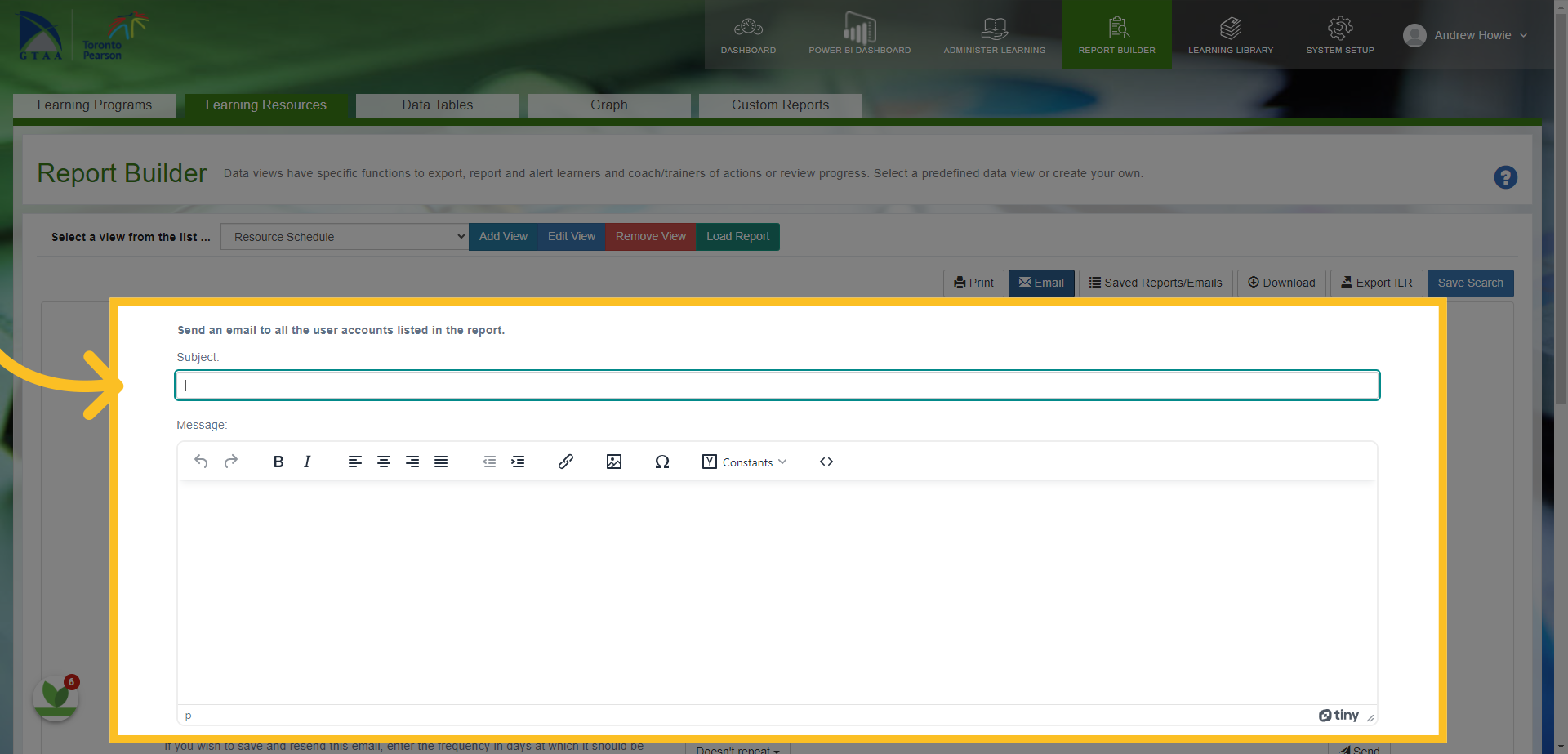
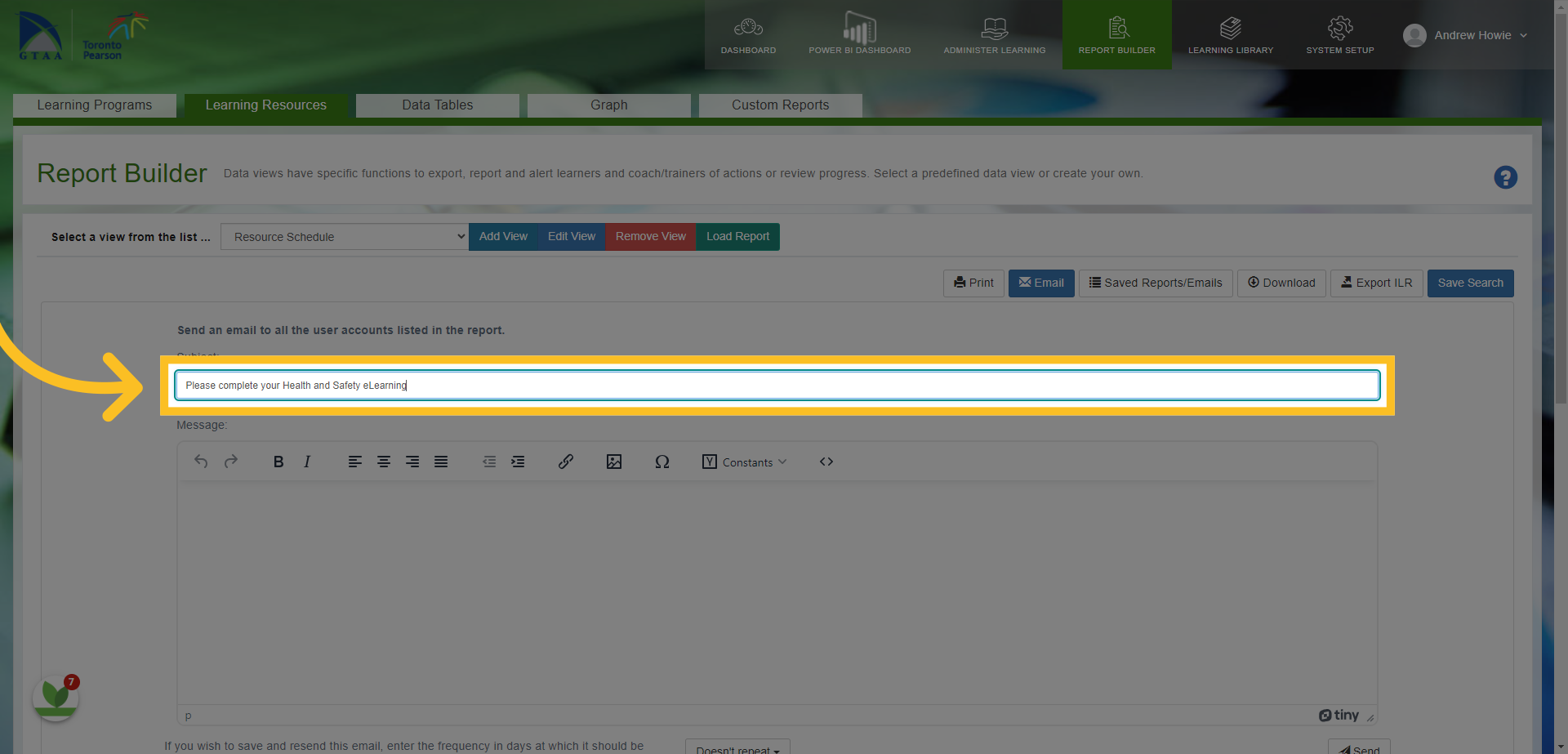
7. Add the subject of your email here e.g. 'Please complete your Health and Safety eLearning'.
8. Next, write out your email in the message box.
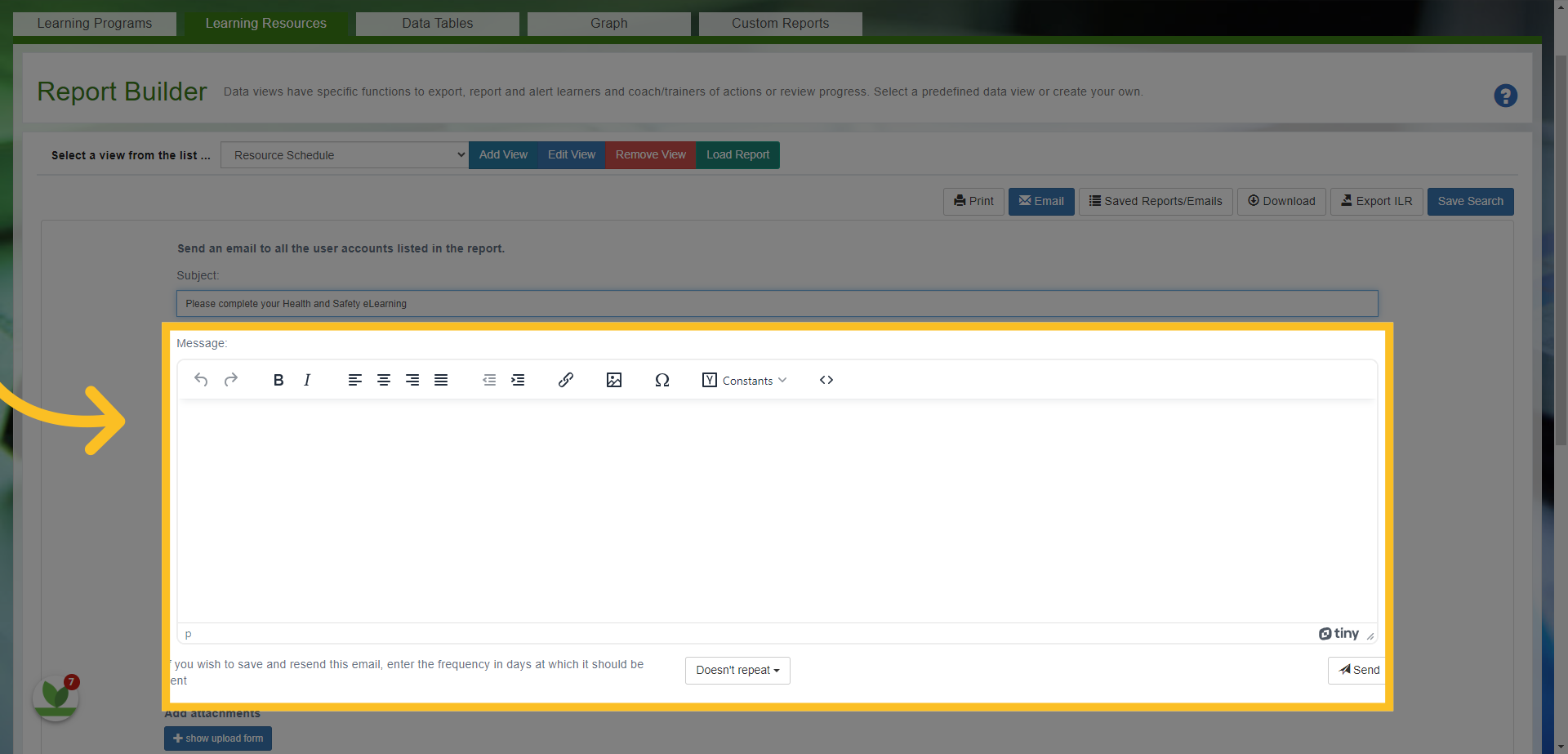
9. The template here allows you to add links, images and documents to the email.
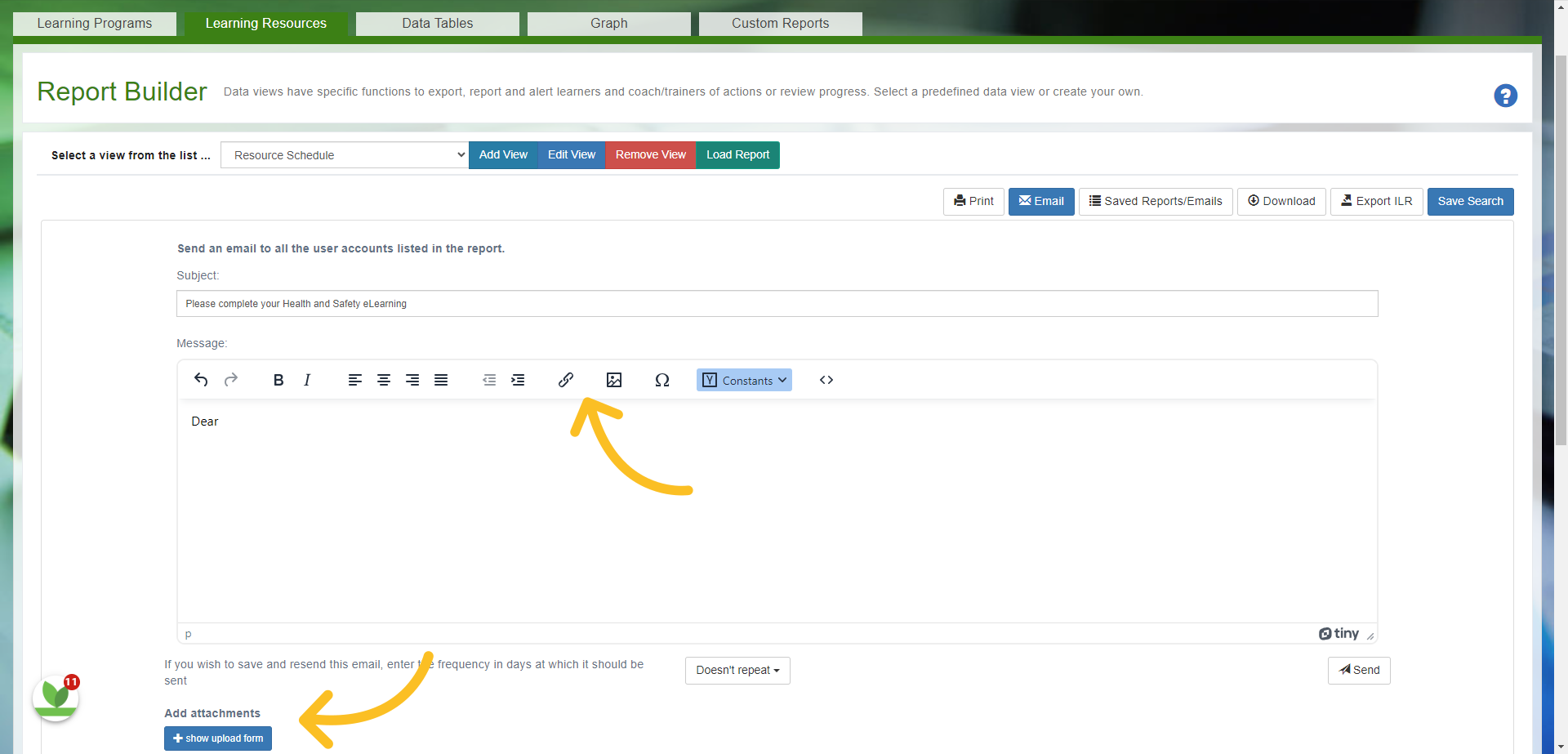
10. The 'Constants' button provides a dropdown box where you can link the name of everyone in the email.
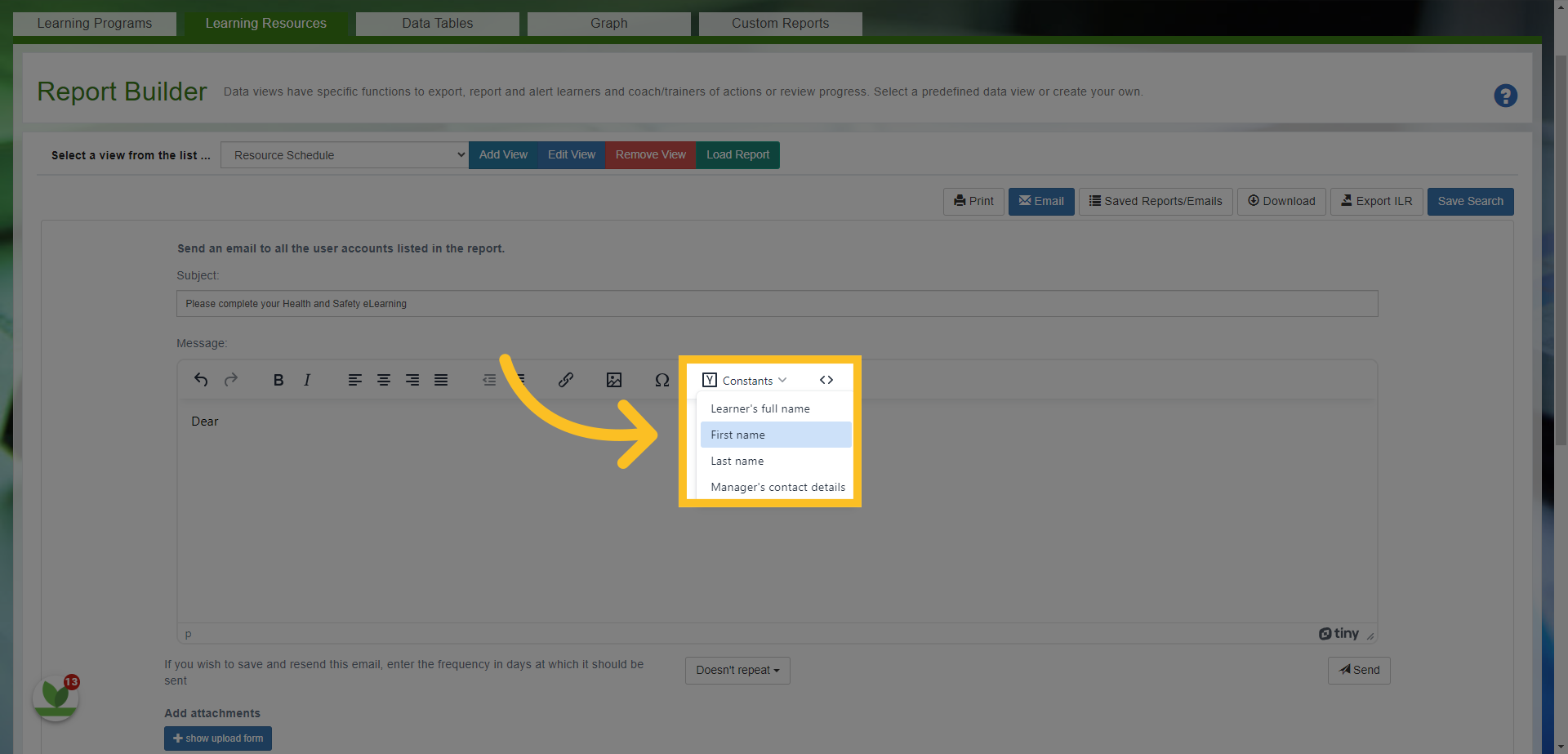
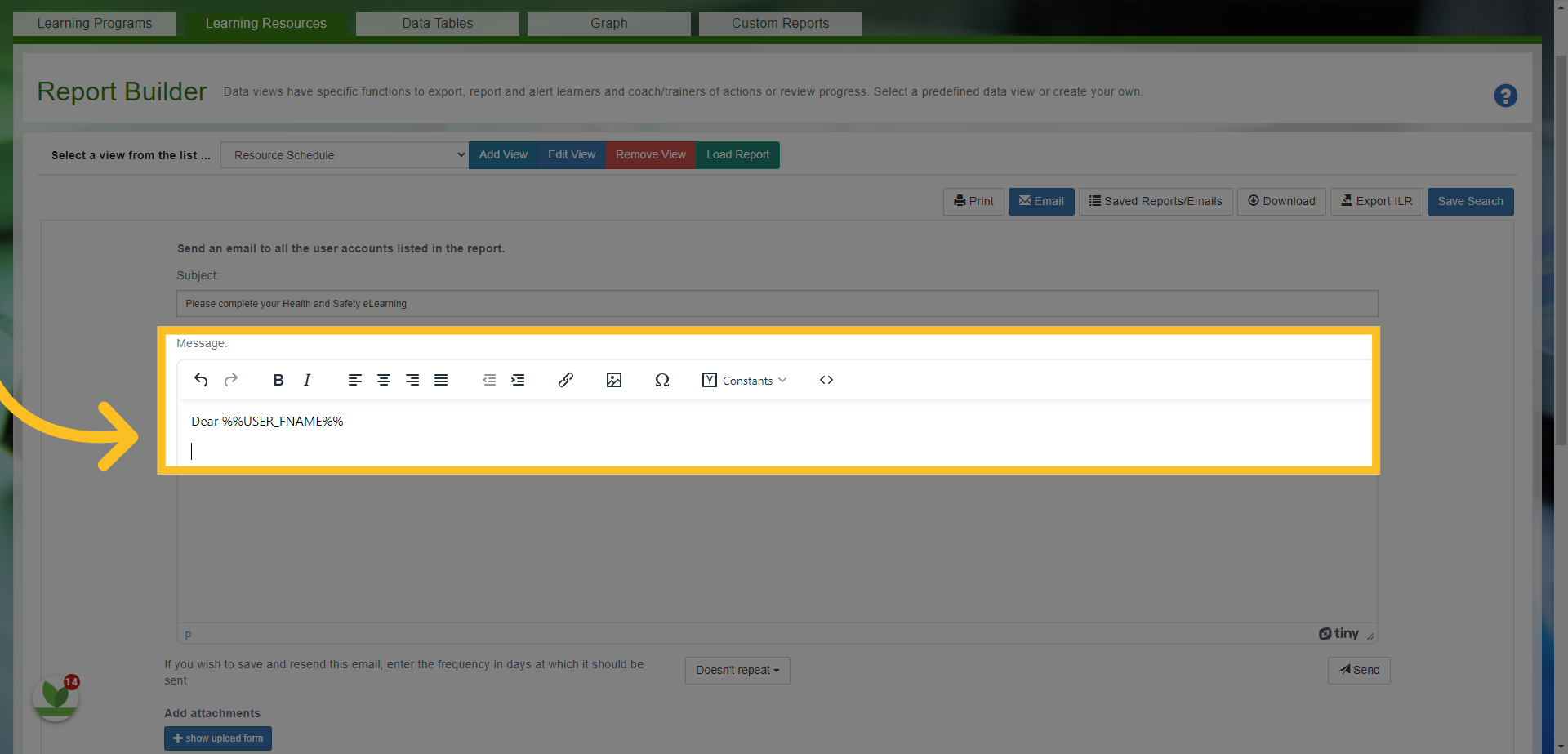
11. For example, by using the First Name option - it will add the first name automatically to everyone I want to send the email to...
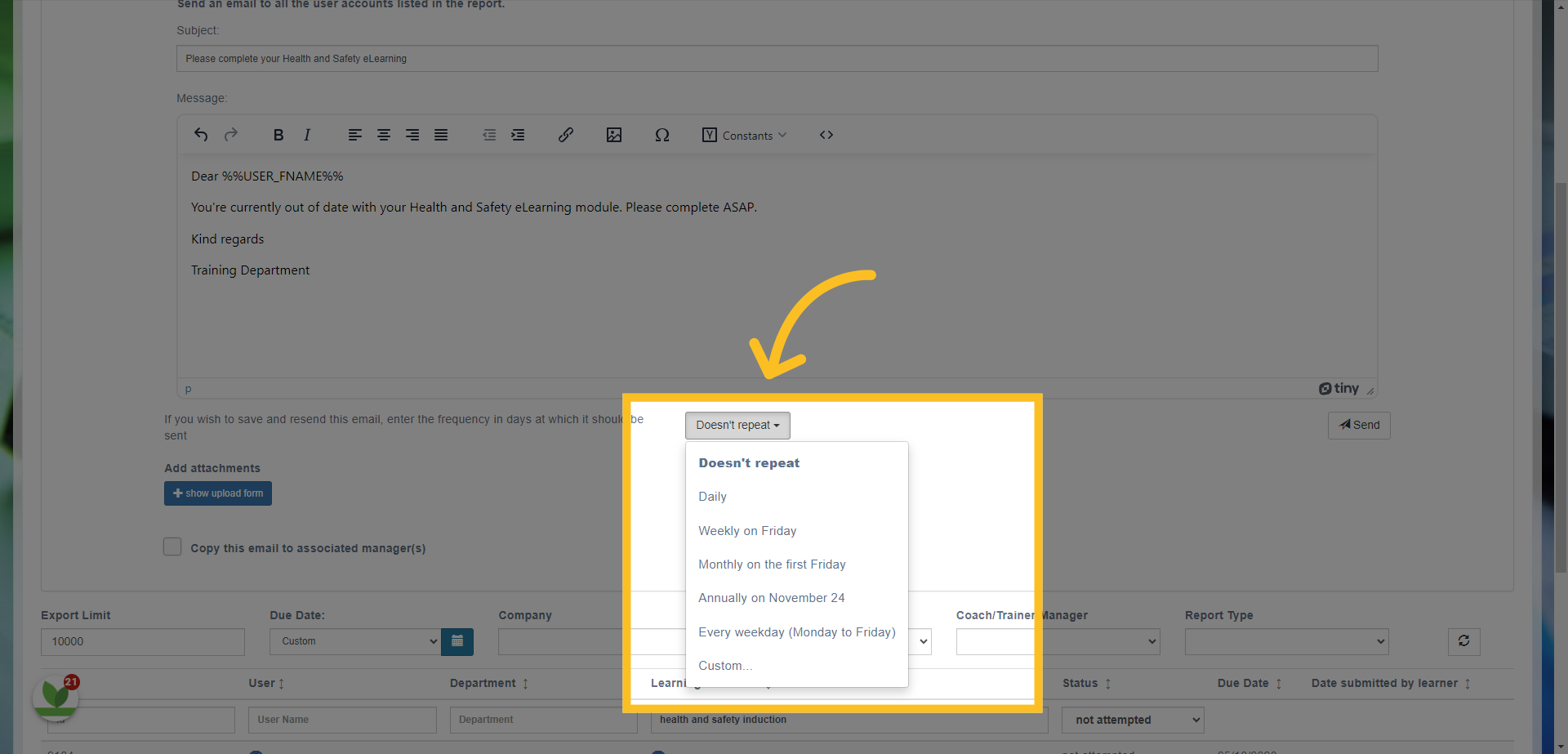
12. Once you've completed the email - you can then choose to send it only once i.e. 'Doesn't repeat' will send this email once.
13. Or you can set the email up to be repeated over a period of time. There are custom options here. NB: Once the learner completes the learning, they will automatically stop receiving emails if you set this feature up. In this example, all the learners due to receive this email - will stop receiving the email (if you set this to be repeated) as soon as they have 'Completed' the Health and Safety Induction course.
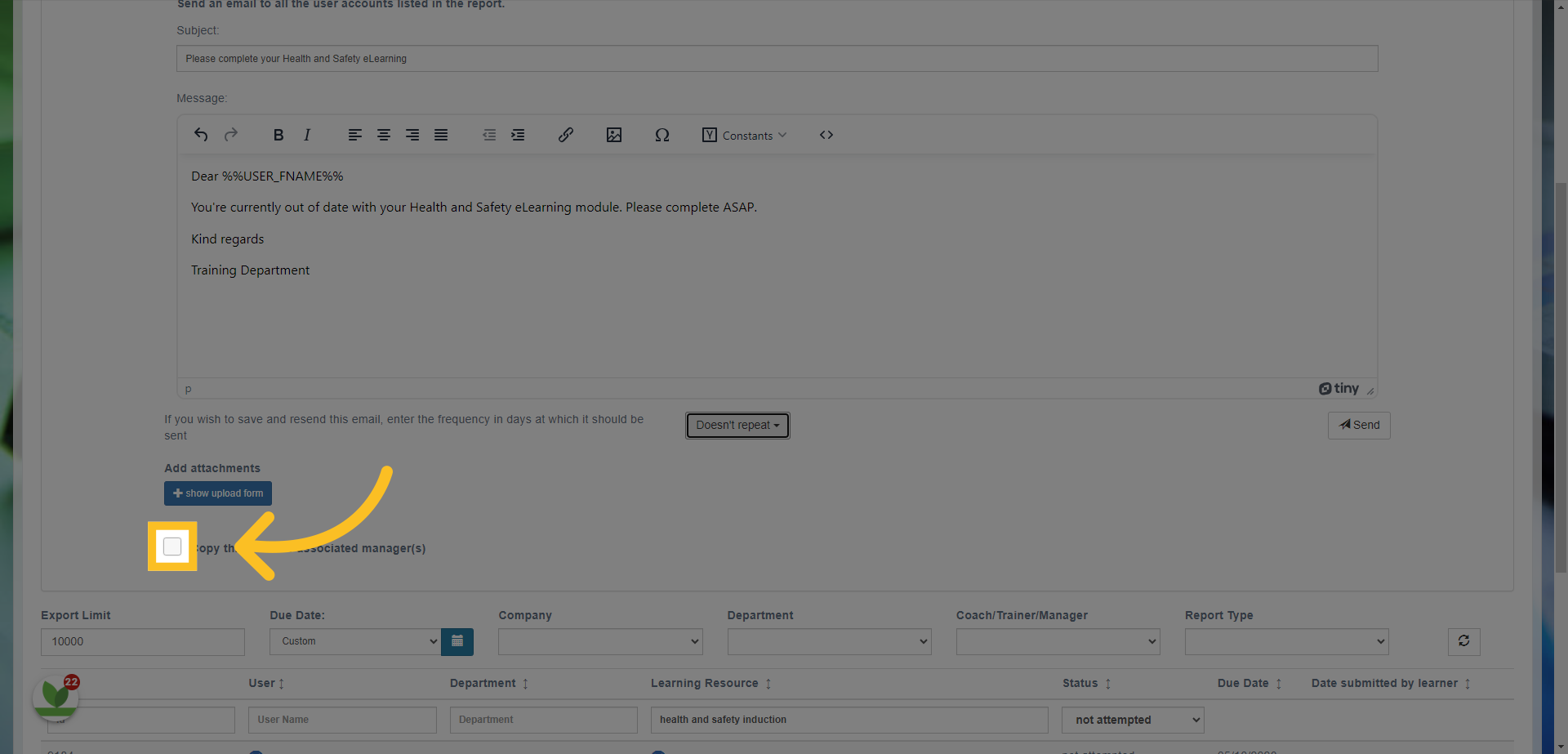
14. There is also the option to copy in the employees or learners' line managers to the email.
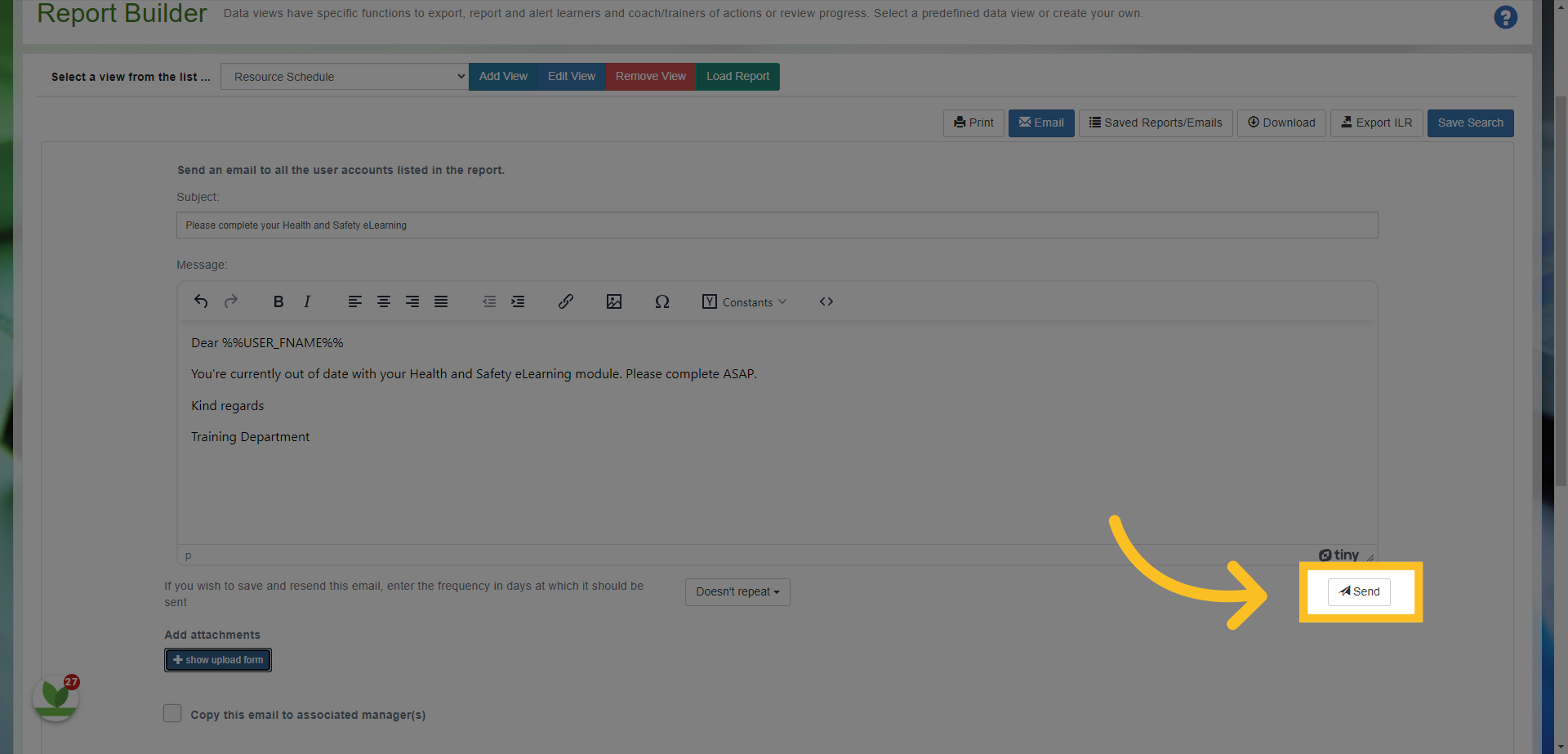
15. Once you're happy with the email and set up, click the send button here.
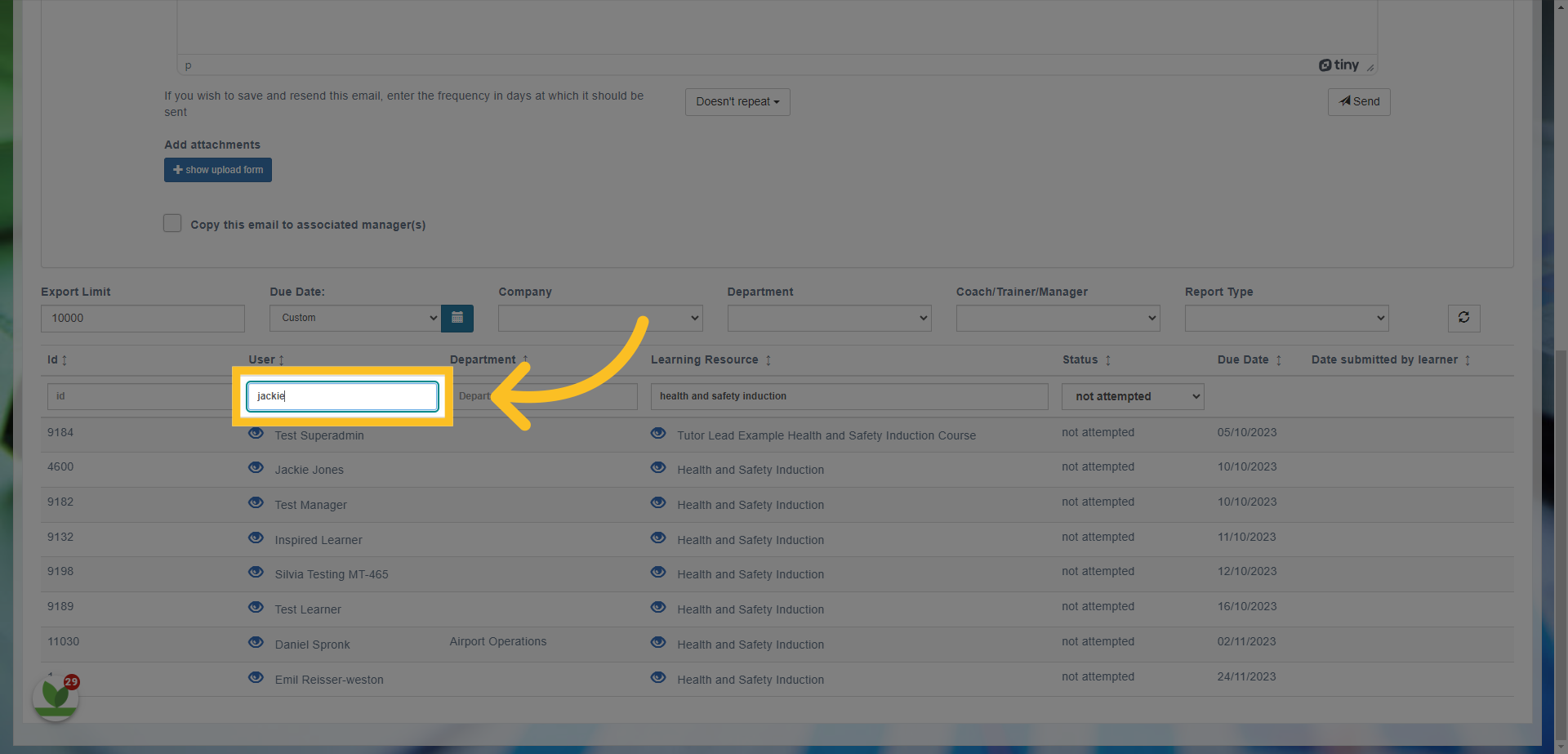
16. This feature works exactly the same for sending emails to individual learners or employees. Simply find the user by searching for their name and then following the same process. This will then send the email to just the one user.
This guide covered the steps required to send Bulk or Individual Emails as an Administrator in the system. By using the Report Builder feature - you can filter for certain information and users. You can then use the email feature to set up once only emails or emails that can be repeated both in bulk or by individual.