How to Add Lessons (Bundles) from the Curriculum Developer Role
How to Add Lessons (Bundles) from the Curriculum Developer Role
Welcome to the guide on how to add lessons from the Curriculum Developer role. Follow these instructions to easily create and add lessons in to your learning library. From setting the lesson name to specifying access and resources, this guide will cover all the necessary steps.
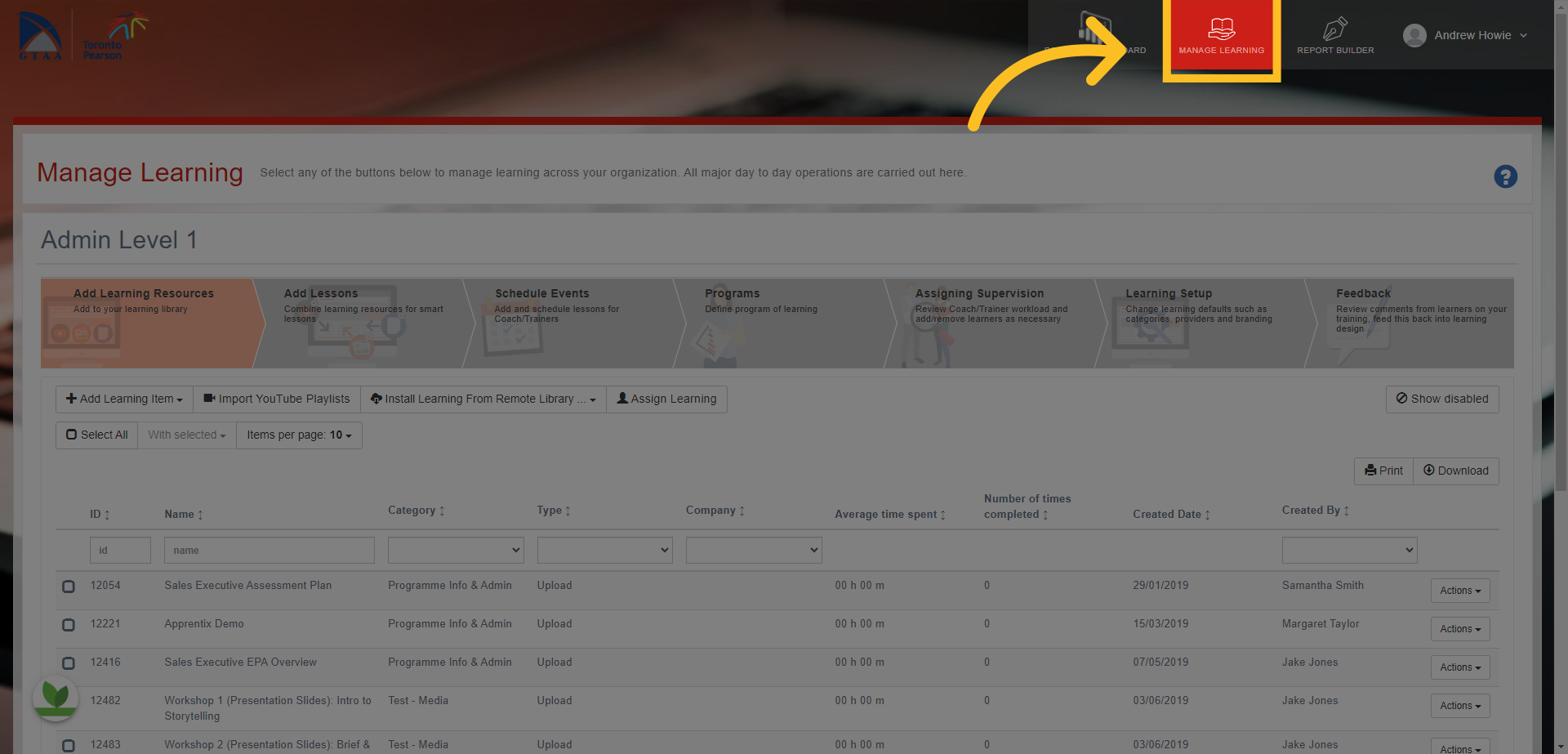
1. Click on the 'Manage Learning' tab at the top of the screen
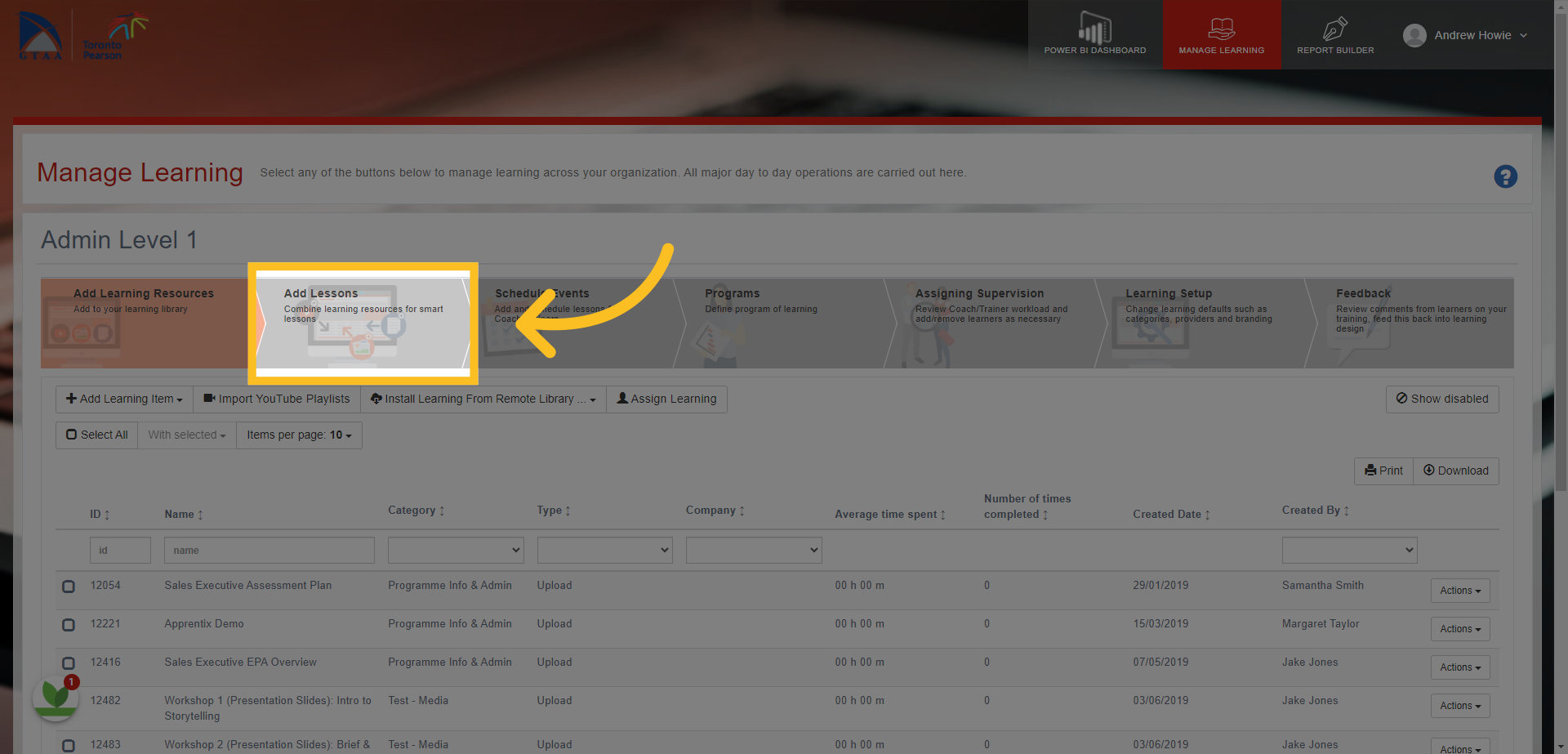
2. Click on the 'Add Lessons' tab here
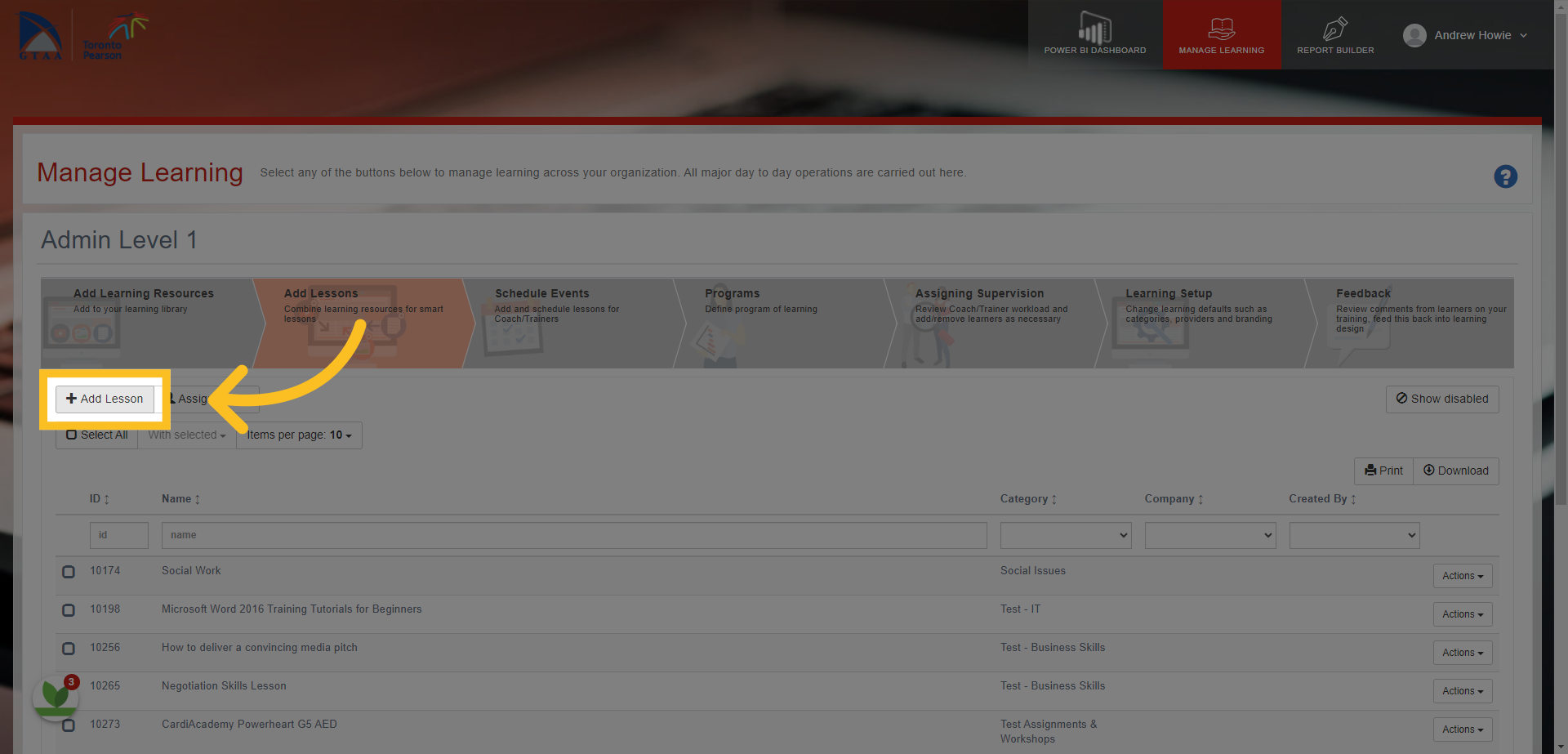
3. Then click the 'Add Lesson' button here.
4. This opens the 'Add Lessons' Template
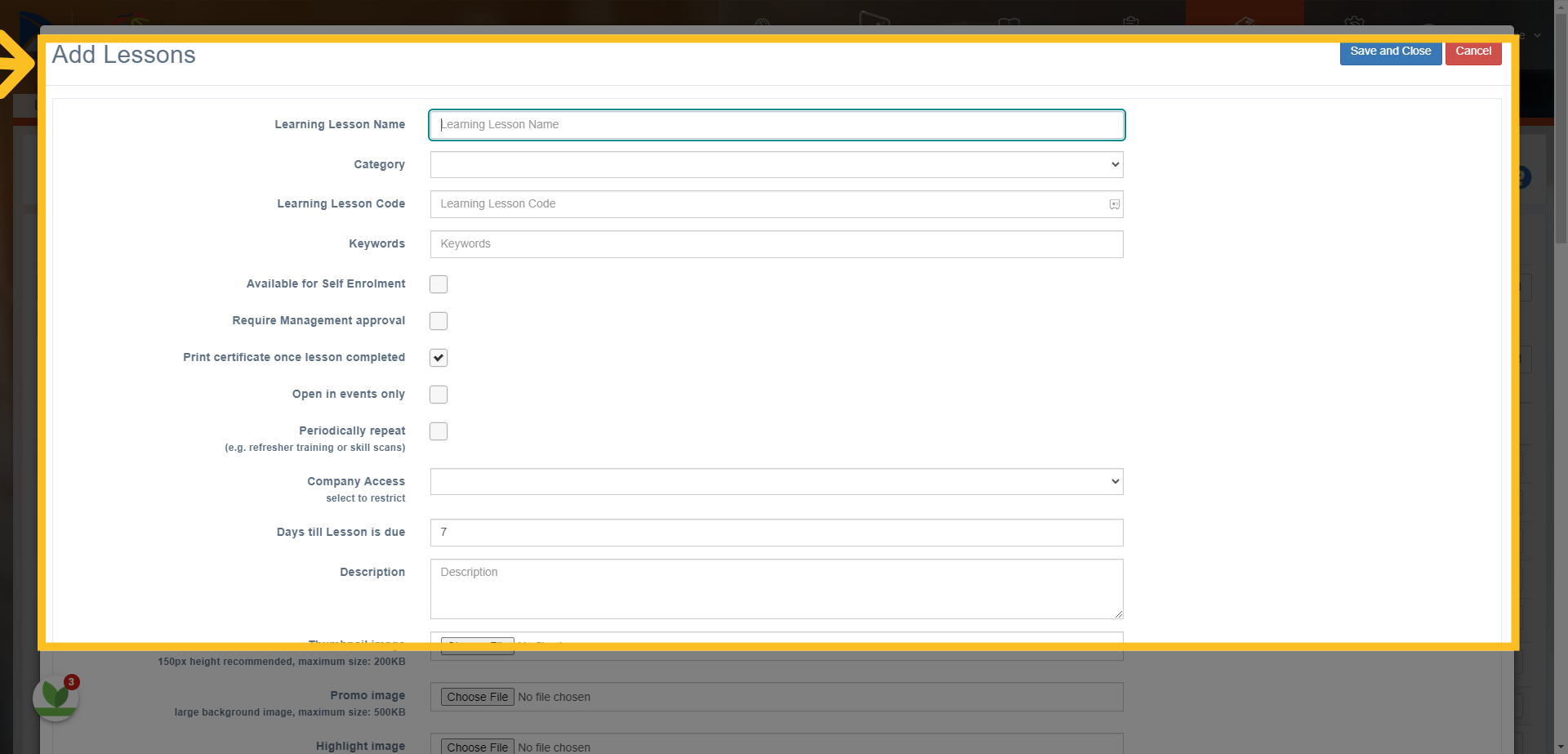
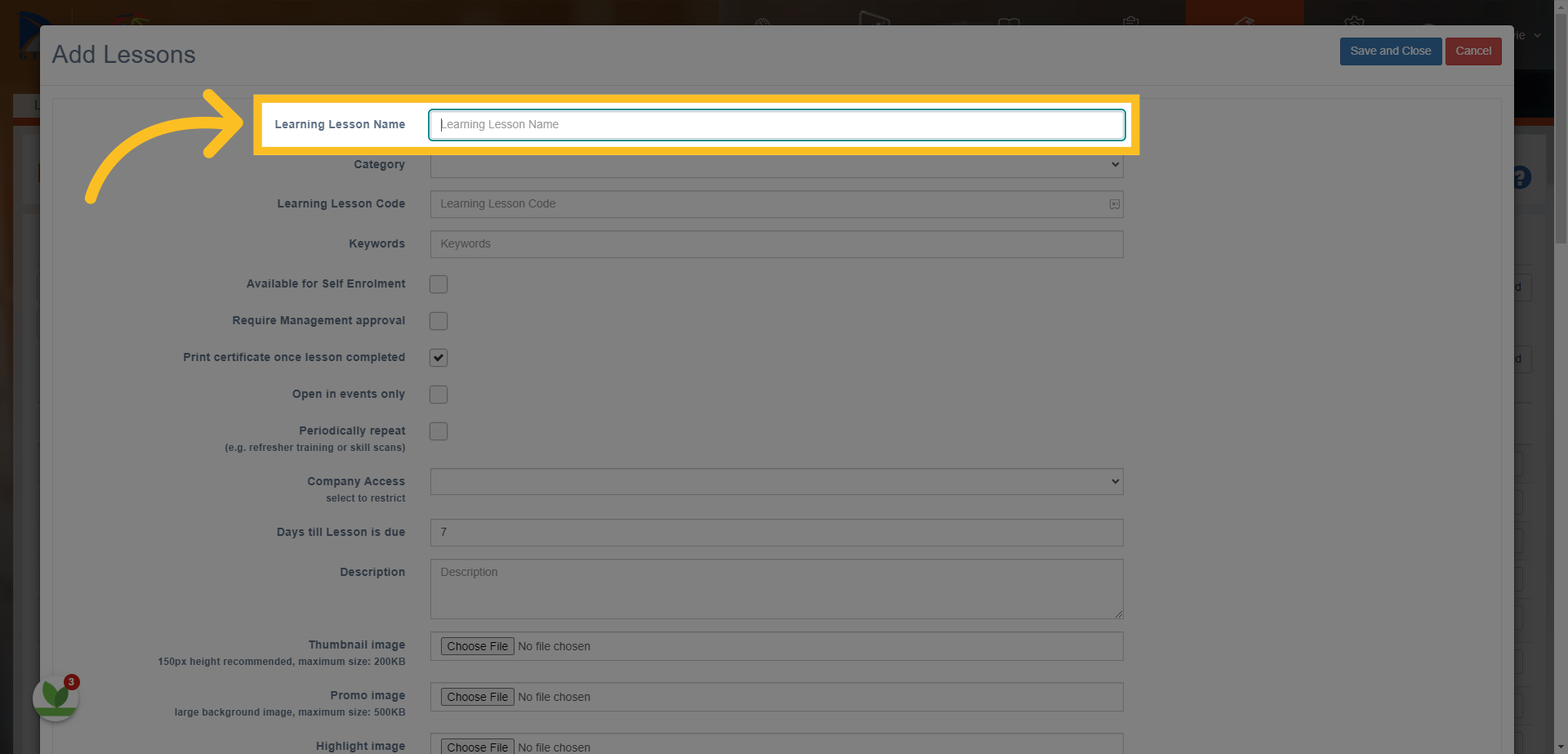
5. Enter the name of the 'Lesson' here.
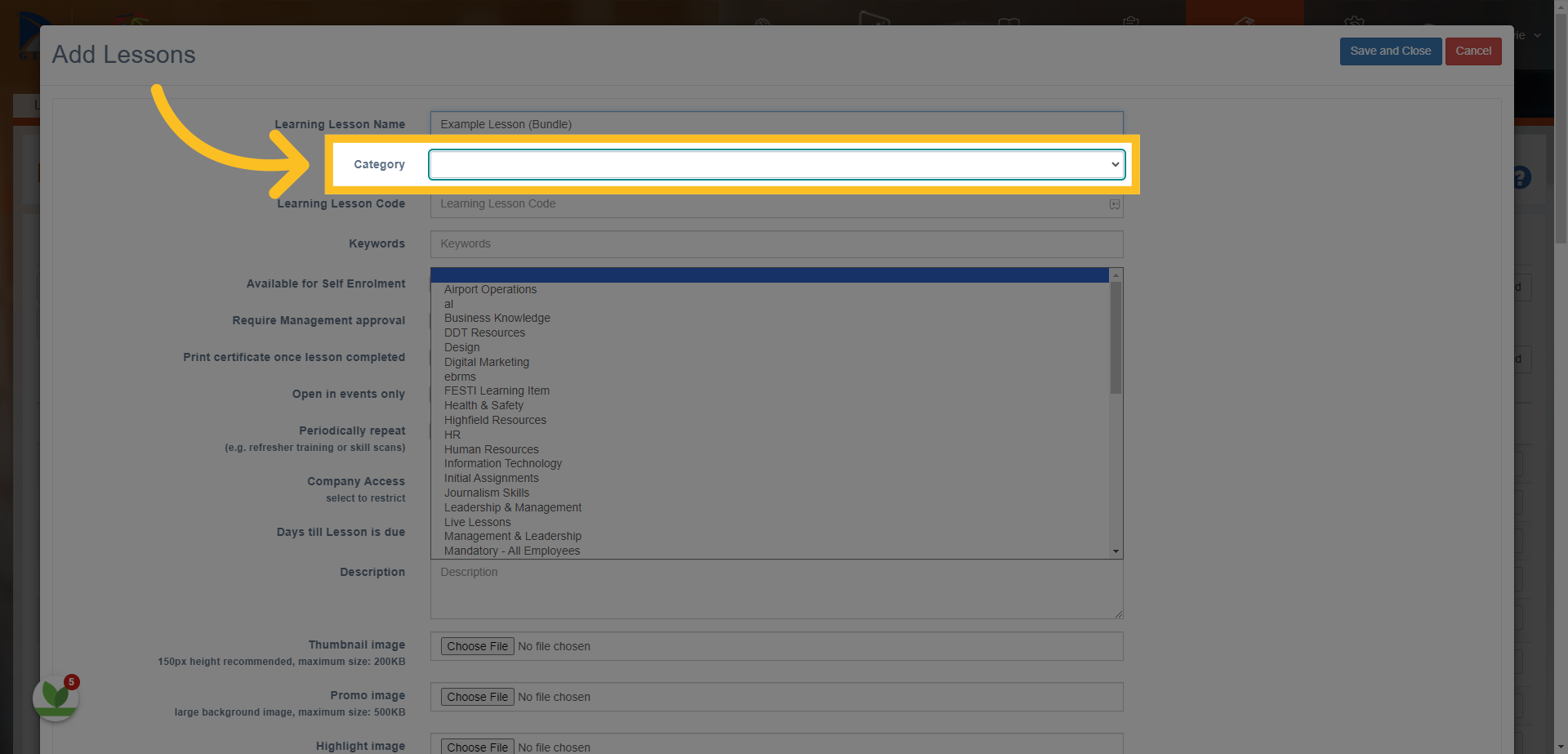
6. Select the 'Category' the lesson will be mapped to
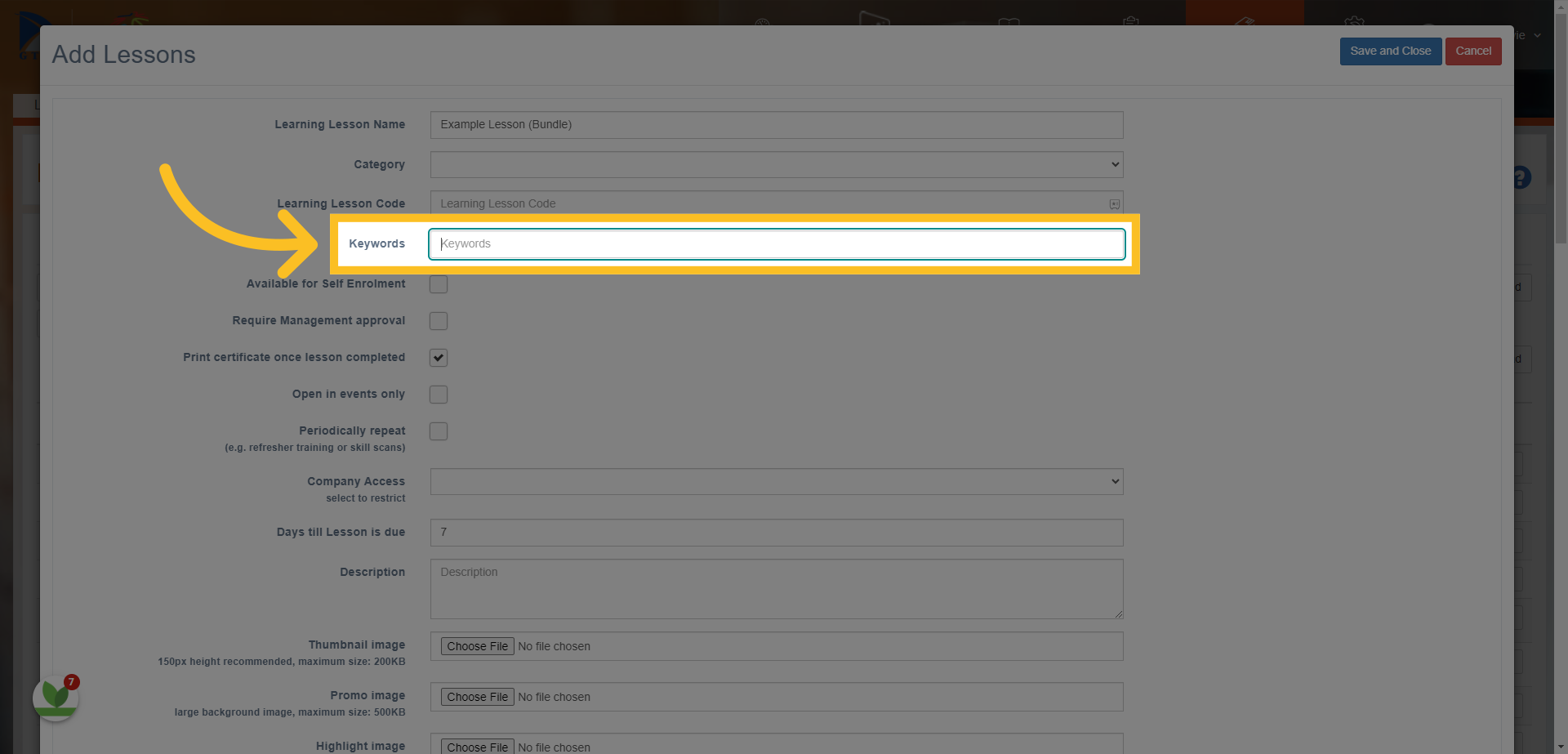
7. Enter keywords in this box. You can use multiple keywords - make sure to separate them with a comma.
8. 'Available for Self Enrollment' - is used if you want every user to be able to access the lesson.
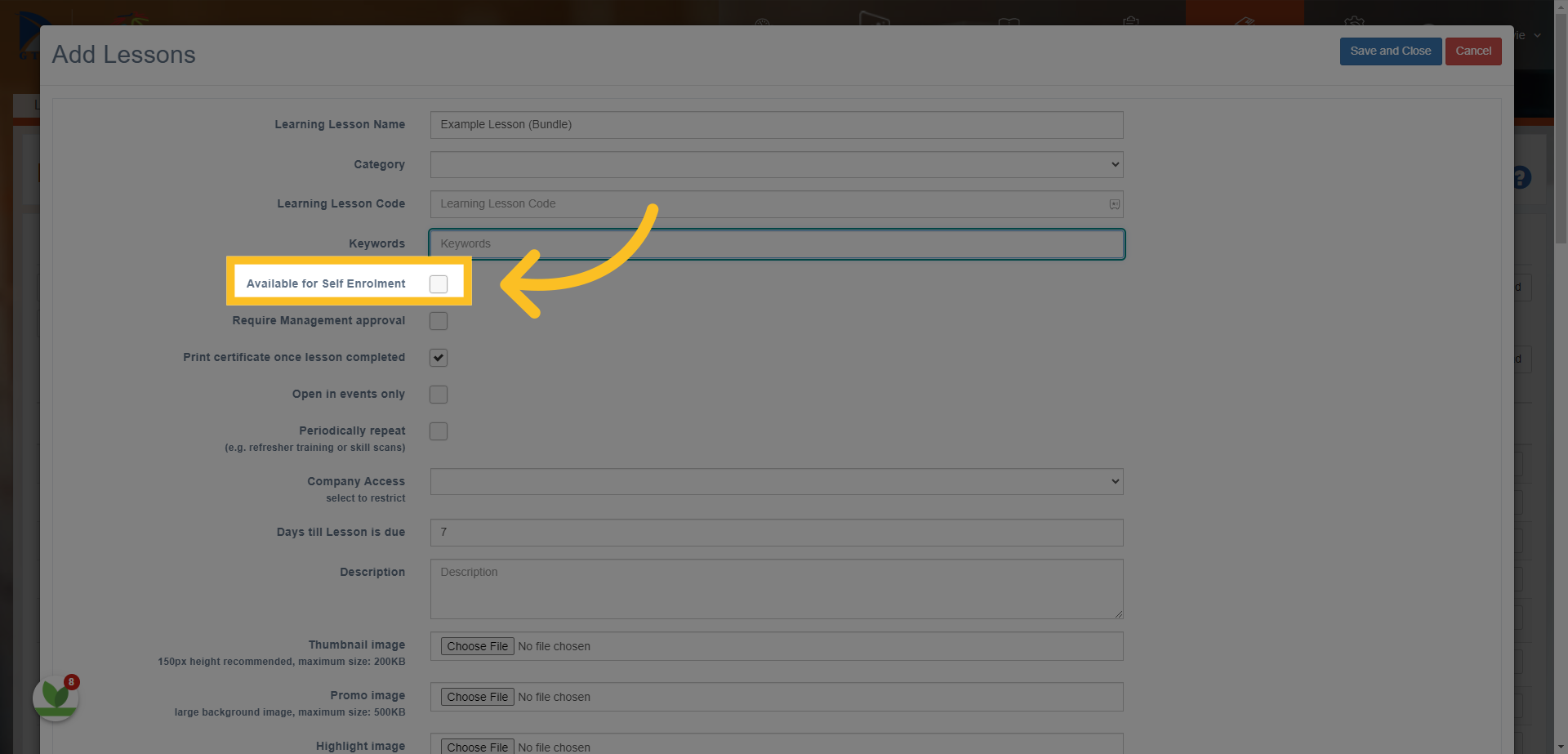
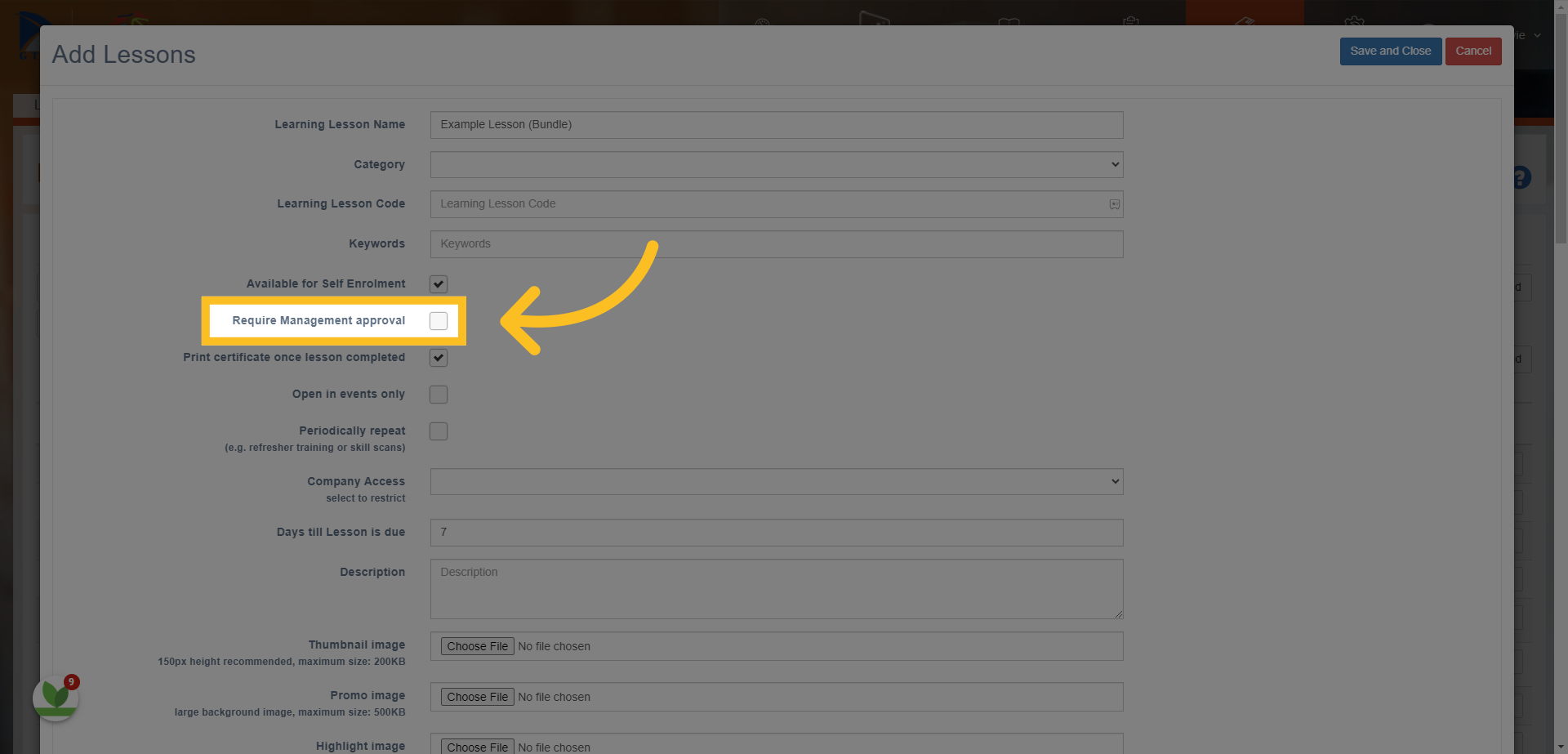
9. 'Requires Management Approval' will set up a process for a manager to approve access to the lesson before the user can access it directly.
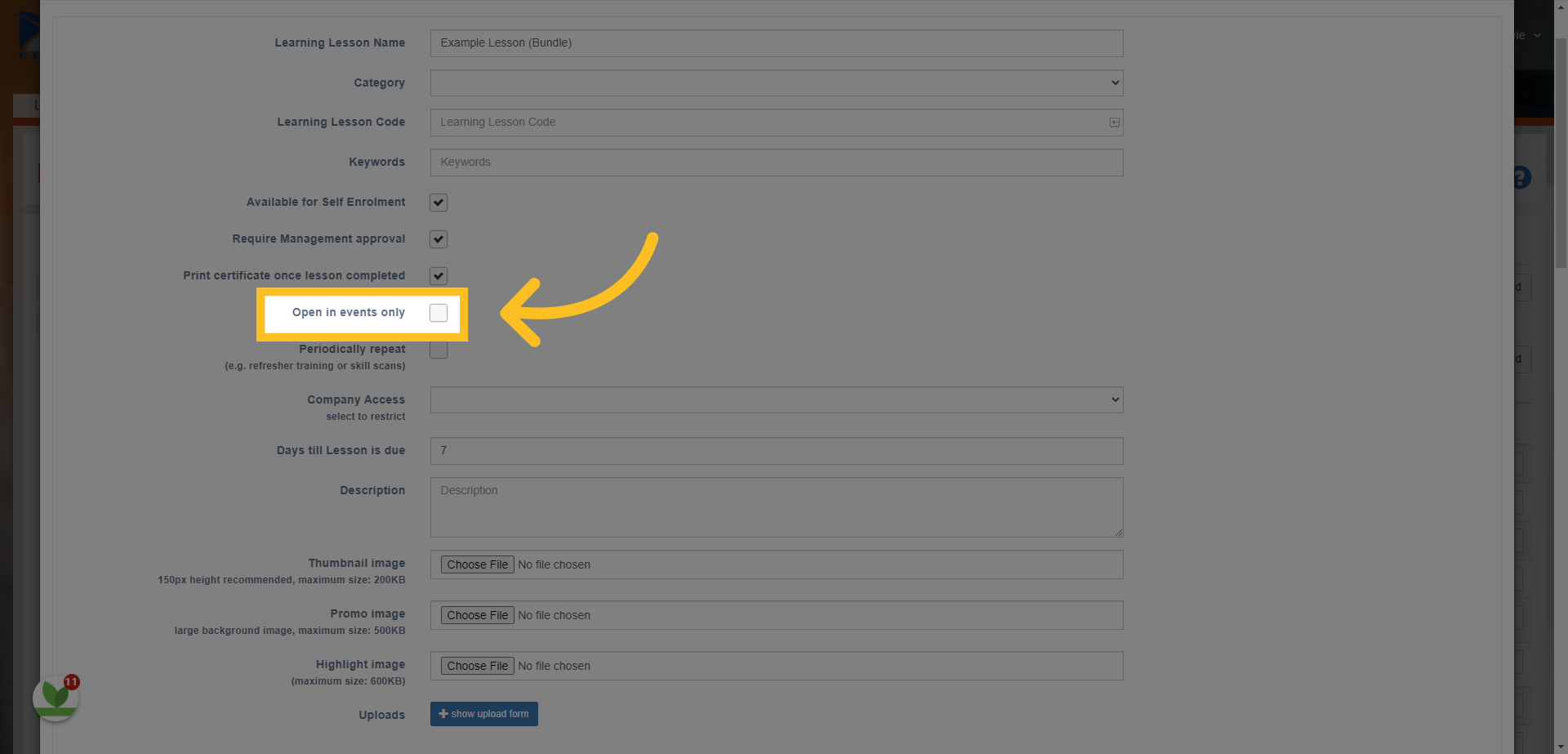
10. Check the 'Open in events only' box if you want the lesson to be used as a template when adding training events to the system (this is covered in a separate guide).
11. 'Periodically Repeat' is used if you want to refresh the lesson over a period of time i.e. every year- this would refresh the status of the lesson every year so that the user would have to do it again.
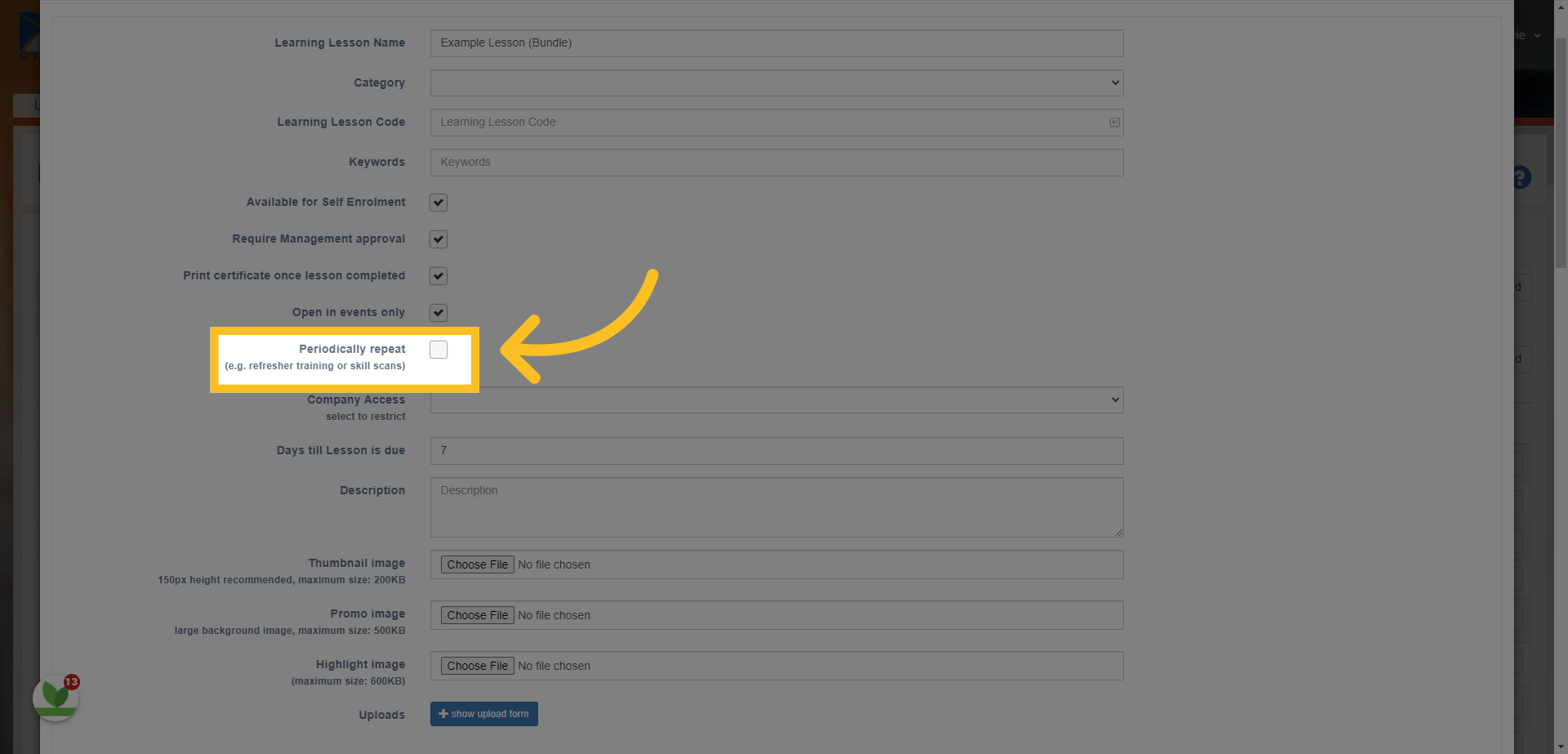
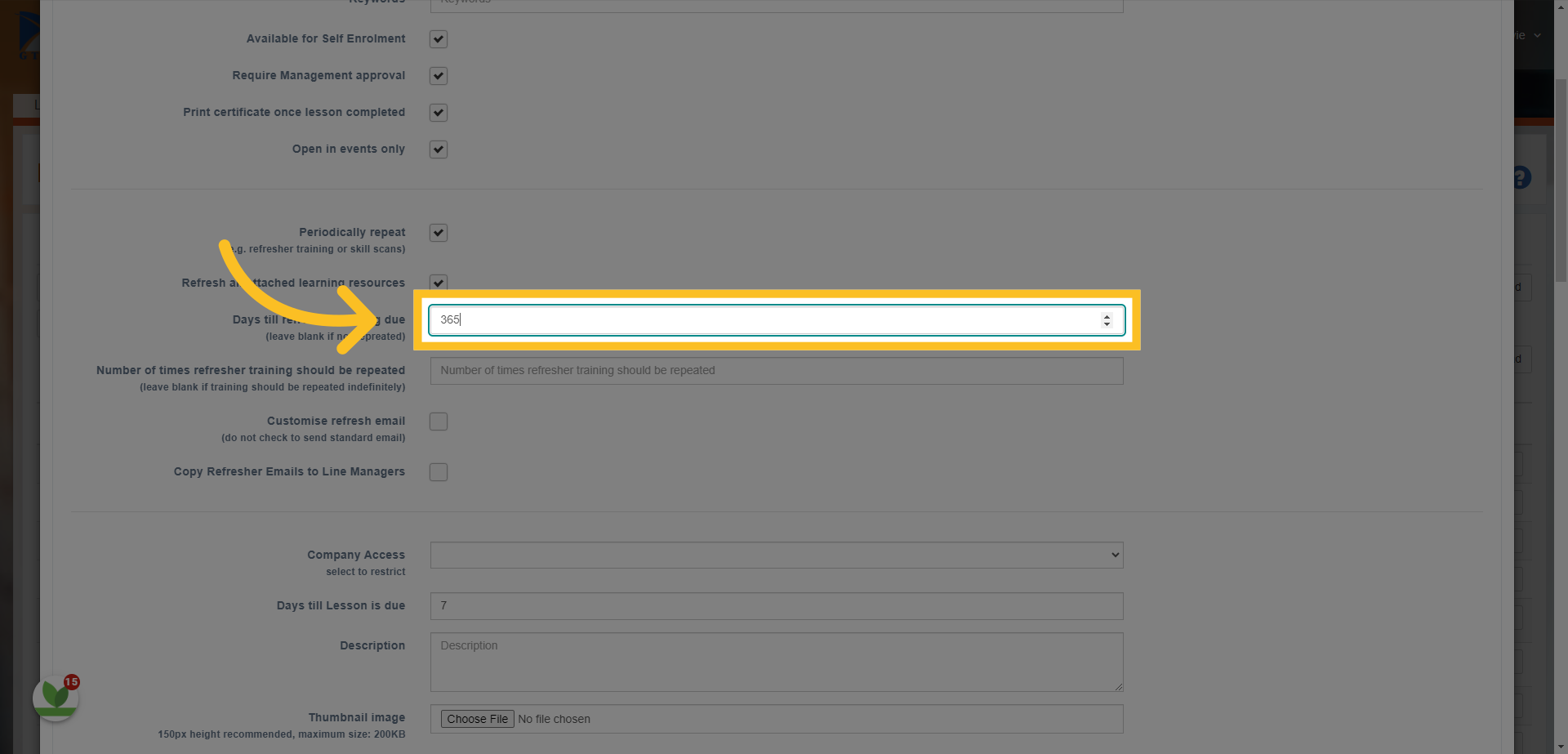
12. Define 'in days' when the lesson should be refreshed i.e. 365
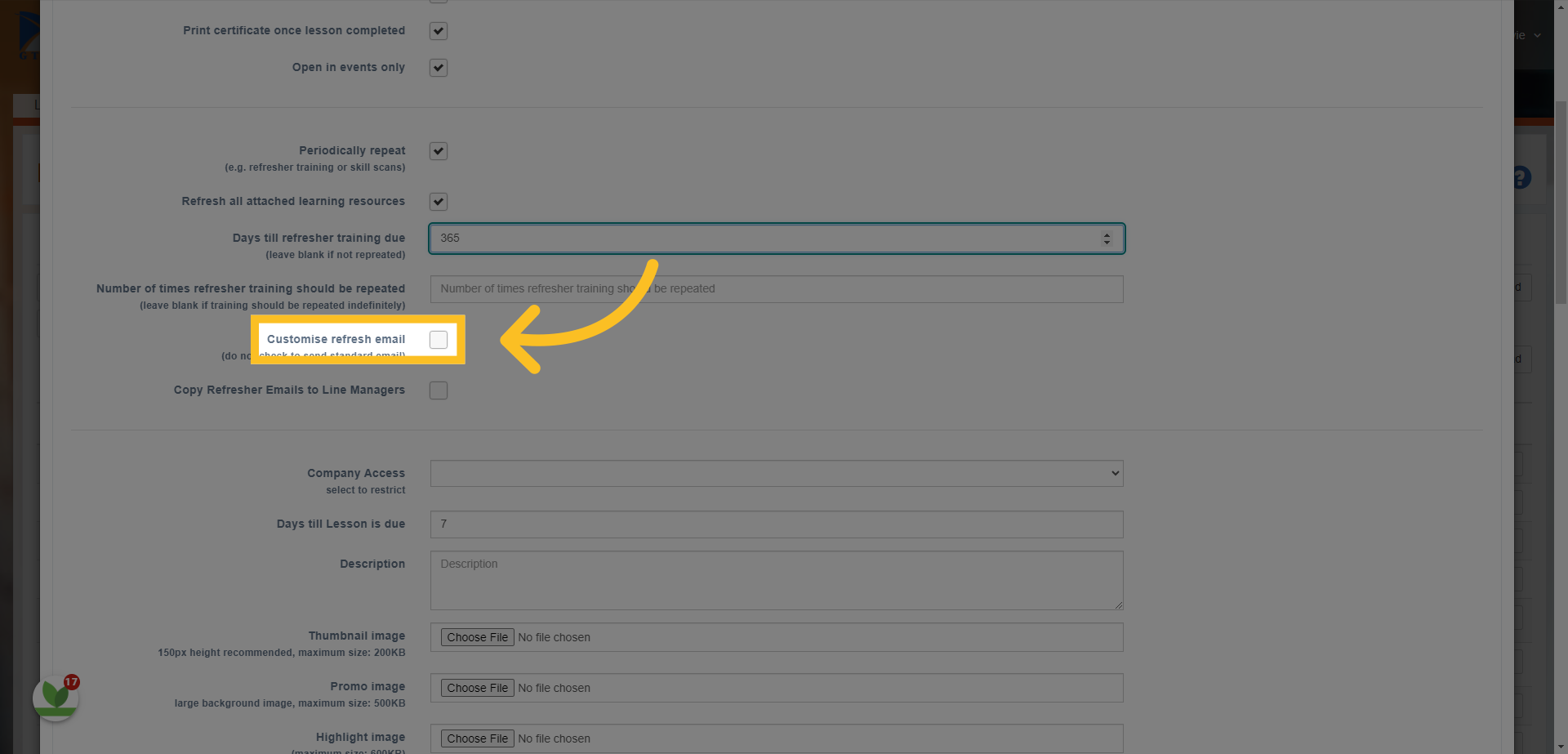
13. You can also 'Customise' the email that is sent to users when they need to re-do the lesson again.
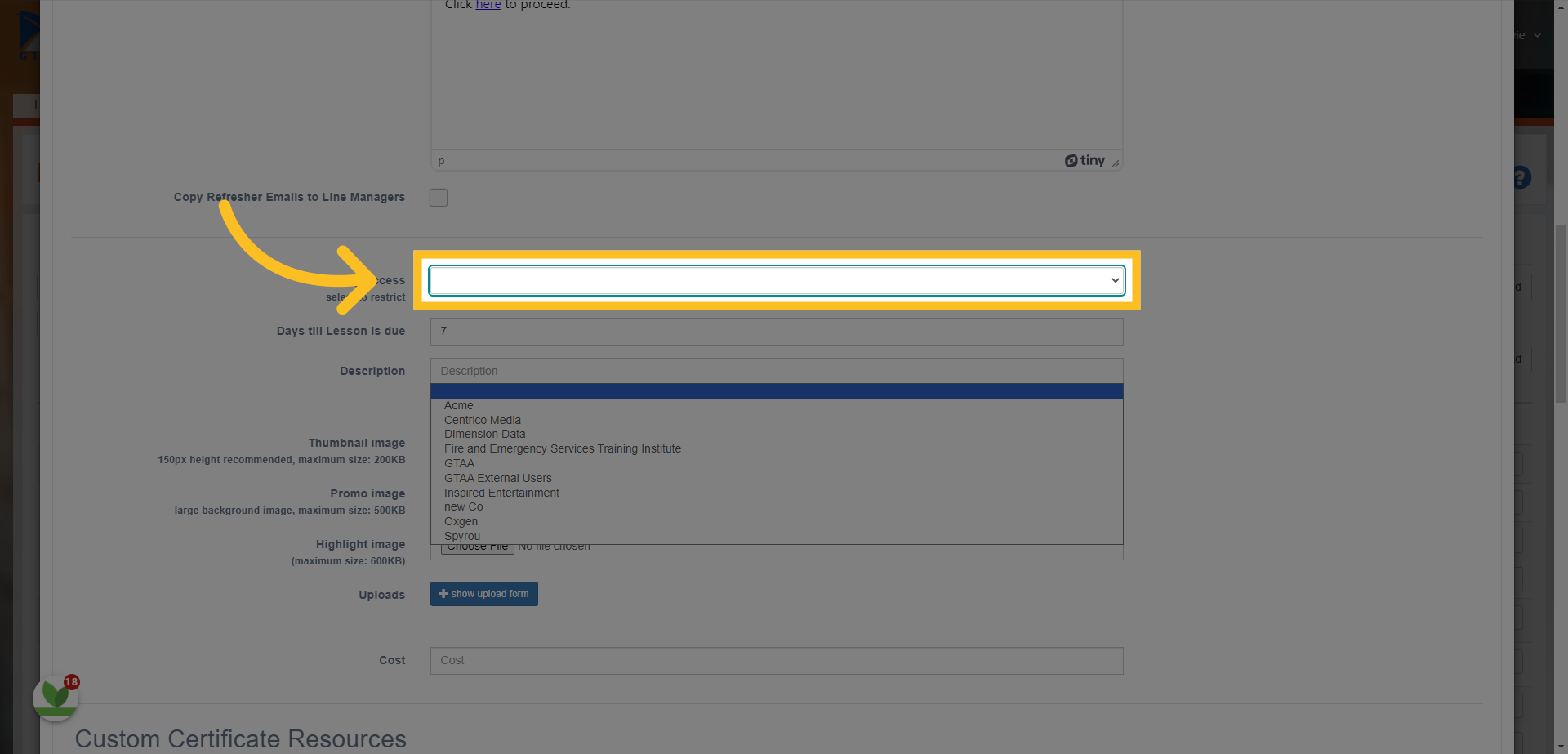
14. Click on a Company in the drop down list if you want to restrict the access to the lesson to just 1 company. Leave blank if you want to allow access to all or multiple companies.
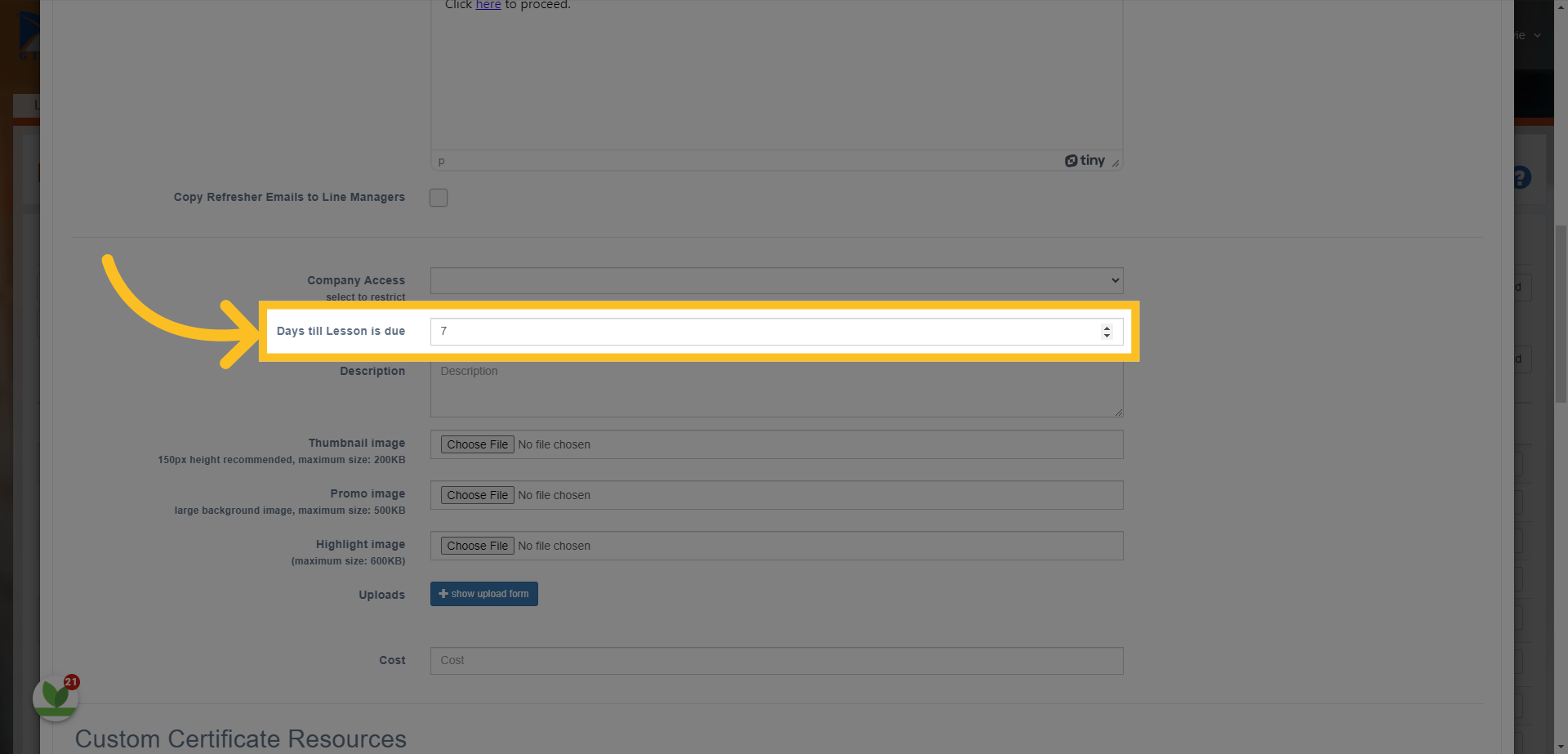
15. Define how many days till the lesson is expected to be completed.
16. Use the Description box to tell the user what you'd like them to do with the lesson and/or a summary of what the lesson covers.
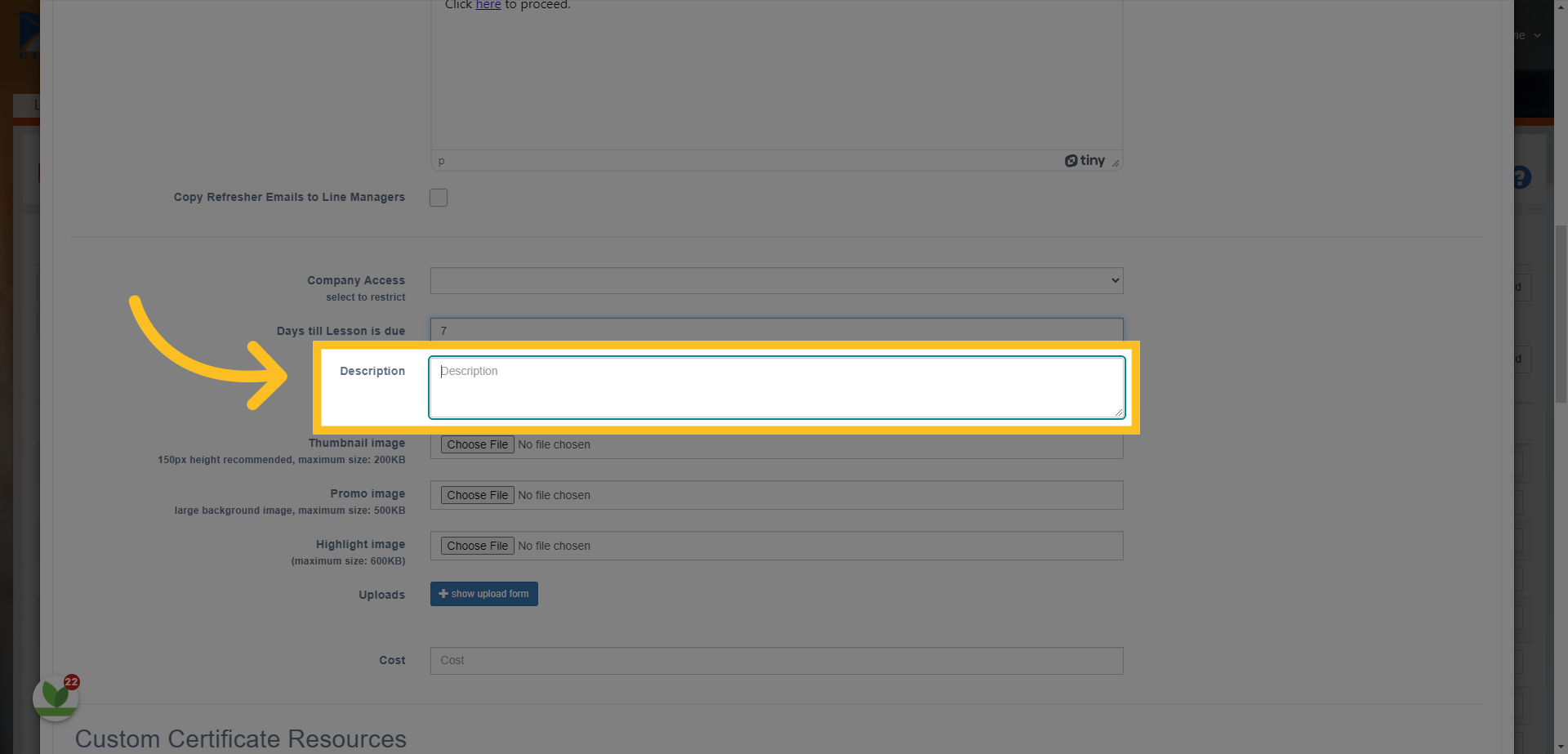
17. You can now add the resources you would like to include in the lesson (bundle).
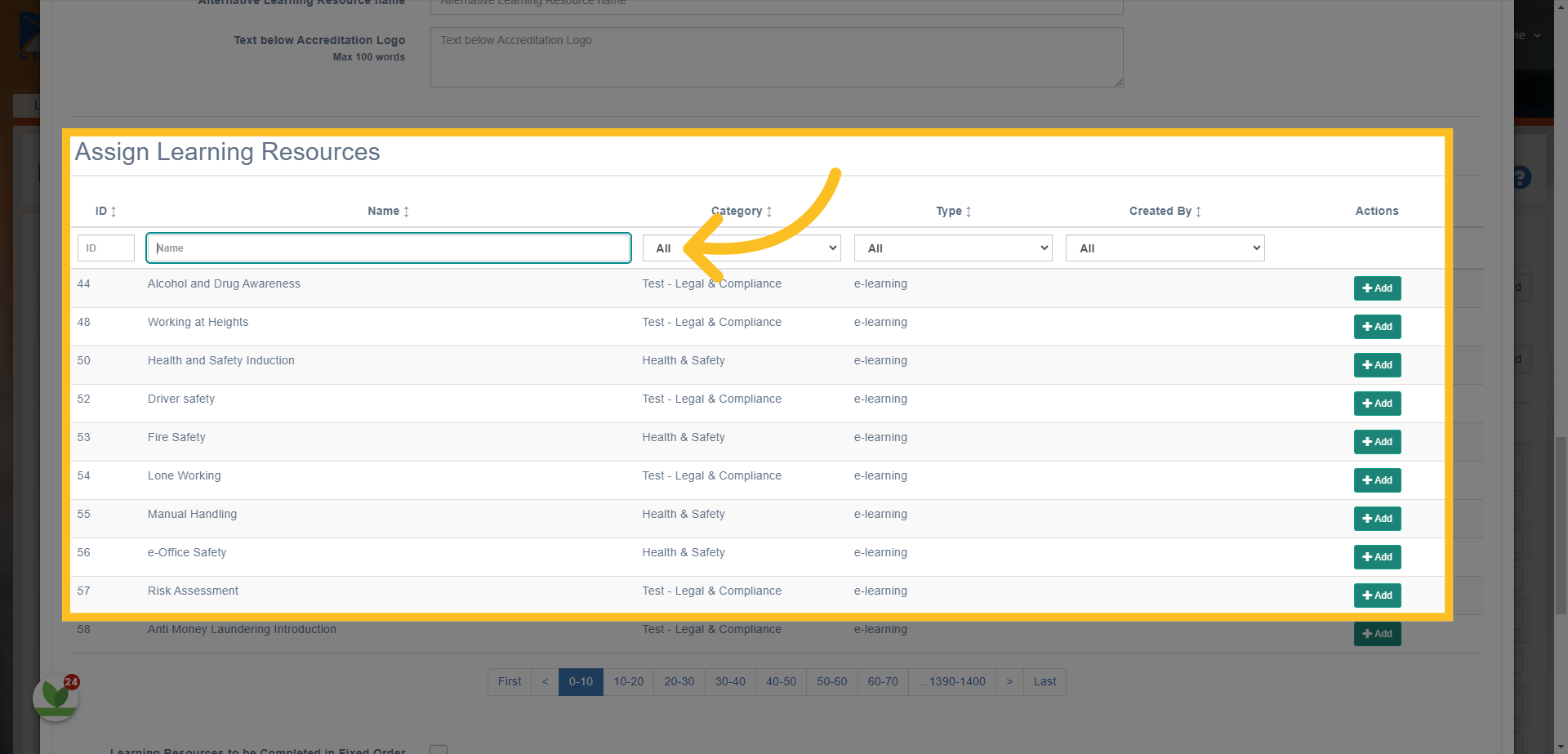
18. You simply use the 'Add' button next to the resource you want to add to the lesson.
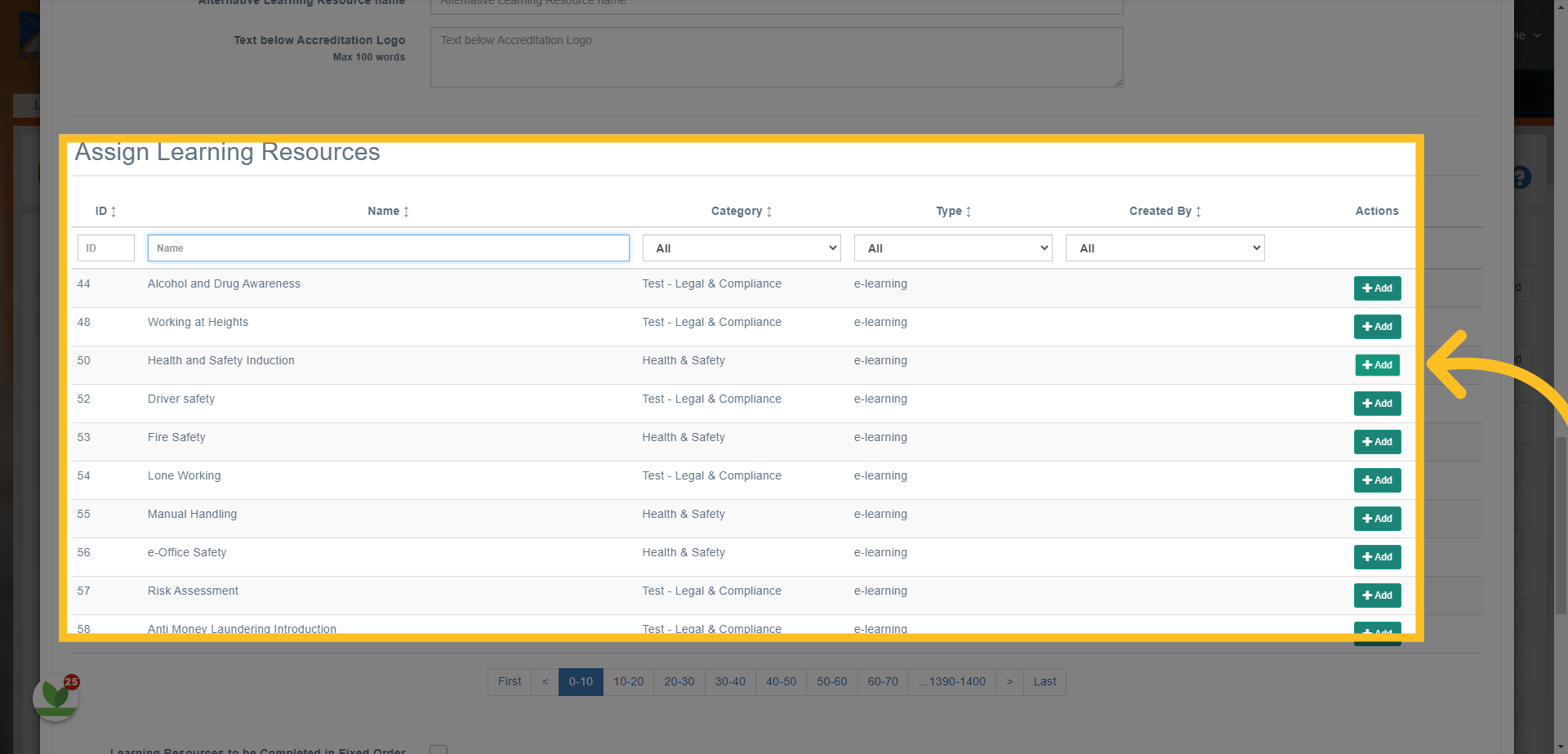
19. If highlighted, then this resource has been added.
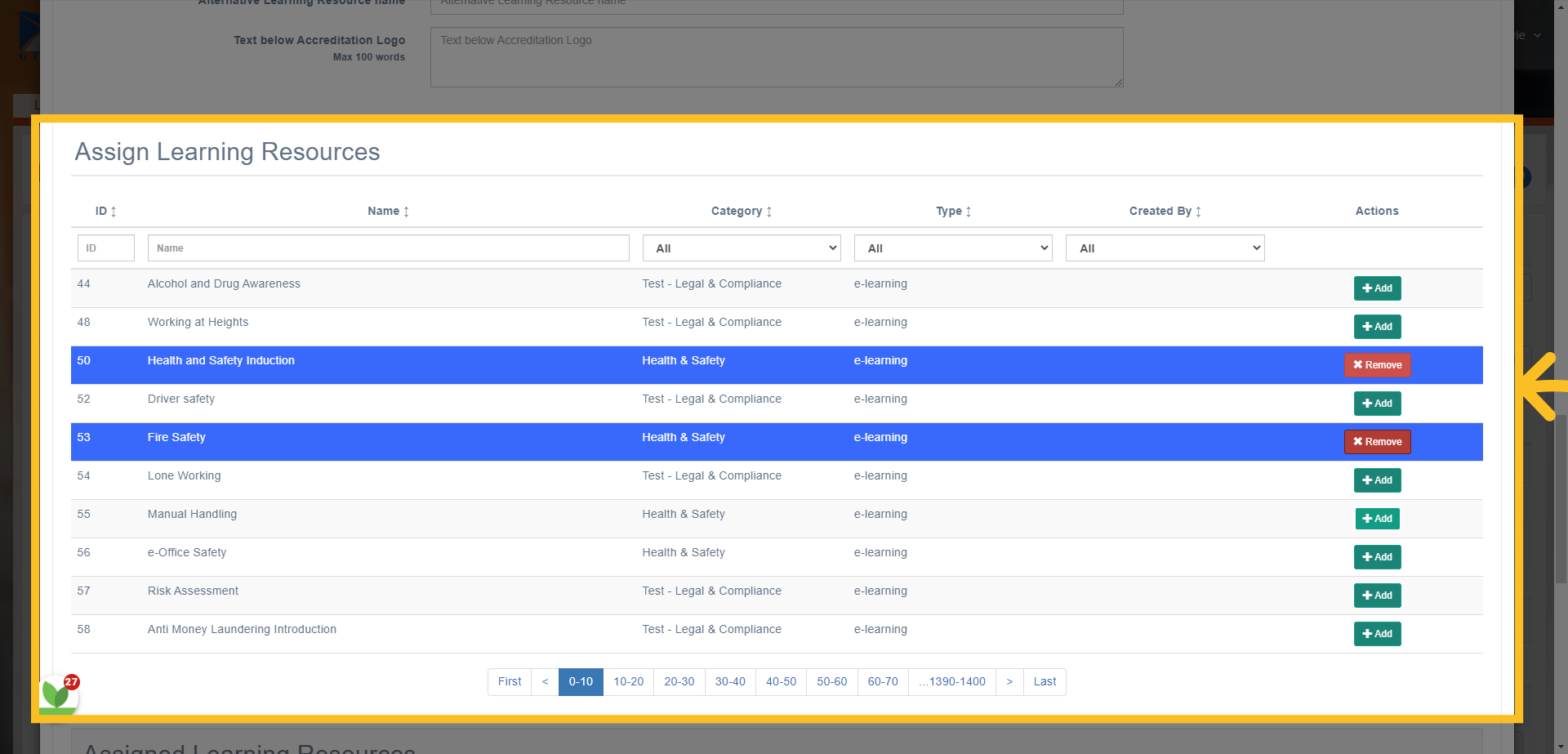
20. You can see which resources have been added here
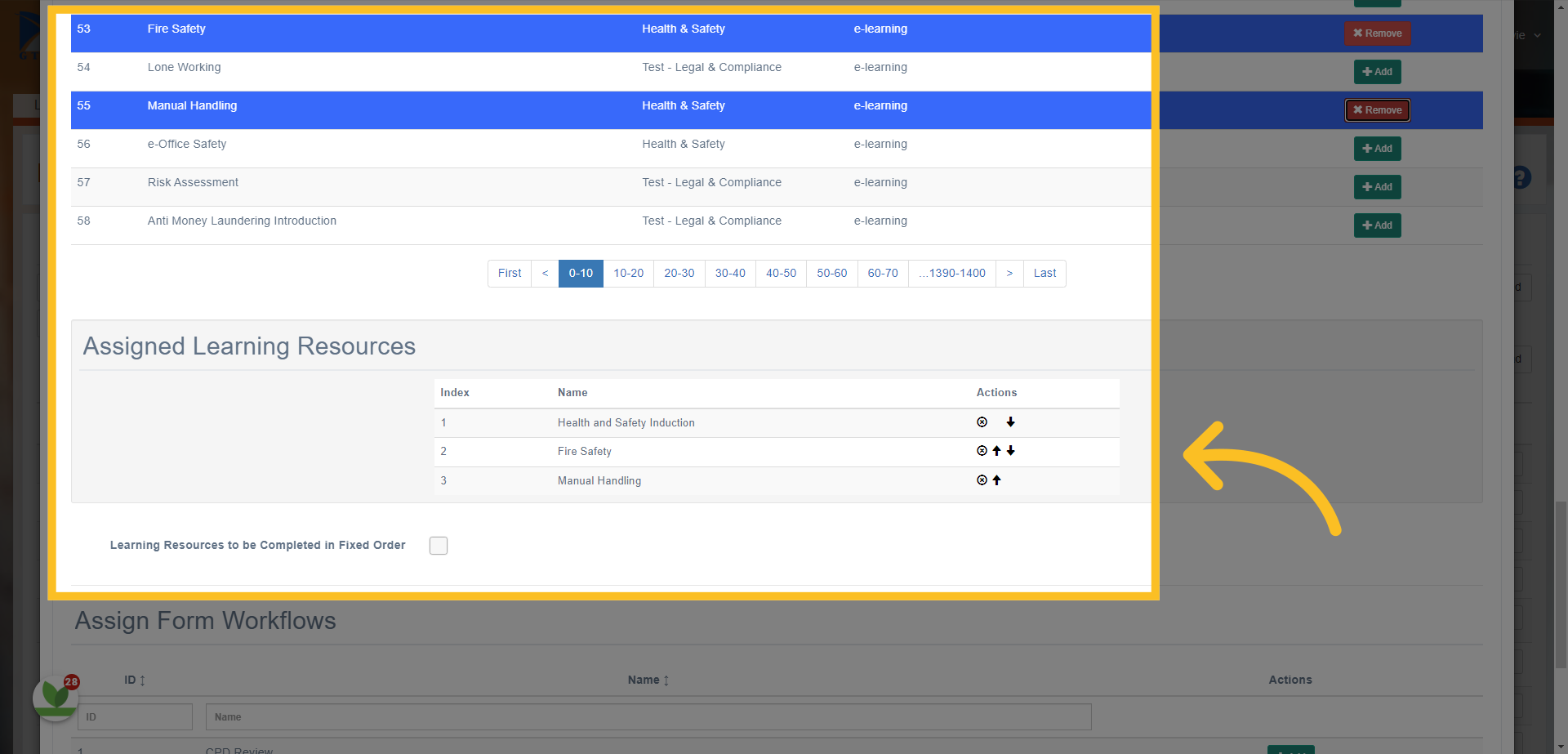
21. You can also define an order for the resources.
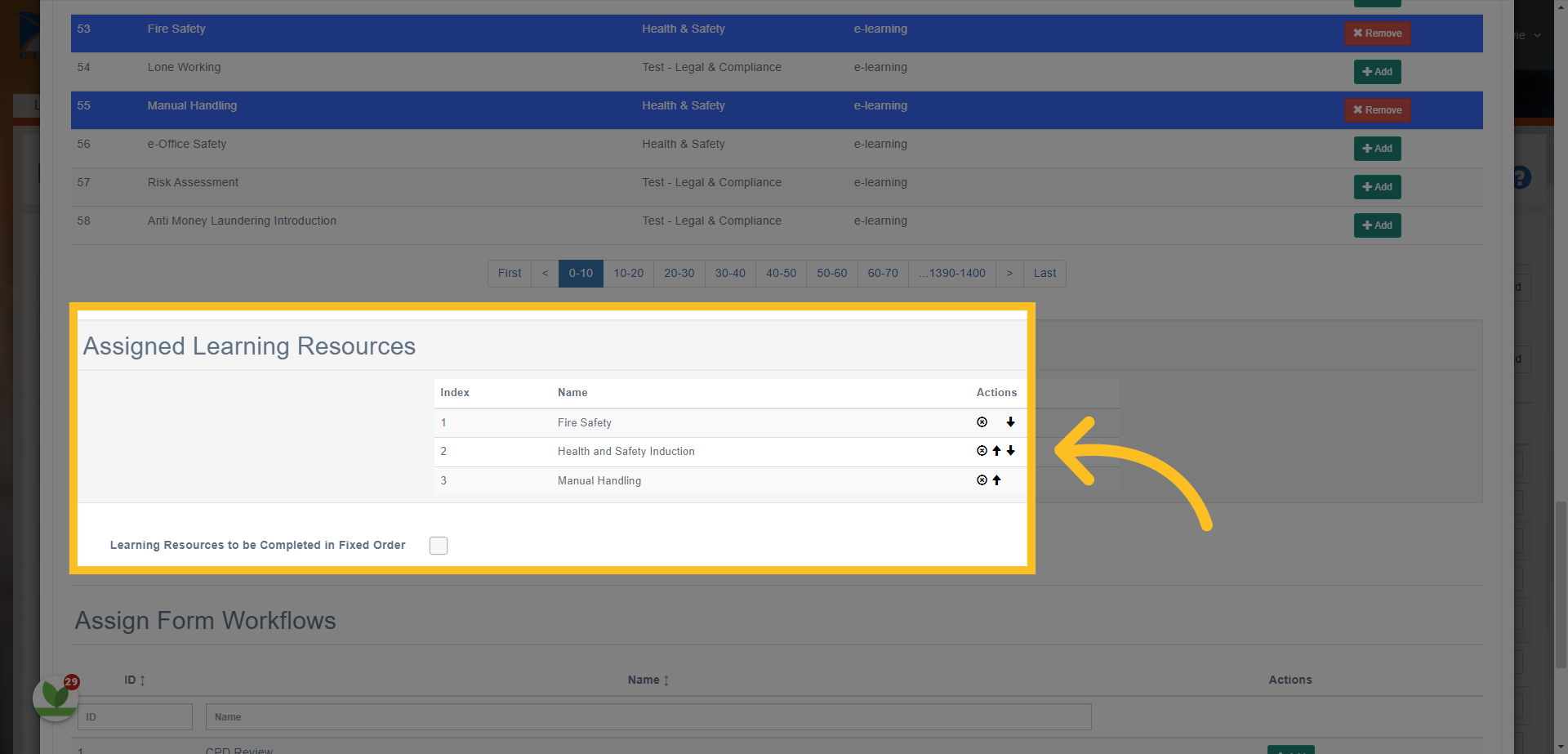
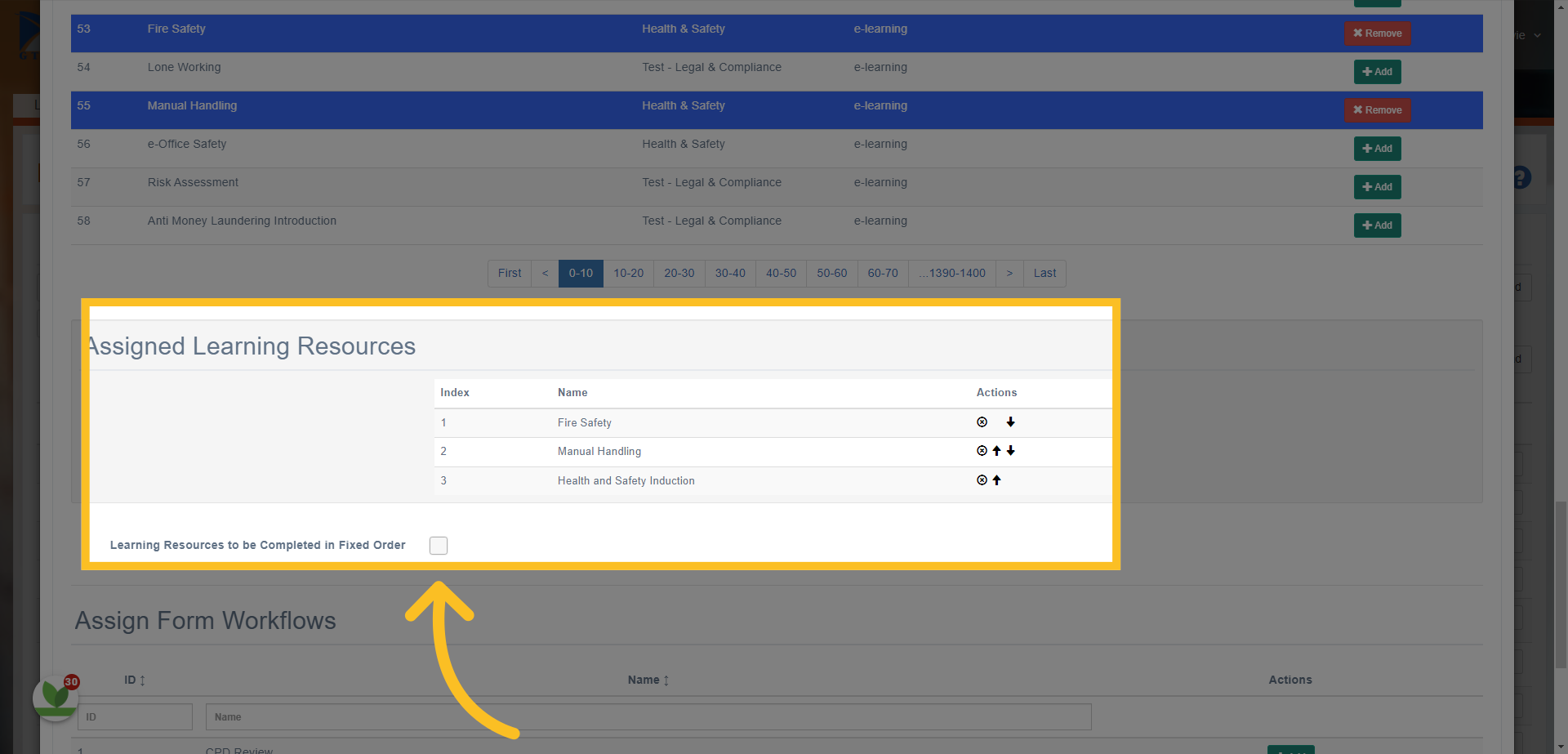
22. You can also define if the resources need to be completed in a fixed order.
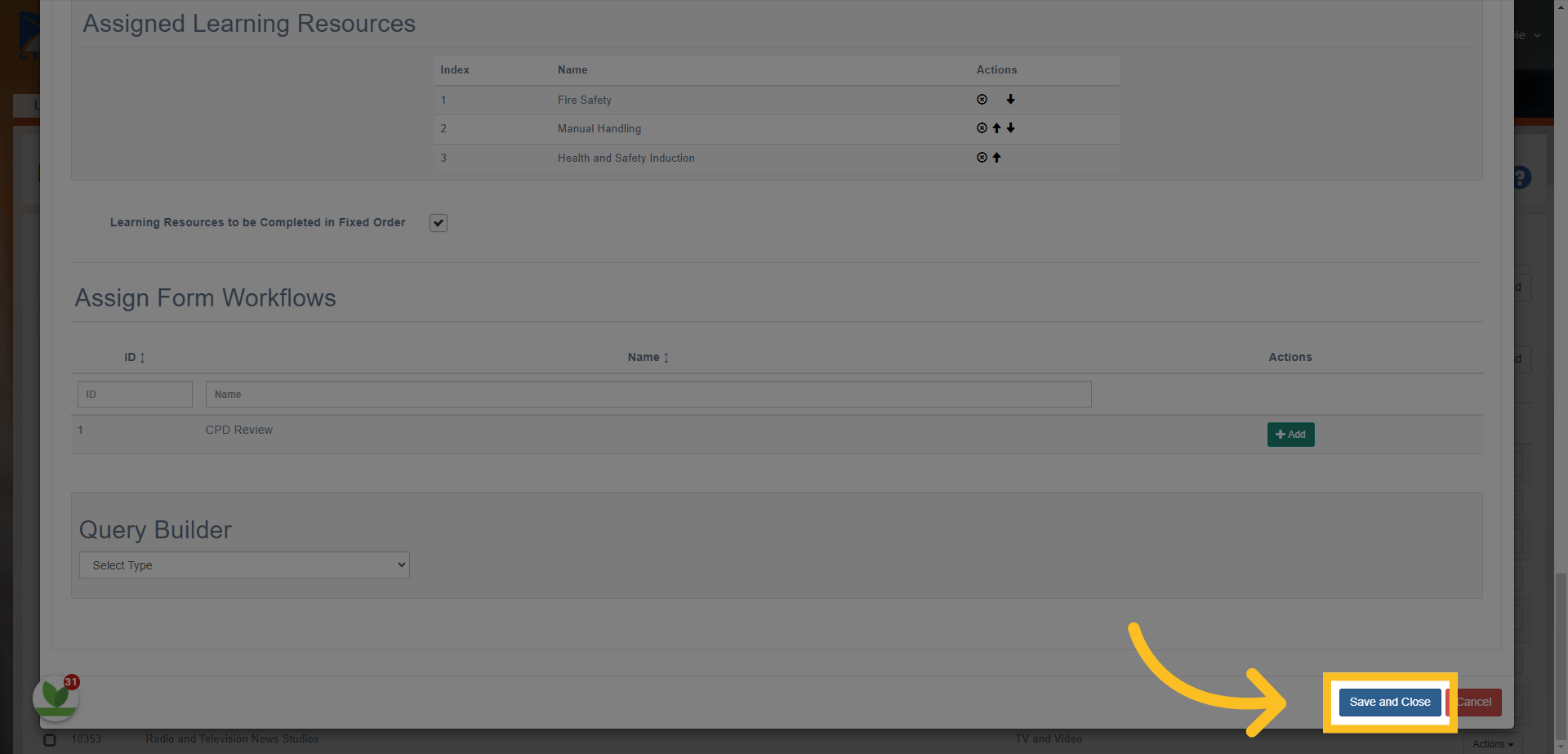
23. Finally, click "Save and Close"
In this guide, we covered how to create lessons from the curriculum developer role. From setting the lesson name to specifying access and adding refresher periods, you now have the knowledge to effectively create and add lessons to your resource library.