Set up Microsoft Services to Email Authentication
The Microsoft tenant controls access to Microsoft integrated services within Open eLMS, this includes SMTP authentication which is taking over from the no-longer supported basic authentication technique.
📘 Instructions
Follow these steps
Go to the Azure portal and navigate to Azure Active Directory > App registrations. Select the app for the Open eLMS installation (created using these instructions.)
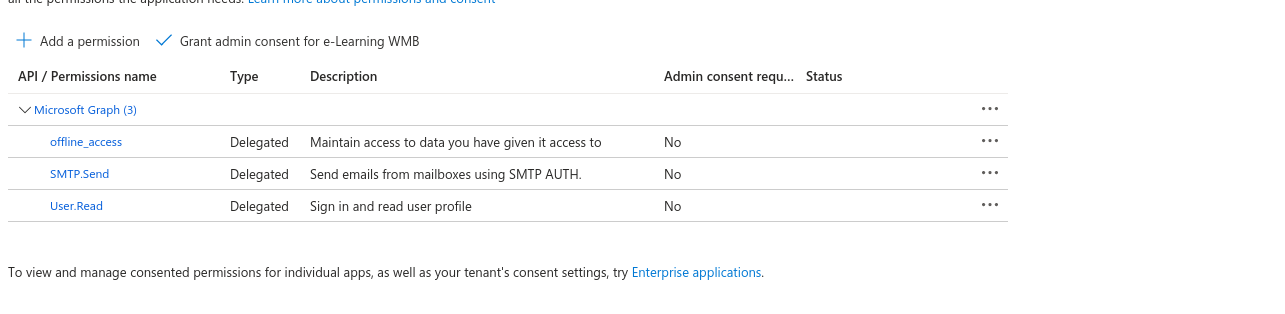
Under API permissions add the following
Office_access
SMTP.Send
User.Read as shown below:
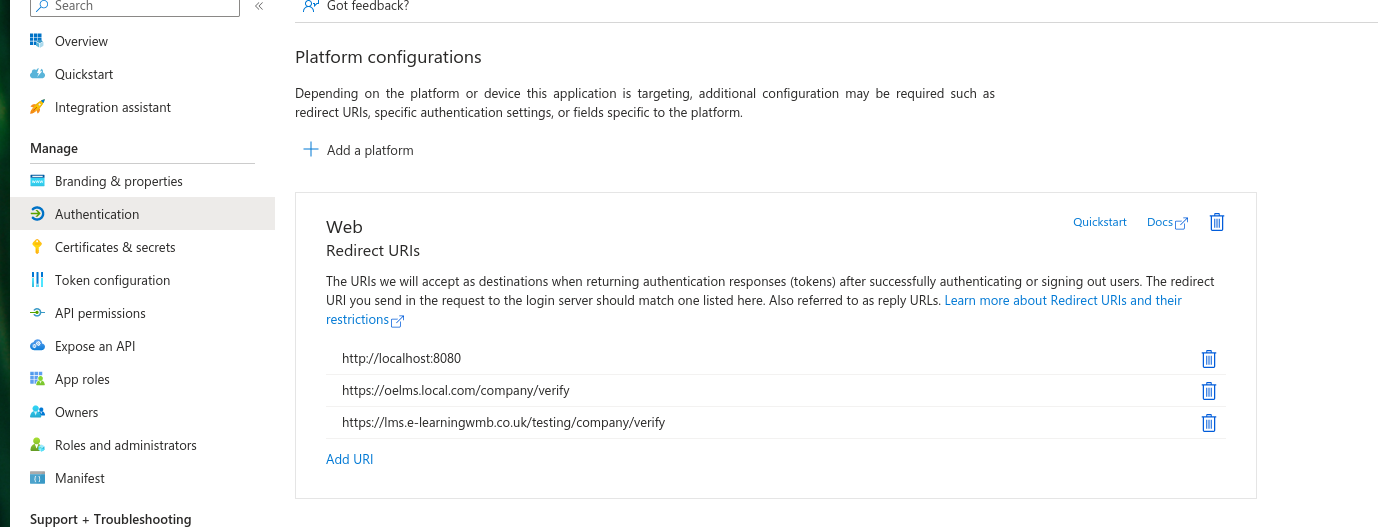
Go to Authentication > Web and then add the Redirect URLs in Azure App
e.g. for testing site it will be something like:https://learning.openelms.com/YOURDOMAIN
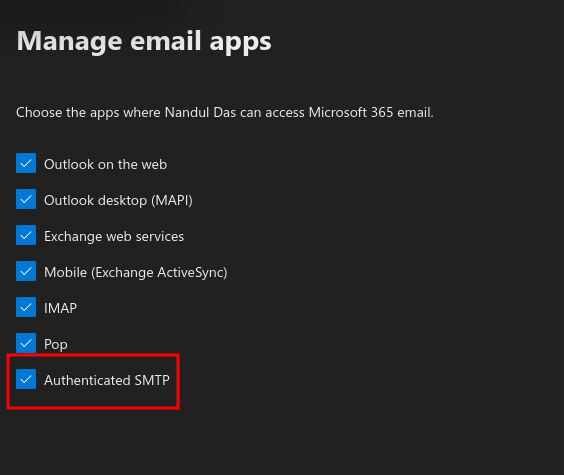
Now switch to the Microsoft 365 admin console, the company email (the email used to send mail using OAuth2) needs to enable Authenticated SMTP - more detailed information on how to do this is available here - https://learn.microsoft.com/en-us/exchange/clients-and-mobile-in-exchange-online/authenticated-client-smtp-submission#use-the-microsoft-365-admin-center-to-enable-or-disable-smtp-auth-on-specific-mailboxes .
Now log into Open eLMS as an administrator and go to Admin > System Setup > Organisation > Companies and edit the company from which the email will be sent (this email must have been defined in step 4). Add this email and sender's name in the From fields then select to Authorise. All emails sent via the system should now be sent by this person’s email address.
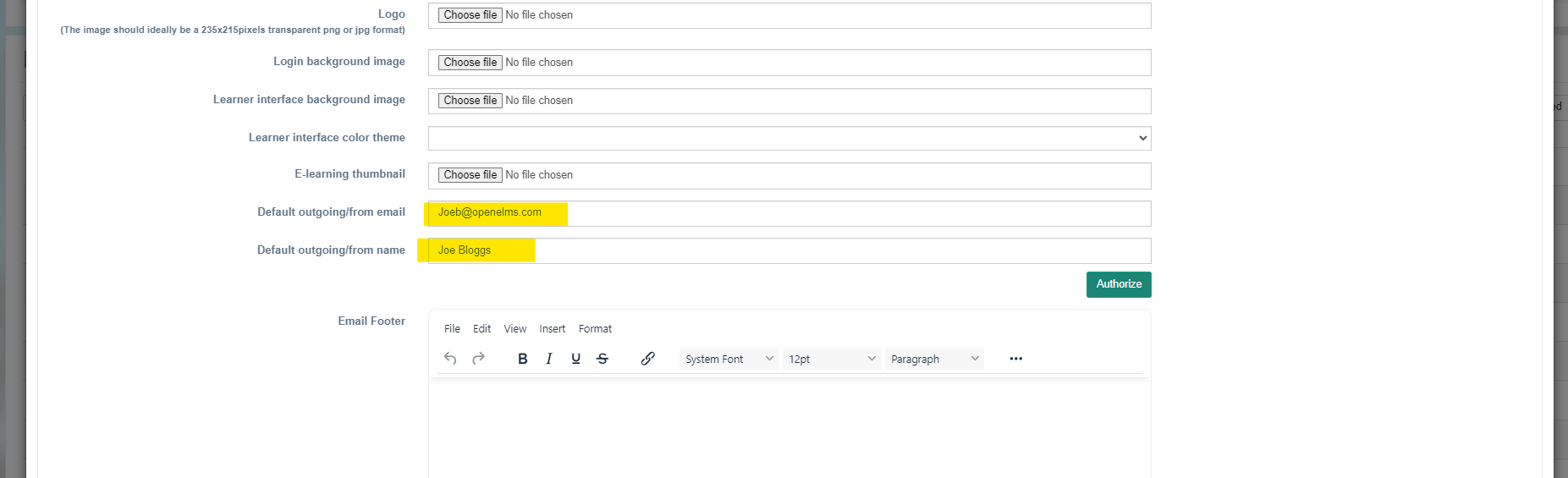
This email does not need to be form a person, per se, it can be from a catch-all email address e.g. L&D@amce.com
📋 Related articles
- Page:Adding Lessons to Off the Job Hours