Creating 'Tracked' and 'Untracked' Learning Resources
When creating learning resources, you can choose whether to have them tracked (i.e. a status is attached which can be signed off by the learner and manager/tutor) or untracked (i.e. the resource is given an ‘Information Only’ status and does not require sign off by learner and/or manager/coach)
📘 Instructions
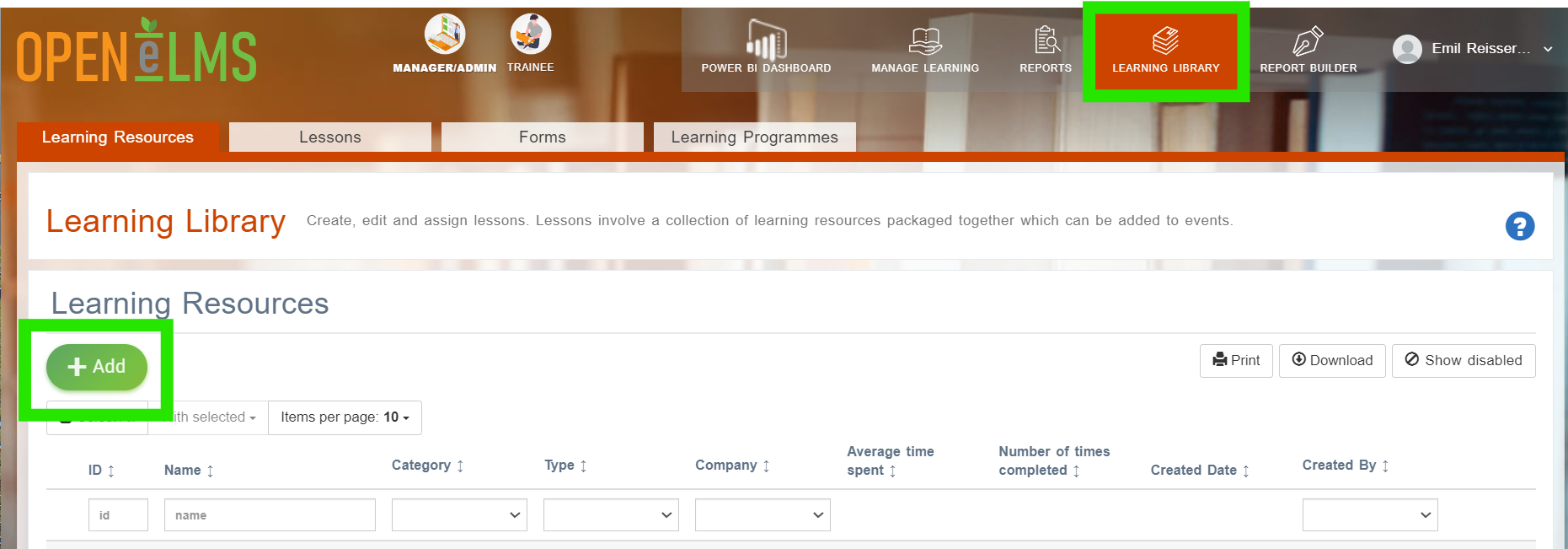
As an Administrator or Curriculum Developer - Go to ‘Add Learning Resources’ in Learning Library
Click on Add.
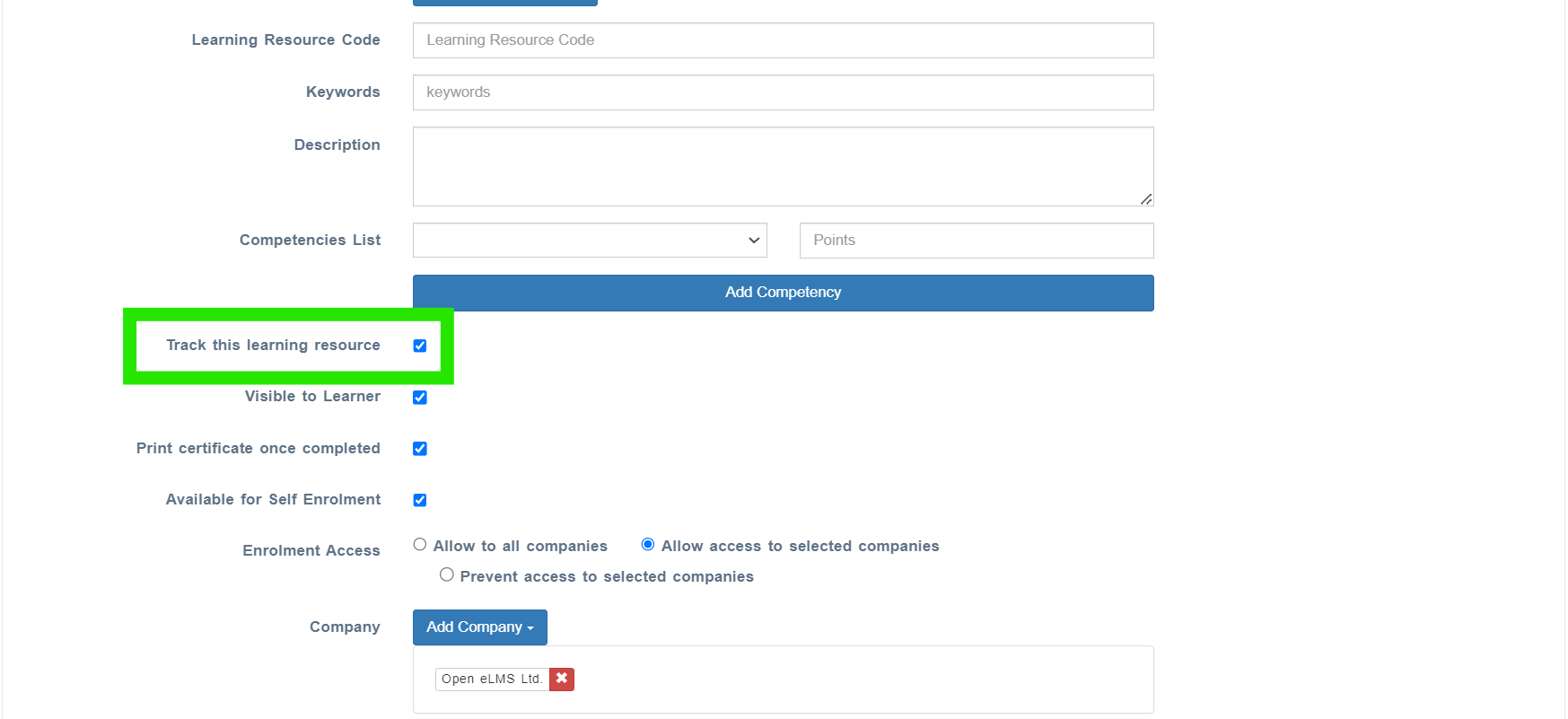
2. If you want to create a resource which the learner needs to sign off, then ensure the ‘Track this learning resource’ box is ticked
3. If you also require your managers/tutors to sign off the resource (in the case if 'Uploads' and ‘Webpages’) then ensure the following box is unticked:
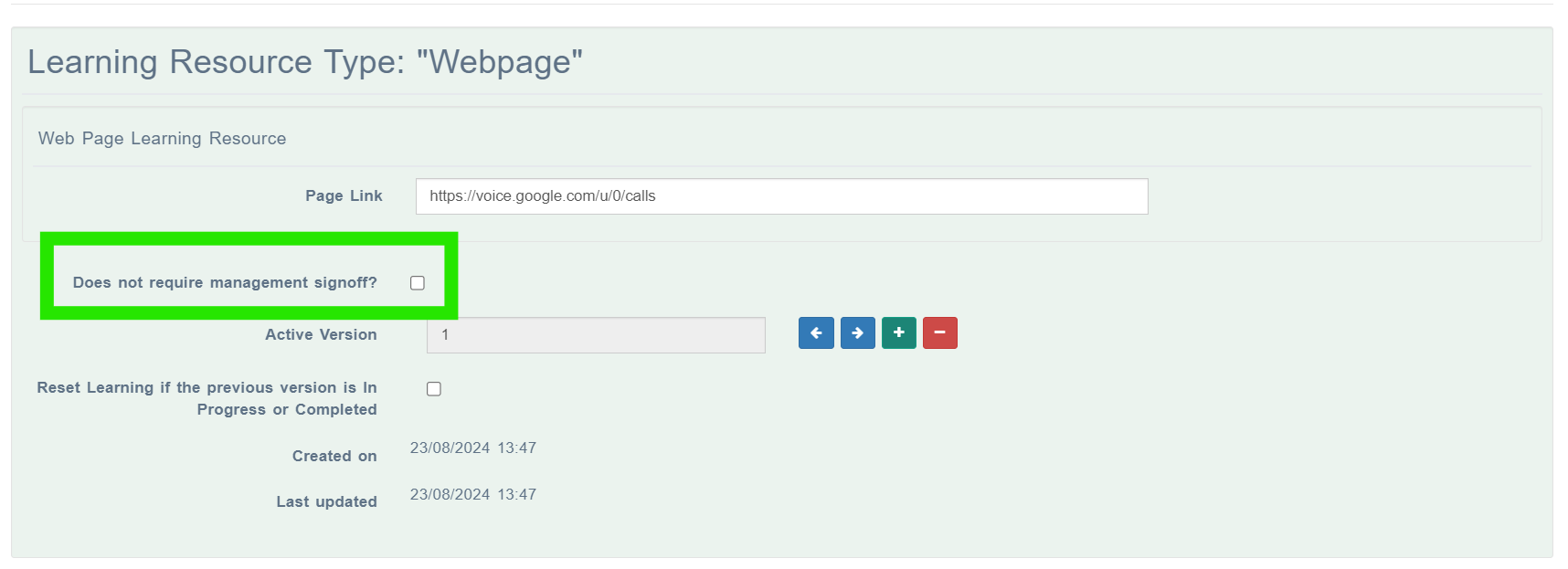
4. If you want to create a resource that requires no sign off at all then ensure the ‘Track this learning resource’ box is unticked and the ‘Does not require management sign off’ is ticked:
This allows you to create different combinations for your resources i.e. you can create a resource that you want your learners/employees to sign off but does not require managers/tutors to sign off as well as resources that require no sign off (i.e Information Only).
📋 Related articles
- Page:
- Page:
- Page:
- Page:
- Page: