Add/Edit Learning Categories
Learning Categories provide a way for administrators to organize and manage learning resources based on specific topics or themes. This ensures a more structured approach to content management and makes it easier for users to find and access relevant learning materials. This guide will walk you through the process of adding and editing Learning Categories in Open eLMS, helping you create an organized and efficient learning environment.
📘 Instructions
Navigate to System Setup - Learning - Learning Categories
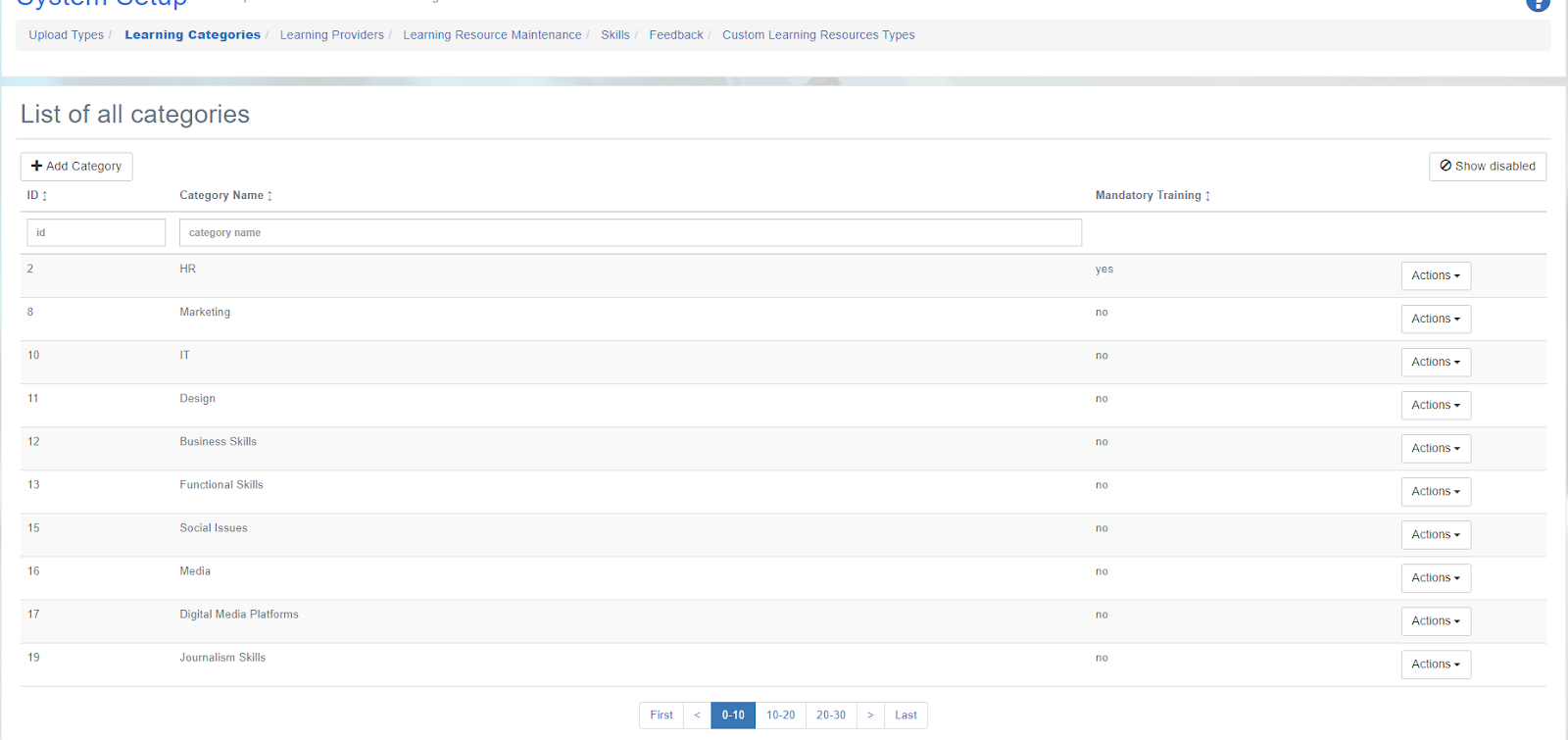
Click on the "Add Category" button.
Add category name - you can also choose to make the category "Mandatory" by checking the box next to the "Mandatory" option.
Optionally, you can add an image to the category by clicking on the "Upload Image" button. This image will be displayed on the learner's landing page when they log in.
Click "Save" to create the new Learning Category.
Administrators have the option to make a category ‘Mandatory’ from this section. This means that any learning resource which is put in this category will be automatically available to every user on the system.
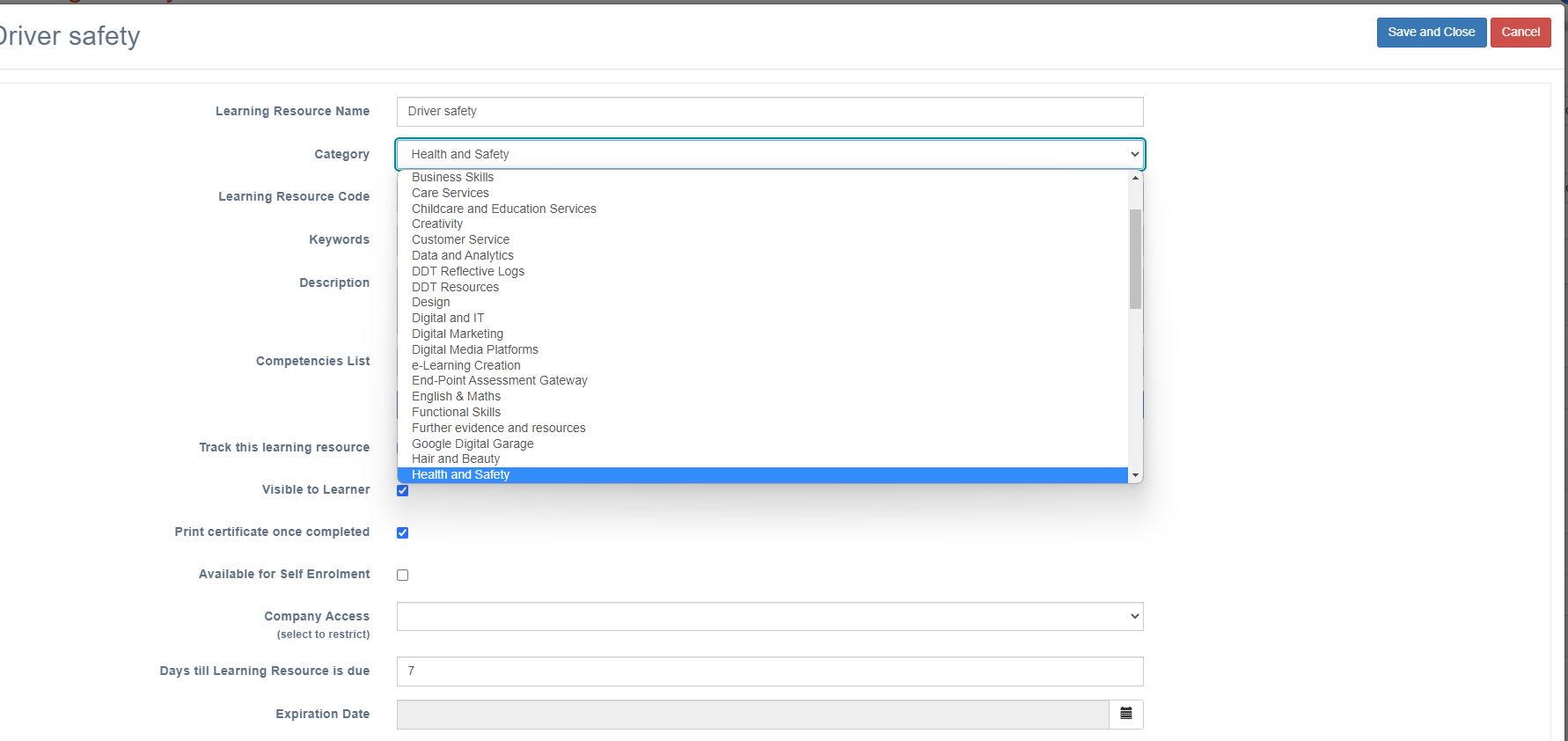
Now when adding or editing learning resources in the learning library, this category will be available in the drop down
📋 Related articles
- Page:
- Page:
- Page:
- Page:
- Page: