Add URLs and Navigation to Buttons
Buttons are the key to adding interactivity to your Open eLMS AI eLearning courses.
📘 Instructions
Follow these instructions to add interactivity to your eLearning using buttons.
In this example we have added two buttons to a simple screen. The buttons give options to learn about two different subjects as shown.
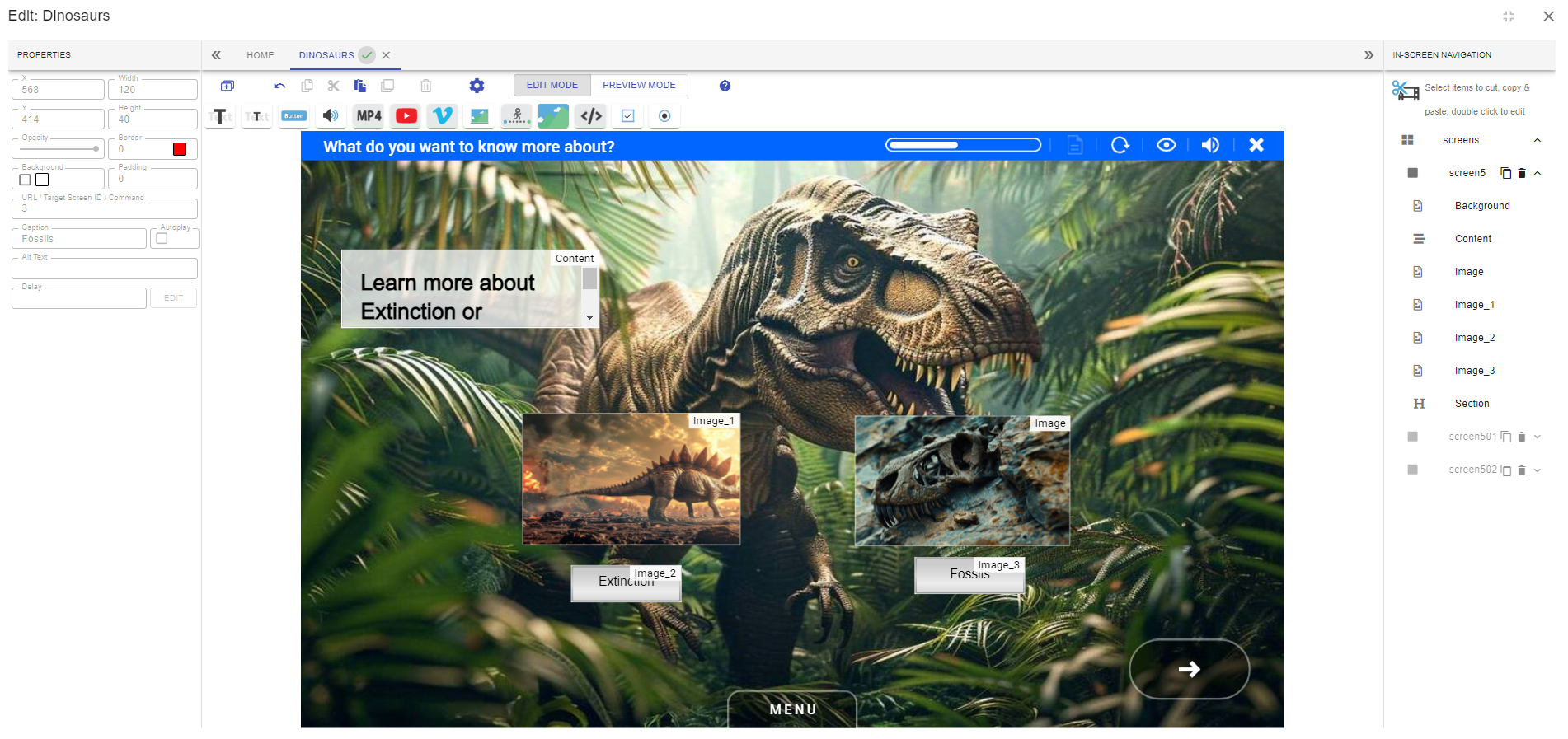
If we select the first button, we see it has a caption (Extinction) so we want to direct the user to more information about extinction. We can do this in a number of ways by editing the URL / Target Screen ID / Command text field. In this case we entered a URL into the field and changed to PREVIEW MODE.
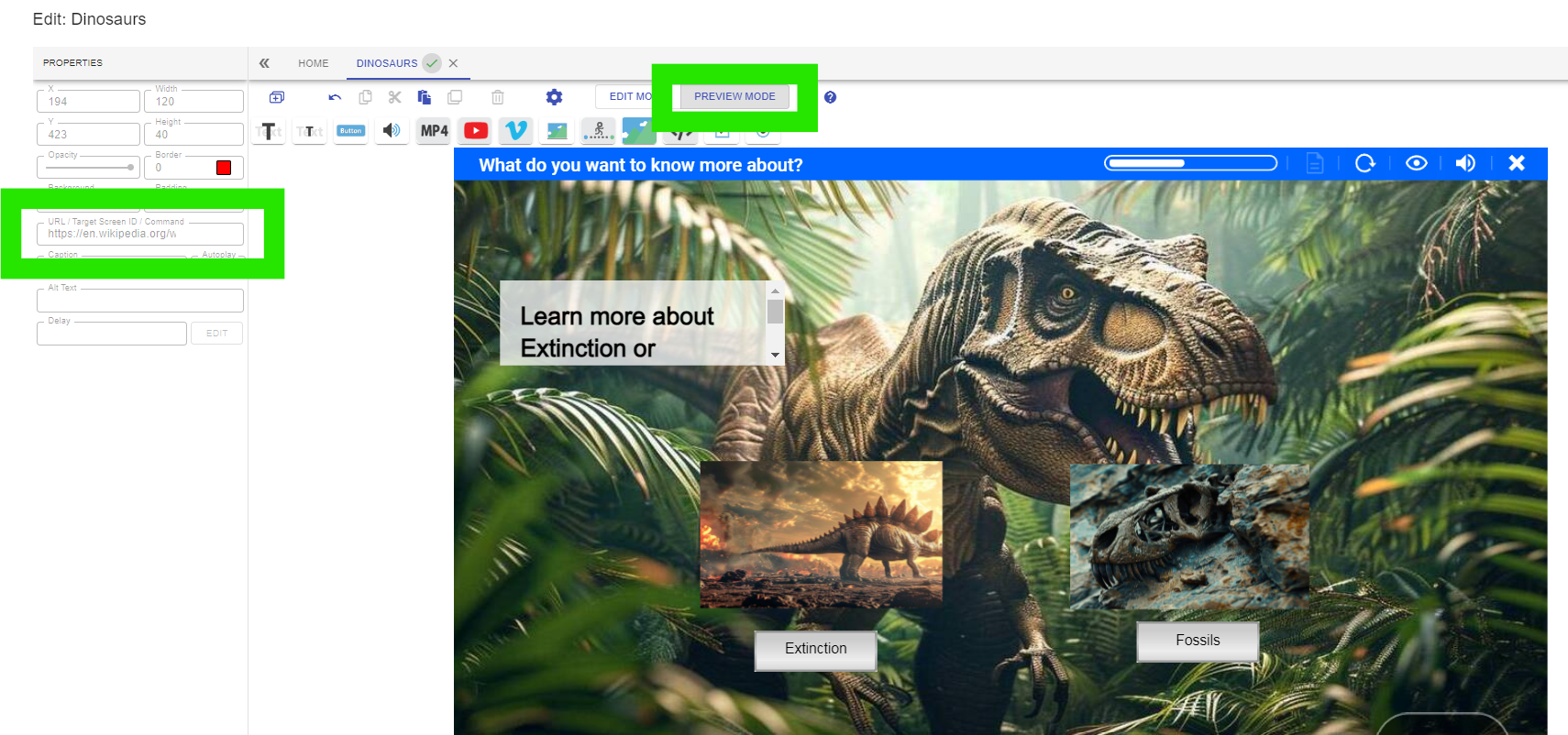
On pressing the button the webpage opens in a new window.
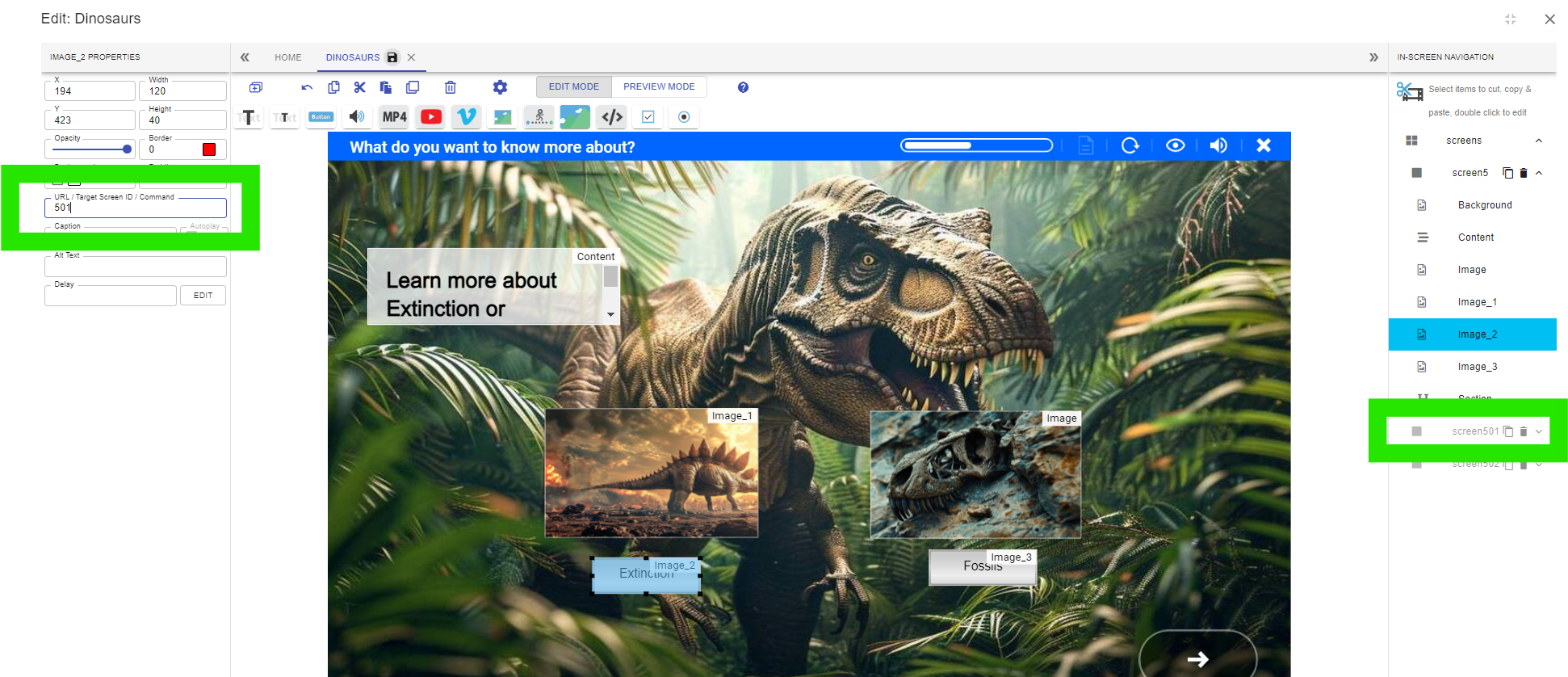
Alternatively we may want to take the user to another sub topic or topic within the elearning. We can do this by returning to edit mode and entering the screen number we want to navigate to. We can find the screen numbers on the In-Screen Navigation Menu. In this case we are going to navigate to the next sub-screen but we could alternatively go to another screen entirely.
Pressing this button now leads to the next screen.
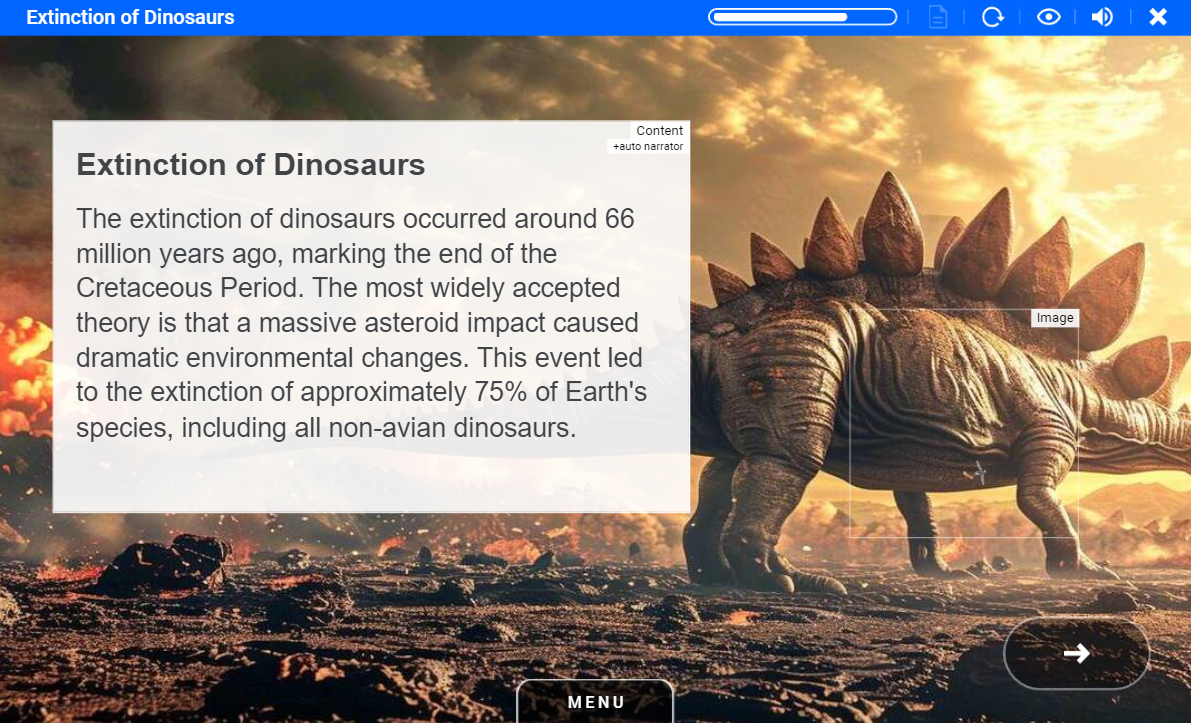
Interactivity can be used to take learners on journeys through different pathways or answering interactive questions in the middle of training (with resultant positive or negative feedback.) With this simple innovation the possibilities are endless.
Commands can also be added to buttons to allow external actions to be taken. This is customised Enterprise level development which can further extend the Open eLMS AI system upon request.
📋 Related articles
- Page:
- Page:
- Page:
- Page:
- Page: