Example Learner Journey
In order to fully understand the learner experience, a learner journey has been included. This is taken from the desktop perspective and does not include the use of the App:
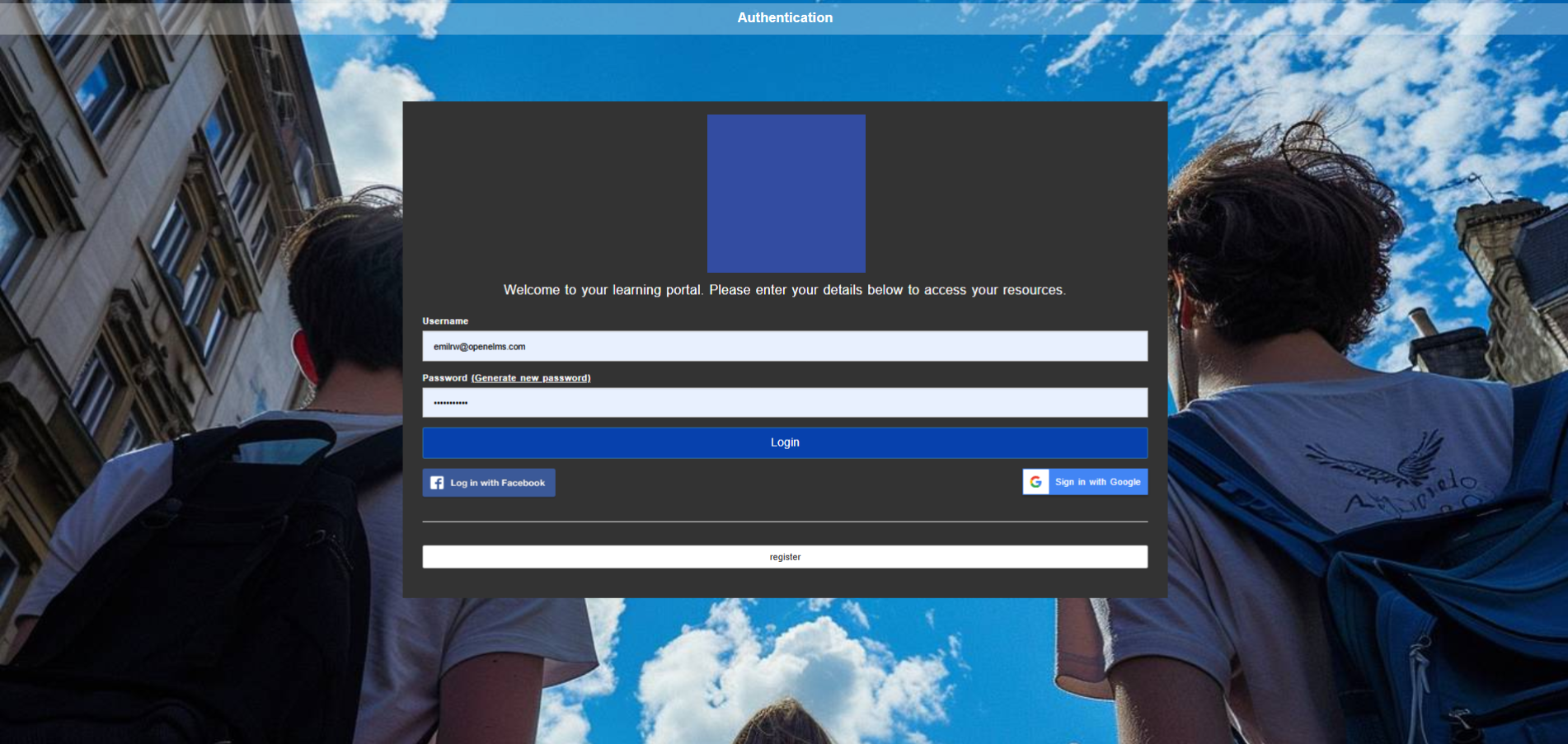
The Learner Logs in
This can be via a manual login or SSO (both options can be run simultaneously..)
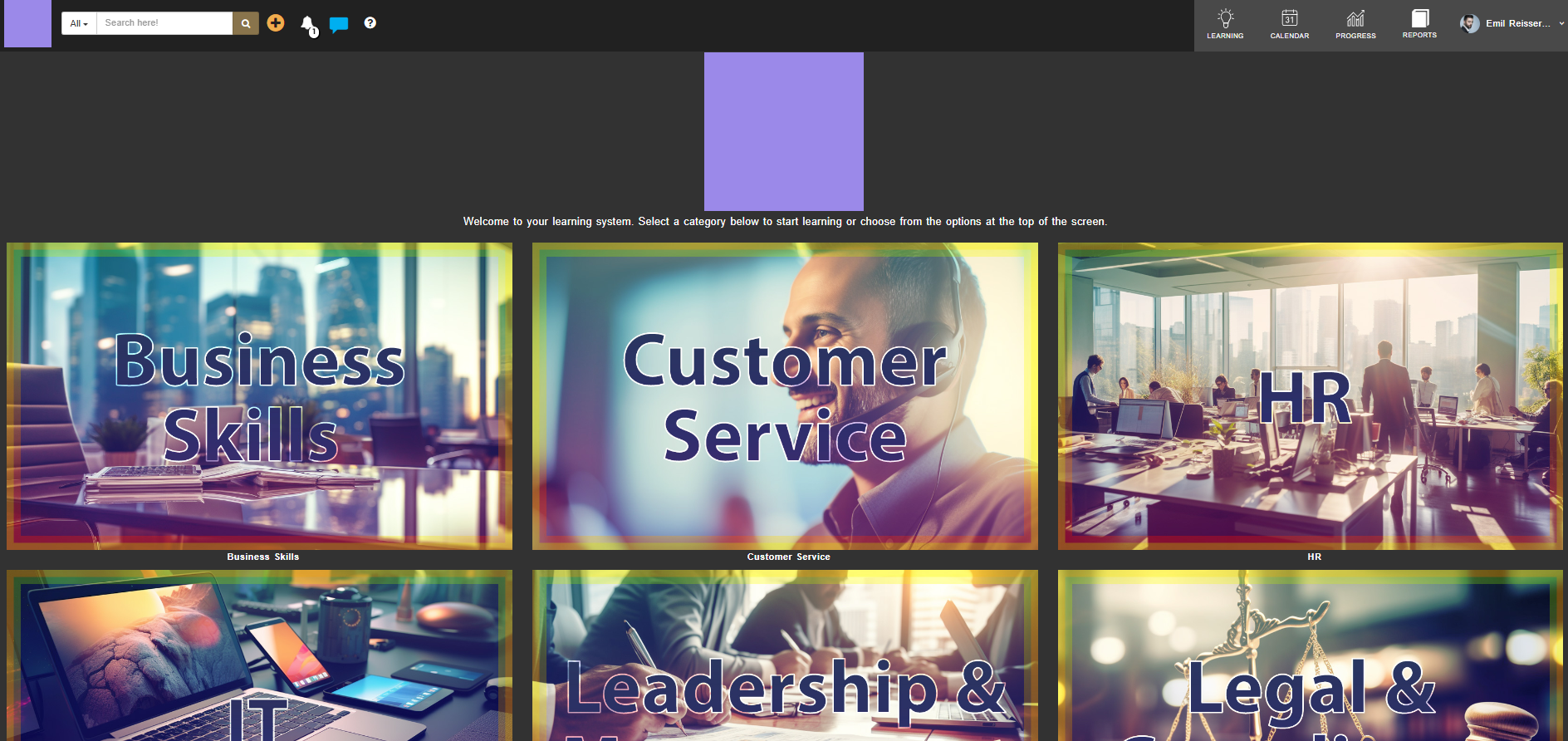
Landing Page
The learner comes to a landing page (optional and configurable) where they can select from categories of learning.
Select Learning
Users are then presented with the learning that has been assigned to them or is enrollable.
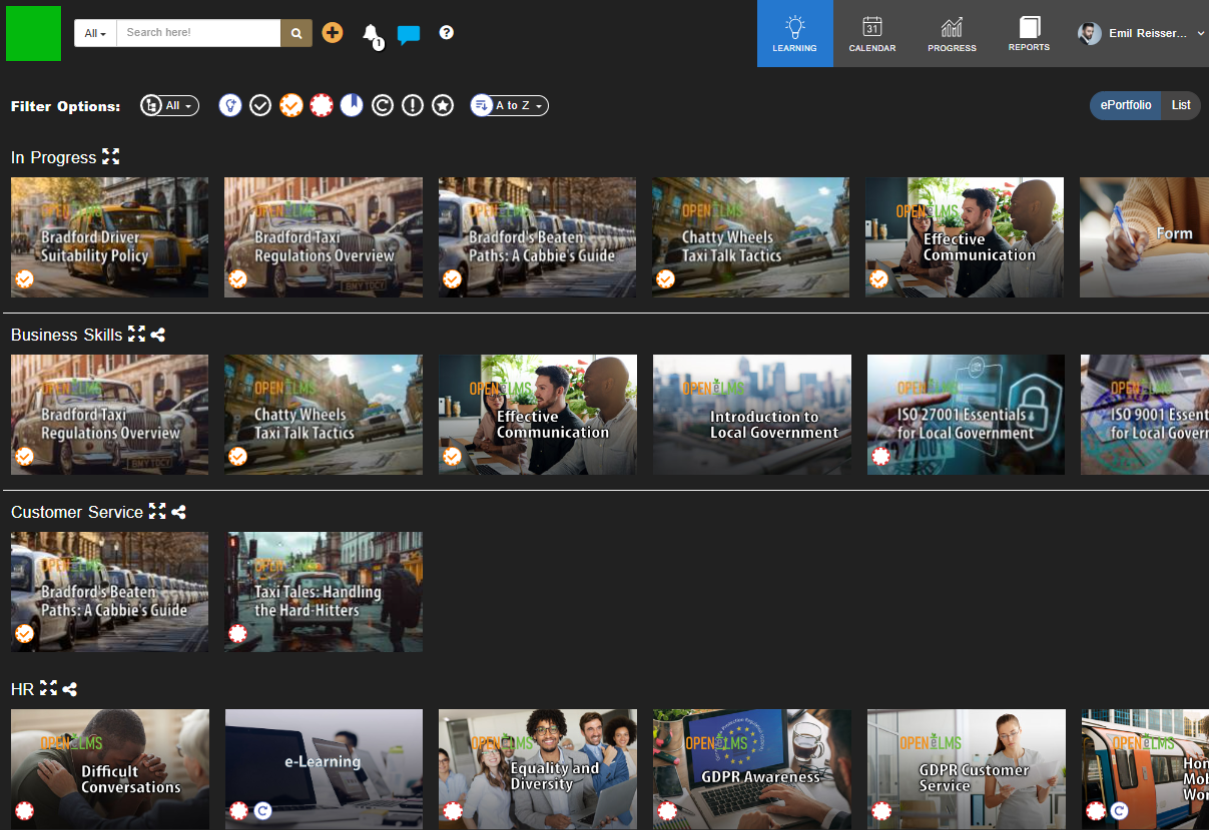
Users can search across learning metadata, ...
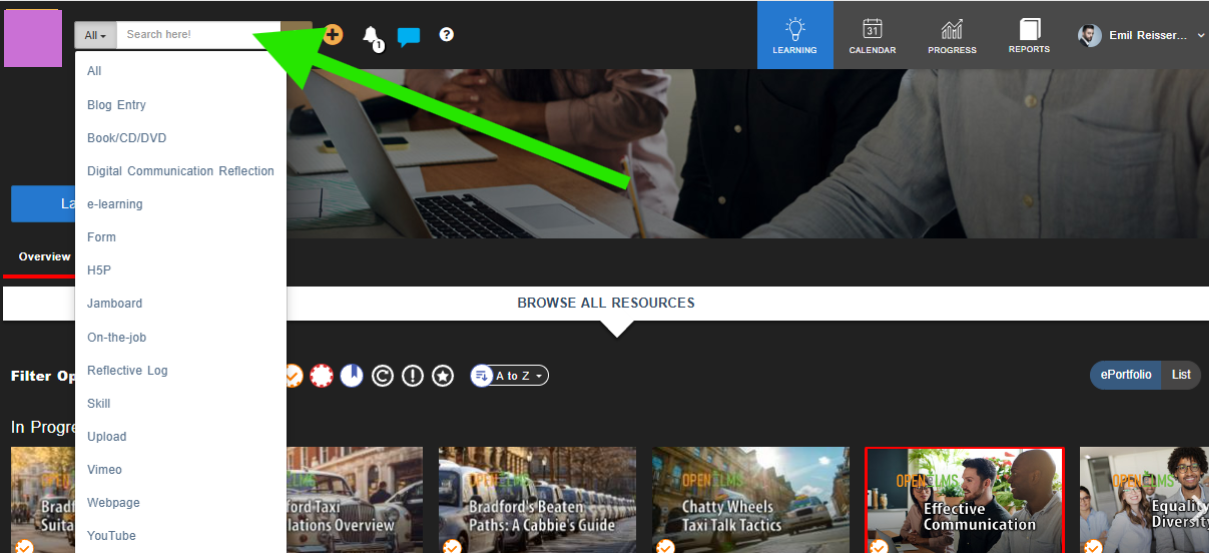
... scroll down categories, filter the learning ...

... and then select an option (there is also the option to browse by programme not visible.).
Learning Resource is Ran
The learning can be launched directly or enrolled on.
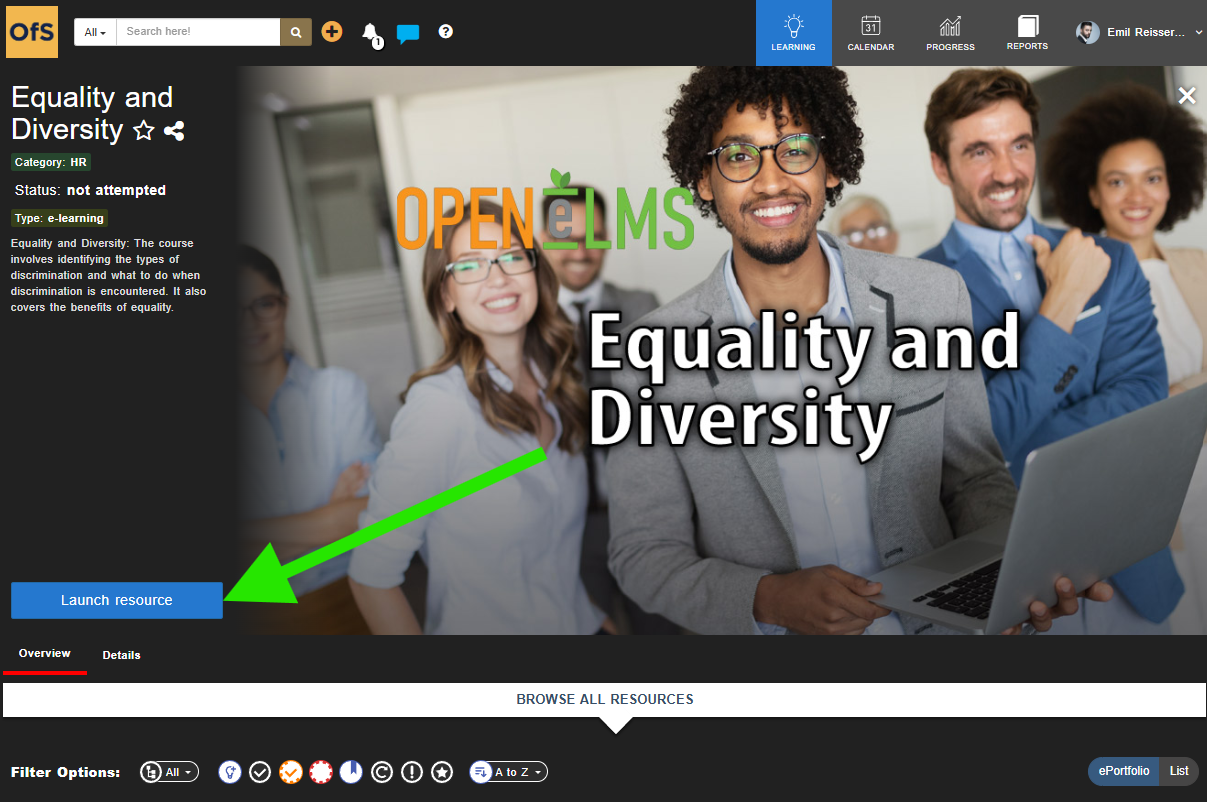
Run Learning
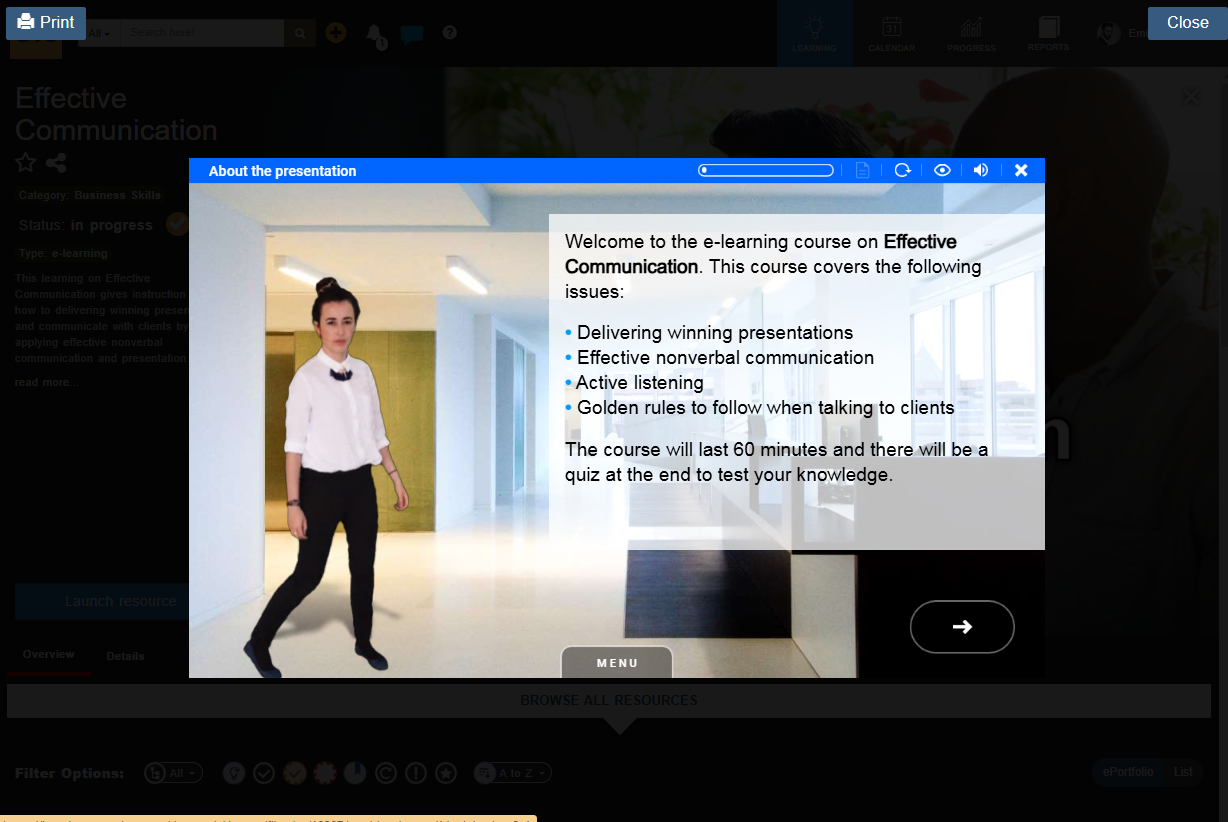
The learning (eLearning, videos, workbooks etc.) are ran and progress is tracked on the system.
Upload Learning
Users can upload learning to their learning dashboard using this button (e.g. conference attendance, examples of work etc.). Open eLMS can act as an eportfolio of learning for each learner.

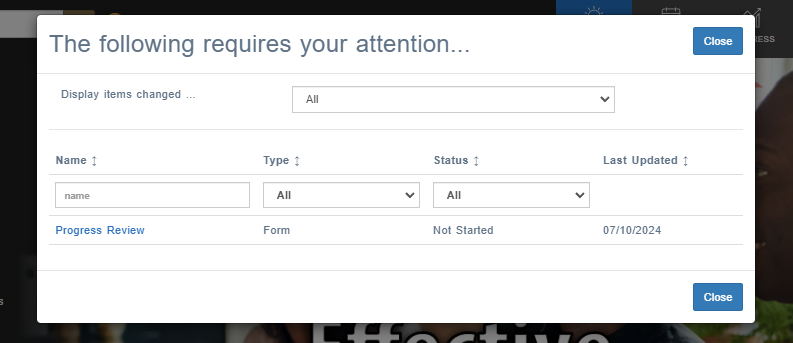
Notifications
Live notifications are alerted via the bell icon.
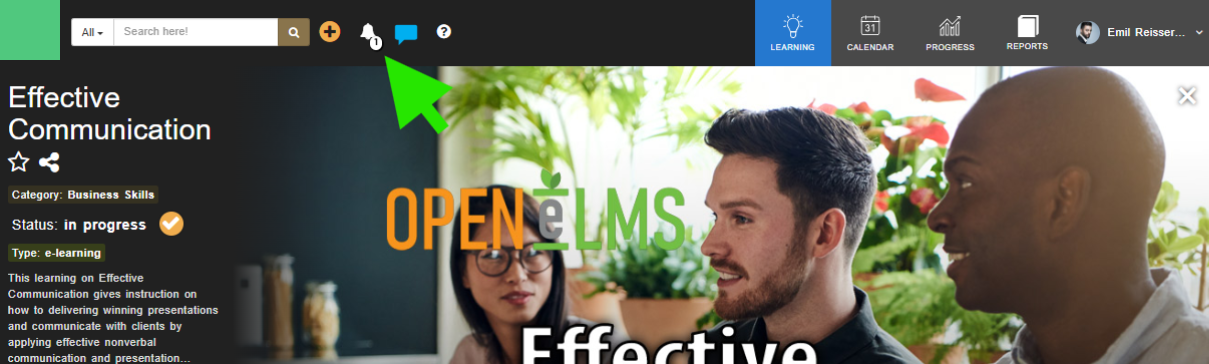
This lists current personnel management tasks or learning that is overdue.
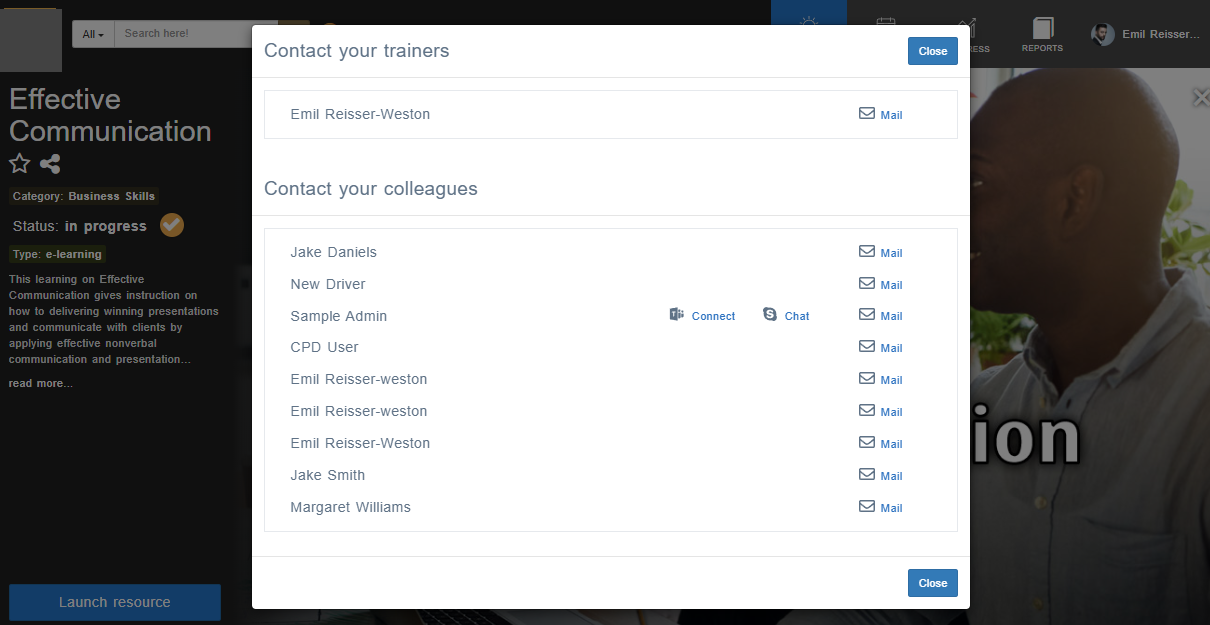
8 Messaging
Learners can message their fellow learners or trainers here.

Learners details are shared on the same learning programmes if using Teams or Zoom.
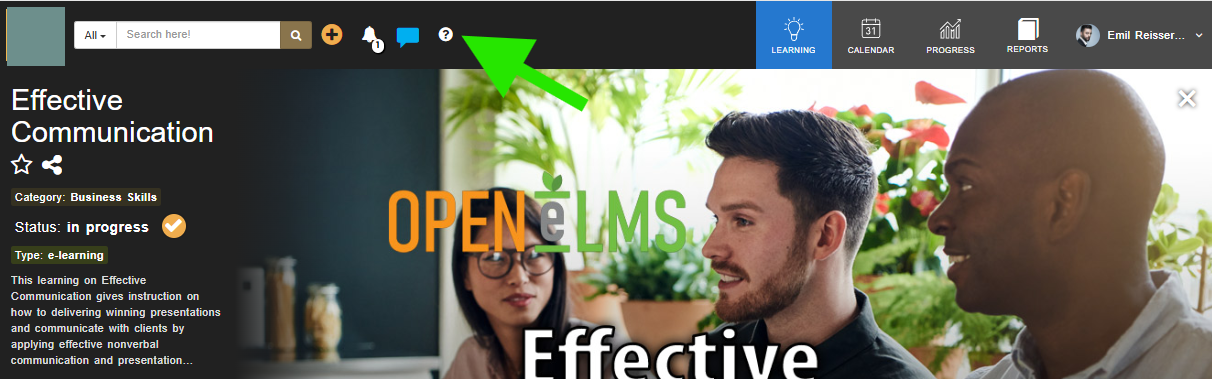
9 Help
A walkthrough help video can be accessed here. This video is customisable per client.
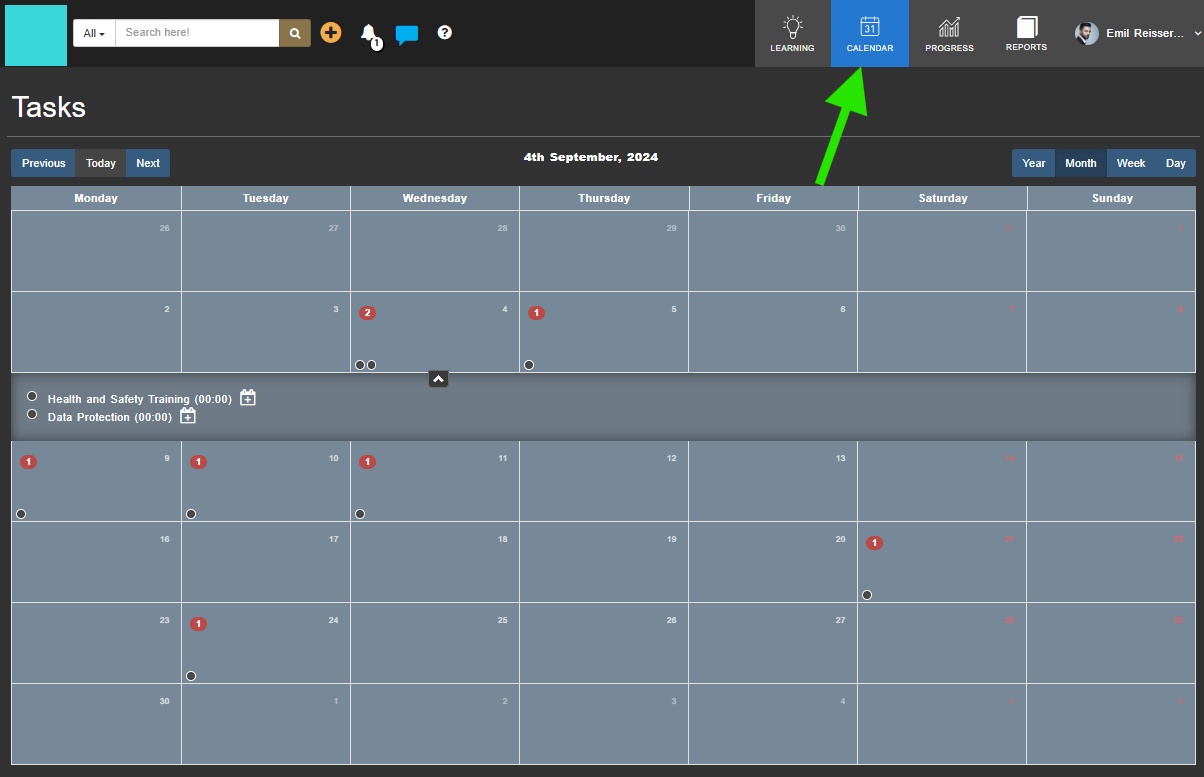
10 Calendar
The calendar allows learners to book on live events and webinars.
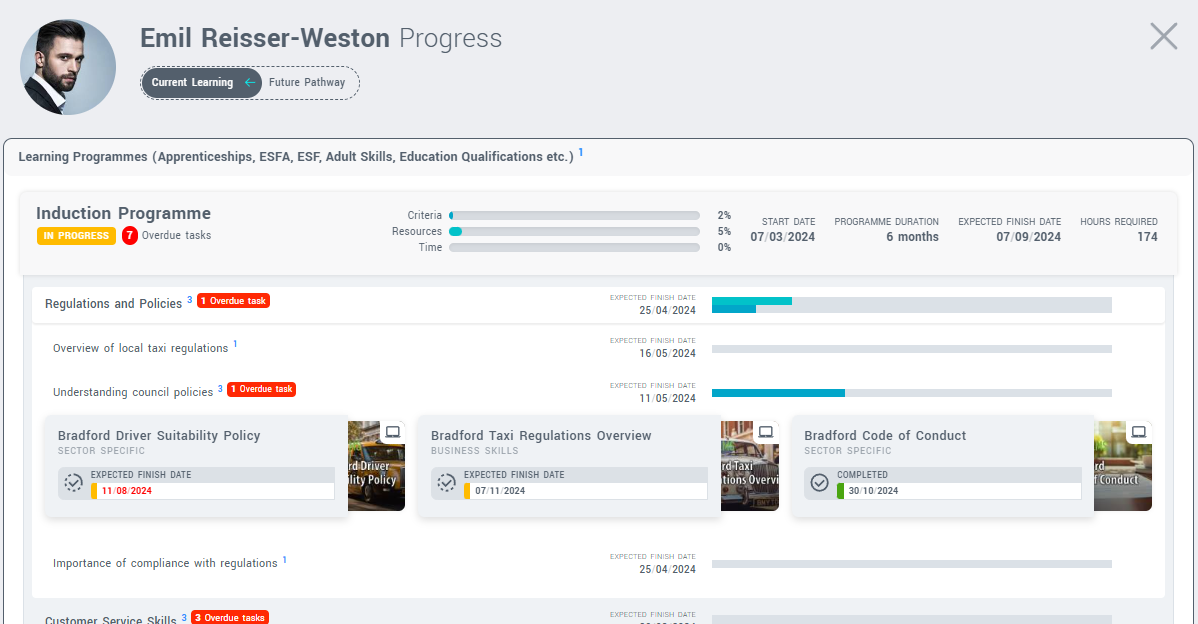
11 Progress
Progress allows learners to see all metrics available concerning
their learning record. Learners can drill down into learning
programmes to see learning progress recorded at the most granular
level.
12 Reports
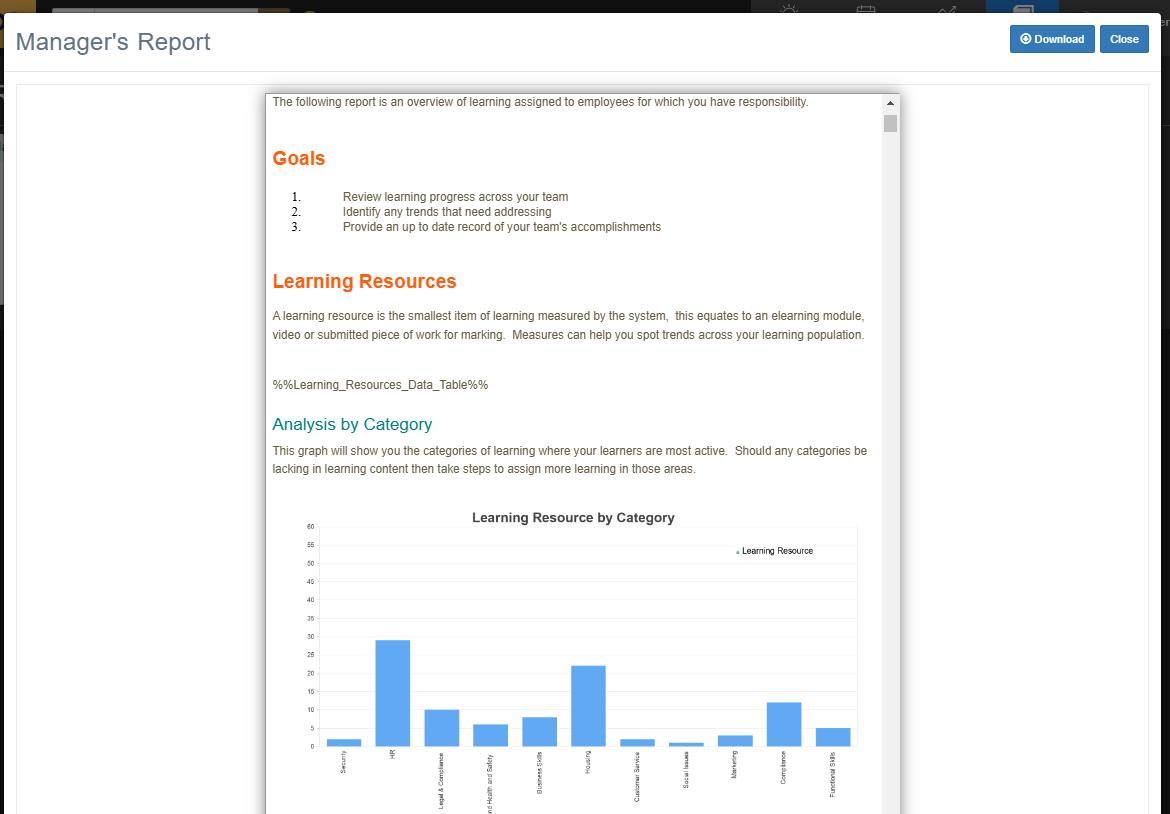
Custom reports are available here ...
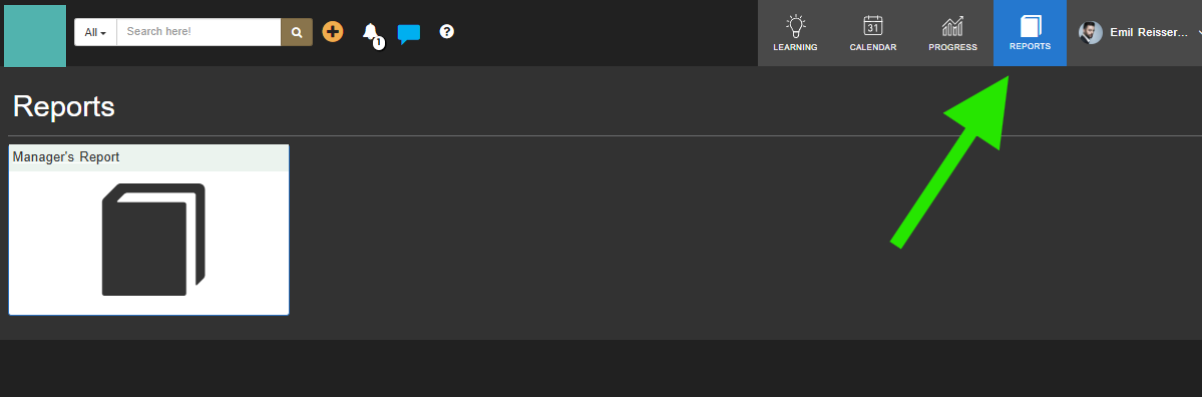
... accessible via a single click.
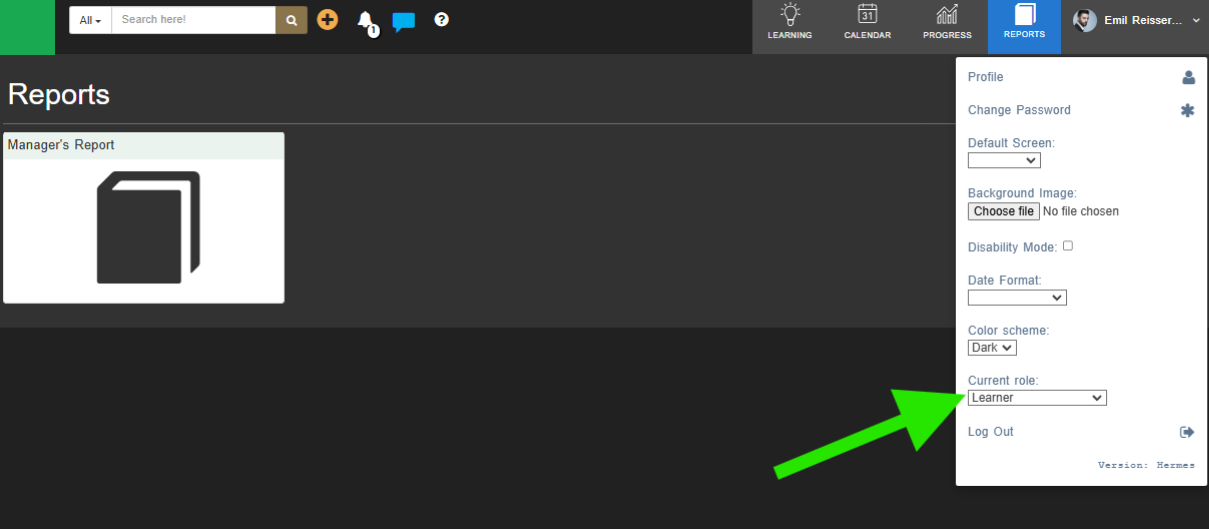
Finally The Menu
Learners can change preferences here and select a different role (if applicable).