How to change the size dimensions of a SCORM resource
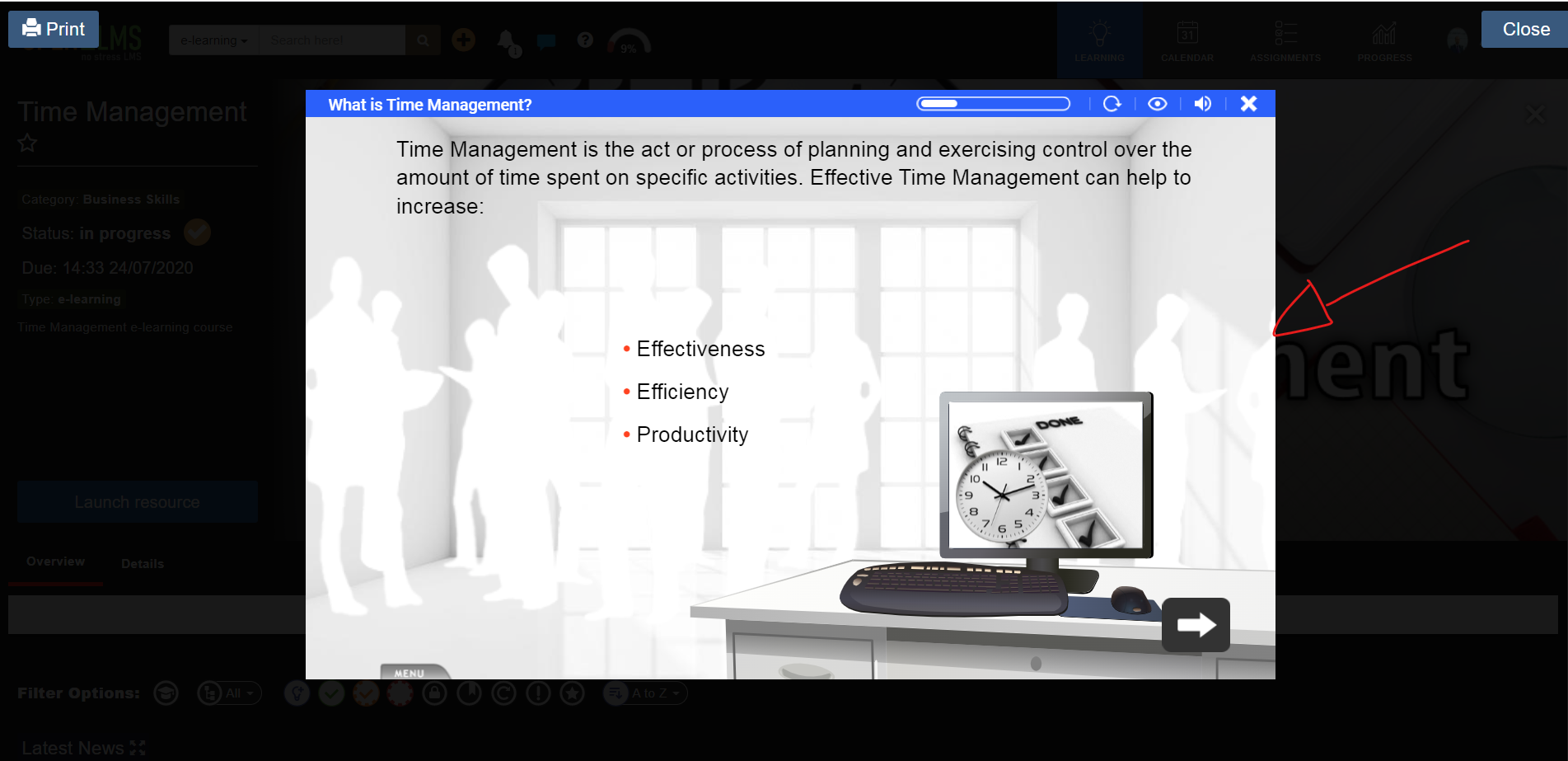
This is to be used when requiring a larger or smaller SCORM player window:
📘 Instructions
Login as an Administrator or Curriculum Developer
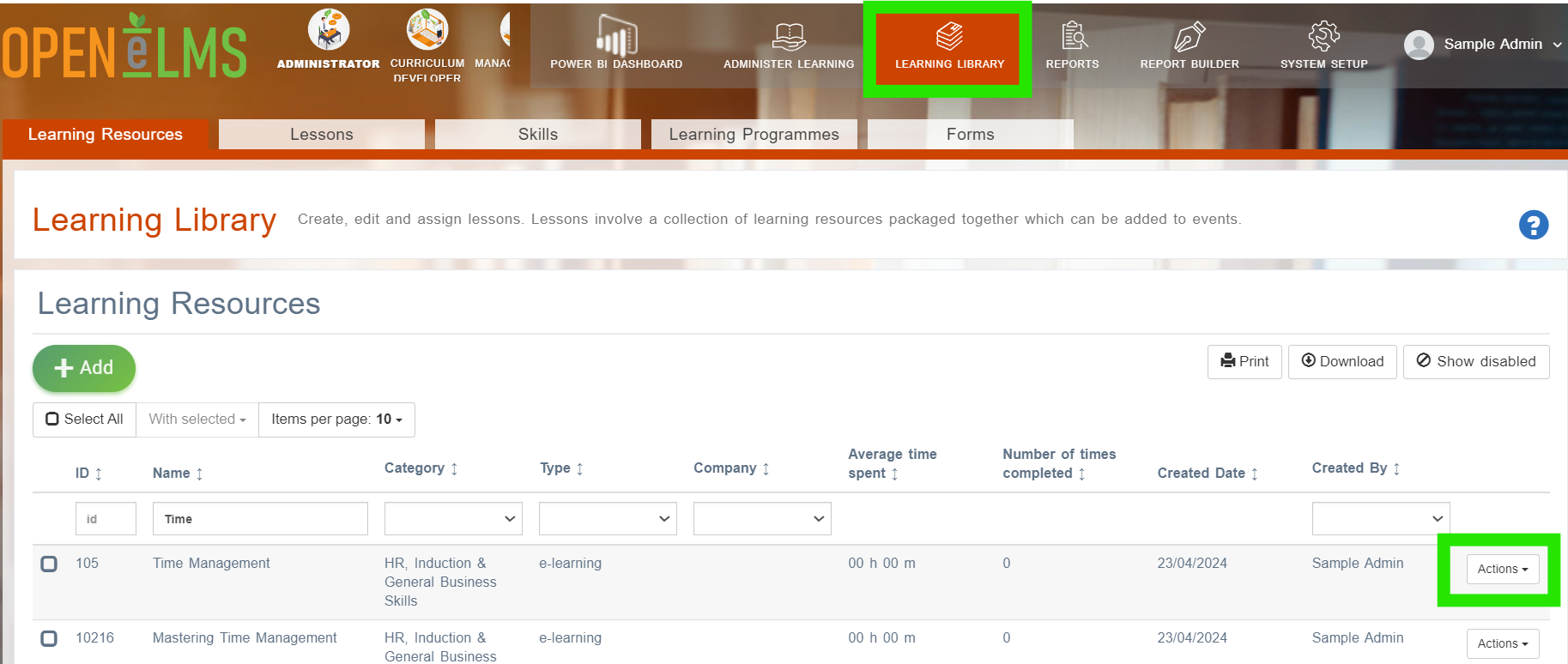
Find the resource in your Learning Library and then click on Actions - Edit
Scroll down to the Learning Resource Type: ''e-learning” section
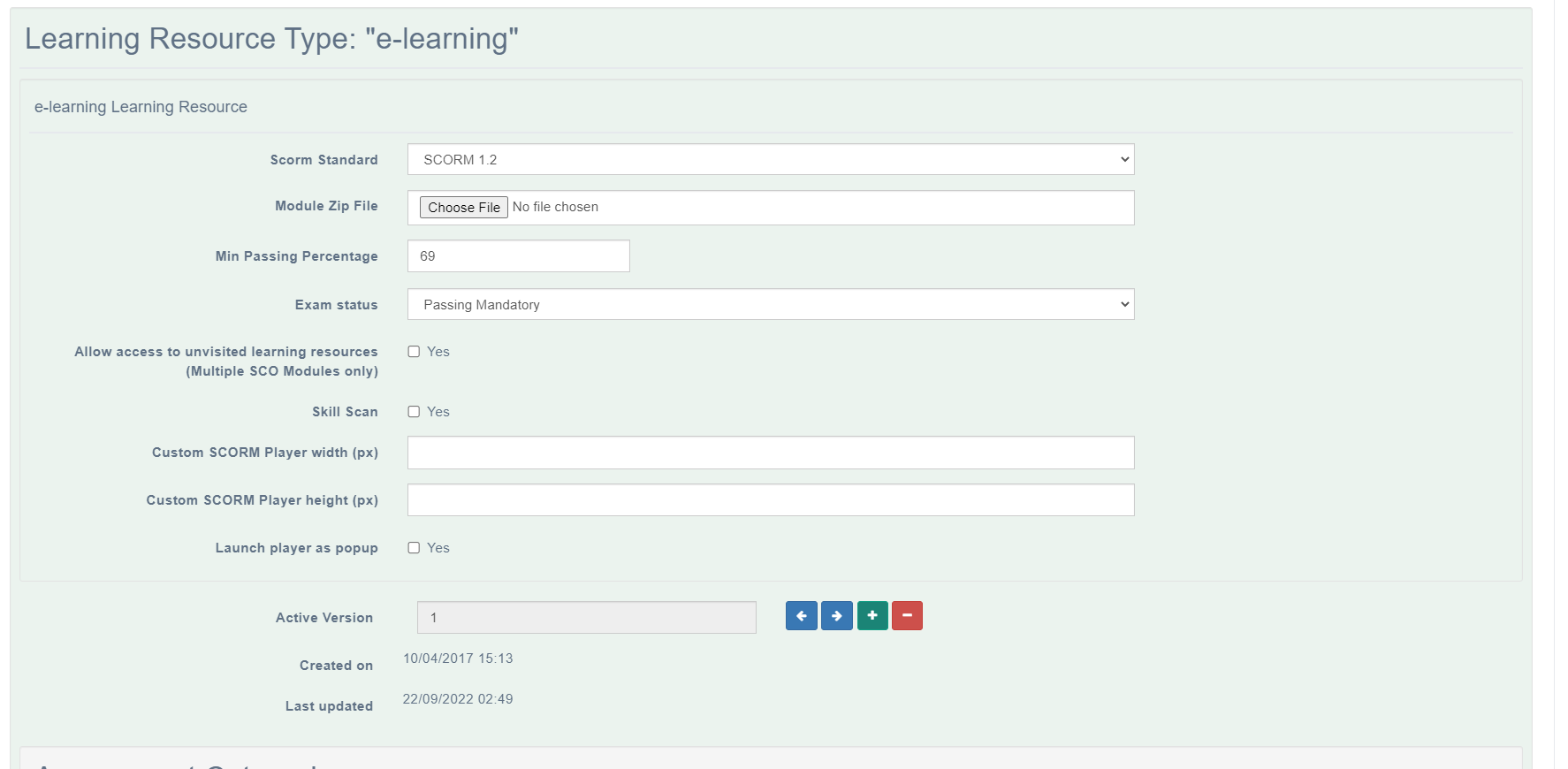
Here you will see the Custom SCORM Player width and height boxes. This is where you can change the size of the SCORM window. This will change the default size.
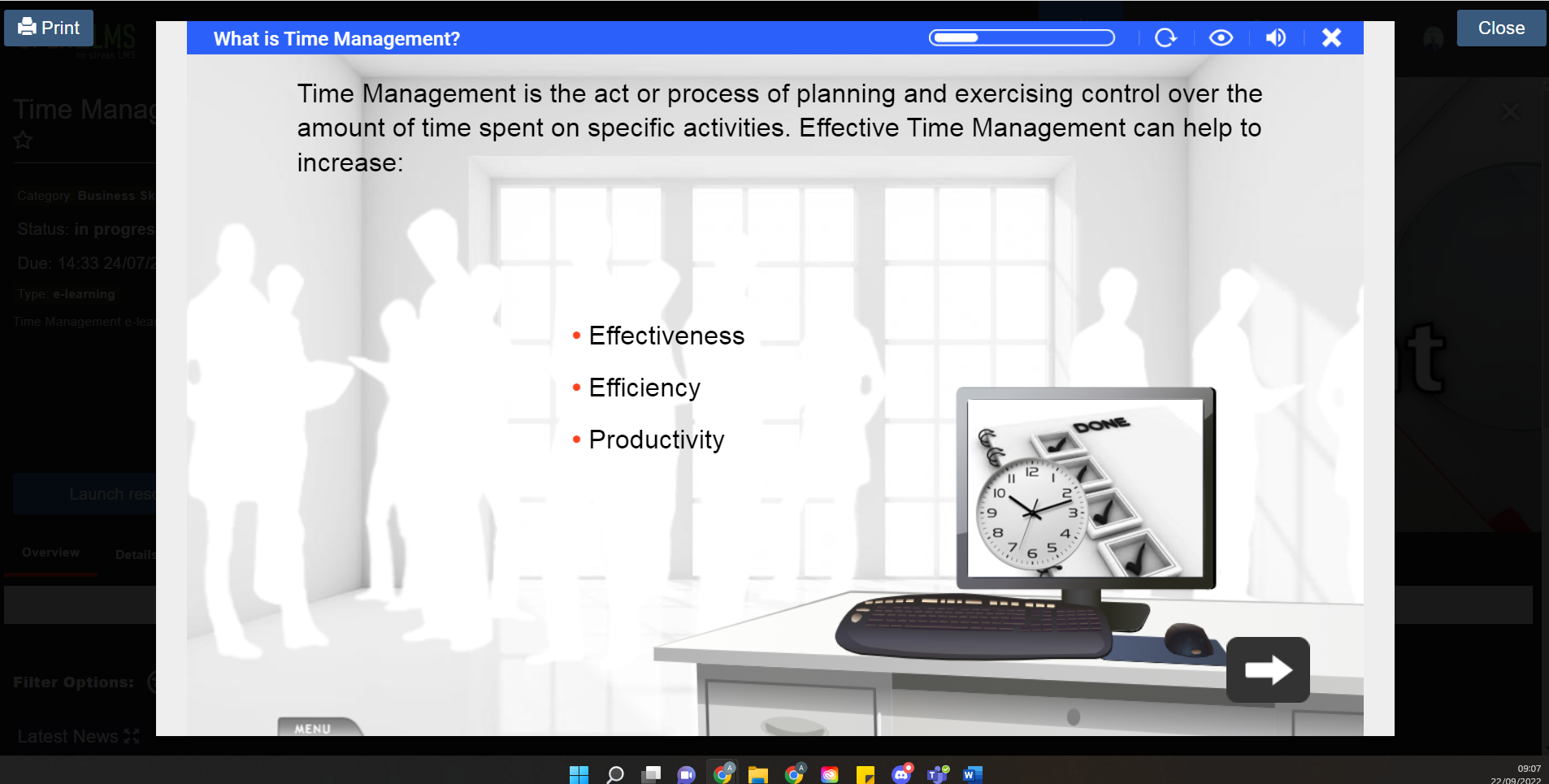
As an example, if we enter 1650 in the width section and 800 in the height section - the window would appear like this in the learner view:
There is also an option to launch the player in a separate window - tick the ‘Launch player as pop up’ box to try this out.
📋 Related articles
Filter by label
There are no items with the selected labels at this time.