Add Graphs
Graphs in Open Elms allow administrators to visualize data and gain insights into user progress, learning resource effectiveness, and platform usage. Graphs can be created using categories such as users, resources, programmes, forms, and events.
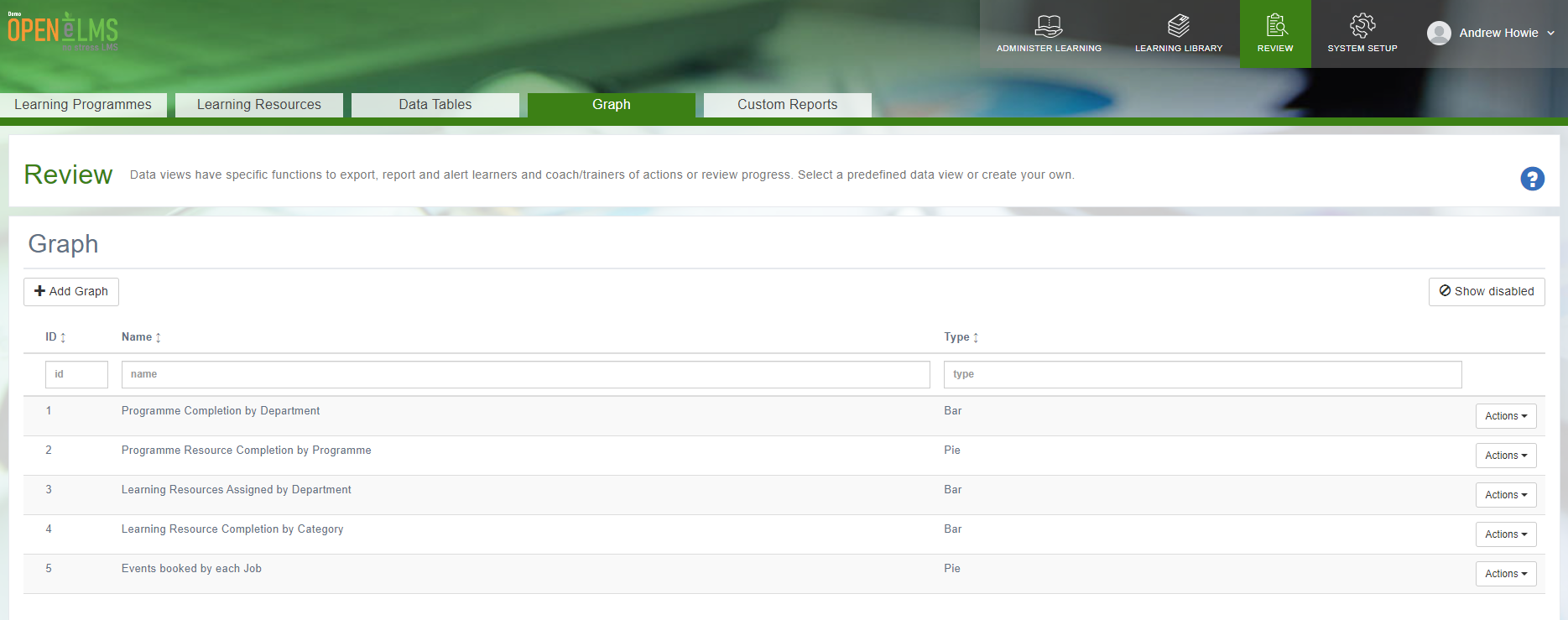
📘 Instructions
Graphs are now built as dashboards. Go to Report Builder › Dashboards.
Press Add, describe the data and the chart you want, and the dashboard is generated with its widgets, which you can then edit
Choose the category for your graph from the following options:
User
Resource
Programme
Forms
Events
Select the type of graph you want to create:
Pie
Bar
Scatter
Line
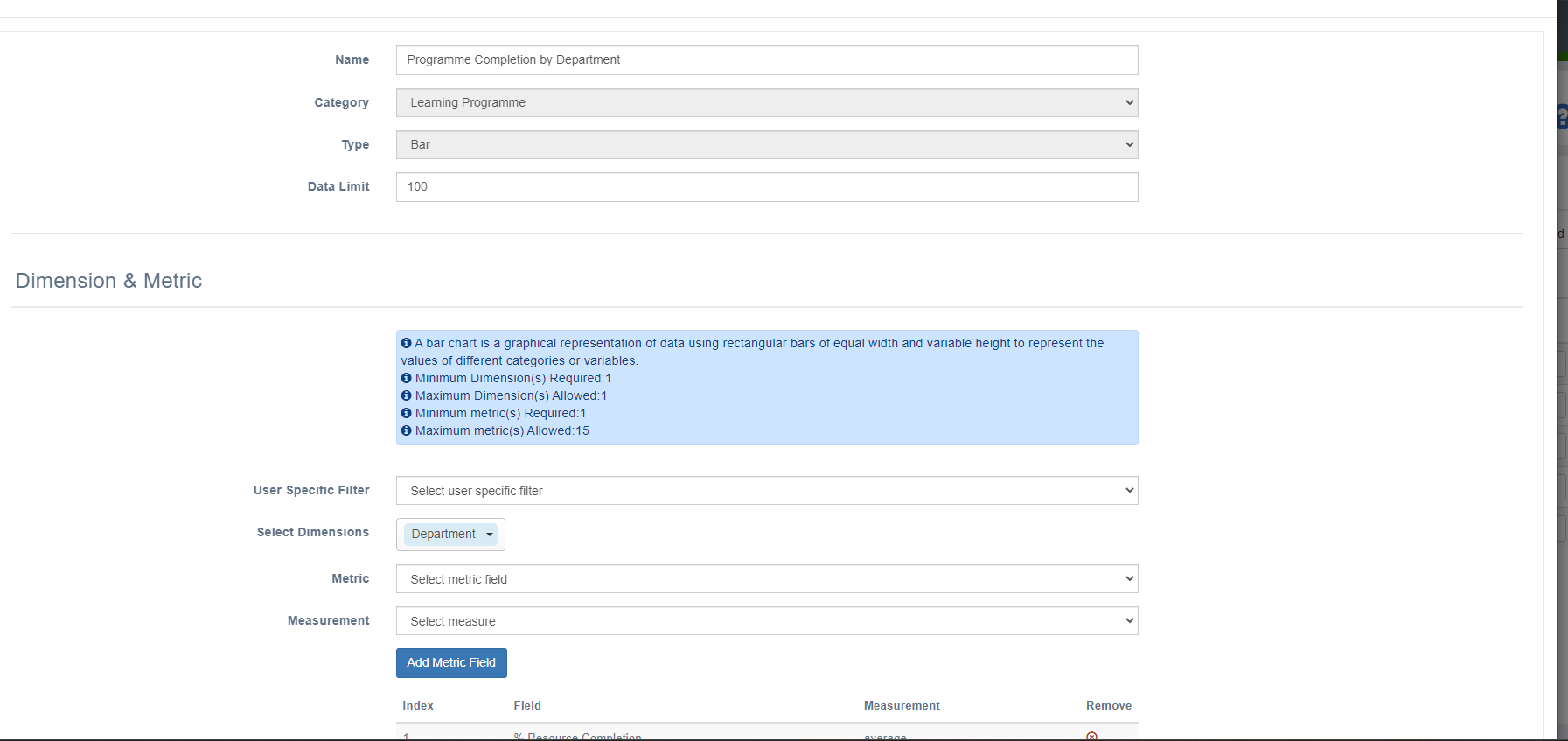
Customizing the Graph
To customize your graph, select the dimensions and metrics you want to display. This includes choosing filters, metrics, and measurements.
Click the 'Add Metric Field' button to add your chosen metrics to the graph.
Use the 'Preview' button to see a preview of your graph with the selected data.
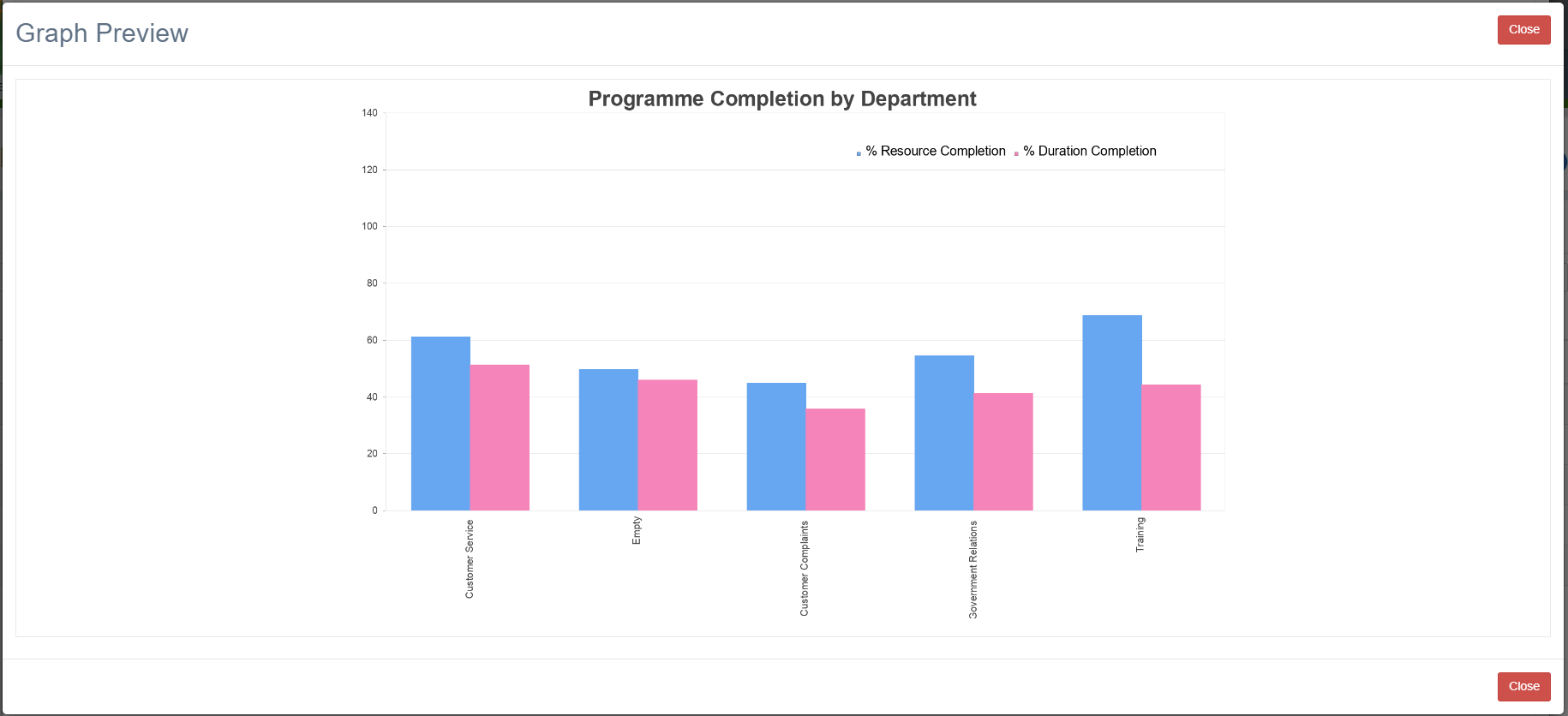
4. Once you are satisfied with your graph, click the 'Save' button to create it.
By following these steps, you can create custom graphs in Open Elms, customize their appearance, and add them to custom reports for more in-depth reporting and data analysis.
📋 Related articles
- Page:
- Page:
- Page:
- Page:
- Page: