Add Data Tables
Data Tables in Open Elms allow administrators to create custom reports and gain valuable insights into the platform's usage, user progress, and learning resource effectiveness. Tables created can be downloaded as a CSV report, used to create graphs (see Add Graphs), or included in Custom Reports (see Custom Reports).
📘 Instructions
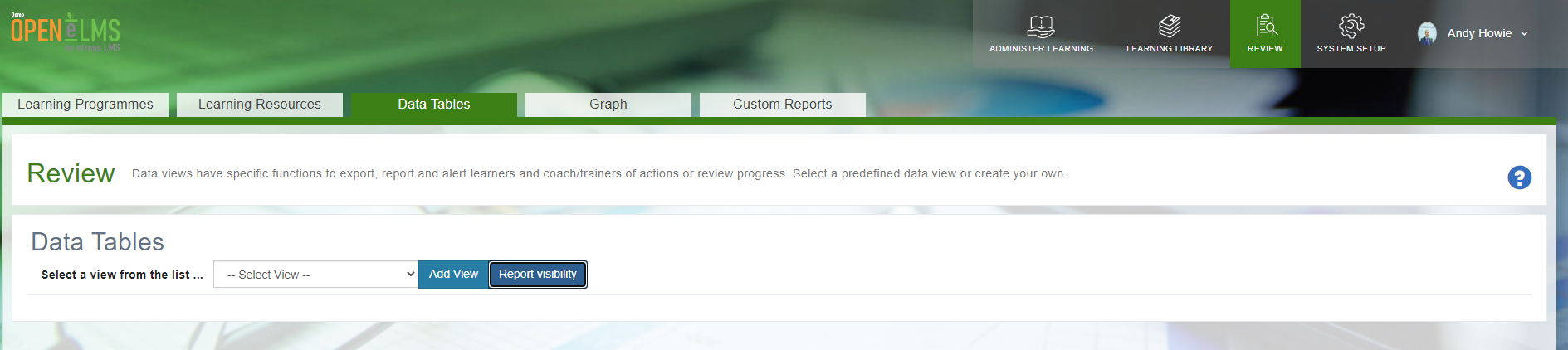
Log in as a Administrator and go to Report Builder › Legacy Reporting › Data Tables.
Click the 'Add View' button
Choose the report type for your Data Table from the following categories:
Users: Select fields related to user demographics, job roles, departments, and other relevant information.
Events: Choose fields that provide data on event participation, completion status, and other event-related metrics.
Forms: Pick fields that display form submission data, user responses, and any associated form information.
Programmes: Opt for fields that show details on assigned learning programmes, progress, and completion rates.
Resources: Select fields related to learning resources, such as type, category, and usage data.
Choose the filters and fields you would like to apply to the table (you can preview before you save)
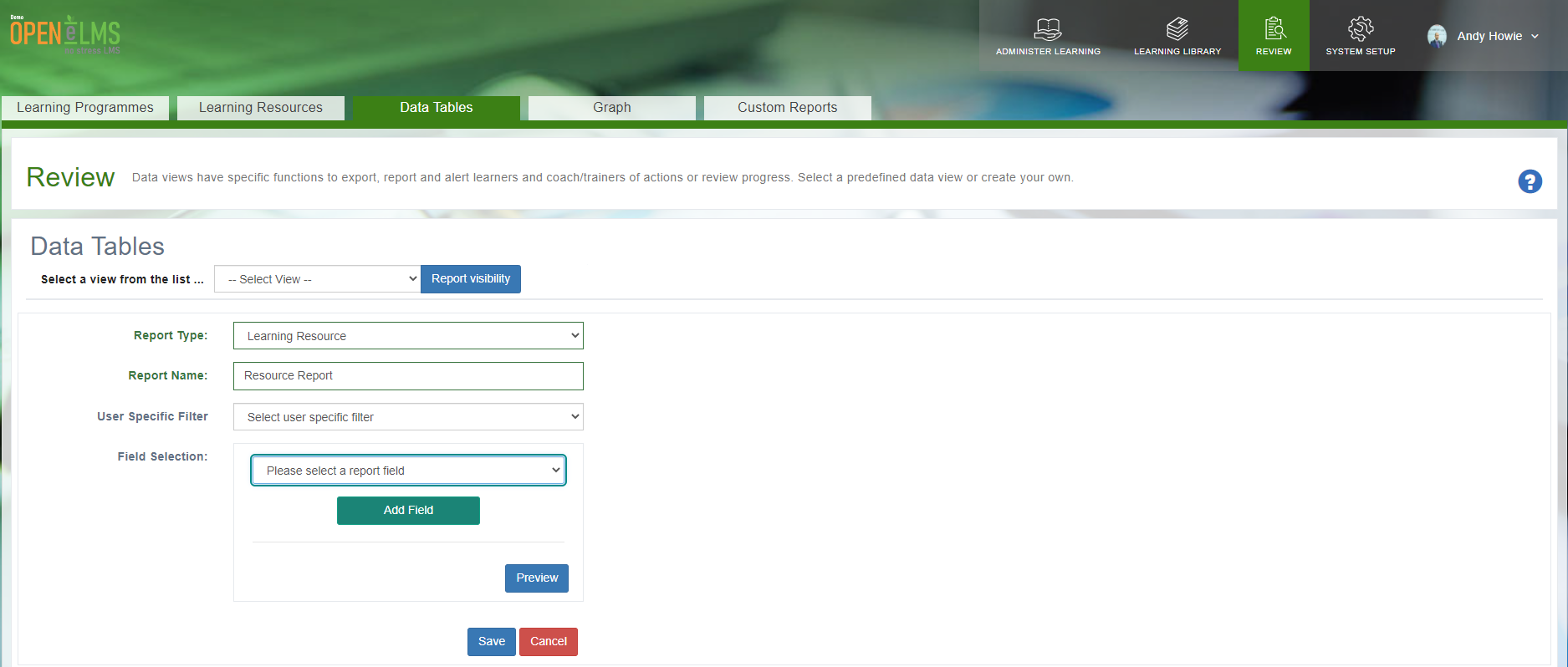
After selecting the desired report type and fields for your Data Table, click the 'Save' button to generate the table.
The new Data Table will now appear in the 'Reports' section, displaying the selected data fields.
Managing Report Visibility
To control which personnel can view the Data Table, click the 'Report Visibility' button associated with the table.
In the 'Report Visibility' settings, you can select specific users or groups who should have access to the report. This ensures that only authorized personnel can view the Data Table, maintaining data privacy and security.
By following these steps, you can create custom Data Tables in Open Elms, download them as CSV reports, use them to create graphs, and manage their visibility for specific personnel.
📋 Related articles
- Page:
- Page:
- Page:
- Page:
- Page: