How to Assign Learning Resources - Curriculum Developer
How to Assign Learning Resources - Curriculum Developer
In this guide, you will learn how to assign learning resources to learners. Follow the steps below to effectively assign resources and manage them within the application.
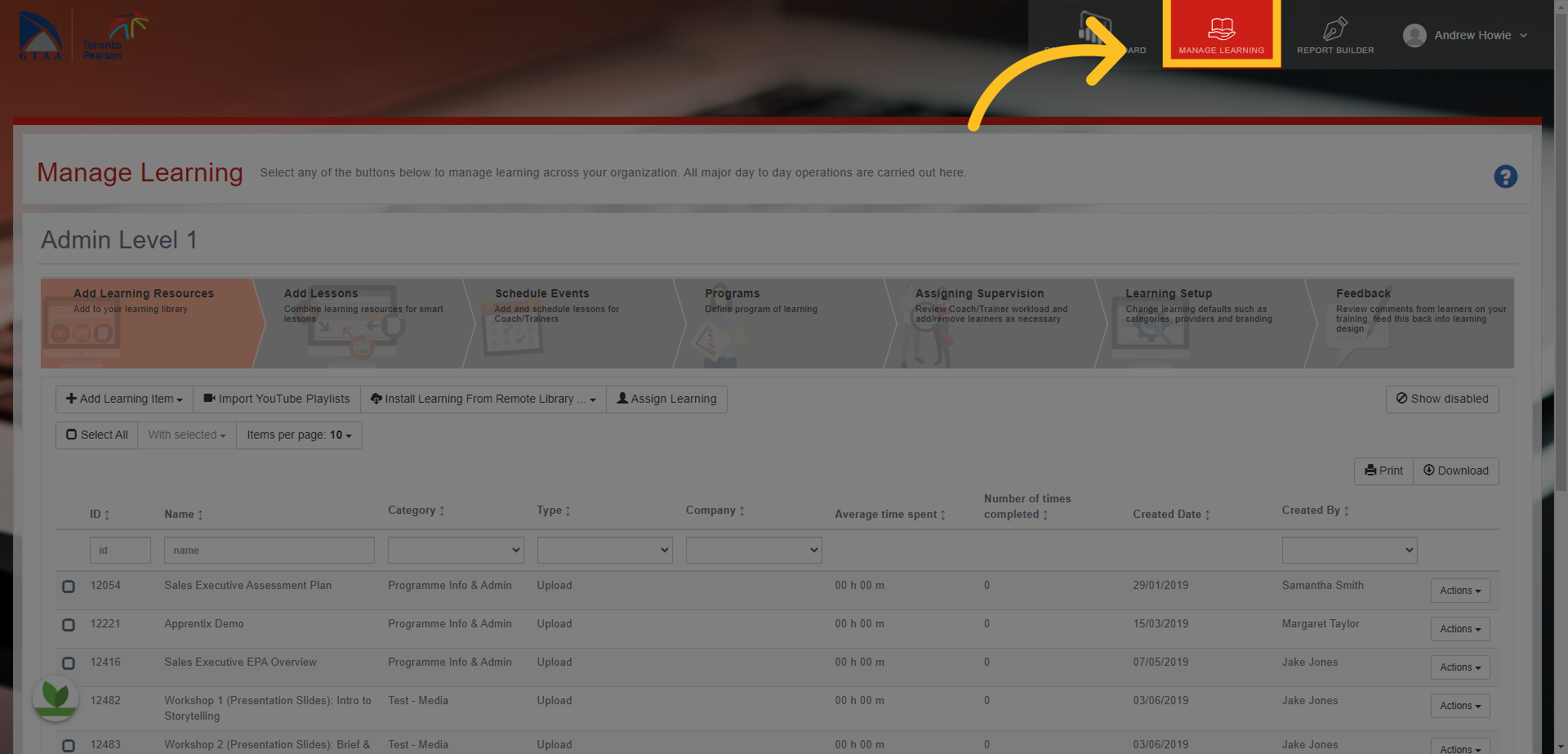
1. Click on the 'Manage Learning' tab at the top of the screen
Click on the Manage Learning tab at the top of the screen
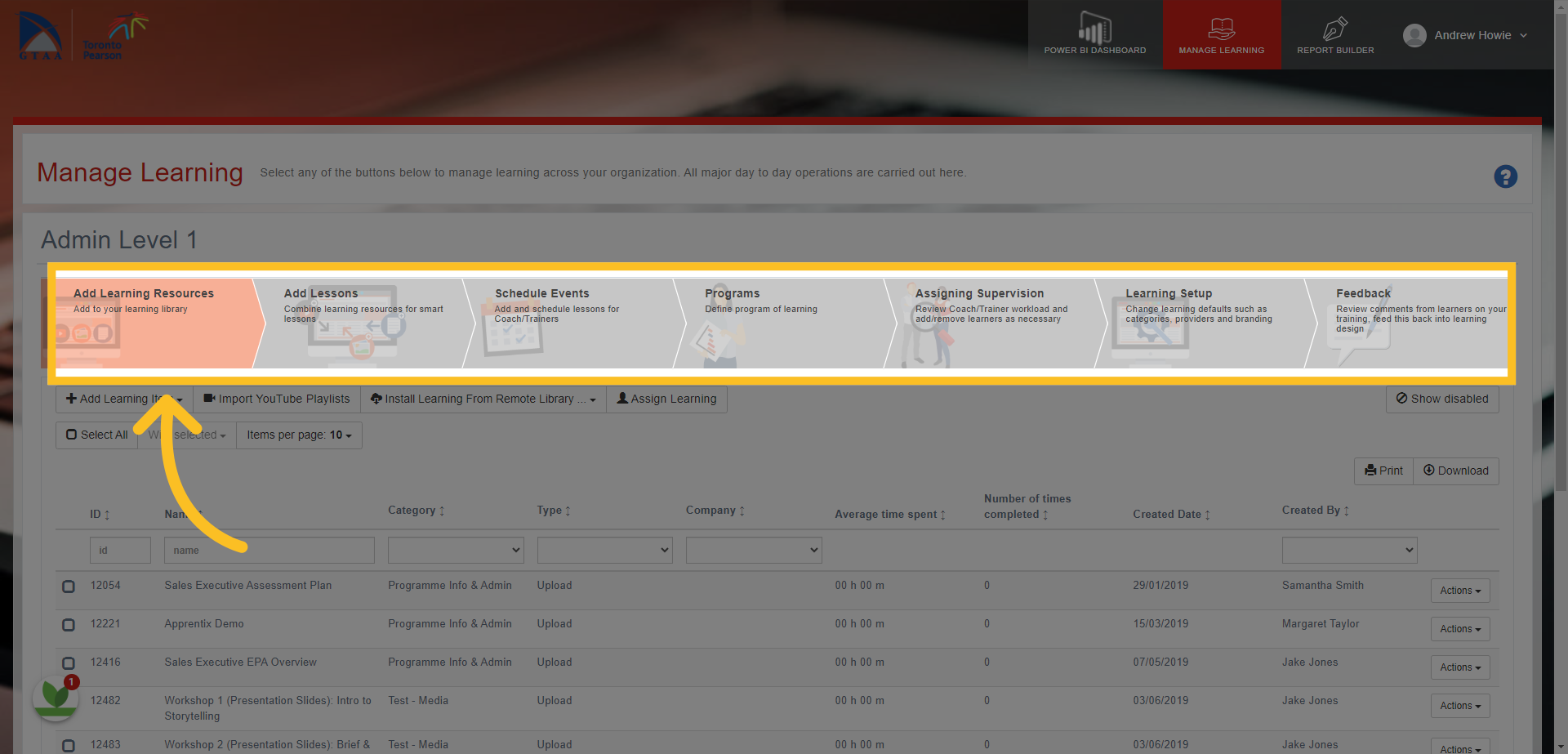
2. This opens on the 'Add Learning Resources' Section
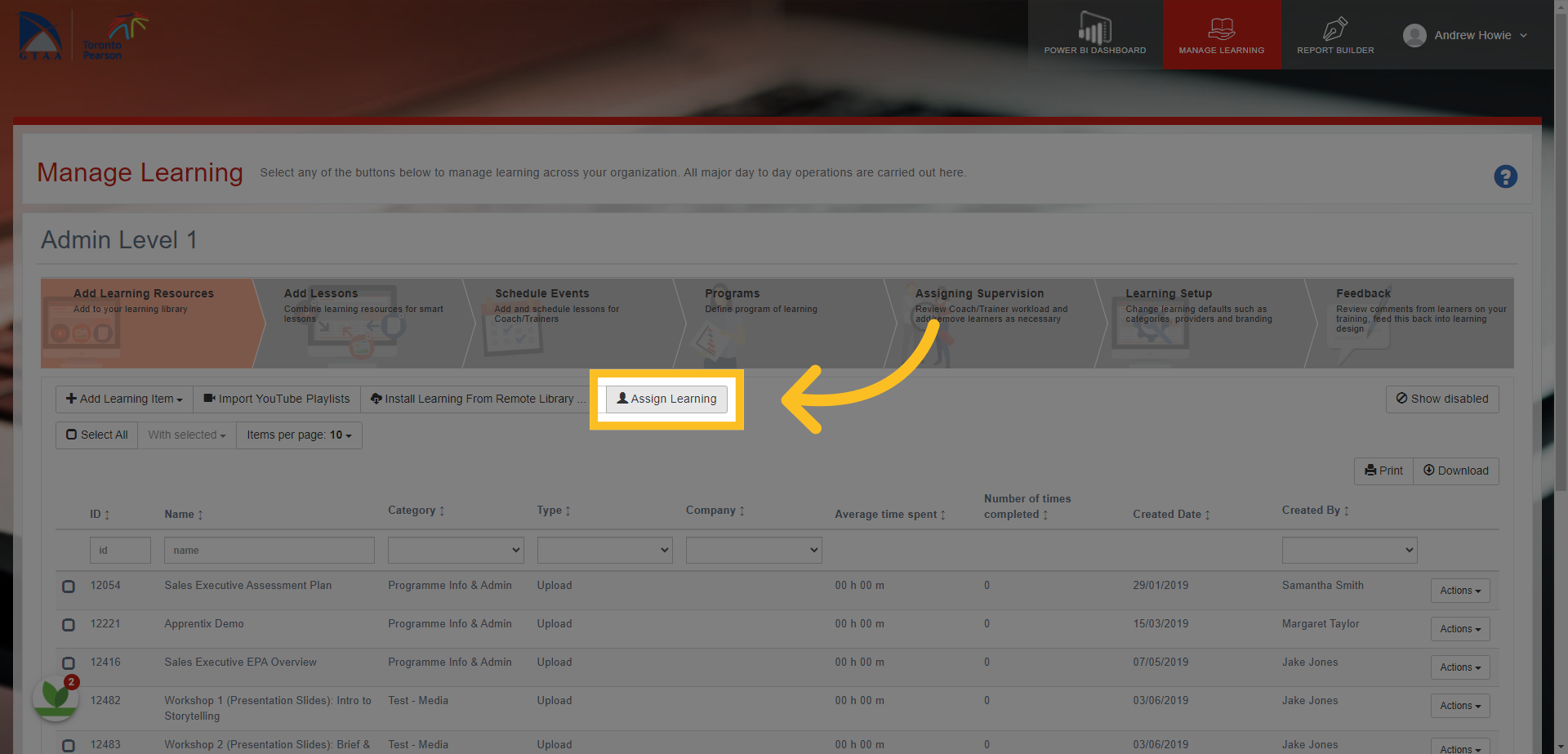
3. Click on the 'Assign Learning' button.
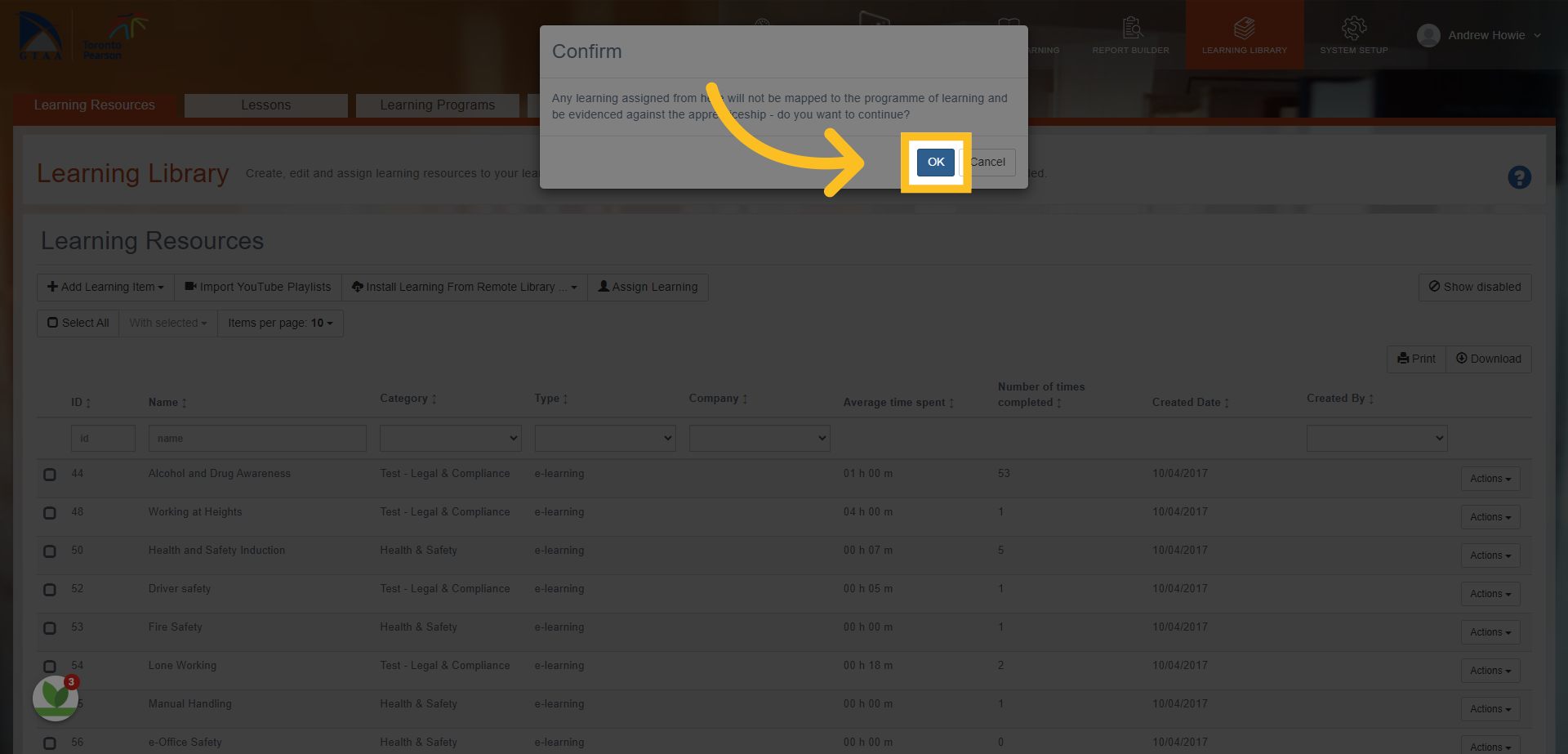
4. A confirmation box will appear to ask if you want to assign the resource or resources outside of attaching them to a learning program - click 'OK' to continue.
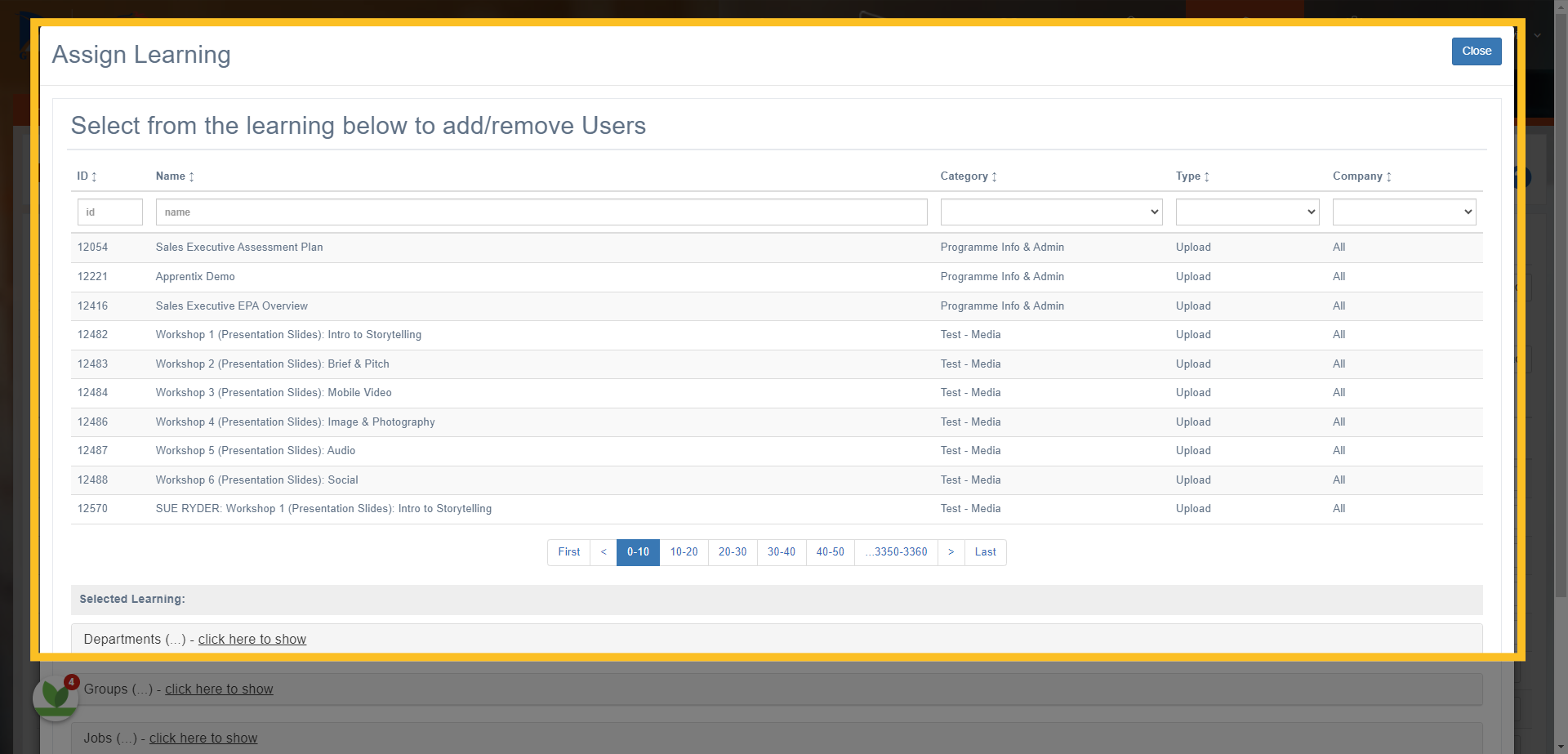
5. This opens the 'Assign Learning' screen.
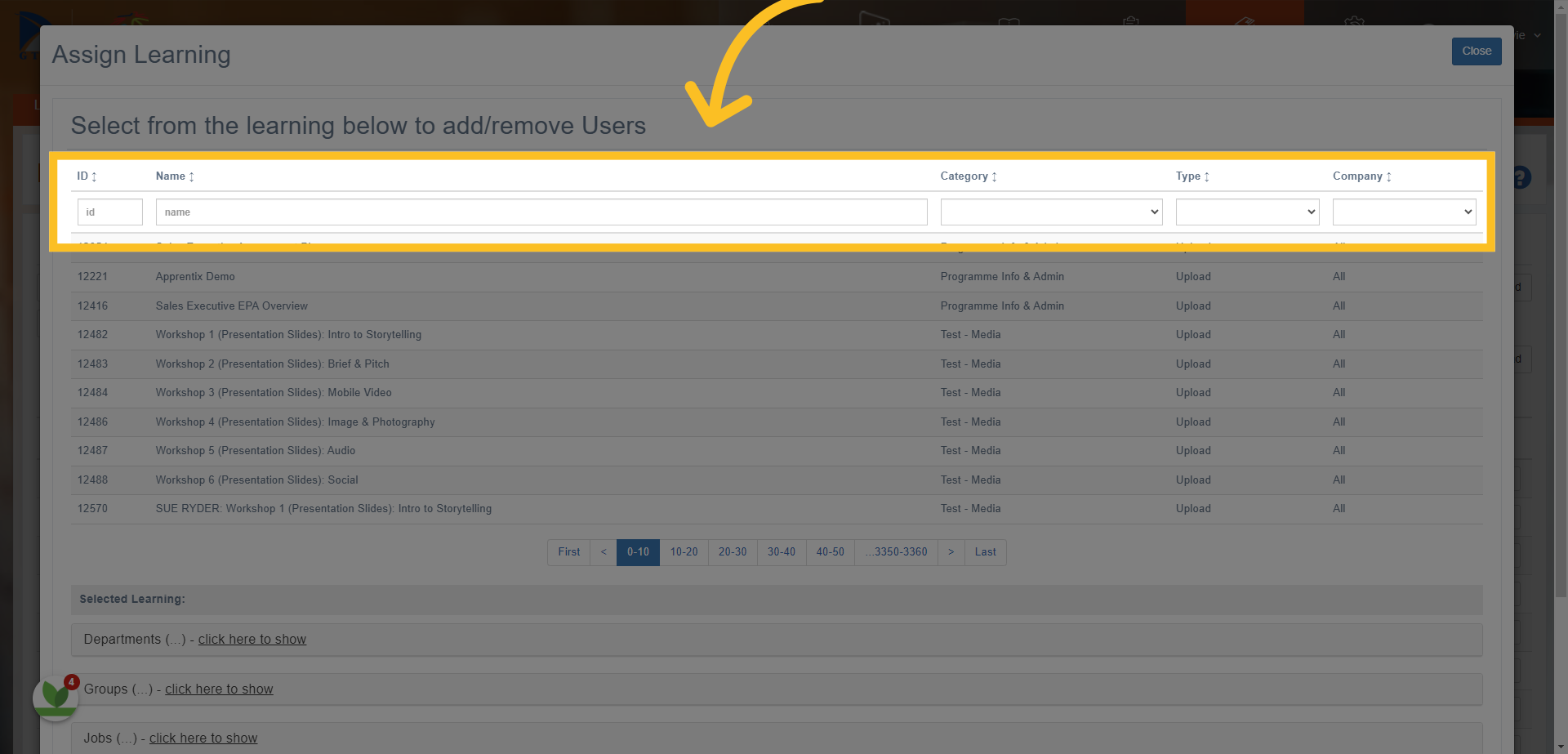
6. You can search for the resource/s you want to assign by the Resource ID number, Name, Category, Type and Company.
7. Simply click on the resource/s you want to assign (you can search and select multiple resources).
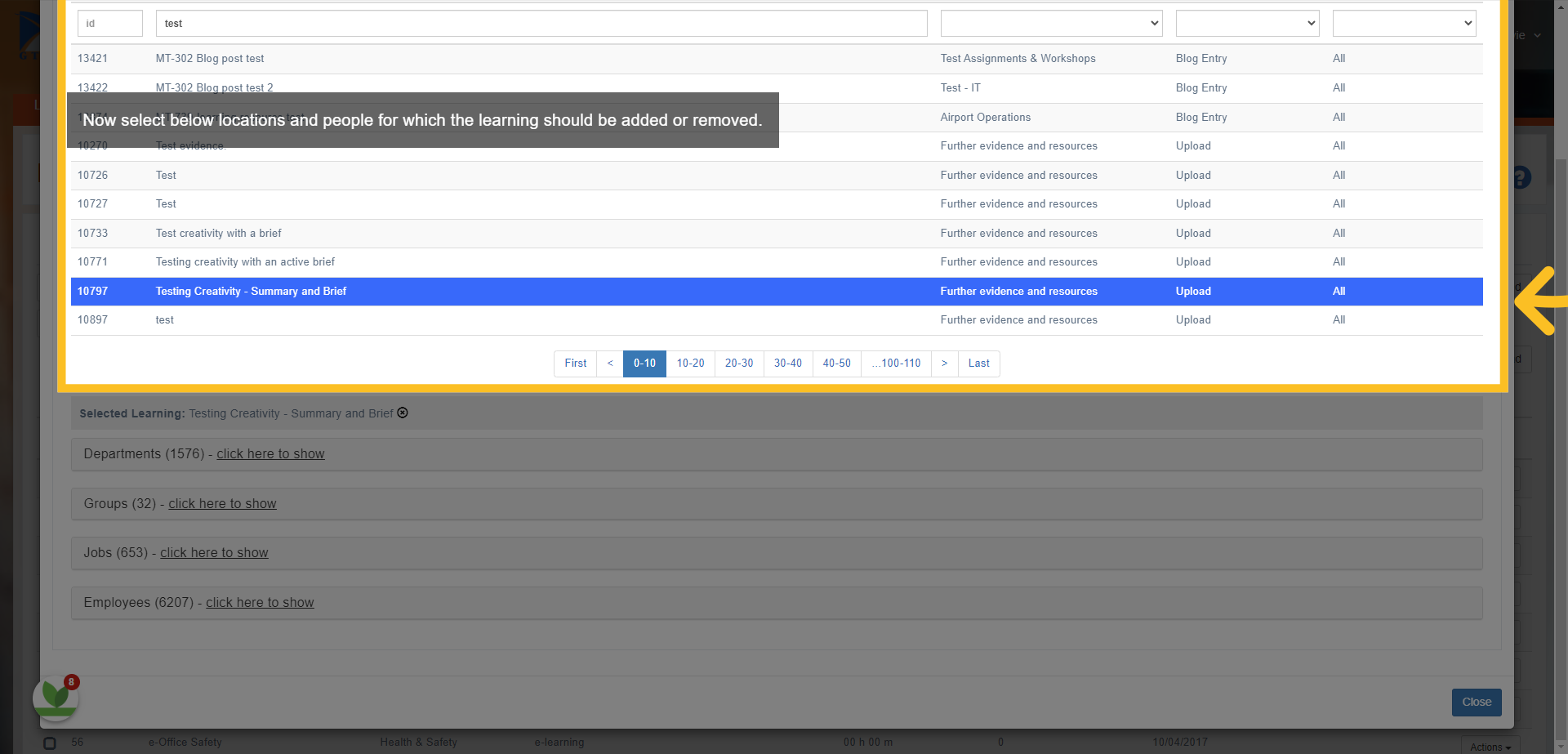
8. You can then directly assign the resource or resources to Departments on the system.
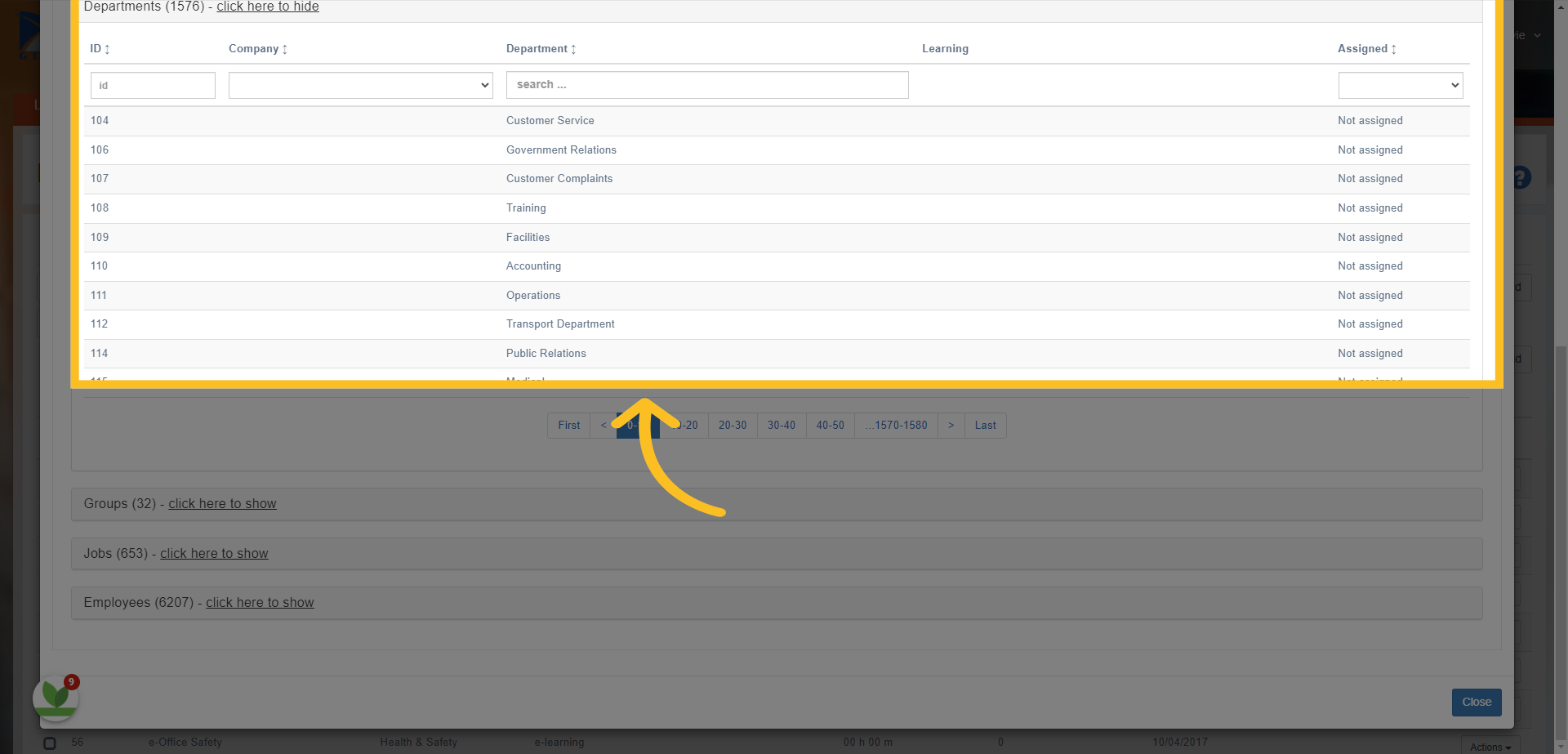
9. Or you can assign by Groups.
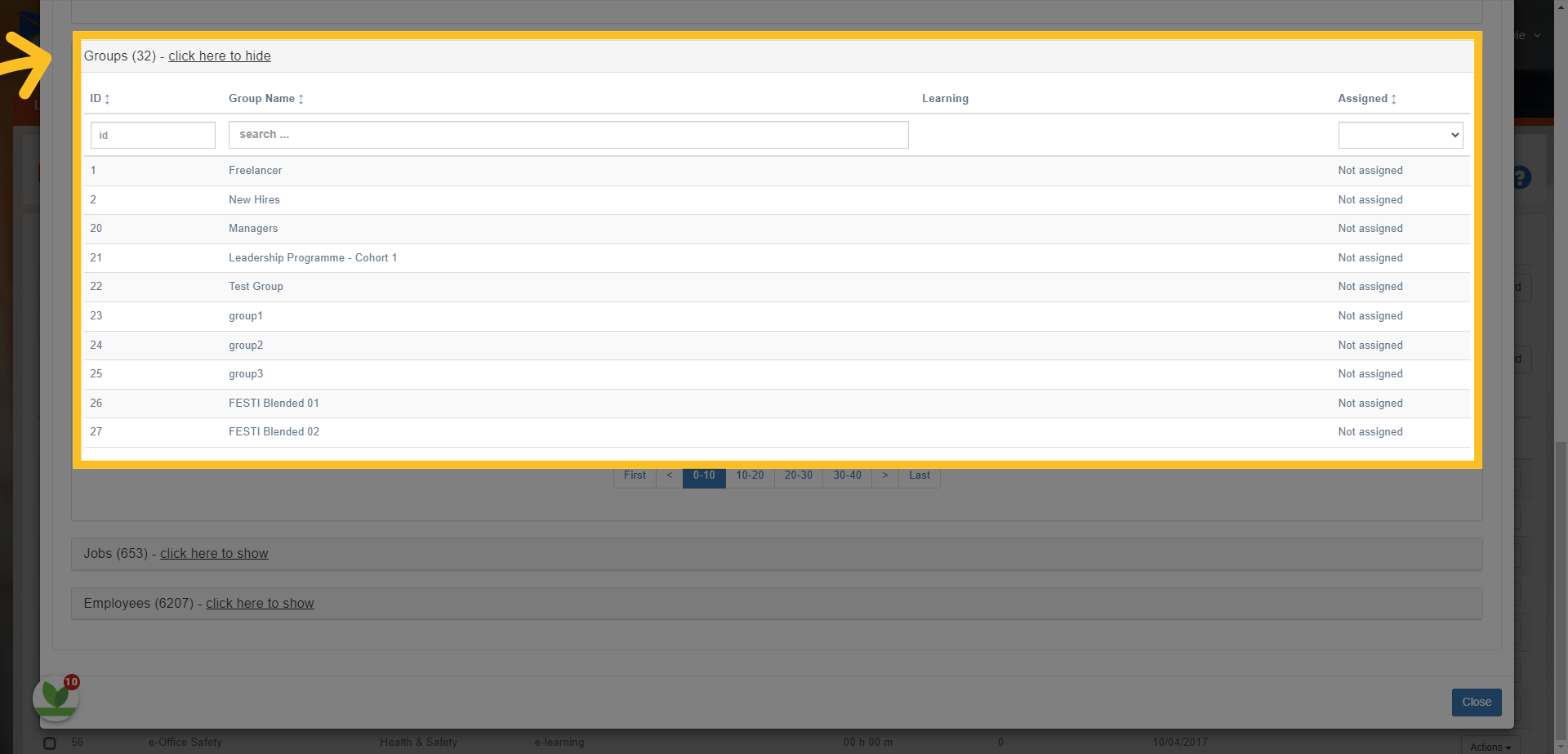
10. Or by Job.
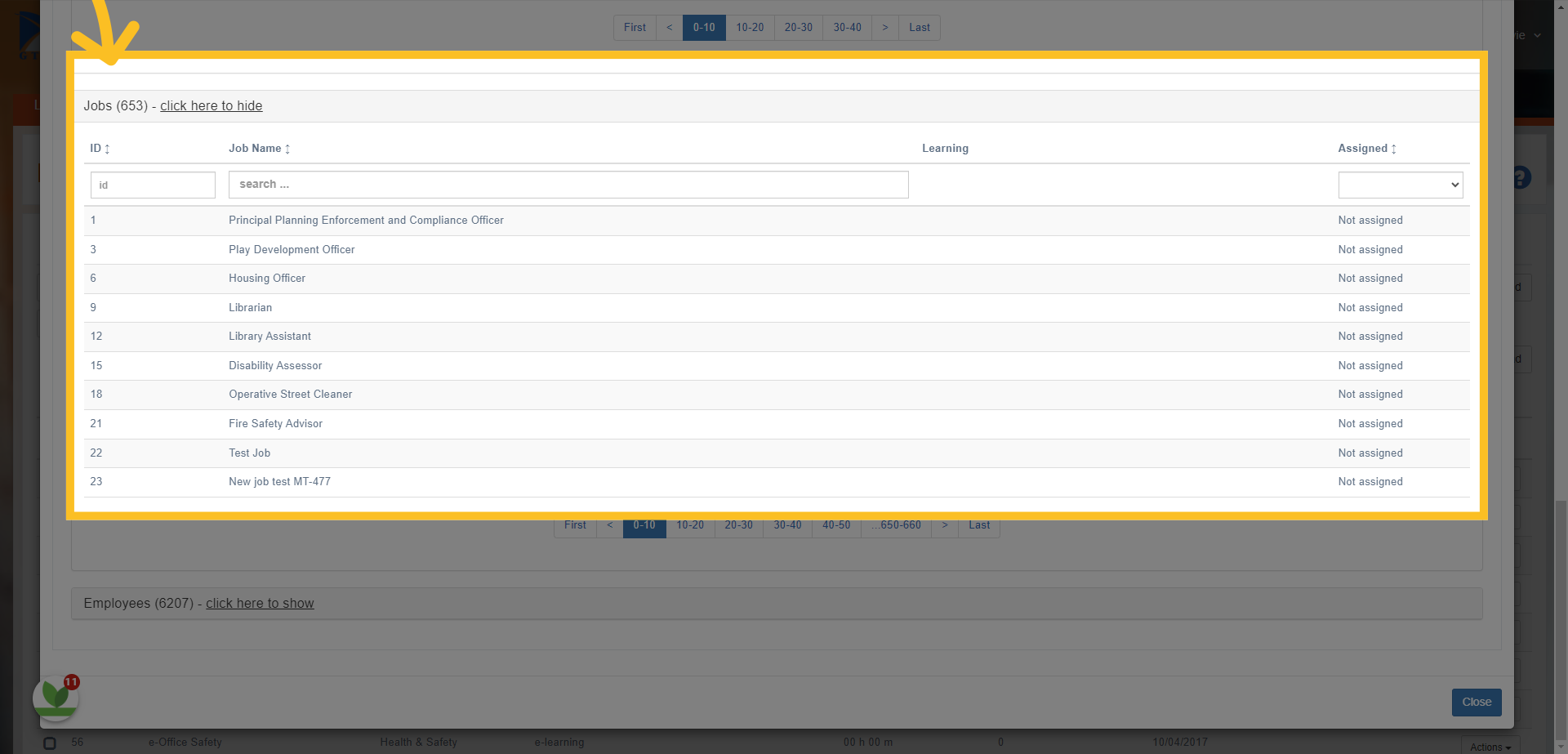
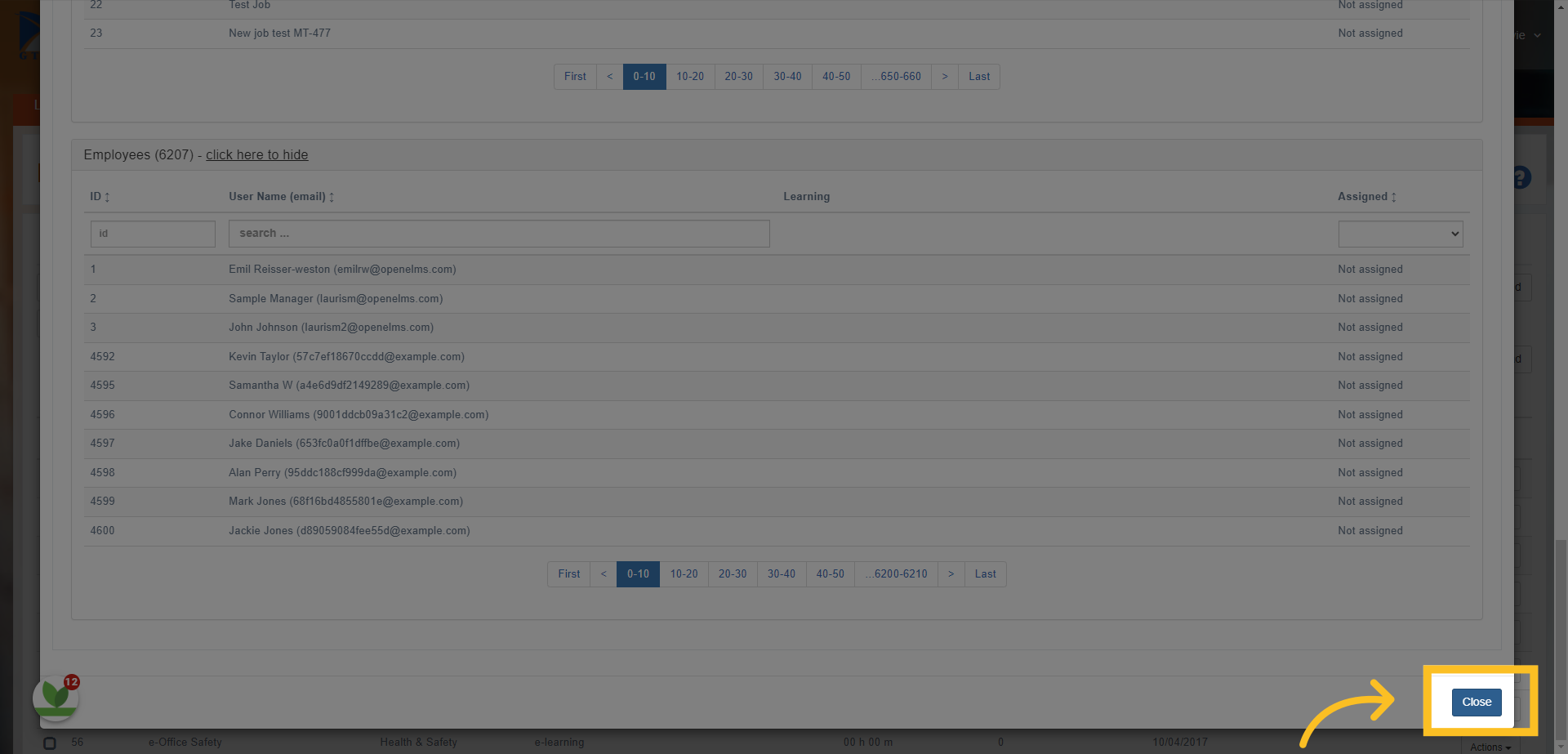
11. or select from the Learners/Employees list.
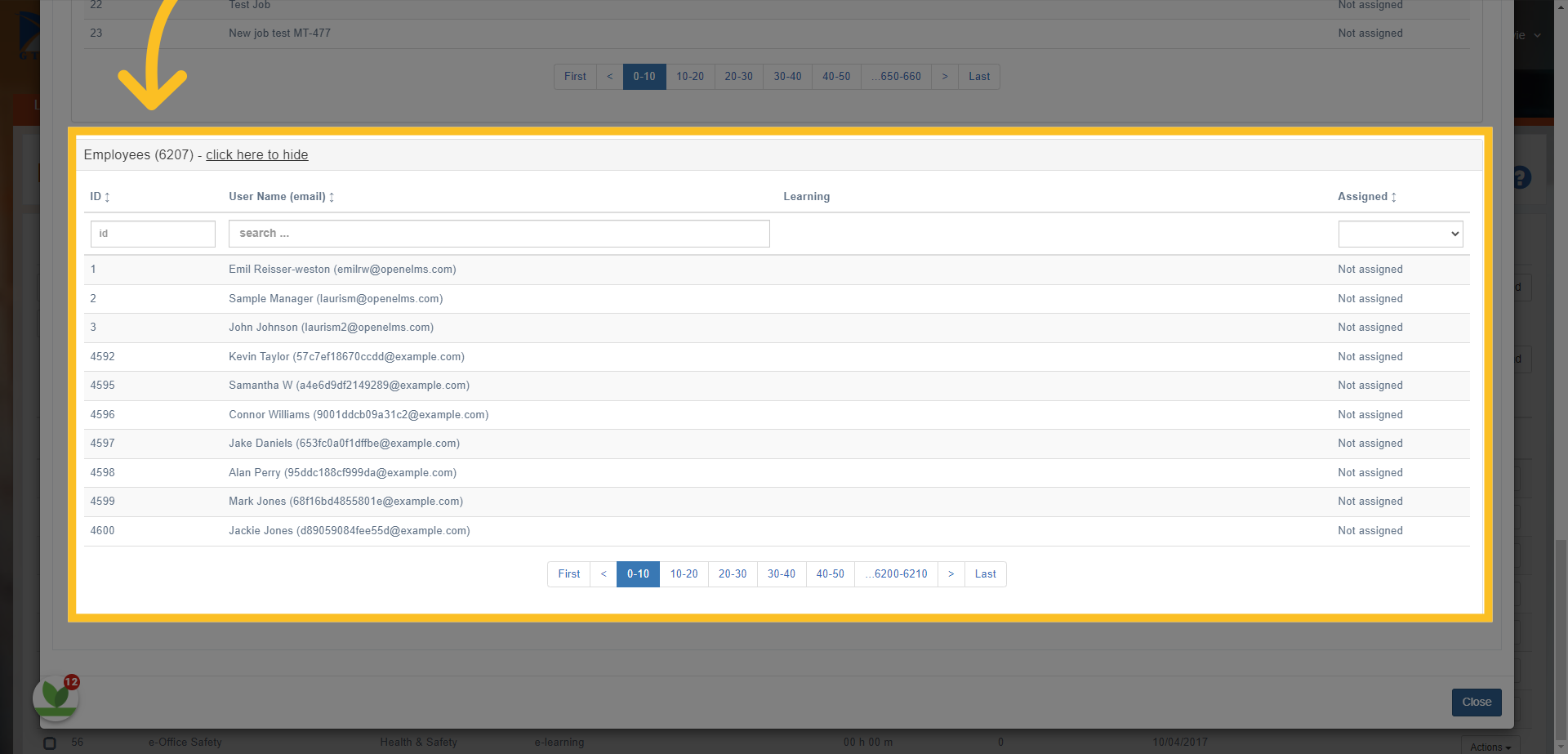
12. Once you've selected the resource/s and assigned to the users - click the Close button at the bottom of the screen.
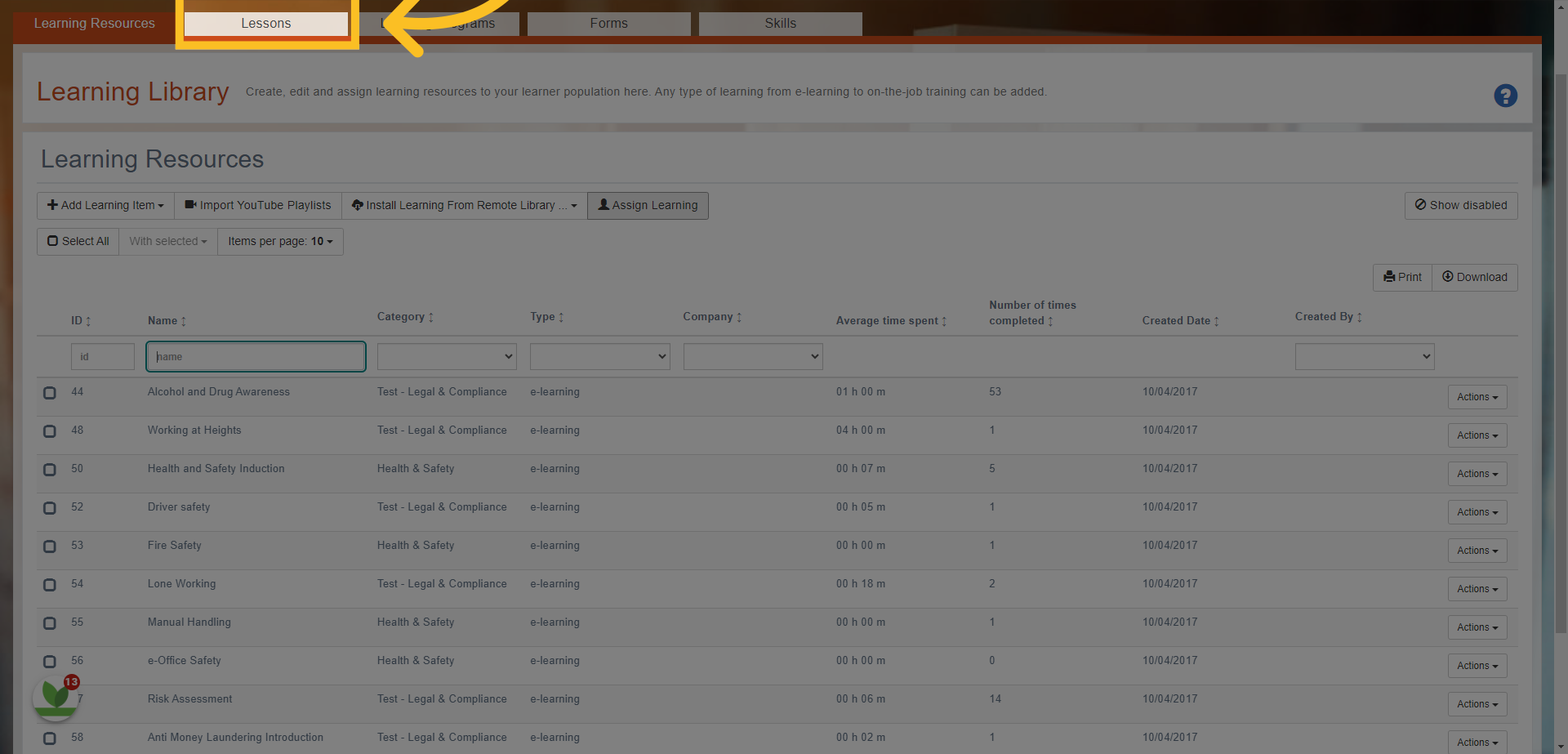
13. The same process applies if you want to assign Lessons or Bundles directly - simply click on the Lessons tab in the Learning Library and follow the same steps.
This step-by-step guide covered how to assign learning resources as a Curriculum Developer. You learned how to navigate the application, select and assign resources using the different filters and options. By following these steps, you can efficiently handle the training and resource allocation.