How to Find and Filter Reports -Coach/Trainer or Manager
How to Find and Filter Reports -Coach/Trainer or Manager
This guide will walk you through the process of finding and filtering reports in the system. You will learn how to access different reports, select specific views, and filter the data according to your requirements.
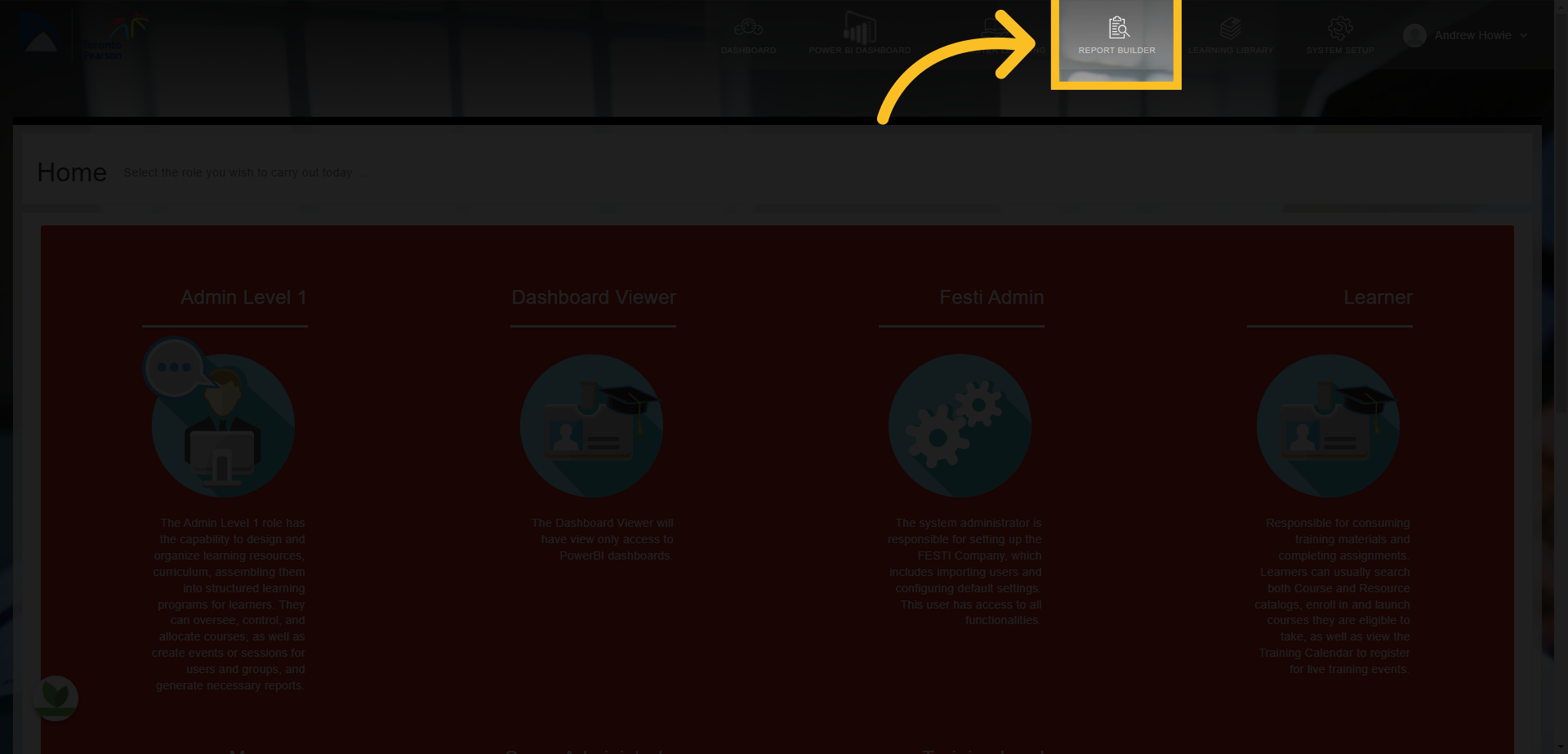
1. First, click on the 'Report Builder' tab at the top of the screen.
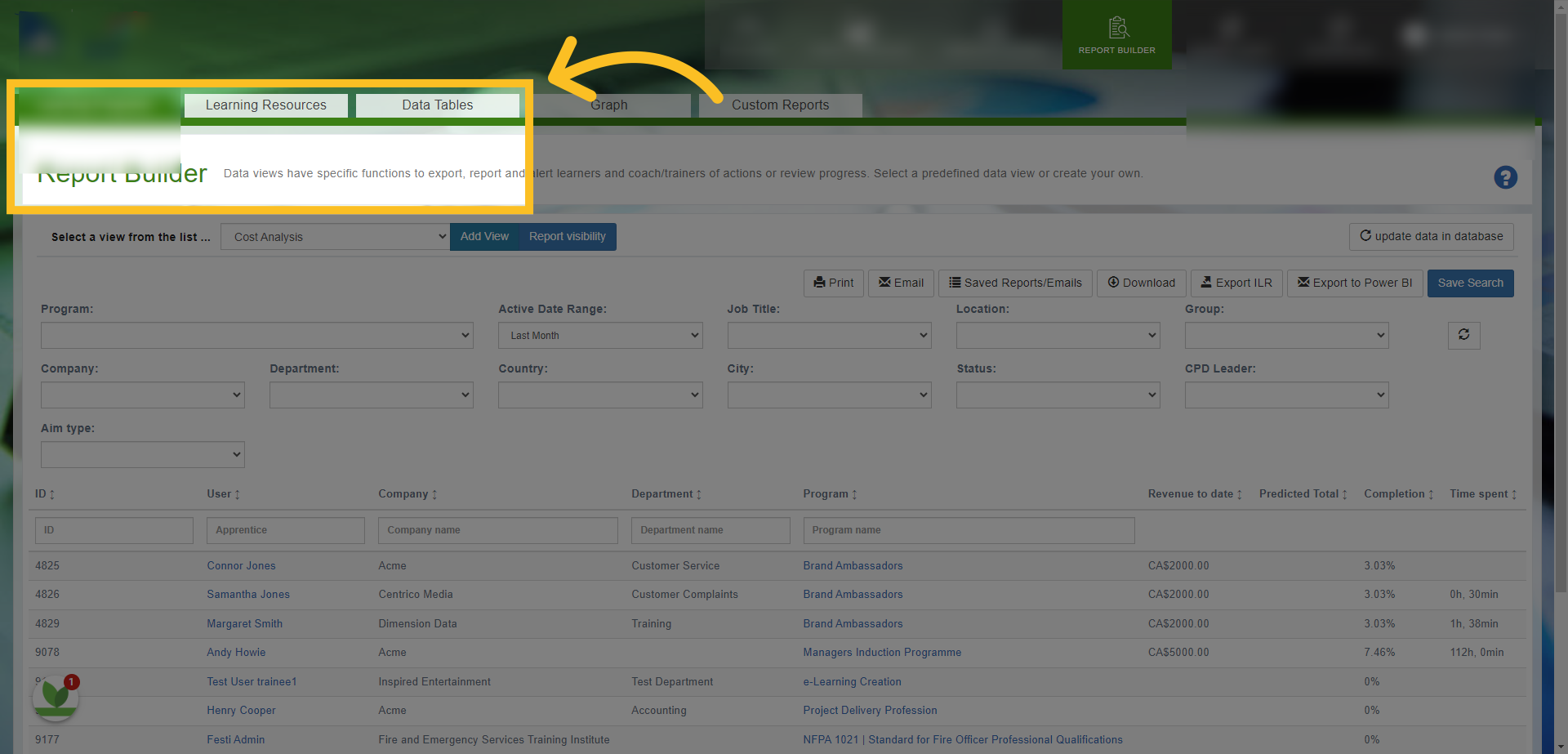
2. This opens the Report Builder page - we will look at the 3 main tabs - Learning Programs, Learning Resources and Data Tables.
3. Each tab comes with Reports already available for you (you can find these in the dropdown field here). These reports can be filtered so you can find exactly the information you're looking for. Here are some you will find in the Learning Programs Reports tab. Use these reports for information on Learning Programs and Pathways.
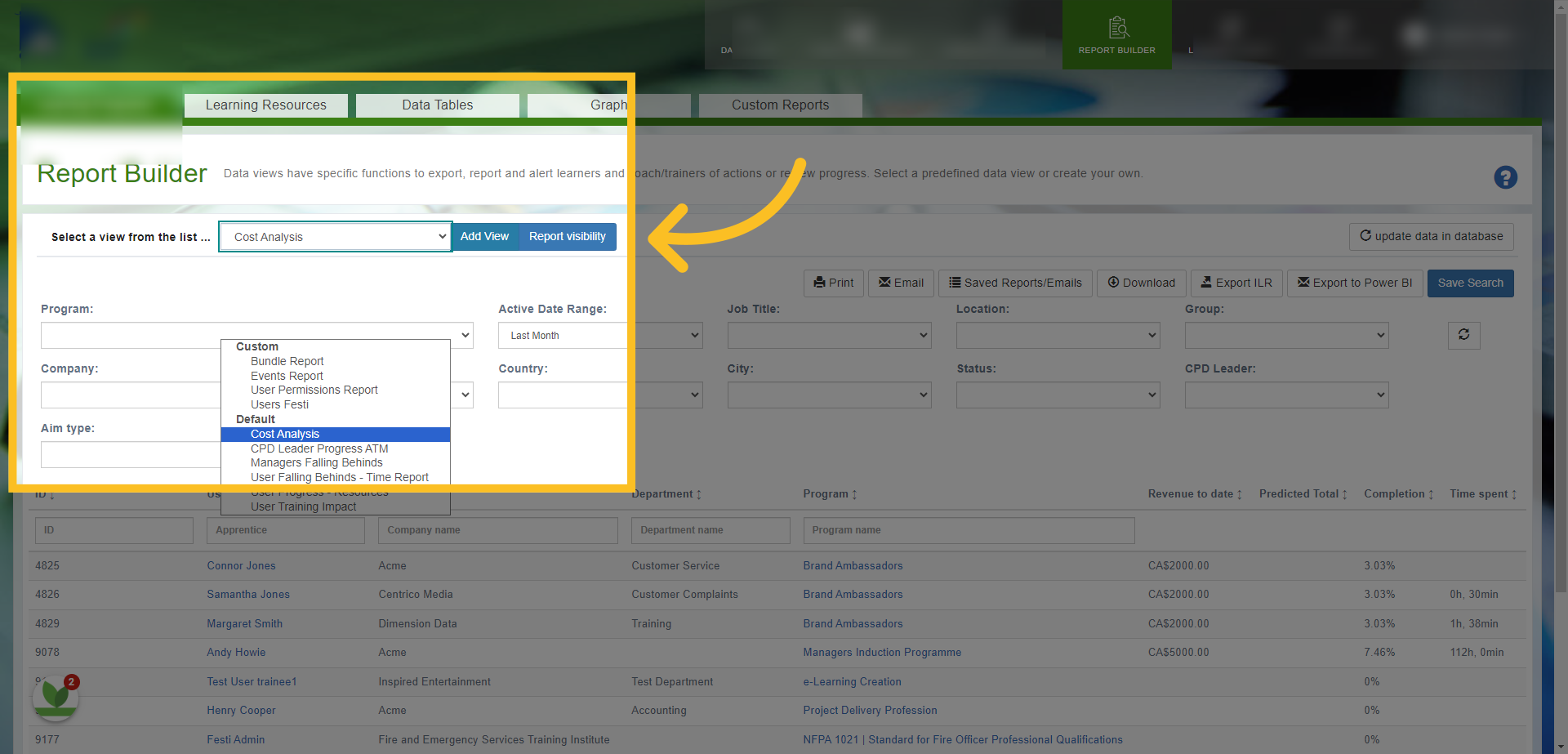
4. Use the Learning Resources Reports tab to filter and search for results specifically in regards to resources or lessons/bundles. The dropdown menu has a mixture of reports available, each of which can be filtered by company, department. group etc...
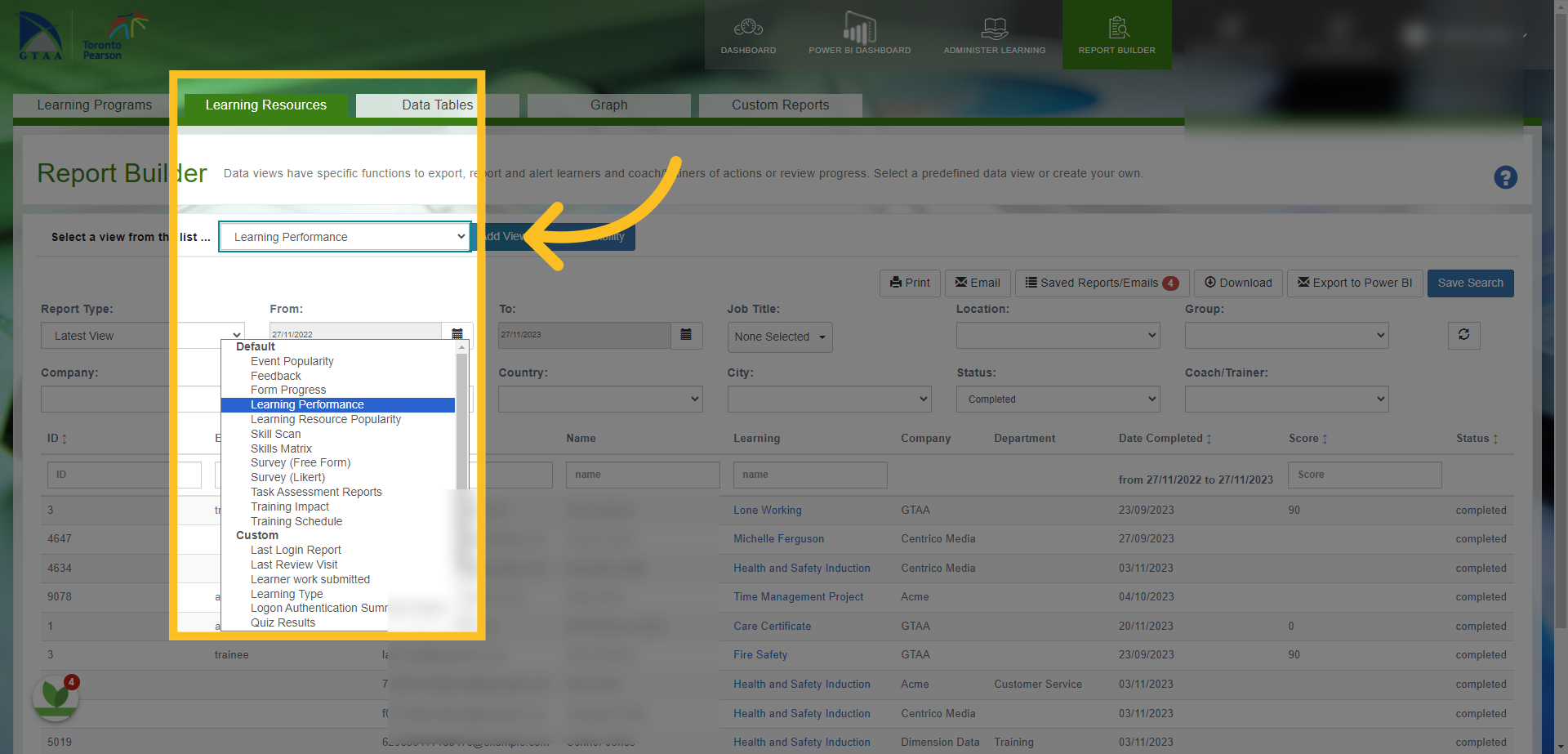
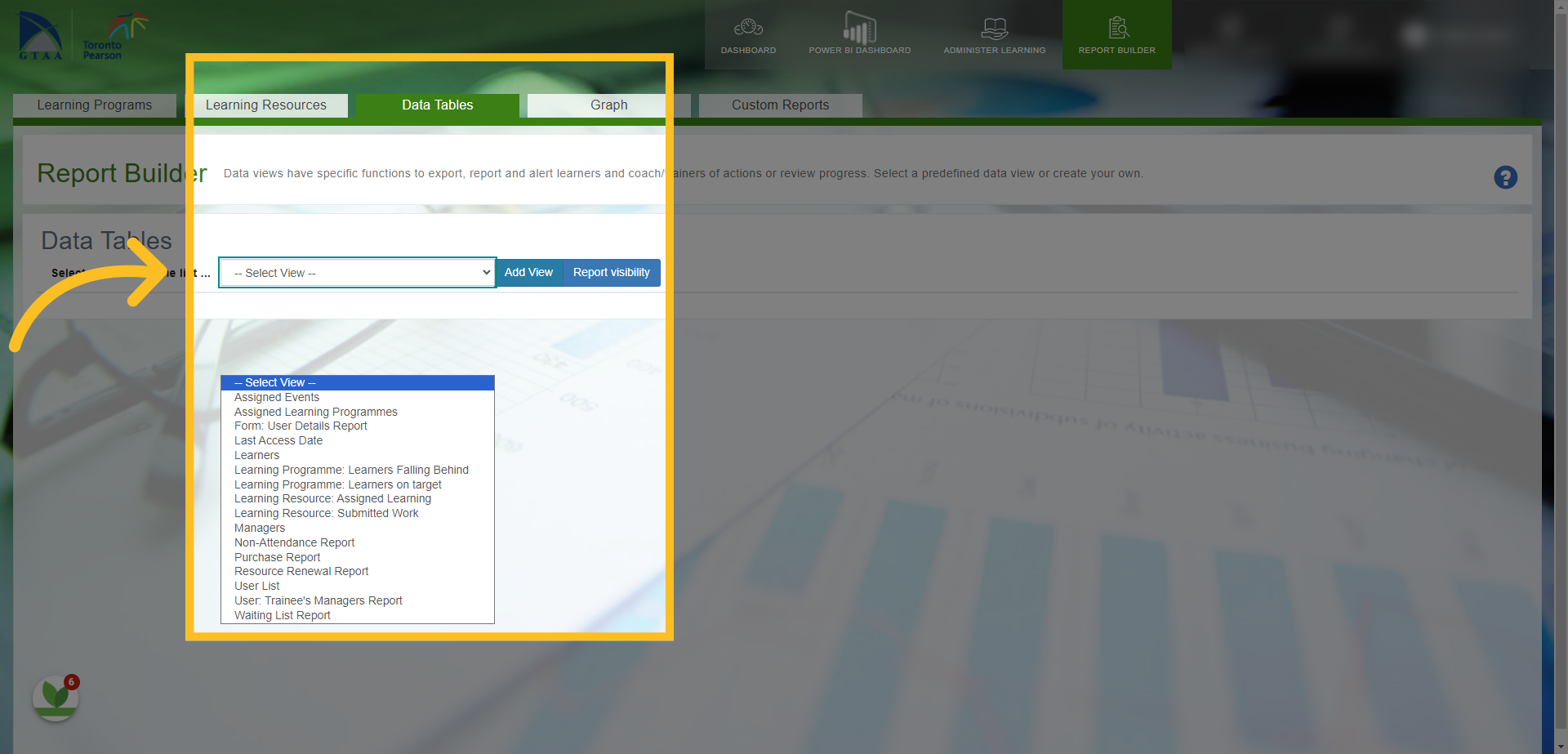
5. You will also find specific reports available in the dropdown menu from the Data Tables tab - you can run reports for Pathways, Resources, Events and Forms here. You can also select multiple filters in this report view i.e. select specific groups or departments. NB: You can only select 1 or all when using specific filters in the Learning Programs or Learning Resources Report tabs.
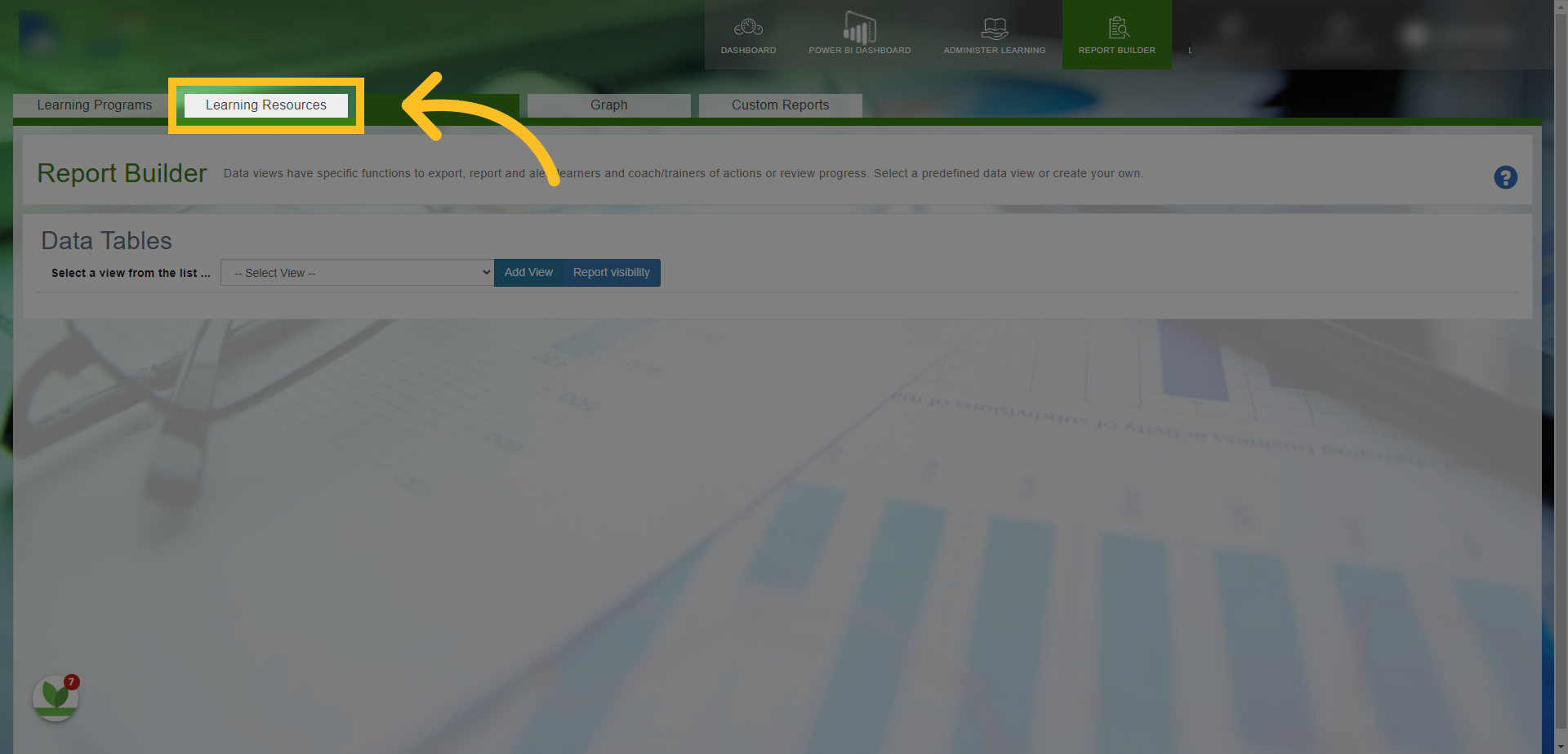
6. As an example, let's look at using one of the reports in the Learning Resources tab.
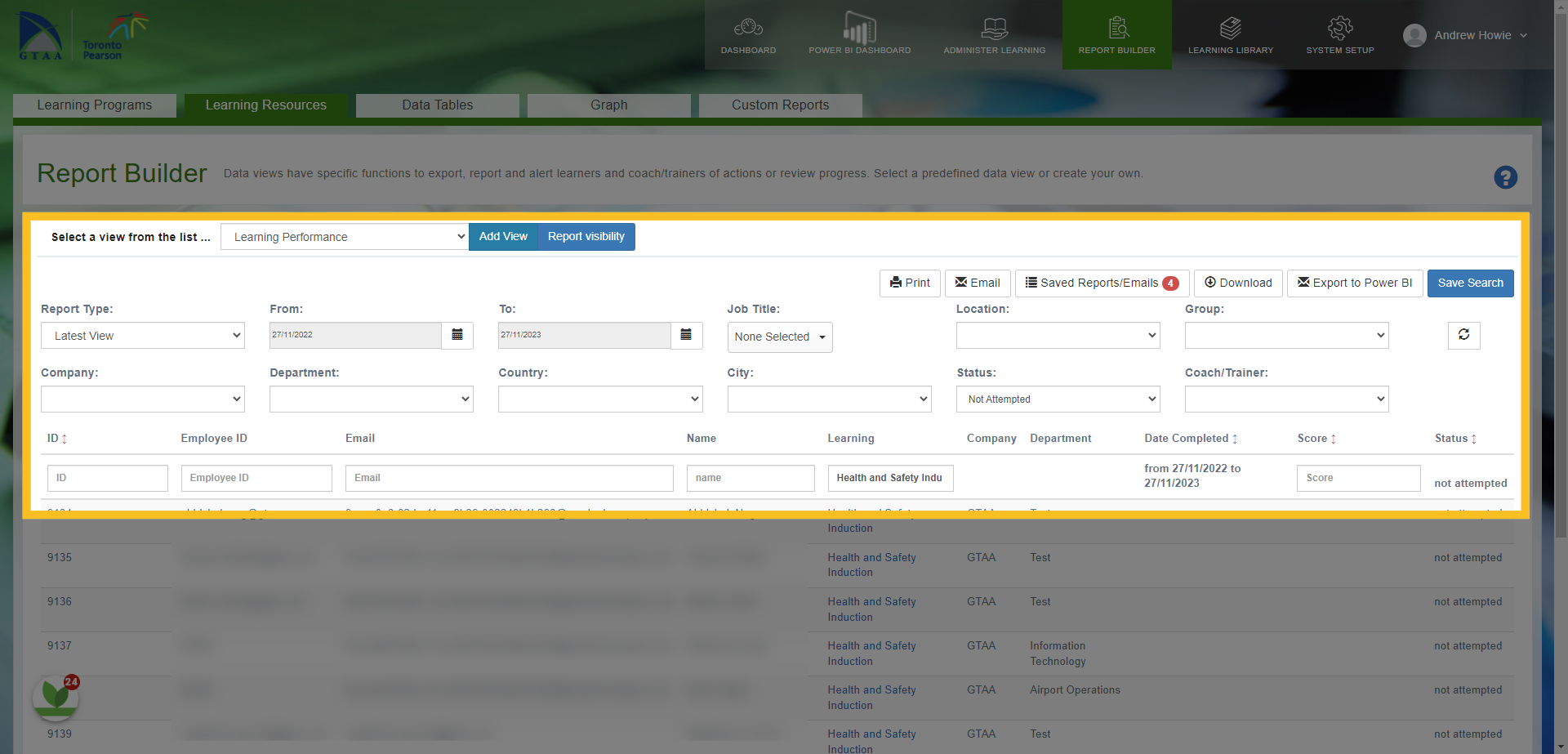
7. If we select the 'Learning Performance' report - you can see we can filter the information by Date, Job Title, Location, Group, Company, Department, City, Manager or Trainer and Status of the Learning Resource.
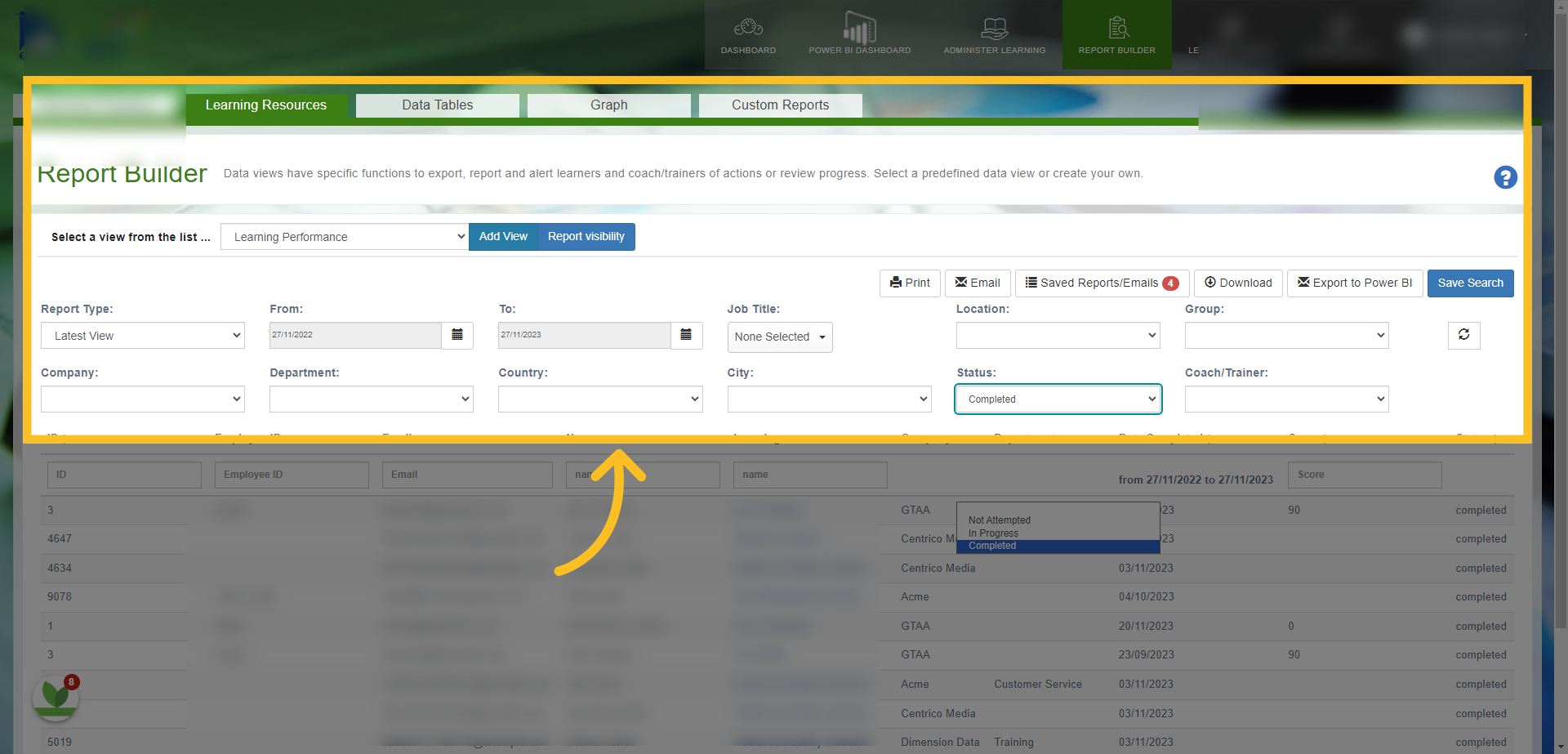
8. You can also filter by typing information by ID, Email, Name and Learning Resource.
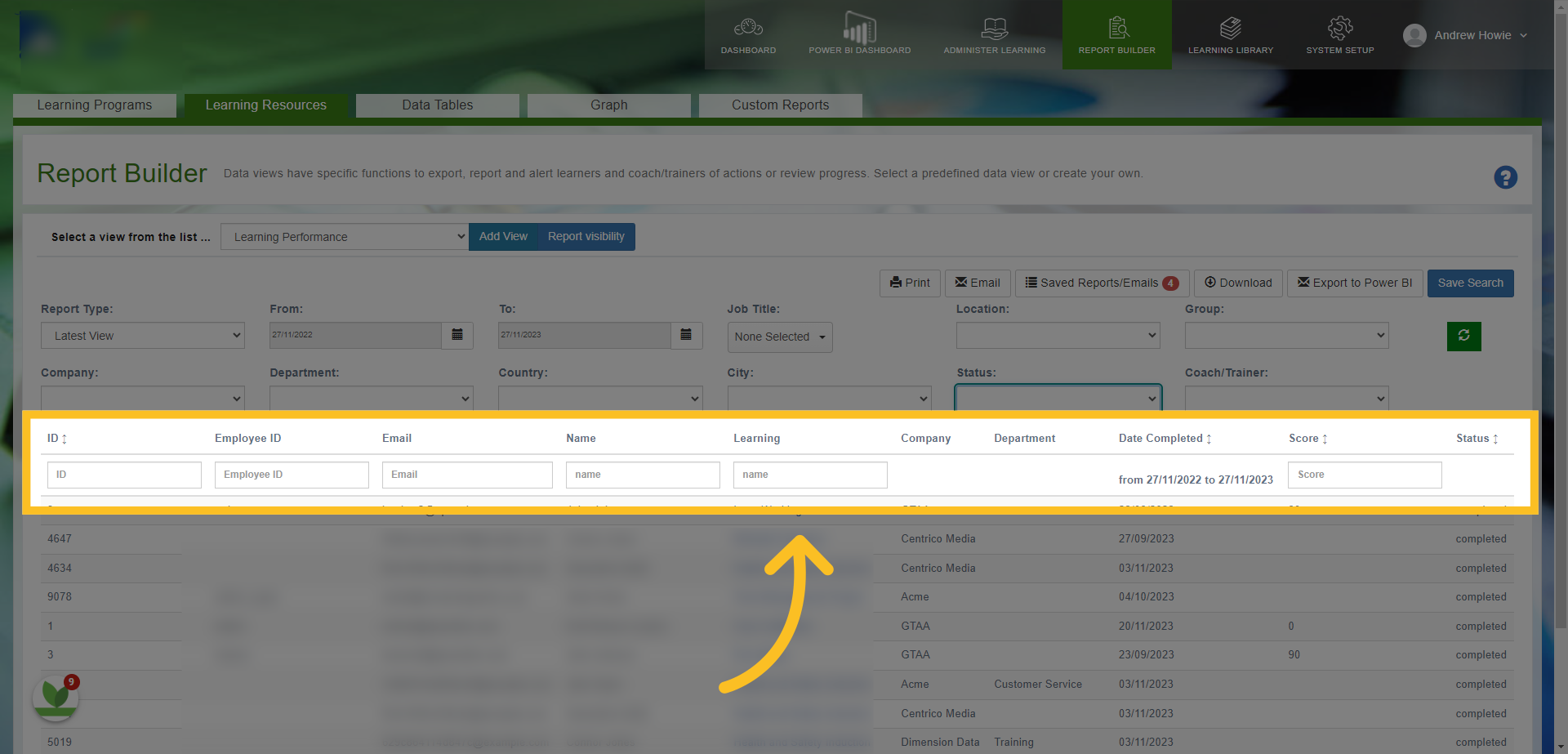
9. For example, if we type 'Health and Safety Induction' in the 'Learning' Box...
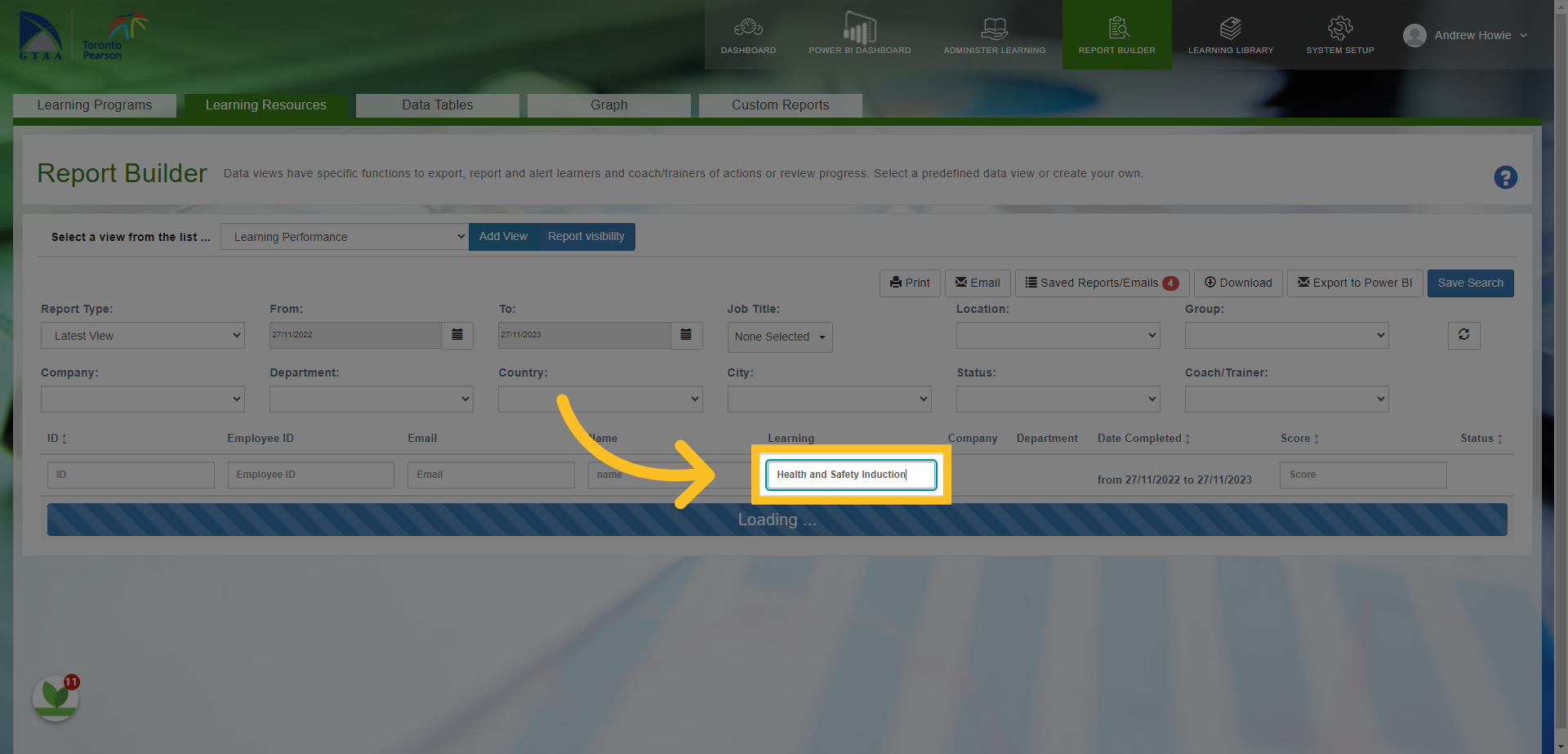
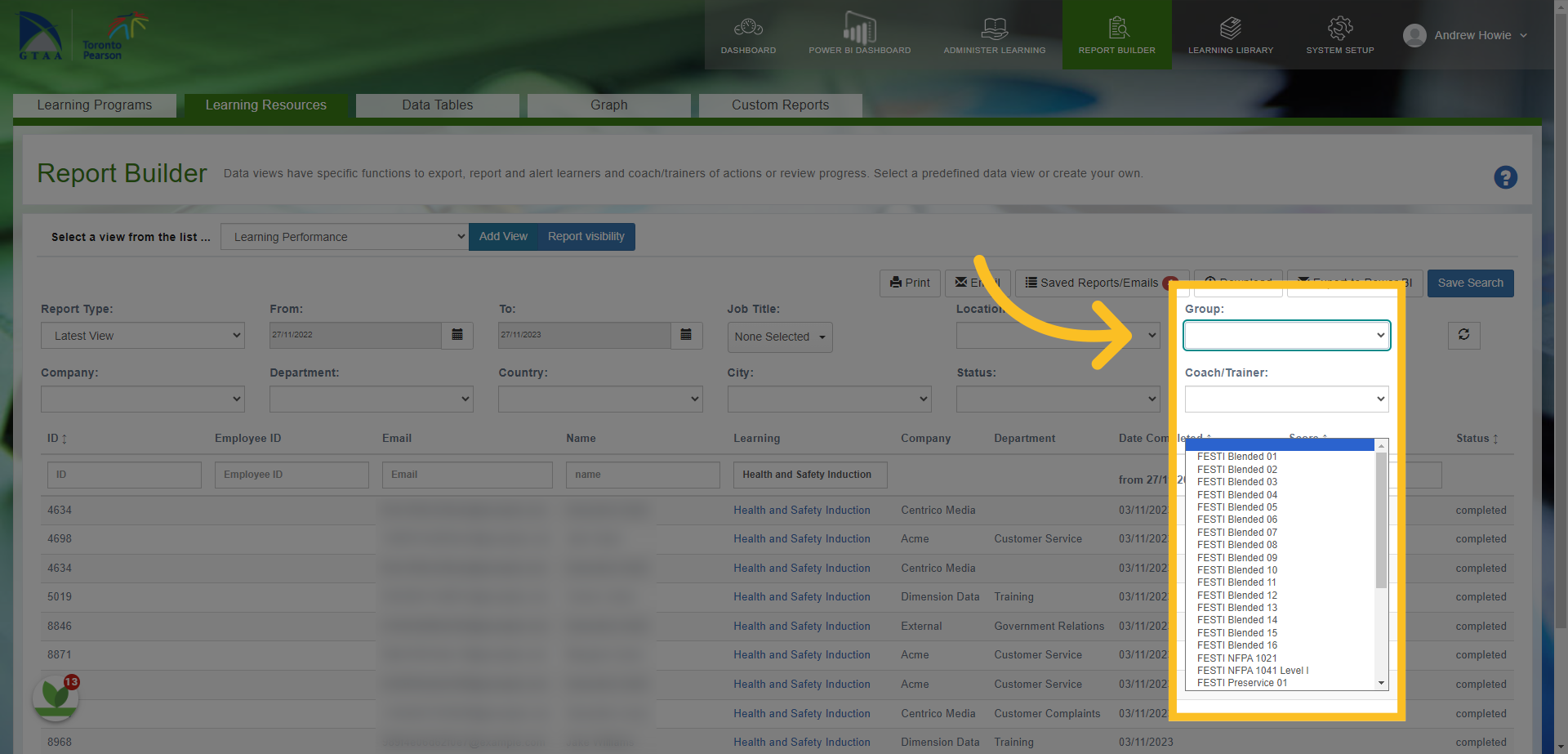
10. We could then search by Group and/or Company etc...
11. and if we change the 'Status' to 'Not Attempted'...
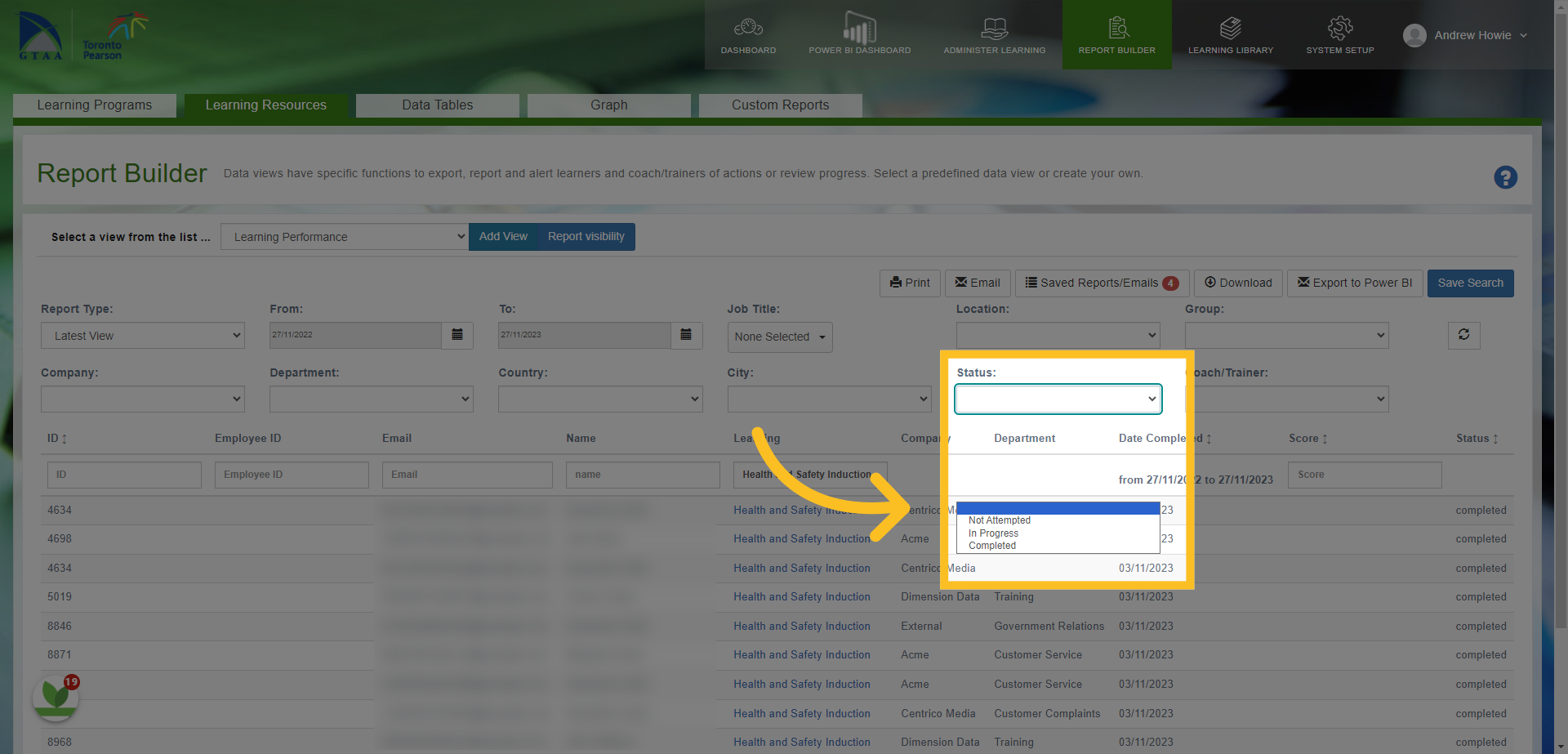
12. And then click the 'Refresh' Button here - it will filter all the results of users who have a 'Not Attempted' Status against the 'Health and Safety Induction' course.
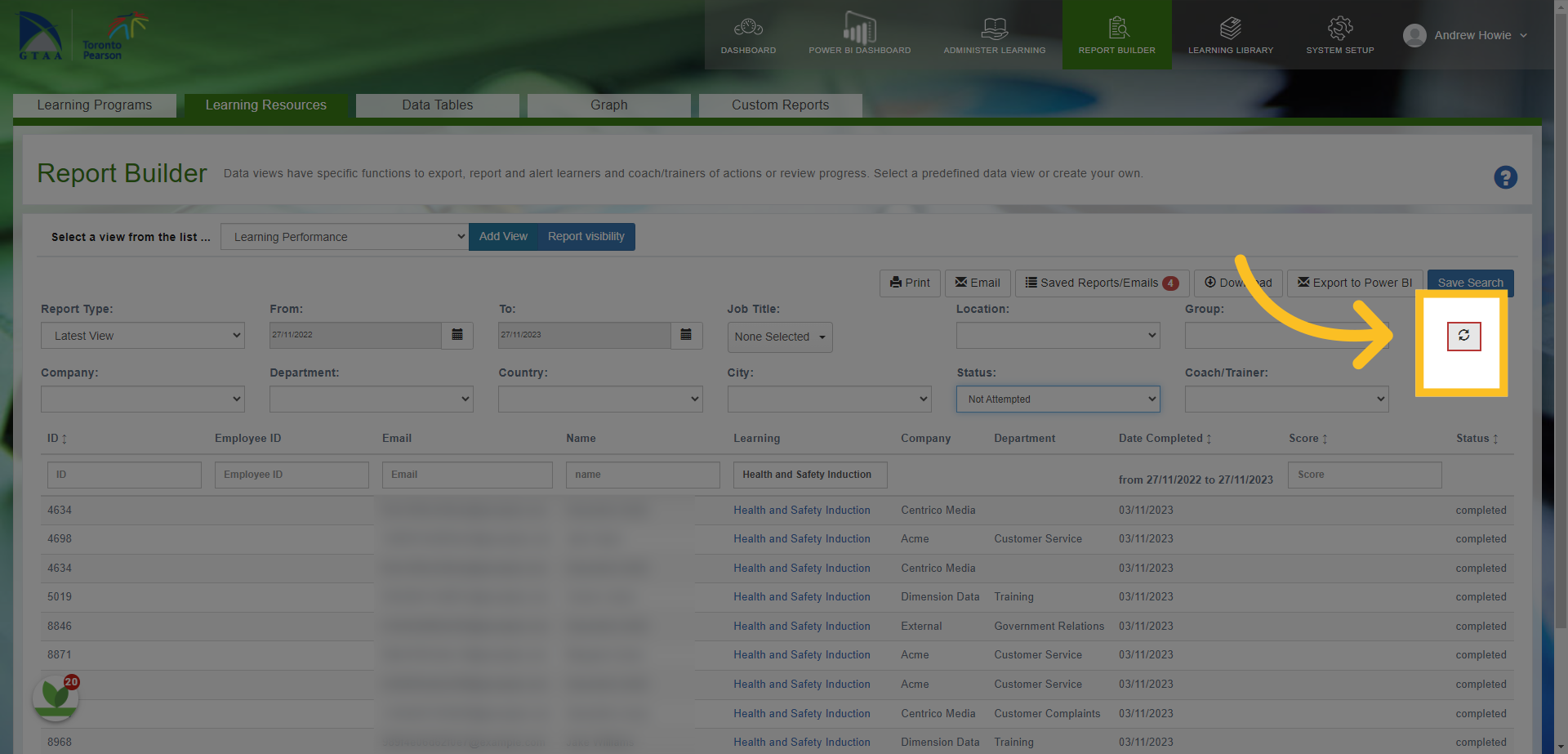
13. You can then search and filter further if required using the filters and boxes available.
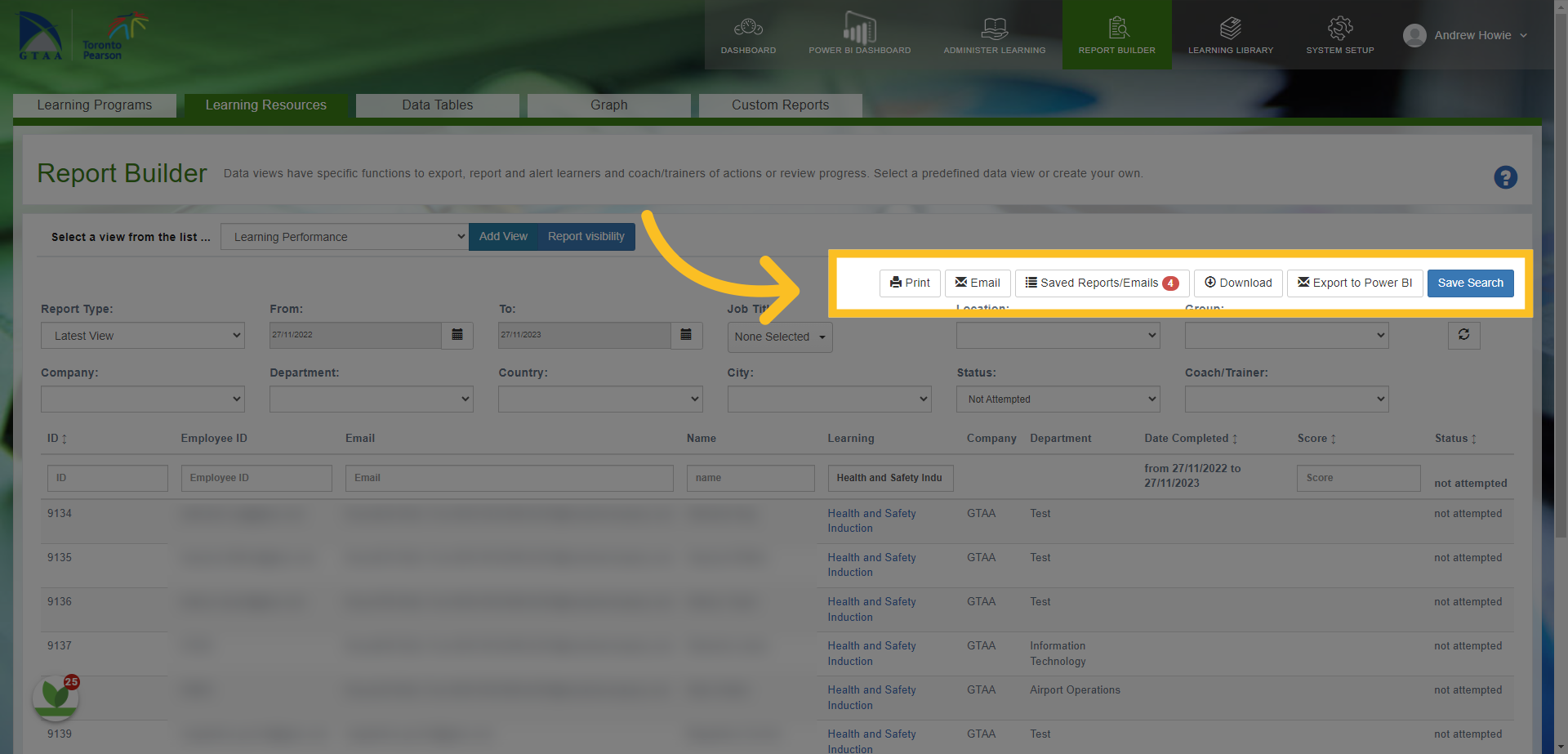
14. You can also use the features here i.e. Download the report in to an Excel Spreadsheet, Save the Search, Email users in the report (a separate guide is available for this feature) or Print (this can be used to send the report to specific managers in the system).
In this guide, you learned how to find and filter reports. You now know how to navigate through different sections, select specific reports and views, and apply filters to the data. Use these instructions to optimize and target specific information you require from the system.