Creating eLearning using Artificial Intelligence and Open eLMS AI
This article supplements the on screen directions within Open eLMS AI.
📘 Instructions
Follow these instructions to create your first eLearning course using AI.
Step 1: Describe the eLearning - the first text box is the defacto title of the eLearning. Make the title say exactly what the content will be - i.e. be literal in what you want to say don’t be cryptic (e.g. “Dinosaurs of the Jurassic Period” rather than “Monsters of the Past”).
If you are not uploading a document, then you can describe learning objectives in the second text box. This is usually a bullet point list of 5-10 learning objectives (make sure your course length is long enough to handle all objectives (e.g. In Depth will handle approximately 20 objectives, Bitesize will handle approximately 3).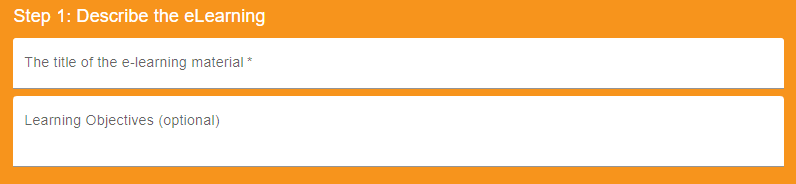
Note if you use a different language in the prompt then the eLearning will be translated into that language. You may need to change the voice in settings in properties to improve the accent - see documentation on editing the eLearning for further information.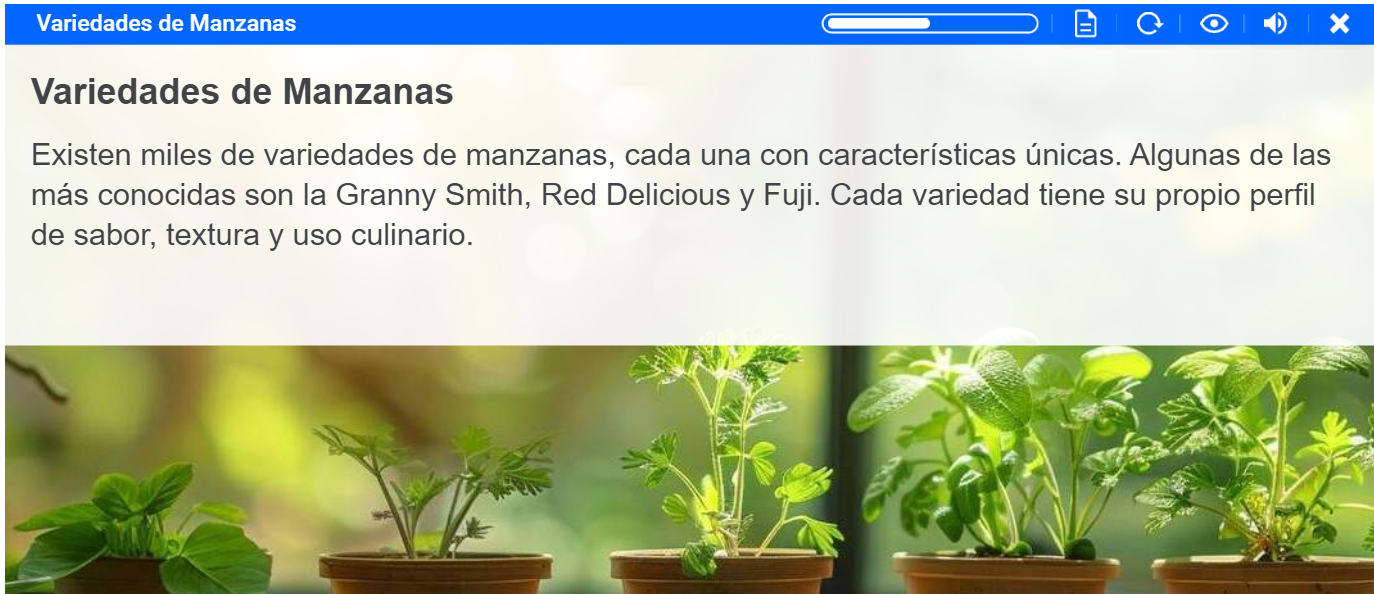
Step 2: Select Options: Here the tone and length of the eLearning is set.
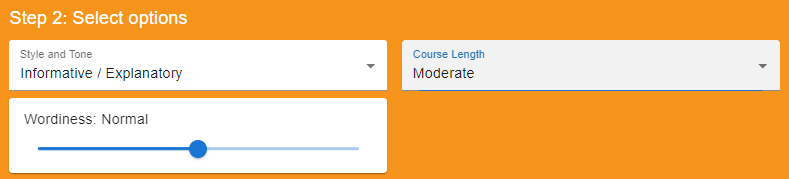
Style and Tone: This varies from Humorous to Objective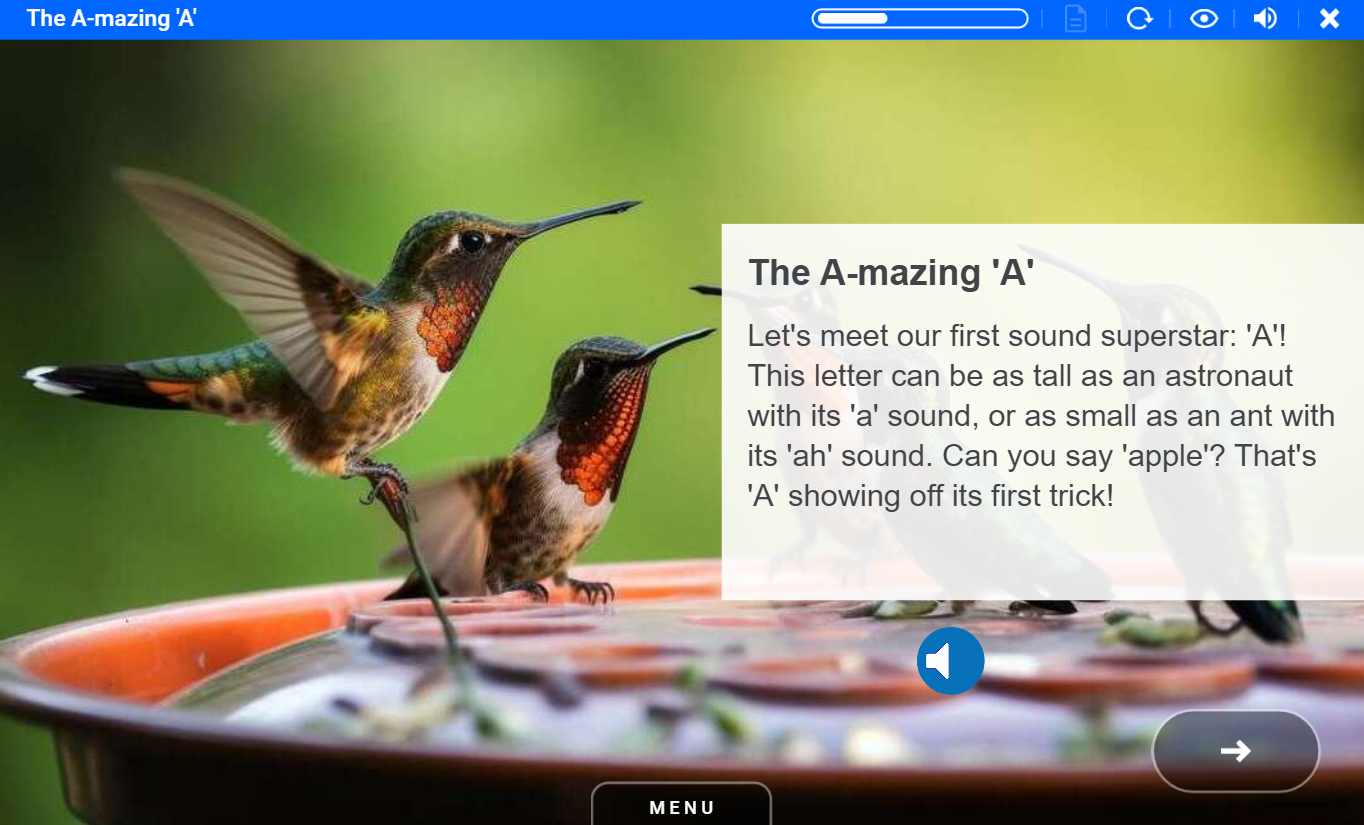
Wordiness: This is the amount of words per screen. We recommend you keep to Normal (shown below) or Concise; more words per screen than this tends to hide the visual elements and makes the eLearning production into an e-reading task rather than eLearning.
Course Length: This varies from approximately 5 to 30 topics (or 5 minutes to 2 hours), from Bitesize to In depth. Consider if you want to handle all training in one eLearning course or split it into more manageable modules. Remember Open eLMS AI courses are bookmarked, so learners can leave training and pick it up where they left off.
Step 3: Upload a document: if you want to base your training on a document (remember this is optional) then you can upload the document here. Open eLMS only understands pdf documents, but don’t worry all standard documents (Word, PowerPoint etc.) can be exported to pdf files.
The system will use the content from the document as the primary source of training content (using trained AI intelligence elsewhere to create the eLearning script). There is no need to write an eLearning script yourself (the AI will do that for you), but do make sure the information is well structured and clearly formatted (use Heading formats etc.) as this will assist the AI in understanding how the information is categorised and linked.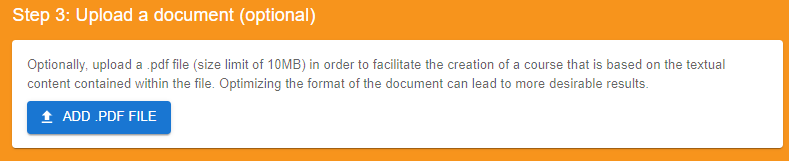
Step 4: Embellish: Select the checkbox to add a quiz or voiceover to the text. The quiz length will vary from 3 to 20 questions to reflect the complexity of the training; the questions will consist of multiple choice questions. The voice-overs are of very high quality and will reflect the text on screen. The courses can be edited after generation and the voiceover will change to reflect any such text changes.

Step 5: Generate: Pressing this button will generate the first draft of the eLearning.

Step 6: Preview to finalise design: Press the Preview button to open up the first draft of the eLearning.

This will display the eLearning draft. At this stage you can make various design decisions; you can select a new design from the right hand of the screen.
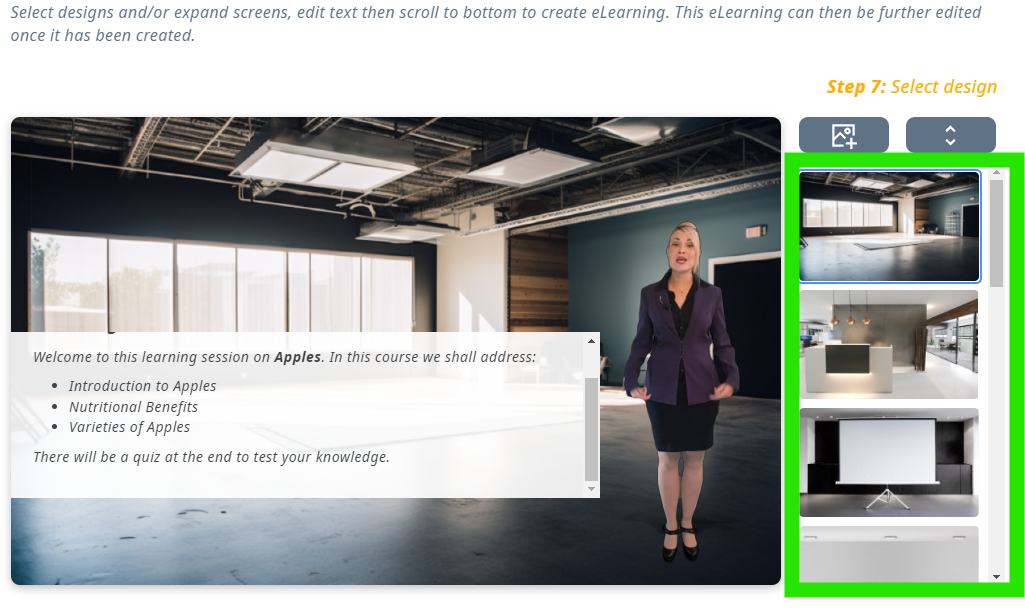
Else you can generate a new background image using AI or select from another background image used later in the course.
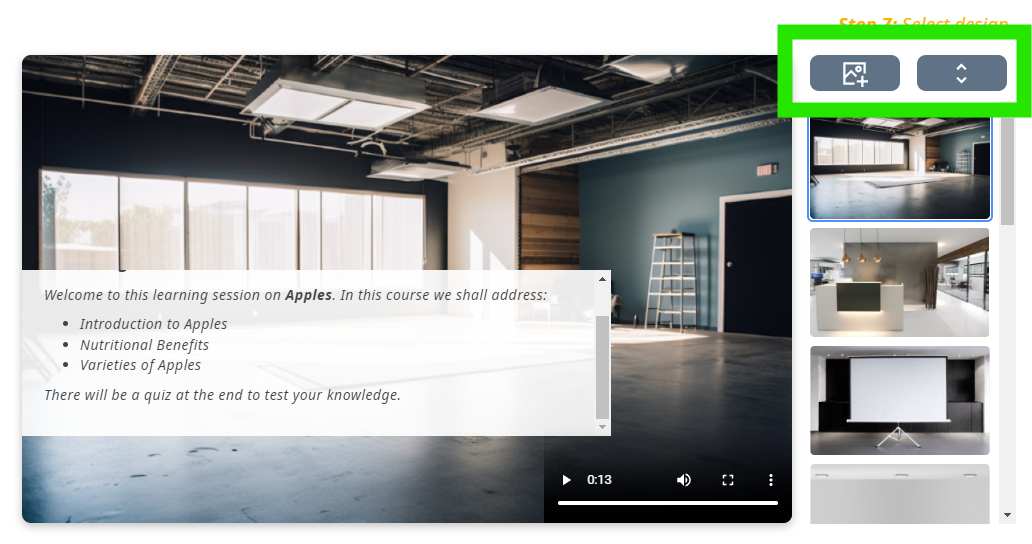
A further option available to you (apart from the Introduction and Summary screens is to expand the screen. This button will go back to the AI brain or source document and find further information to give on any given topic (the more information there is, the more expanded each screen can become.)

When you are finished reviewing the course you can press the Create eLearning button to generate the eLearning.

Final Step Edit and distribute: Open eLMS AI courses are fully customisable once generated. Select the Edit button to edit each course.

The editing process is explained in full in this video:
📋 Related articles
- Page:
- Page:
- Page:
- Page:
- Page: