Add Open eLMS AI eLearning to an Articulate Rise Course
Open eLMS AI eLearning can be imported into Articulate Rise as a block. These instructions explain how this is done.
📘 Instructions
Follow these instructions, you will need an Articulate Rise account to do this.
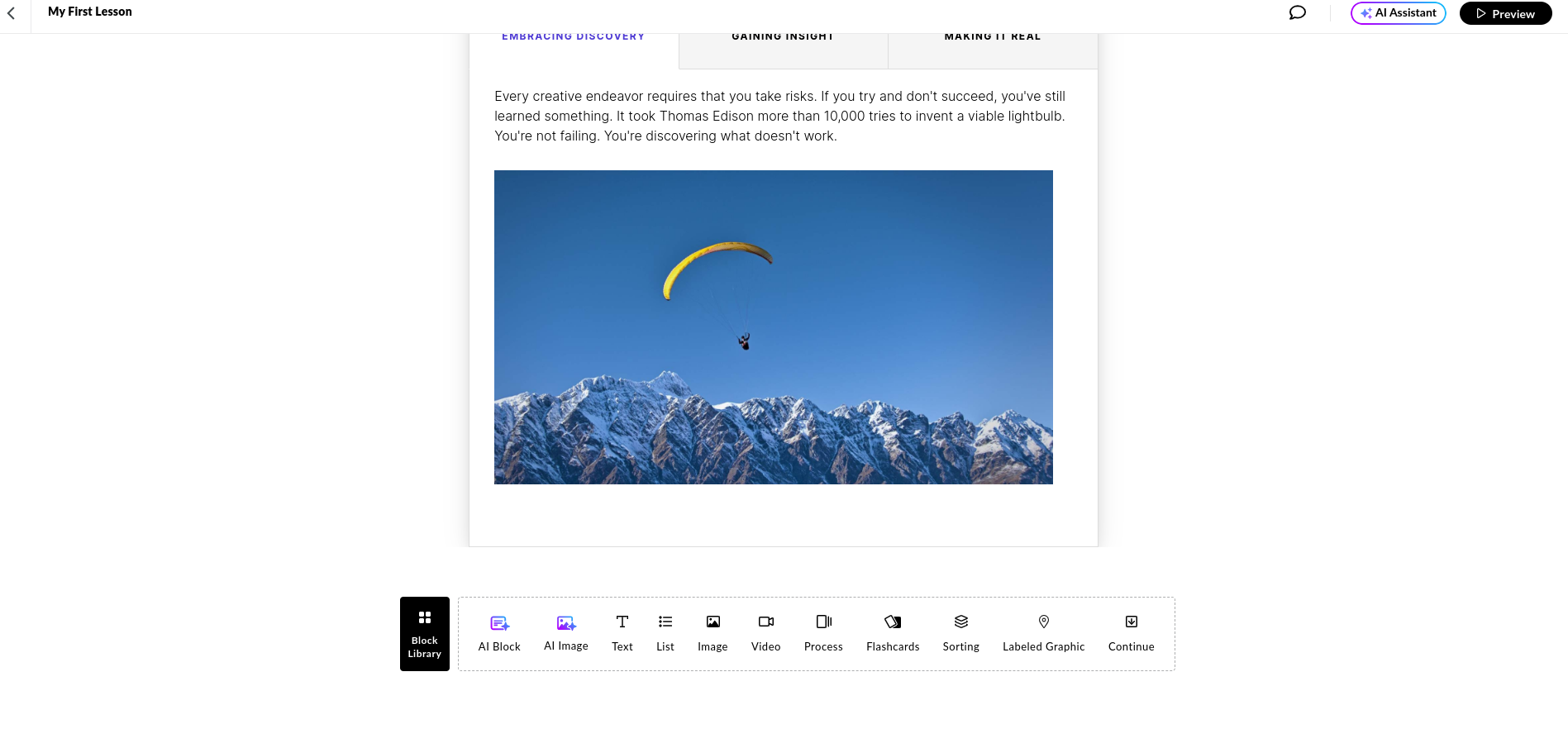
Log into Articulate Rise, open your course, navigate to where you want to add the Open eLMS AI eLearning and select the Block Library button
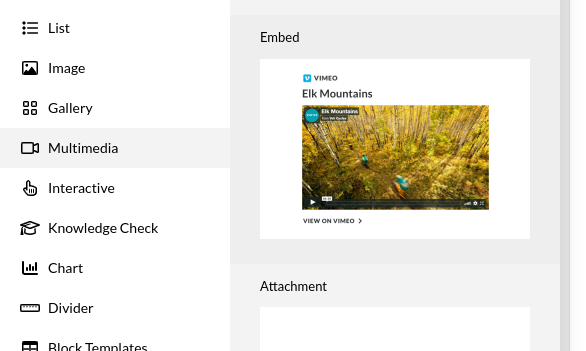
Select the Multimedia > Embed option.
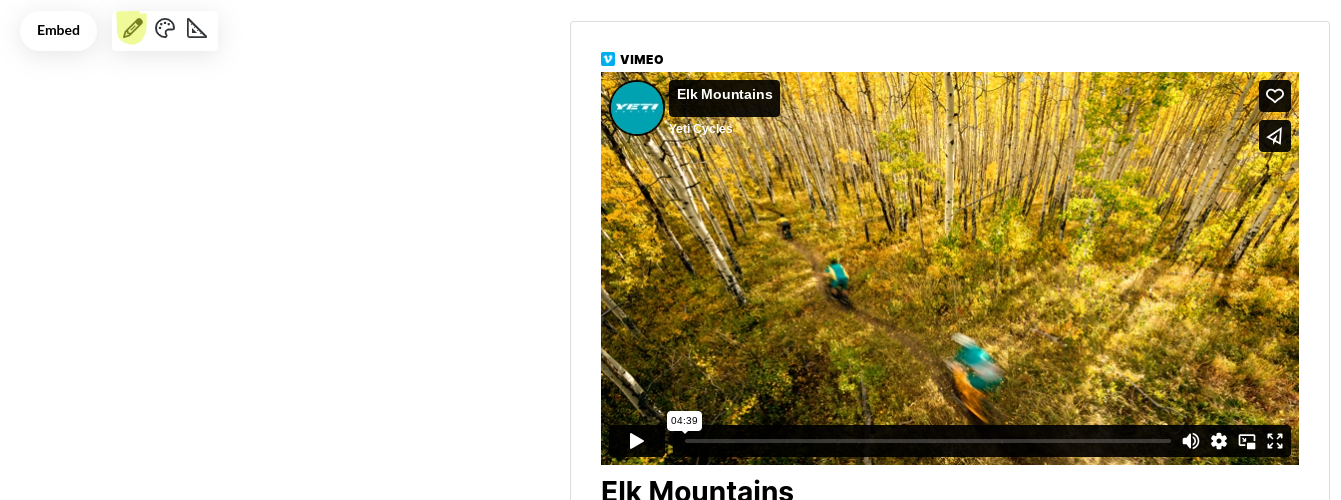
By default a Vimeo object gets loaded in. You need to edit this block using the pencil button to the left of the screen to input the Open eLMS AI eLearning.
Click on the change link to edit the code.
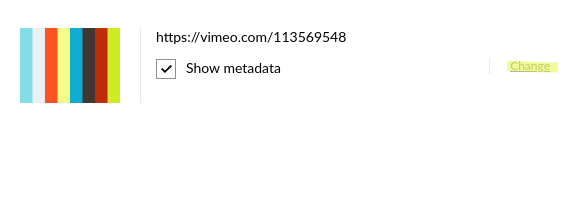
Paste the iframe code (changing the scr, copy it from Open eLMS AI to match your course.)
<iframe width="560" height="315" src="https://demo.openelms.ai/embed/e6709401b442d61.32901750/" title="Open eLMS AI eLearning" frameborder="0" allow="accelerometer; autoplay; clipboard-write; encrypted-media; gyroscope; picture-in-picture; web-share" referrerpolicy="strict-origin-when-cross-origin" allowfullscreen></iframe>
Press Enter on the keyboard and you will see the Open eLMS AI eLearning embedded into the Articulate Rise course as a new block.
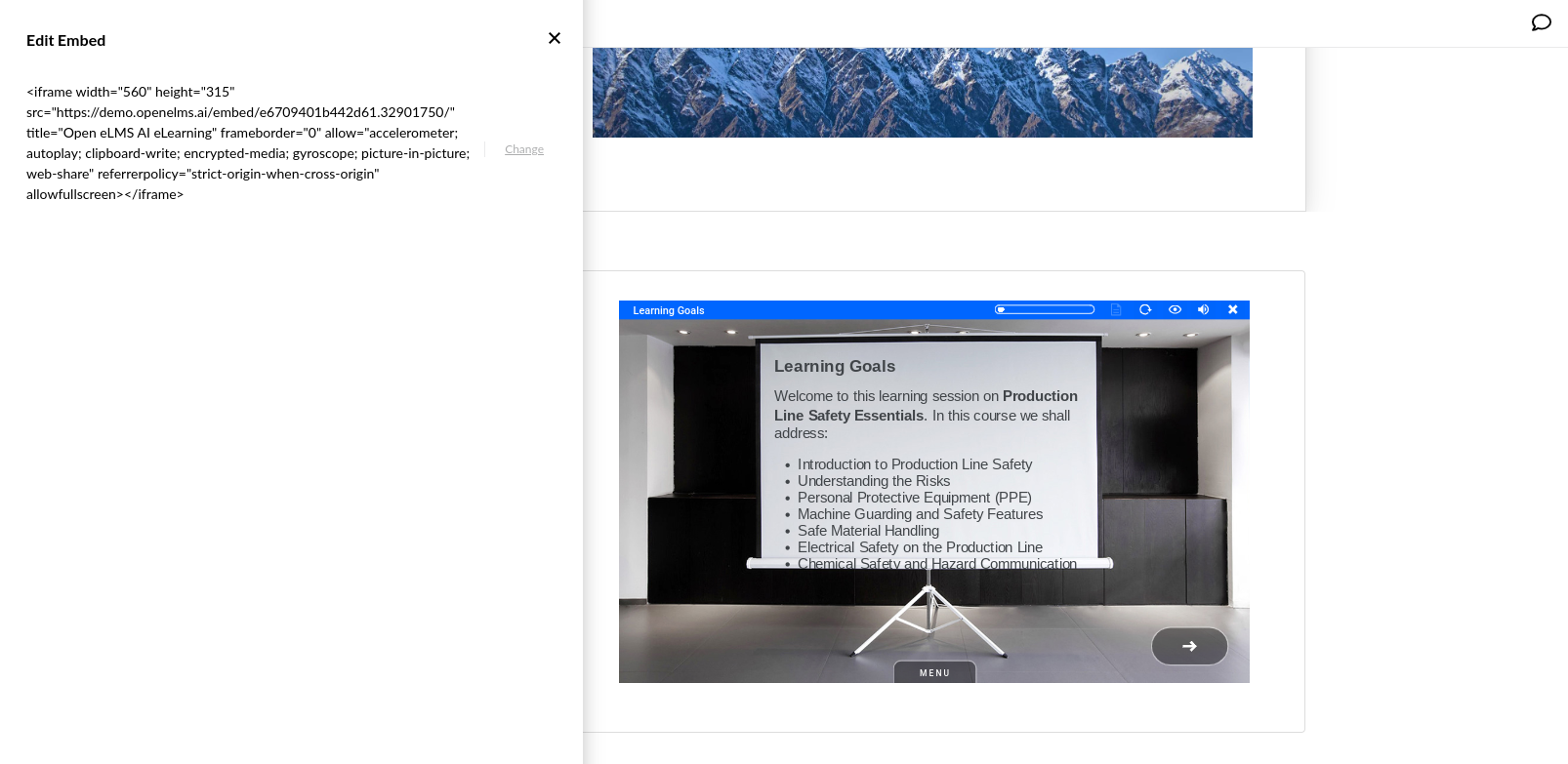
Preview the course - note Open eLMS courses are designed to work across devices so no change to the eLearning is needed to accommodate within a Rise lesson.
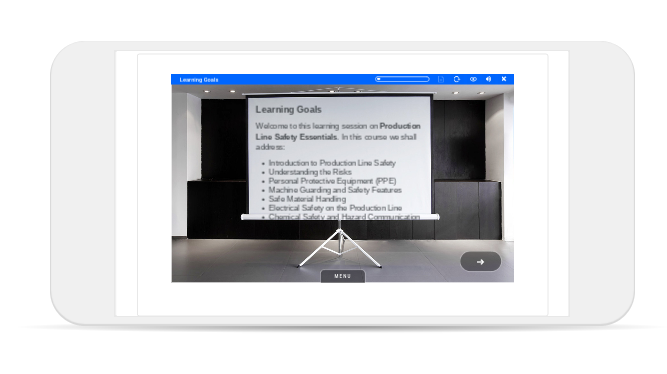
Open eLMS AI can also be exported as a stand-alone SCORM file for importing directly into a Learning Management System.
📋 Related articles
- Page:
- Page:
- Page:
- Page:
- Page: