Set up a learning event
Open eLMS allows you to set up events on learners' calendars.
This is different to adding learning resources or lesson directly to learners' via the learning library since these events are scheduled on learners' calendars - anything on a learners' timetable (i.e. time dependent) should occur hear.
These events can be lessons (either in a classroom or online - or both!) or can be reviews or meetings with the learner(s). Attendance on these is recorded on the learners portfolios, along with a copy of the event resources and a video recording where appropriate.
Instructions
Learning events are key to implementing a true blended learning experience.
Log in as a Manager/Trainer/Tutor etc. and click on Events in the main dashboard. You will see the calendar below which you can add events to.
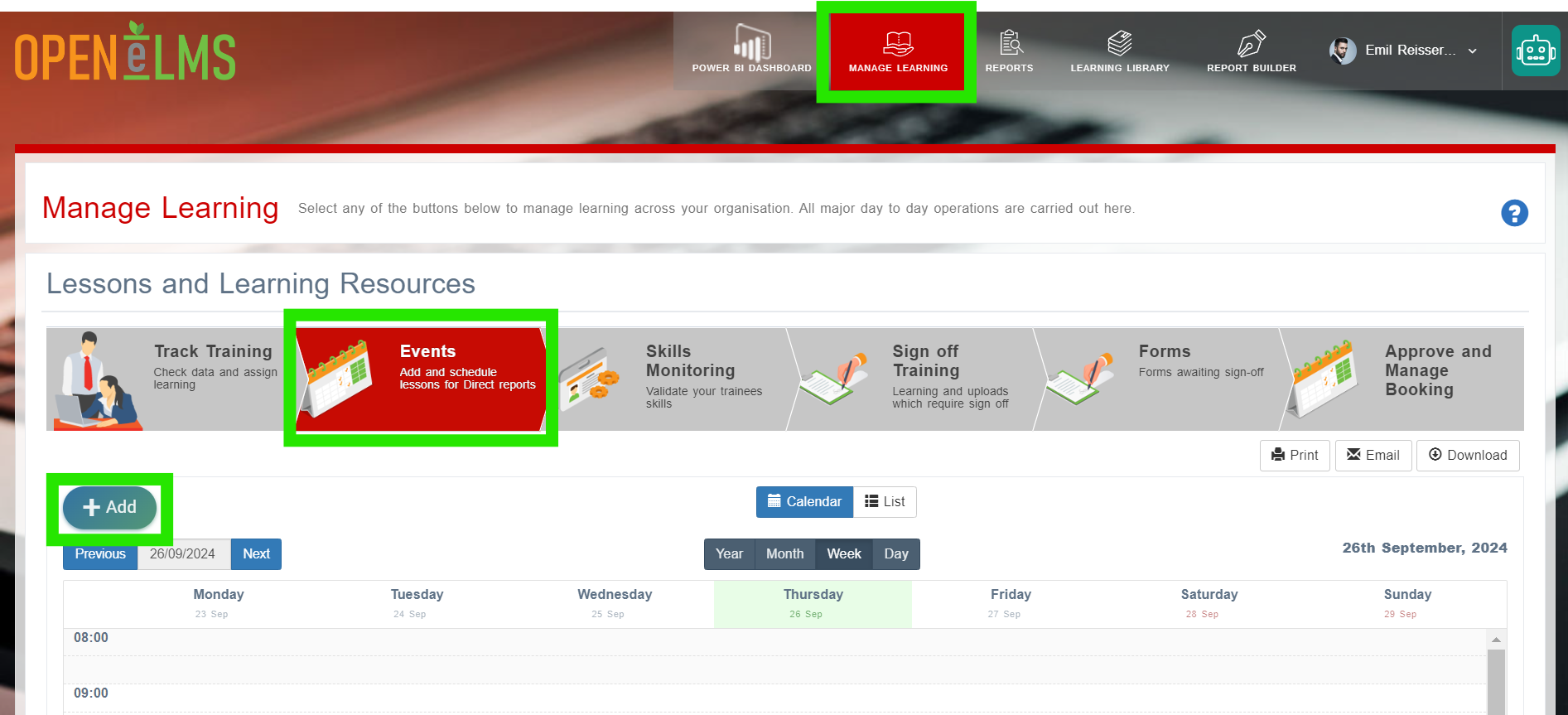
Select the [+Add] button.
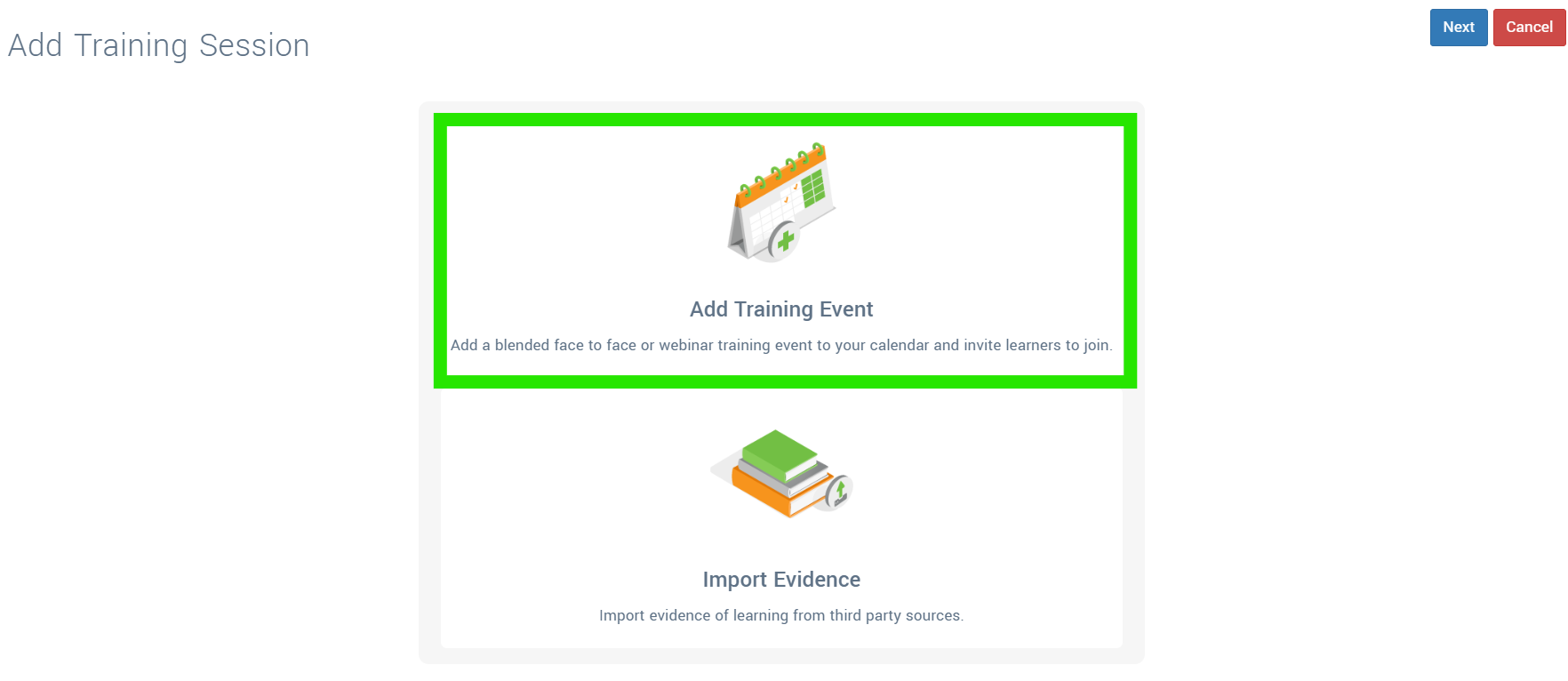
Select Add Training Event.
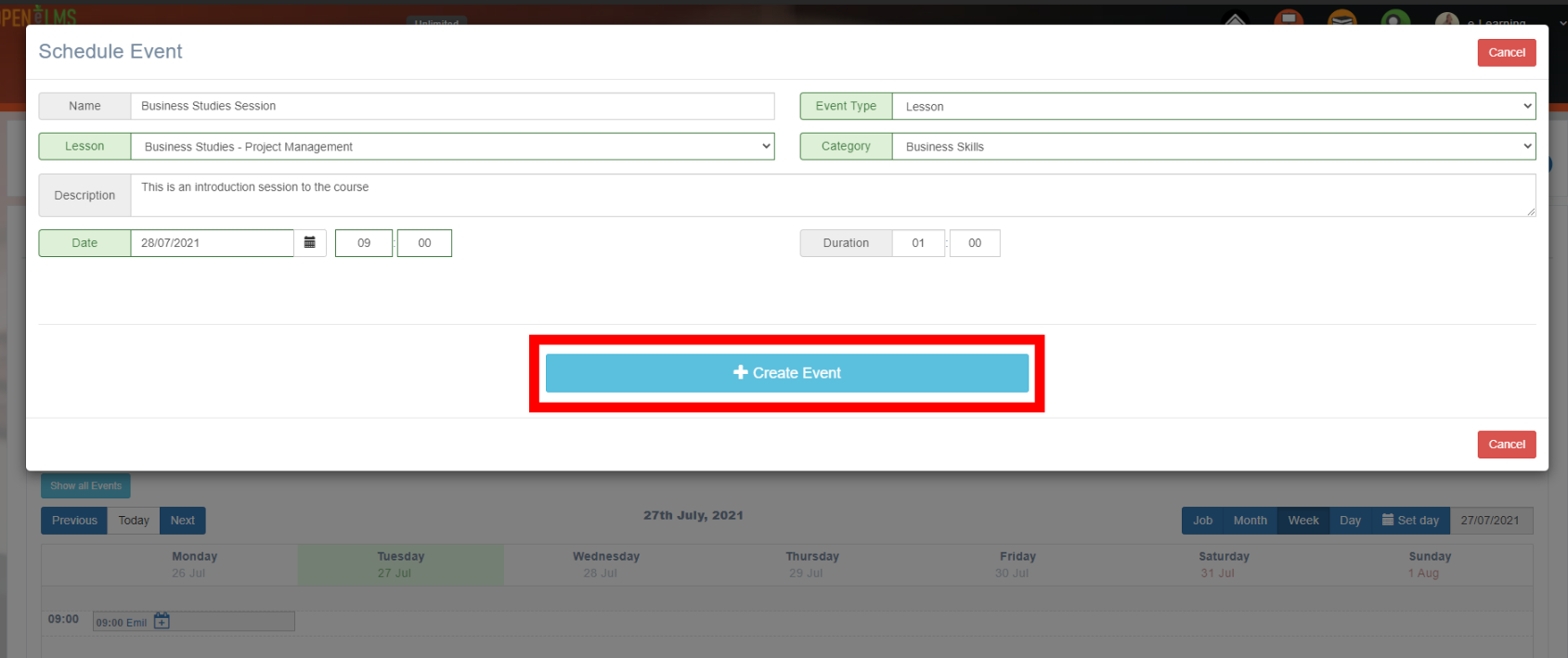
Select Define the training and then press [+ Create Event]. From Lesson you can create lessons that have been defined as templates for use in events - this allows you to create lessons for easy blending of Learning Resources into the event.
This will allow you to then add Learning Resources, widgets, video webinars and people to the event.

These are added at the bottom of the lesson.
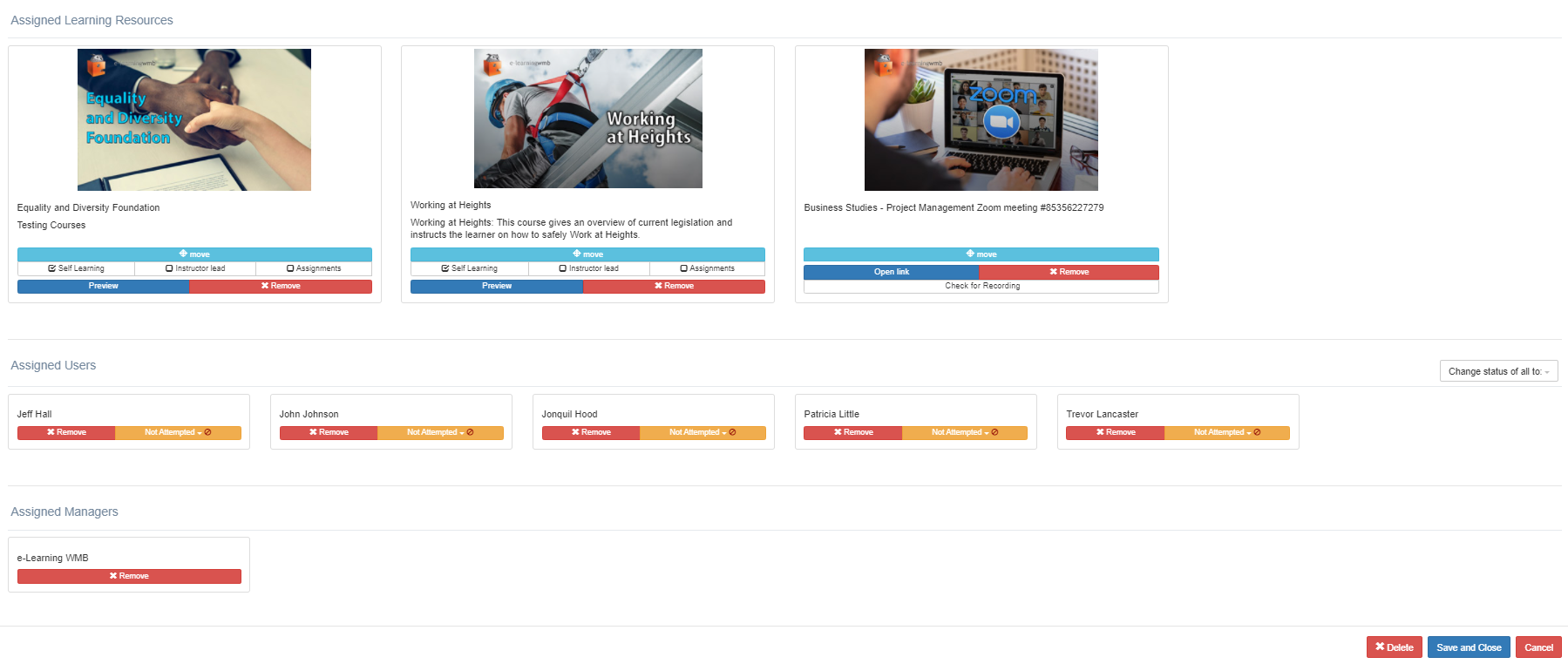
Press [Save and Close] and wait 5 minutes for the lesson to be processed.
Locate the lesson on the schedule and open it again. If you have added Zoom or Teams video to the session you will be able to run the lesson from this interface by pressing the [Launch Lesson] button. You should see something like below - follow the instructions on screen to run the lesson online or as a blended session in the classroom on screen.
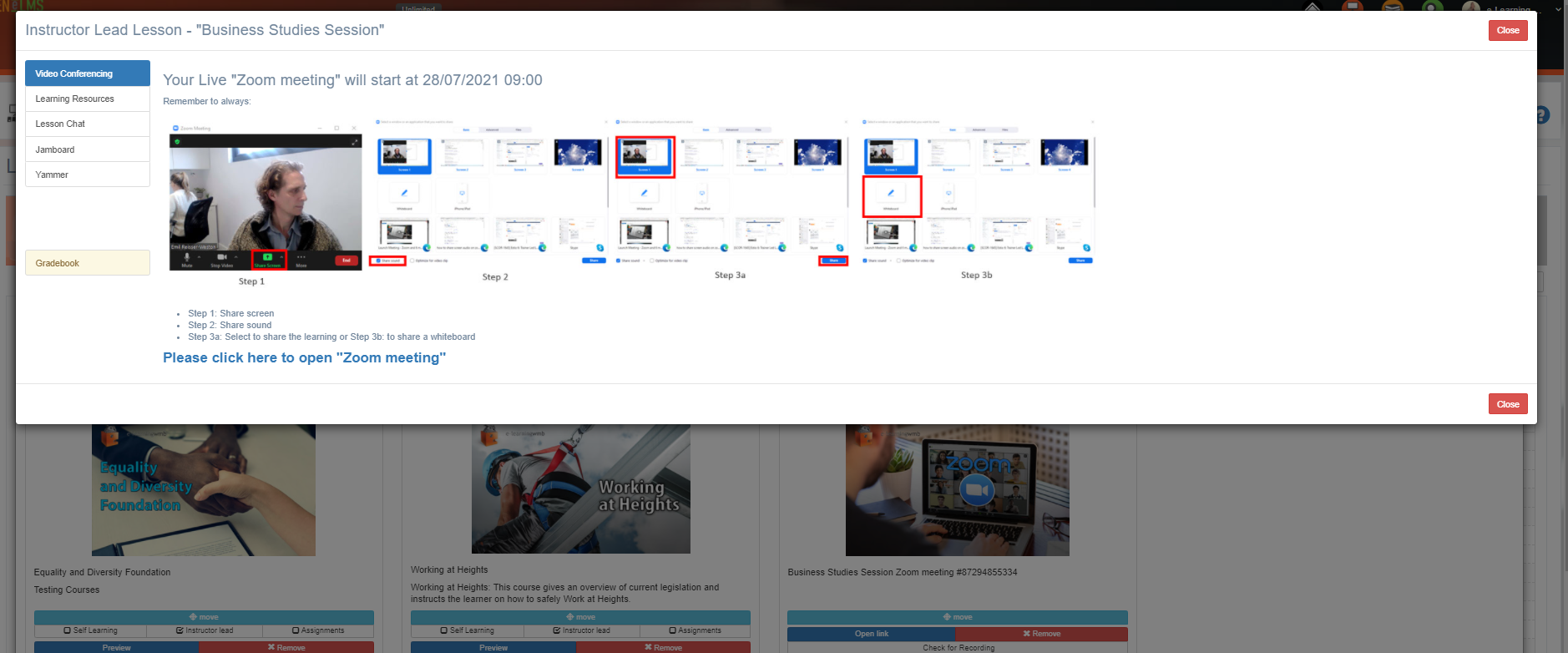
Widgets such as Yammer and Jamboard can be added via configuration settings (see Change Configuration Options).
Related articles
- Page:
- Page:
- Page:
- Page:
- Page: