Import Legacy Data
Often data will need to be imported from legacy systems. To do this we need to import the data and match the old learning to the new. This is partly a manual process since there is no way of automating the decision making process which decides which new course matches the content of the old.
📘 Instructions
Follow these step-by-step instructions …
Log in as an Administrator and navigate to System Setup > Learning > Learning Resource Maintenance (the labels can change with different versions but navigate to the equivalent page.)

Scroll to the bottom of the page and select the Import Legacy Course Data +Import option.
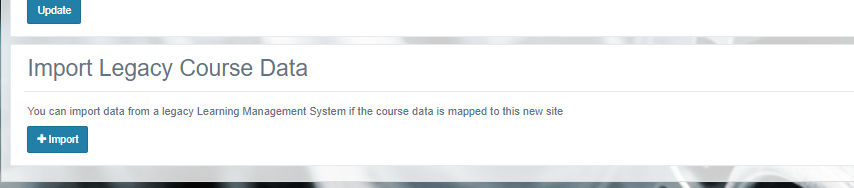
Download the spreadsheet and populate it following the instructions. Note that there are two tabs. The second tab is not used directly, rather this is a ‘look up’ table which is used to match the exact name of your course imports with the course IDs in Open eLMS.
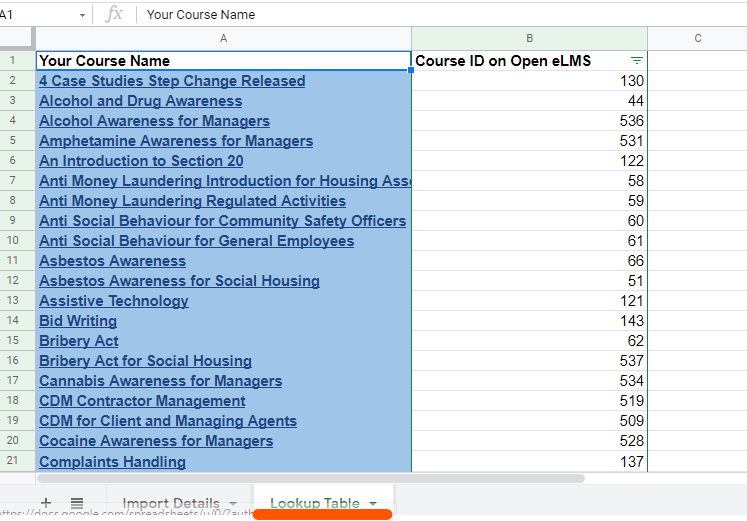
This list is populated with courses in Open eLMS Catalogue by default. If you are use the catalogue then edit the values in column A to match the legacy course title you want to match any existing course to. You can also enter new courses in the system that you have created with the matching course IDs in the system. Remember Column A are the names used in your old system and Column B are your IDs in Open eLMS.
You can find course IDs in the learning Library as shown.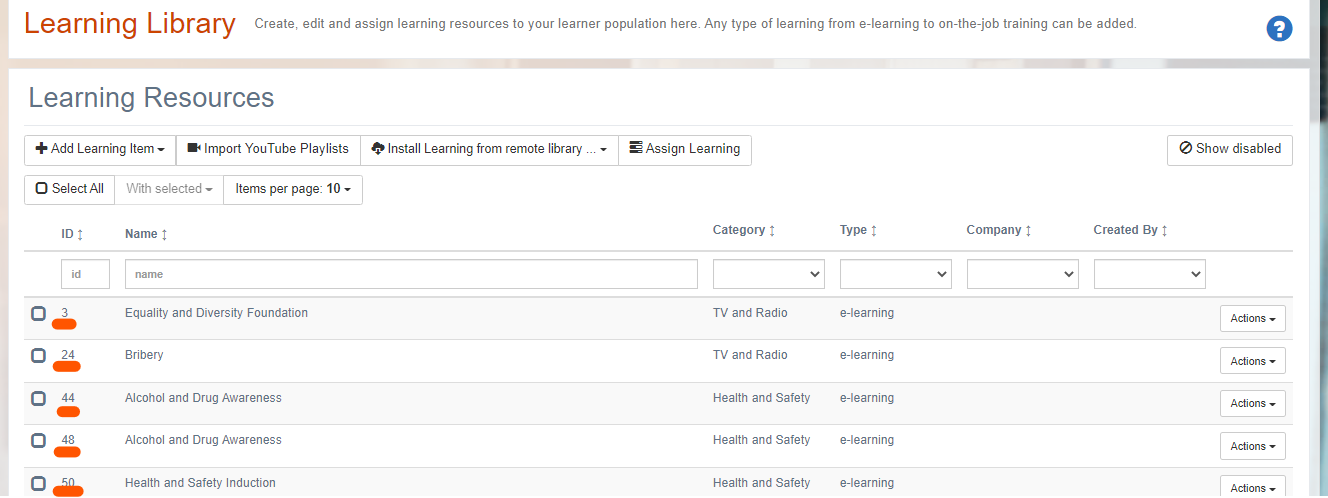
You can use the look up table to populate the first tab or as a reference tool.
Once the look up table is complete then populate the Import Details tab. To do this highlight cell C2 and input
=LOOKUP(B2,'Lookup Table'!A:A,'Lookup Table'!B:B)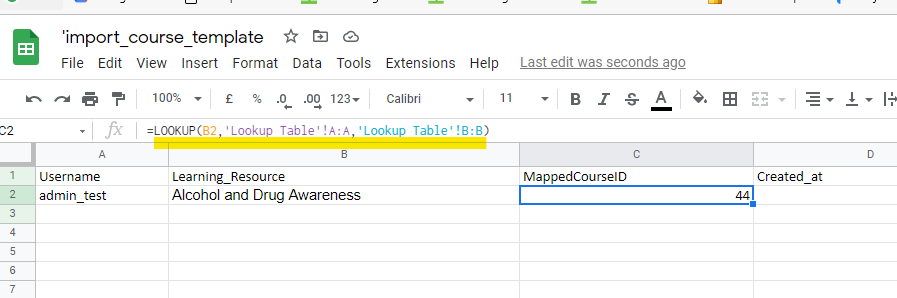
Then copy and paste C2 throughout column C so that C3 equals
=LOOKUP(B3,'Lookup Table'!A:A,'Lookup Table'!B:B)etc.Now populate the other columns with data from the legacy system (remember that Column B should hold all legacy course names.)

Columns D and E should hold data as DD/MM/YYYY, status is either Completed, Not Started or In Progress and scores are a percentage from 0 to 100.
Upload the file when completed and Save and Close to import the data. Try a test import first to make sure you are on the right track.

Highlight important information in a panel like this one. To edit this panel's color or style, select one of the options in the menu.
📋 Related articles
- Page:
- Page:
- Page:
- Page:
- Page: