Add buttons to a screen using the Open eLMS AI Editor
eLearning can have buttons added to each screen using the button tool on the toolbar.
📘 Instructions
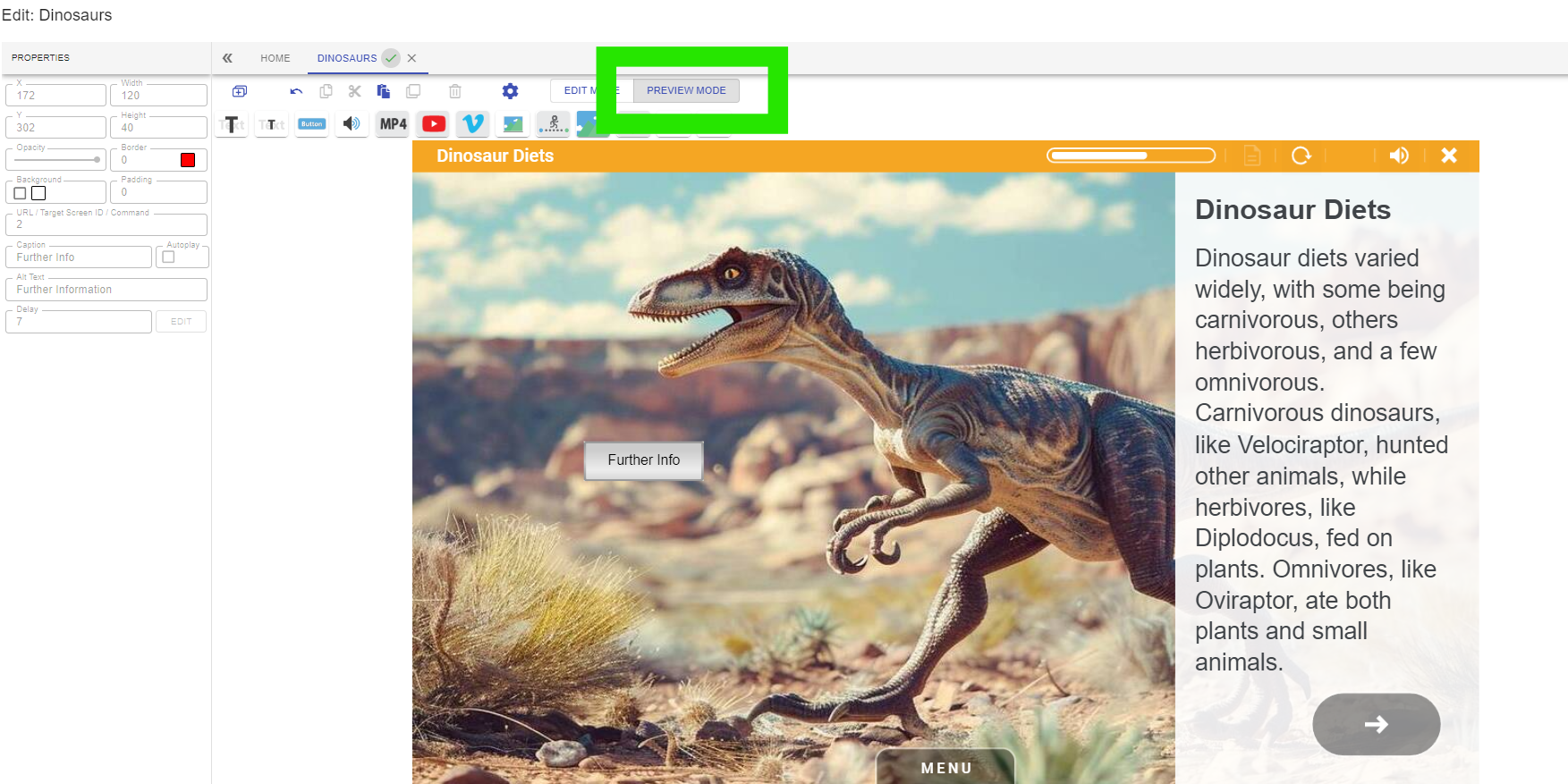
Follow these steps to add a button to the screen.
Select the button on the toolbar.
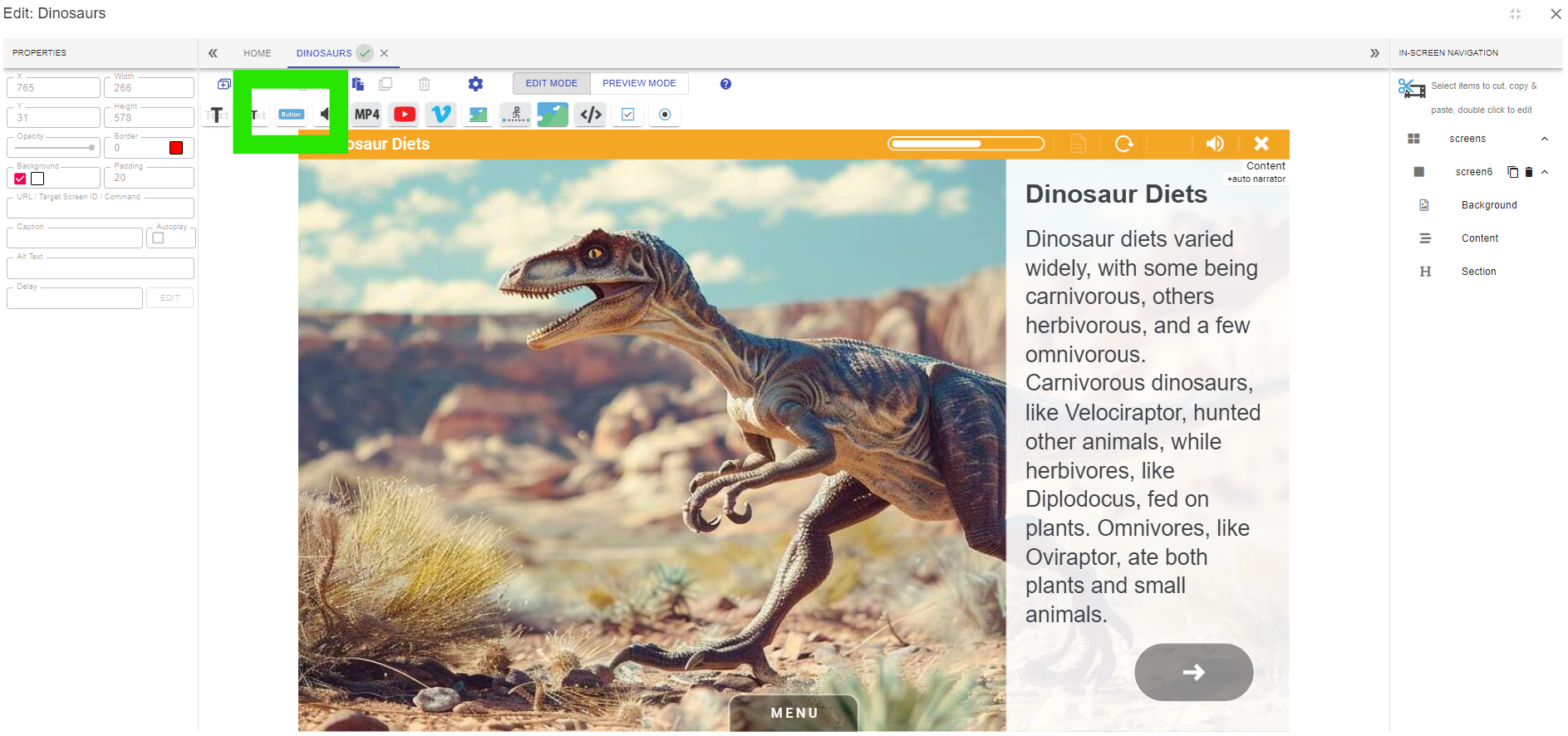
Move the button to the desired location.

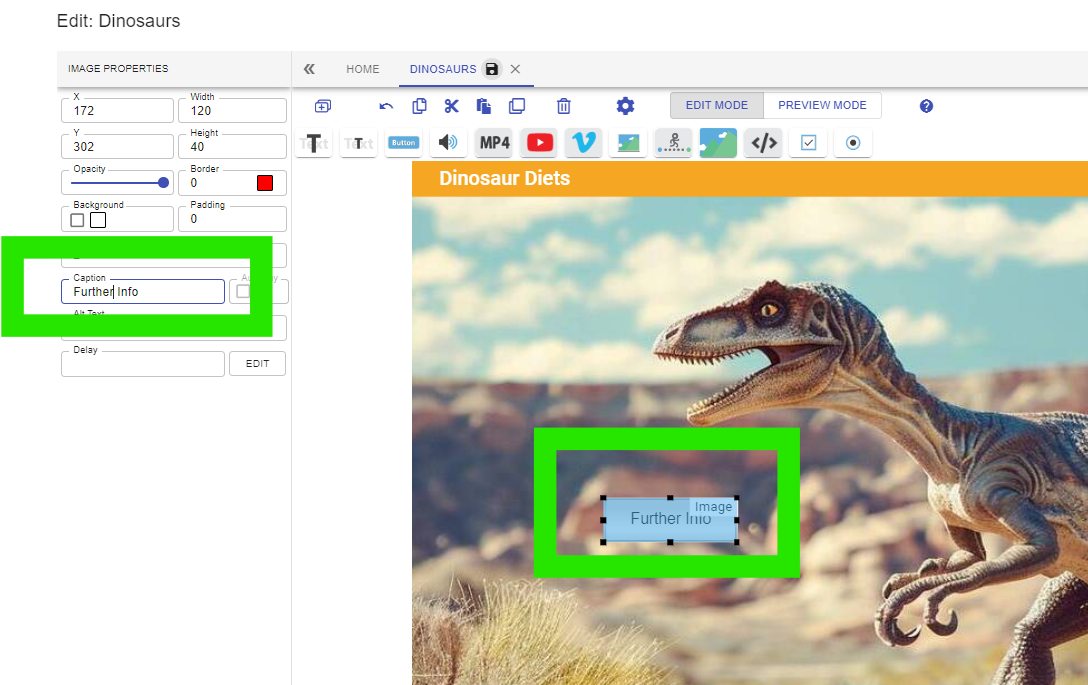
Change the caption.
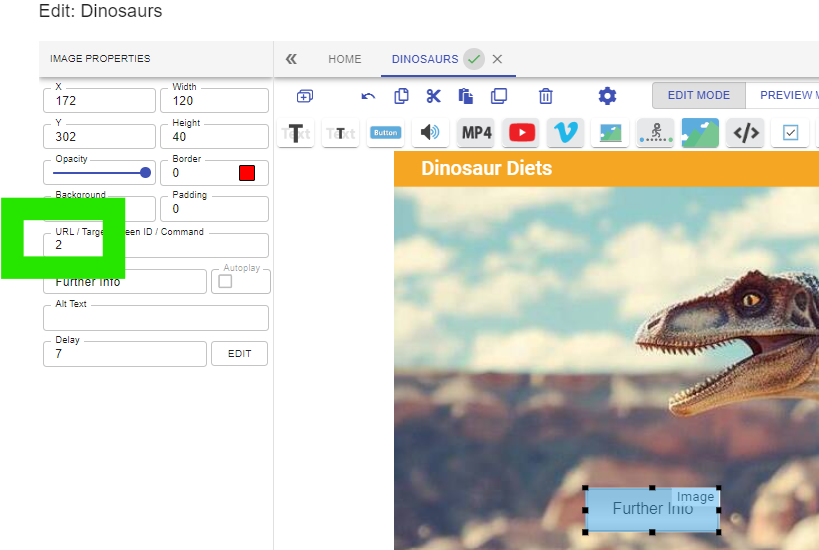
Add a URL, target screen ID (in this case pressing the button will take the user to screen ID 2.) or a Command ('next', 'prev' or 'skip').
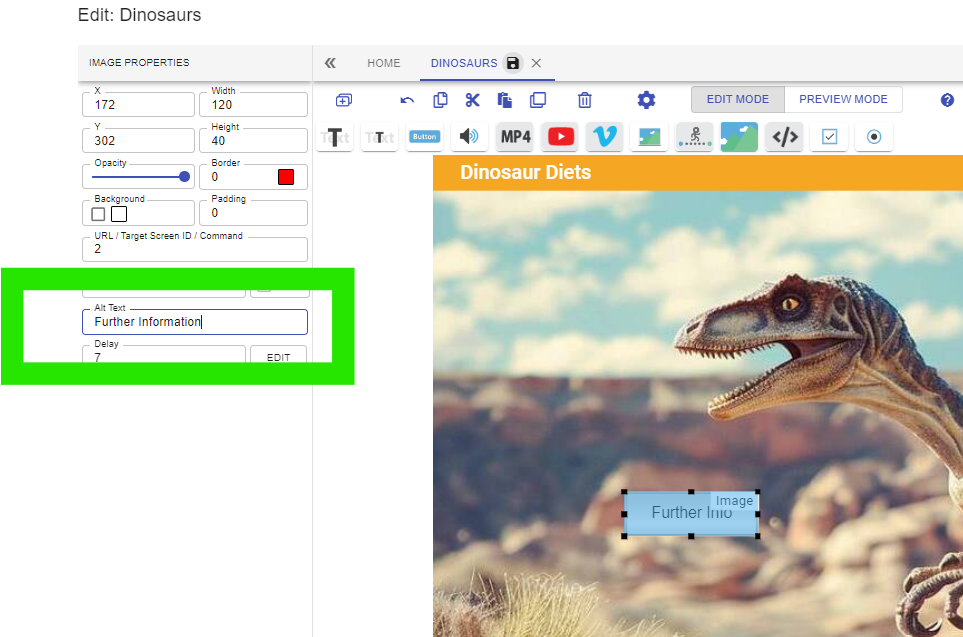
Add alt text to the button so it is visible to screen readers.
Switch to preview mode to test the button.
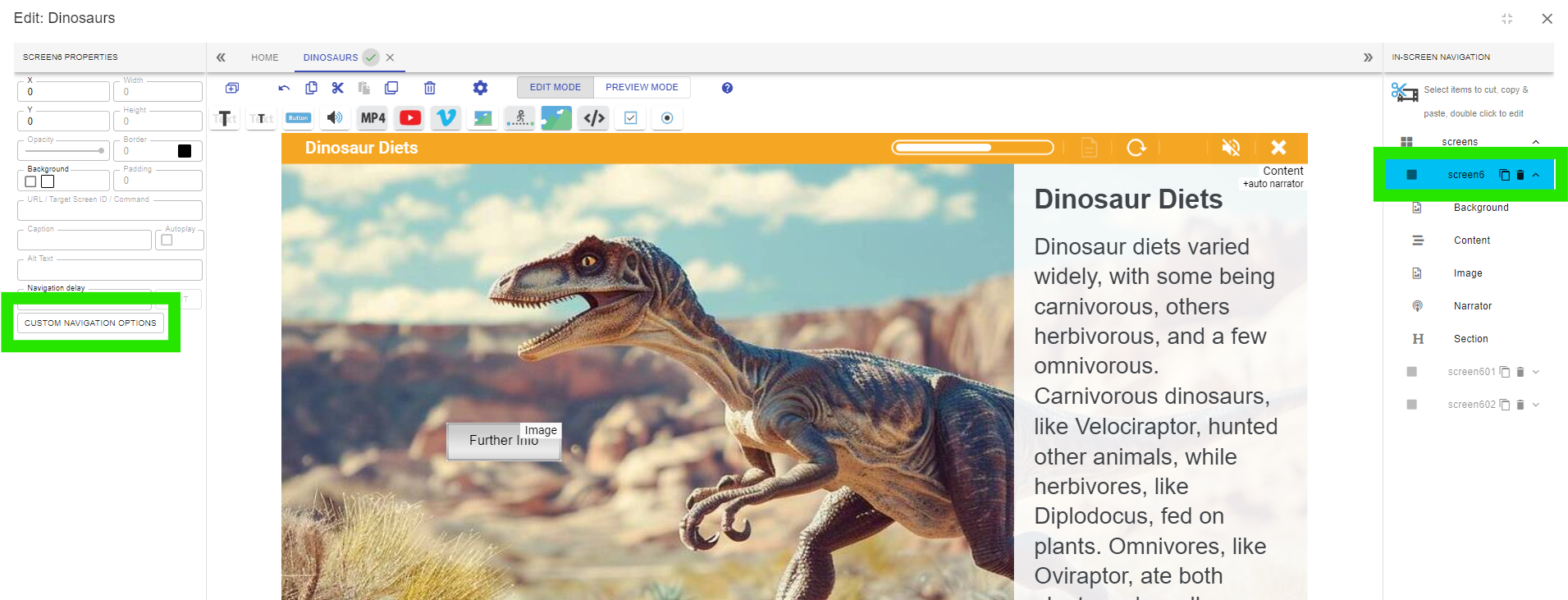
Adding Commands: If we go to the IN-SCREEN NAVIGATION panel we can see a button called CUSTOM NAVIGATION OPTIONS has appeared.
In this form we can replace the standard Next Button format with an alternative format.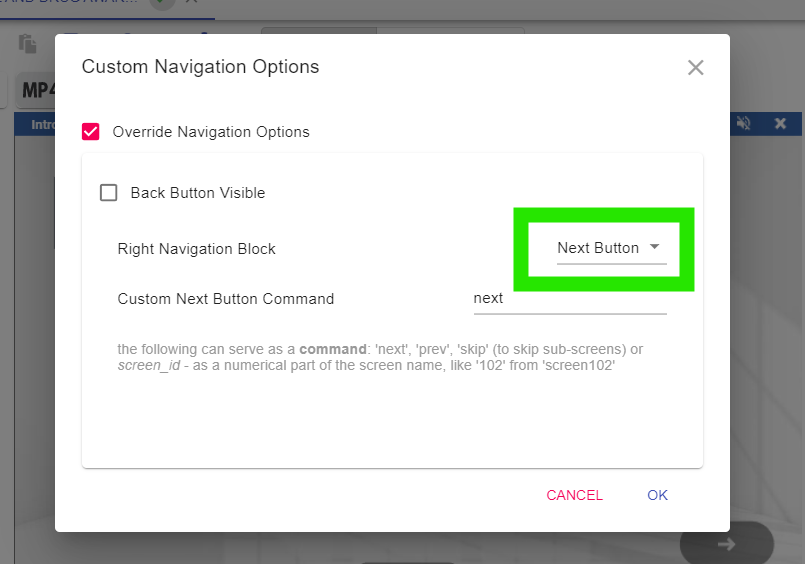
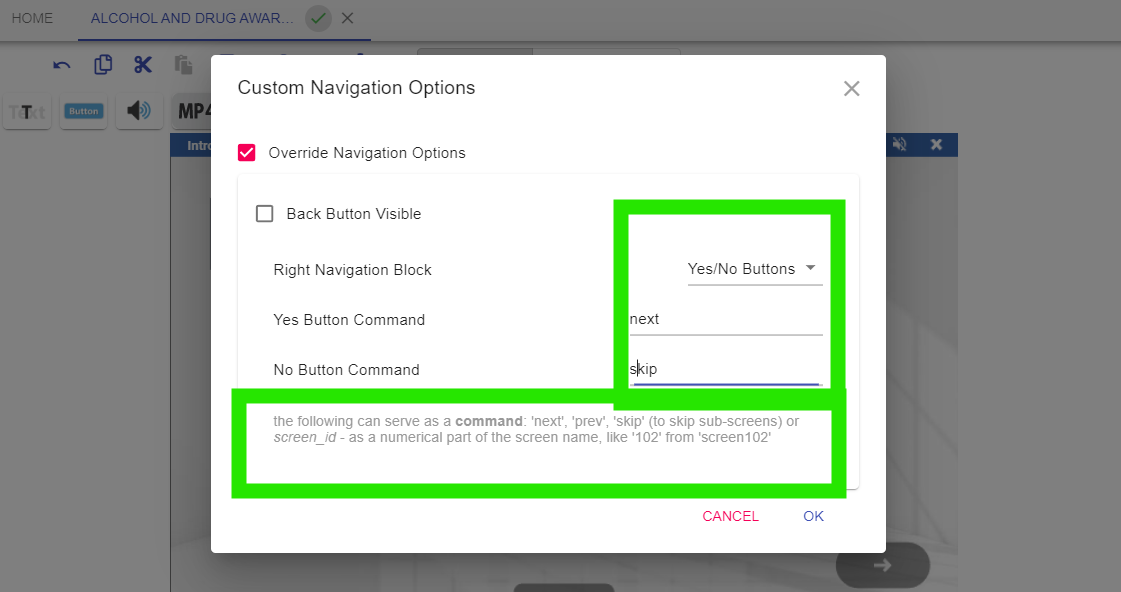
Here we have changed the format to a Yes/No button. You can see here we have used the documented command to skip the next screen if the No button is selected.
Here the resultant eLearning has been changed.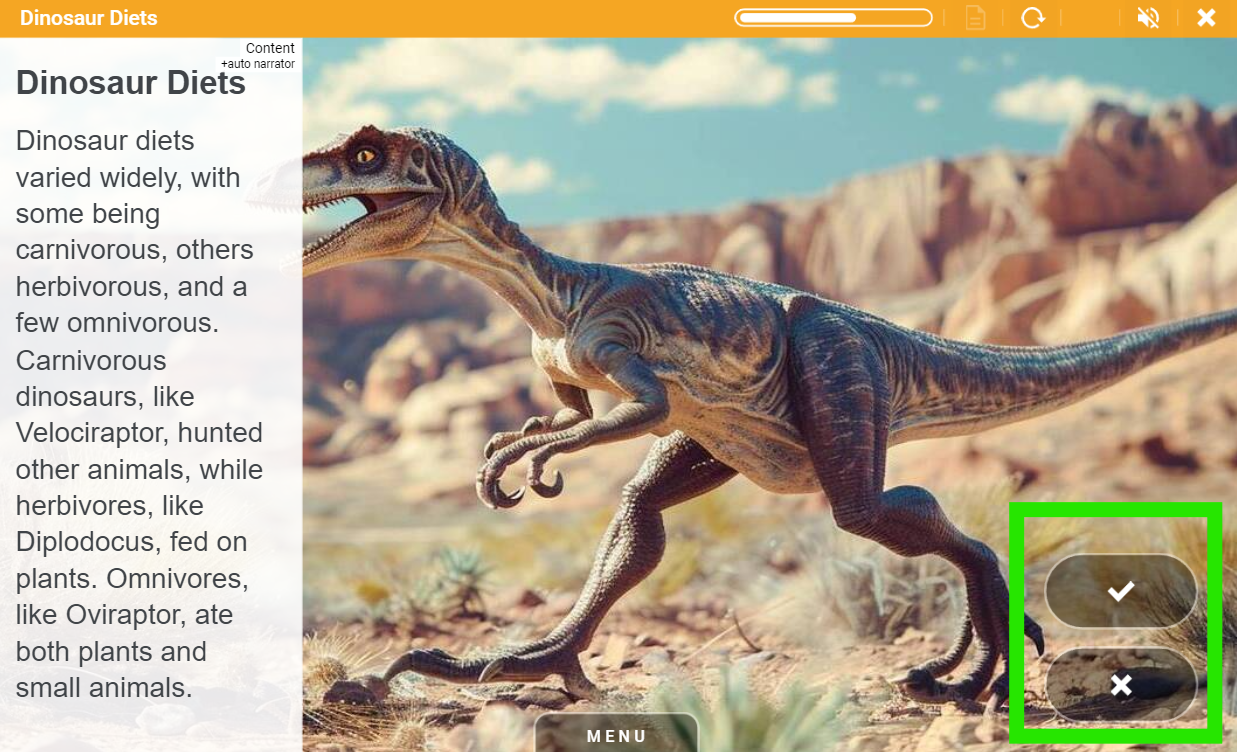
Target IDs can be used to create branching learning with more than one button on the same screen; pressing each button will take the learner on a different learning pathway.
📋 Related articles
- Page:
- Page:
- Page:
- Page:
- Page: