Add delays to presenting media in Open eLMS AI
Media can be made to appear after a set delay. This can be used to add imagery at the right time to coincide with narration or just space out the appearance of images on screen over time.
📘 Instructions
Follow this example to see how we can use delays.
Here we have three fires on the screen, we want them to appear one after another with a 2 second gap in between.
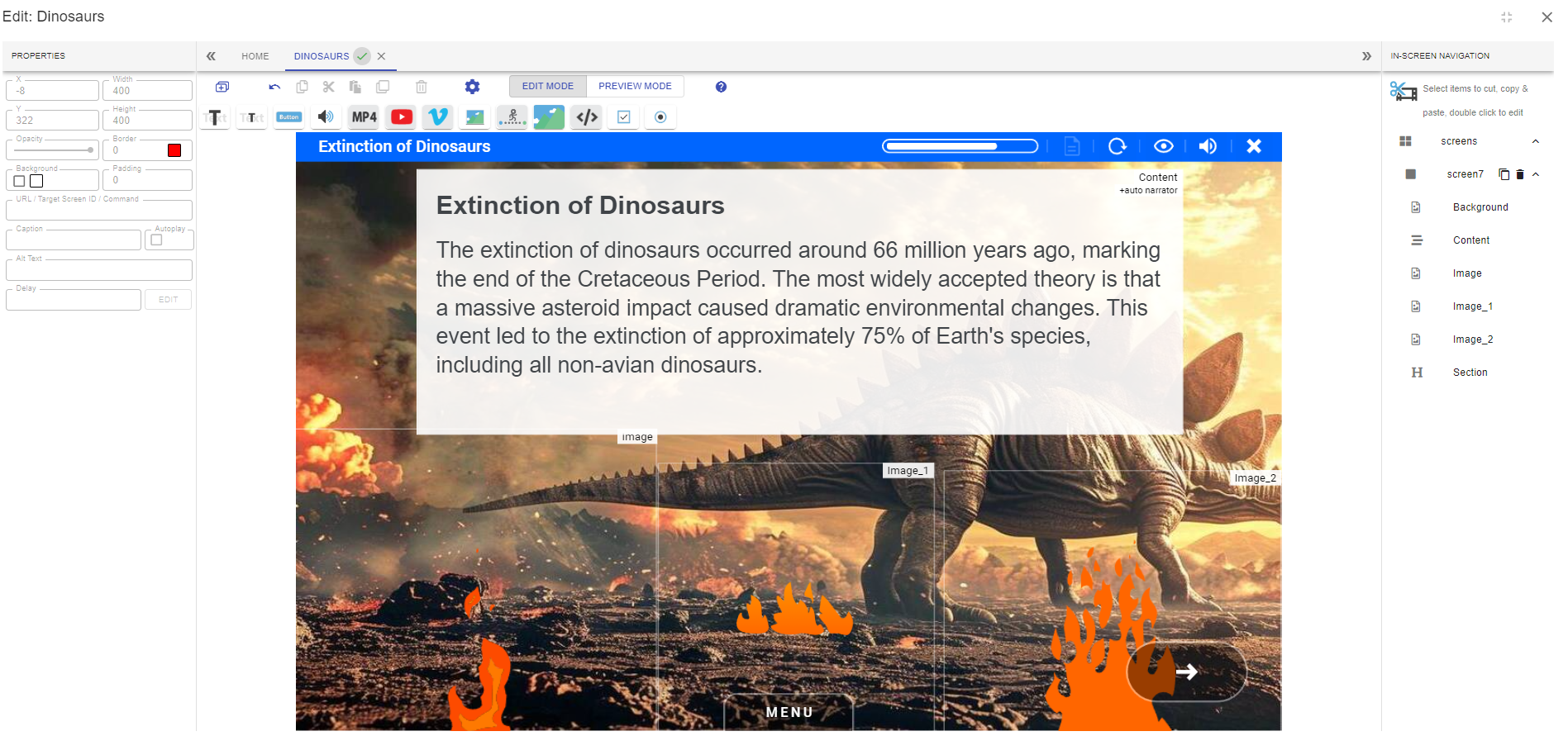
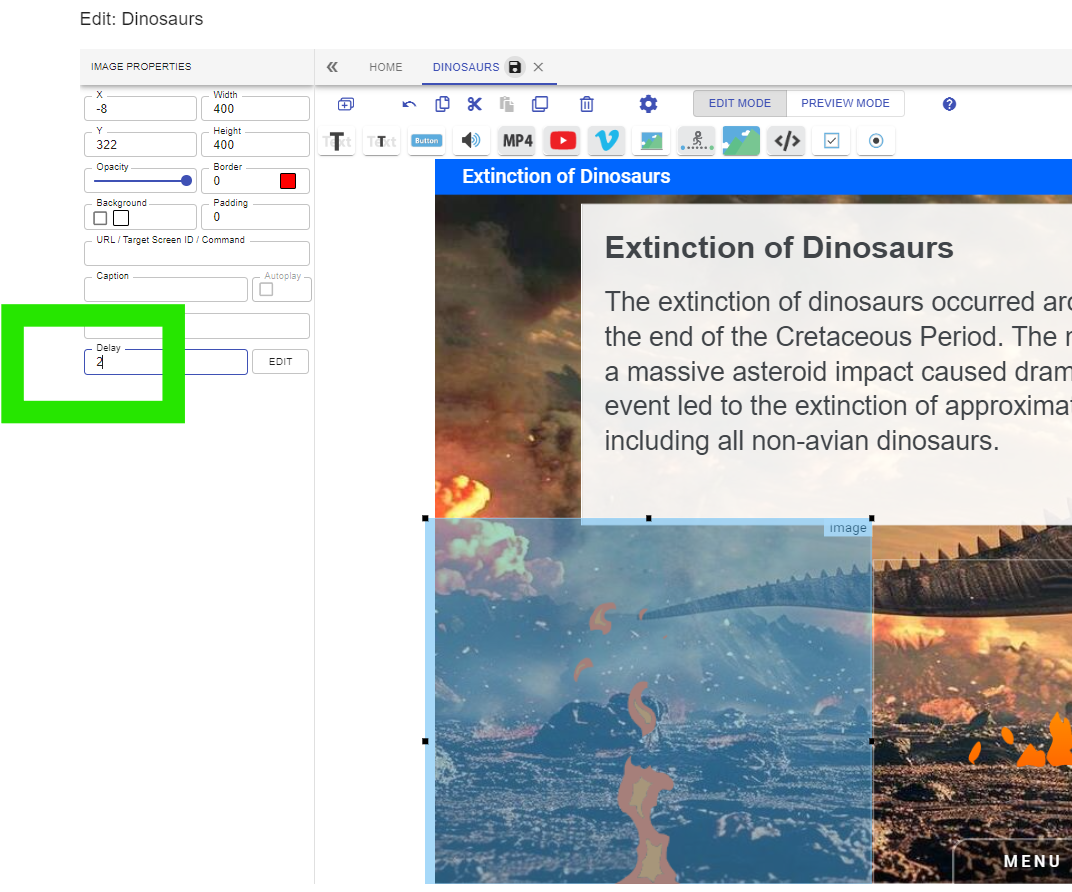
Select the first fire and add a 2 second delay.
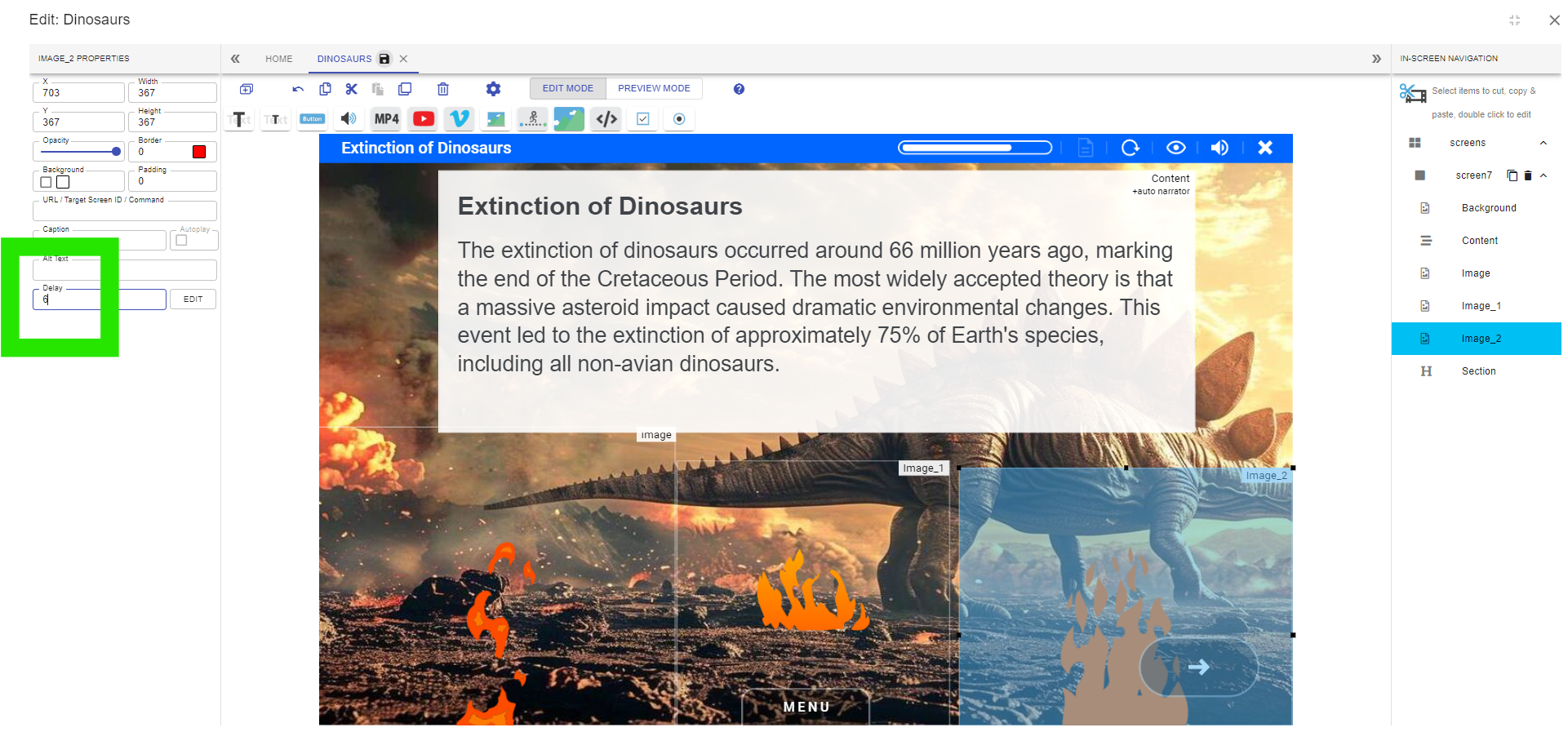
Select the second fire and add a 4 second delay and a 6 second delay to the fire on the far right.
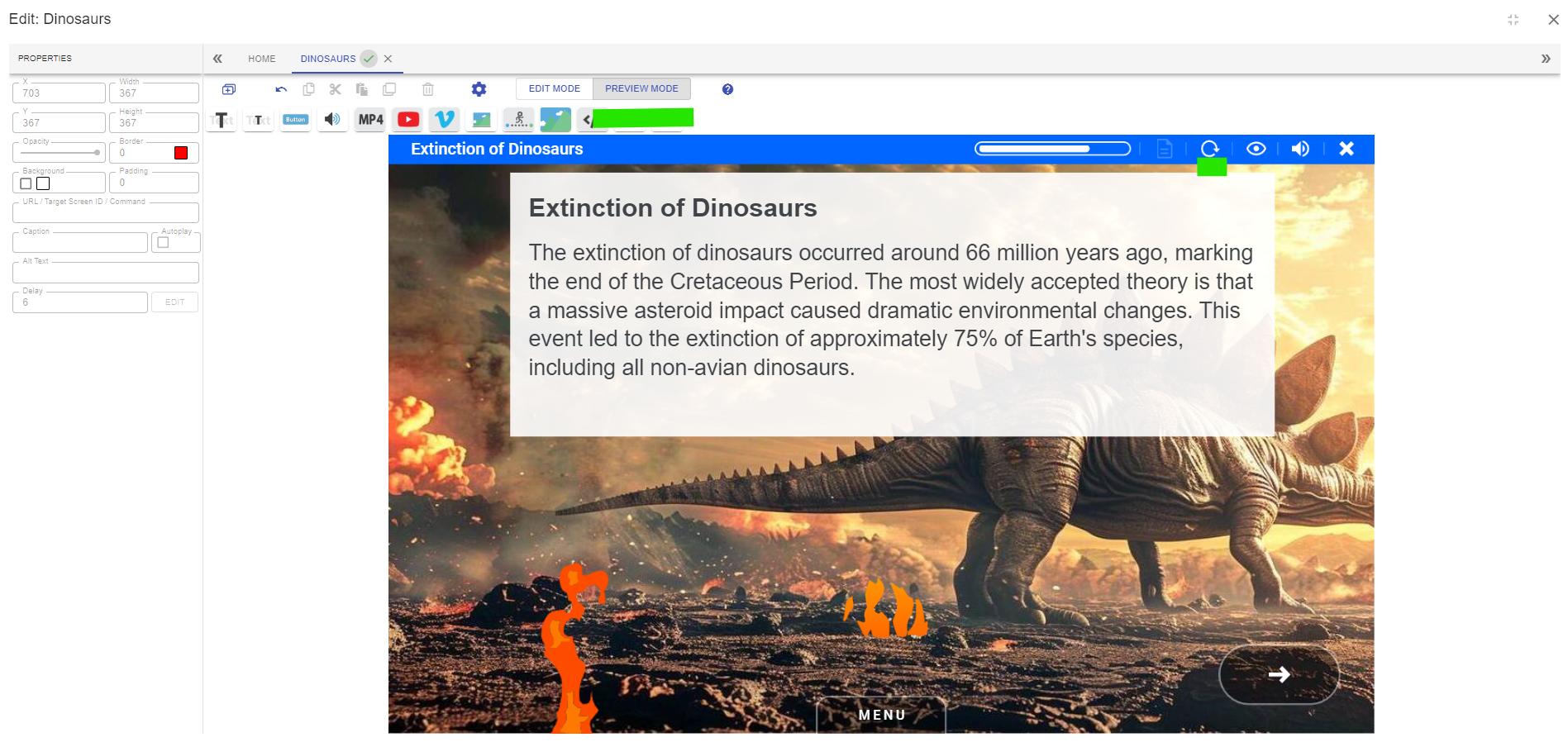
Select PREVIEW MODE then select Refresh, you will see the fires appear from left to right with a 2 second delay between each.
Space out images on screen using delays, so that it is clear that the narration refers to each image shown - this is useful with bullet points etc.
📋 Related articles
- Page:
- Page:
- Page:
- Page:
- Page: