Skills Monitoring Setup Guide
Overview
Skills Monitoring is a powerful feature within Open eLMS designed to help organisations track, manage, and refresh personnel competencies automatically. This system is particularly valuable for emergency services, healthcare organisations, and any workplace where maintaining current skills is essential for safety and compliance.
Key Benefits:
Automatic skills refresh notifications
Colour-coded status indicators (Red, Amber, Green)
Integrated certificate management
Bulk sign-off capabilities
Comprehensive reporting
Prerequisites
System Requirements: Enterprise level Open eLMS with Skills Monitoring module enabled
User Permissions: Administrator access for setup, Manager access for monitoring
Recommended For: Fire services, police, hospitals, and safety-critical industries
Part 1: Initial Skills Setup
Step 1: Create Individual Skills
Before setting up programmes, you need to define the individual skills in your system.
Log in as an Administrator
Go to Learning Library › Skills
The Skills list opens
Click 'Add' to create a new skill
Key Configuration Options:
Basic Information:
Skill Name: e.g., "Abrasive Wheels", "Domestic Cooking Appliances"
Description: Clear explanation of what the skill covers
Category: Core Skills, Special Skills, or custom categories
Repetition Settings:
Repetition Period: How often the skill needs refreshing (1-60 months)
Certificate Requirements:
Mandatory Certificate Upload: Tick this box if certificates must be uploaded before sign-off
🔸 Important: Skills requiring certificates cannot be bulk signed off and must be processed individually.
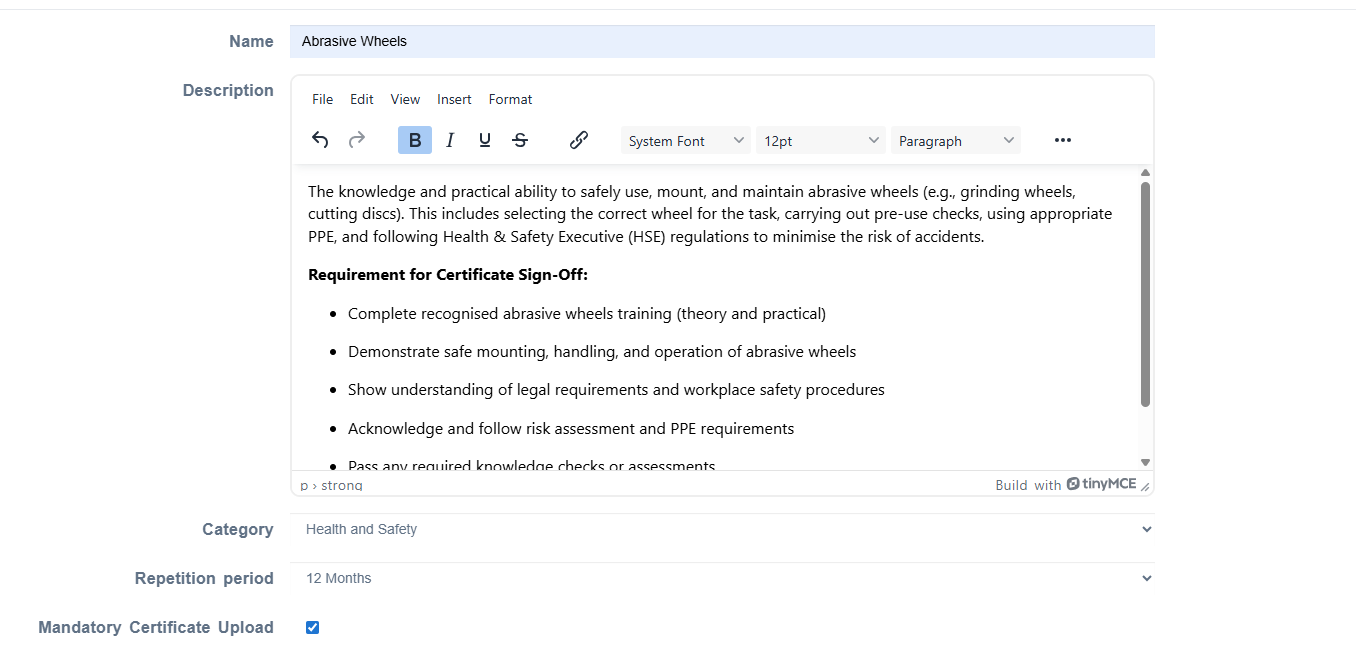
NB: Good practice - make sure the description box summarises the skill and what is expected for sign off.
Step 2: Configure Role Permissions
Determine who can sign off skills in your organisation.
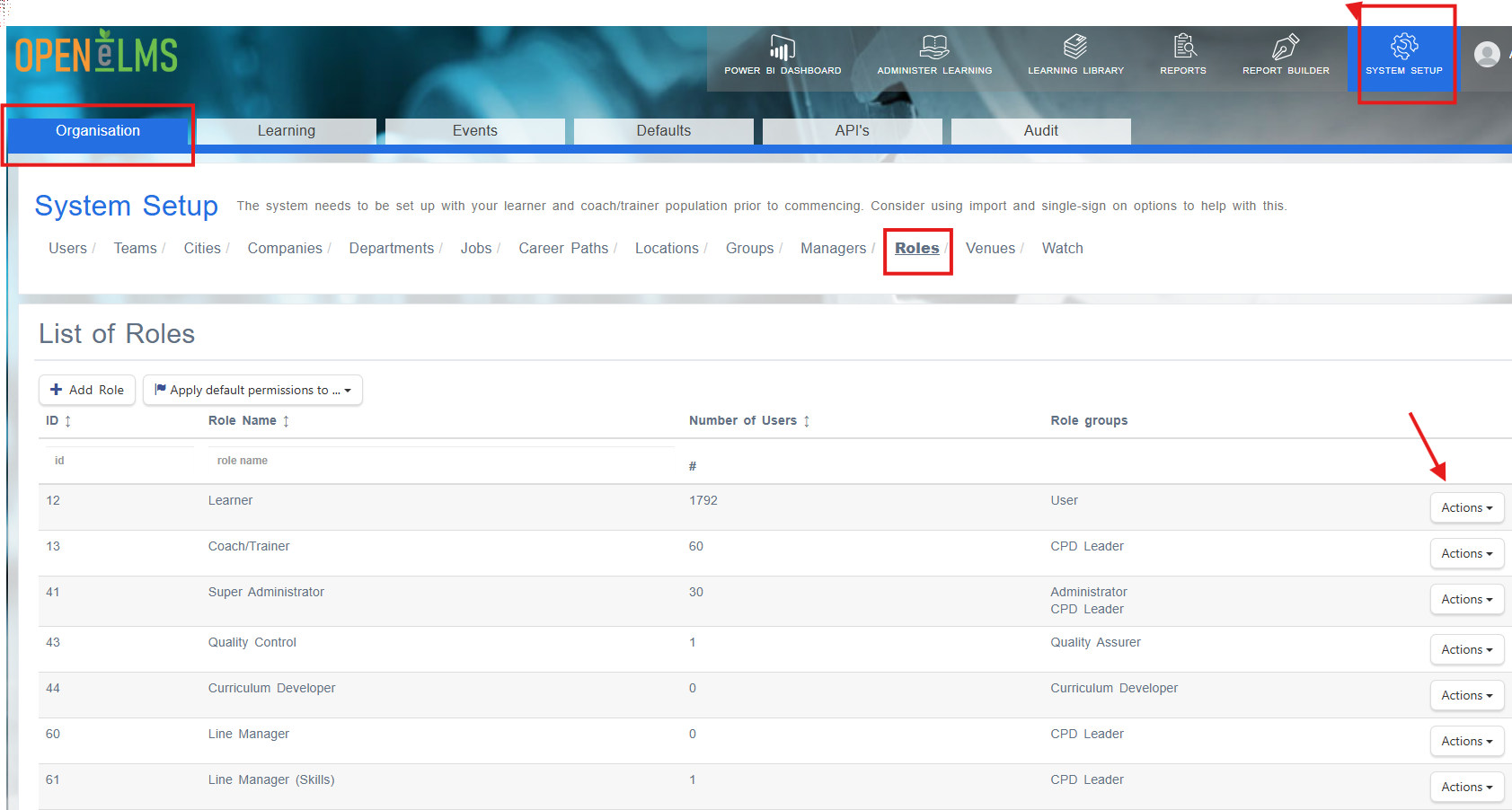
Go to System Setup > Roles
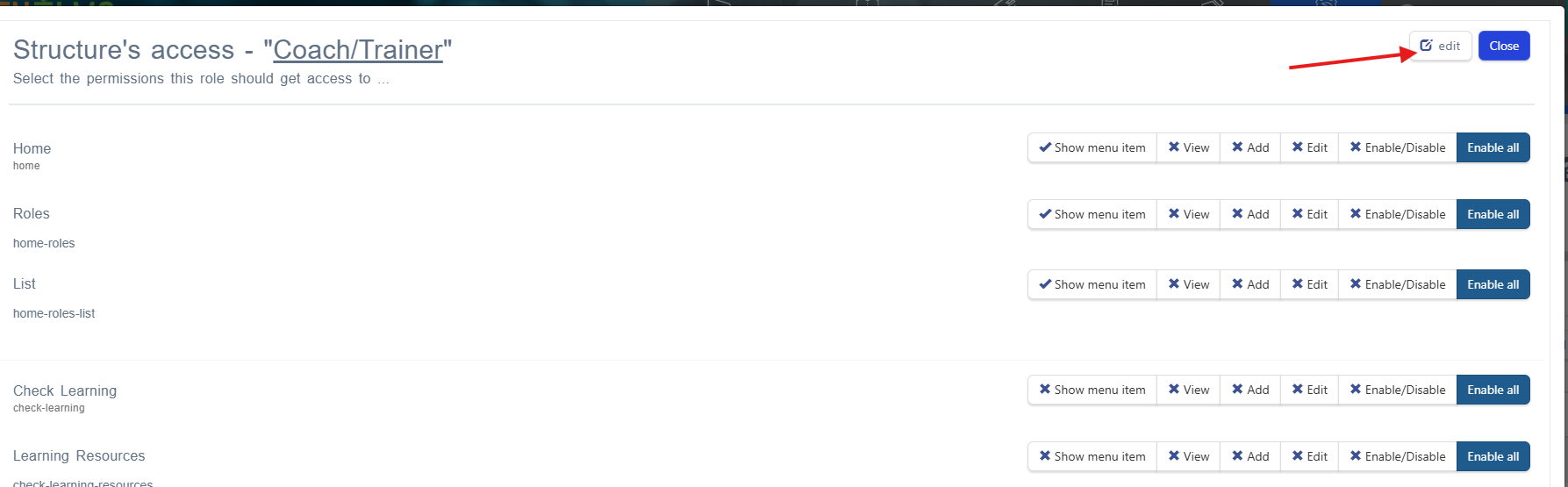
Select the appropriate role (e.g., Line Manager, Supervisor)
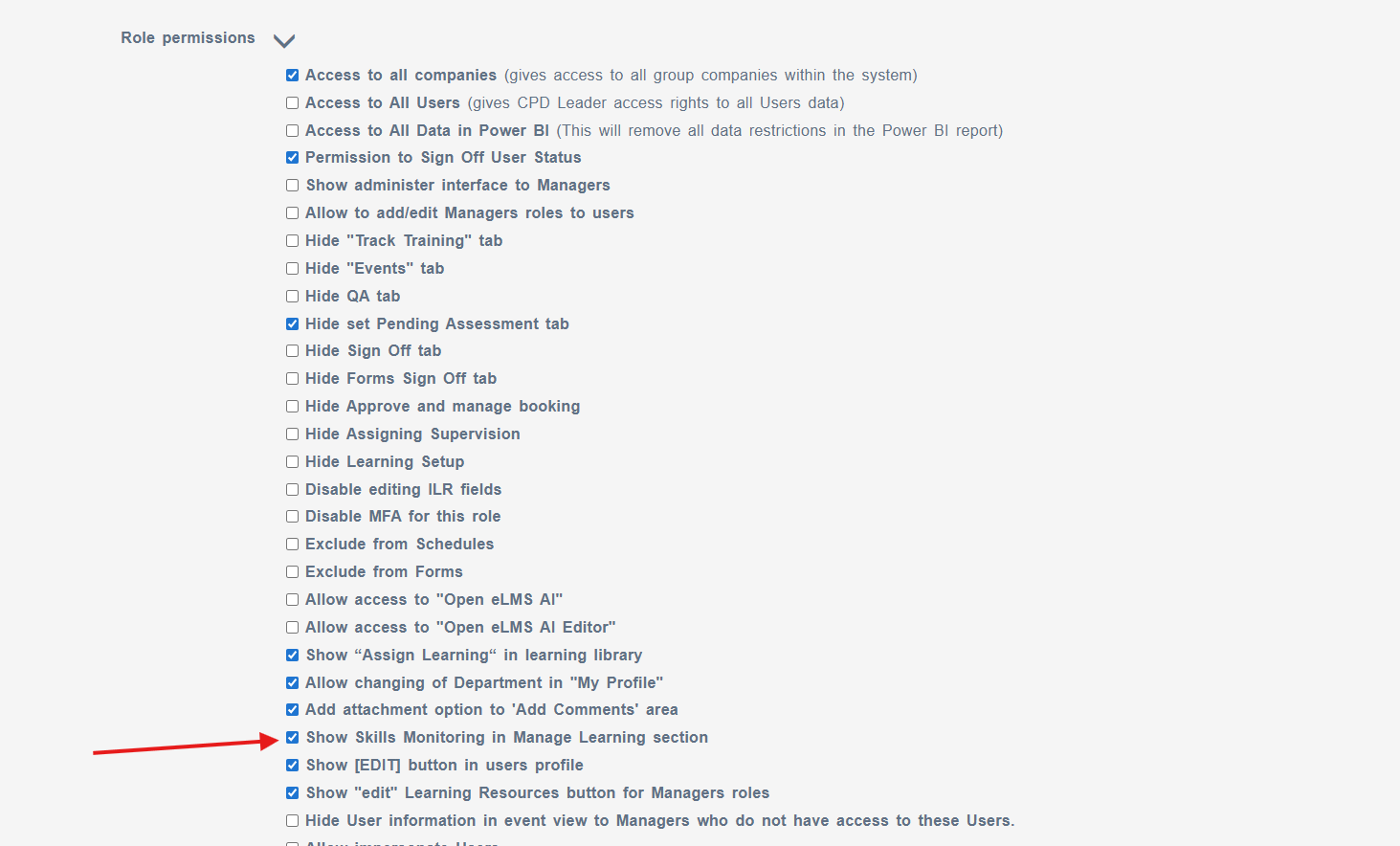
Find the permission: "Show skills monitoring in manage learning section"
Tick the box and Save
💡 Planning Tip: Consider whether line managers, specialised assessors, or department heads should have sign-off authority.
Part 2: Creating Skills Monitoring Programmes
Step 3: Set Up Skills Monitoring Programme
Access Learning Library
Select Learning Programmes tab
Click 'Add'
Choose 'Add Skills Monitoring Programme'
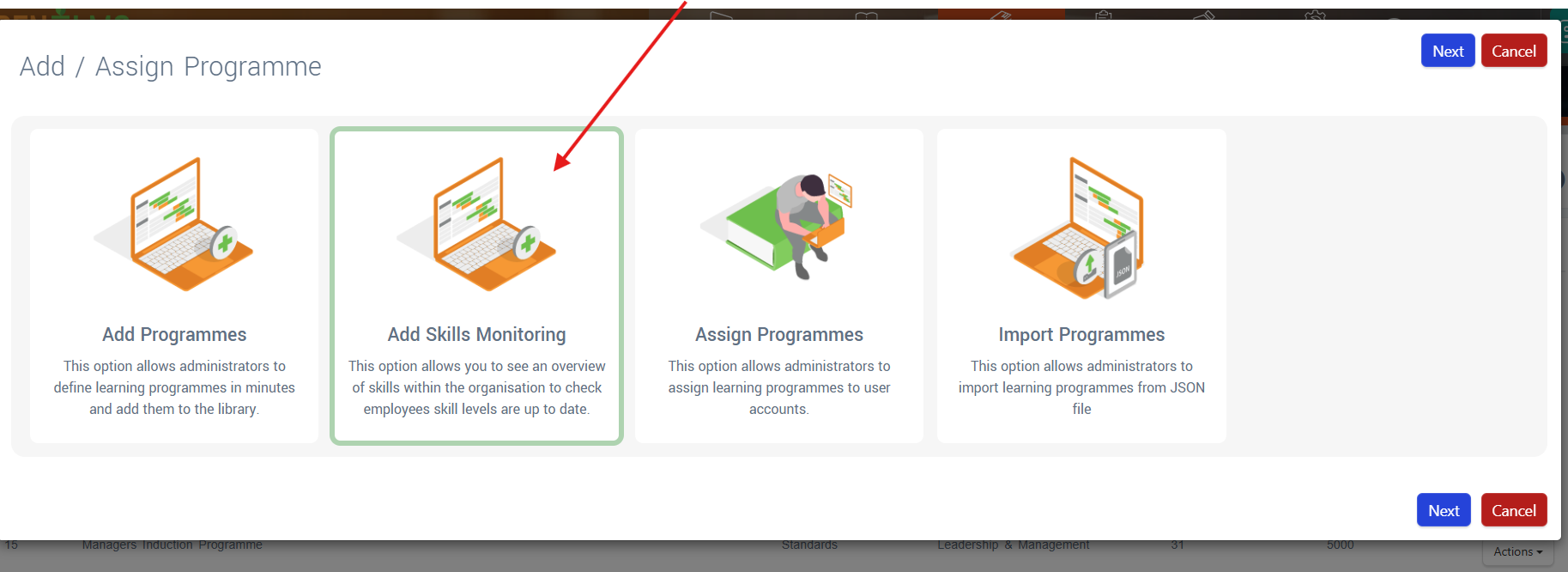
Programme Configuration:
Basic Settings:
Programme Name: e.g., "Fire Safety Skills", "Core Competencies"
Description: Overview of the programme's purpose
Repetition Period: How often the entire programme is reviewed
Default Skill Repetition Period: Default refresh frequency for skills within the programme
🔸 Best Practice: Repetition period and default skill repetition period are usually the same value.
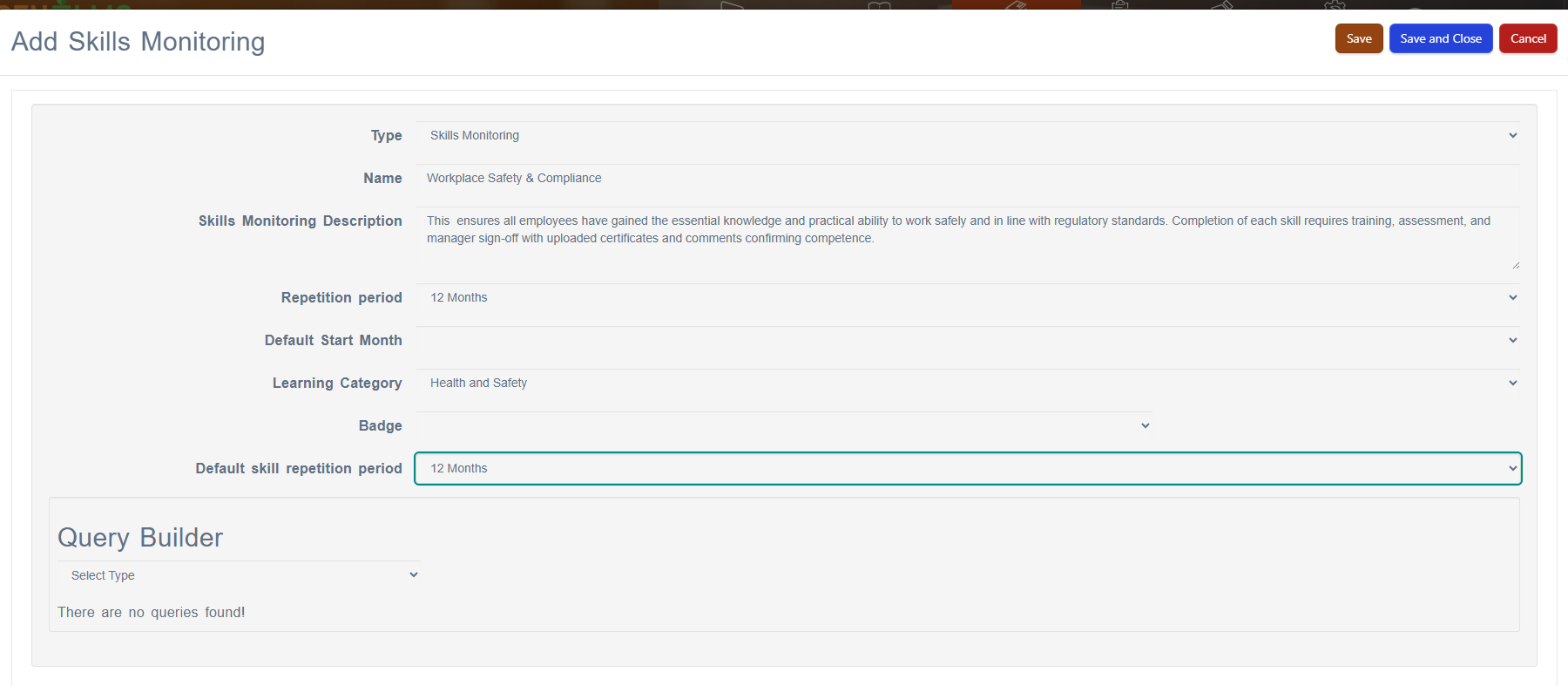
Step 4: Add Skills Structure
After saving the initial programme:
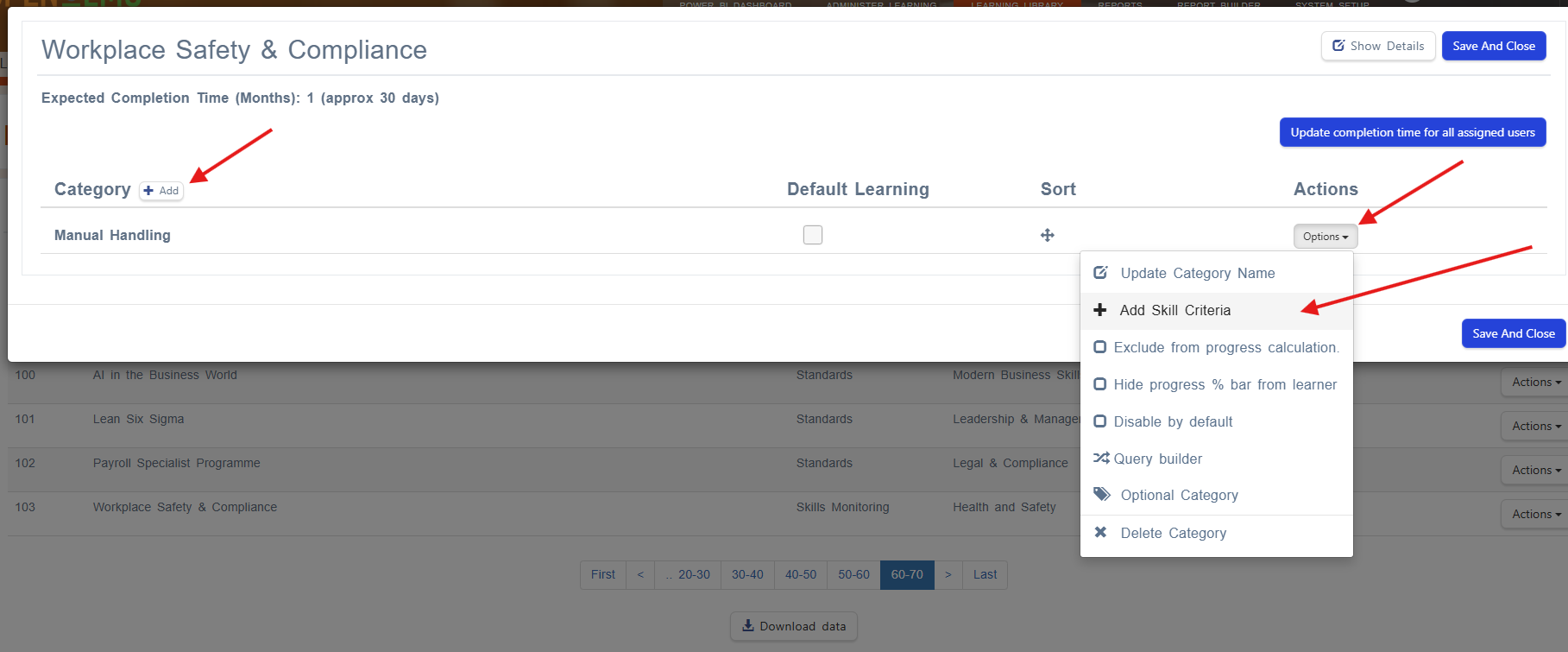
Find your programme in the table (it will be the last record)
Click Actions > Edit
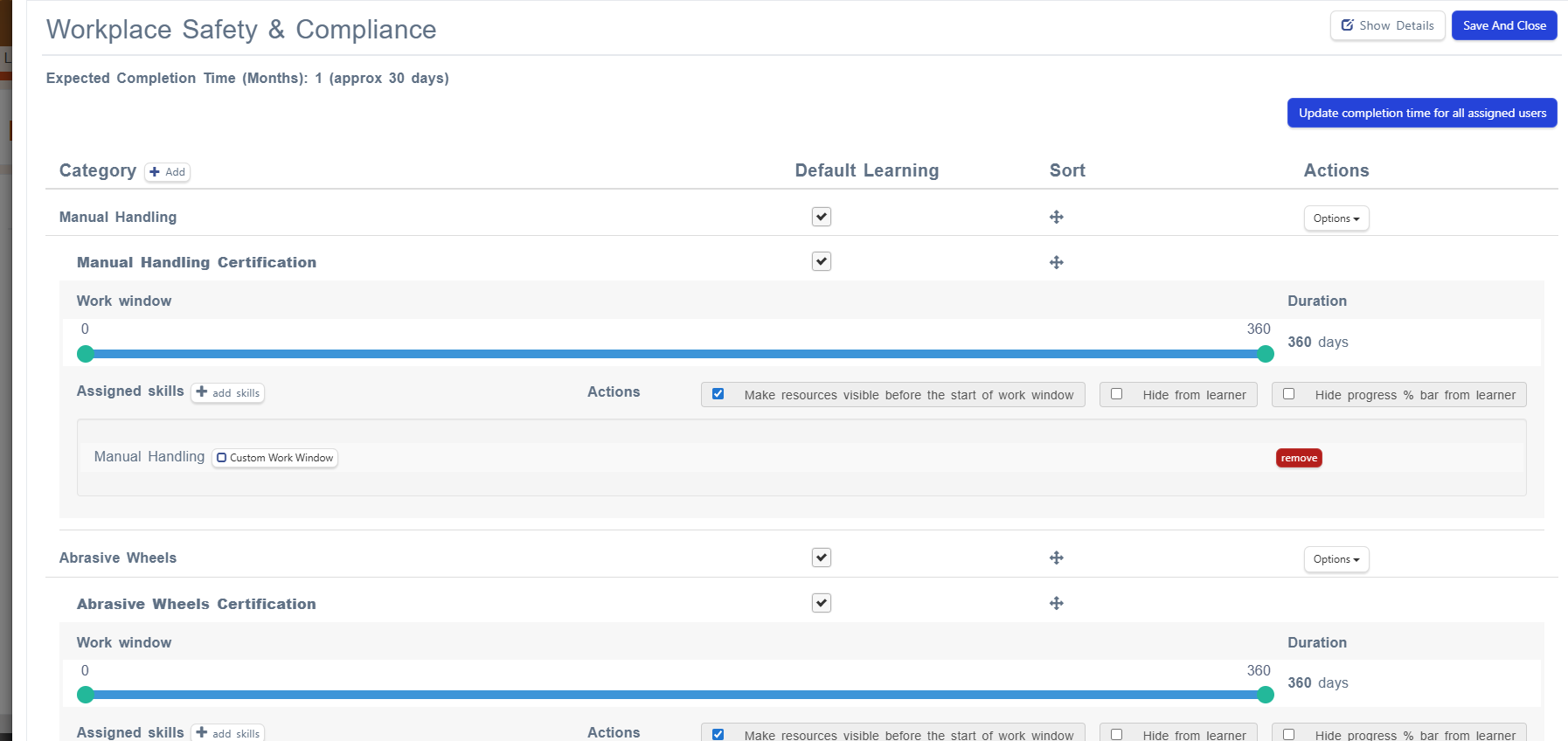
Add Outcomes by clicking "+ Add" - enter the name of the skill e.g. Manual Handling
Add Skill Criteria by clicking "+ Add Skill Criteria" e.g. Manual Handling Certification
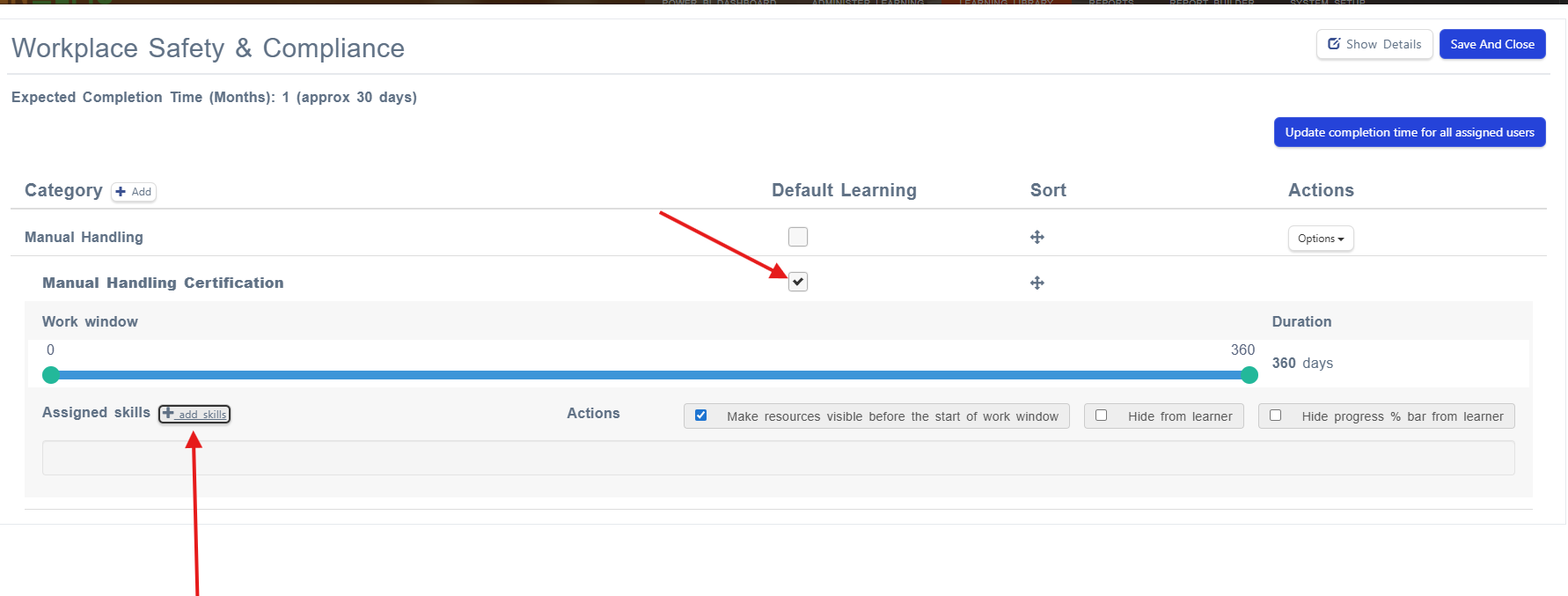
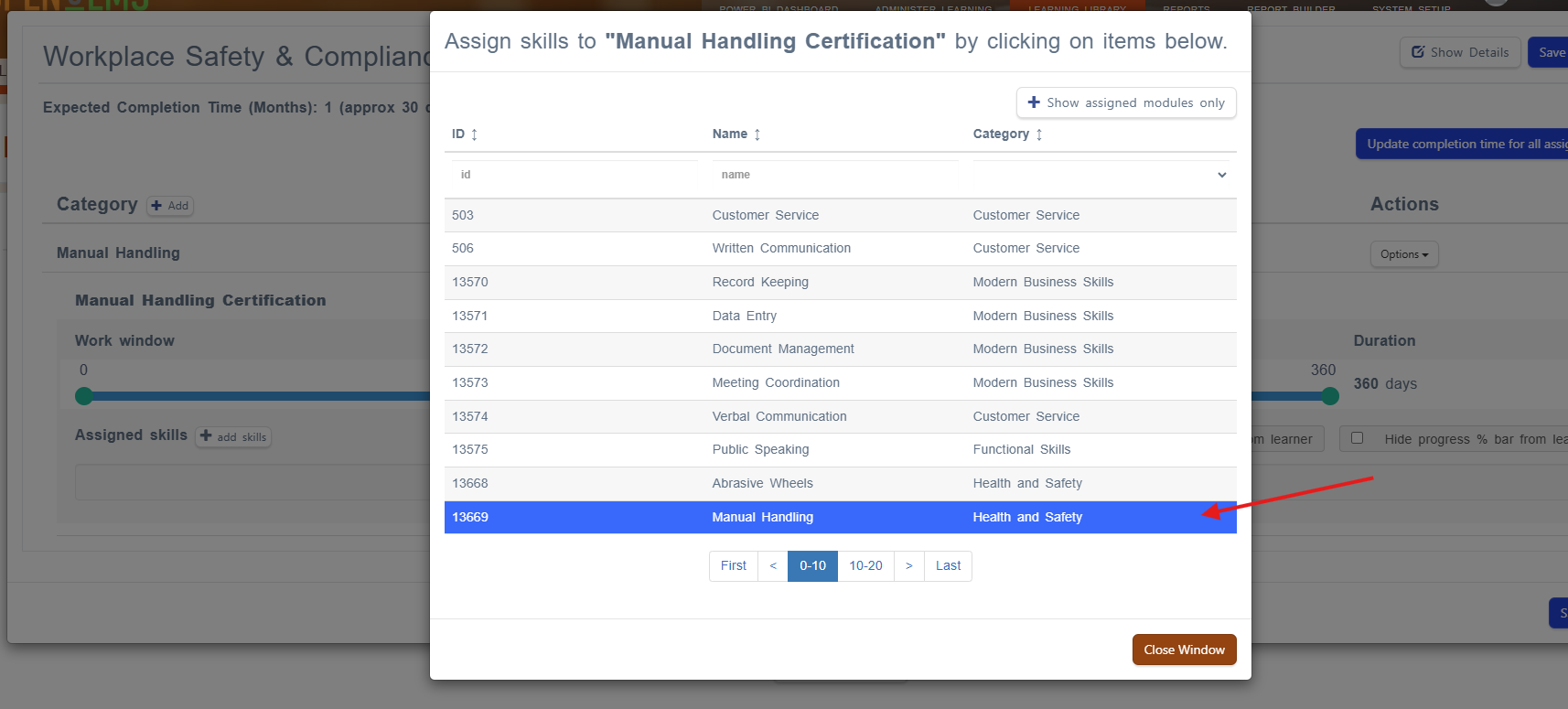
Adding Skills to Criteria:
Select the criteria by ticking "Default Learning"
Click "+ Add Skills"
Choose from your pre-configured skills
Set time windows using the sliders to define when refresher work should be done
Part 3: Skills Assignment and Management
Step 5: Assign Skills Programmes
Skills programmes can be assigned in three ways:
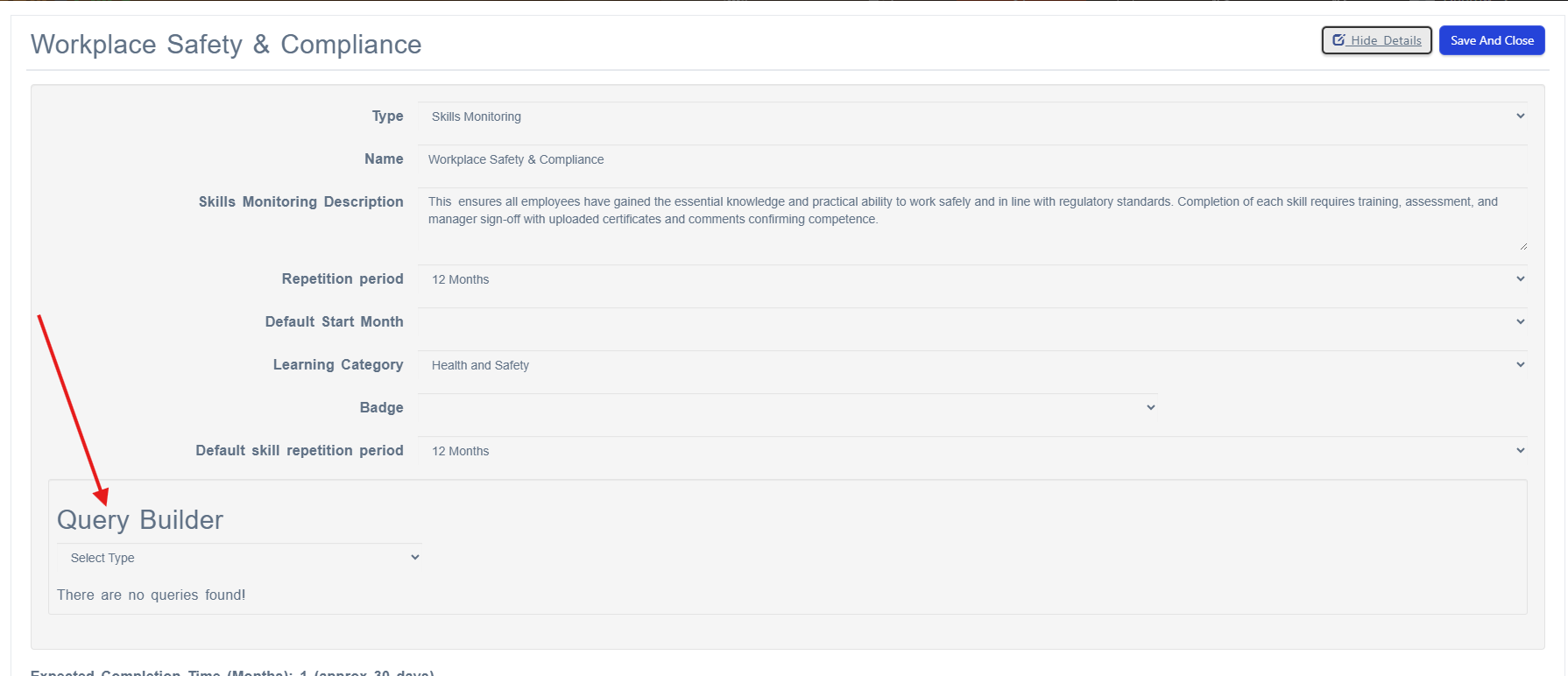
Method 1: Query Builder (Automated)
Set up rules based on job role, department, location
Skills automatically assigned to users meeting criteria
Most efficient for large organisations
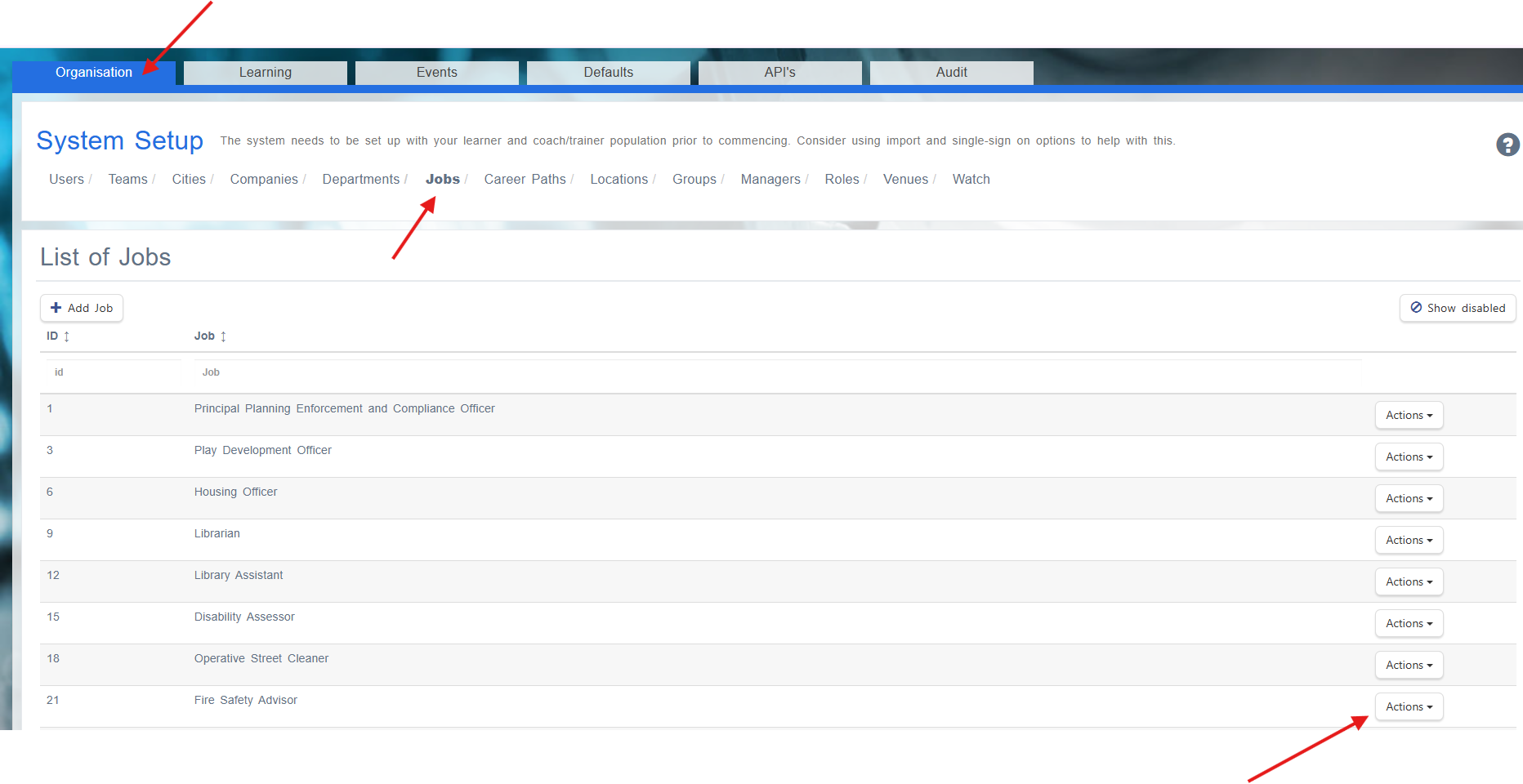
Method 2: Direct Assignment via Jobs
Manually assign to specific jobs (System Setup - Organisation - Jobs)
Useful for unique roles or temporary assignments
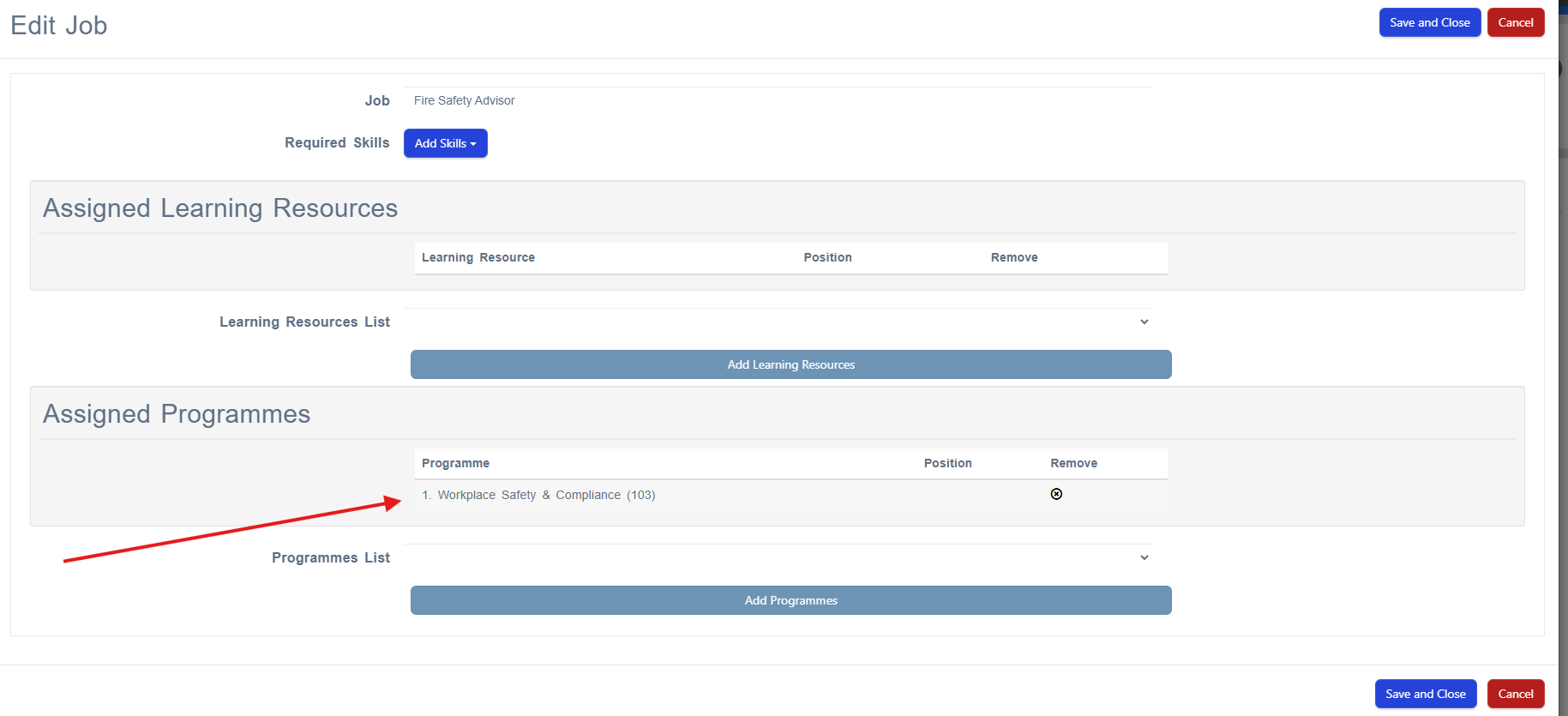
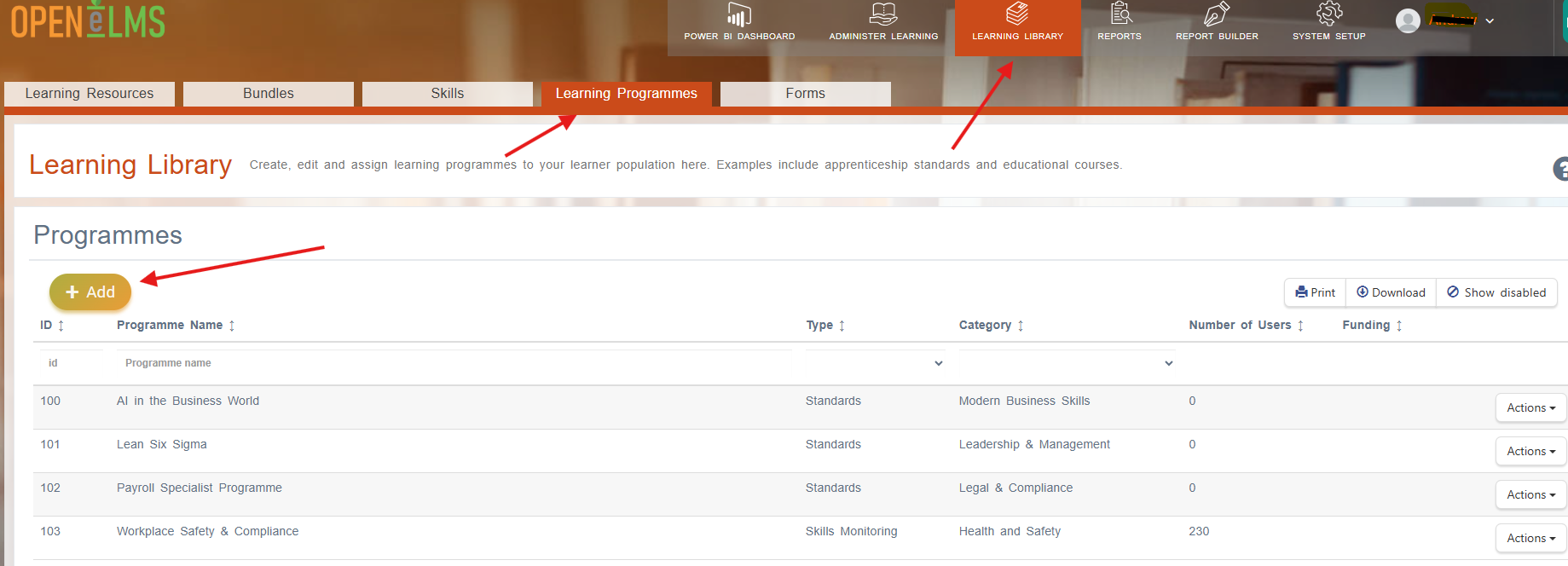
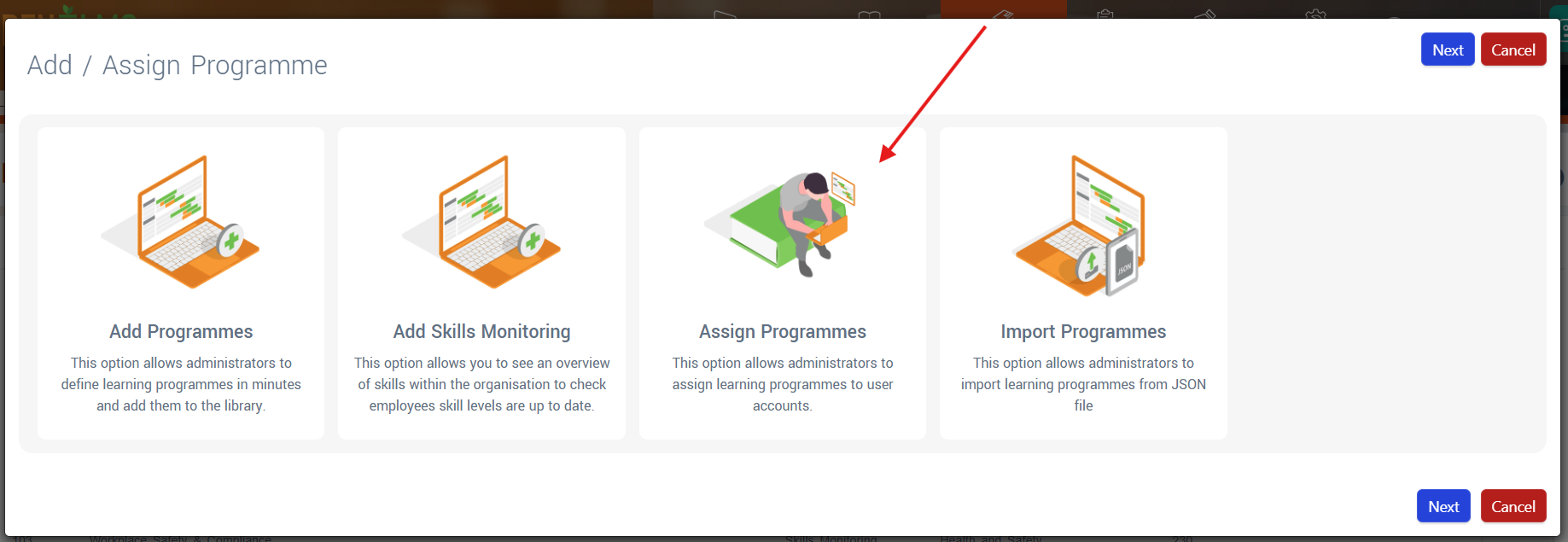
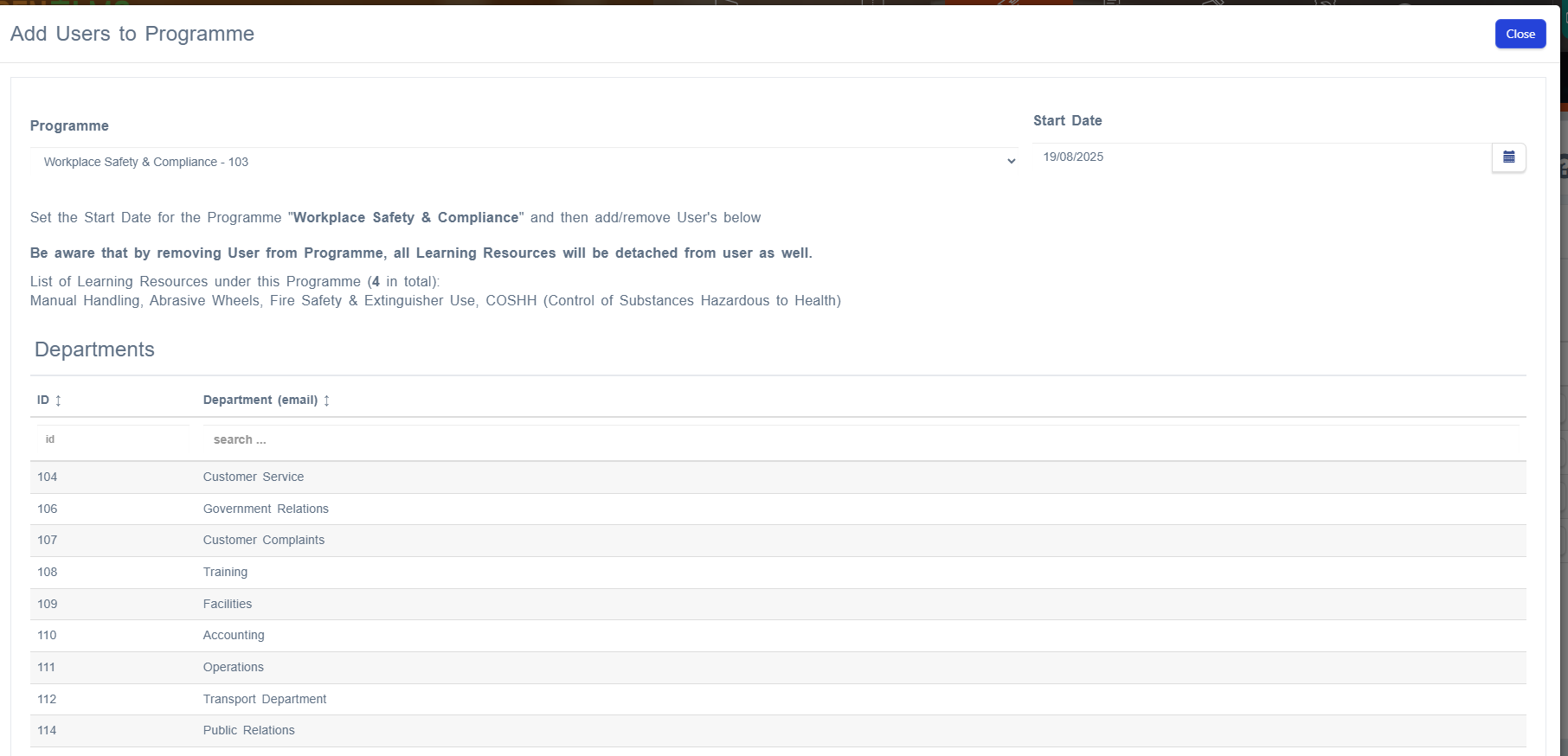
Method 3: Bulk Assignment
Select multiple users and assign programme - Learning Library - Learning Programmes - + Add
Assign Programme - Choose Start Date - Select via Department, Groups, Jobs or Individual Users
Good for training rollouts
Step 6: Configure Sign-Off Workflow
🔸 Default Timeline: When first assigned, skills have a 30-day default completion period. After completion, the repetition period takes over.
Sign-Off Process:
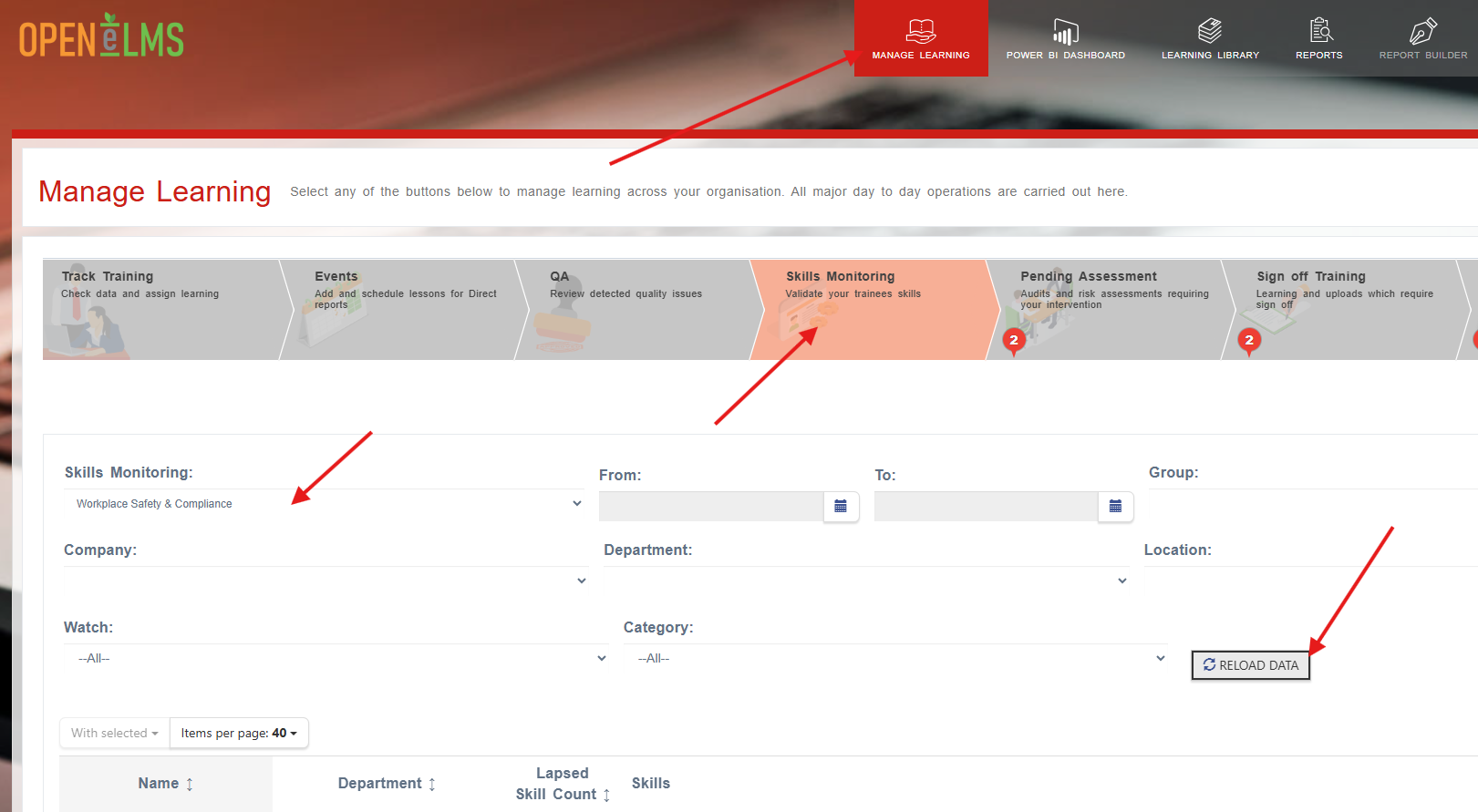
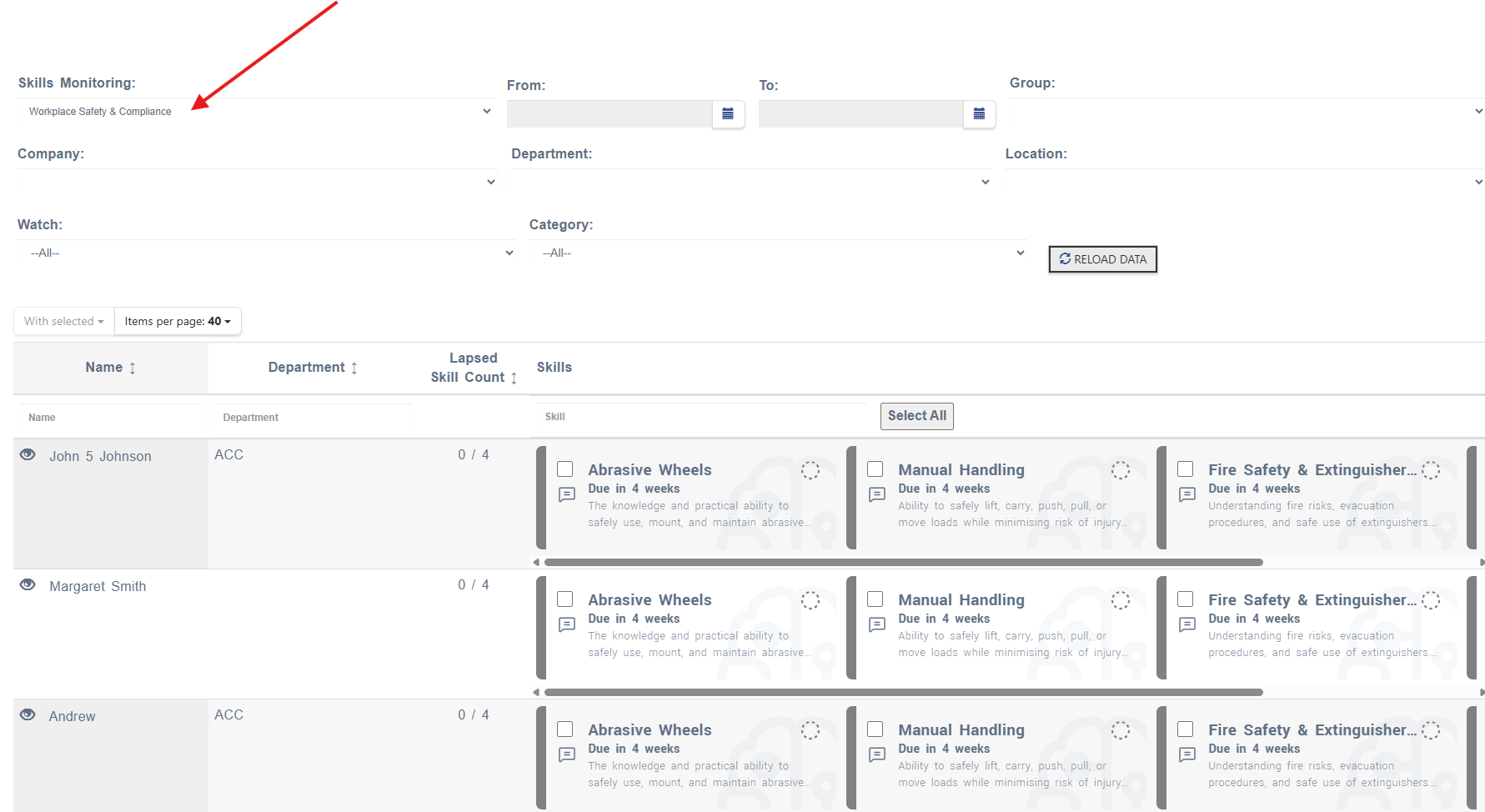
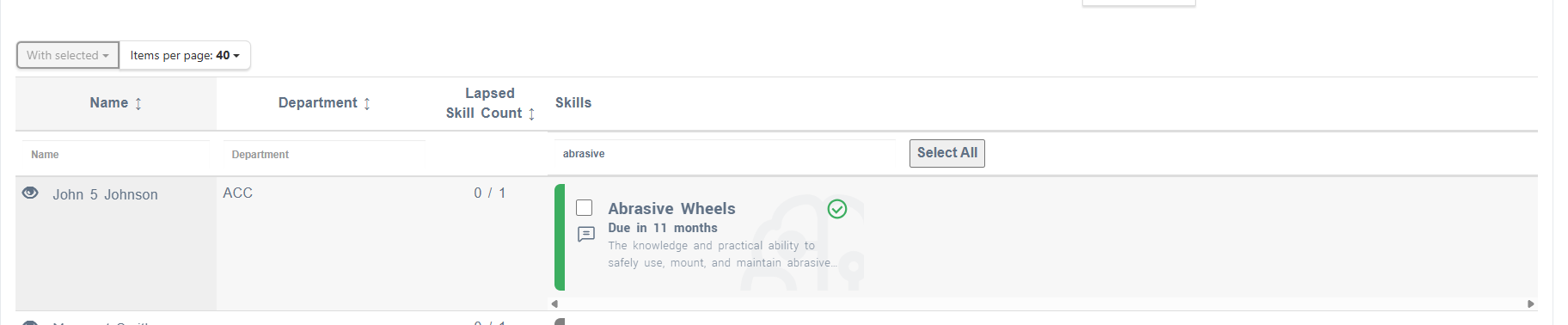
Manager accesses Skills Monitoring page - Select Skills Monitoring Programme - click on Load Data
Uses filters to find relevant personnel
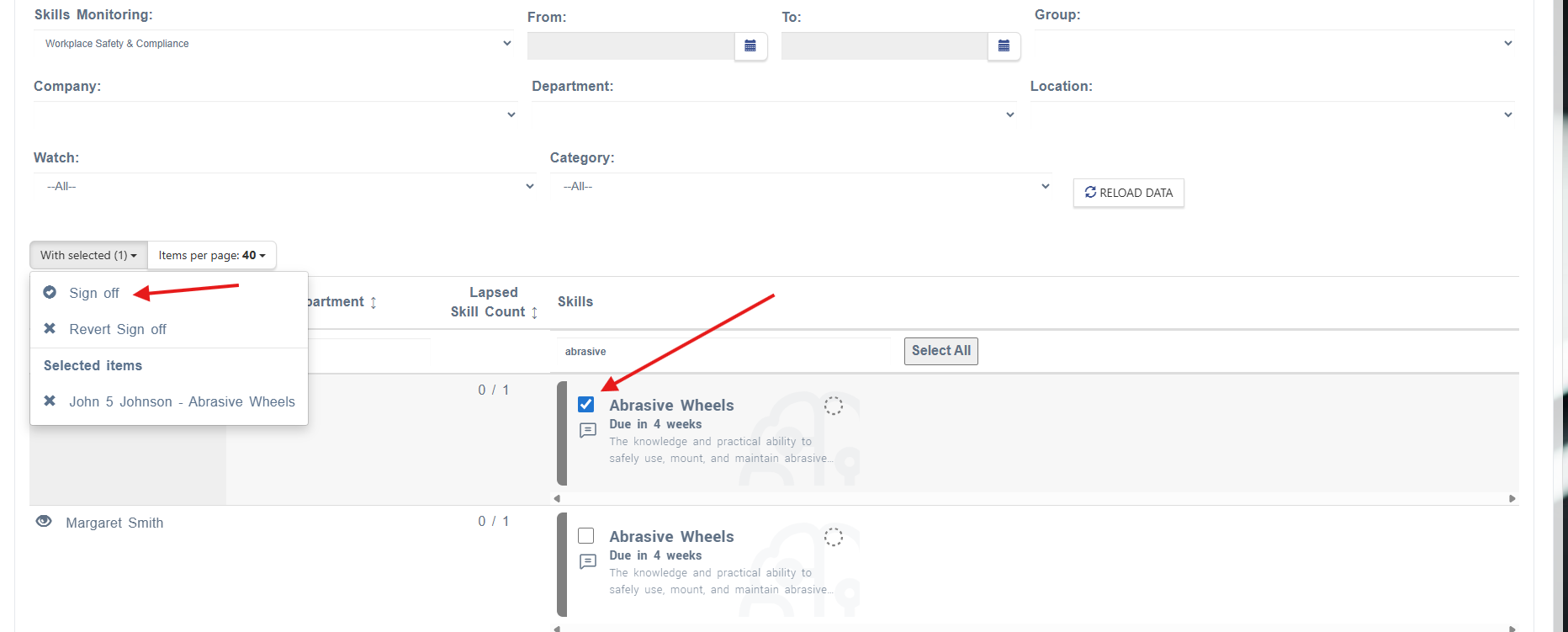
Selects individuals requiring sign-off
Clicks 'With Selected' > 'Sign Off'
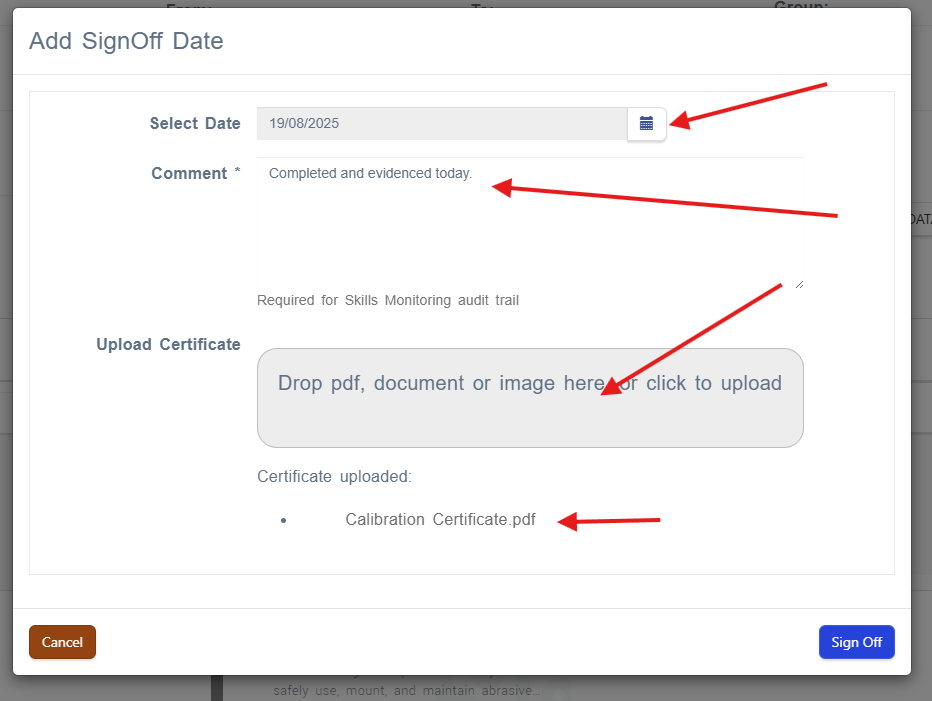
Adds comments explaining the sign-off reason
Uploads certificates (if required)
Part 4: Using the Skills Monitoring Interface
Understanding the Dashboard
Colour Coding System:
⚪ Grey: Skills assigned for the first time (30-day default completion period)
🟢 Green: Skills current and valid
🟡 Amber: Skills due for refresh soon (within 30 days)
🔴 Red: Skills overdue for refresh
Key Features:
Filter Options:
Department/Location
Skill Categories (Core Skills, Special Skills)
User Groups
Lapsed Skills Counter
Bulk Actions:
Select multiple skills for bulk sign-off
Filter and search while maintaining selections
Warning messages for skills requiring certificates
Step 7: Managing Skills Monitoring
Daily Management Tasks:
Review Red/Amber Skills
Prioritise overdue skills (red)
Plan upcoming refreshers (amber)
Process Sign-Offs
Individual sign-off for certificate-required skills
Bulk sign-off for standard competencies (you cannot bulk sign off skills that require a certificate added as evidence)
Add meaningful comments for audit trail
Monitor Compliance
Use lapsed skills counter: "13/32" (13 out of 32 skills lapsed)
Track improvement over time
Weekly Review:
Check for disabled users appearing in monitoring
Review repetition periods for accuracy
Validate certificate uploads
Part 5: Advanced Configuration
Step 8: Certificate Management
For Skills Requiring Certificates:
During Sign-Off Process:
Upload certificate before attempting sign-off
System prevents sign-off without valid certificate
Certificates stored with audit trail
Certificate Validation:
Date stamps automatically recorded
Manager attribution tracked
Historical certificates maintained
Error Prevention:
Bulk sign-off excludes certificate-required skills
Warning message: "Some selected skills not signed off as they need certificates"
Part 6: Troubleshooting Common Issues
Date Inconsistencies
Problem: Last sign-off dates don't match actual records Solution: System now uses completed_at field for accurate dating
Duplicate User Entries
Problem: Users appearing twice in skills monitoring Solution: Regular system maintenance resolves duplicate entries
Missing Comment History
Problem: Previous audit trails disappearing Solution: Historical comments now properly maintained in database
Filter Functionality
Problem: Category filters not working properly Solution: Ensure skills are properly categorised and system cache is clear
Part 7: Reporting and Analytics
Built-in Reports
Skills Monitoring Dashboard:
Visual overview by department/location
Lapsed skills by category
Individual learner drill-down capability
Power BI Integration (not default with system - please ask your account manager for more information:
Real-time skills compliance data
Custom dashboards available
Filter by company, department, location, watch, group
Key Metrics to Track
Overall Compliance Rate: Percentage of current skills
Skills Due Soon: Amber status skills requiring attention
Overdue Skills: Red status requiring immediate action
Certificate Compliance: Skills with proper documentation
Part 8: Best Practices
Setup Recommendations
Start Simple: Begin with core skills before expanding to specialised competencies
Standardise Repetition Periods: Use consistent timeframes where possible
Clear Naming Conventions: Use descriptive skill names that all staff understand
Regular Reviews: Quarterly assessment of repetition periods and requirements
Operational Best Practices
Proactive Management: Address amber skills before they become red
Meaningful Comments: Always add context when signing off skills
Certificate Organisation: Establish clear guidelines for what certificates are required
Training for Managers: Ensure all authorised personnel understand the sign-off process
Quality Assurance
Regular Audits: Monthly review of sign-off patterns and compliance
Data Validation: Quarterly check of skills assignments and repetition periods
User Feedback: Collect input from managers on system usability
Continuous Improvement: Update processes based on operational experience
System Requirements and Availability
License Requirements:
Enterprise level Open eLMS subscription
Blue Light Services module (for emergency services)
Skills Monitoring add-on module
Technical Requirements:
Modern web browser with JavaScript enabled
Network access to Open eLMS platform
Sufficient storage for certificate uploads
Support and Training:
Initial setup assistance available from Open eLMS team
User training sessions can be arranged
Ongoing technical support through standard channels
Getting Started Checklist
Confirm Enterprise license and Skills Monitoring module enabled
Define initial skills list and categories
Set up user roles and permissions
Create first skills monitoring programme
Configure repetition periods
Test assignment and sign-off processes
Train management users
Implement regular monitoring routine
Schedule first compliance review