How to Assign Managers/Trainers to Learners in Open eLMS
How to Assign Managers/Trainers to Learners in Open eLMS

In this guide, you will learn how to assign managers or trainers to learners.
1. Go to System Setup › Organisation › Managers (some sites call this page Supervisors).
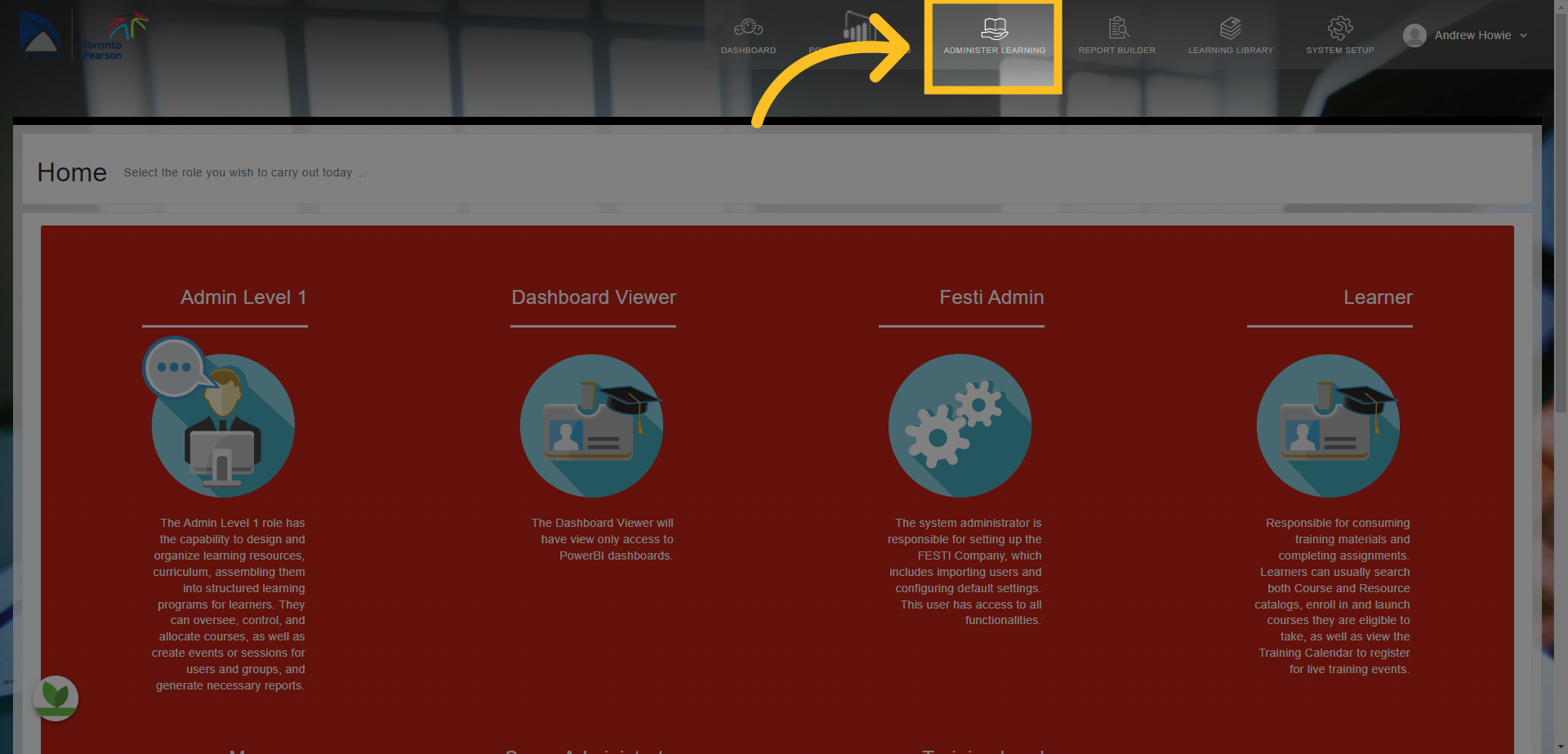
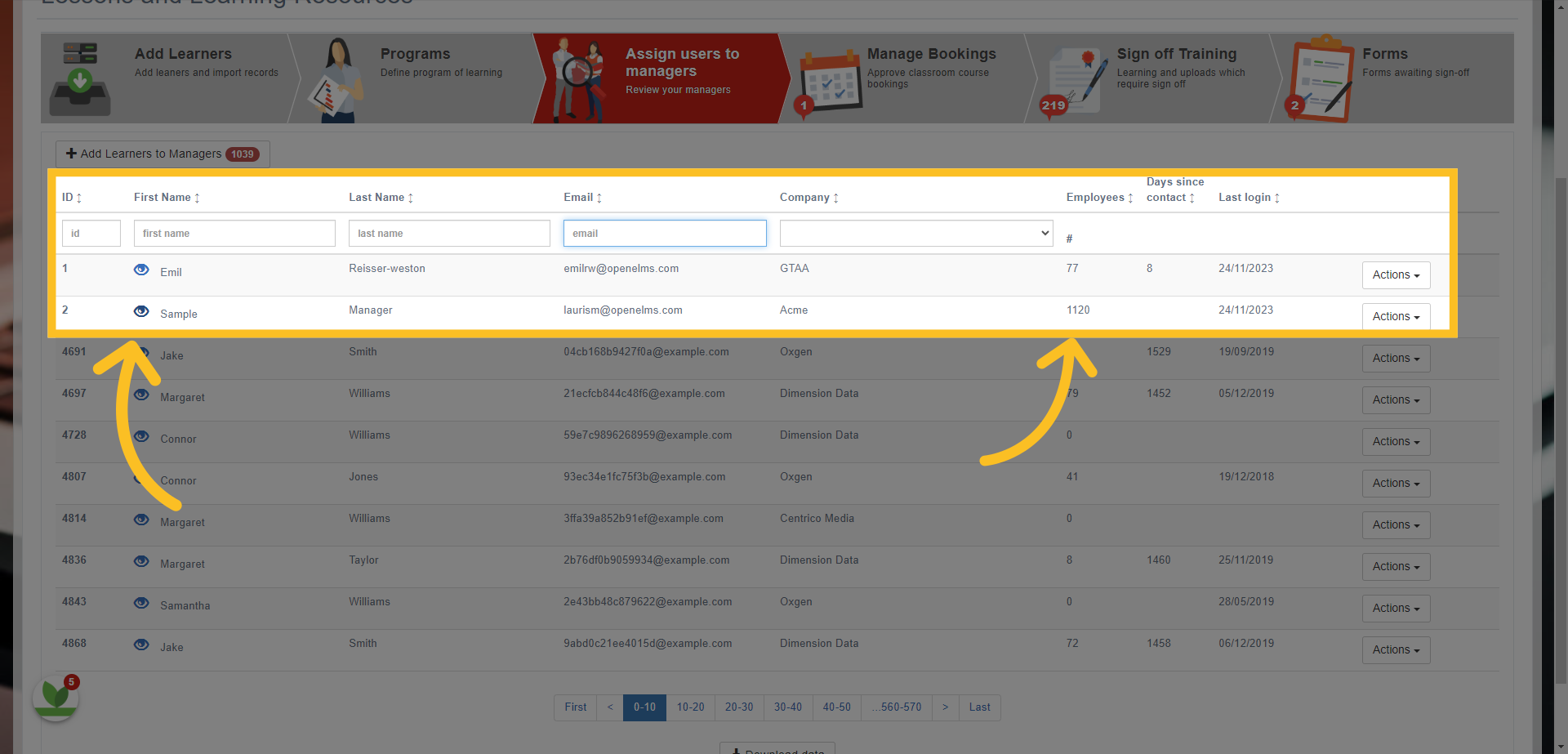
2. The list of managers opens.
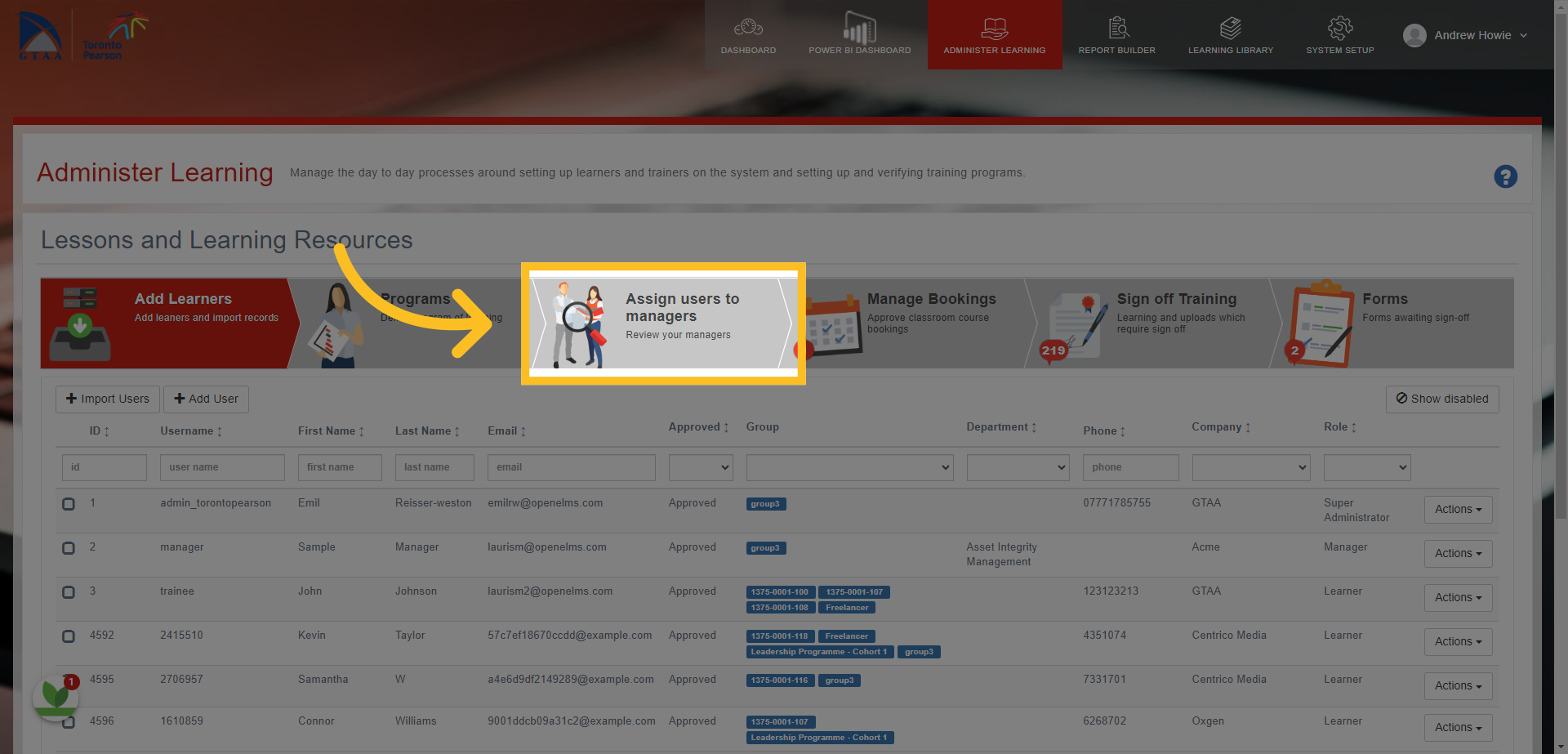
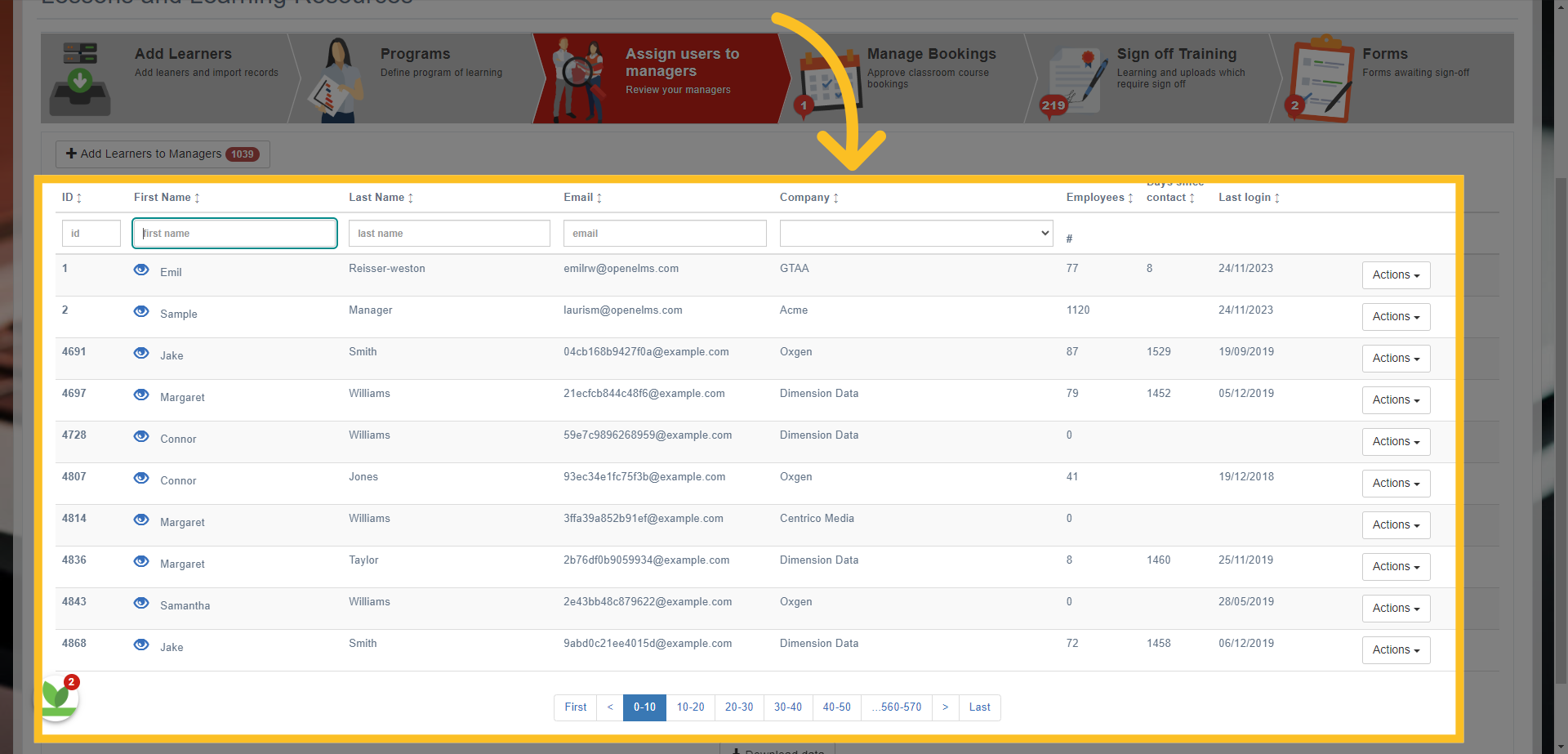
3. This opens up a page where all your current 'managers' (or users with manager permissions) are displayed.
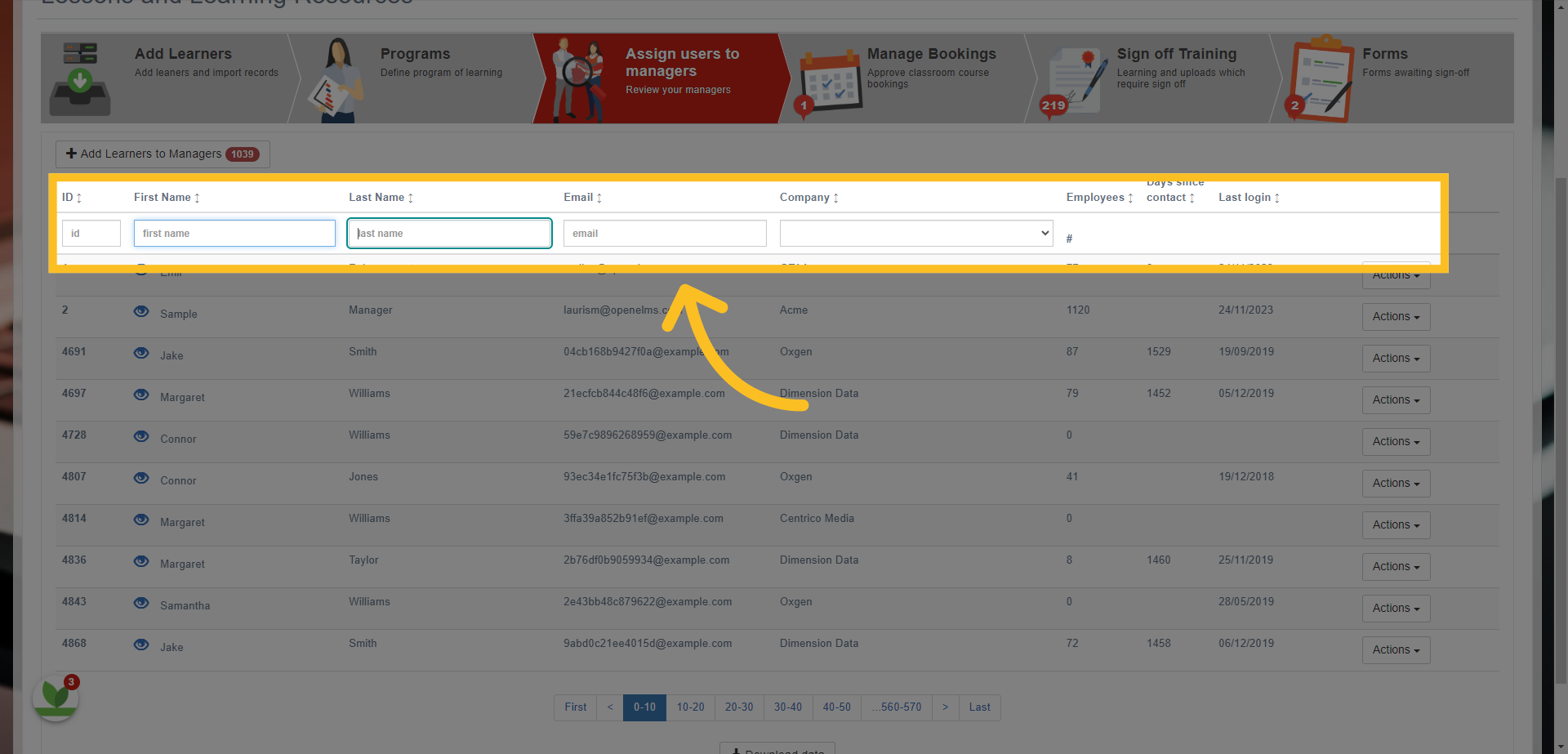
4. You can search for a manager by ID number, First or Last name and Email Address - you can also filter by company.
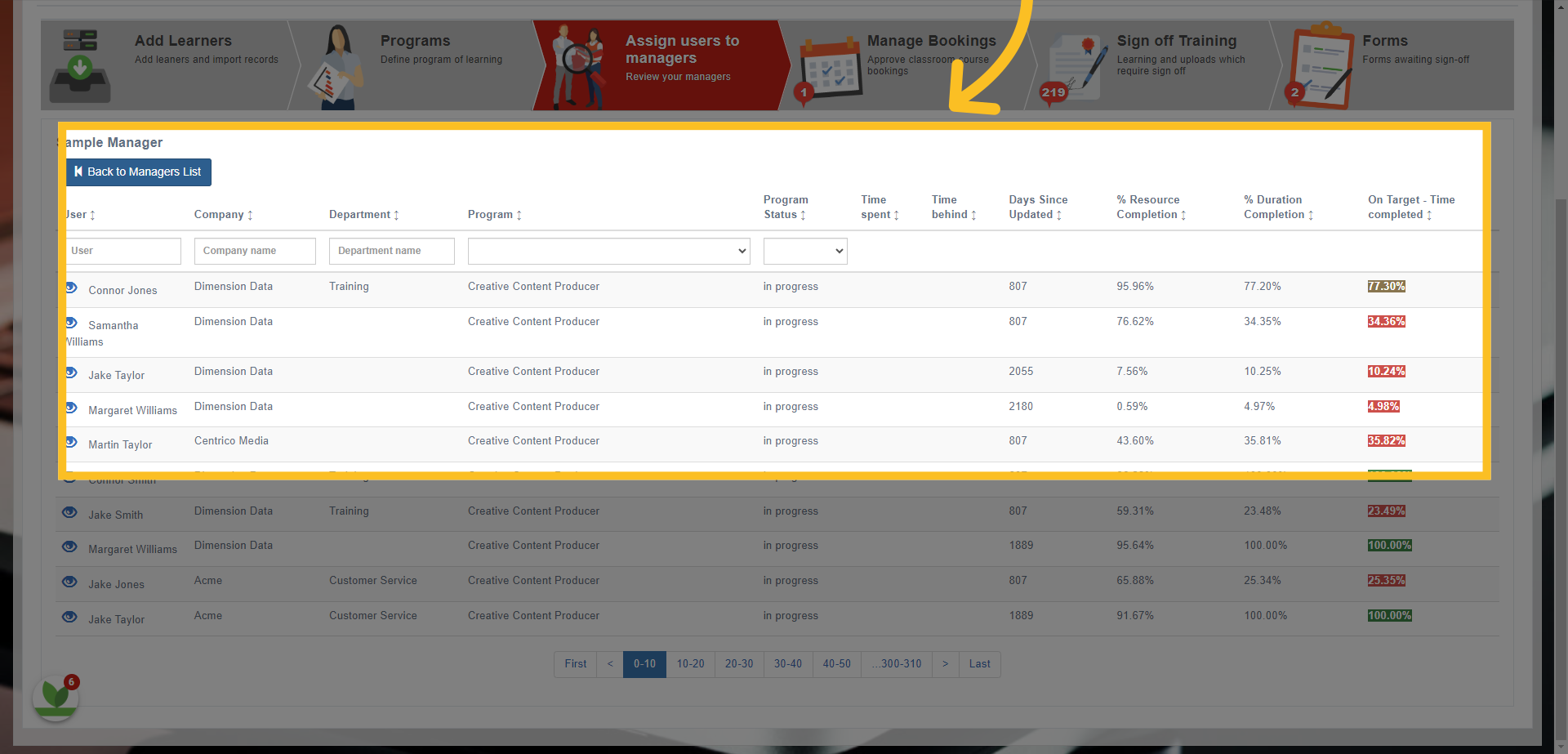
5. You can see how many employees/learners have been assigned to the manager - Plus, if you open the manager's row, it will take you to a list of their current assigned employees/learners...
6. Here you can view all learners assigned to the manager (you can view their individual files by opening their row). Click the 'Back to Managers List' button once viewed.
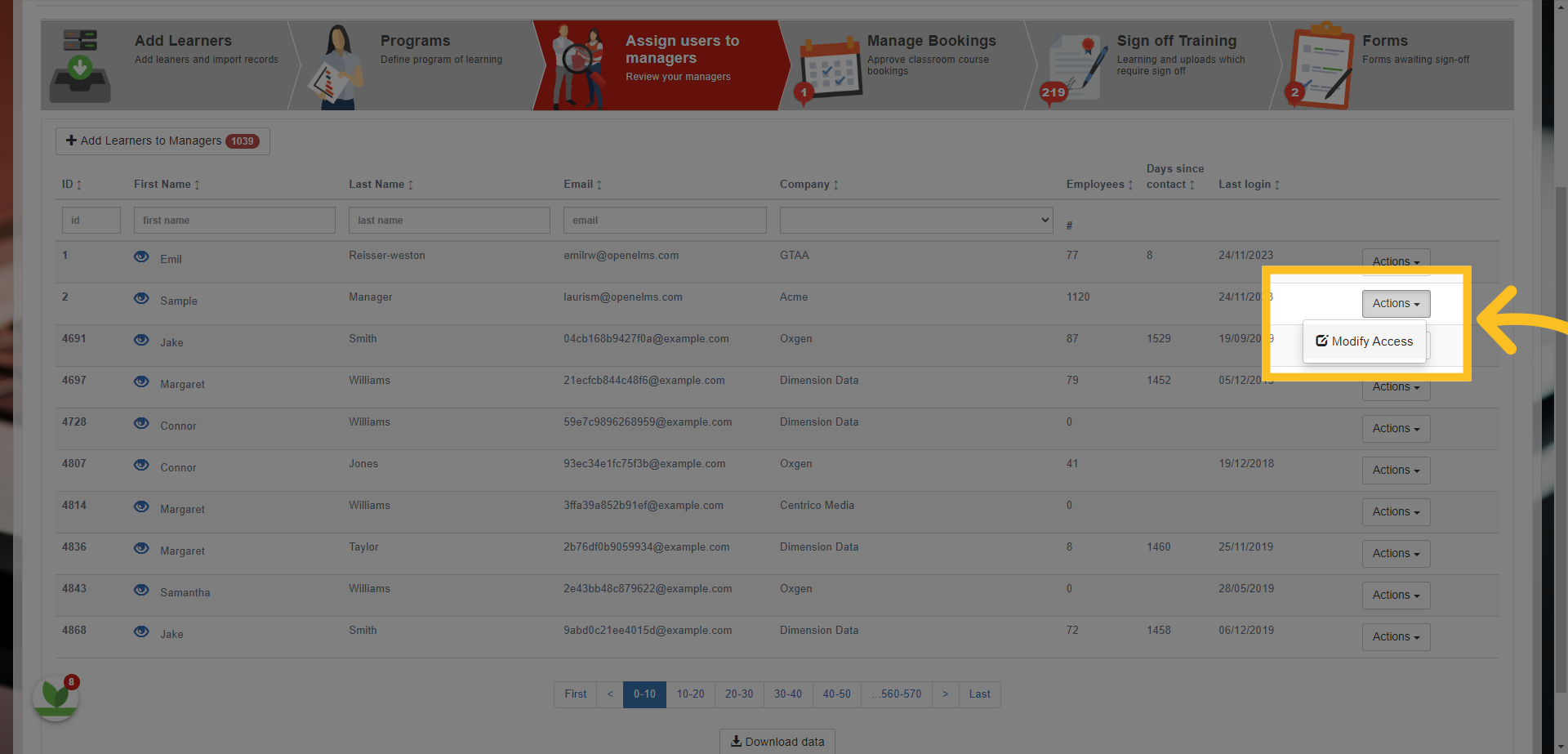
7. To assign employees/learners to the manager, simply click on the Actions button and then 'Modify Access' option.
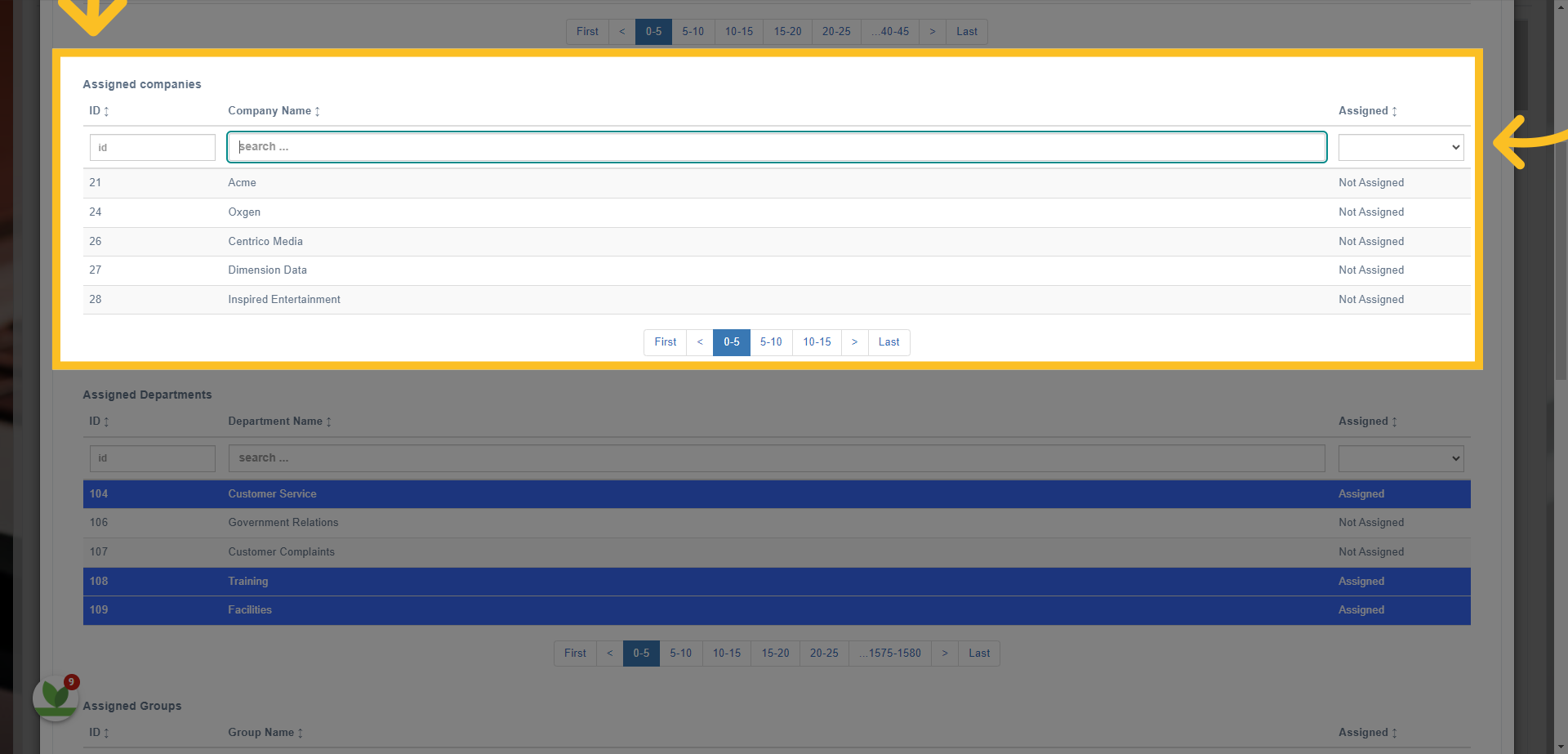
8. You now have the option to Assign Companies directly to the manager. NB: You can check if any companies have already been assigned by clicking in the 'Assigned' box and choosing the 'Assigned' option. Any companies assigned will be highlighted in blue.
9. You can also assign by 'Department'...
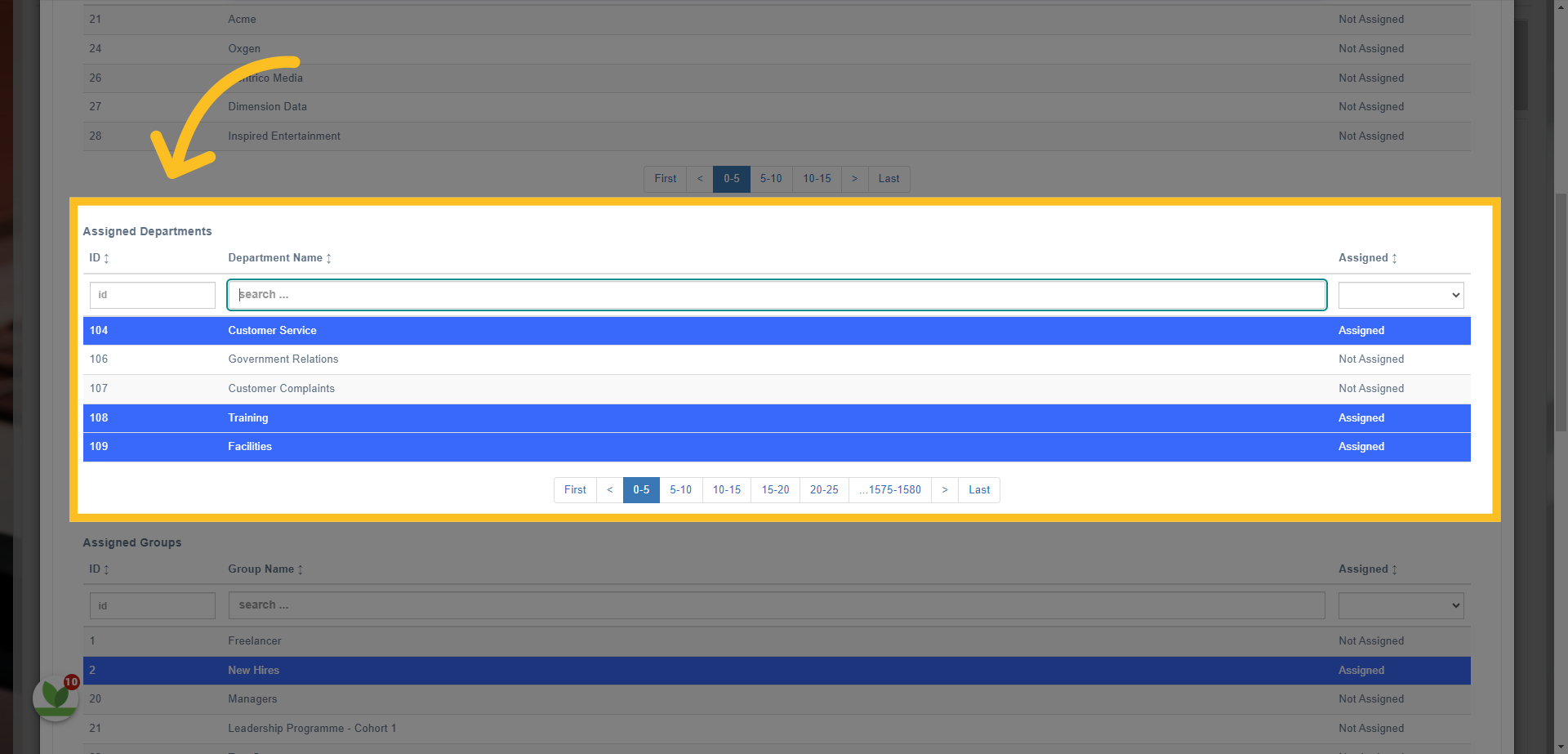
10. ...and/or by groups
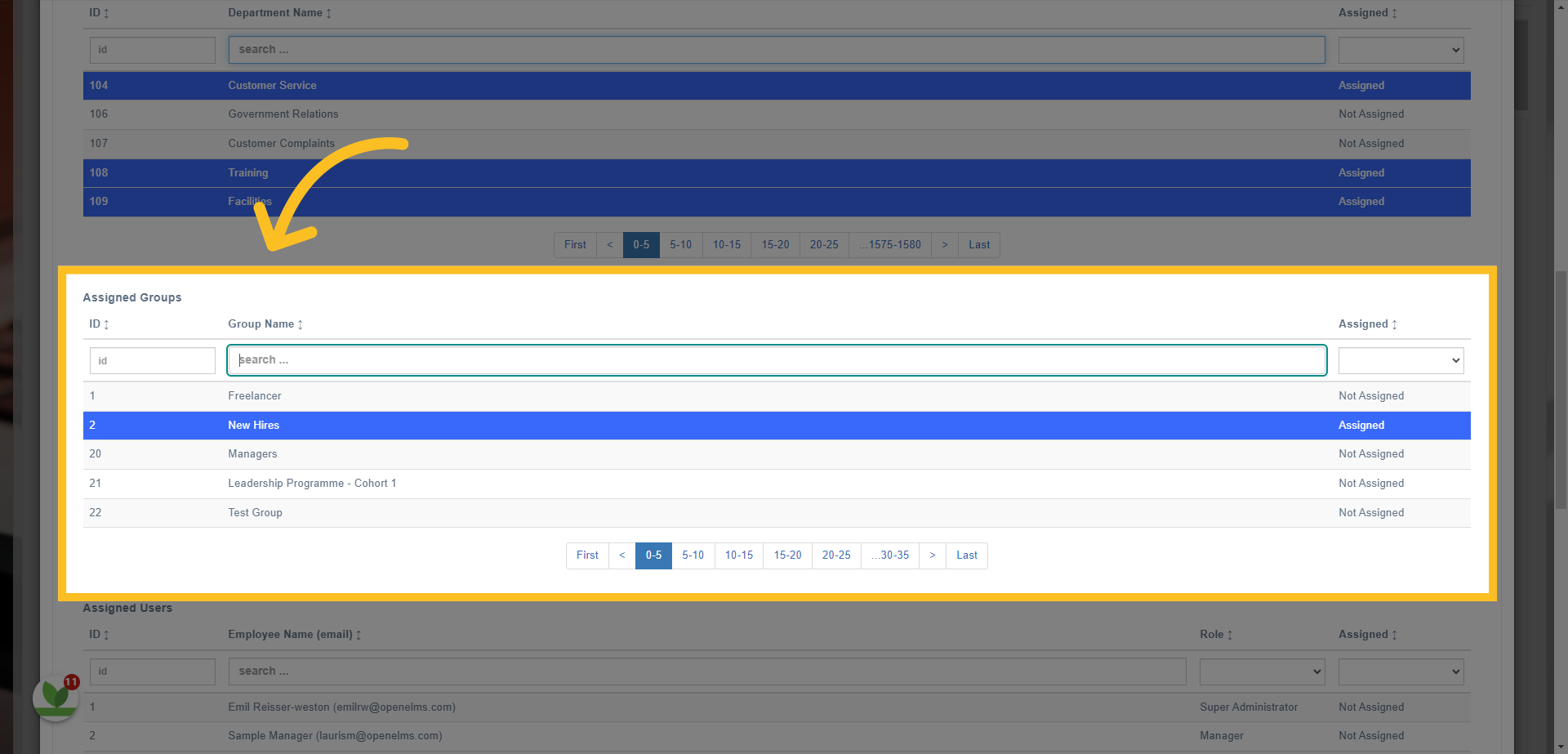
11. Or by assigning users individually.
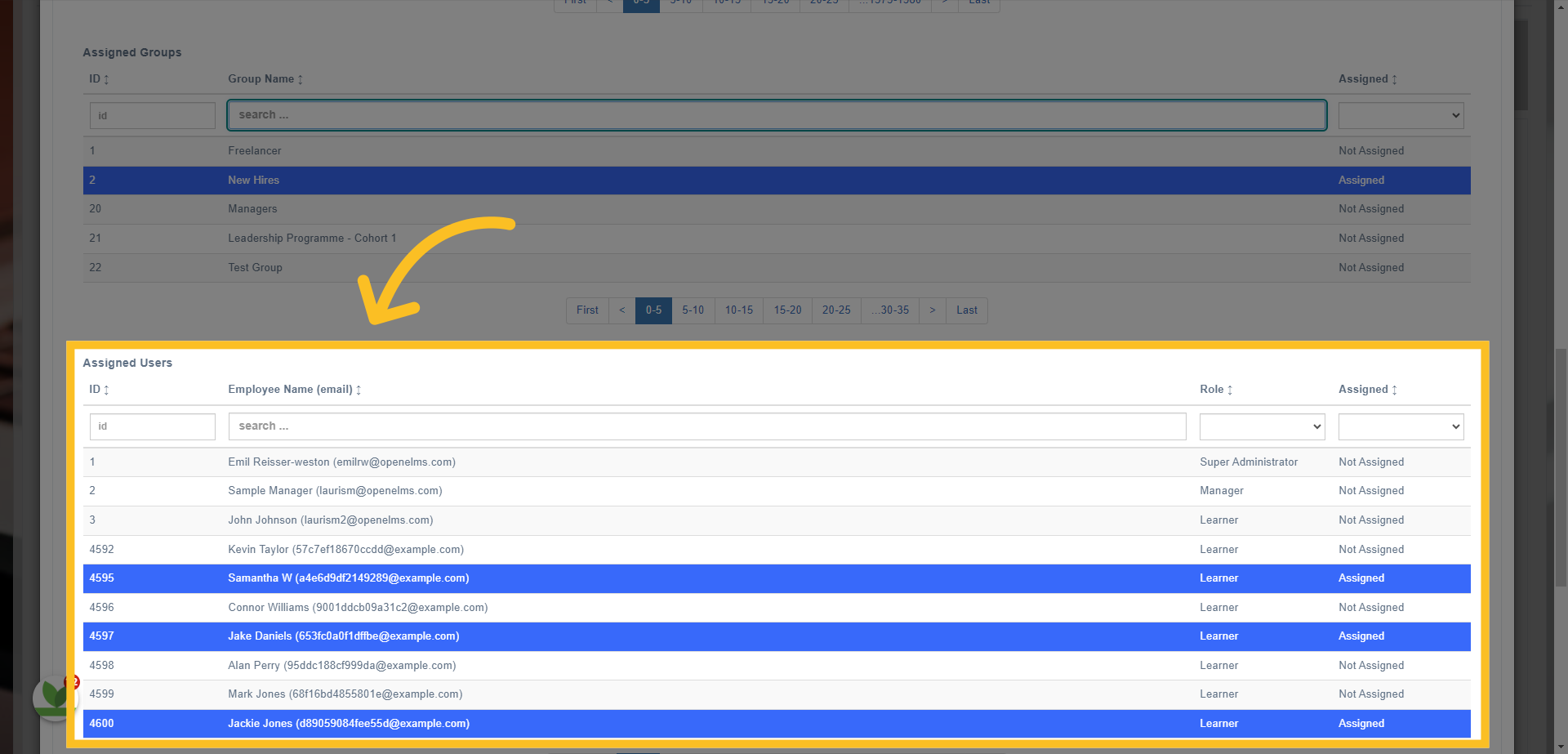
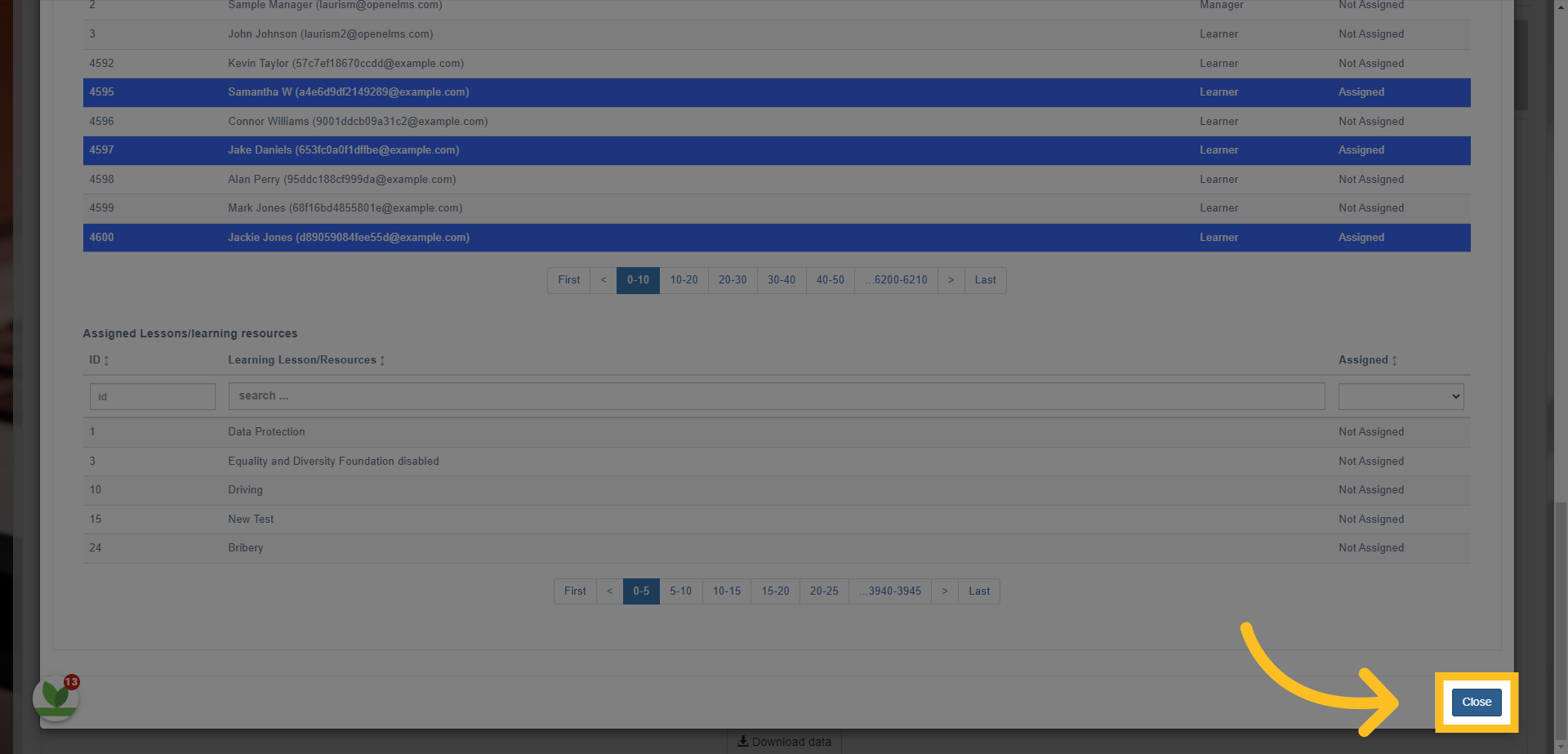
12. Once you've assigned the employees/learners to the manager, click on the 'Close' button at the bottom of the screen.
This guide covered the process of assigning managers to employees or learners in the system. By following the provided instructions, you can easily assign employees to managers by company, department, groups or individually.