Report Templates (forms)
Report templates collate data from forms and insert them into reports. Reports can be handed to each user (e.g. a certificate) or summarise the data for management.
Instructions
Log in as a Administrator and go to Learning Library › Forms › Report Templates.
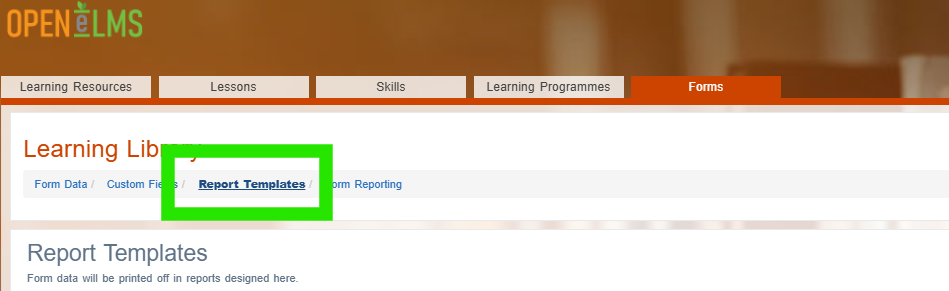
Select the Add Template button.
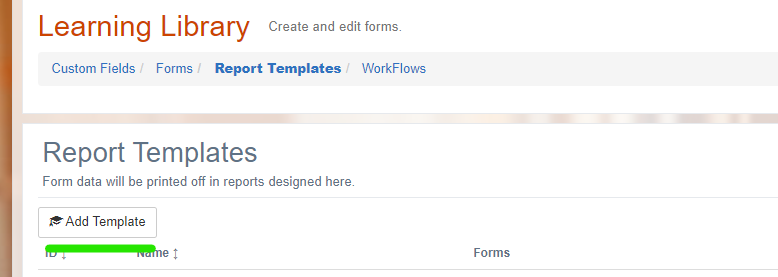
Report templates consist of two main types:
Individual reports which are generally printed out per user and make up a formal record of that form’s completion.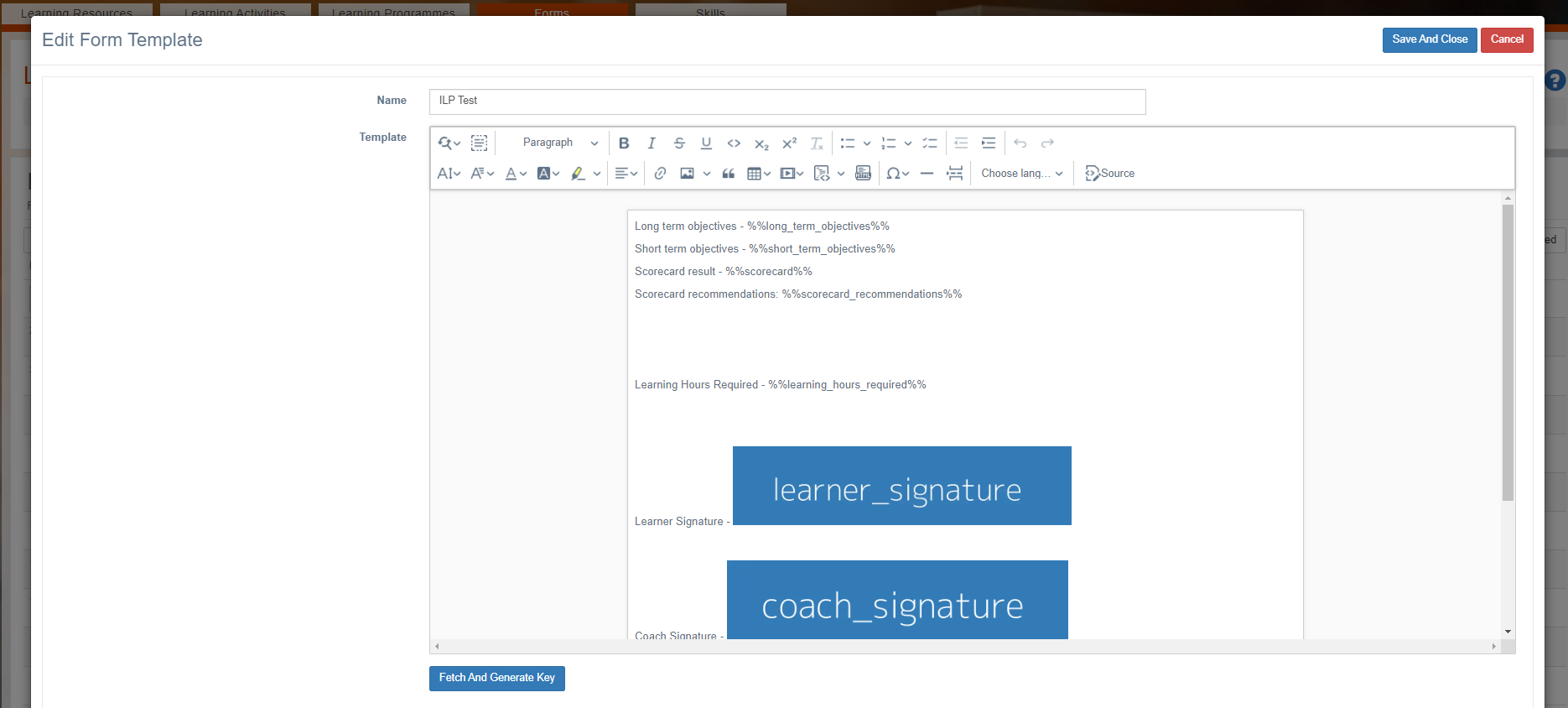
Summary reports consisting of graphs and tables which summarised data. These reports are generally aimed at management.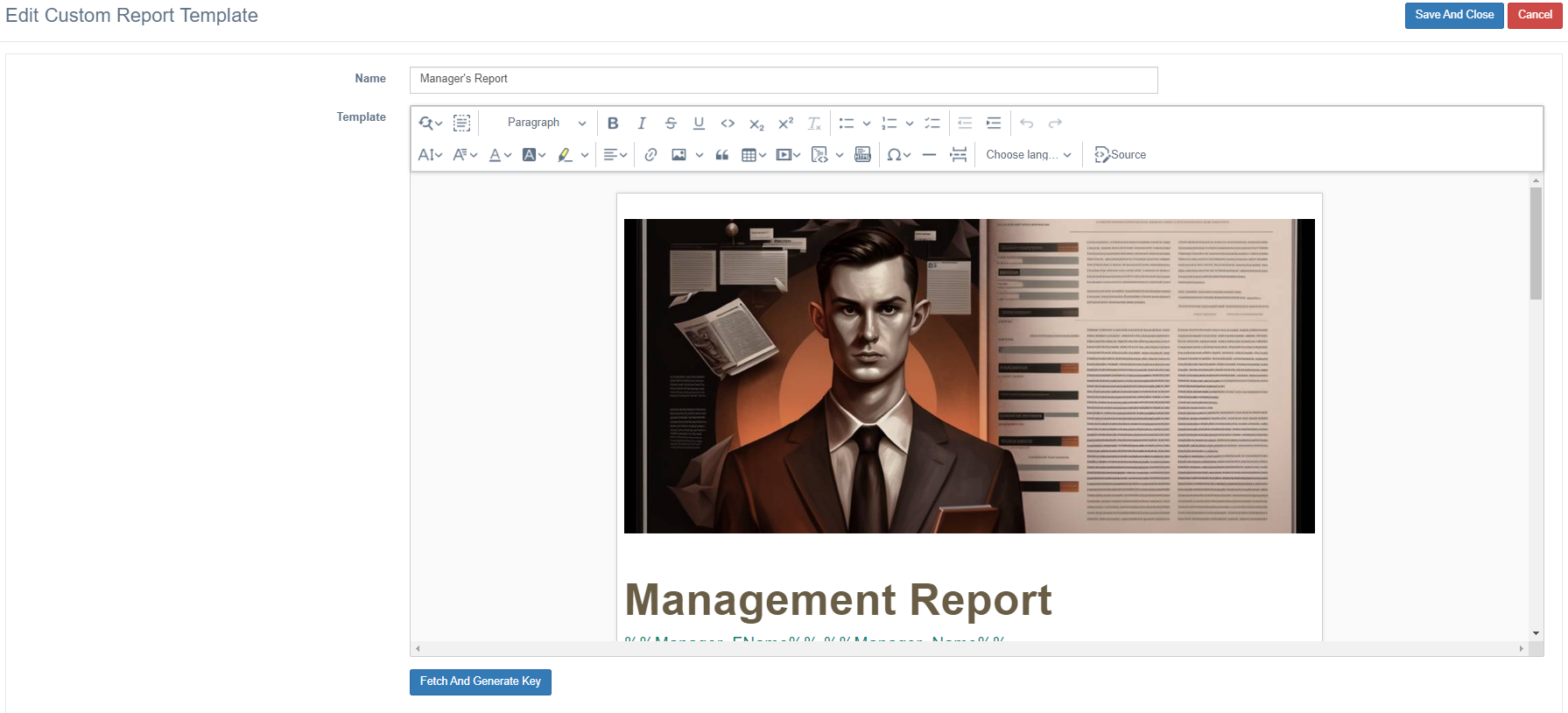
When designing the report, it is important to think about the type of report you are putting together.Define keys where you want data to go. These keys can contain data for individual fields …

…. or tables and graphs (note tables and graphs need to be defined in the report builder prior to being added to a report template).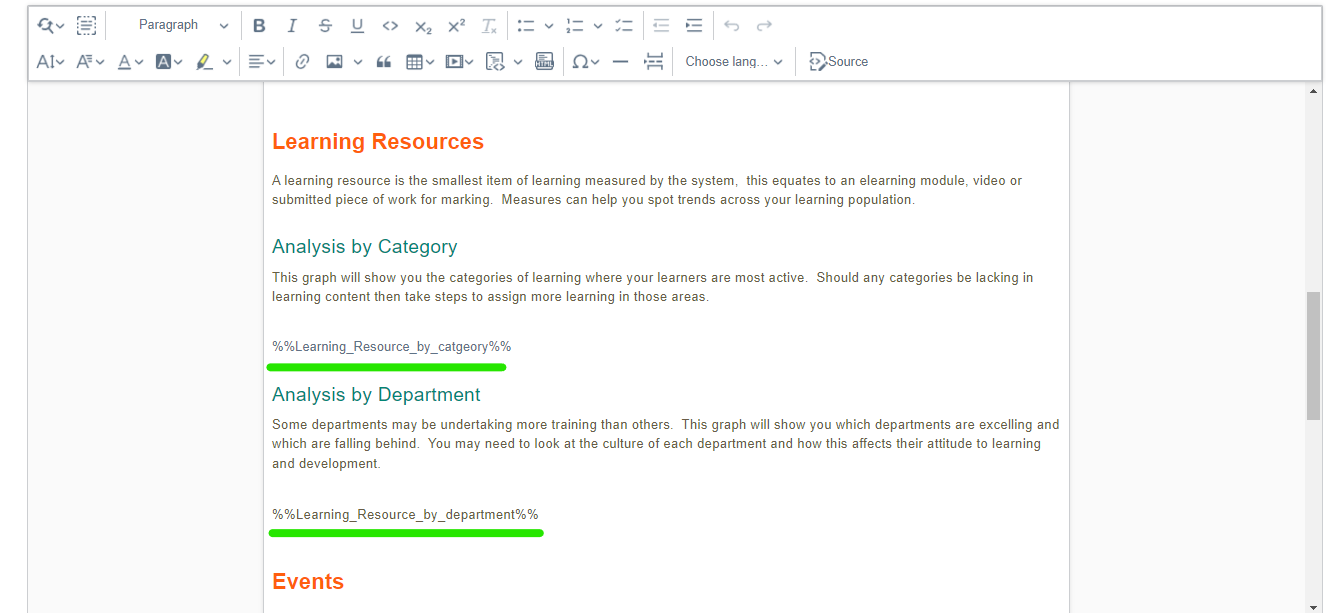
Keys always take the format %%variable_name%% - the variable name can be anything you want, so long as its recognisable to you and does not contain any spaces.Associate fields from forms to be included in this report. If you want to add a field such as the Manager’s company (which appears once in the report) at the report header, then select Data Table > Per Record Report > Managers > Company (add a figure of 100 to the record limit to prevent the report timing out whilst testing.) Then press Associate Key.
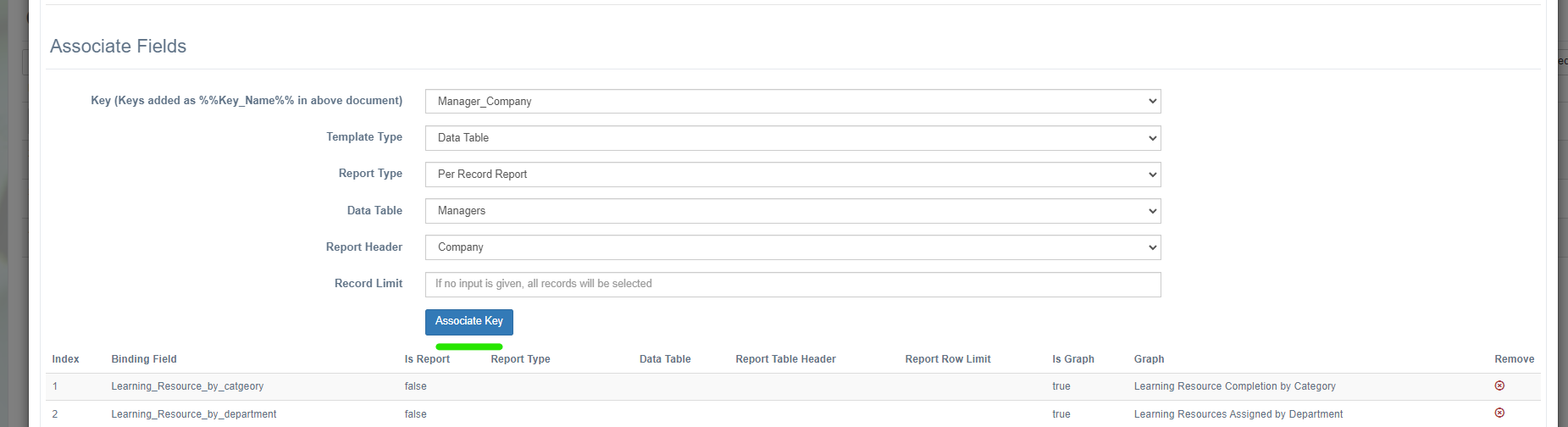
To add summative data for management reporting, add a Graph or Data Table > Summary Report instead.This will then add the field, graph or table to the report in the list below.
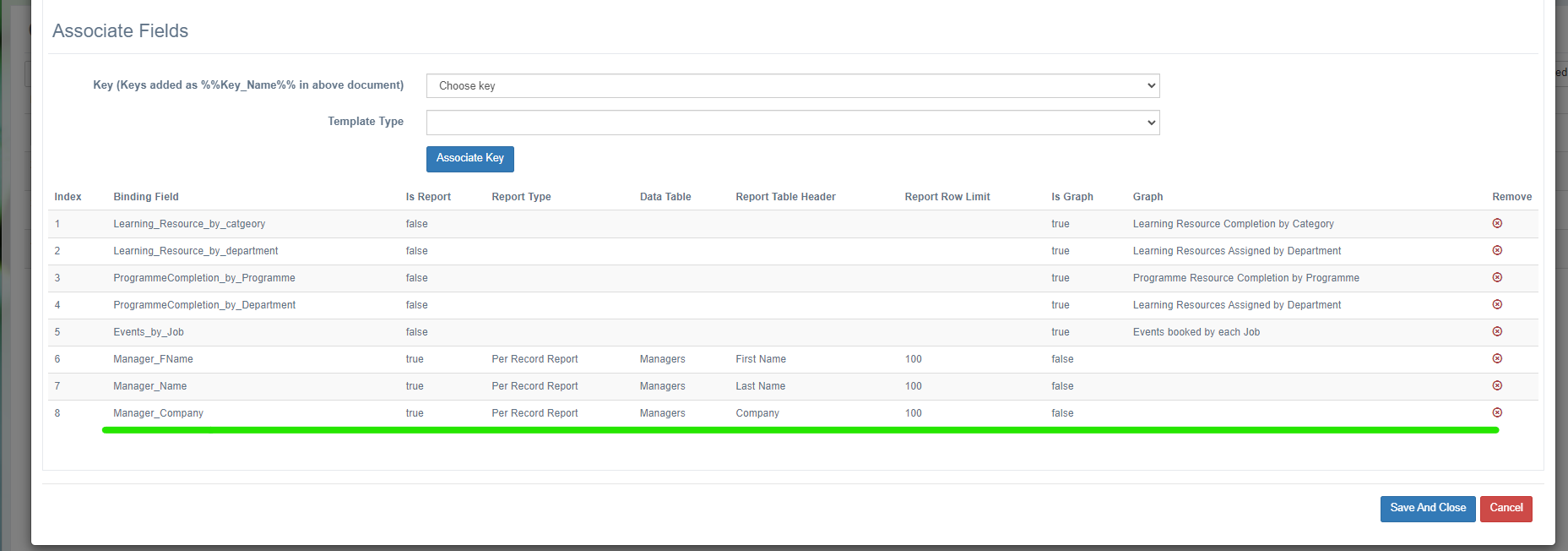
This reporting is similar to the reporting process in the report builder.
Related articles
- Page:
- Page:
- Page:
- Page:
- Page: