Import Learning Resources
Learning Resources can be imported from any third party Learning Management System; this is useful when migrating from a legacy system.
Instructions
Go to Learning Library › Learning Resources.
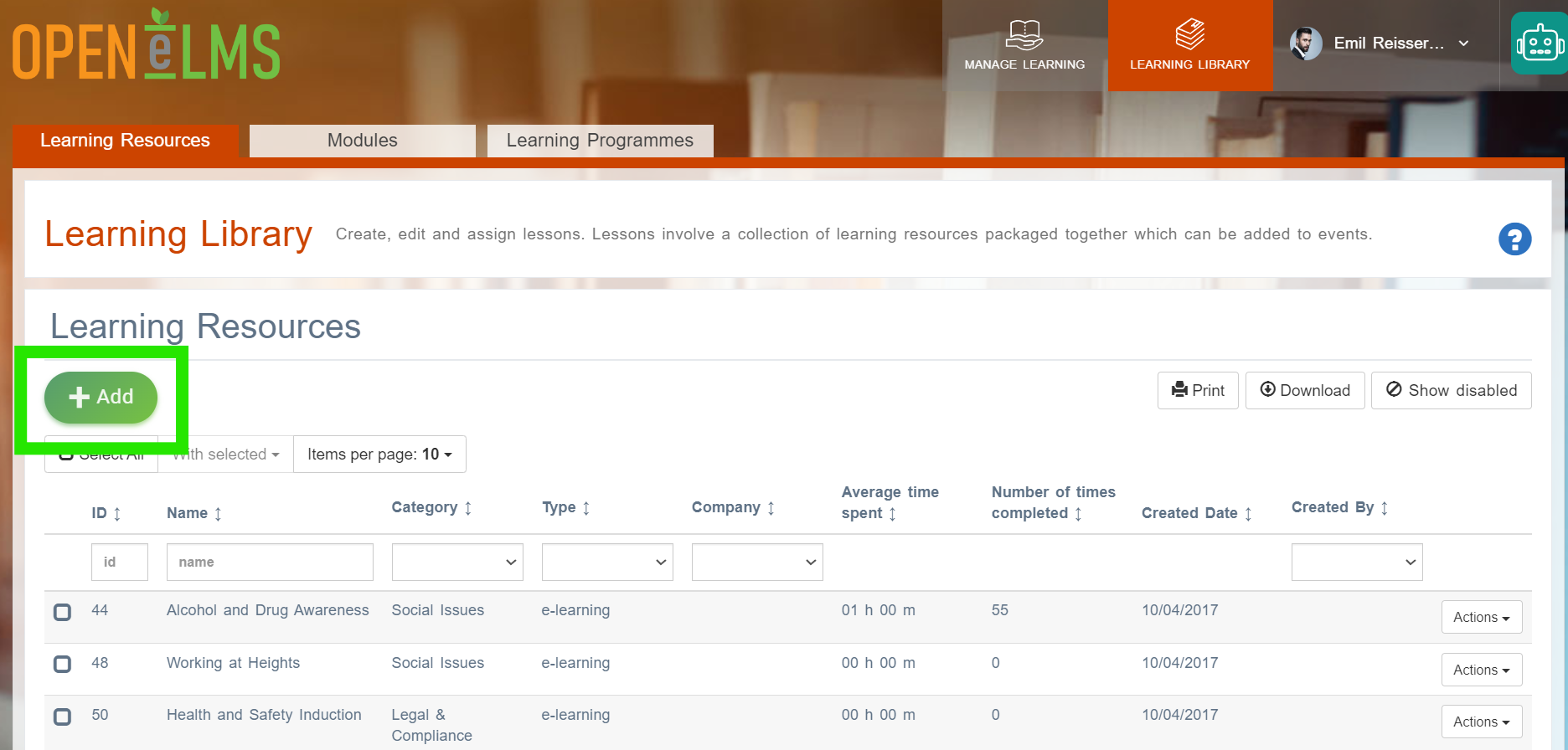
If a Curriculum Developer then press the Add Learning Resources button.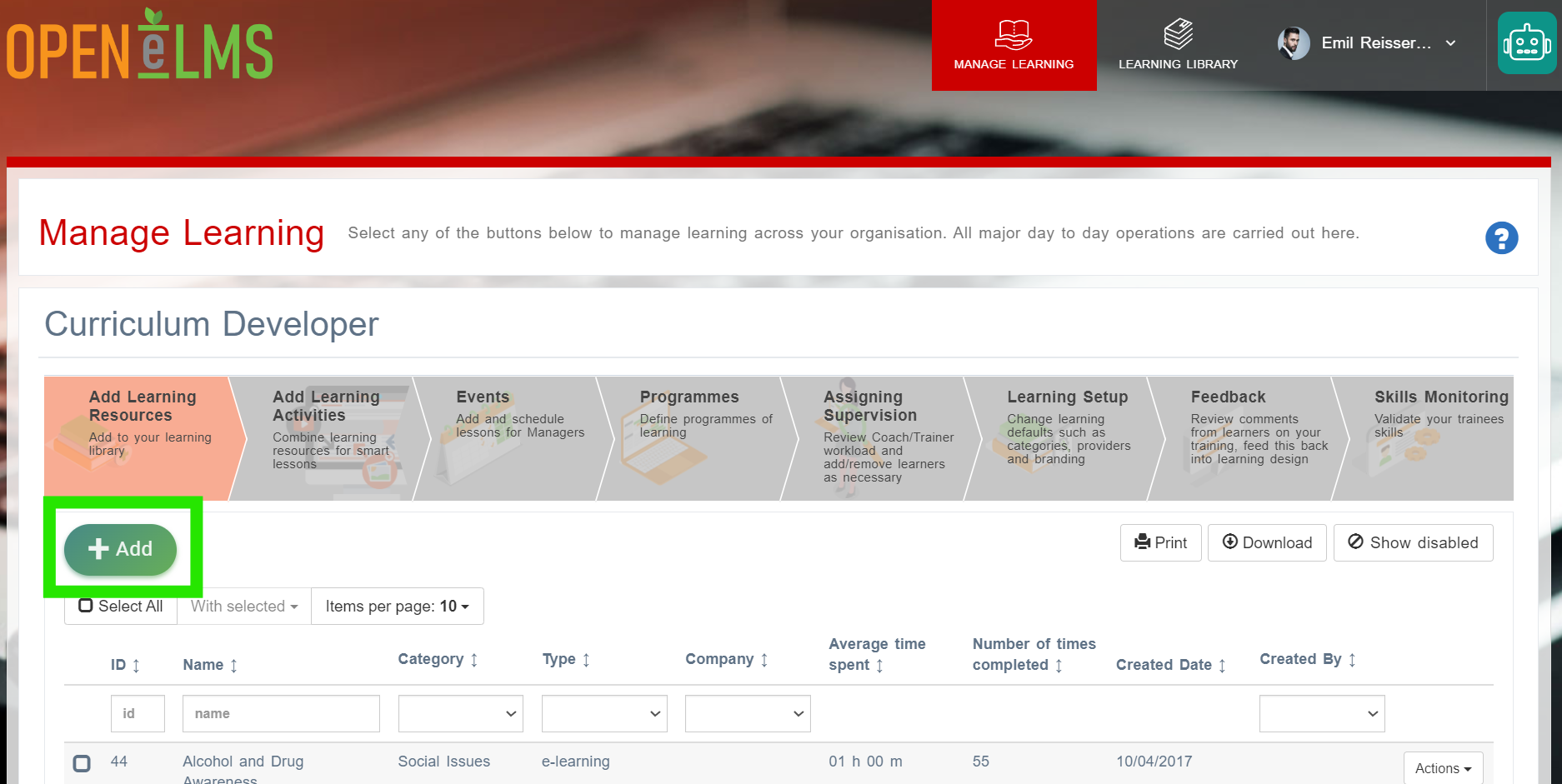
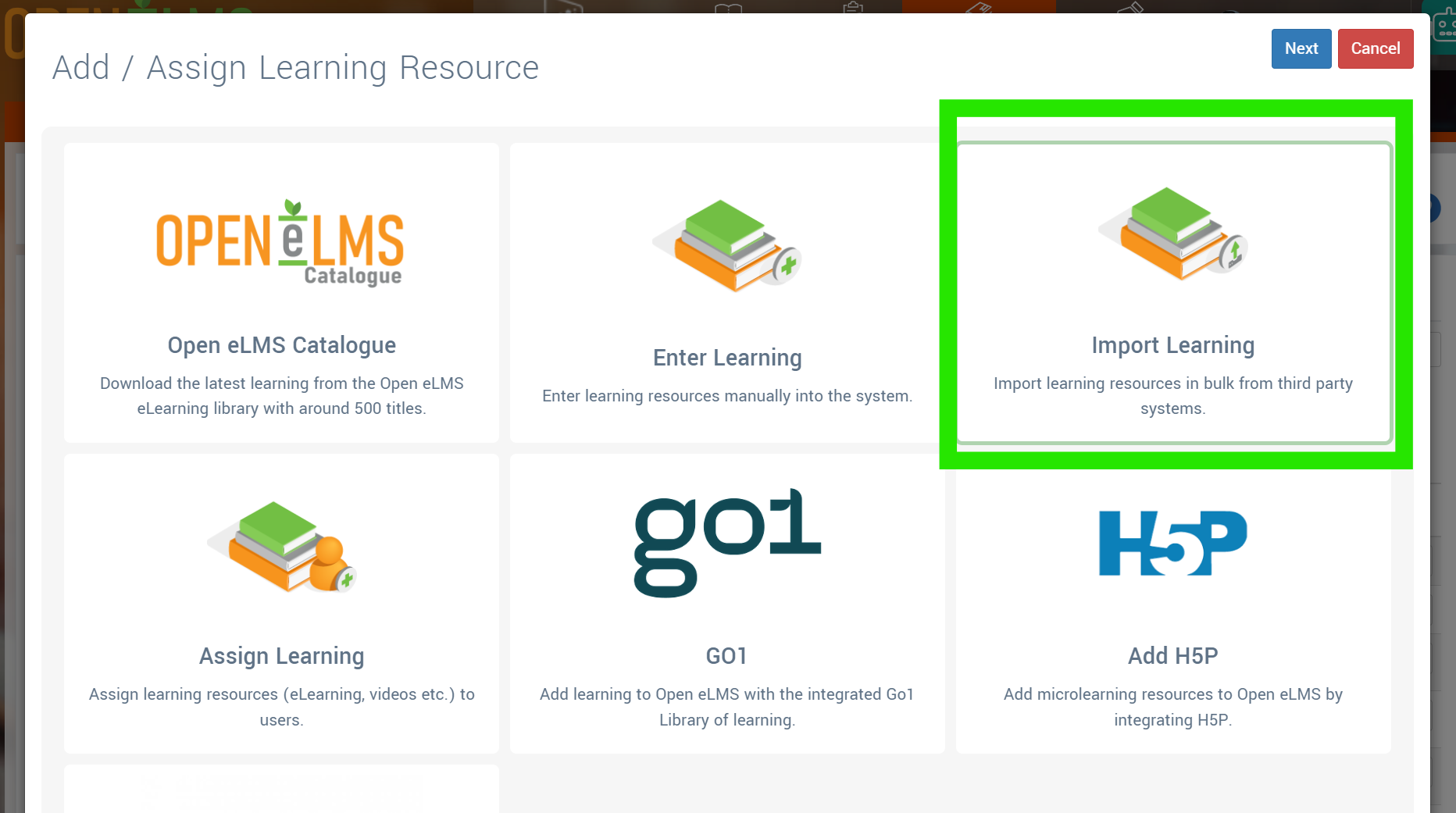
Select the Import Learning Resources option - as you can see other options do exist for adding more content.
Download the template (use link or press the Download Template) button and complete it entering data into the specified columns. Data need to follow this format - the AI powered import allows you to match fields at the next step.
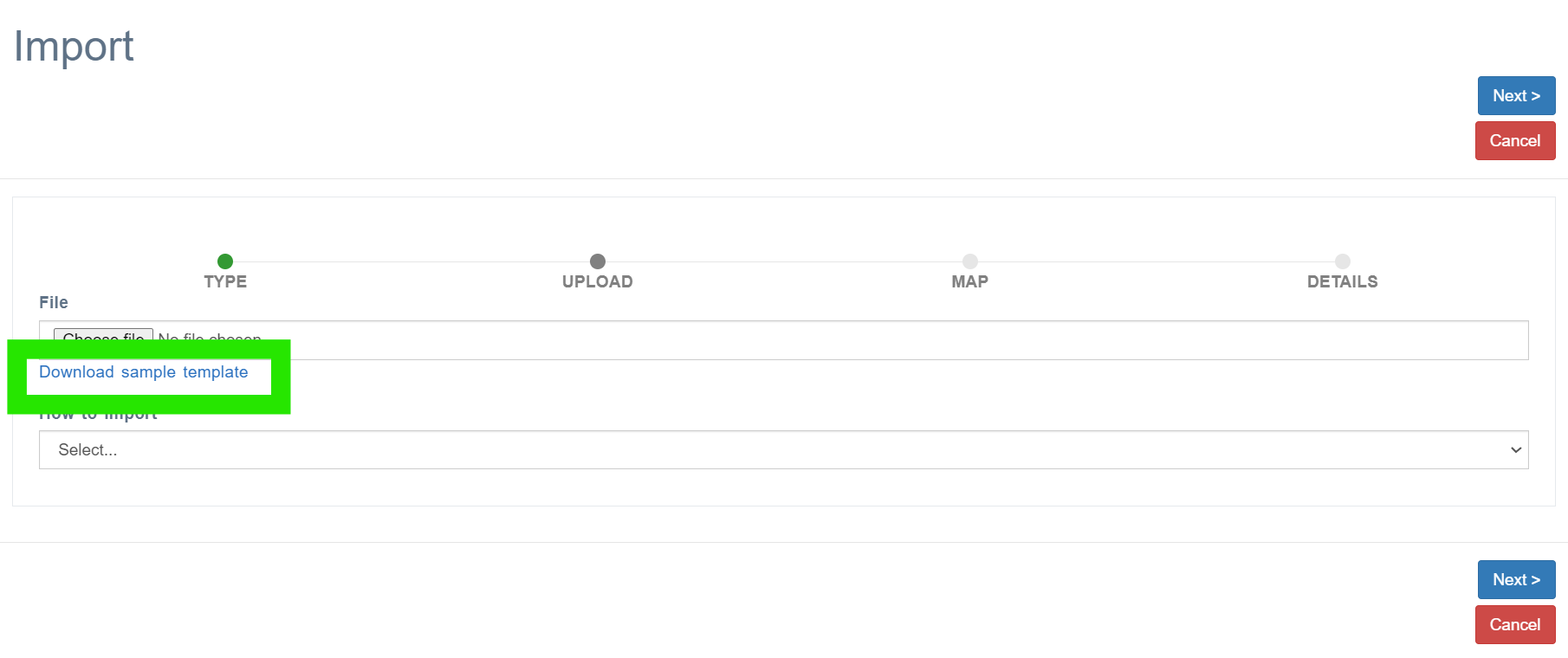
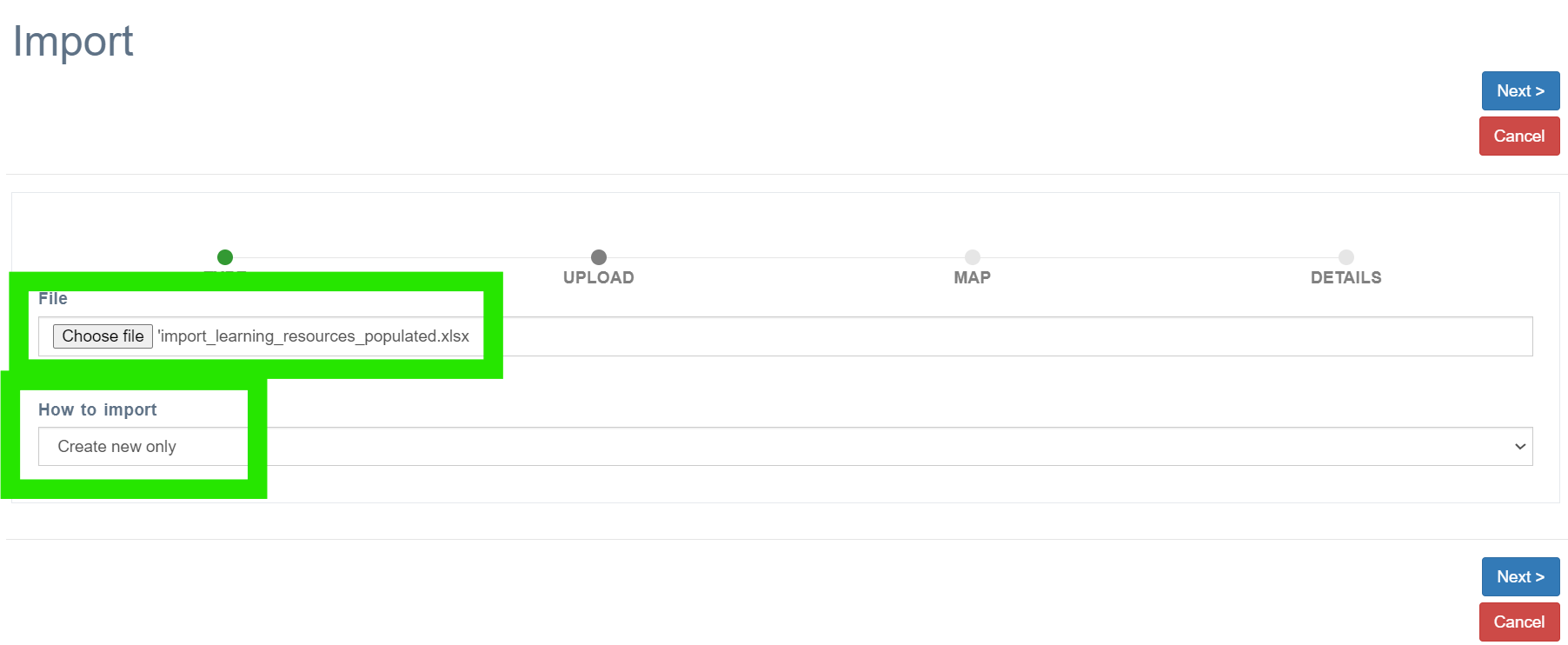
Select Choose file and Select how to import. Then press the Next button.
The system will tell you if the import has been successful.
You may wish to do the following data cleansing operations on the data prior to import.
Field Name | Data Cleansing Process on source data | Excel Function on source data |
learning_modules.name | Remove duplicates to ensure course keywords and categories are edited in one location only prior to import. | Data > Remove Duplicates |
learning_module_types.name | Use a lookup table to match types to the learning resource types listed in Open eMS (e.g. .eLearning, YouTube etc.) Any types not used are added to the disableResourceTypes configuration setting. This should include any custom types added. | VLOOKUP |
learning_module_categories.name | Manually rationalise categories used with a Lookup table. Recommended using no more than 20 categories. | VLOOKUP |
learning_modules.name.keywords | Replace delimiter characters other than commas with commas | SUBSTITUTE |
learning_modules.material (min_passing_percentage saved as JSON format) | Ensure the passmark is less than or equal to 100% | Conditional Formatting |
Related articles
- Page:
- Page:
- Page:
- Page:
- Page: