How to Assign Events from Curriculum Developer Role
How to Assign Events from Curriculum Developer Role

This guide will walk you through the process of assigning events directly to learners from the Curriculum Developer role. Follow the instructions below to efficiently manage this process.
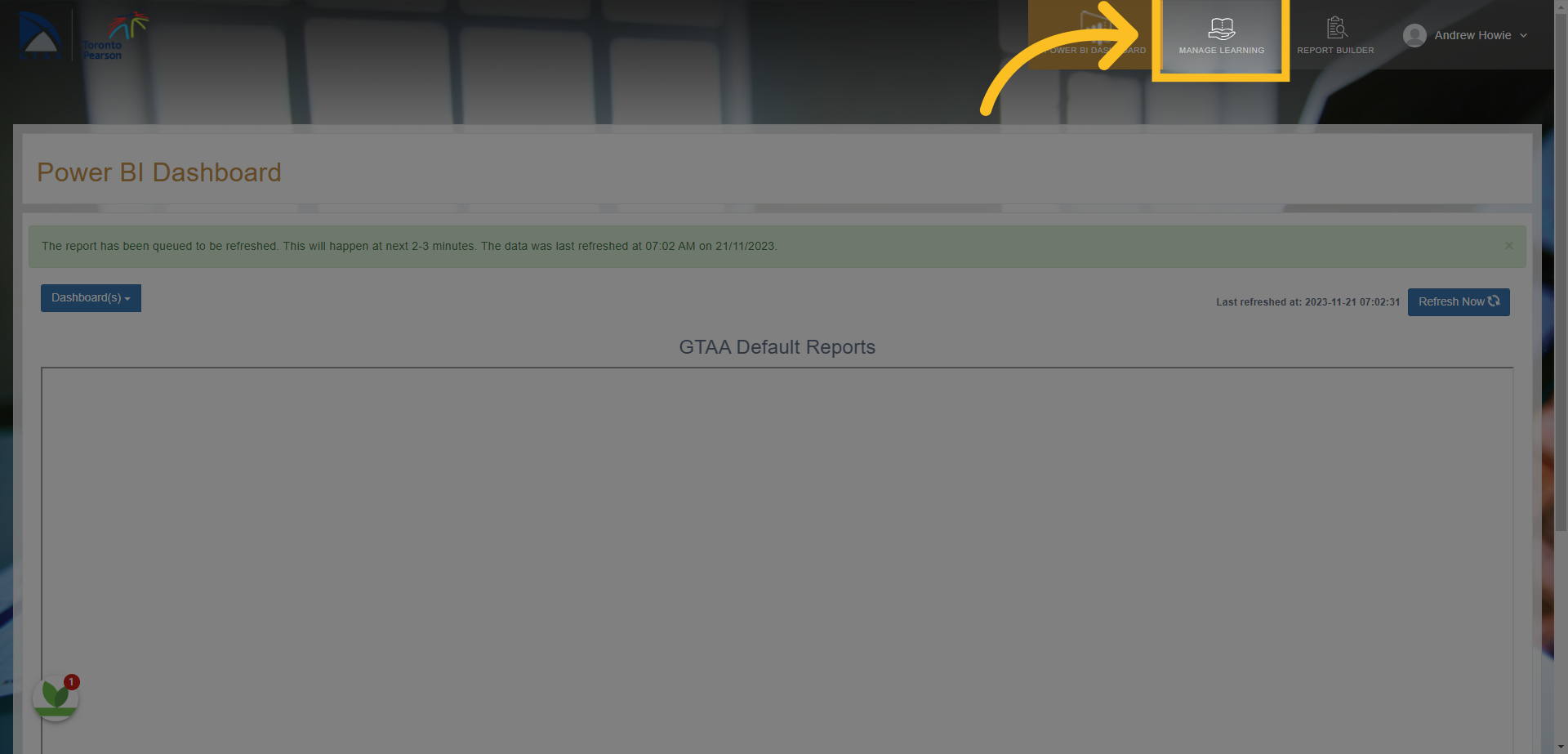
1. Click on the Manage Learning tab at the top of the screen.
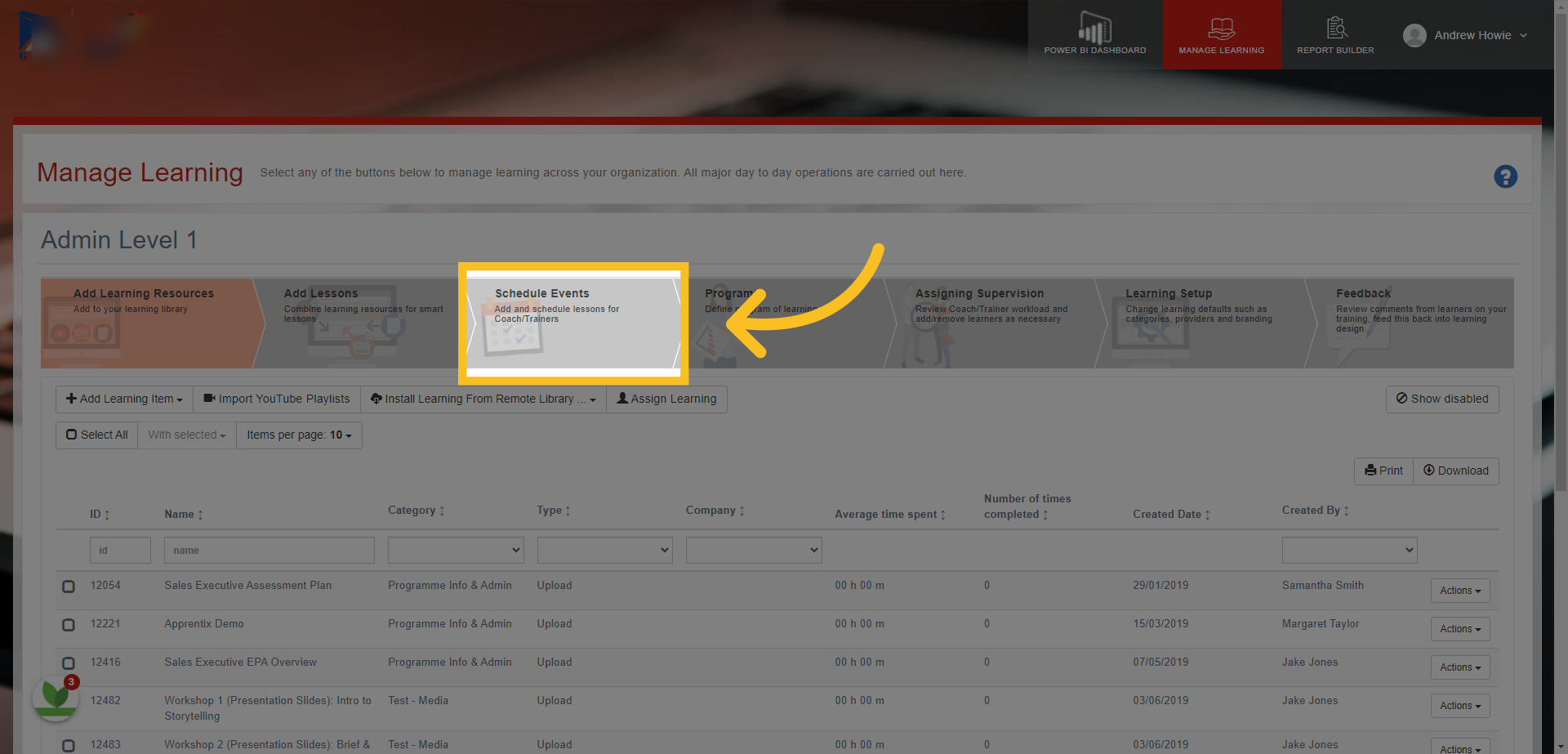
2. Next, click on the Schedule events tab here.
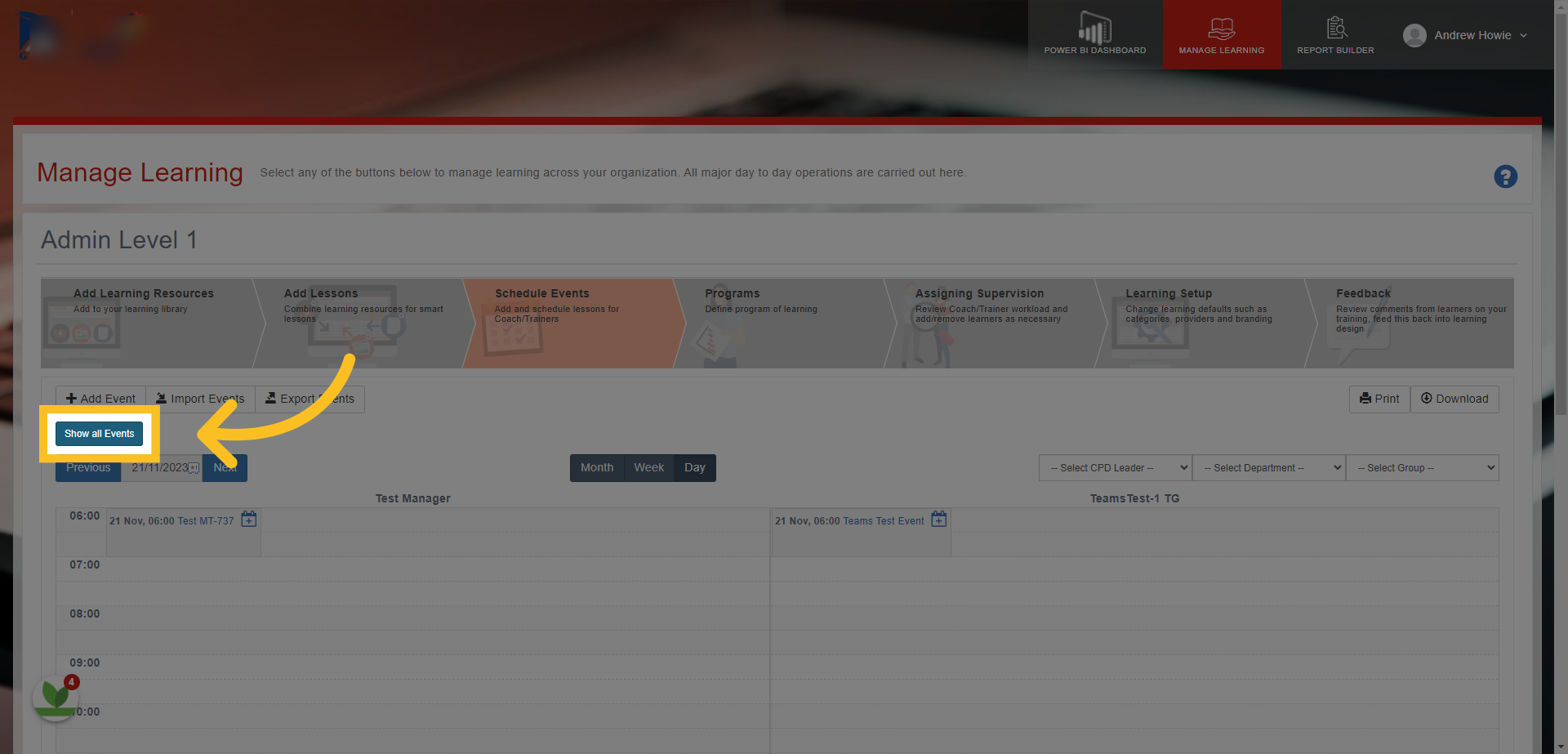
3. Click on the 'Show all Events' Button.
4. Search for the event by typing the name here.
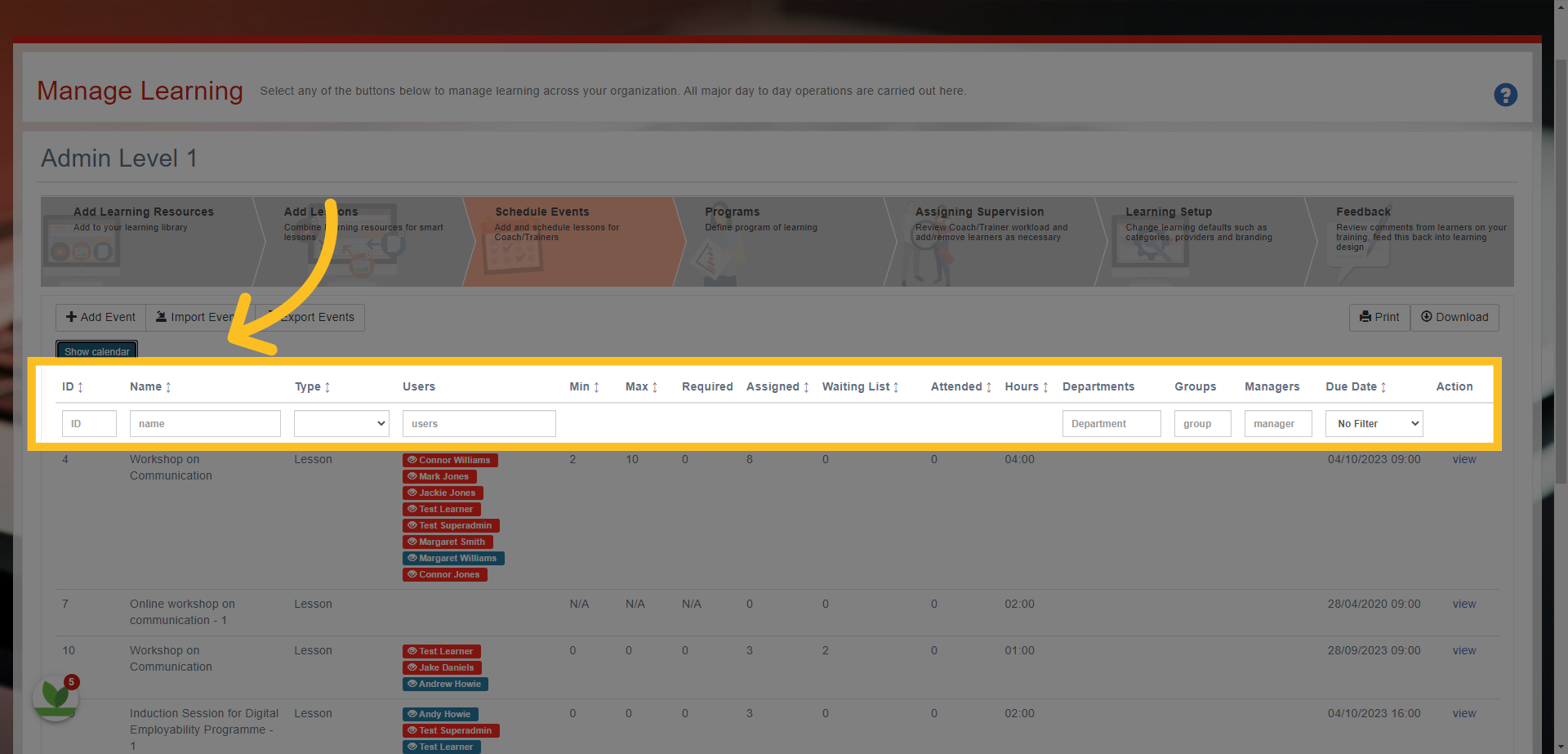
5. You can also filter for events by searching Departments, Groups, Managers and Dates.
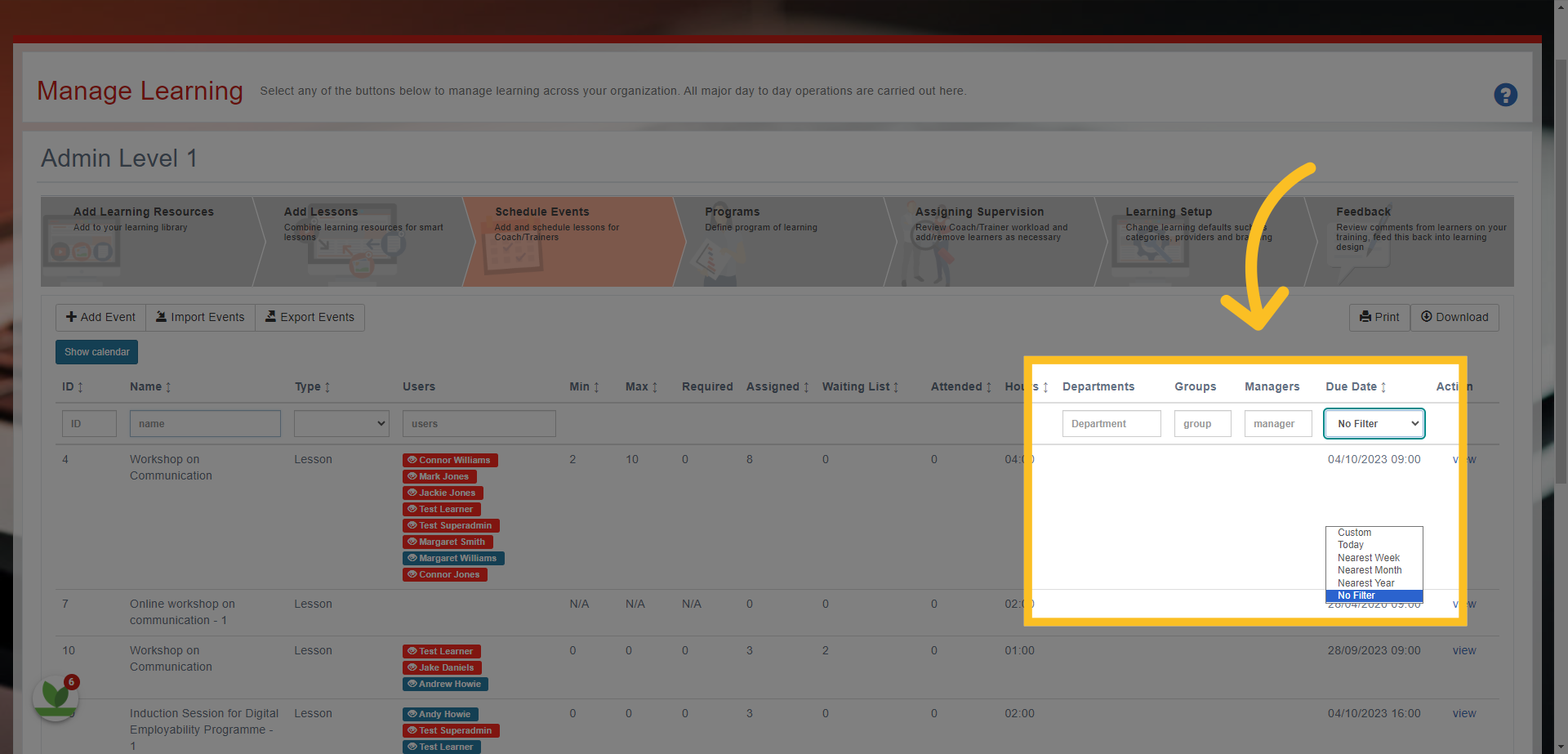
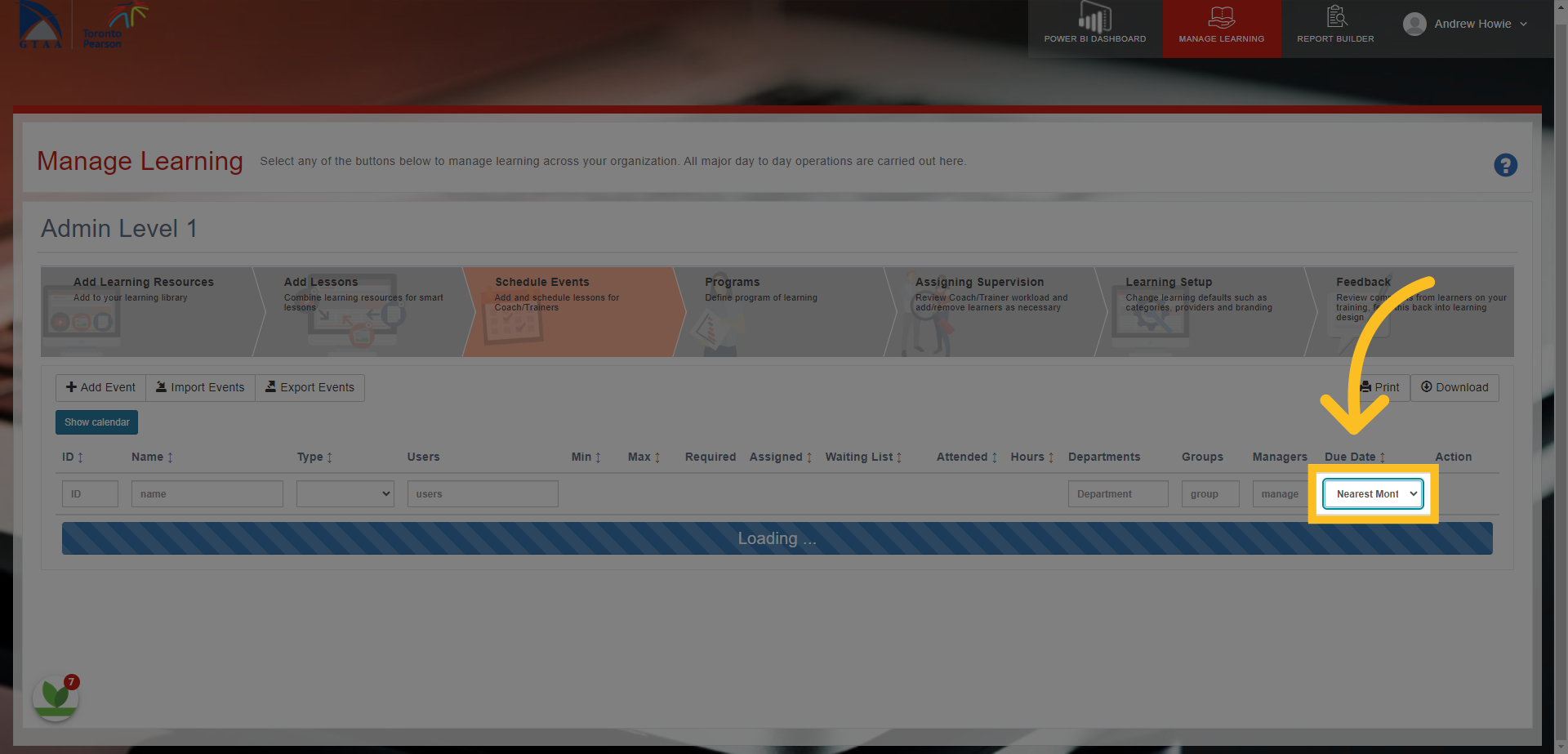
6. For example, you can filter all the events due to take place in the nearest month.
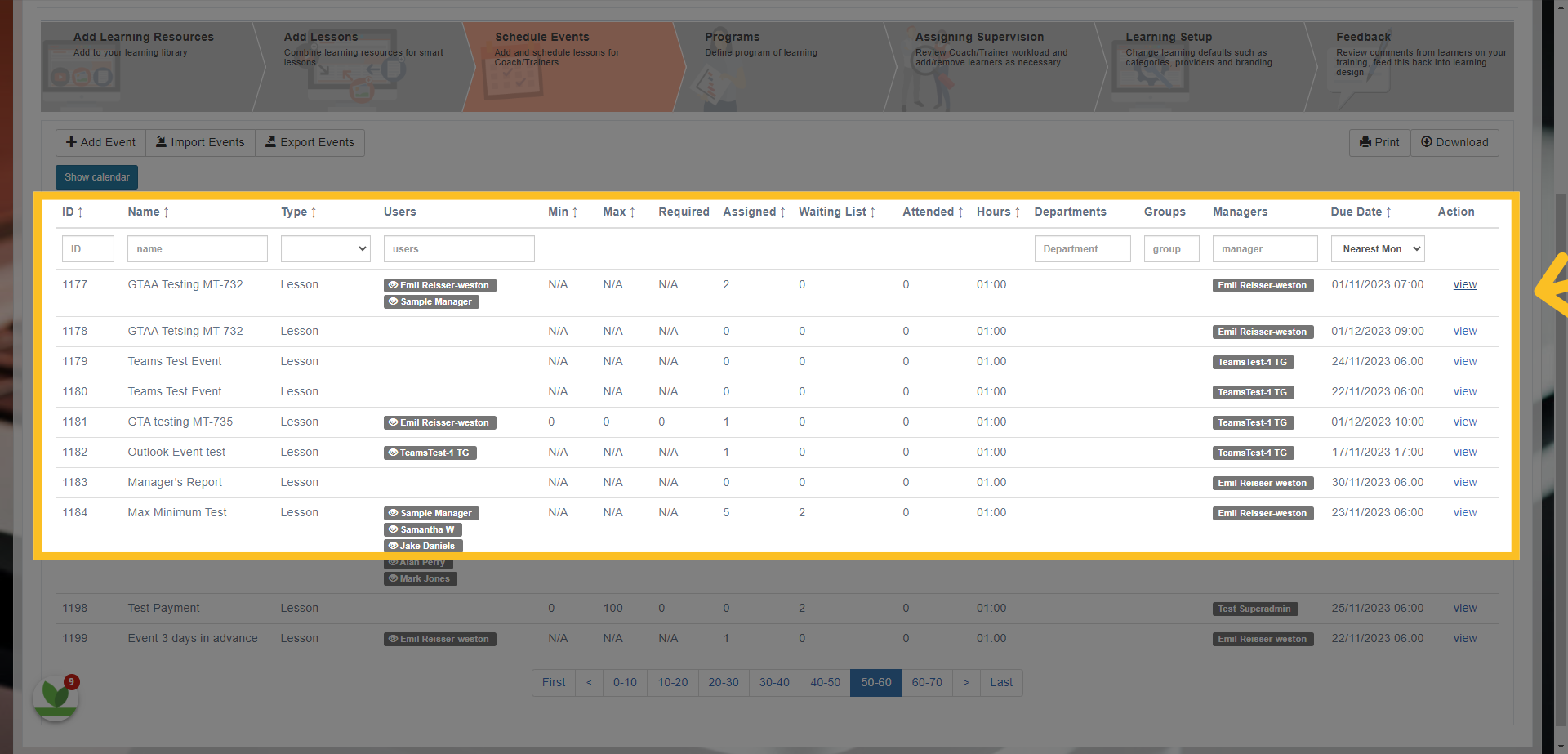
7. Once you've found the event, click on the 'view' button.
8. This opens the event template.
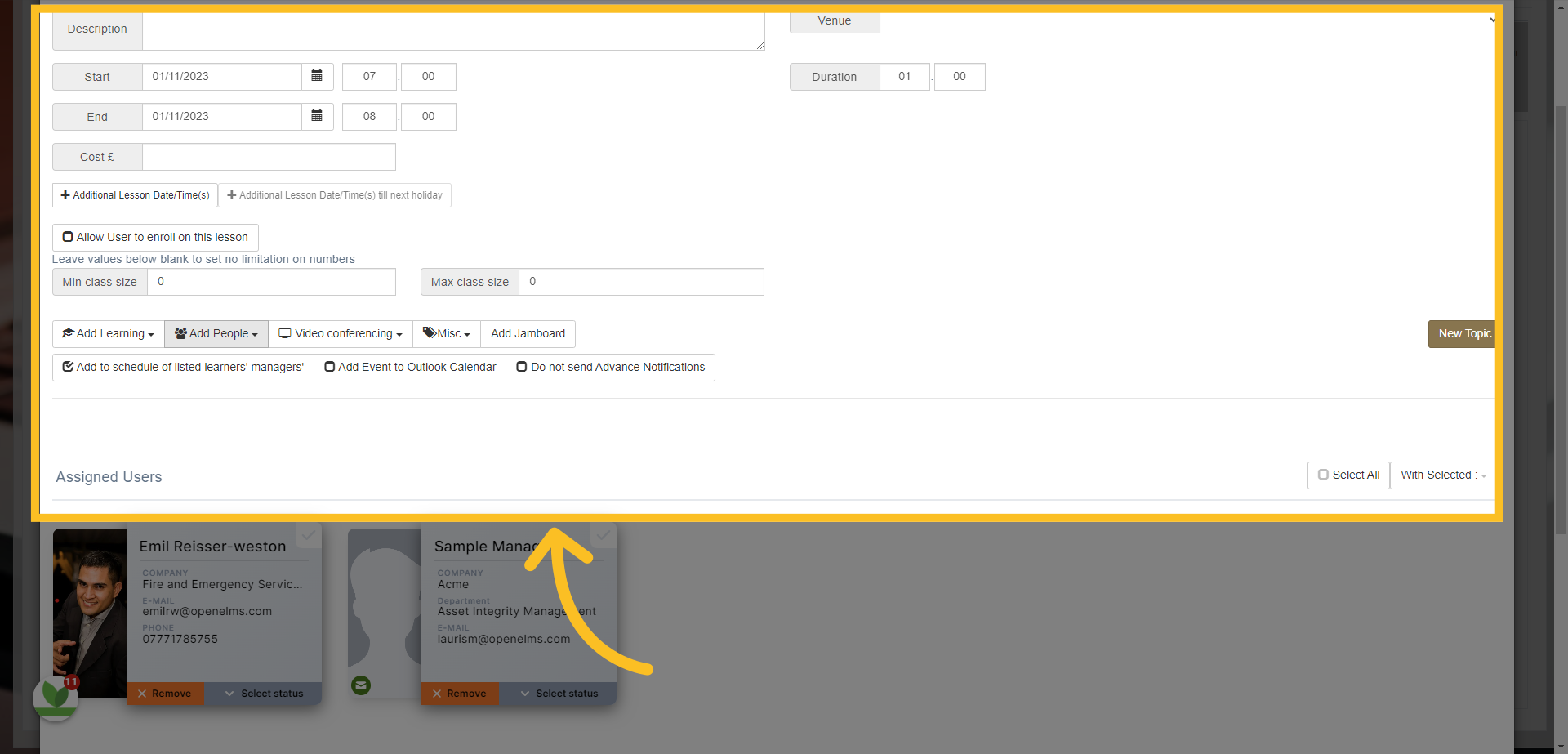
9. Click on the 'Add People' tab. A dropdown will appear with different options. Click on 'Users'.
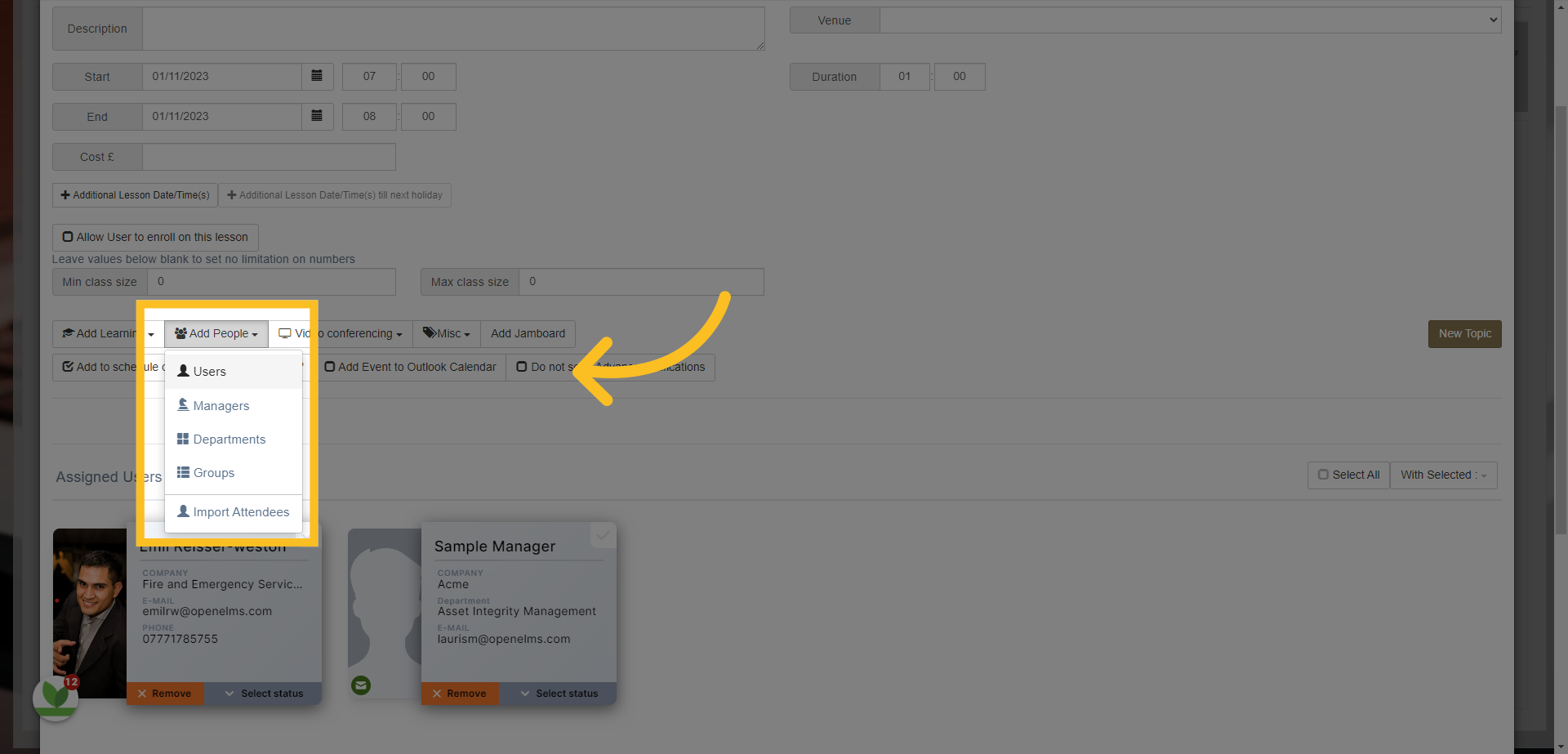
10. You can then view which learners have been assigned the event (highlighted in blue) - you can also click the Status option and click assigned to see full list of 'Assigned' learners
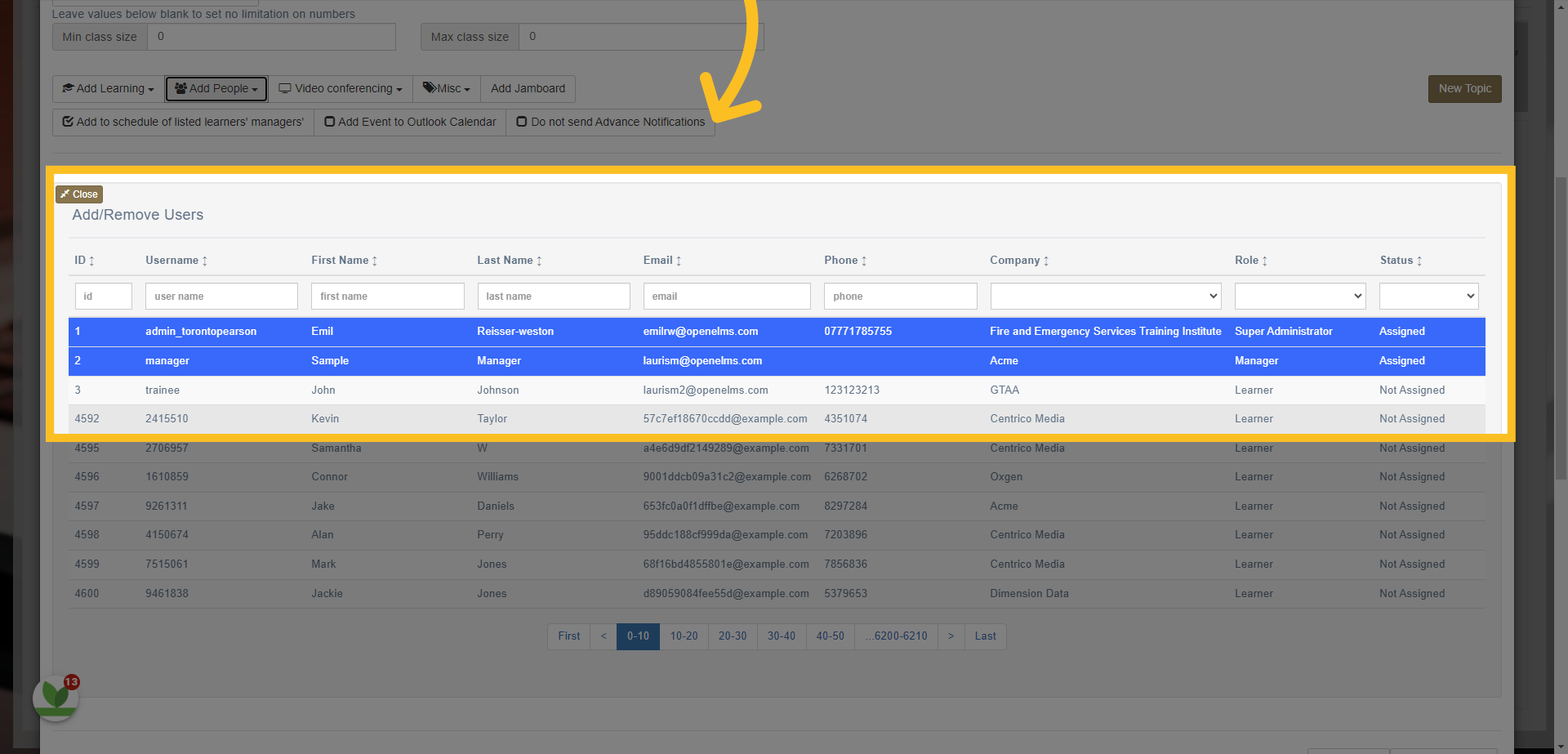
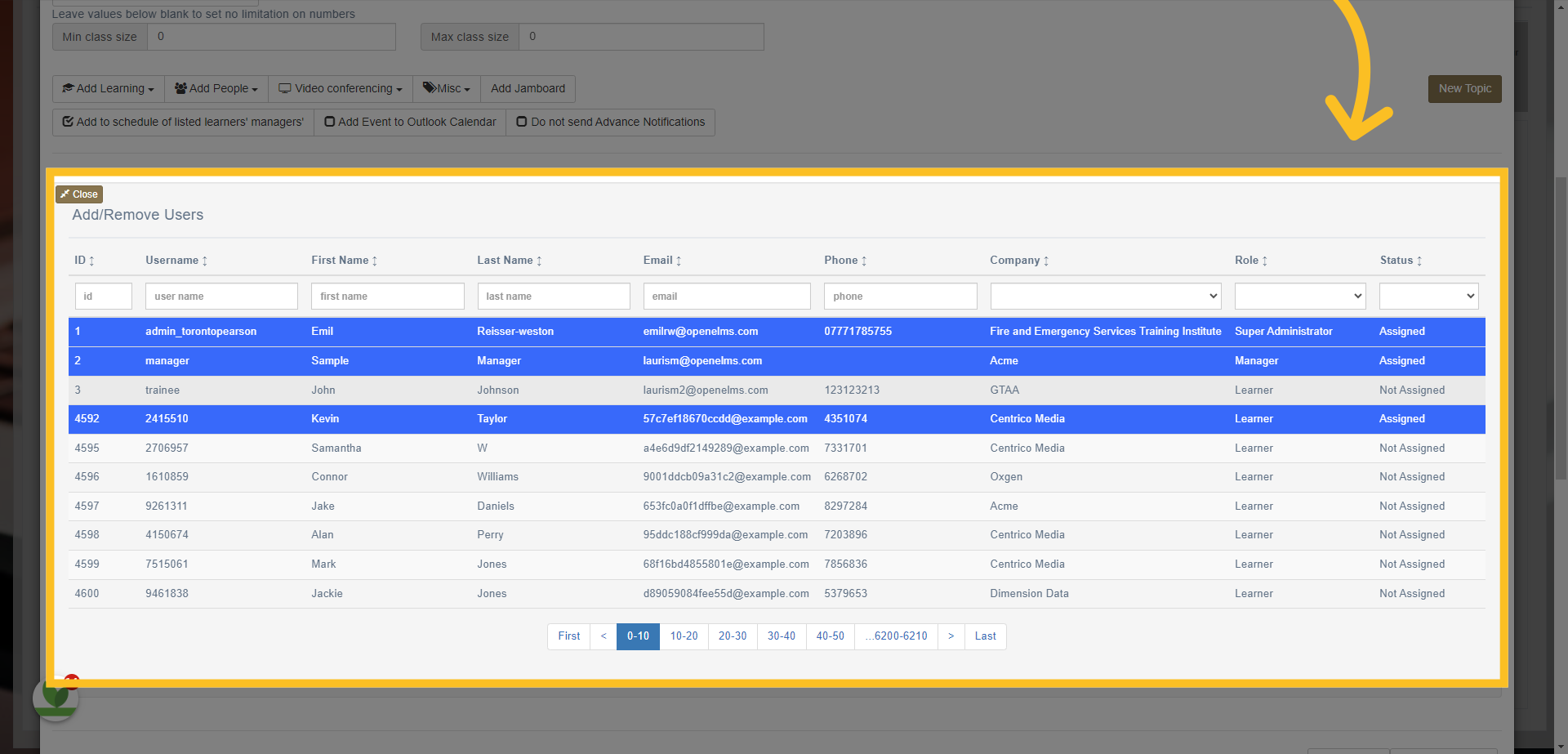
11. Simply click on the learners you want to assign the event to.
12. You can also assign 'Departments' to the event (if you want the whole department to attend). Click on the 'Departments' option here.
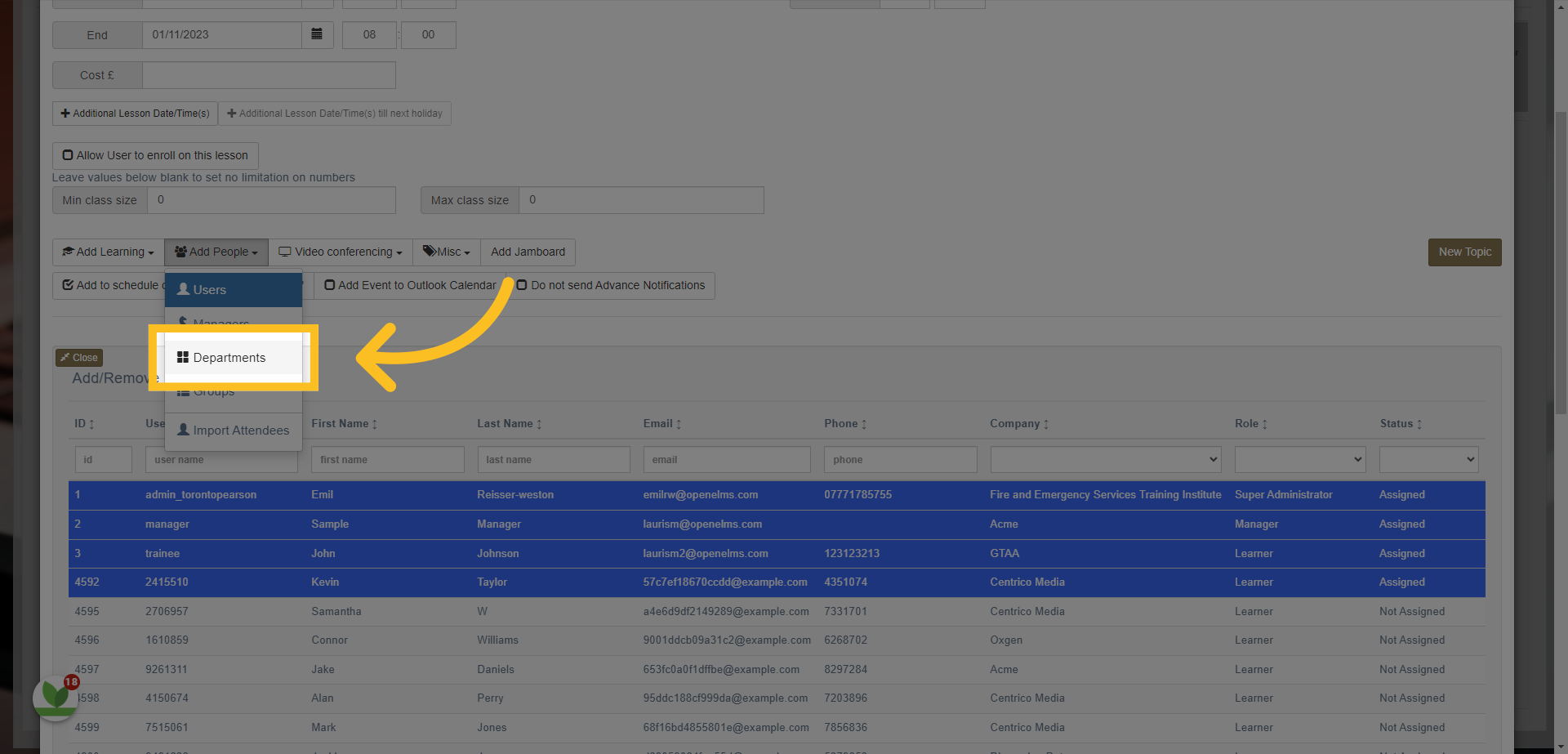
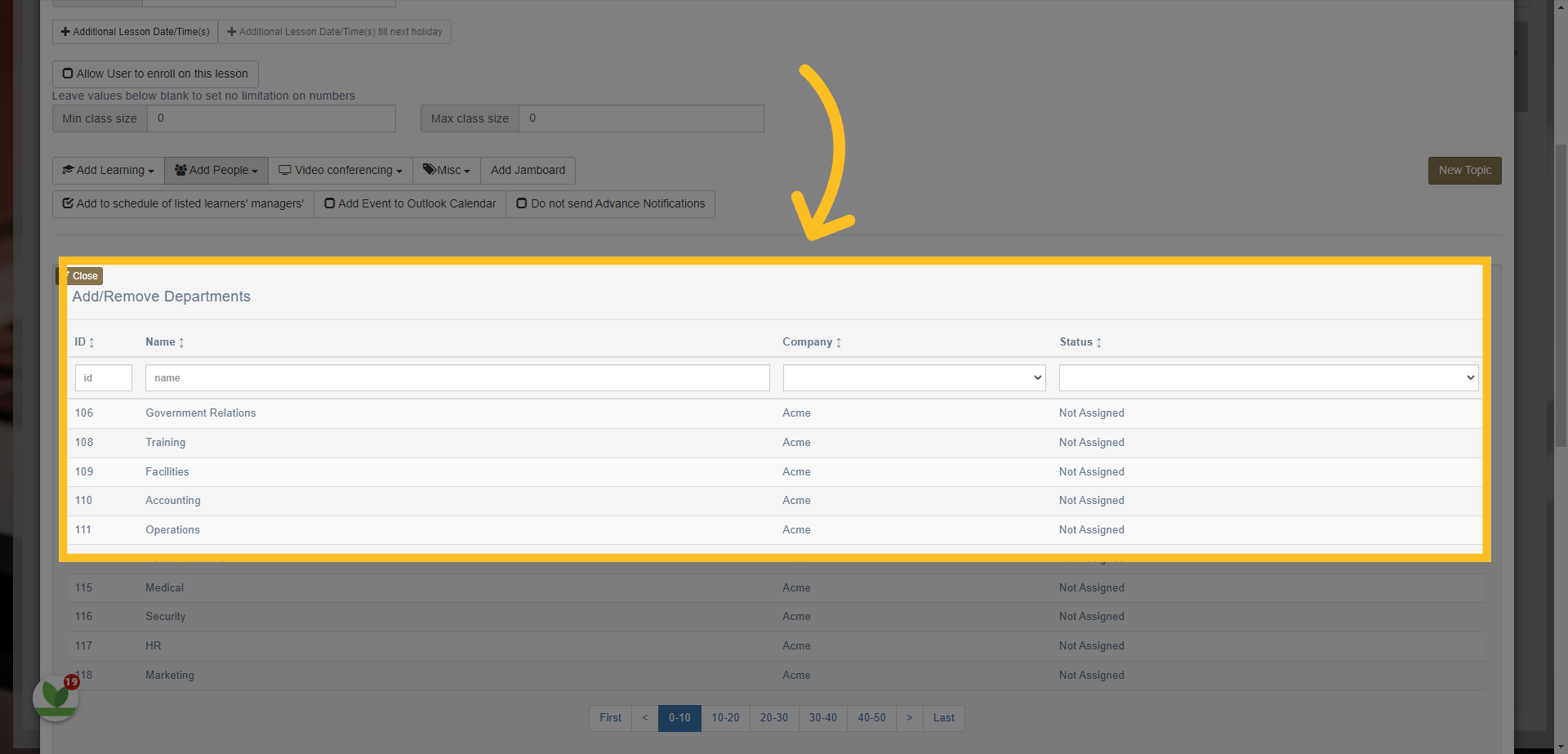
13. Simply click on the departments you want to assign the event to. You can select more than 1.
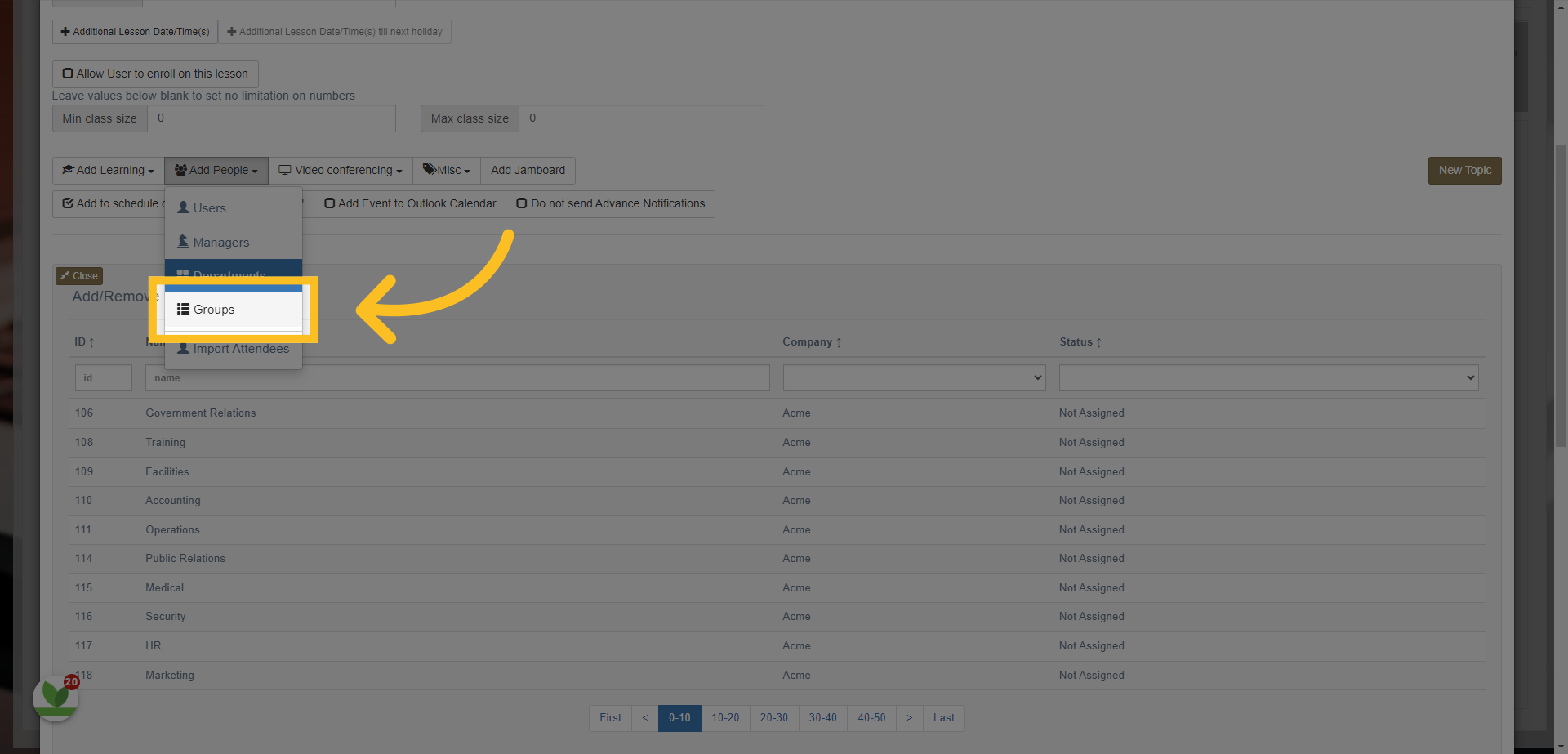
14. You can also assign groups to the event. Click on the 'Groups' button here.
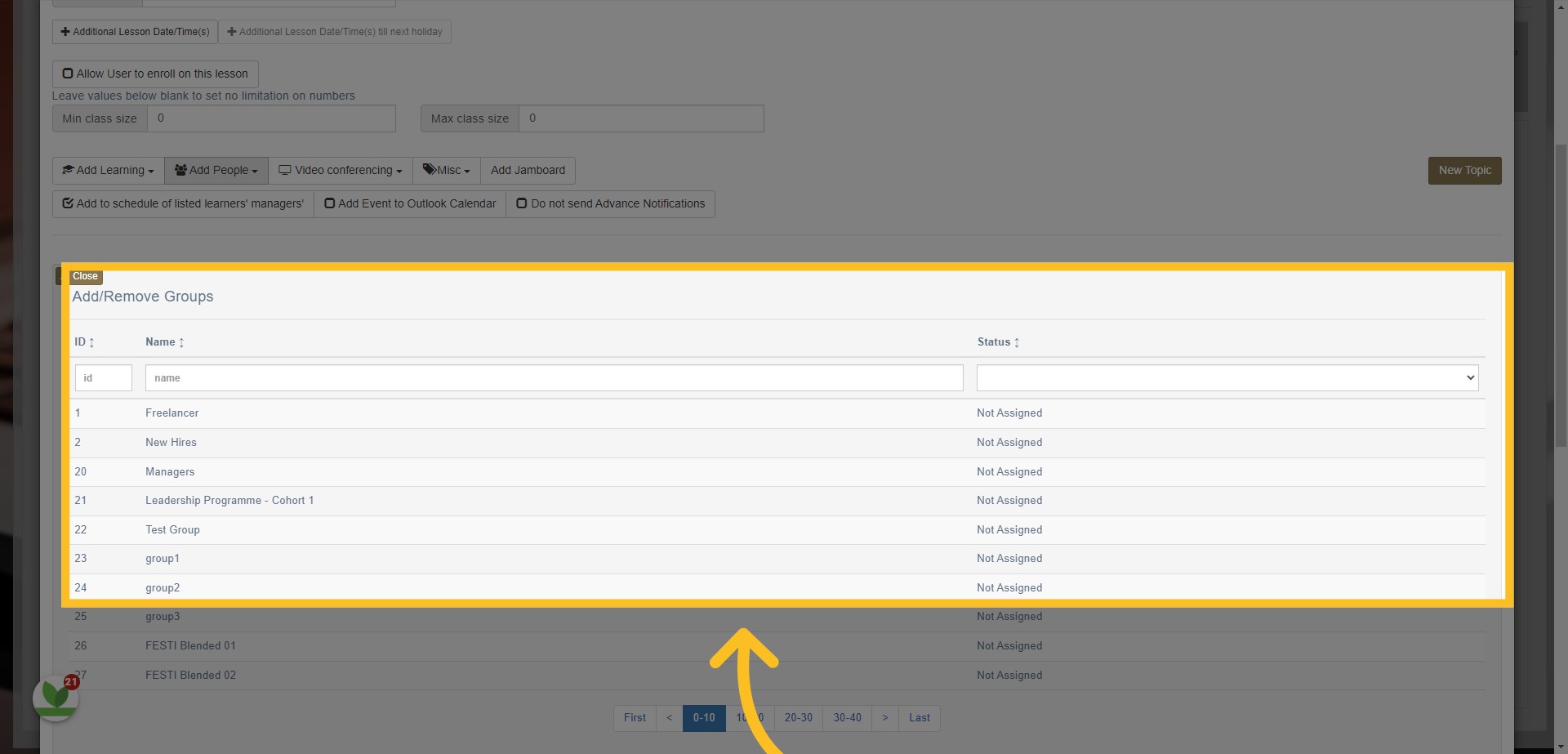
15. Simply search for the group or groups you want to assign to the event and click on them. This will then assign the event to everyone who is attached to the group or groups.
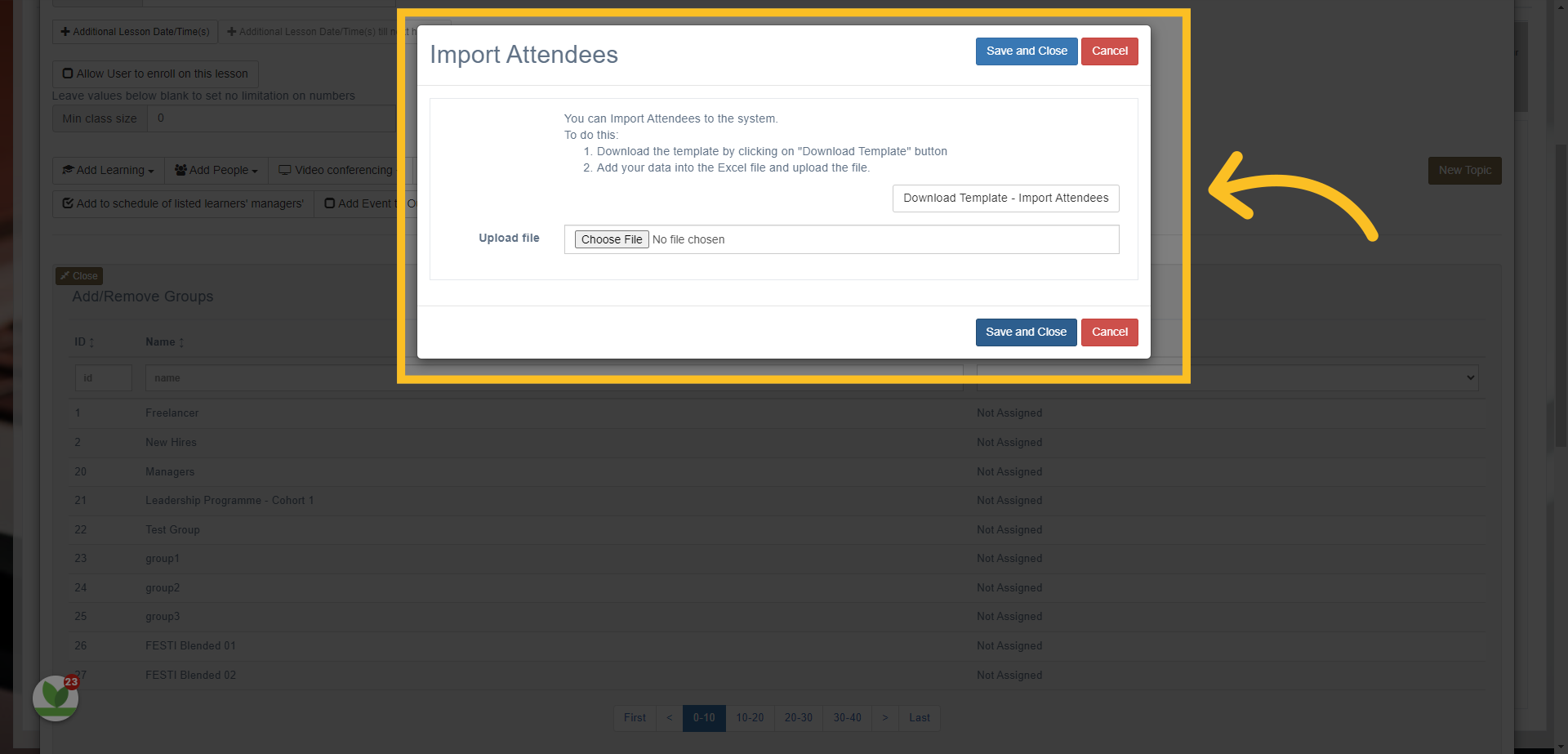
16. There is also an option to 'Import Attendees'. Click on the button here.
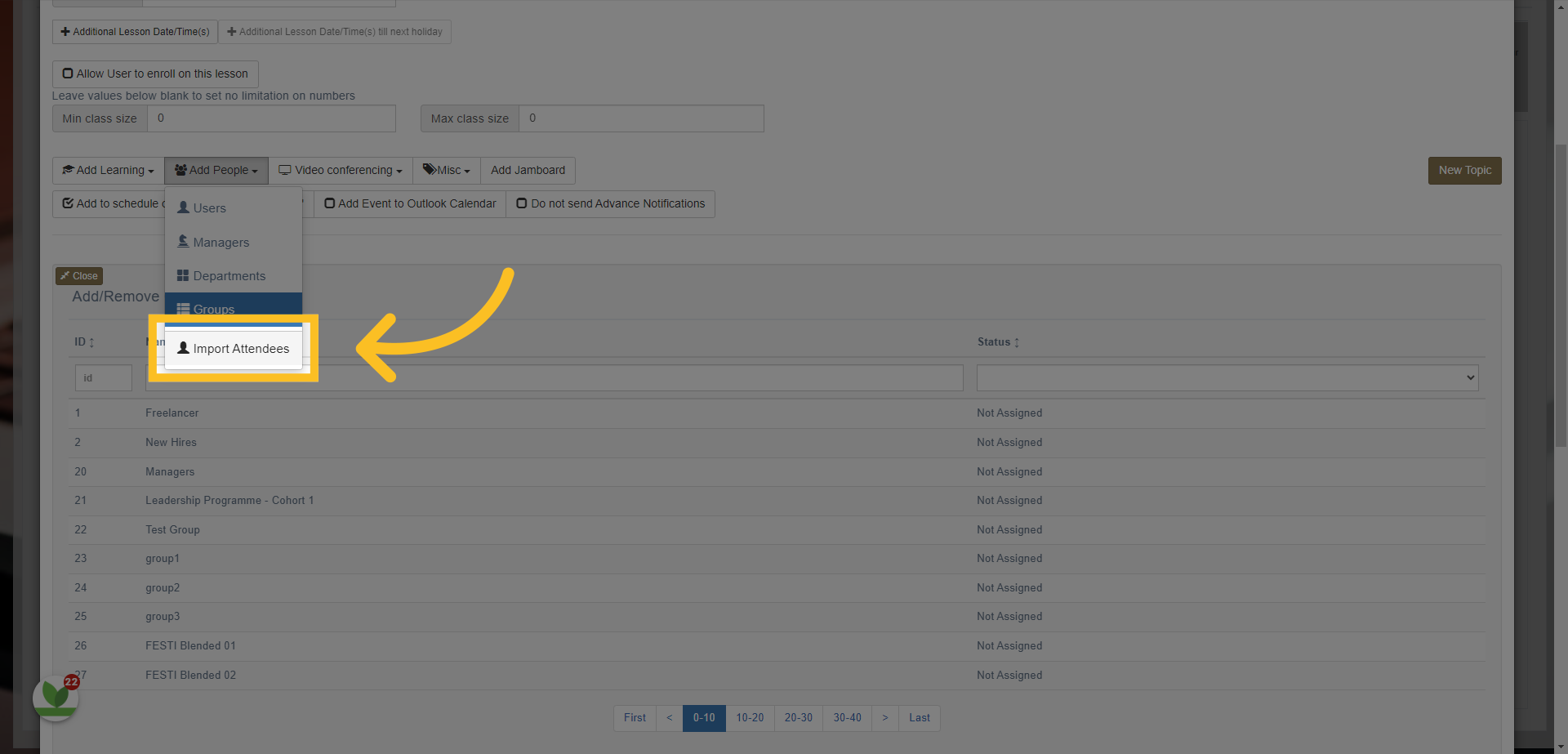
17. This option allows you to download an excel template where you can input the attendees via a spreadsheet. You can then upload the file and click 'Save and Close'.
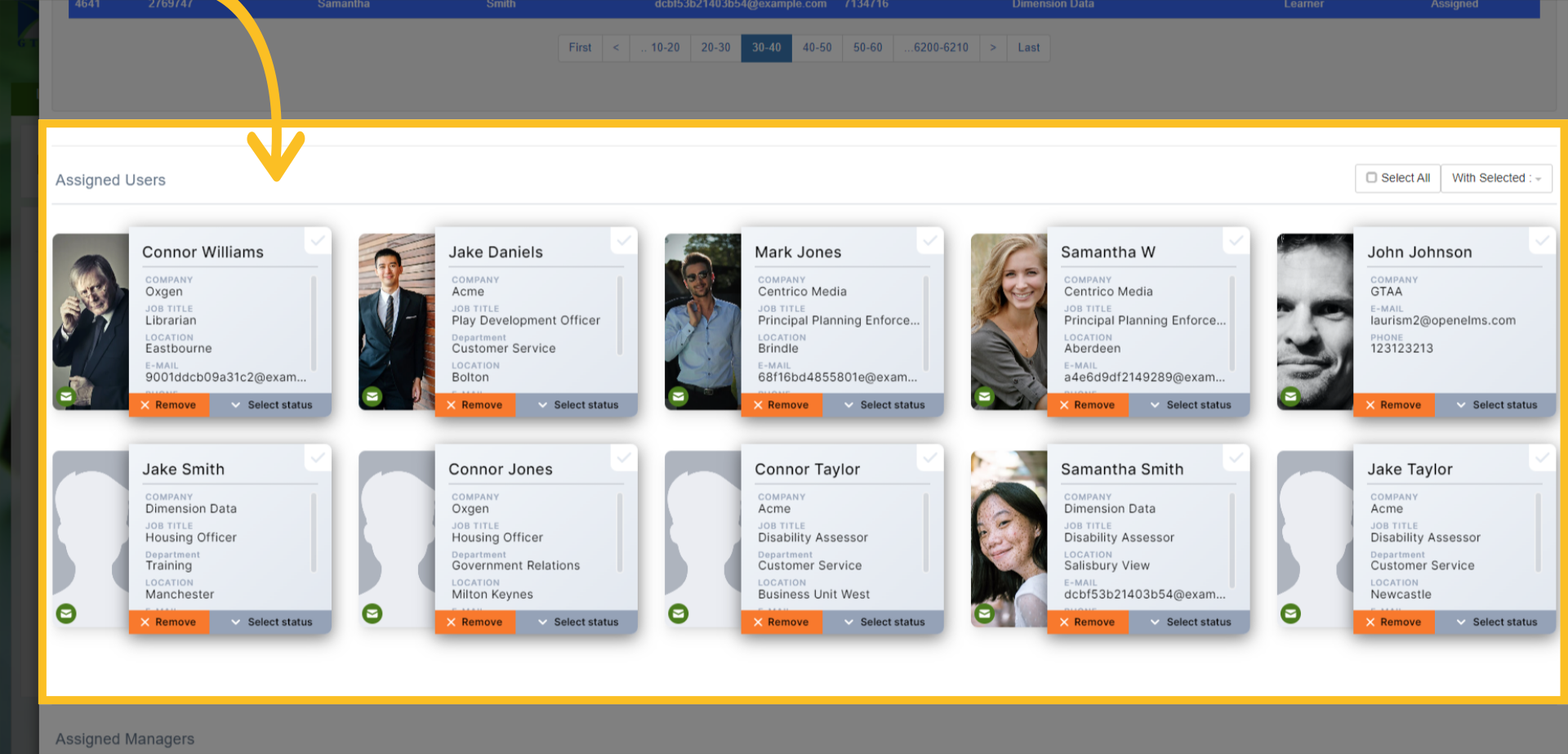
18. The list of learners you have assigned will appear here.
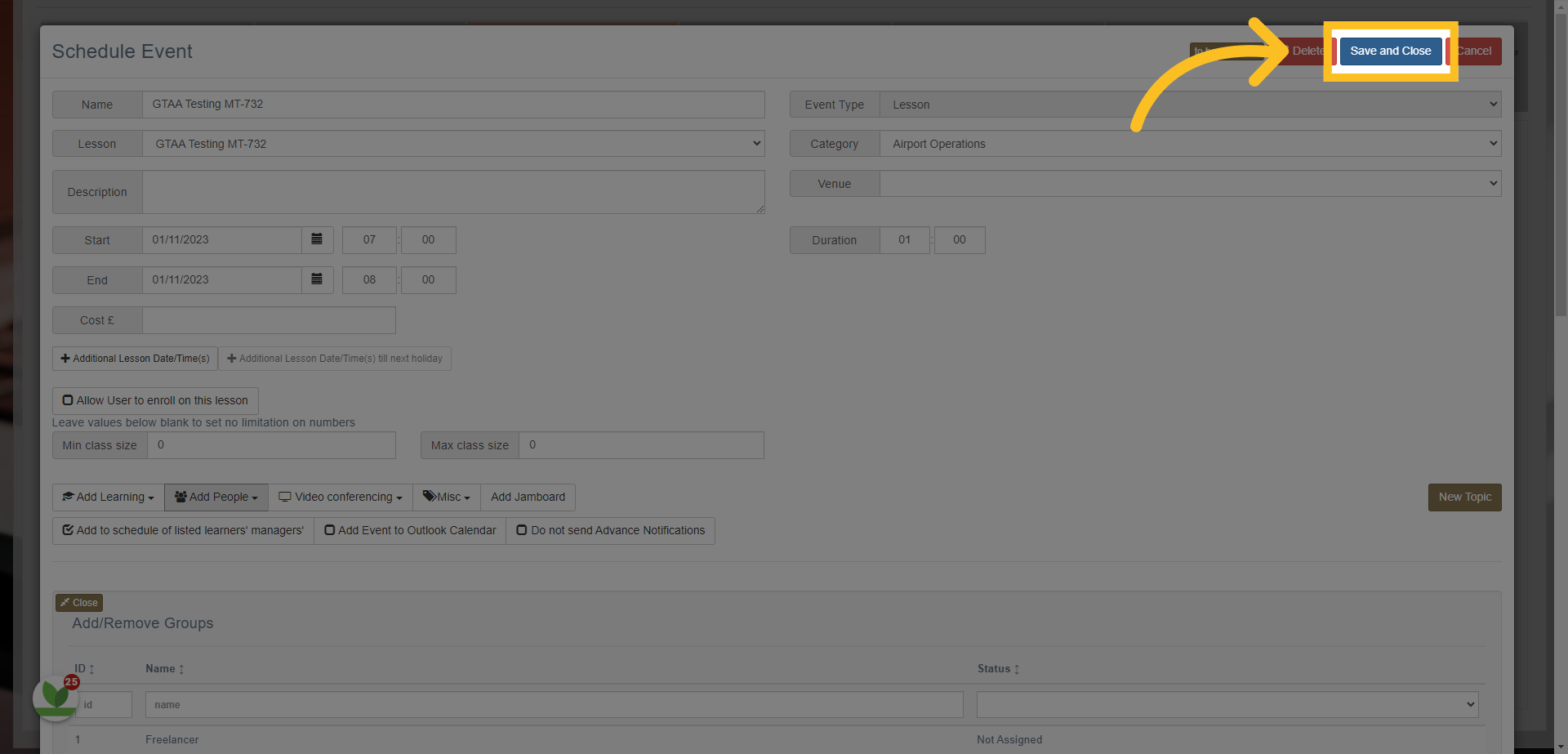
19. Once you've assigned the learners to the event, click the 'Save and Close' button at the top of the screen. The learners will be notified via email.
This guide covered the steps to assign events. From searching for the event to adding people individually or by departments and groups, you can now effectively assign events directly to your employees and learners.