How to Create and Add Events from the Curriculum Developer Role
How to Create and Add Events from the Curriculum Developer Role

This guide will walk you through the process of creating and adding events from the Curriculum Developer role.
1. Click on the 'Manage Learning' tab at the top of the screen.
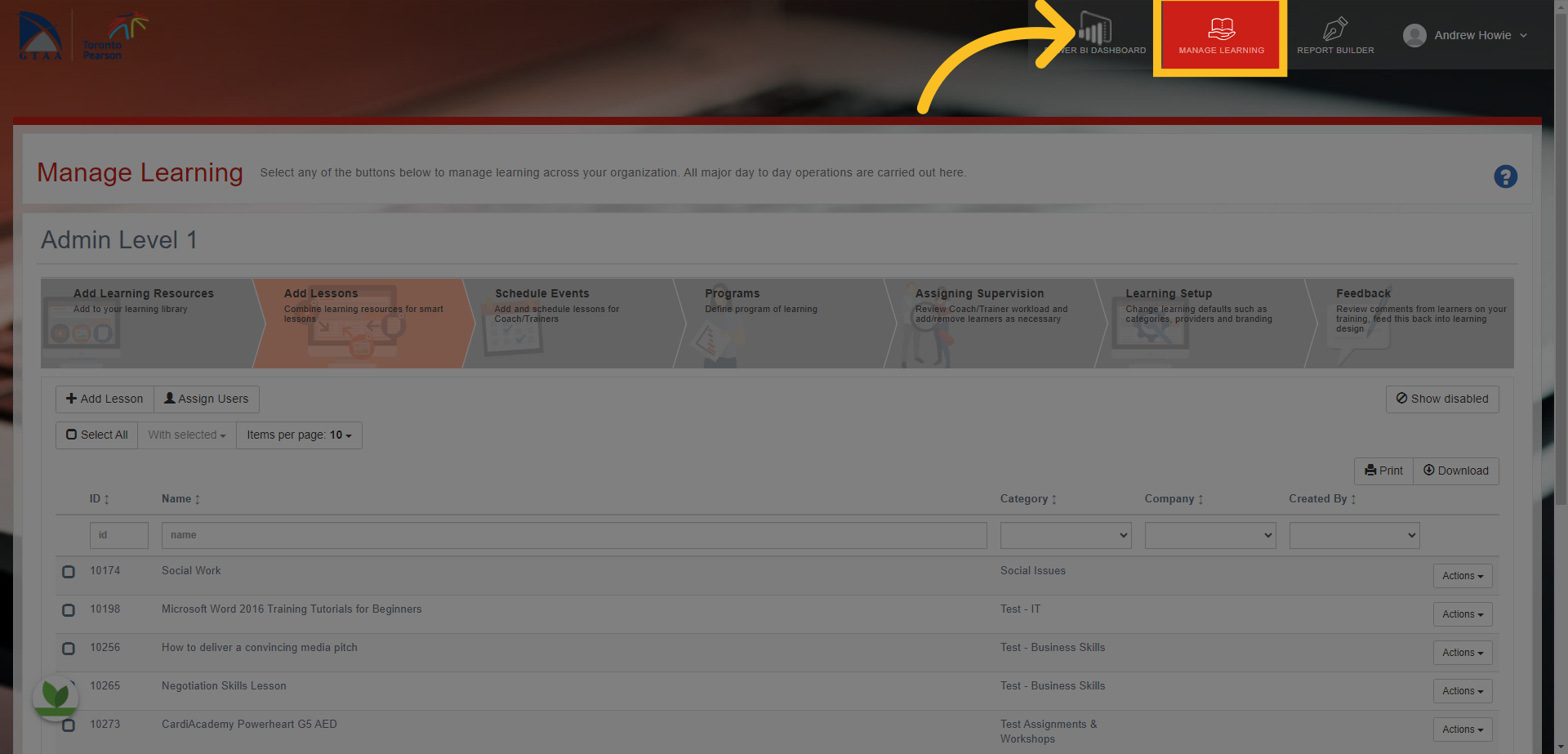
2. Then click the 'Schedule Events' tab here.
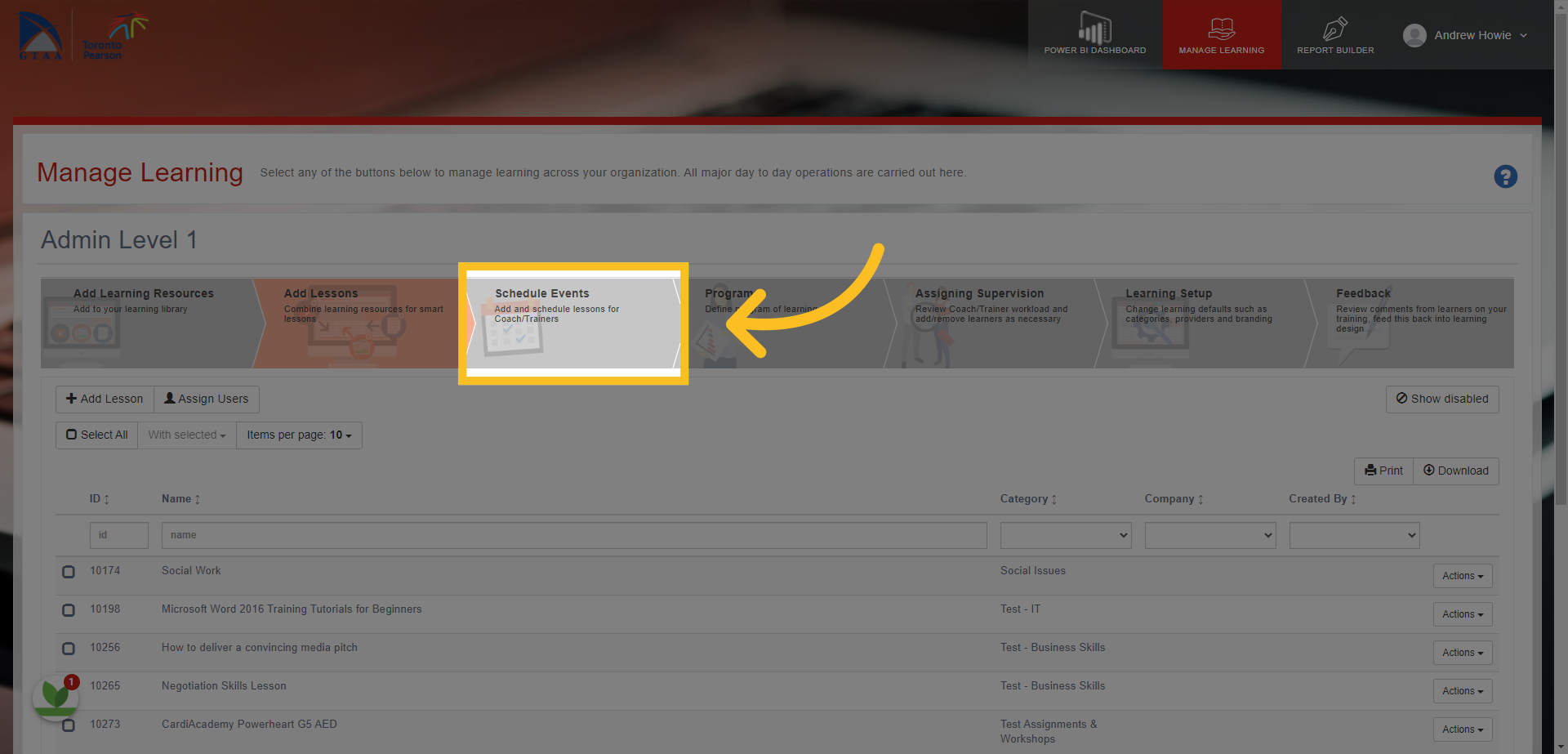
3. Click the 'Add Event' button.
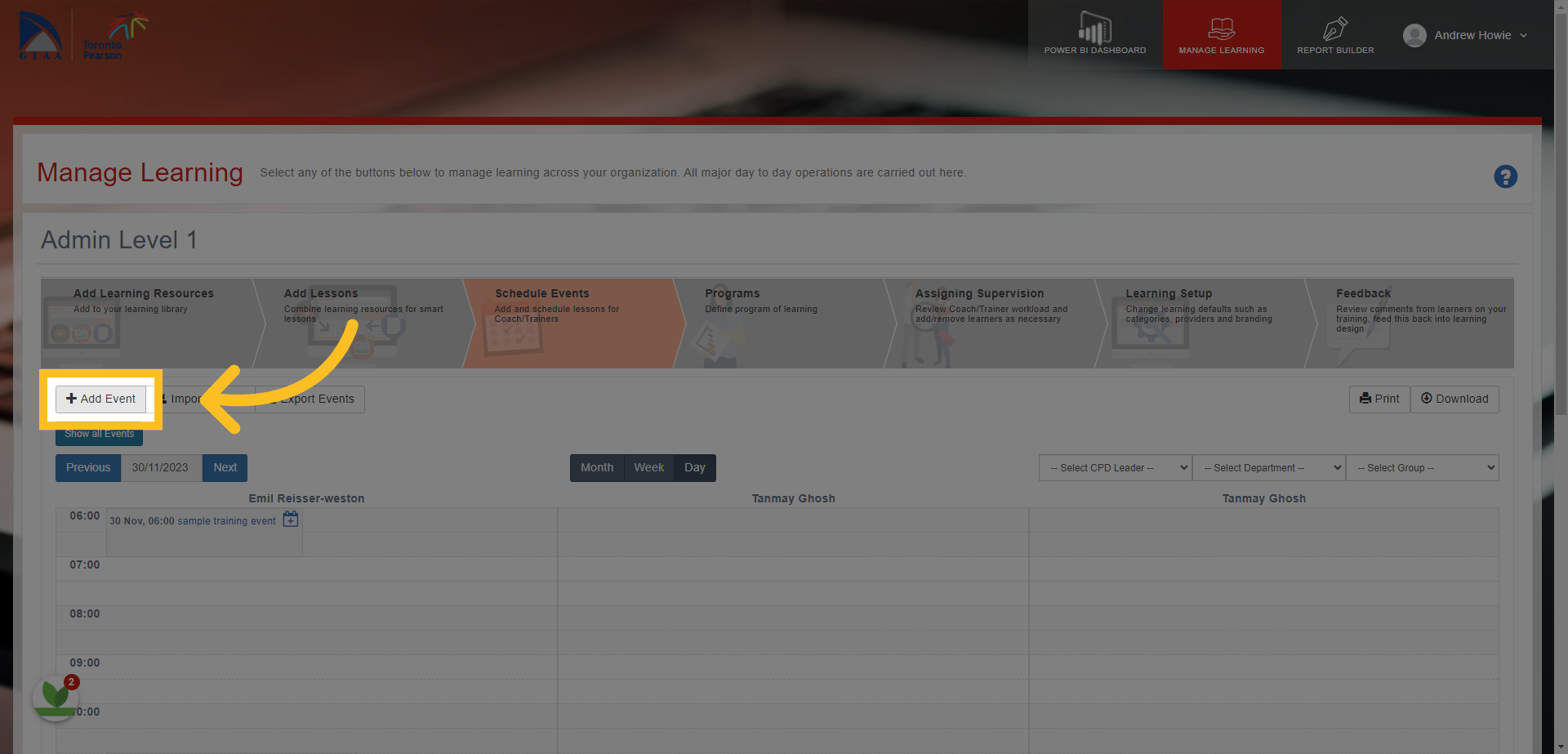
4. This opens the 'Schedule Event' Template.
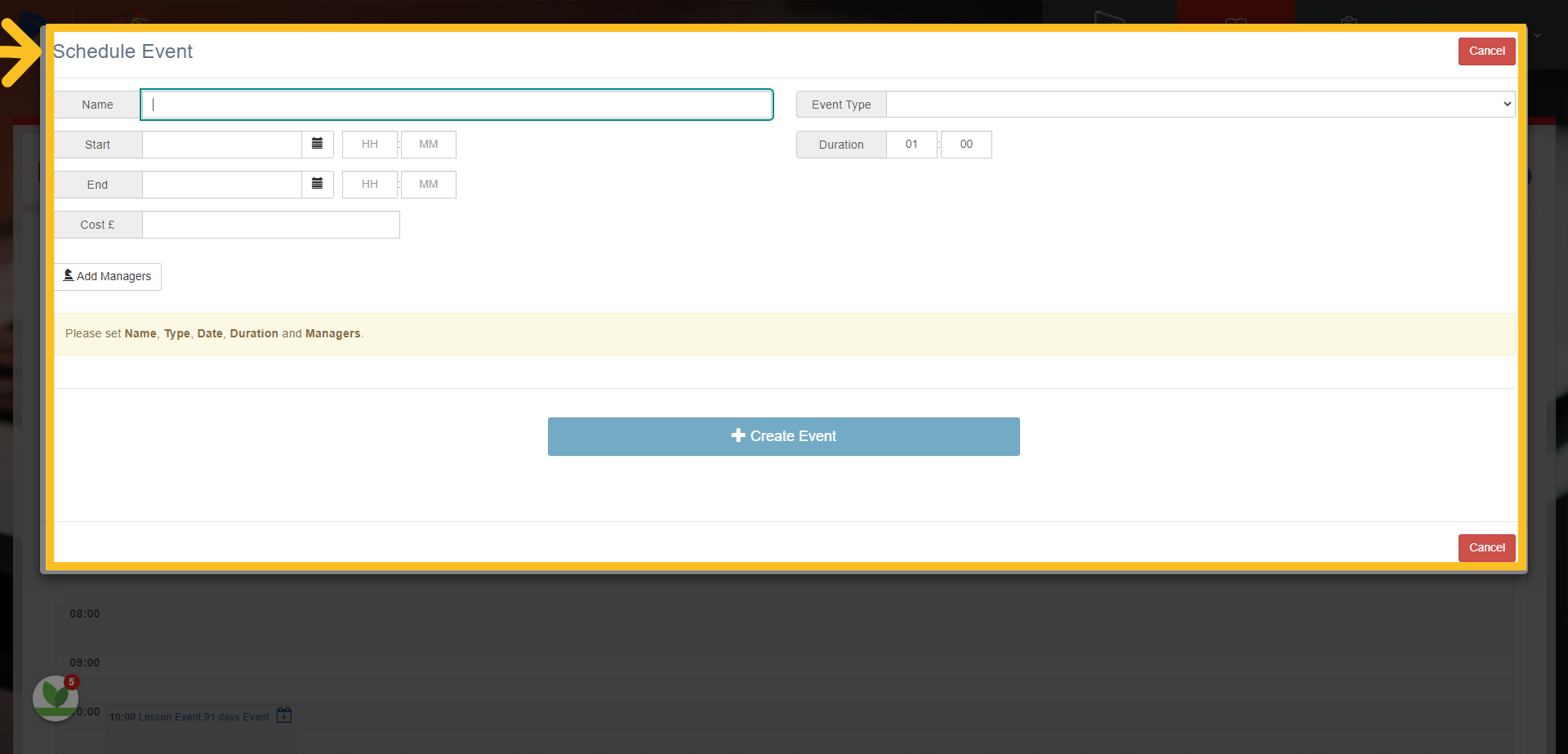
5. Enter the name of the event in this box.
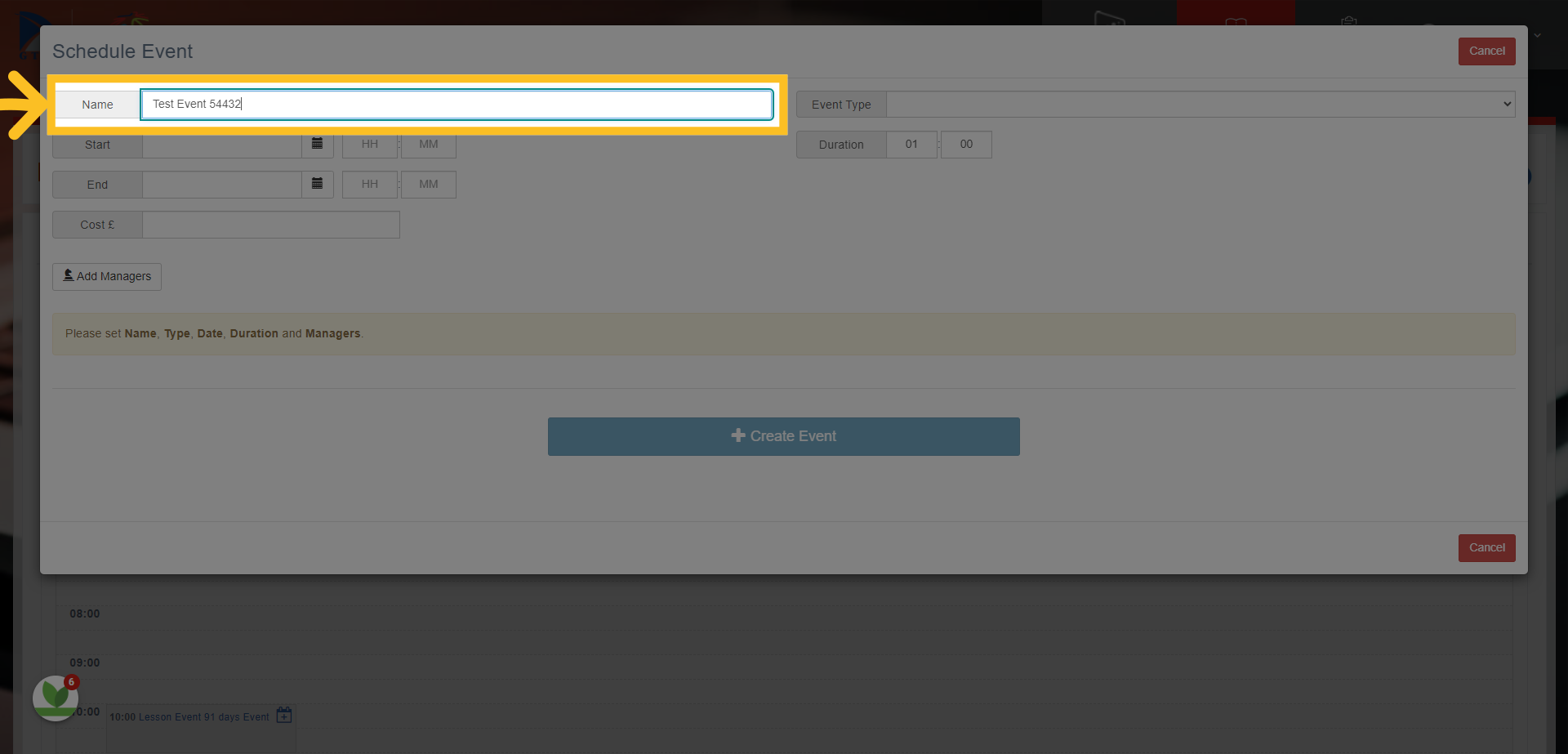
6. Click on 'Event Type' and Select 'Lesson'.
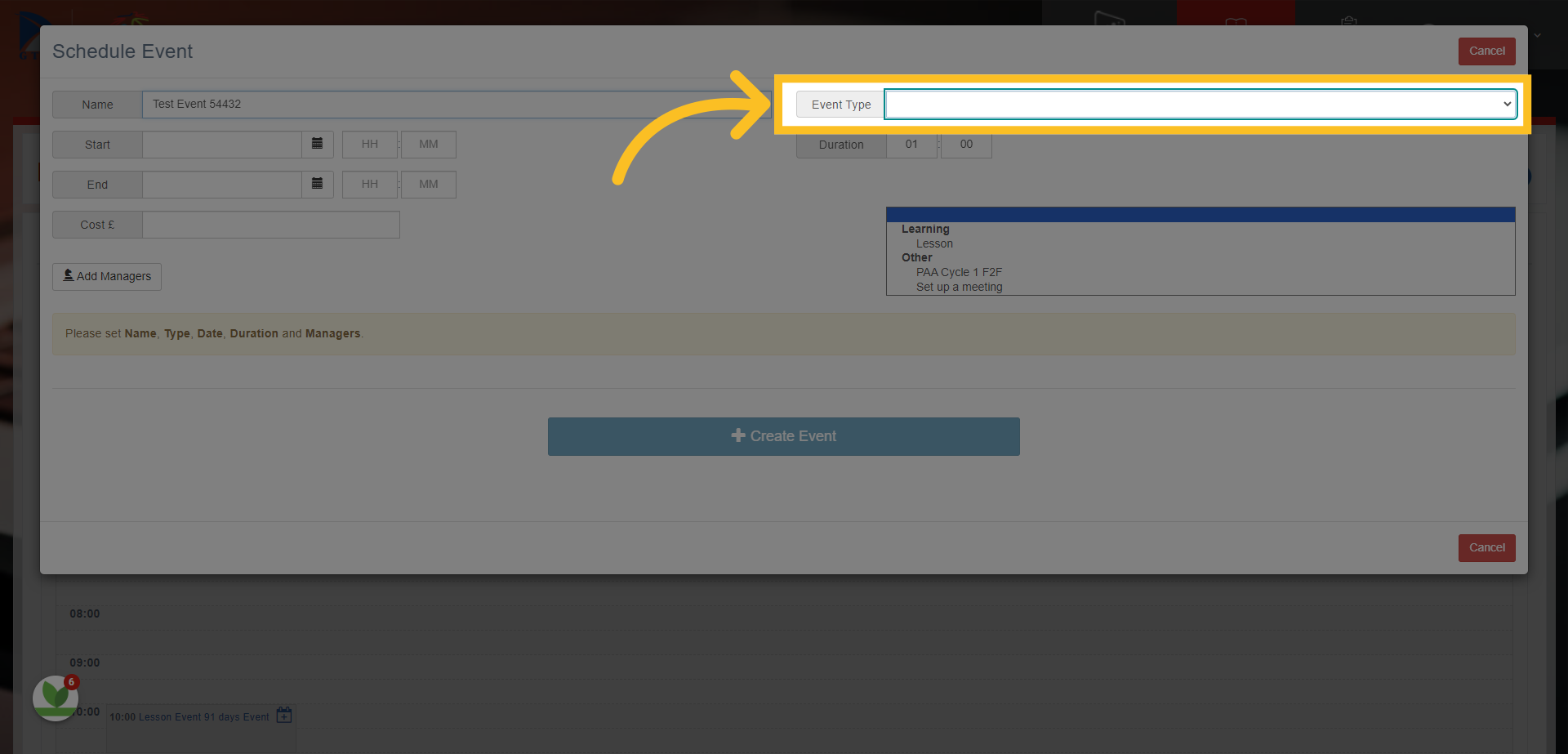
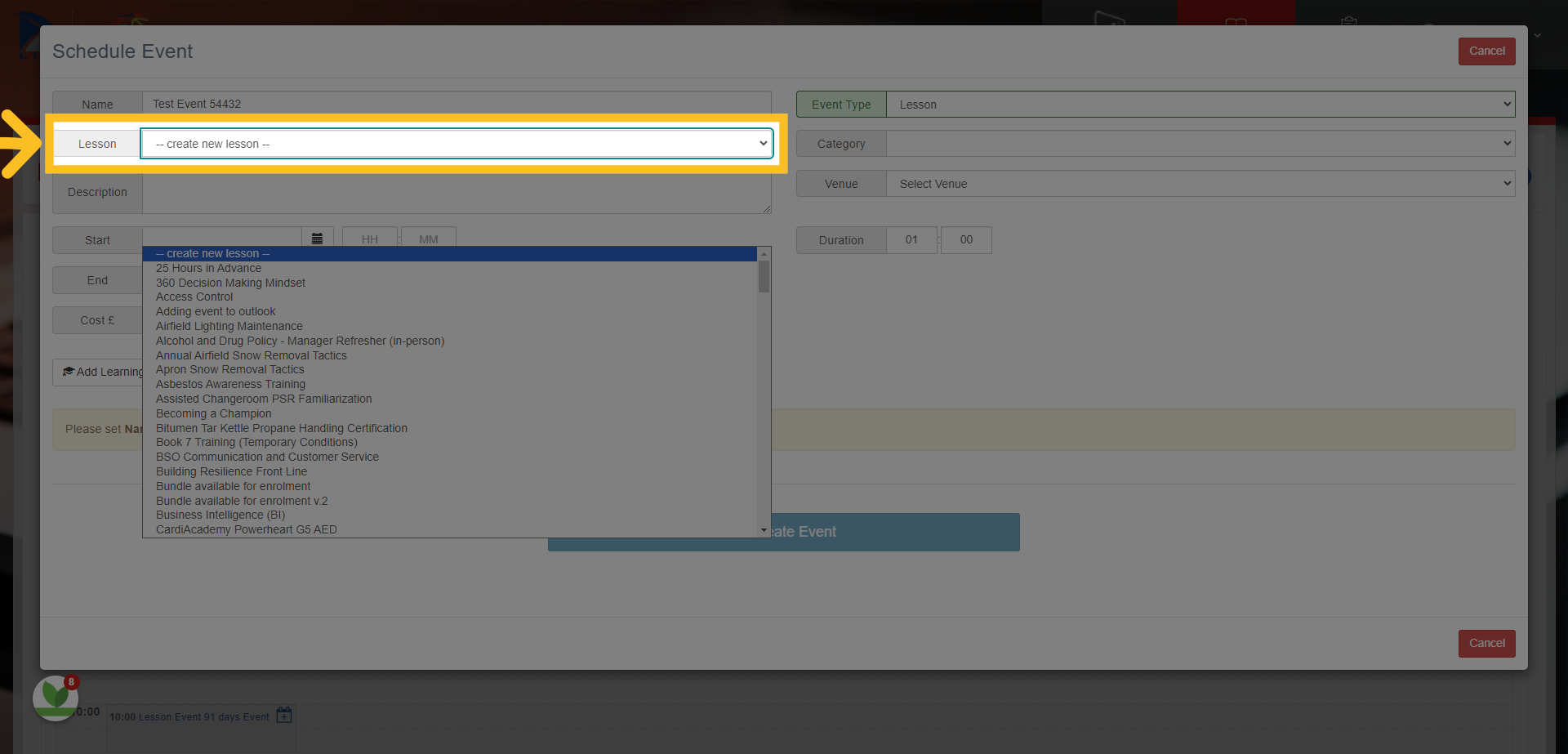
7. Click on Lesson box - options are to either 'create a new lesson' (use this option if there is no current template you can choose from the list) or choose from the selection of 'lesson templates' in the drop down list.
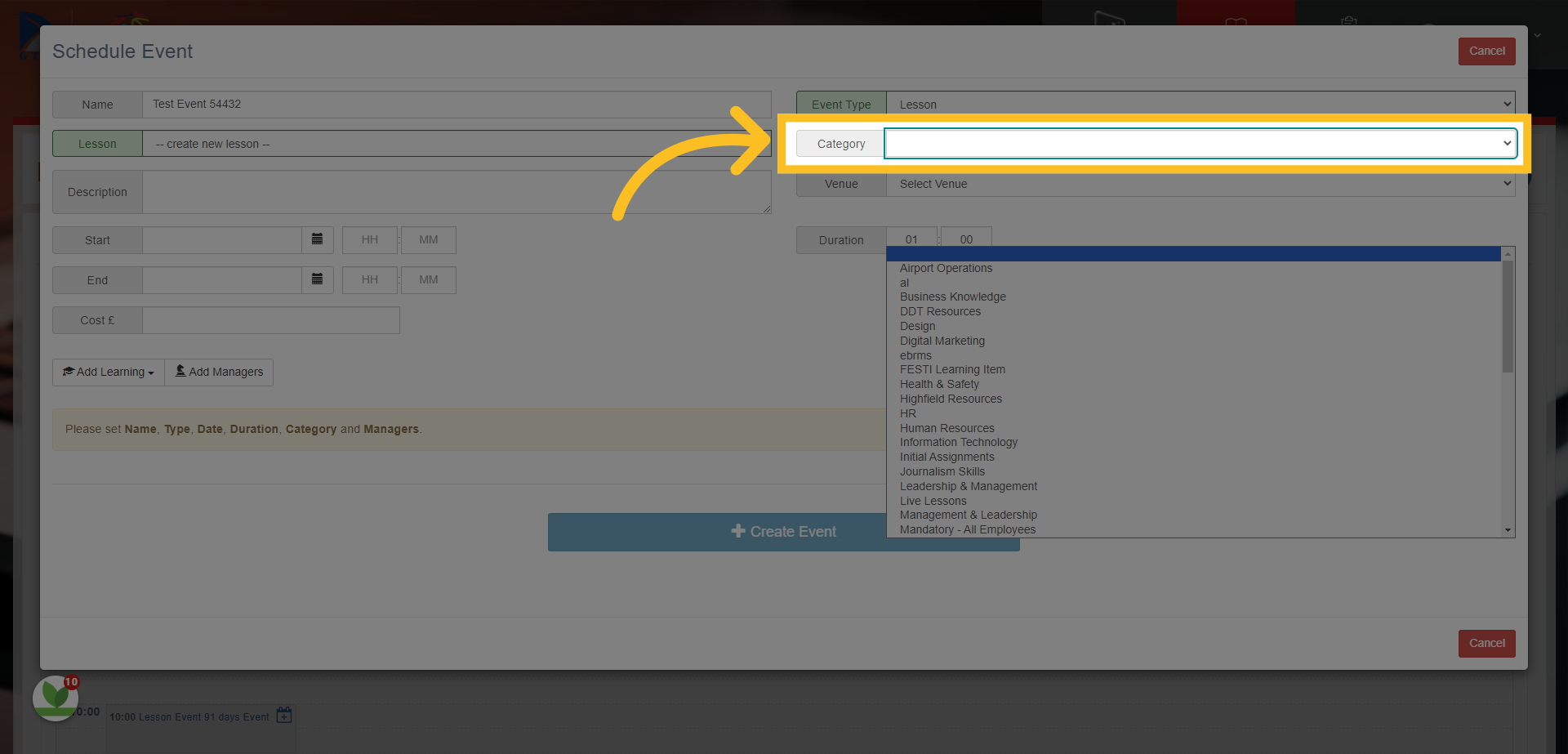
8. If you choose from an existing lesson template, then the category box here will already be completed. However, if you are creating a new lesson, you will have to select an appropriate category from the list to map the lesson against.
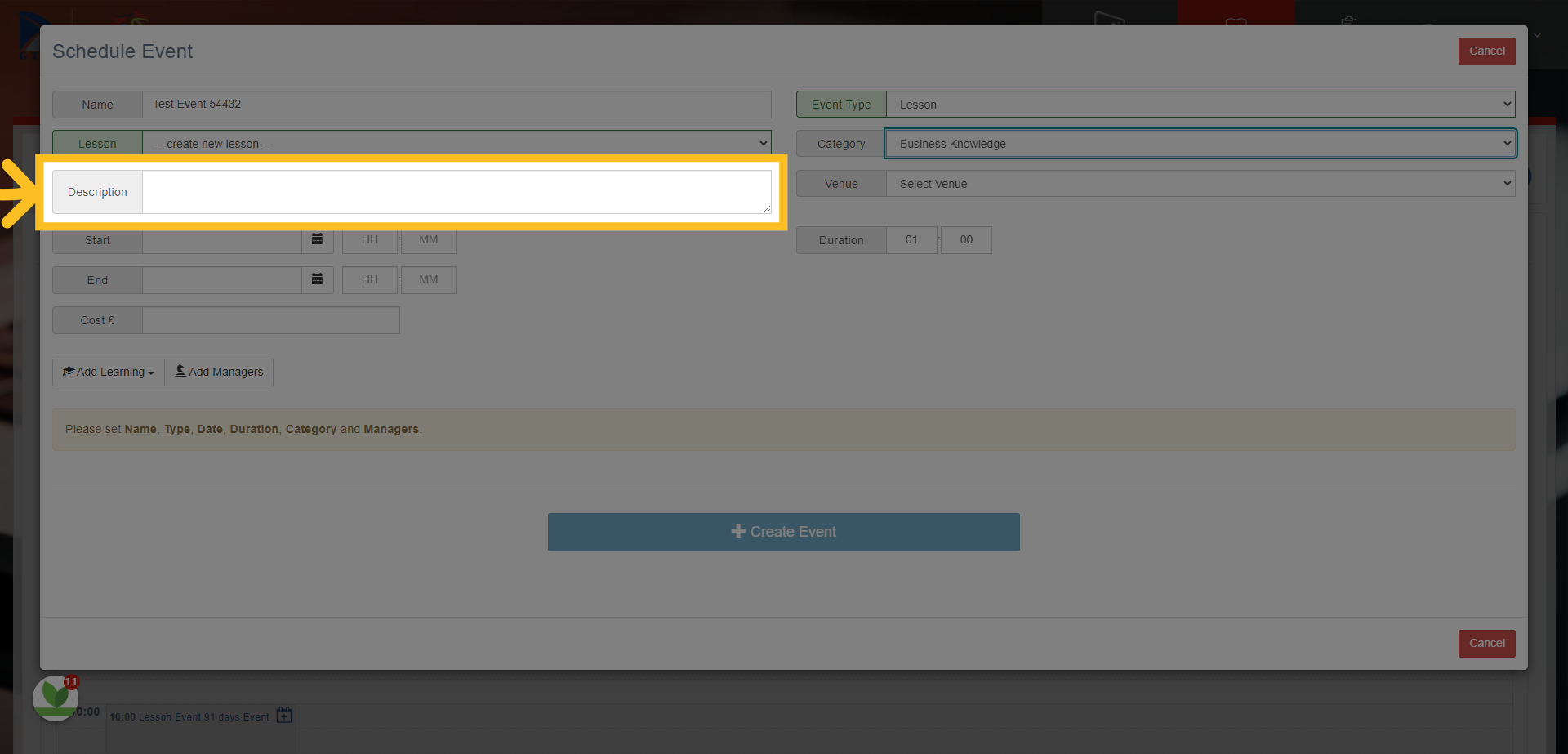
9. Ensure you write a description of the event or a summary of what will be covered. NB: The description may already be completed if you have chosen an existing template previously. Either way, it is important to check the information.
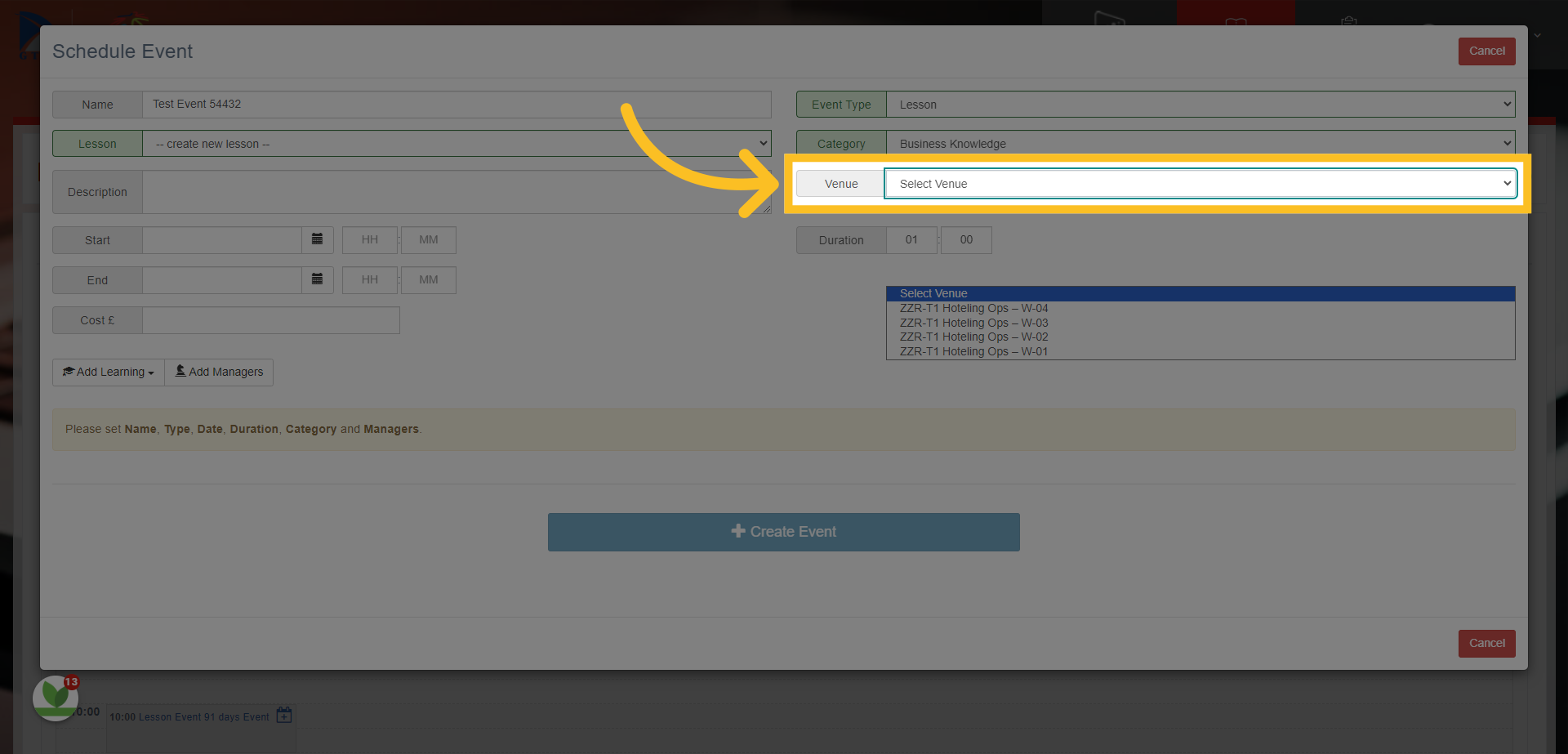
10. Select a 'Venue' where the event will take place - if it is an online session, then there is no need to add a venue.
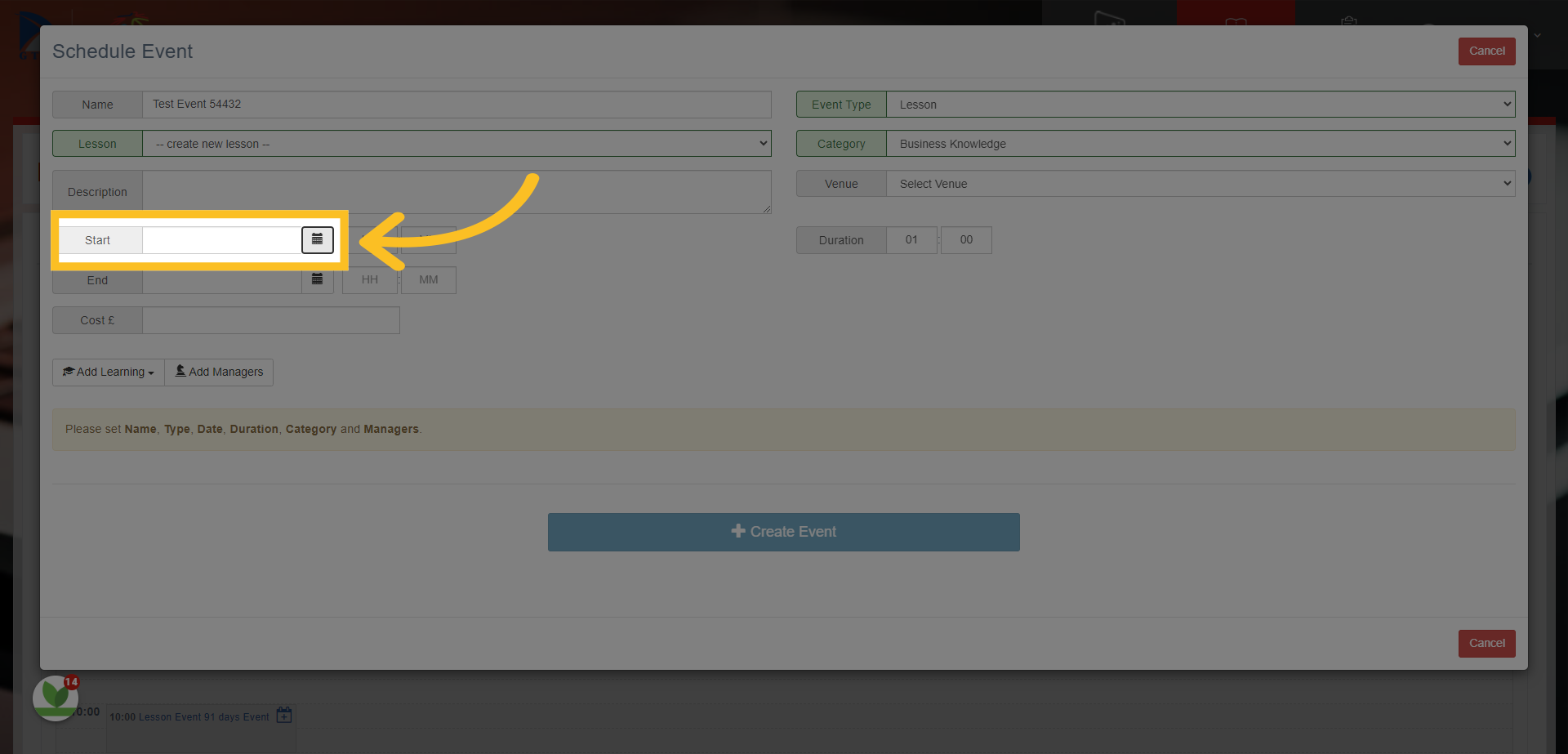
11. Choose the date of the event by clicking on the calendar icon here.
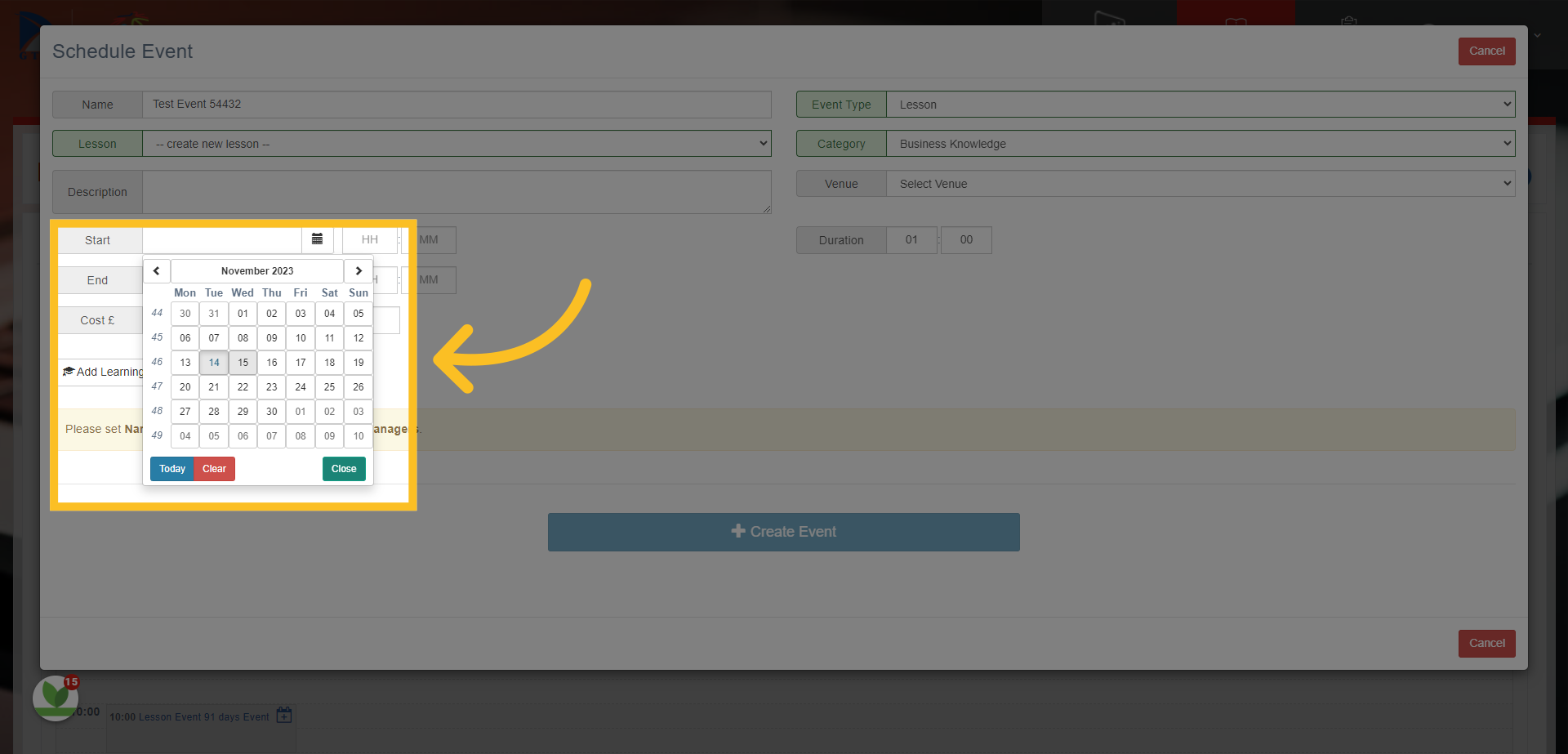
12. Use Calendar to choose date
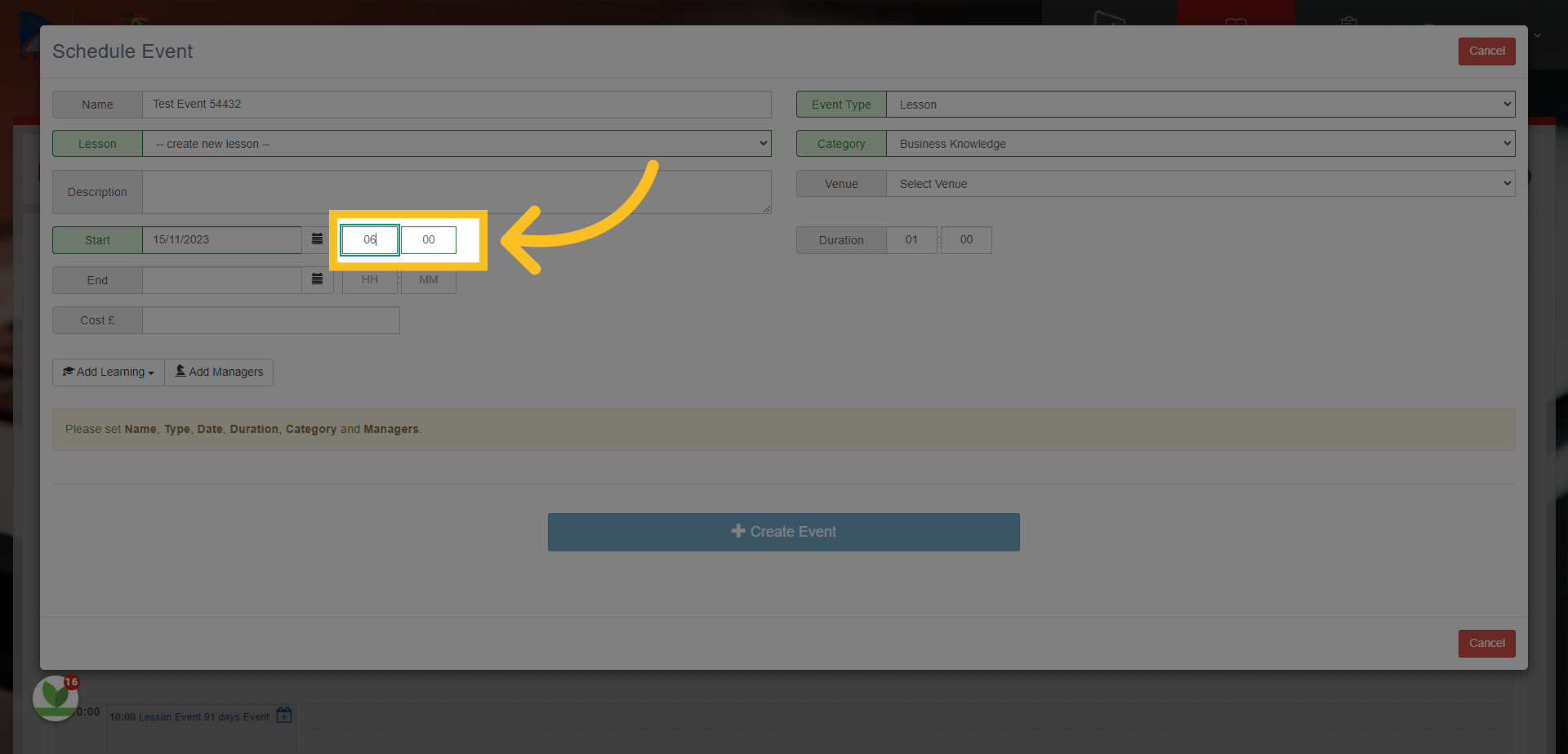
13. Then enter in the start time - use the 24hr format i.e. 09 00 or 14 00
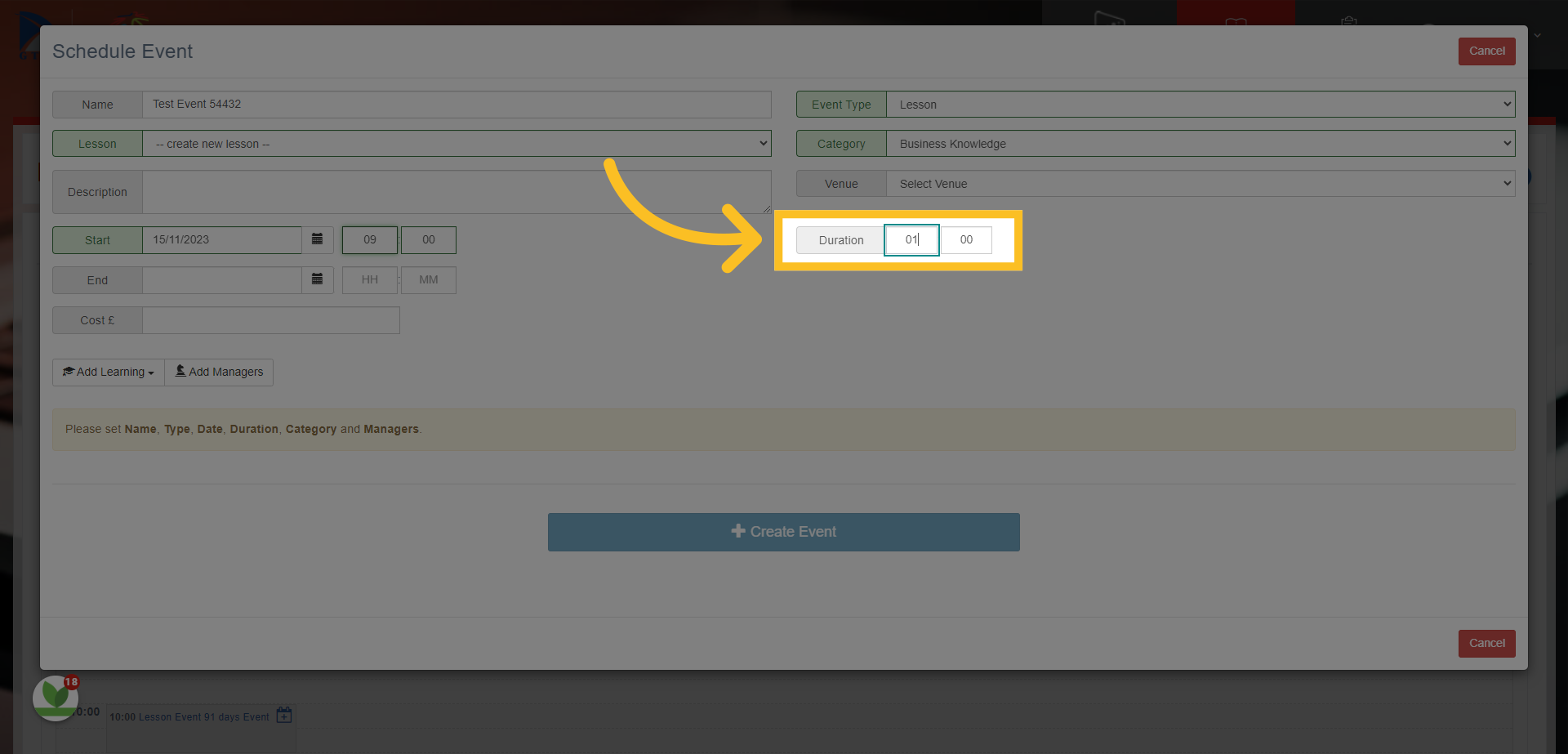
14. In the duration box, add how long the event will be e.g. 04 00 for a 4 hour event
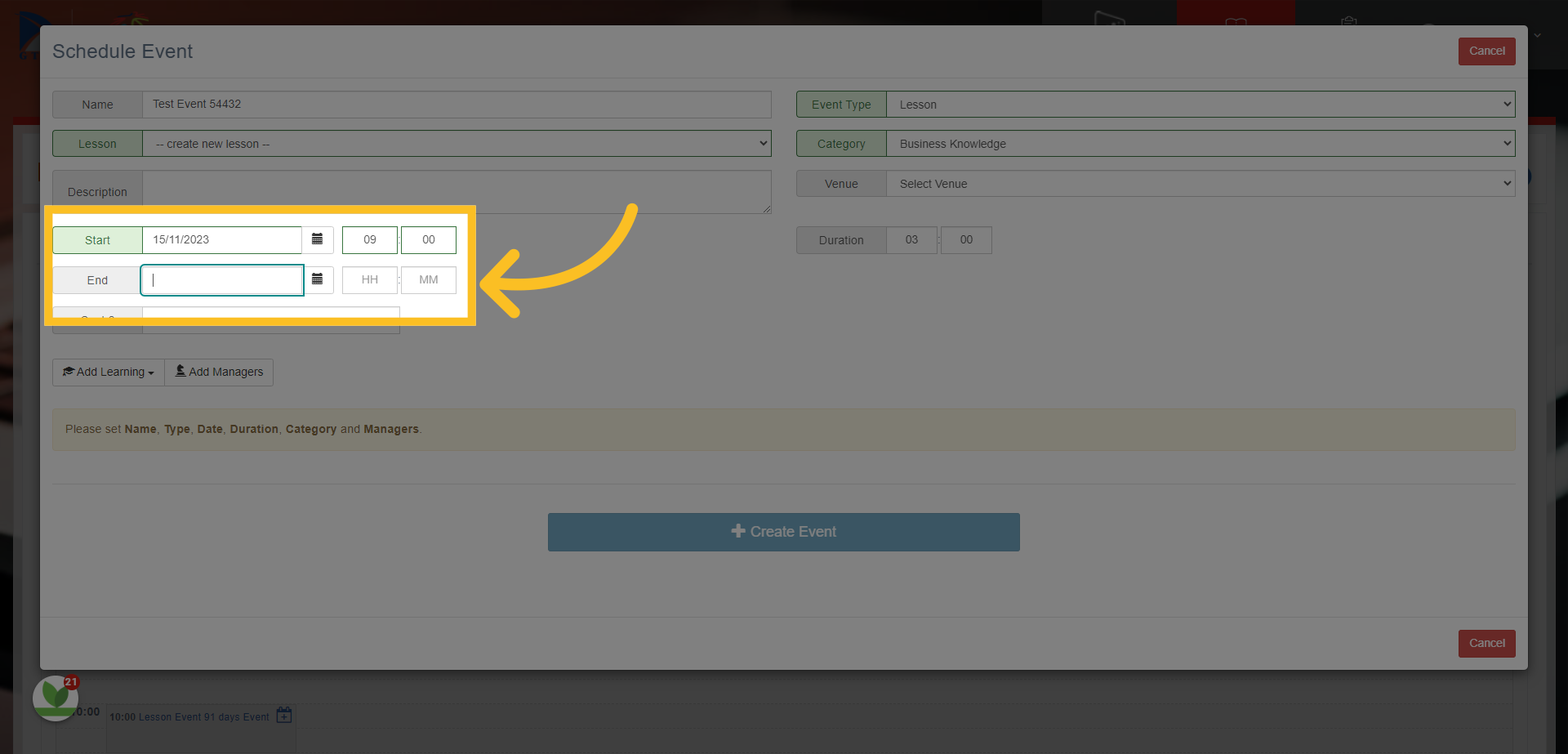
15. If the event is a 'multi-day' event i.e. it will run over multiple days - then add the end date and end time. If it is a one day event, then leave this blank.
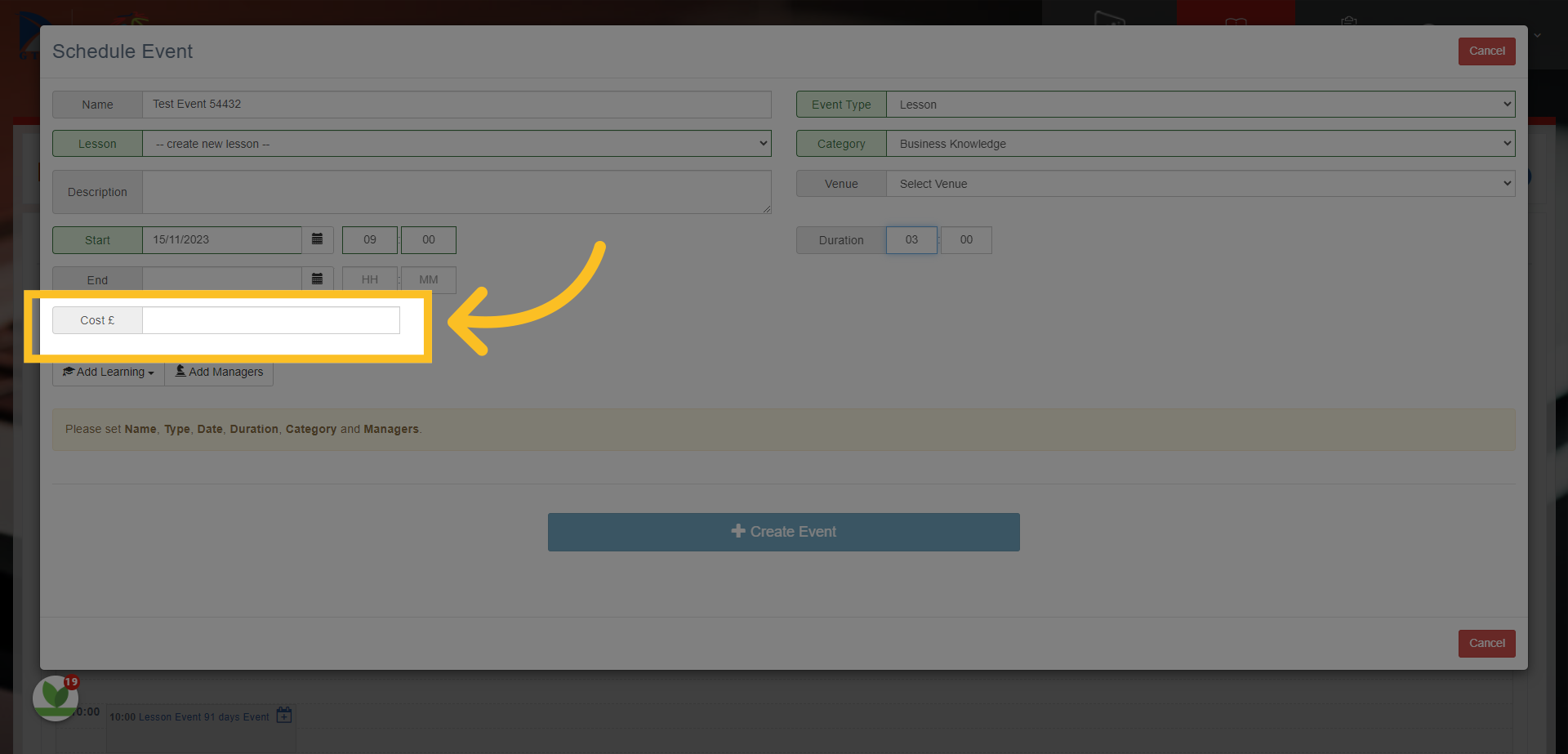
16. If the event requires payment, then add the amount in the cost field.
17. By clicking on the Add Learning button - you have the option to add learning resources from the learning library to the event. You can also link this event with other events that have already been created. NB: If you have chosen from a lesson template previously, learning may already be attached to the lesson - you can check for this in one of the next steps.
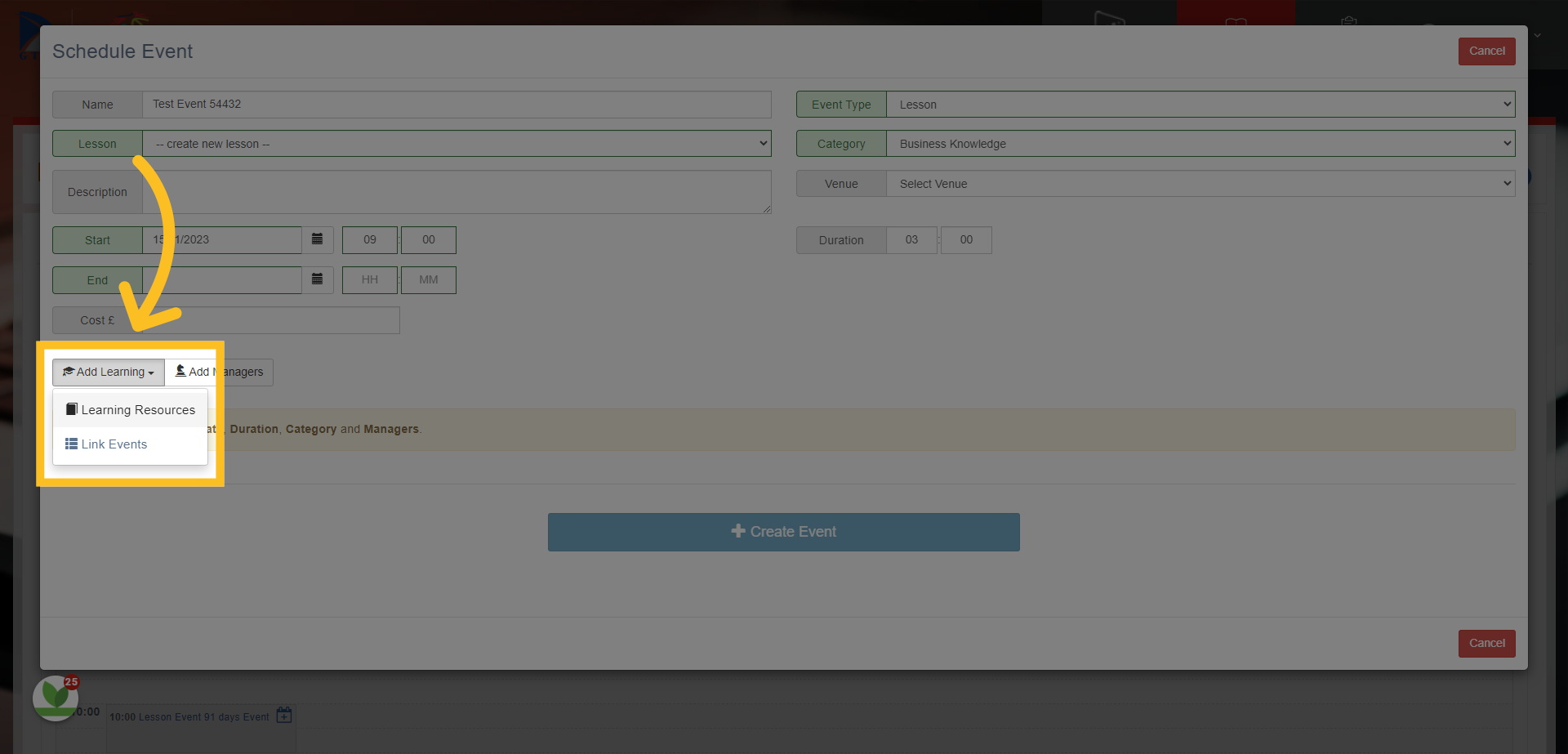
18. You can now choose to Add a Manager or Trainer who will be running the event (you can select more than 1).
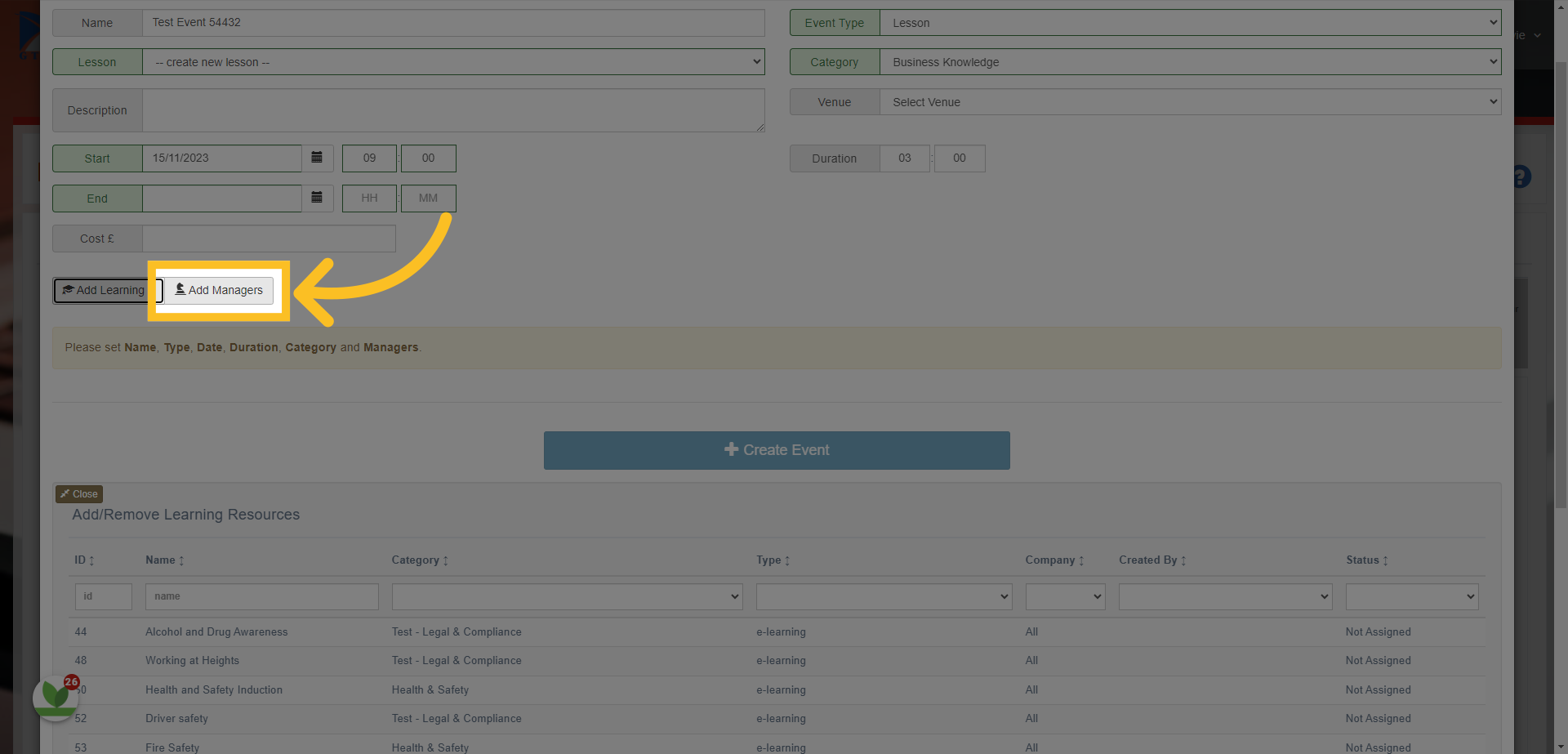
19. You can filter the manager/trainer list - click on the manager/trainer you want to assign to the event. NB: You can select more than one if you need to.
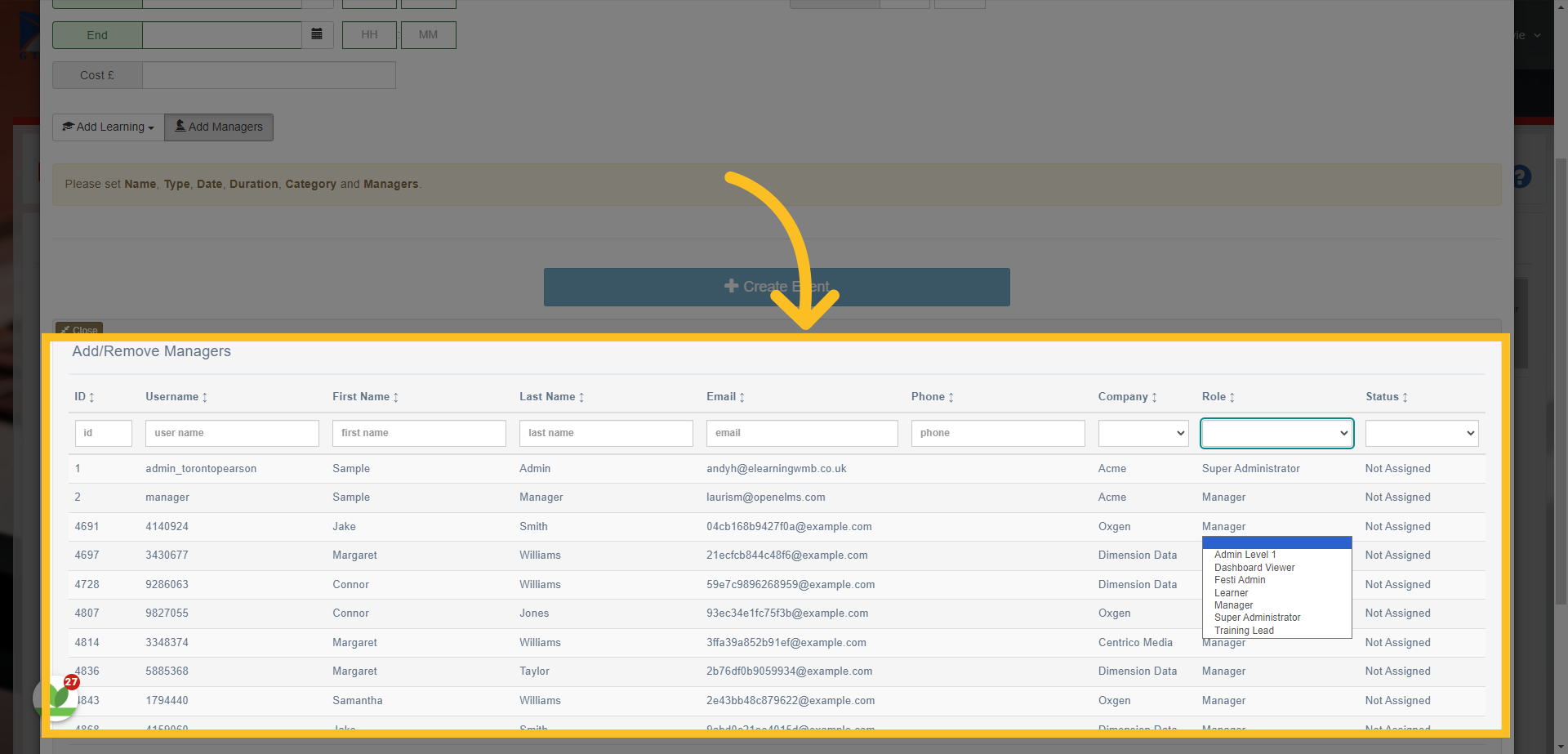
20. Once you've selected the manager/trainer - click the 'Create Event' button
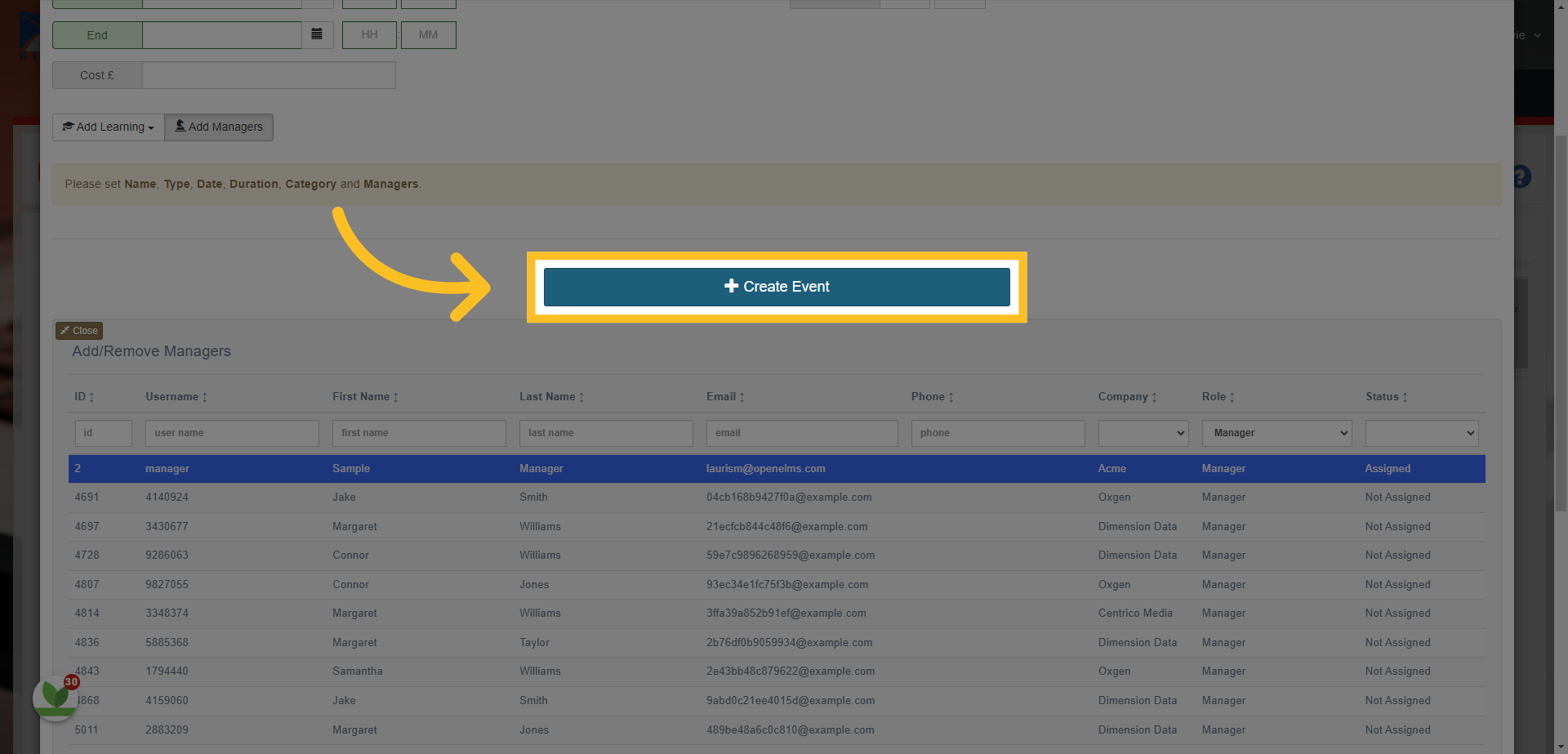
21. You will now have the option to add further elements to the event.
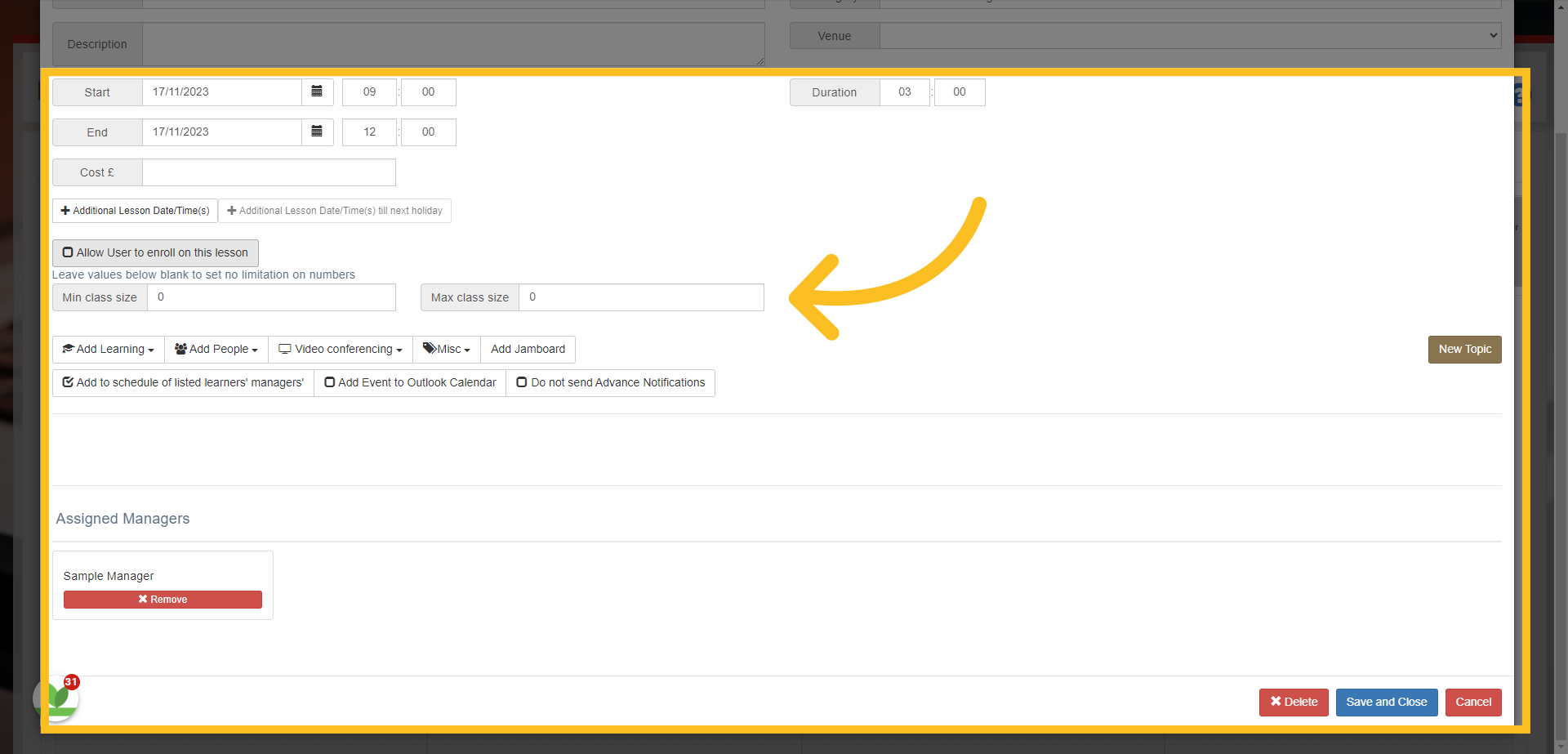
22. 'Allow user to enrol on this lesson' - if this is checked, then the event will be available for any user to enrol on the event
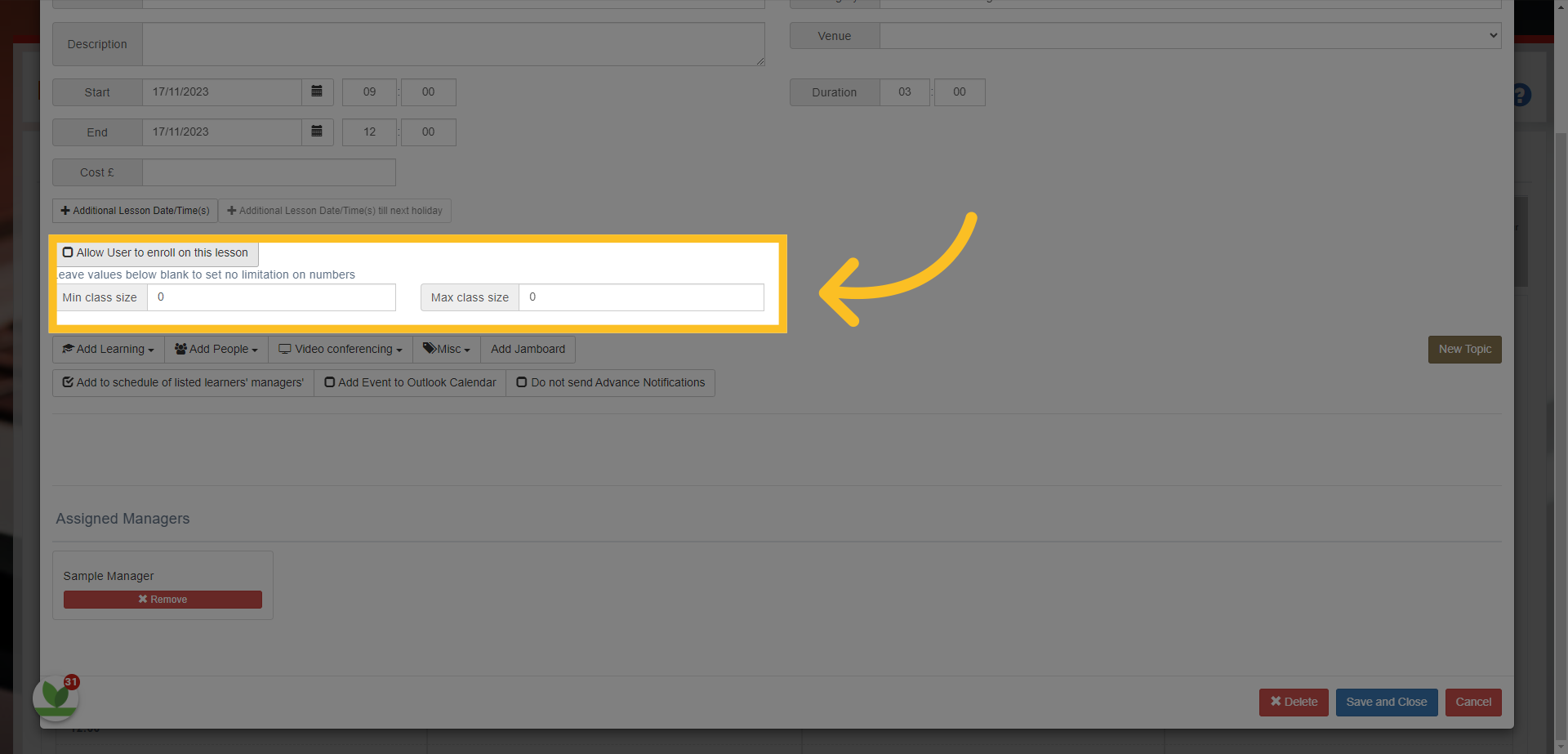
23. You can also set a minimum and maximum amount of people who can attend the session
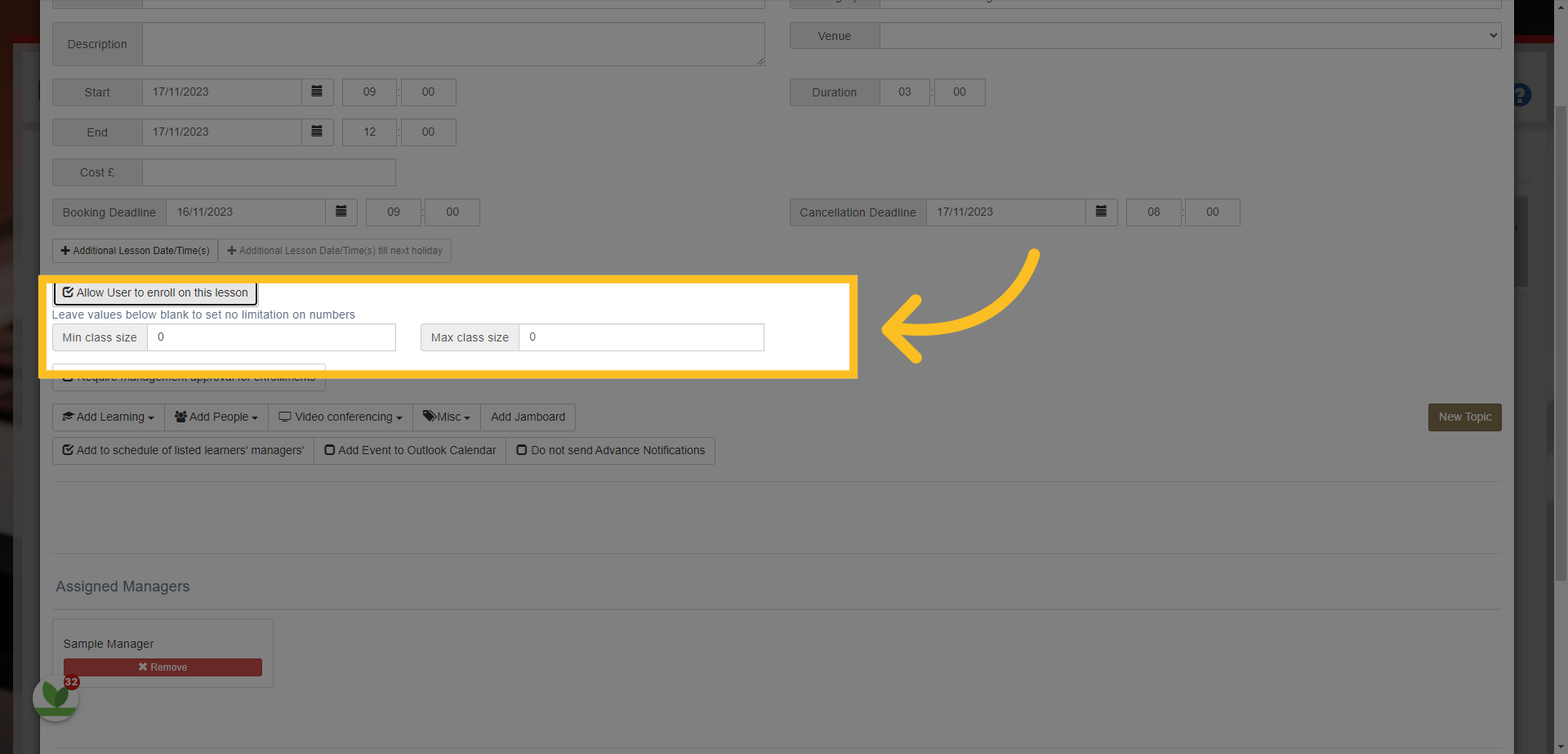
24. NB: If the maximum amount of people is reached, then further enrolments would be added to a waiting list. If minimum number is not reached, then manager of event is informed and recommended to cancel the event.
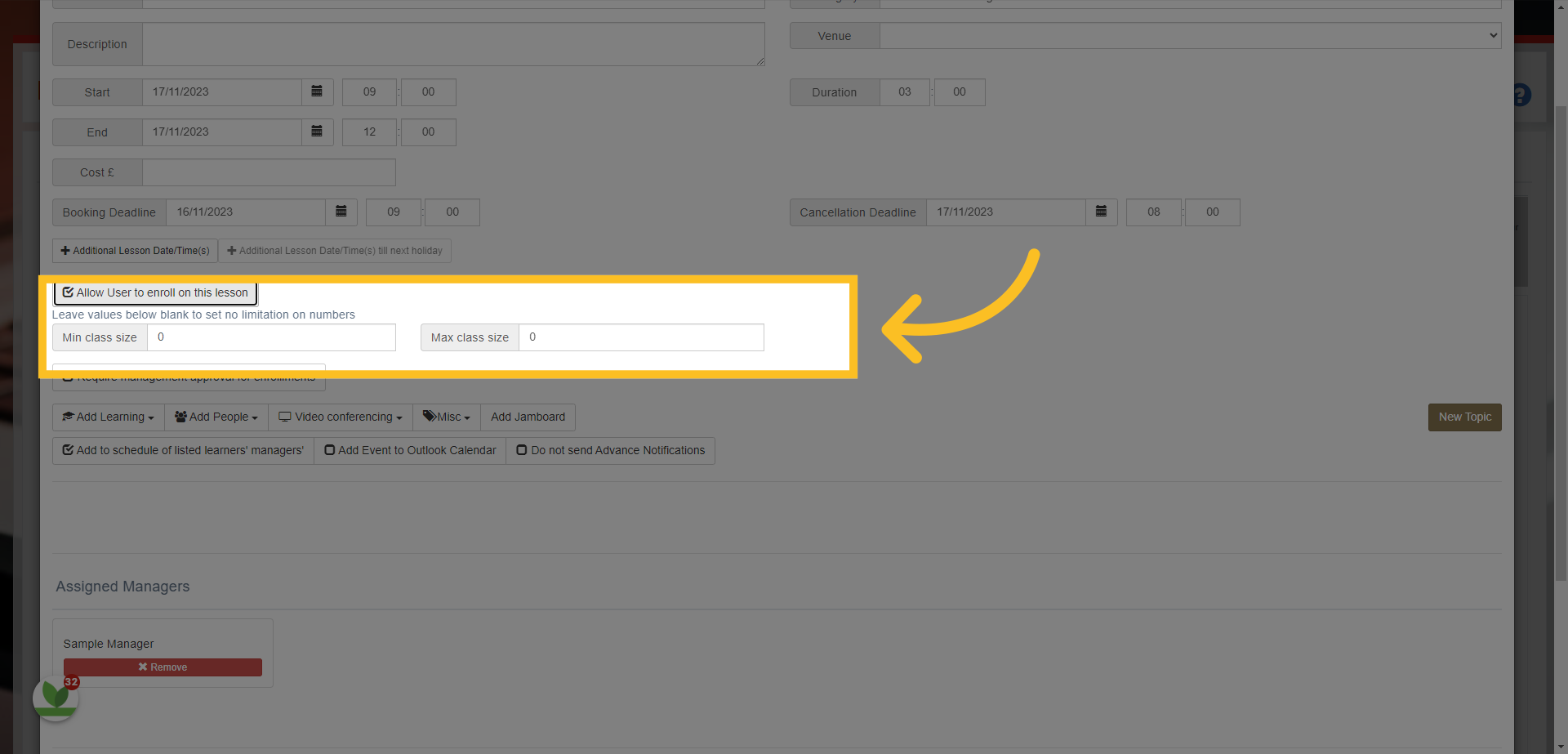
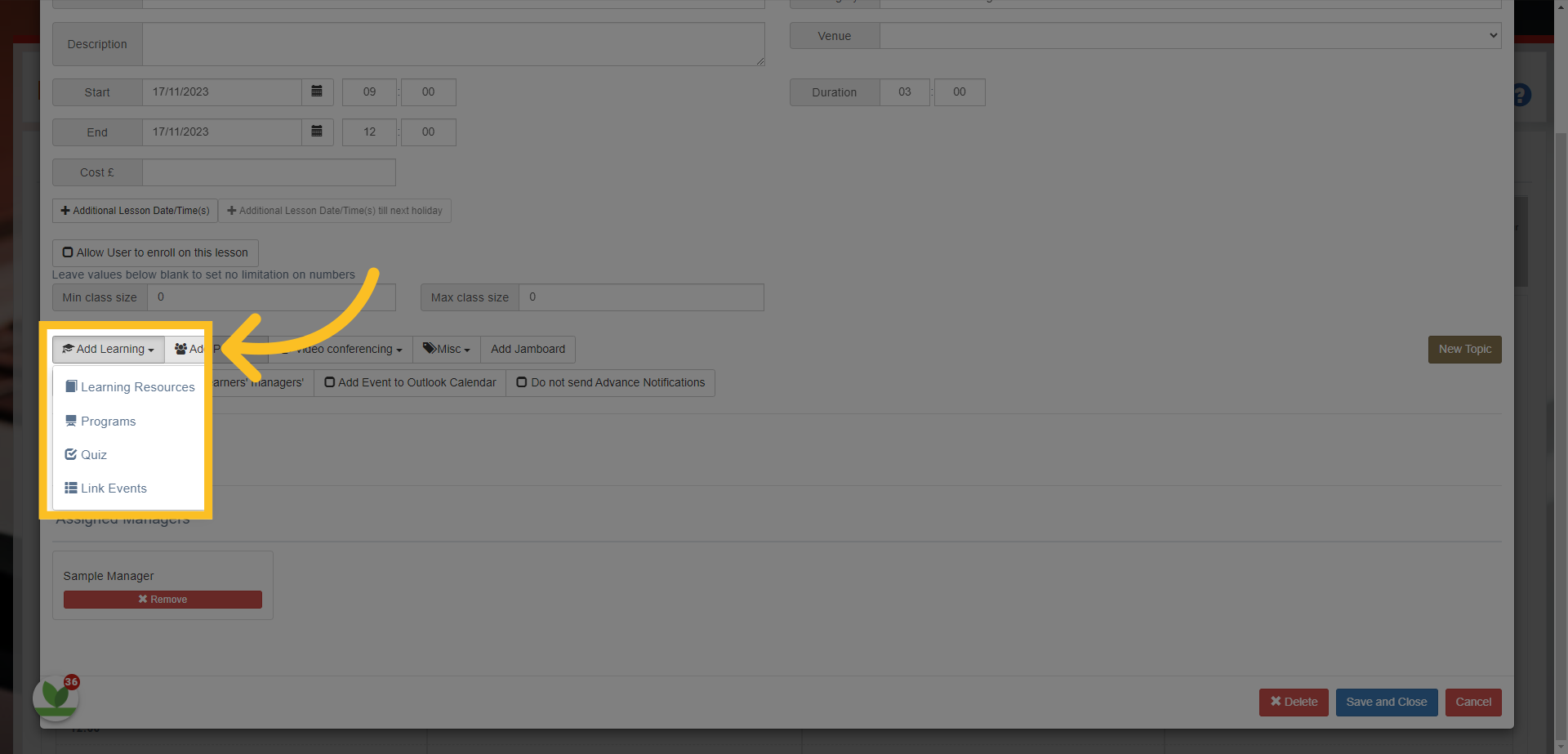
25. The 'Add Learning' button gives you the option to add further resources, map the event to any learning programs or pathways, add an interactive quiz and link to other events that have already been created.
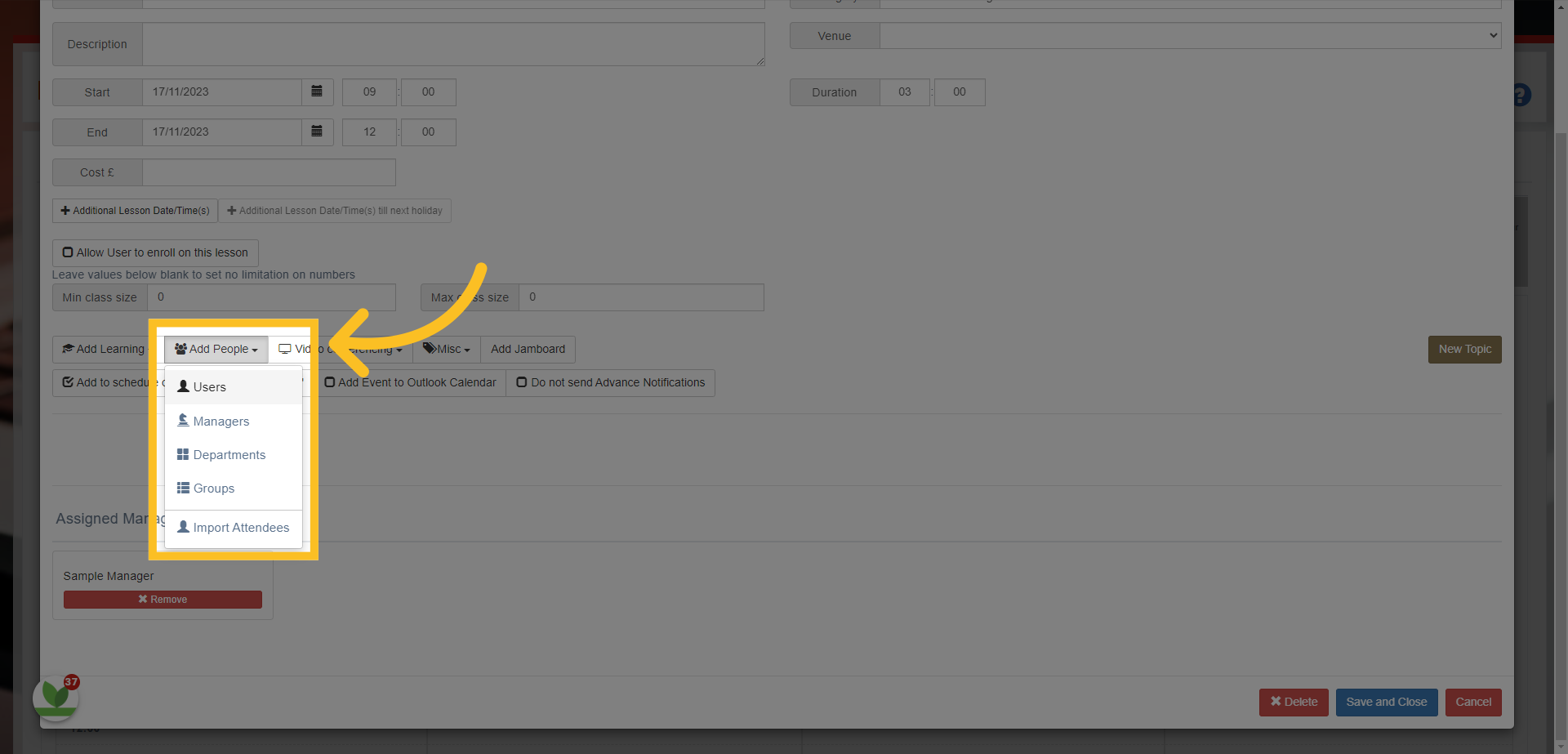
26. The 'Add People' button allows you to directly assign the event to any learners individually or by department or by group. You can also assign further managers to the event and there is an option to import attendees via an excel template.
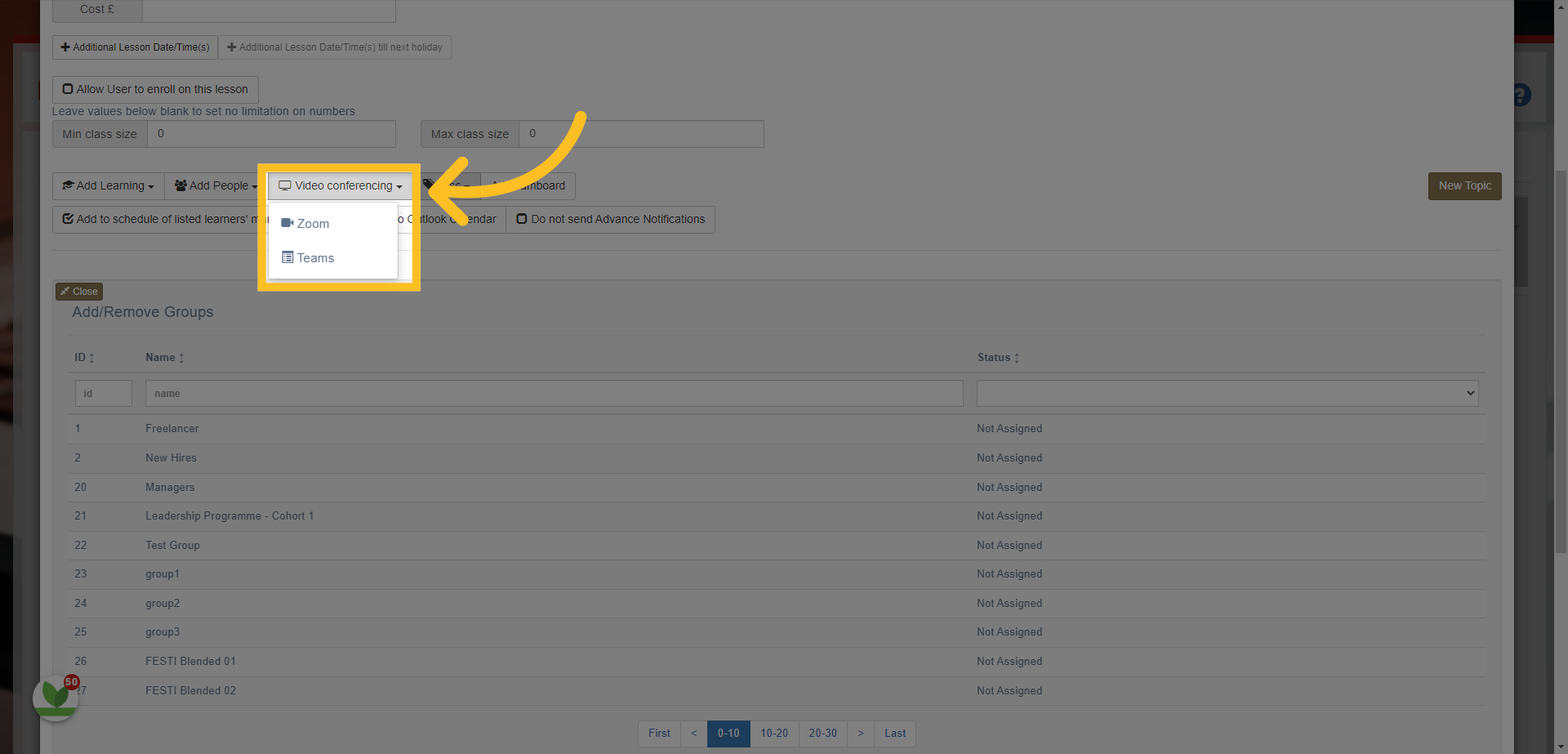
27. The 'Video Conferencing' button allows you to attach a Teams or Zoom link to the event. This is primarily used if you want to run the event online. NB: The link created will be synced to the person setting up the event. Remember to ensure the 'manager' of the event can access this link or the manager of the event would have to click this option themselves to link the Teams/Zoom account to them.
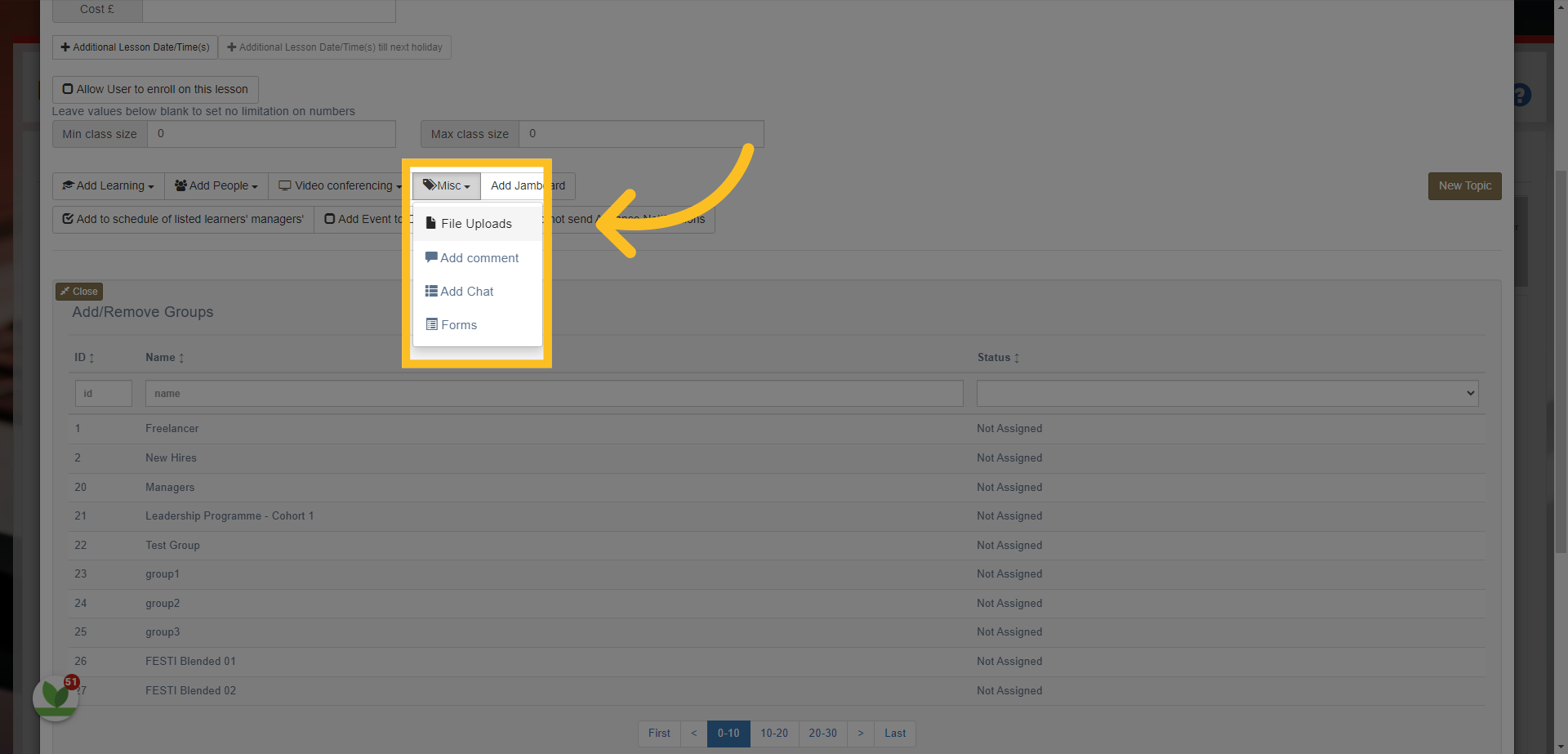
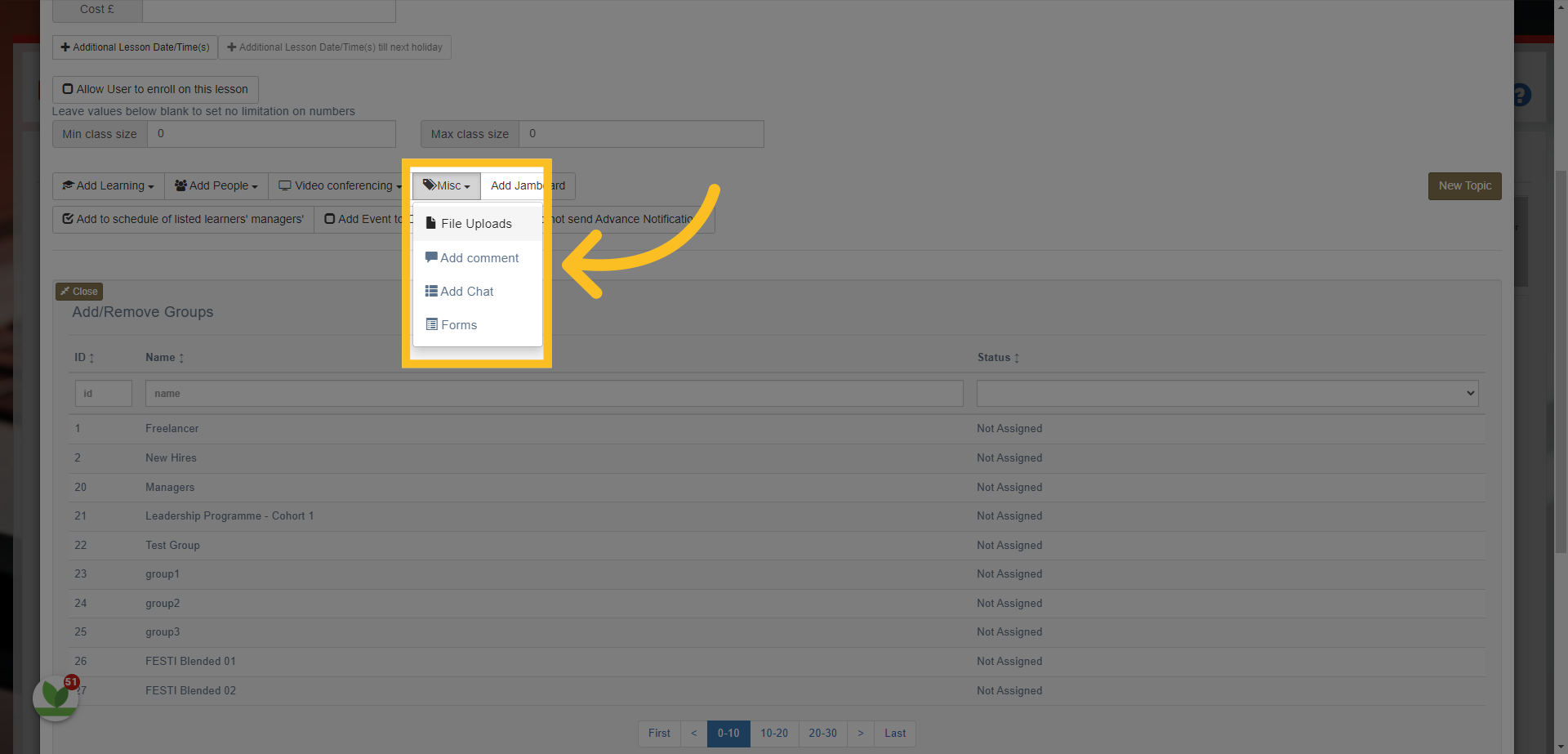
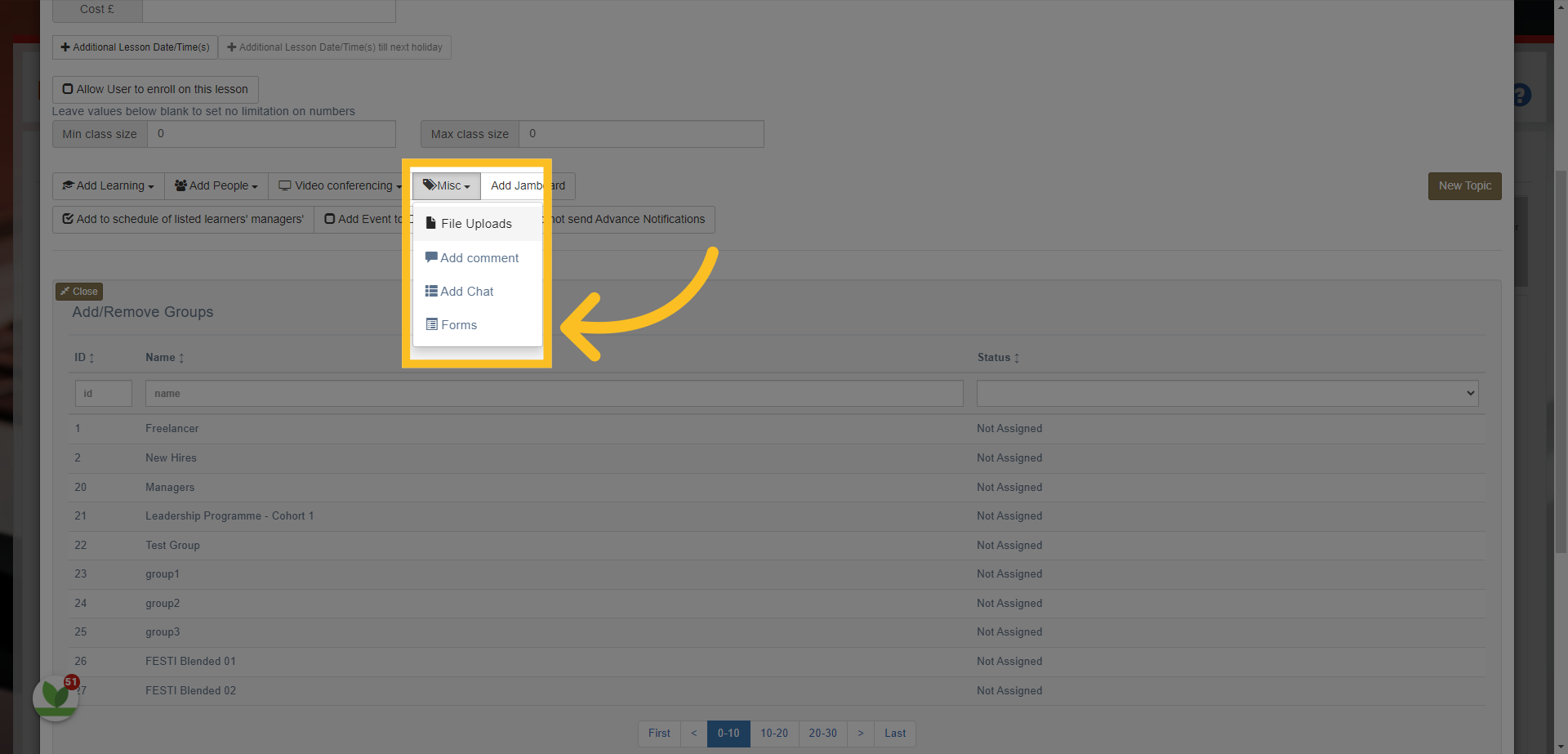
28. The 'Misc' (miscellaneous) button allows you to add documents to the event through the File Uploads option. You can attach multiple documents if you require.
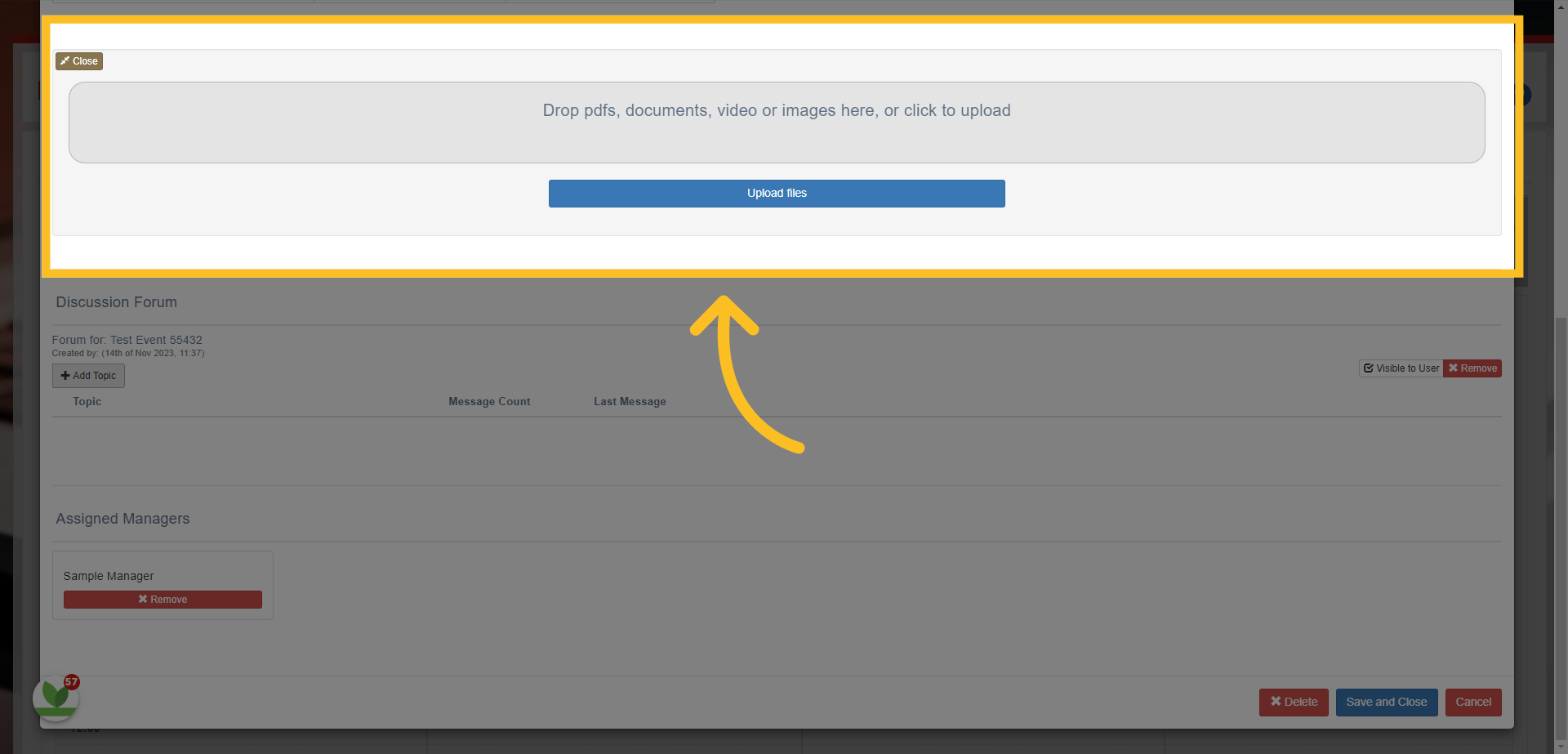
29. Drag and drop the document or click on the box to select the document/s you want to upload. Make sure to press the Blue 'Upload Files' button.
30. You can also add comments to inform the users with any further information about the event - you can also make the comments invisible to the users (so can only be seen by managers who have access to the event).
31. Add comments, choose to make it visible to learners or not - press save and close
-
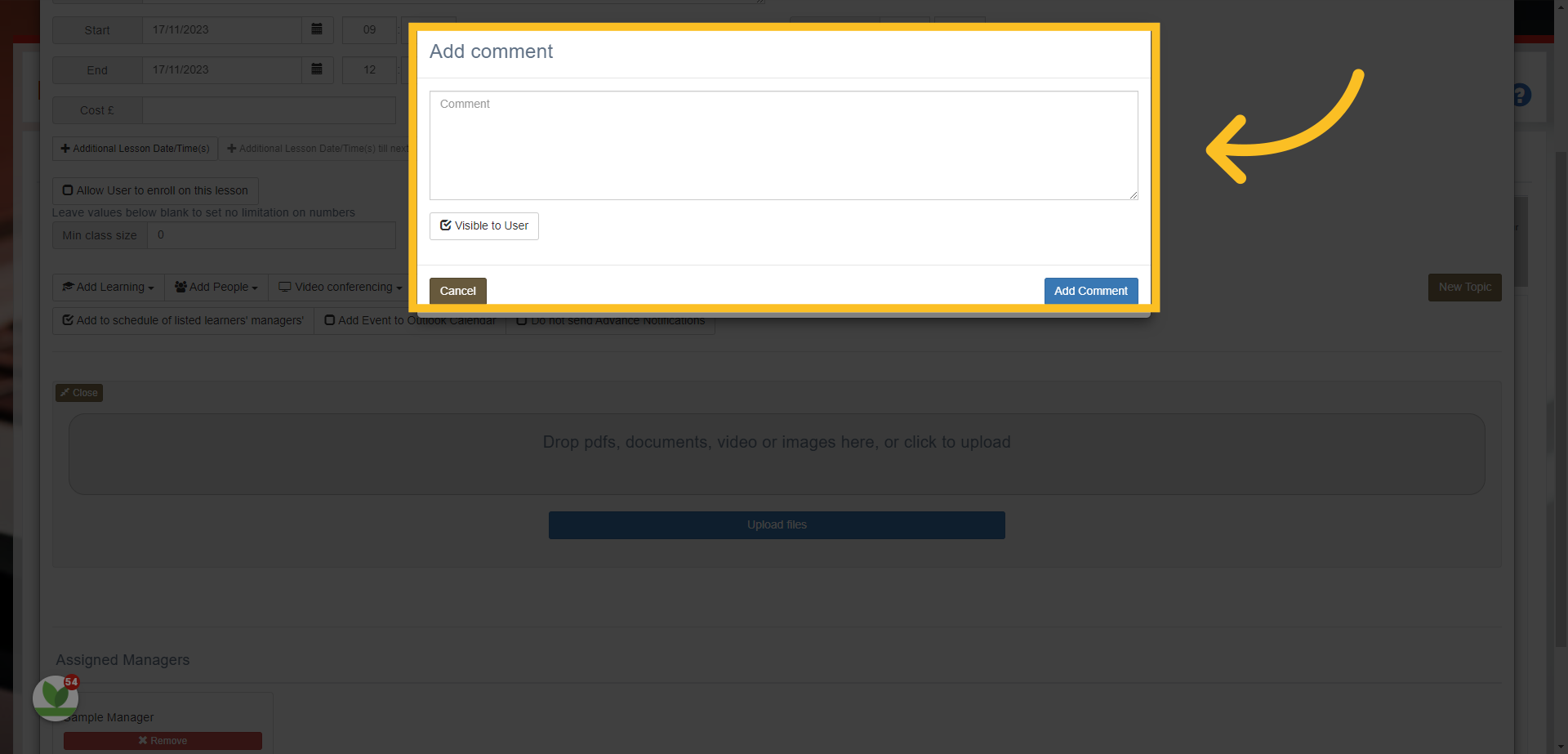
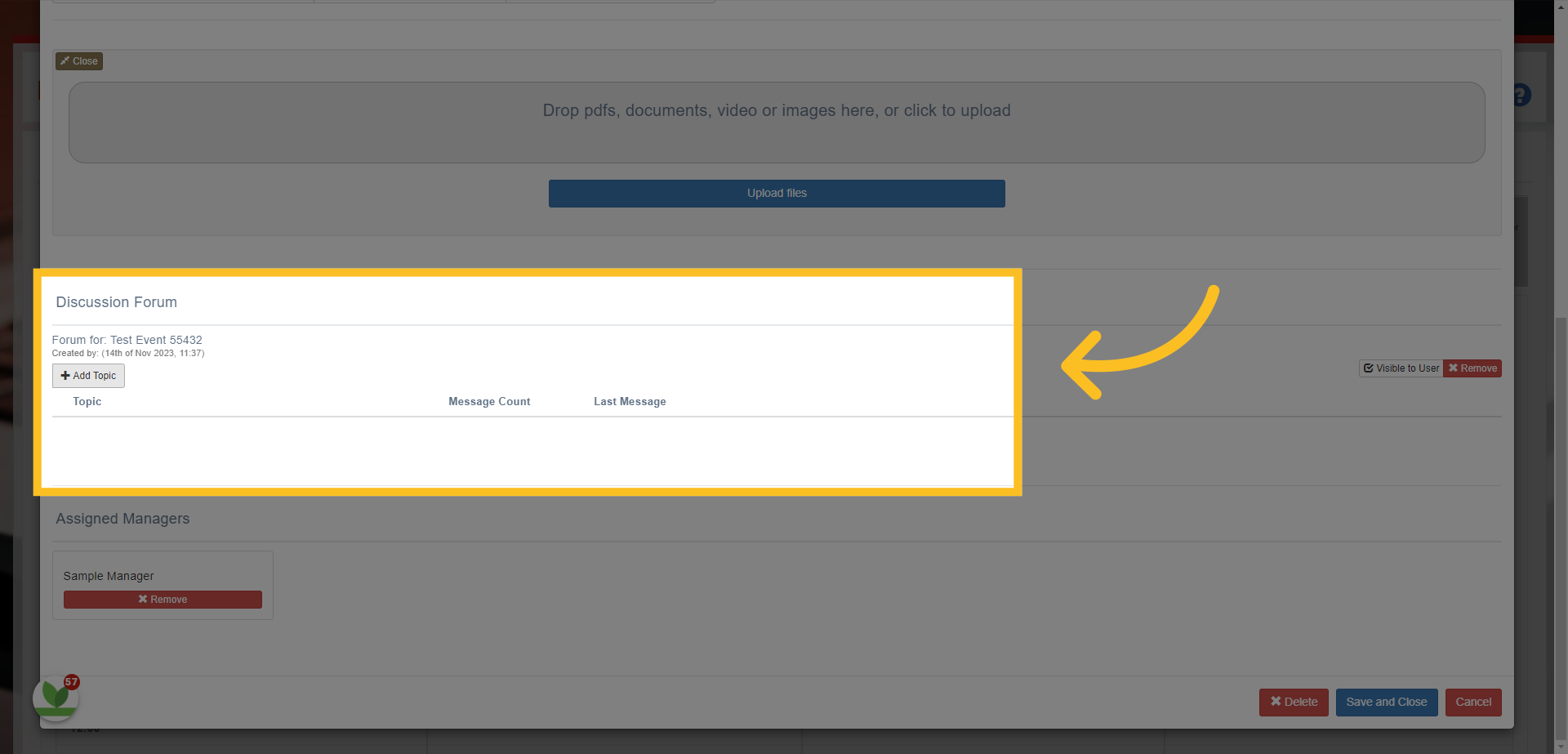
32. You can also 'Add Chat' which adds a discussion forum where learners can add comments during the event to a particular topic/s. NB: This function can only be used if you create this as a Teams/Zoom event.
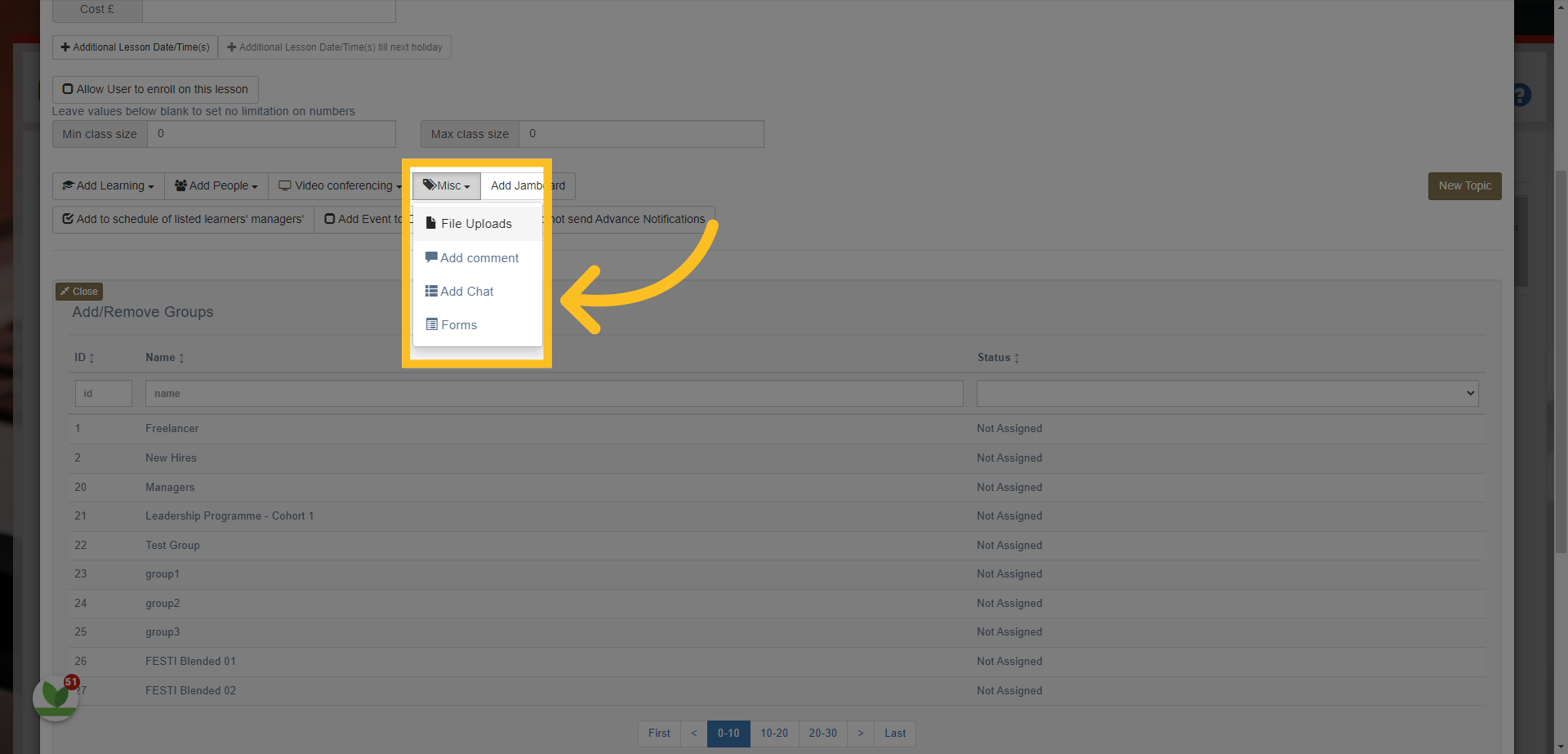
33. Select the Add Topic option to create questions or discussion topics learners can respond to.
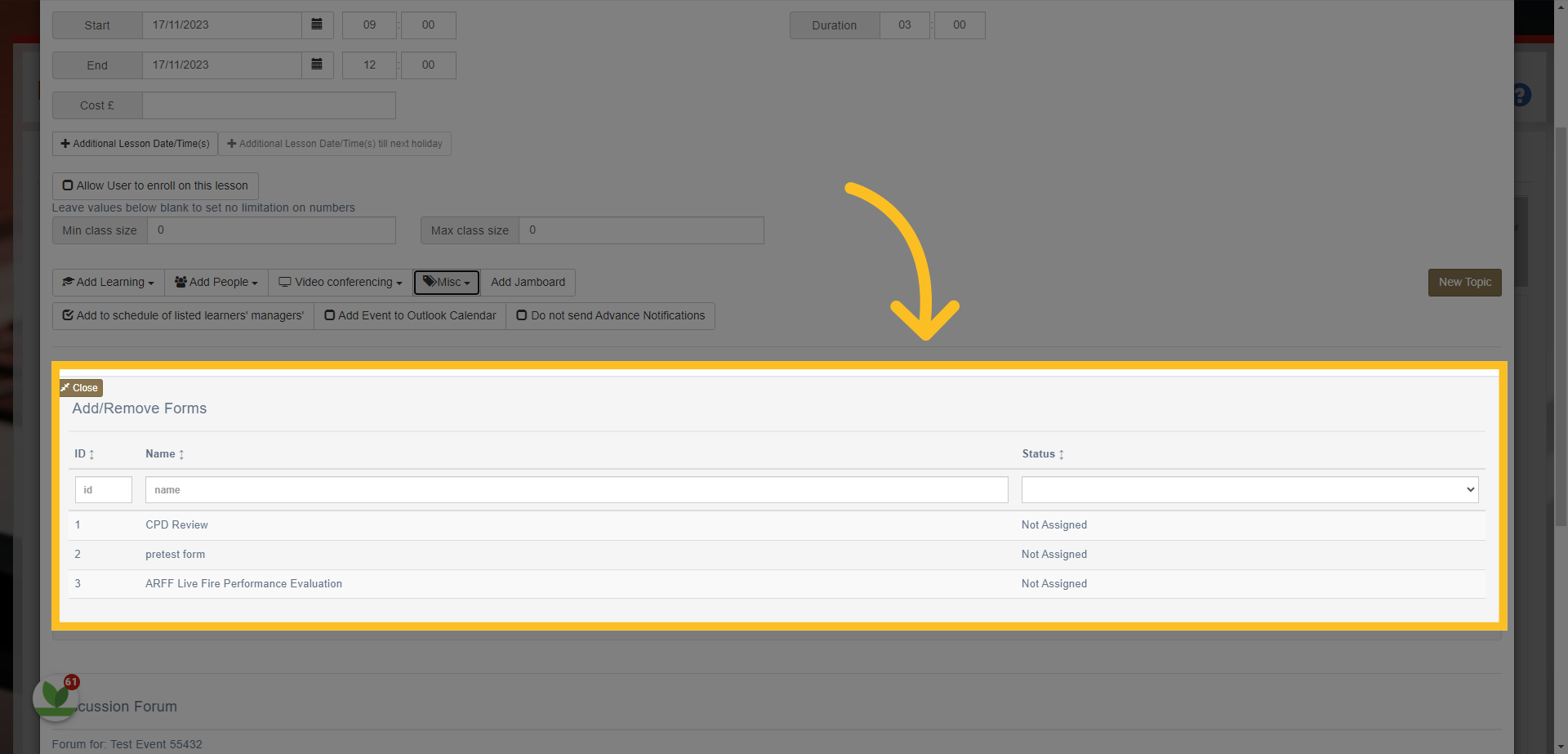
34. Digital Forms can be added using the 'Forms' button. This will allow you to add a pre-created form to the event - each user who is assigned or who enrols on the event will automatically be assigned the form selected.
35. Simply select the form you want to assign from the selection loaded.
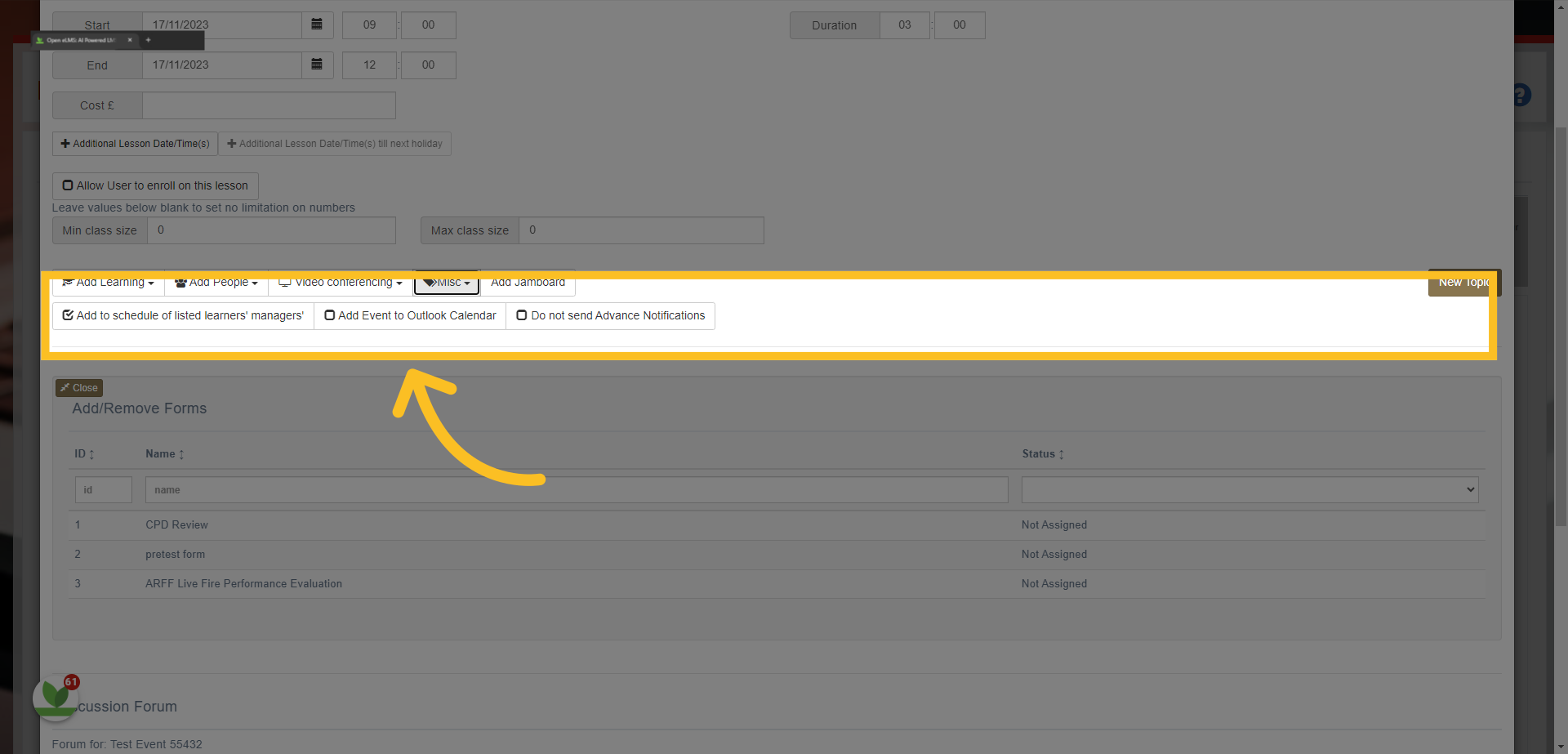
36. Other options here allow you to add this event to the schedules of managers of the learners who are assigned/enrolled to the event - you can also link the event to Outlook.
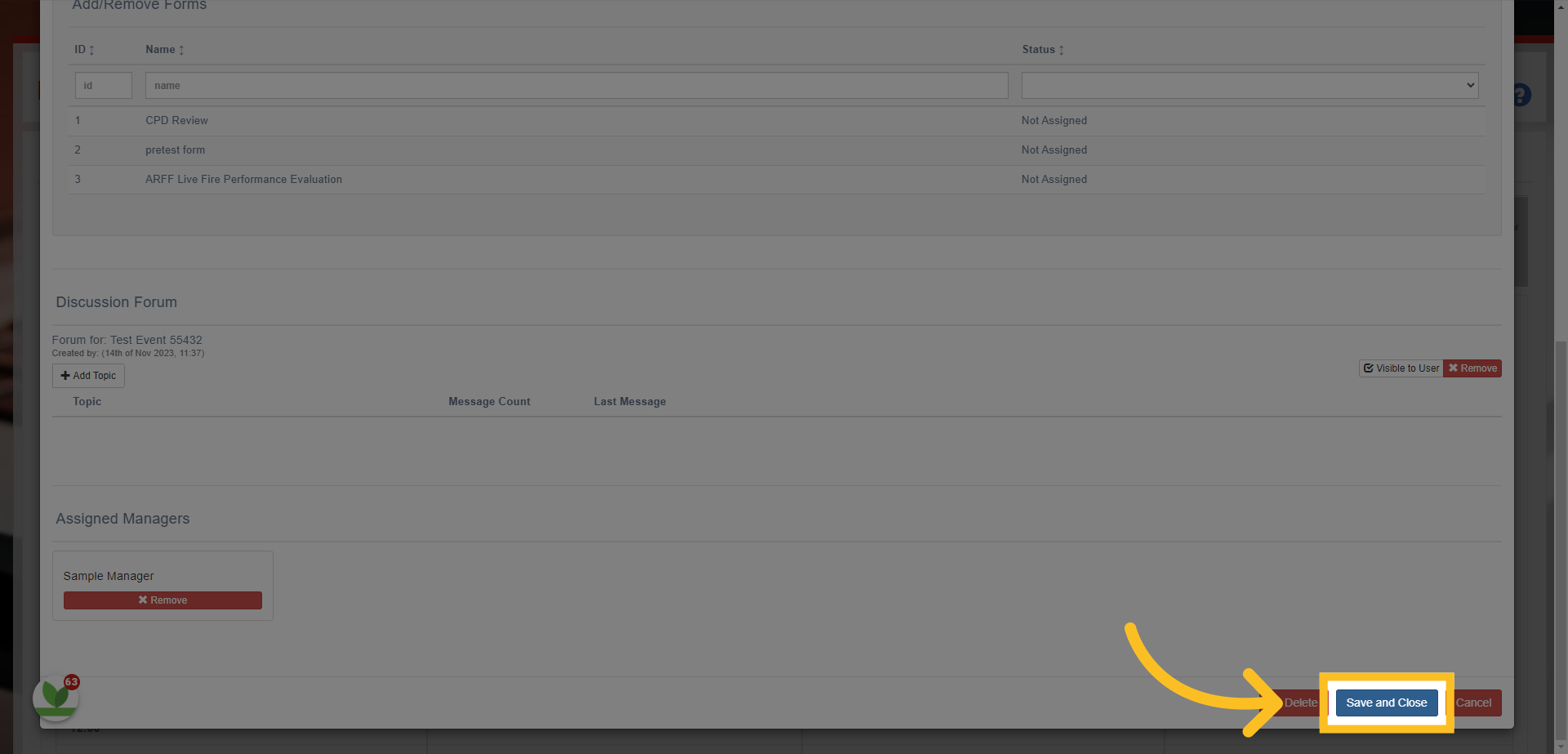
37. Once you've set up the event - simply click on the Save and Close Button at the bottom of the screen.
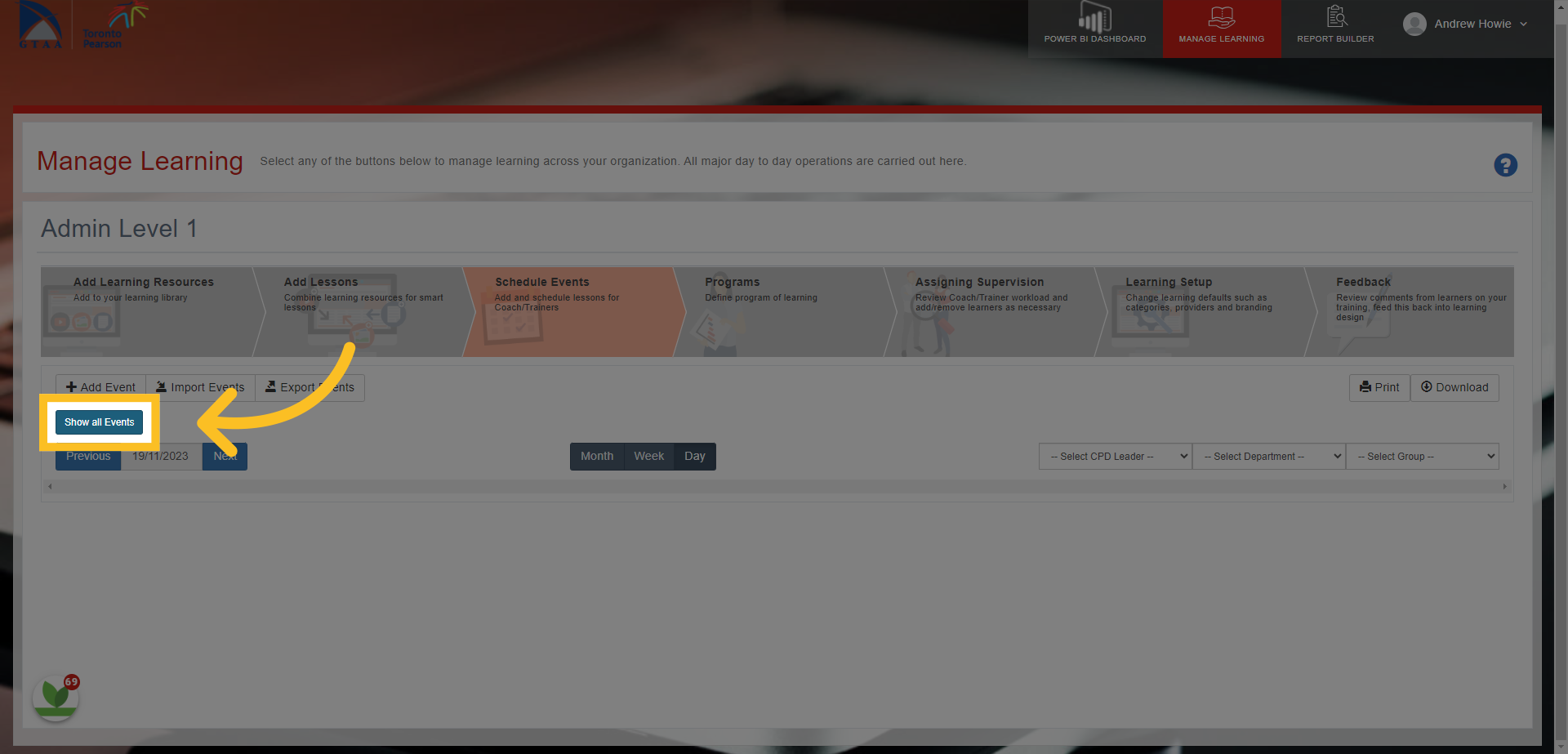
38. You can simply find the event by clicking on the Show all Events button here
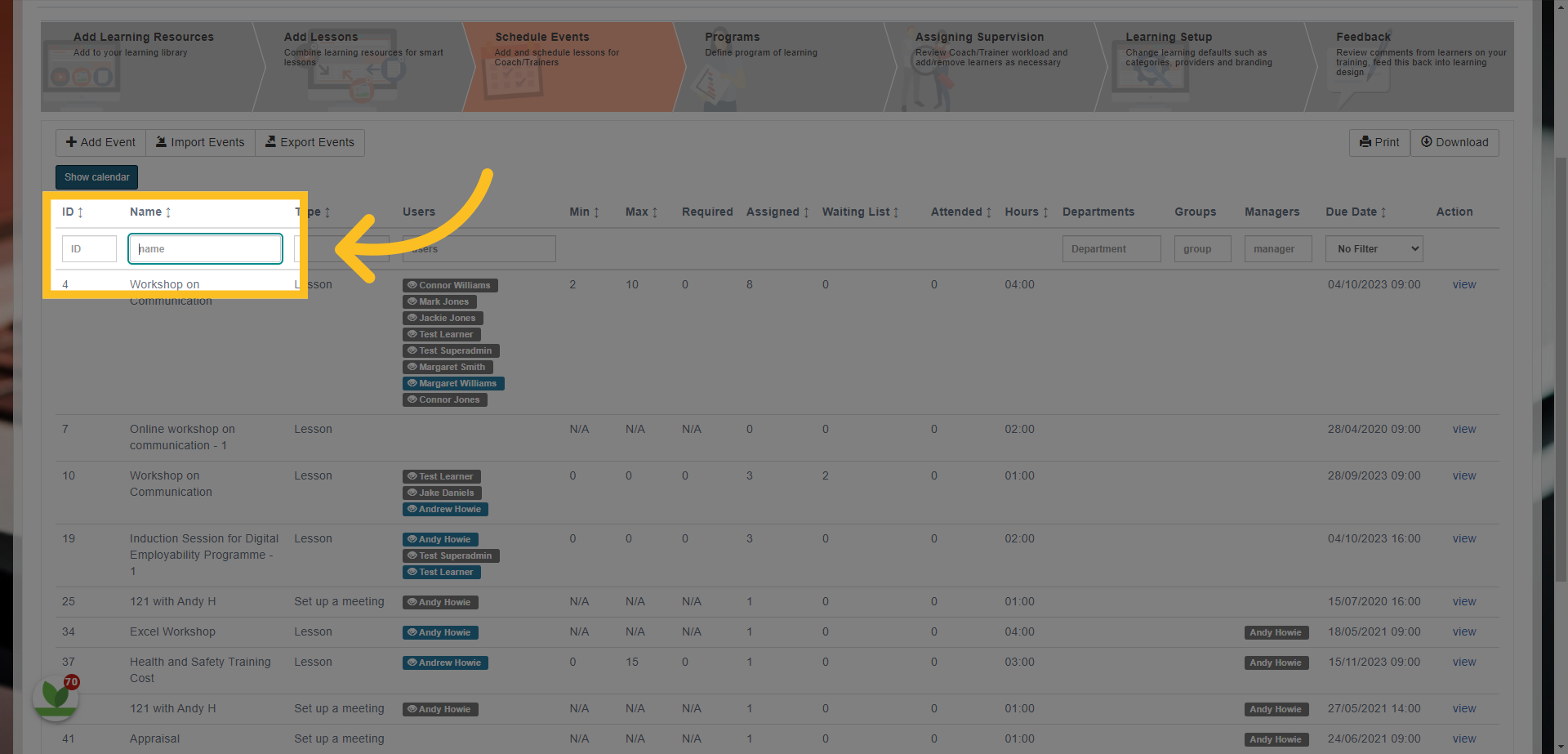
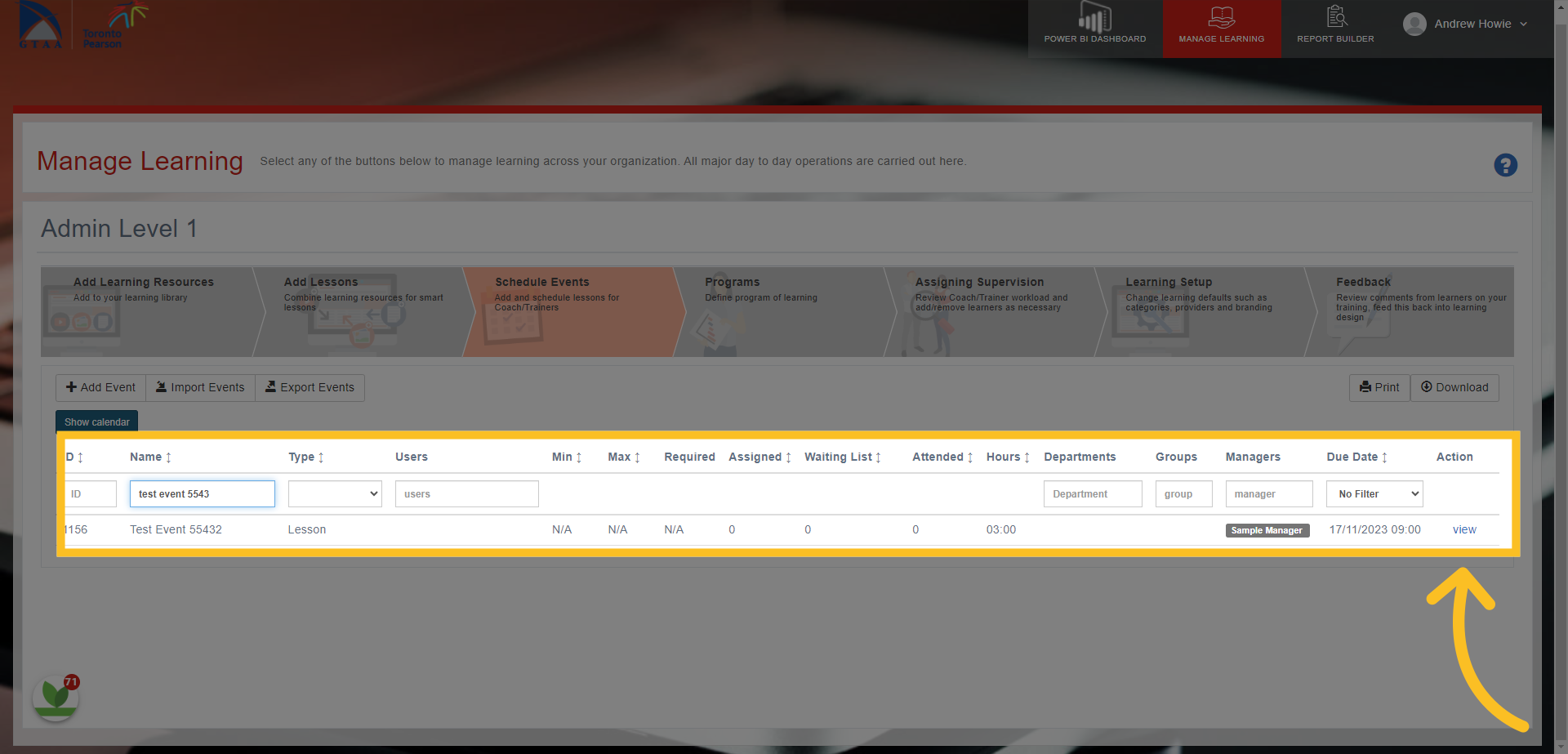
39. and then typing the name of the event here
40. The event will show here
-
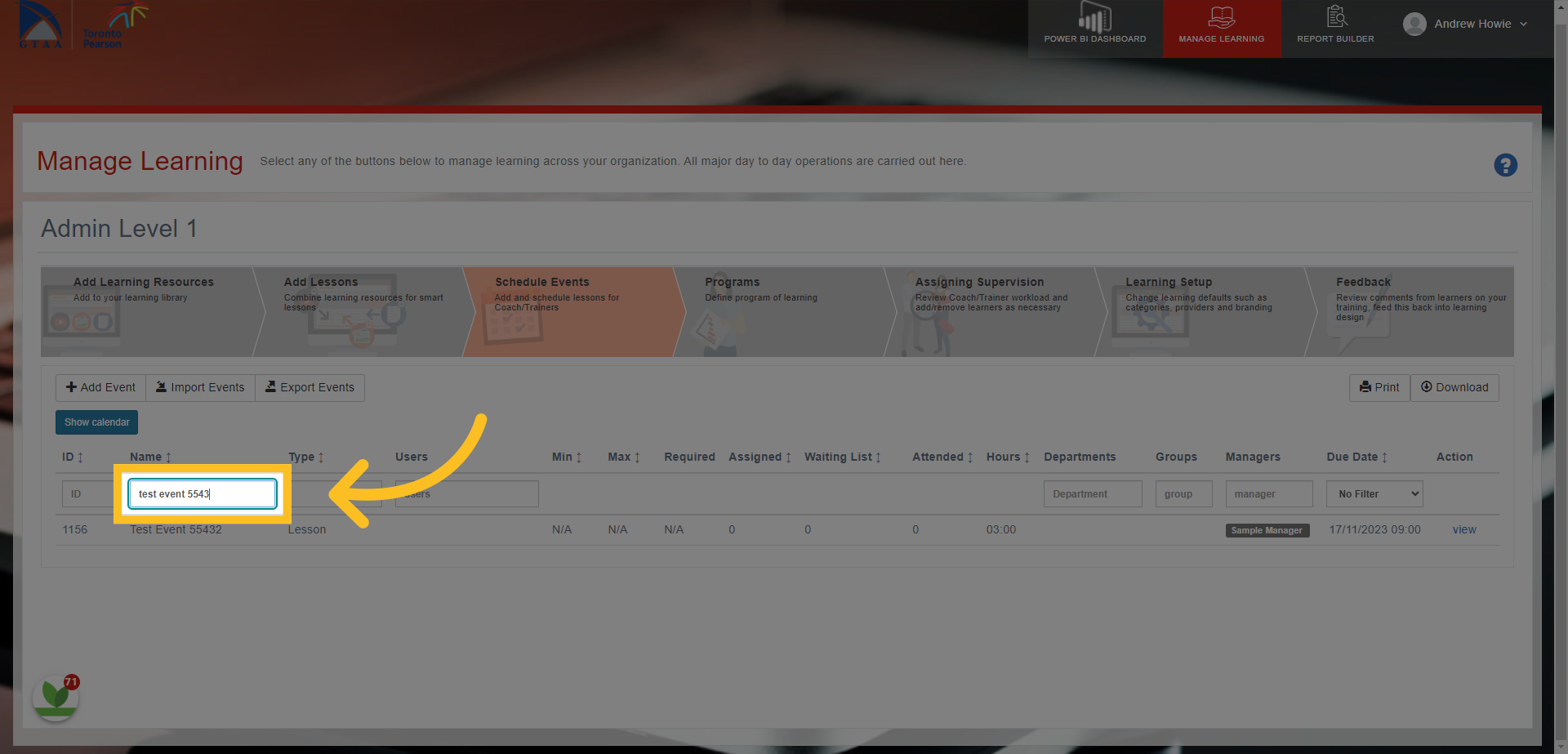
41. Click on the 'view' button if you want to make edits to the event
In this guide, we covered the steps for creating and adding training events in to the system. From selecting different event options to entering event details, you now have the knowledge to efficiently add events and set up learners to attend.