How to use the Audit Area
The Audit tab (System Setup - Audit) enables administrators to monitor and review various aspects of the system, providing valuable insights into user performance, resource assignments, email logs, and more.

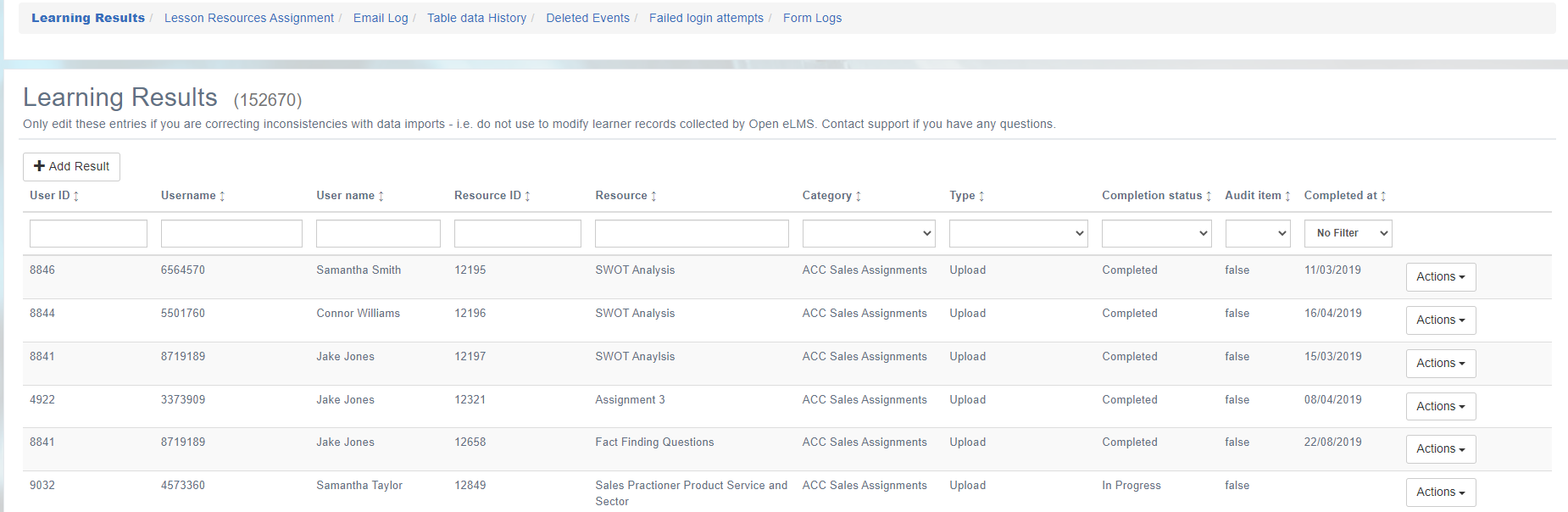
Learning Results
This section logs all relevant user performance data on learning resources and modules. Administrators should only edit these entries if they are correcting inconsistencies with data imports, ensuring that the platform maintains accurate and consistent data records.
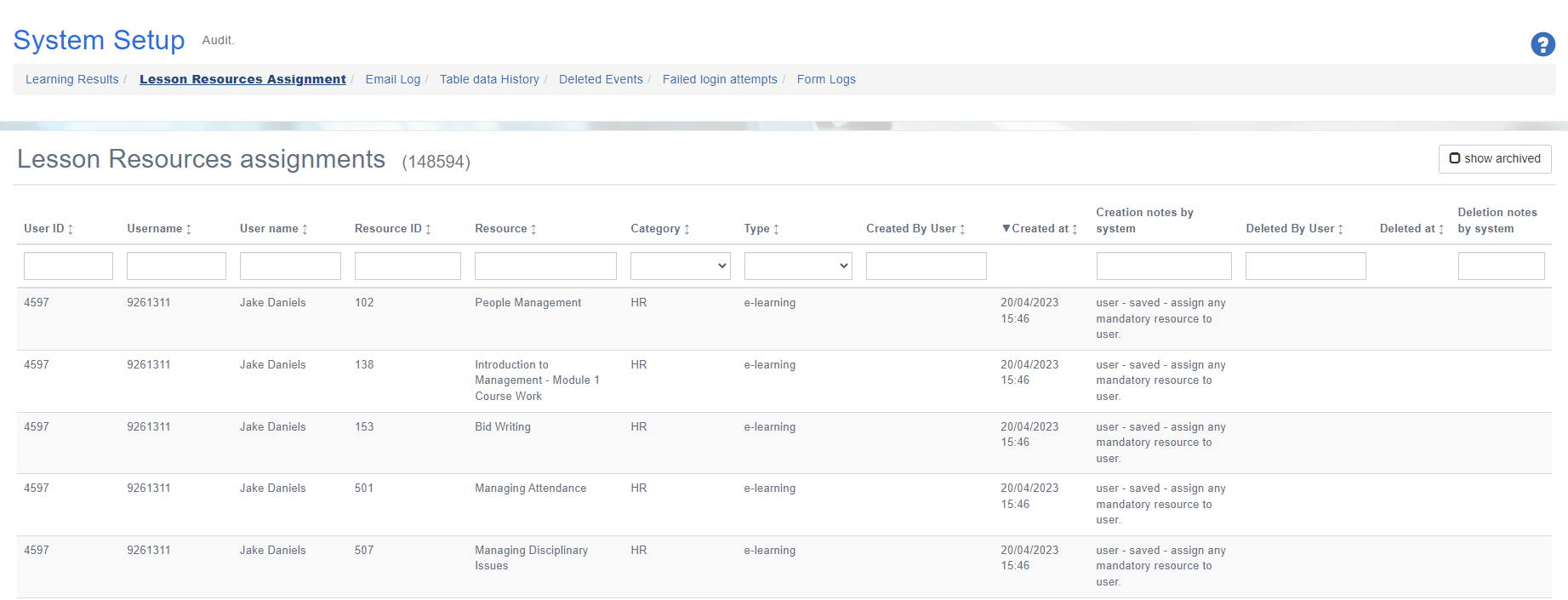
Lesson Resources Assignment
This section acts as a log of all activity related to learning resource assignments, including when resources or modules were assigned or removed from users. It also captures any notes to help log who is doing what and when, providing administrators with a transparent and detailed record of resource allocation and management.
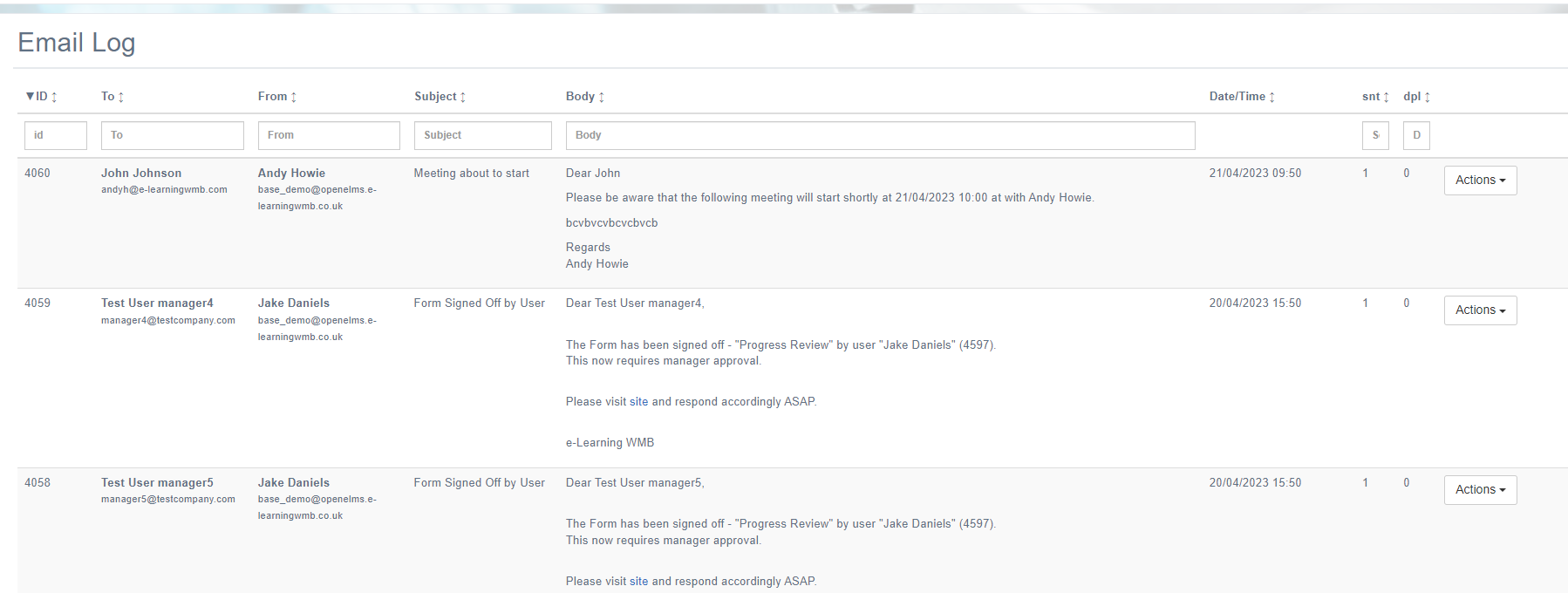
Email Log
This section logs all system-generated emails, capturing information about recipients, subject lines, and timestamps. Administrators can review email communications to ensure users are receiving important notifications and updates and to maintain a transparent record of system communication.
Email Queue
The email queue - as the name suggests - allows users to queue emails and then ‘release’ them manually. This is useful at the test stage to avoid multiple emails going out to the test population. To approve each email select Approve in the Actions menu.
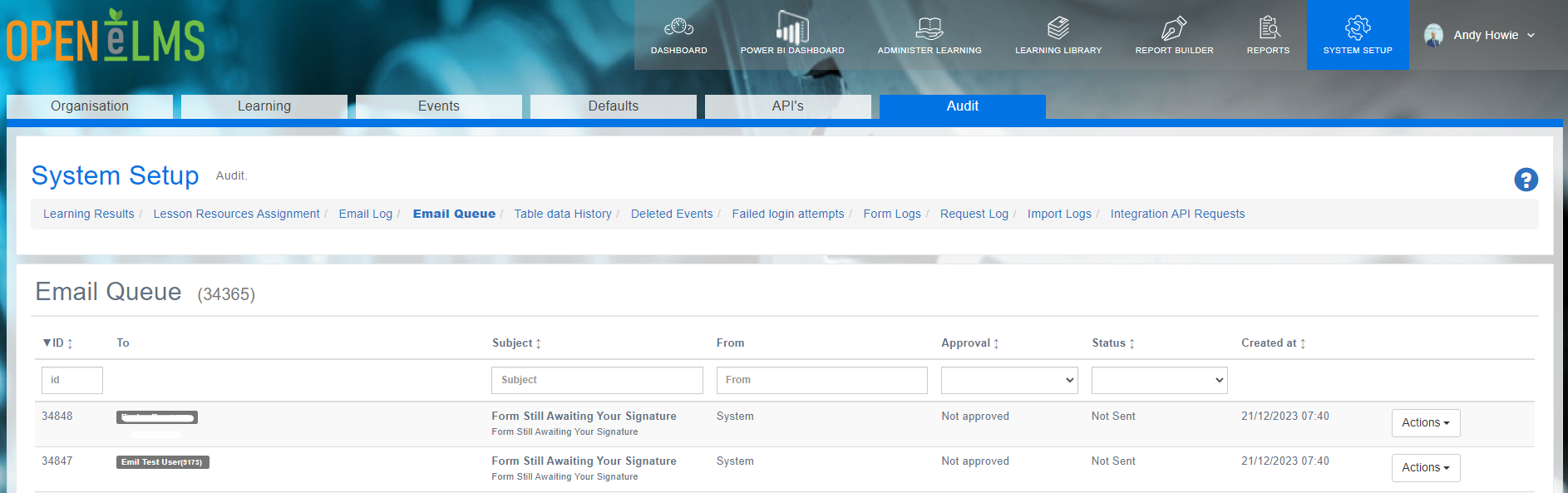
Note that the configuration item approveEmailQueueItems must be set to True to use this functionality. This is highly recommended when testing the system.
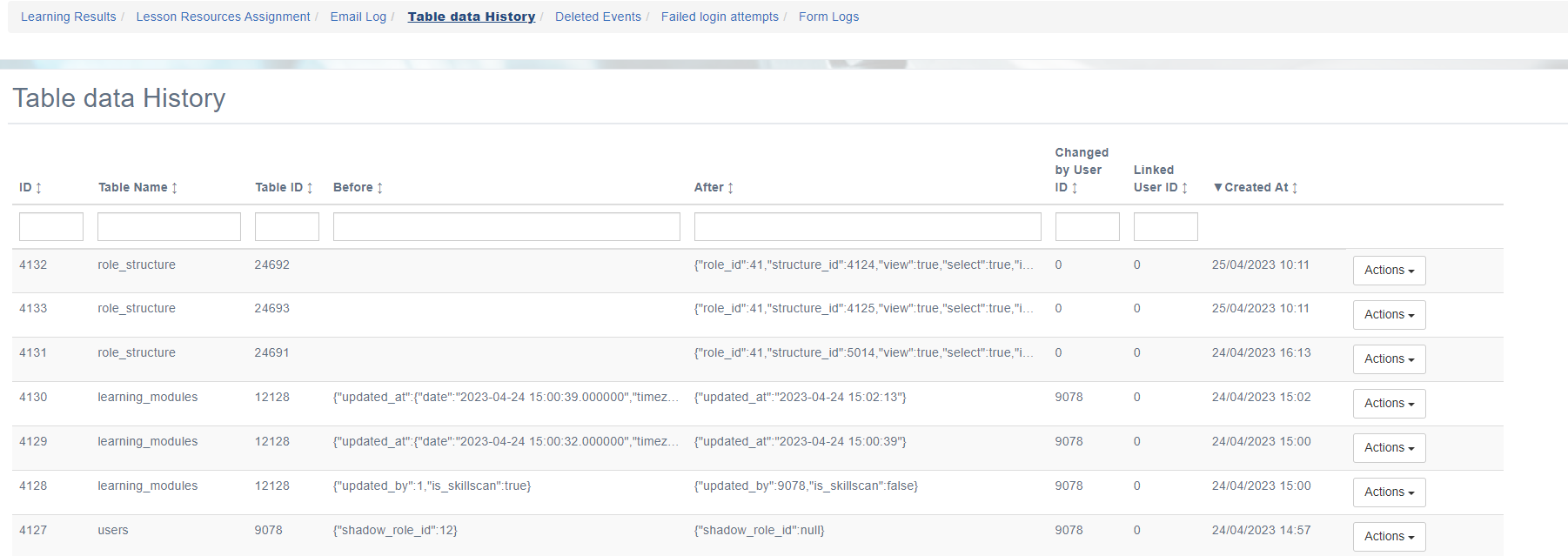
Table data History
The Table Data section logs raw data from various system tables, providing administrators with a comprehensive overview of the platform's data to track any changes to users and relevant associated tables.
Deleted Events
The Deleted Events section logs all records of deleted events, including information on the event, the user who deleted it, and the deletion timestamp. This ensures accountability and transparency in the event management process.
Events can also be restored using the Actions button.

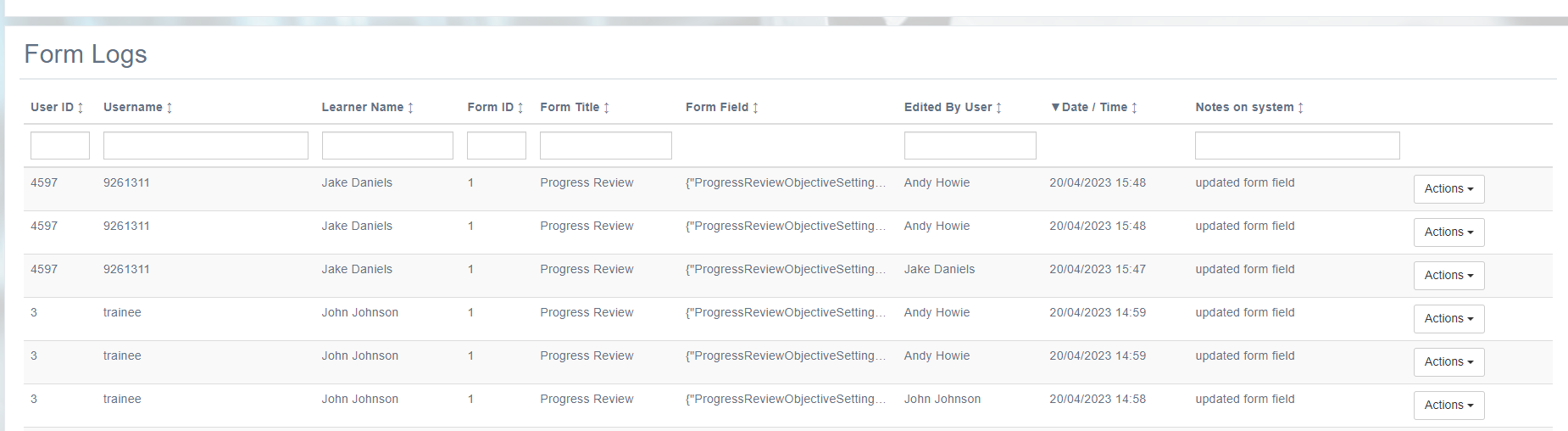
Form Logs
The Form Logs section captures all form submissions (for clients using Open eLMS Forms), providing valuable information on user interactions and system usage. The logs include User ID, Username, Learner Name, Form ID, Form Title, Form Field, Edited By User, Date/Time, and any Notes on the system. Administrators can review these logs to monitor and track user engagement, maintain transparency, and identify any potential issues.
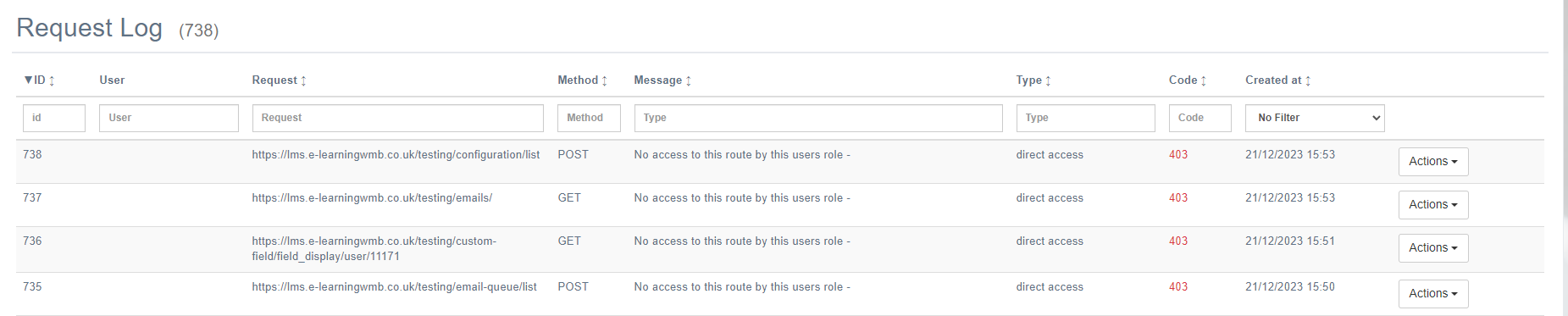
Request Log
Any system failures such as API calls failing or loss of connections to the server are listed here. This is a universal position to reference all system errors.
Import Logs
All imports into the system are listed here, this includes automated imports via CRON tasks etc. Any errors are recorded here are can be referenced from the Actions menu.

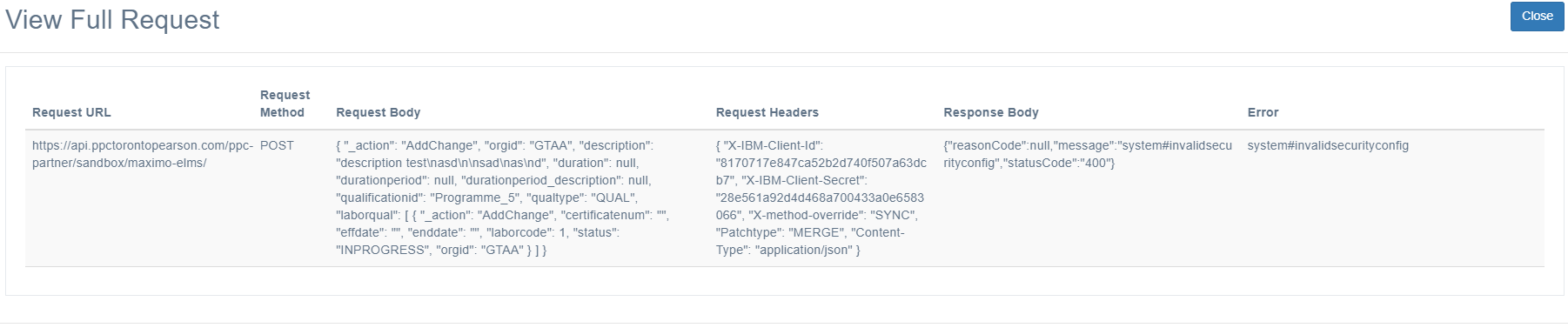
Integration API Requests
All API calls to and from the system are listed here, this request method (POST/GET) as well as the details of the request an response and any errors which may occur as a result of the call. This table is useful for testing API integration into the Open eLMS system.
This comprehensive auditing tool ensures that the platform maintains a high level of transparency and accountability, allowing administrators to make informed decisions and adjustments as needed.
📋 Related articles
- Page:
- Page:
- Page:
- Page:
- Page: