Check a course created by AI
When creating a course using Artificial Intelligence it is important to check the generated course against source material. The text content will generally be spot on, but you will need to check for visual accuracy of images and general aesthetic changes and make changes accordingly.
These instructions assume you know are familiar with editing the content - refer to this document if not https://library.openelms.com/docs/OE/edit-elearning-created-using-open-lms-ai-RvXYJp .
📘 Instructions
Follow these steps applying changes where applicable:
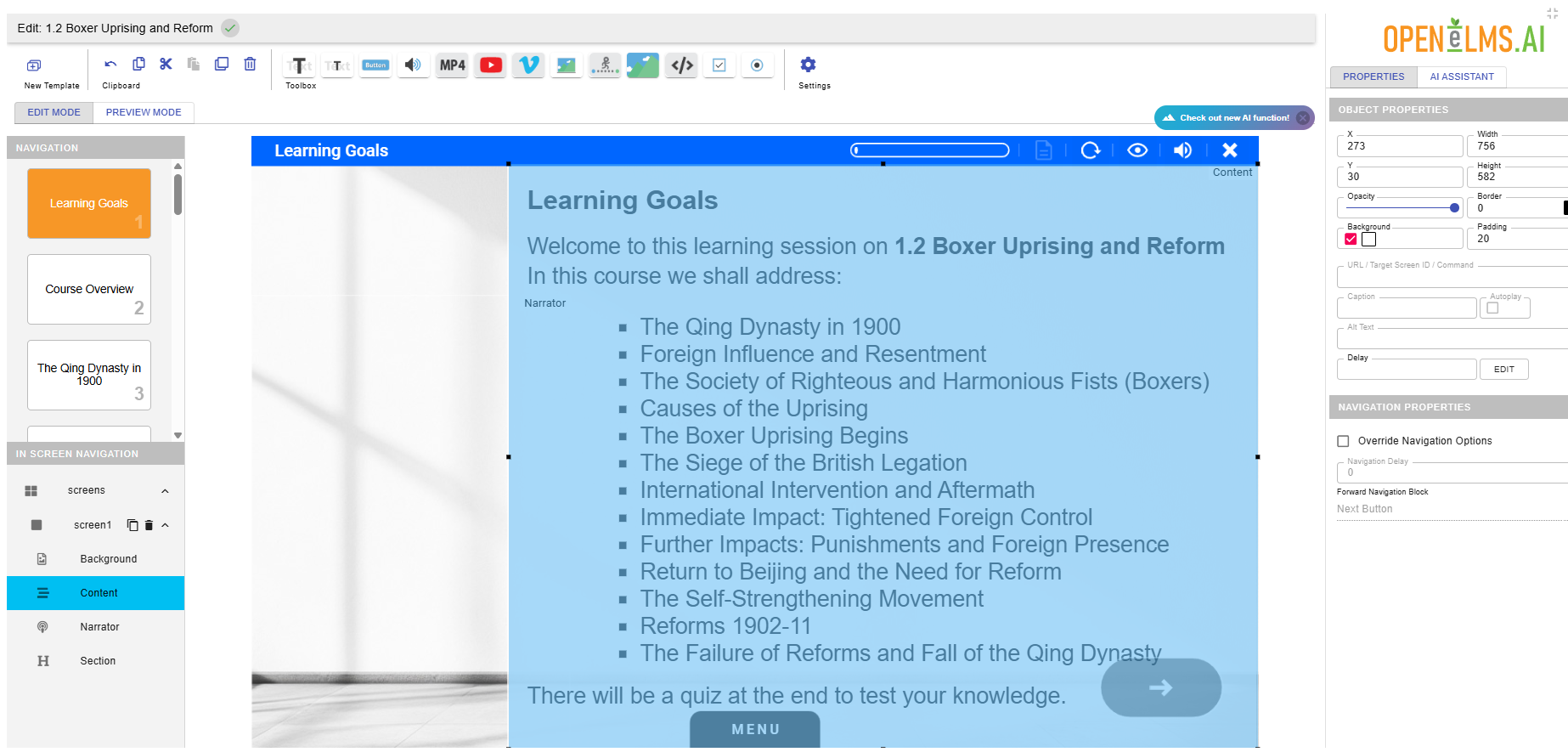
Make sure all text is visible. At times the allotted space will cause scrollbars to show as shown.
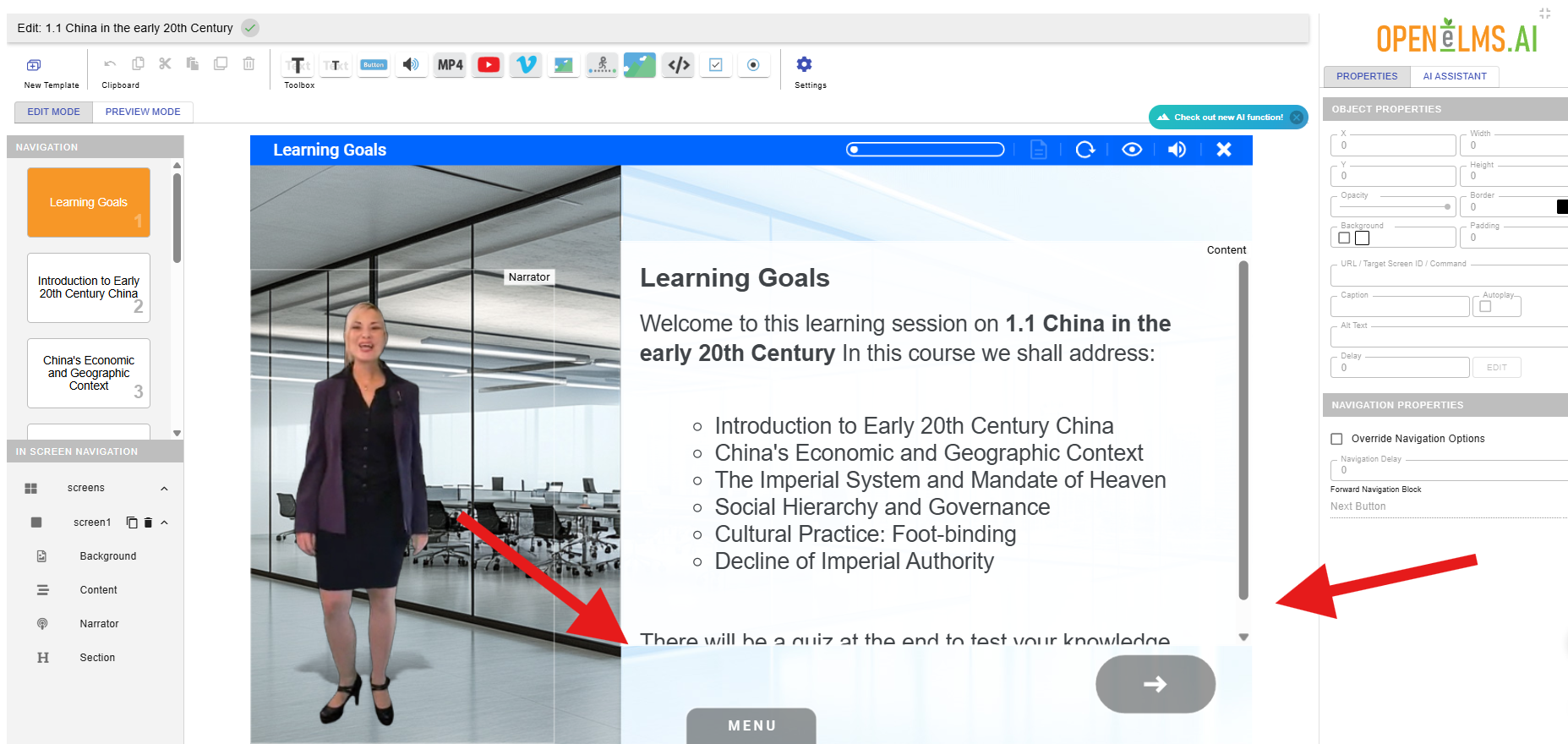
The text area is enlarged so this is no longer an issue.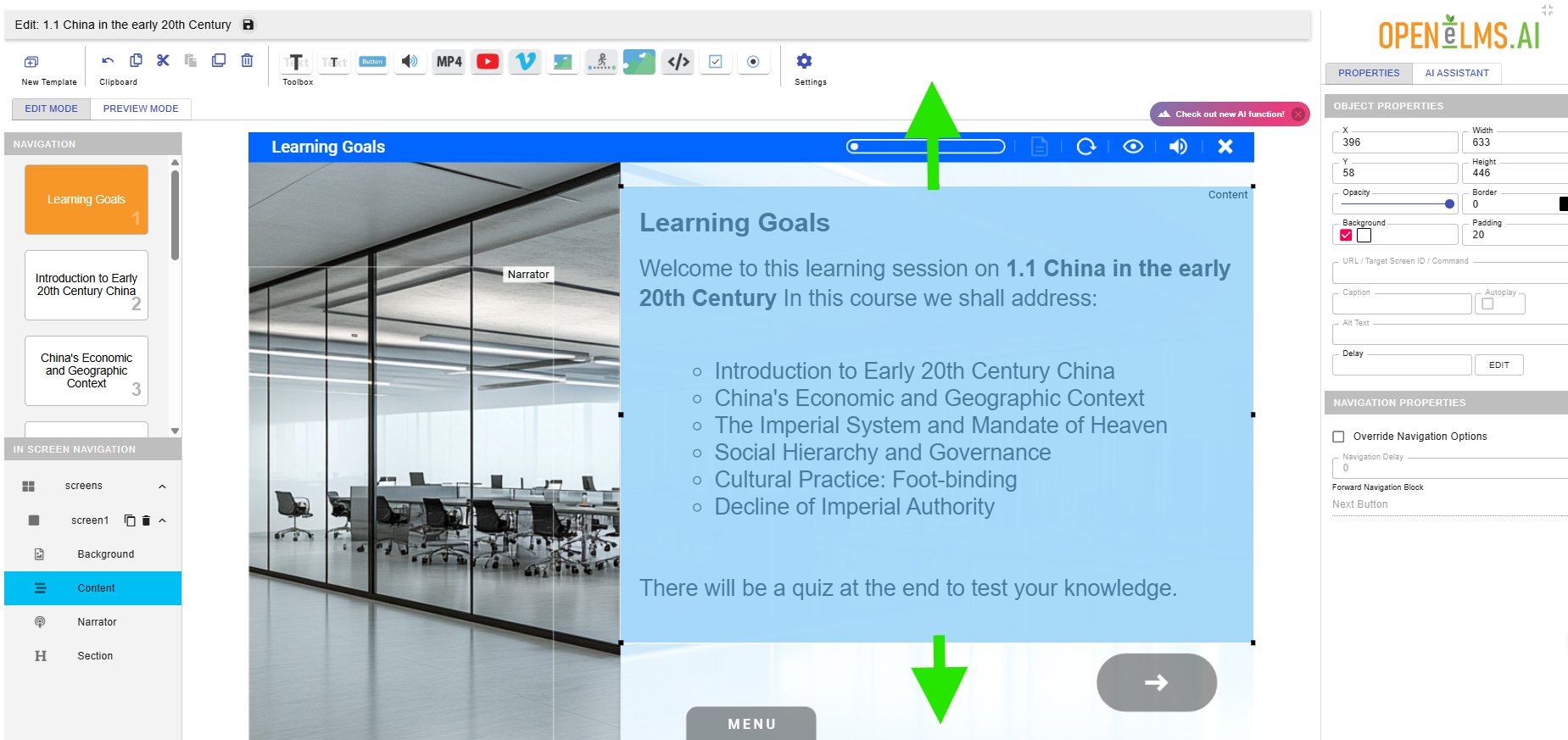
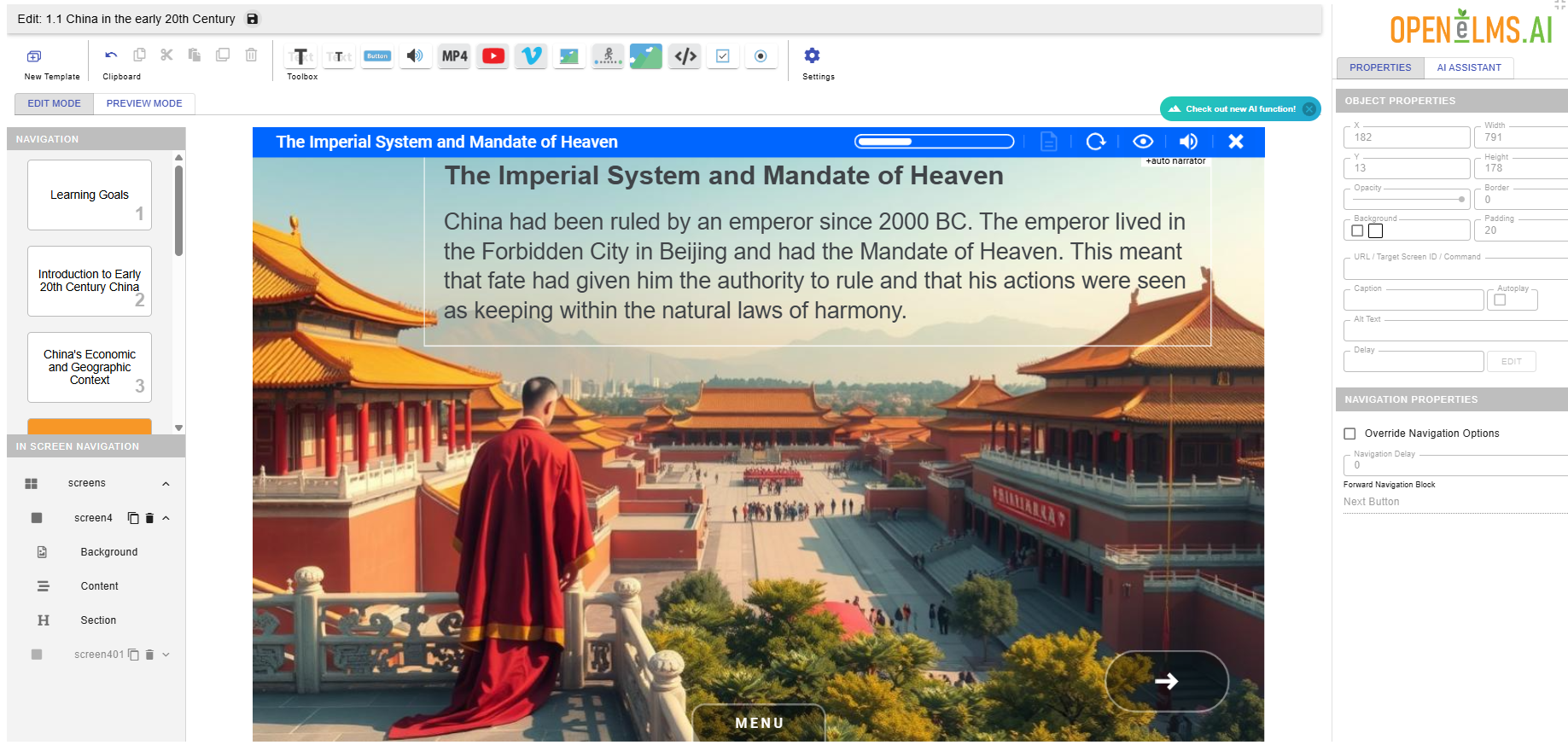
Cover Mistakes by Moving Text. rather than generating a new image, often the best solution is to move text. Here we can see AI has created a great image describing China from 1900 to 1934 but there is a 1960s office block in the background.
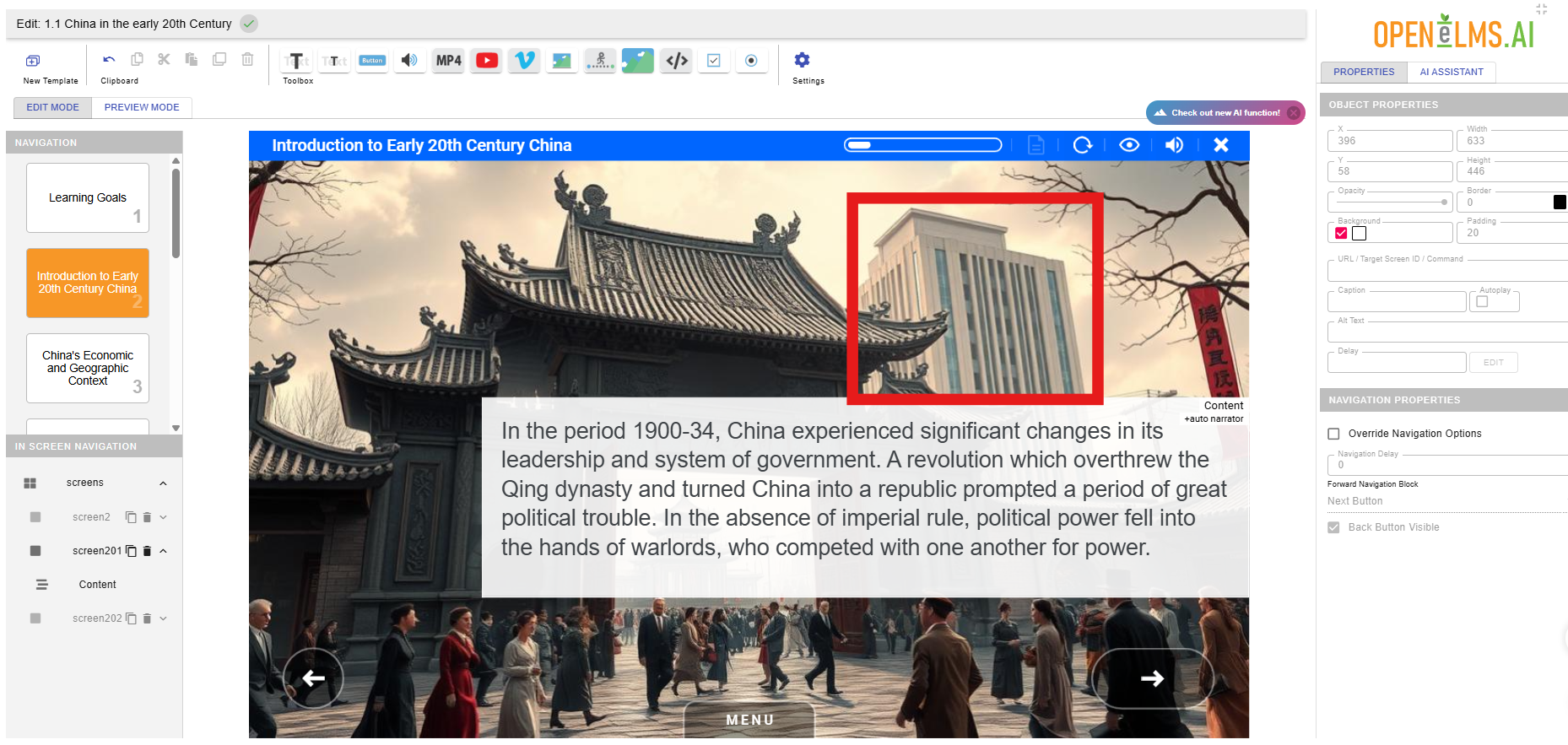
Fix this by simply moving the text area as shown.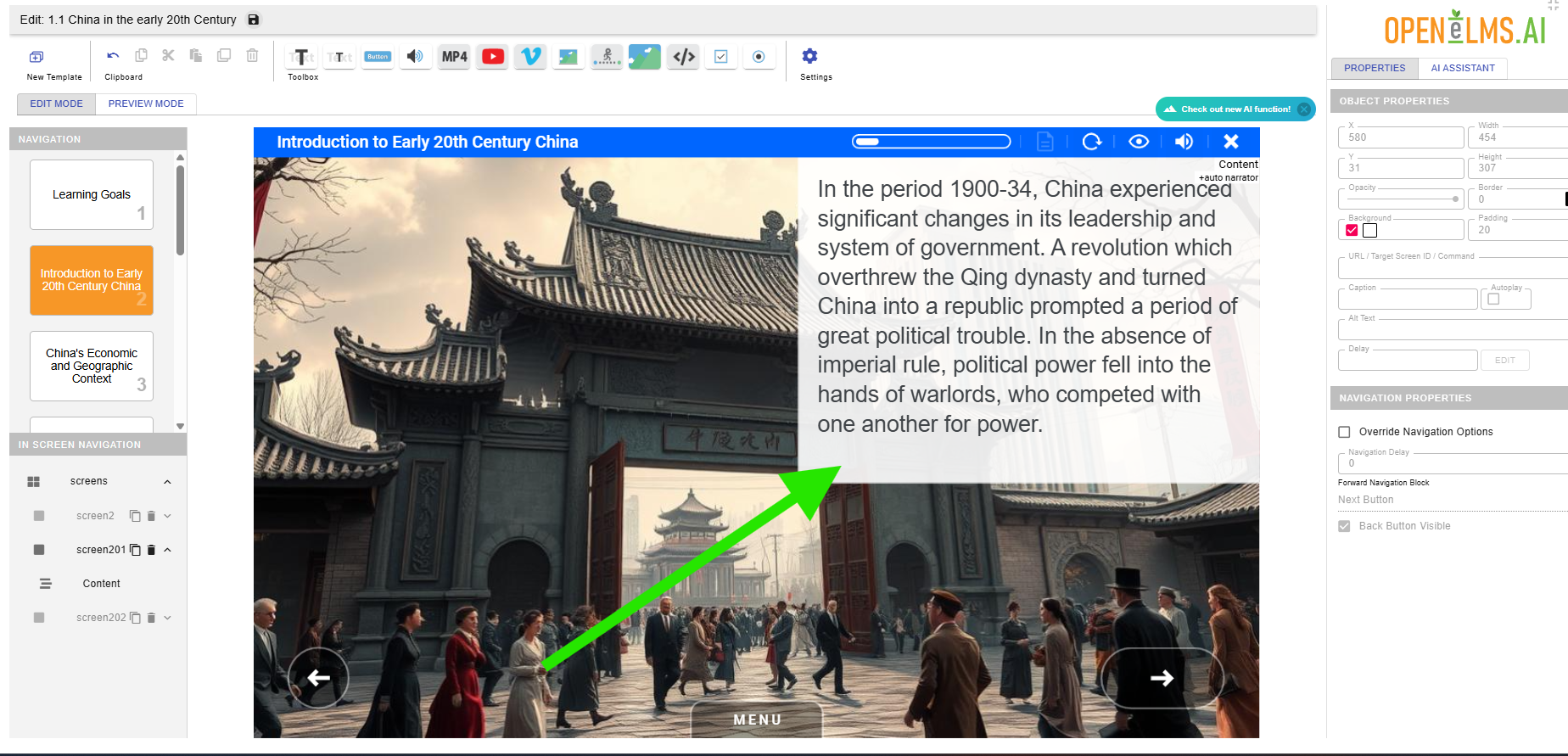
NOTE ONLY DO THIS IF NOT EXPORTING TO VIDEO SINCE THE WHOLE BACKGROUND IS SEEN IN THIS FORMAT.
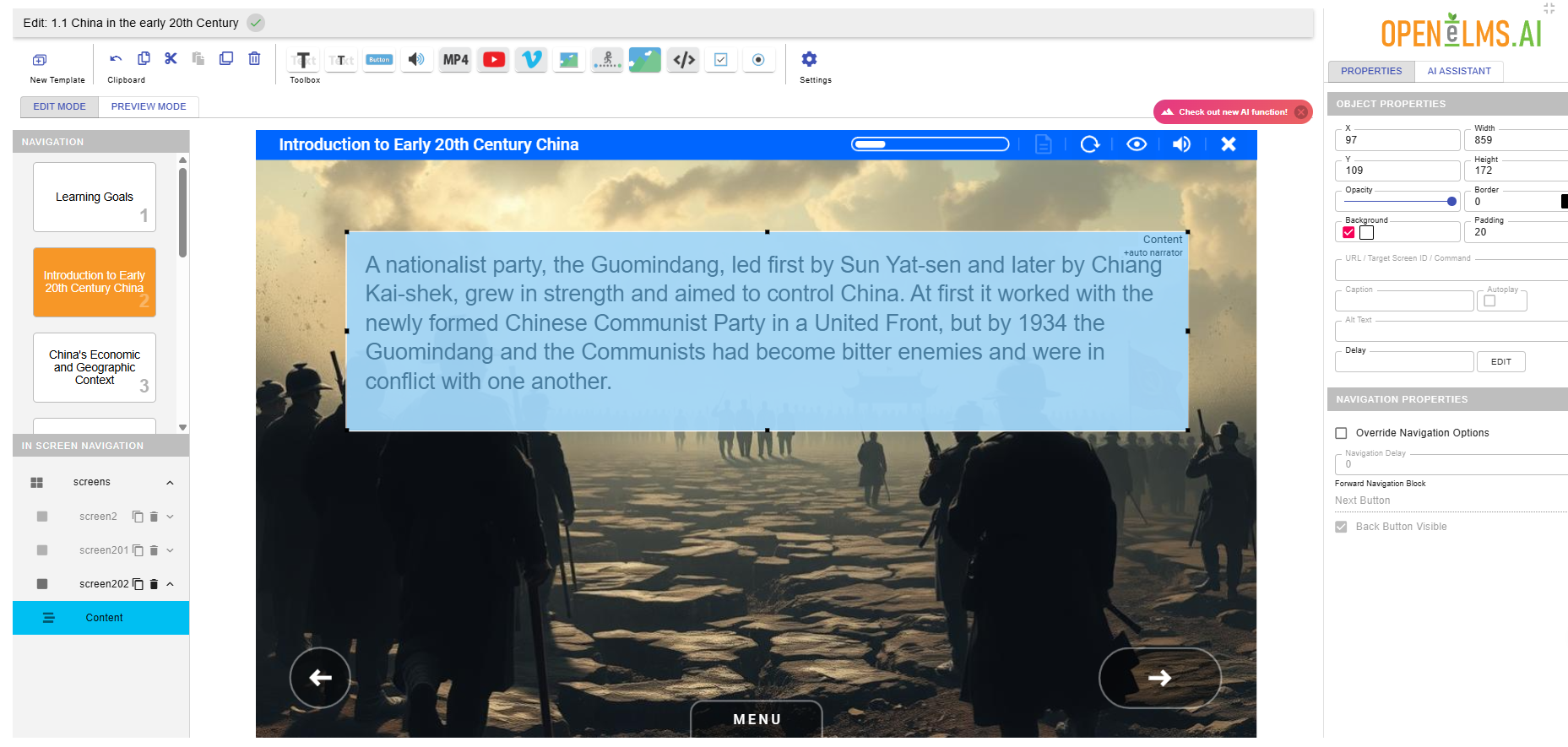
Move Text. The Ai should put the text in the best area but you can see here sometimes it obscures the ‘drama’ in the picture.
The text is subsequently moved so you can see both sides facing off against each other. Leave a little space at the bottom - different languages take up more room so its good to leave space as shown in the text area.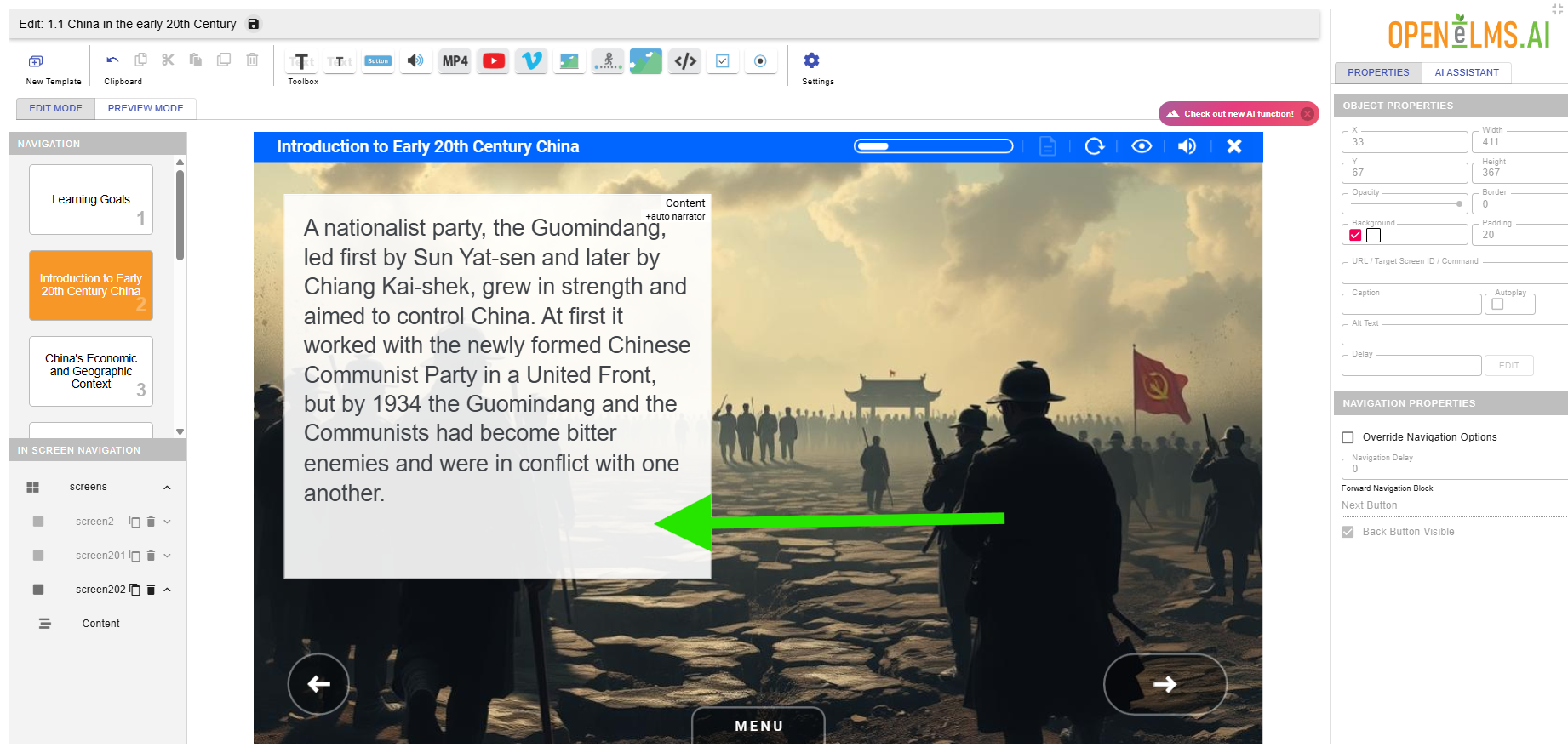
Remove backgrounds if possible from text. Here we can see light monochrome space at the top of the screen.
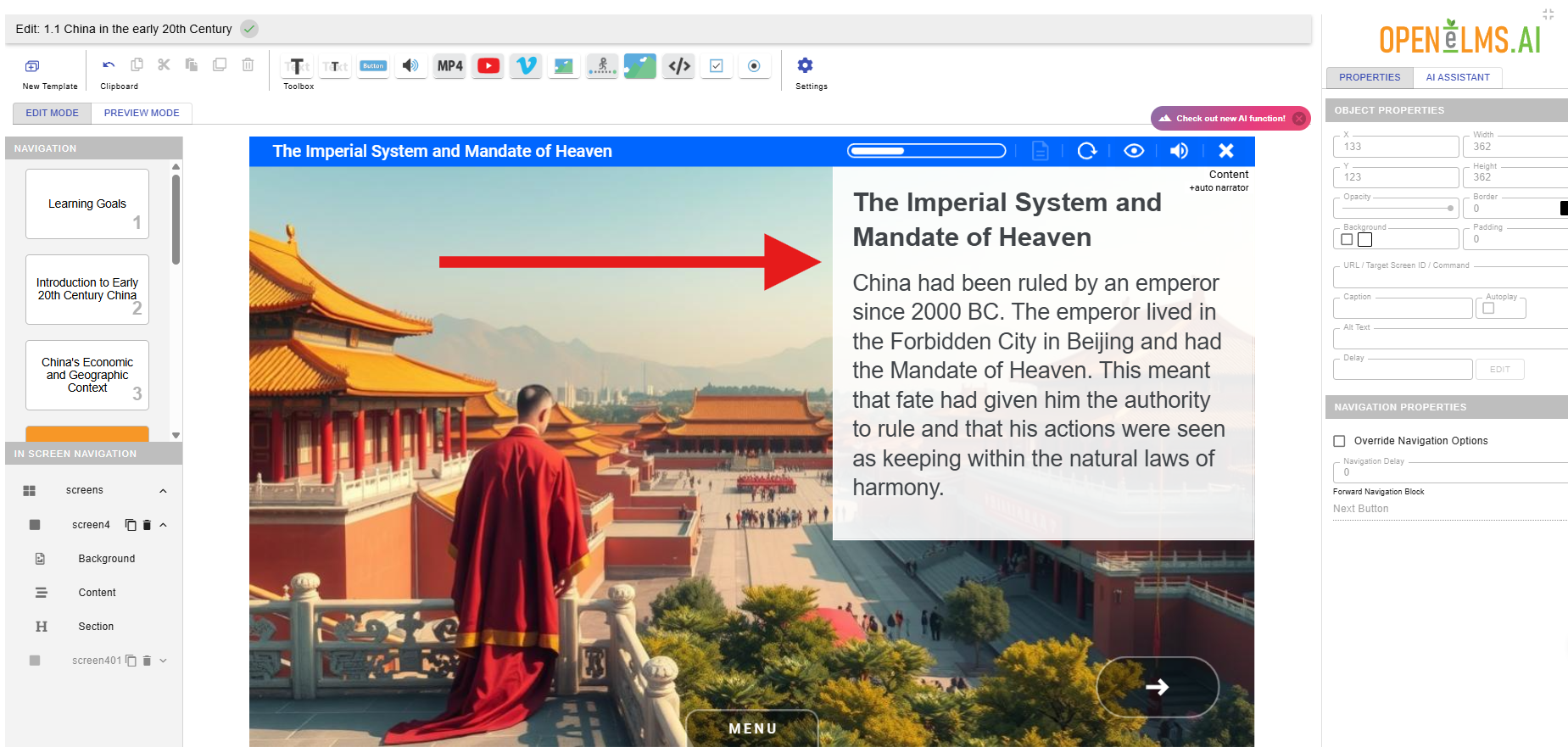
We can move this into the space as shown as it looks more elegant (DO NOT DO THIS IF THE BACKGROUND HAS IMAGES IN IT - ONLY FOR VERY LIGHT OR DARK SINGLE COLOUR BACKGROUNDS.)
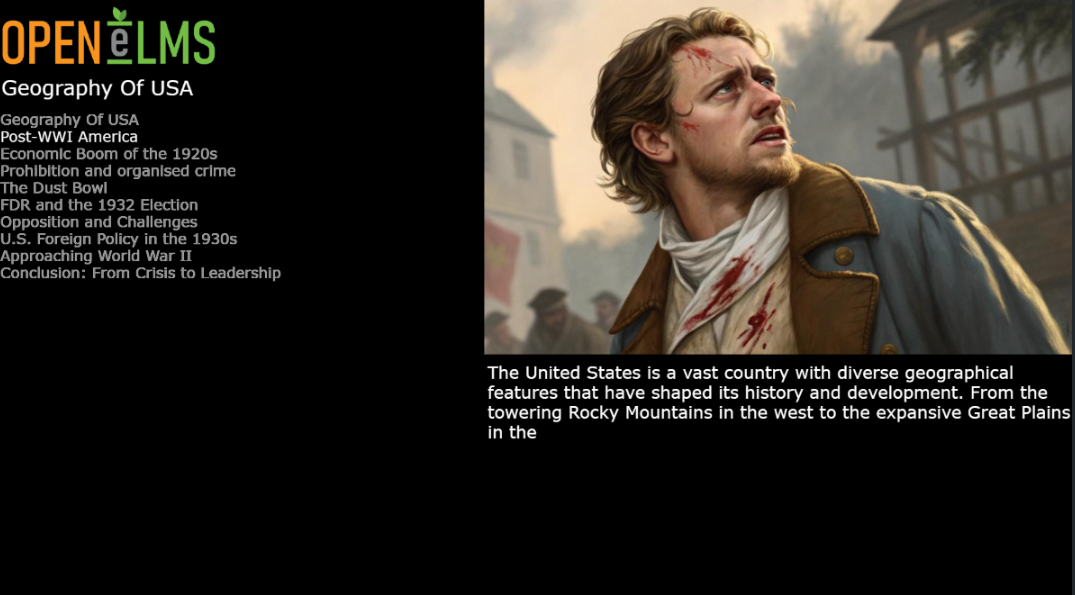
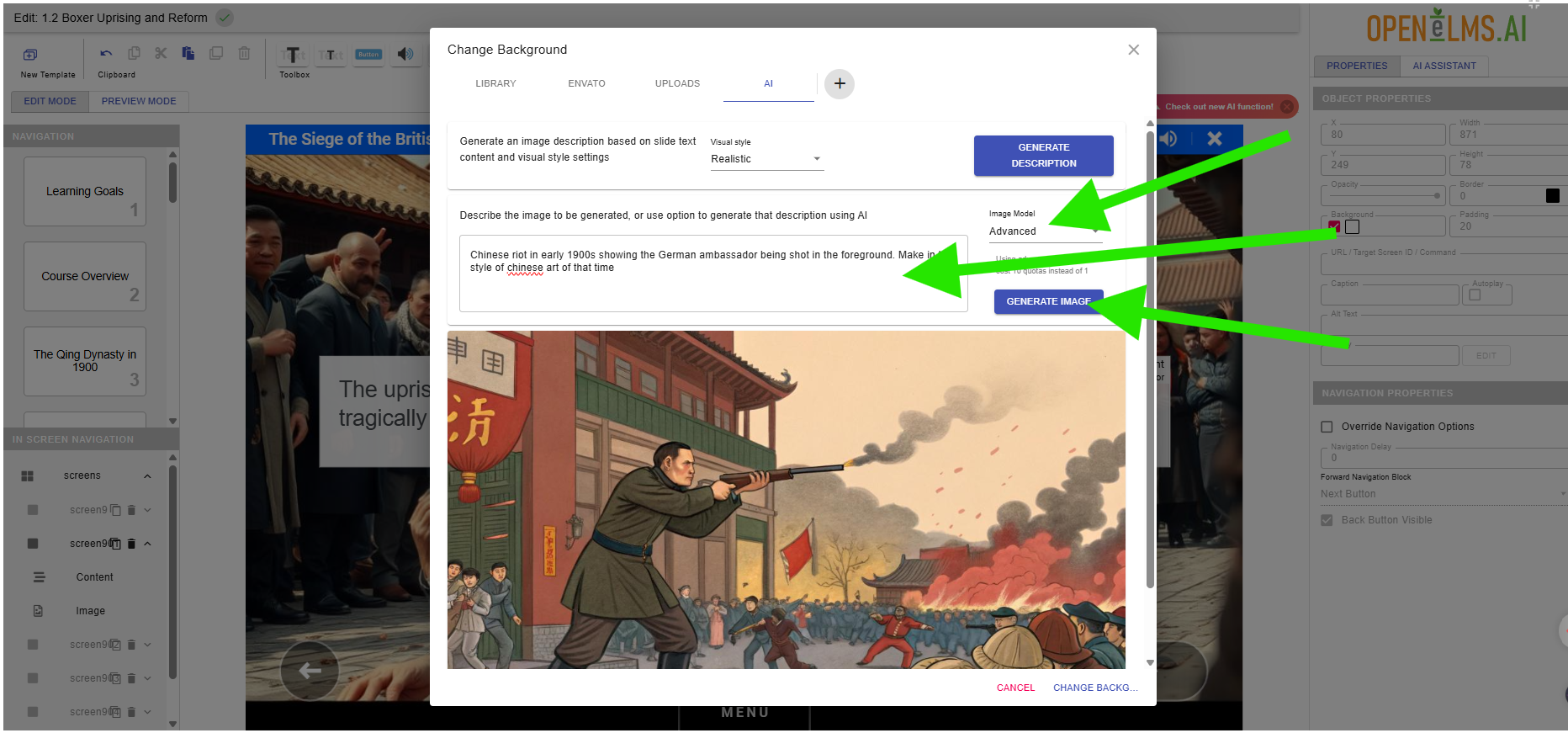
Wrong Time: Here we can see the image is in modern times (see ties and handbags) - this will need to be changed using the AI editor (as the image is really specific).
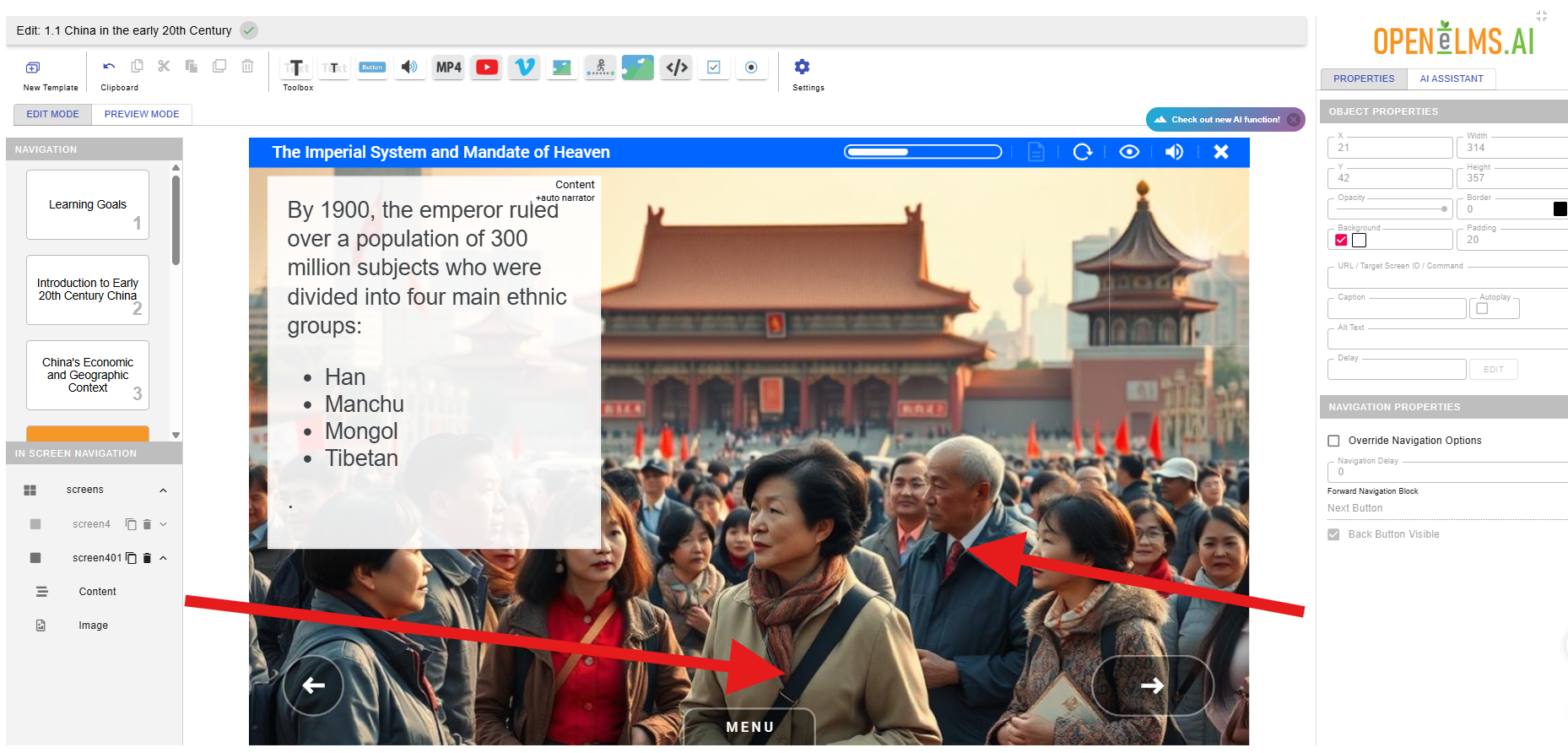
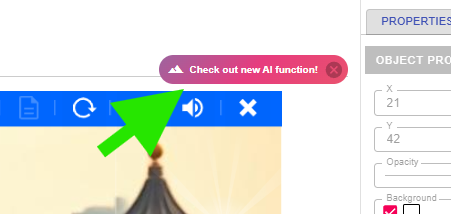
Press the AI Function button indicated …
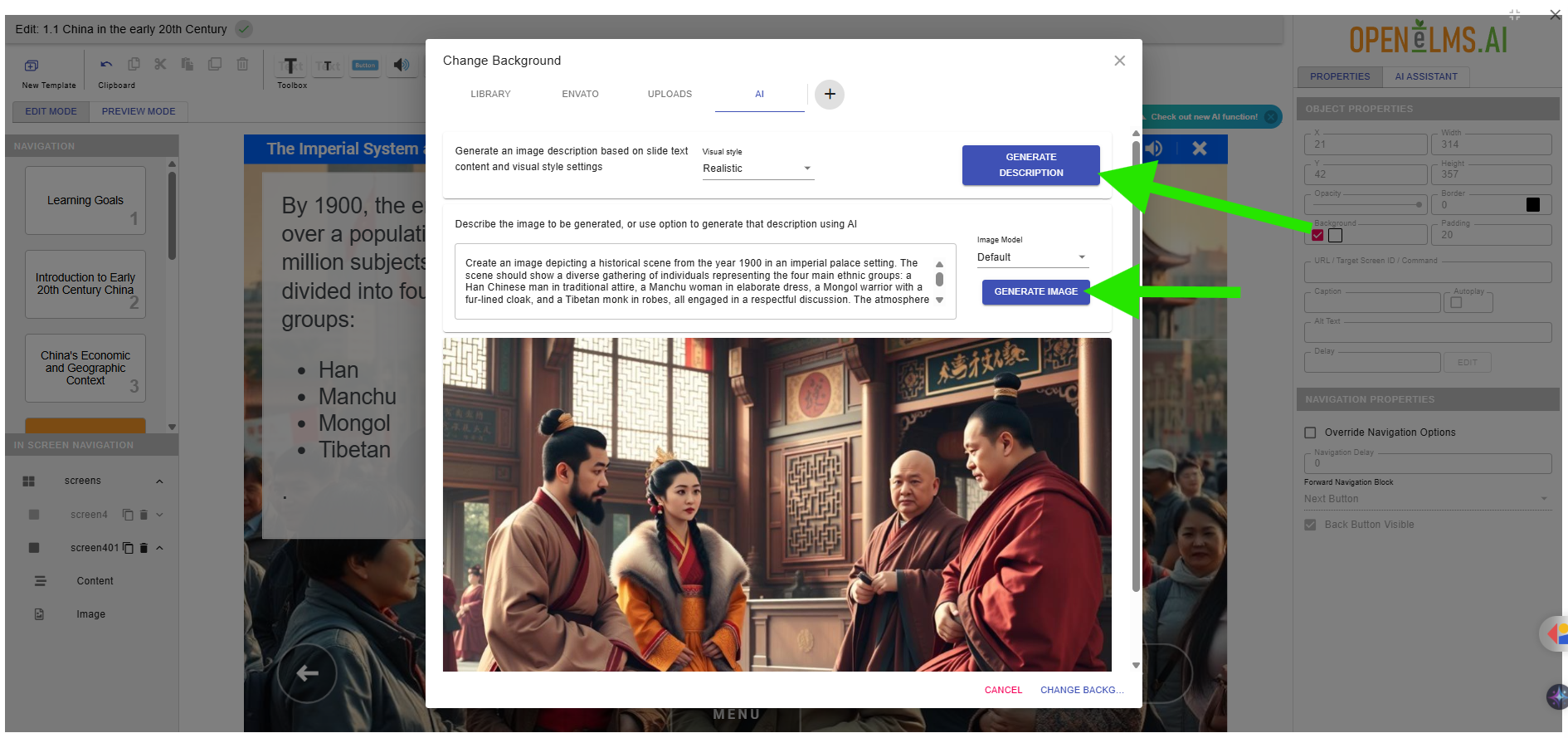
You can press these buttons to generate an appropriate image that describes the text, Then press Change Background to publish it on the course.
You can then edit the course as before.
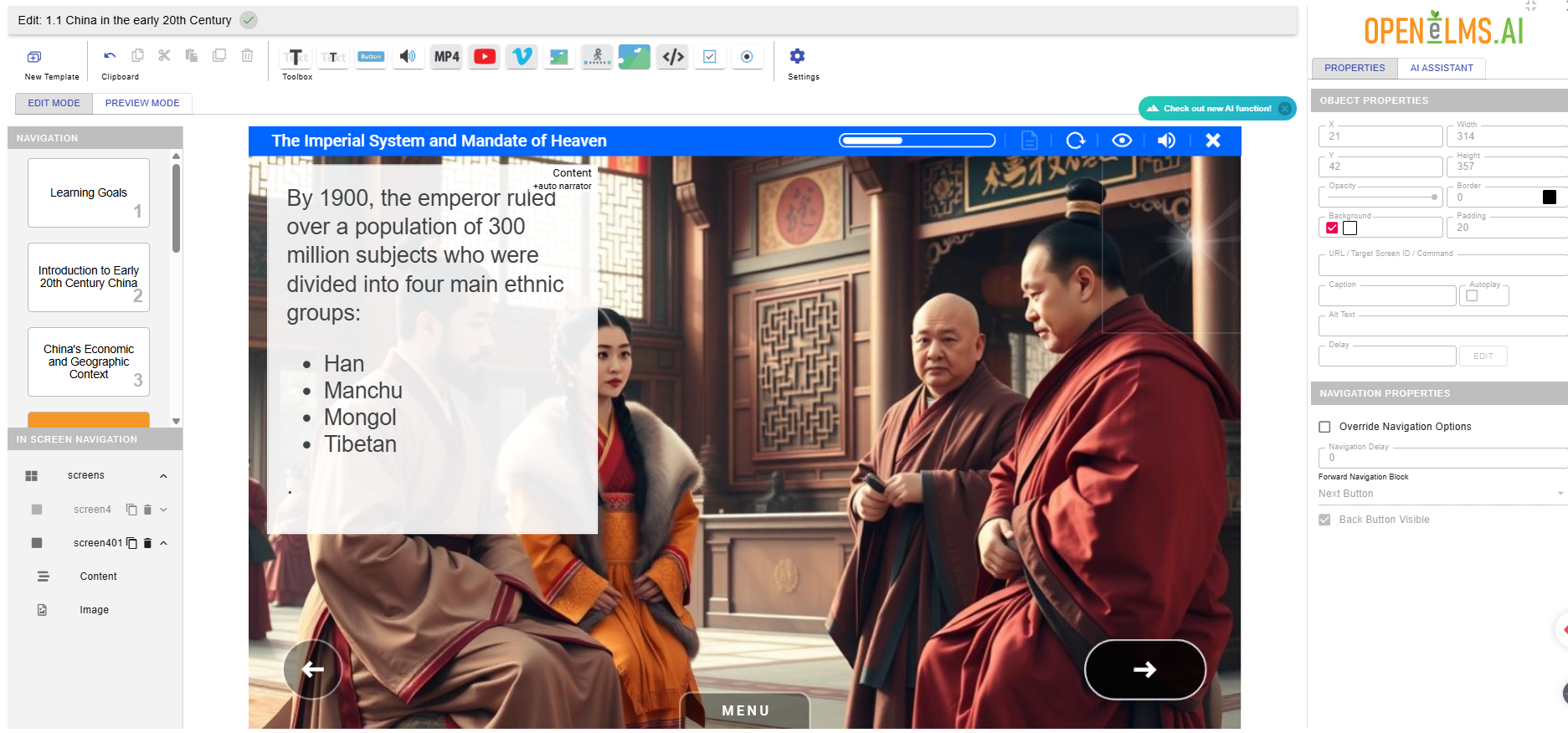
Adding Environmental Animations: Here you can see a screen which is sparse.
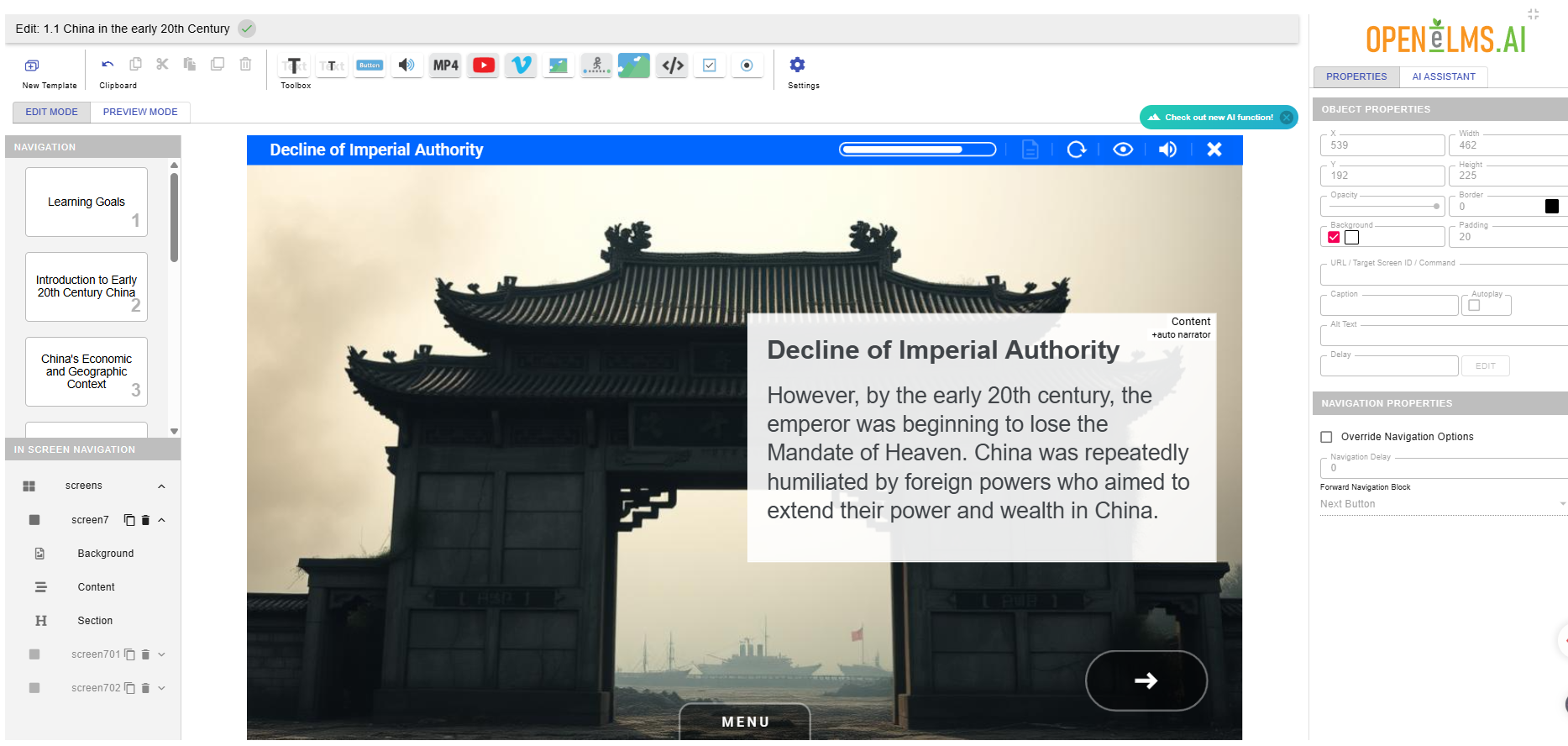
On half the screens (regardless if an environmental animation has already been added) add an animation to increase visual interest. Here for instance we can add some smoke (note the Opacity has been changed.)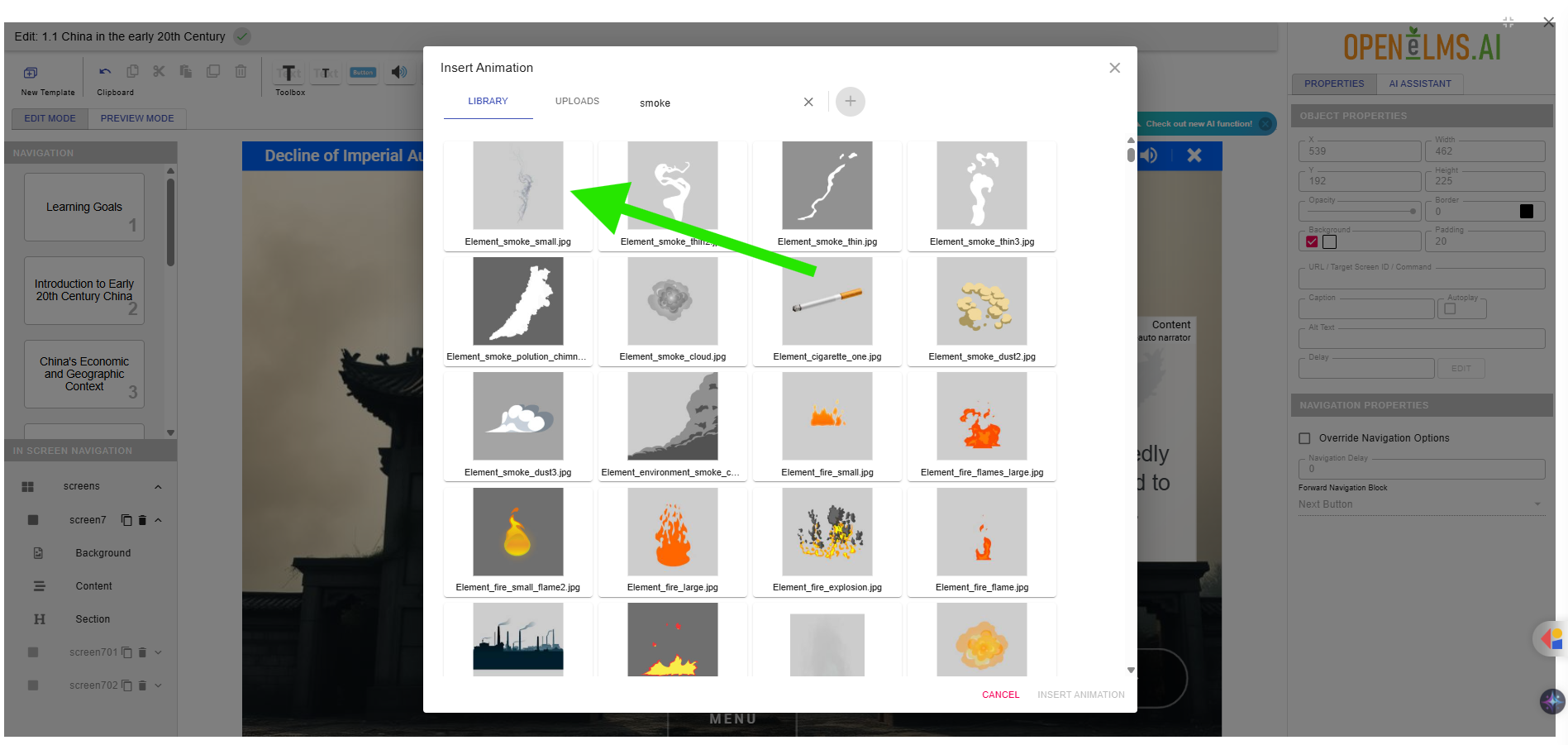
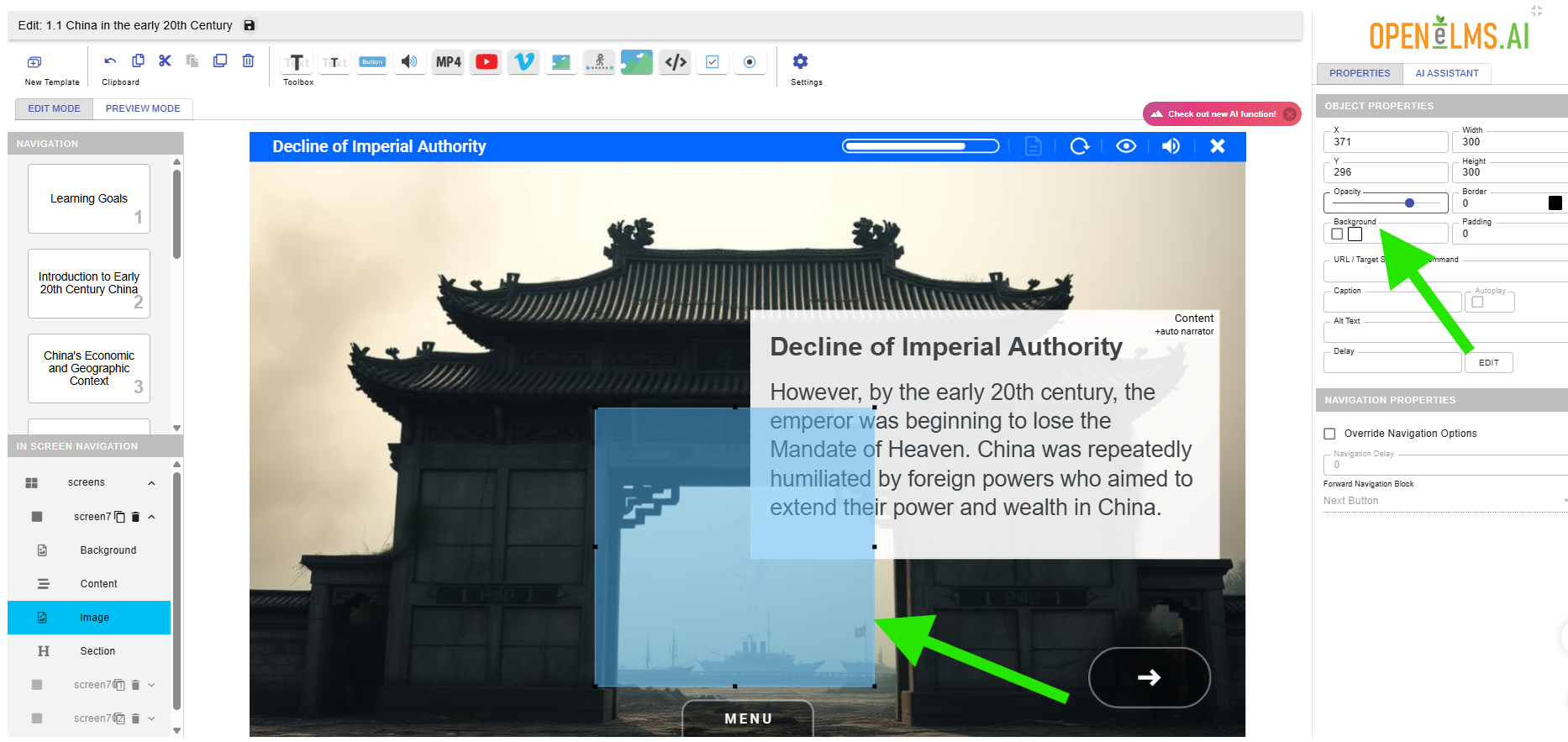
Further animations can be added such as rain and birds.
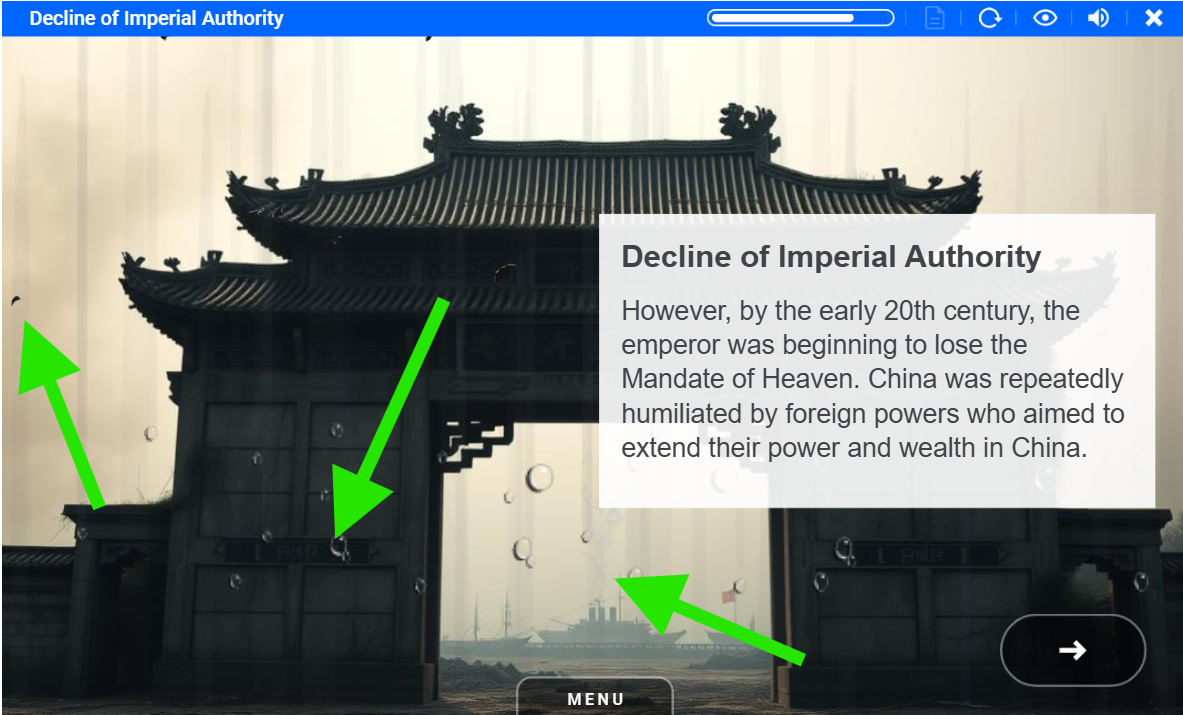
Adding Information Animation: Often the system will add information animations such as the one shown but in this case it is not appropriate.
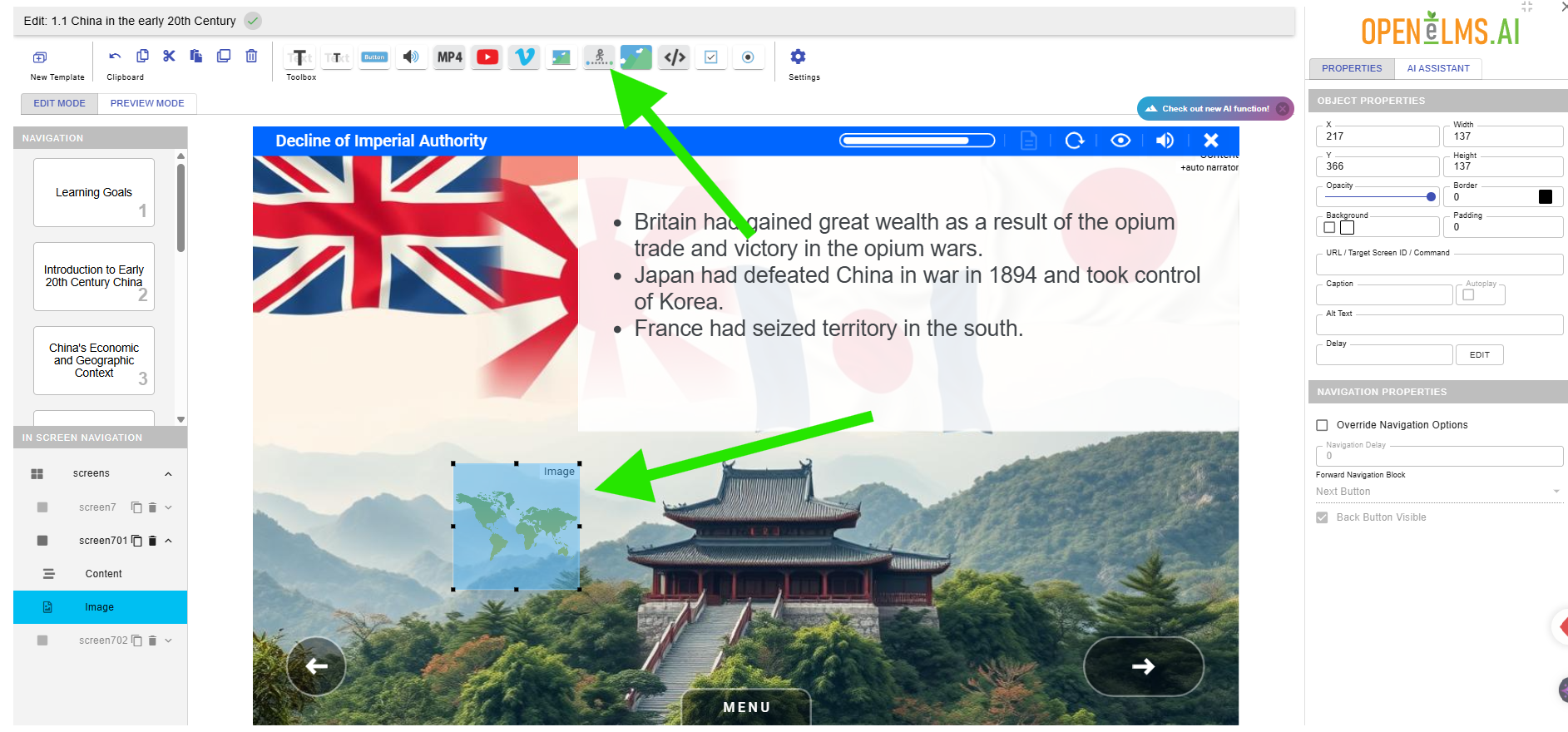
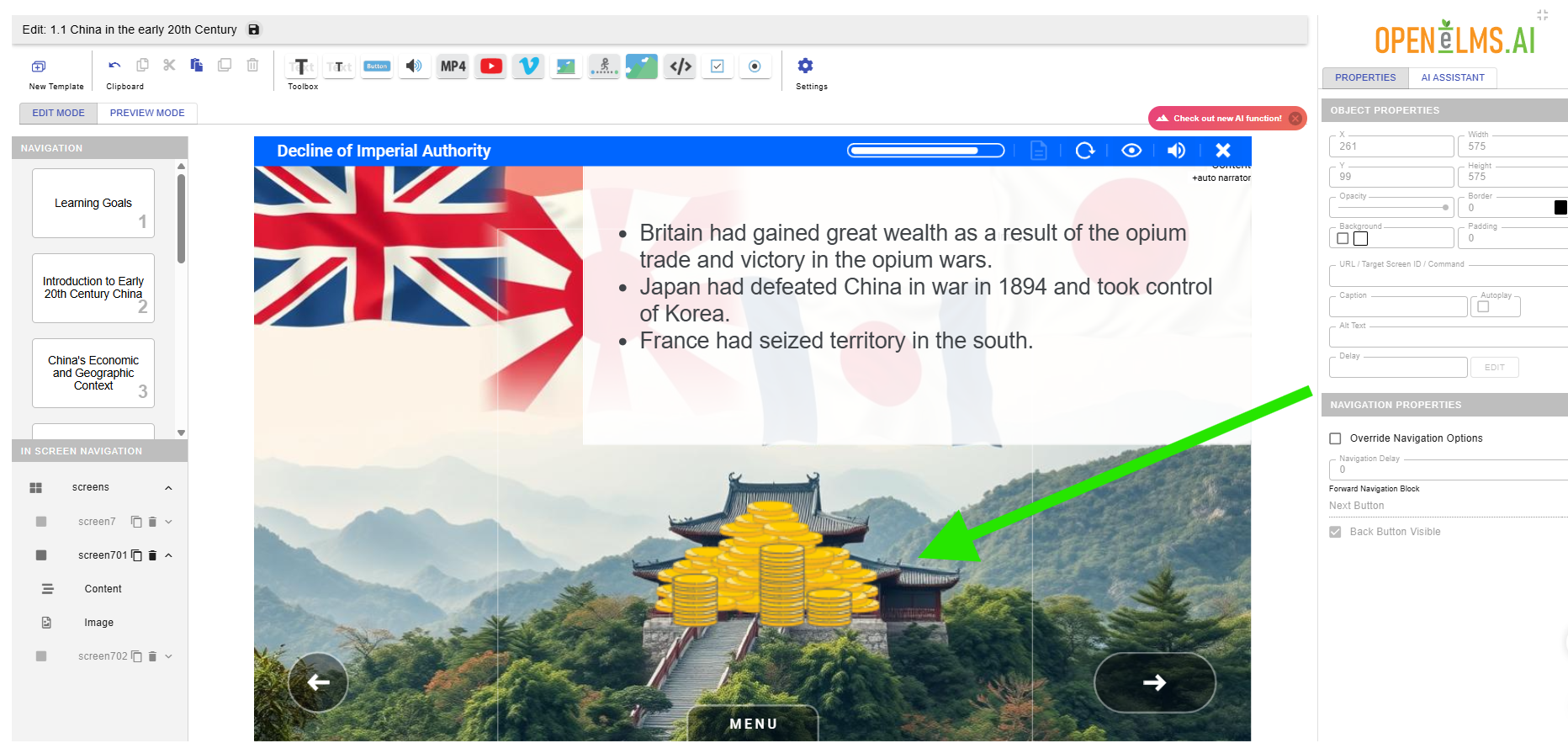
If we double-click on the animation then we can find an alternative one - such as this one showing wealth.
Too Many Bullet Points: Often the course will have too many bullet points as shown.
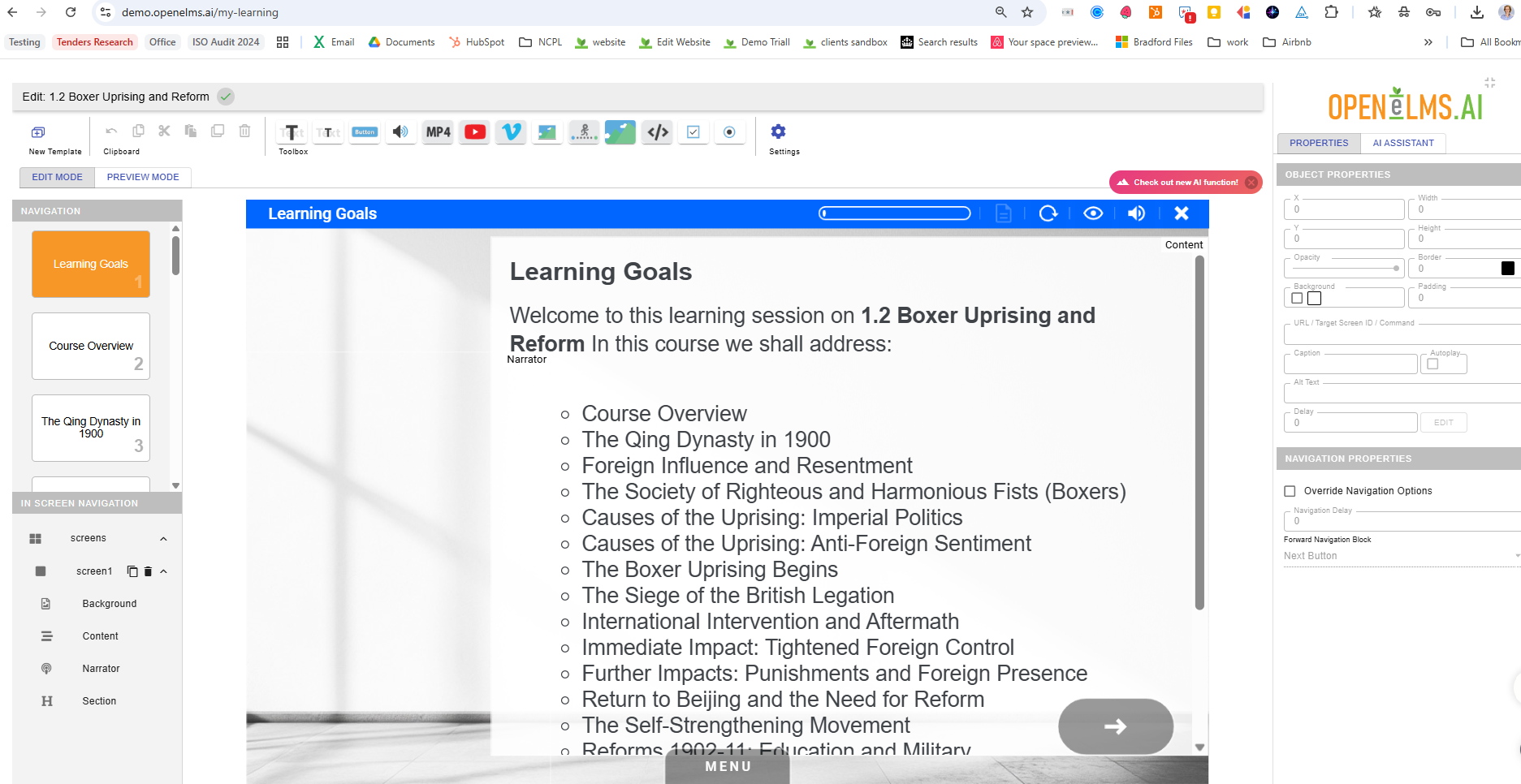
To overcome this remove any Overview or Summary bullets and amalgamate subjects as shown.
Obscure Text: When there is text in an image it cannot be trusted - especially if in a foreign language.
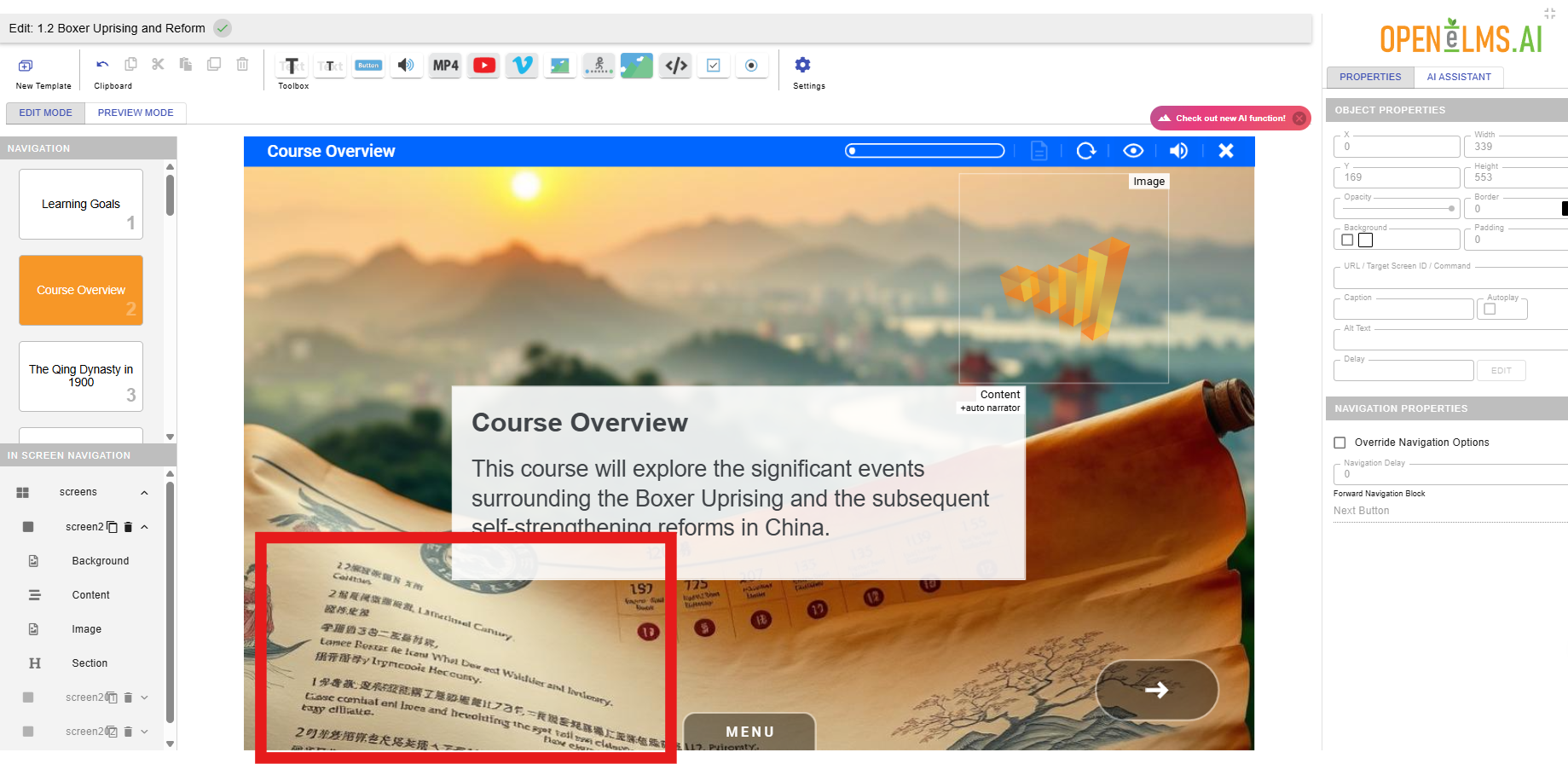
Try to obscure it if possible.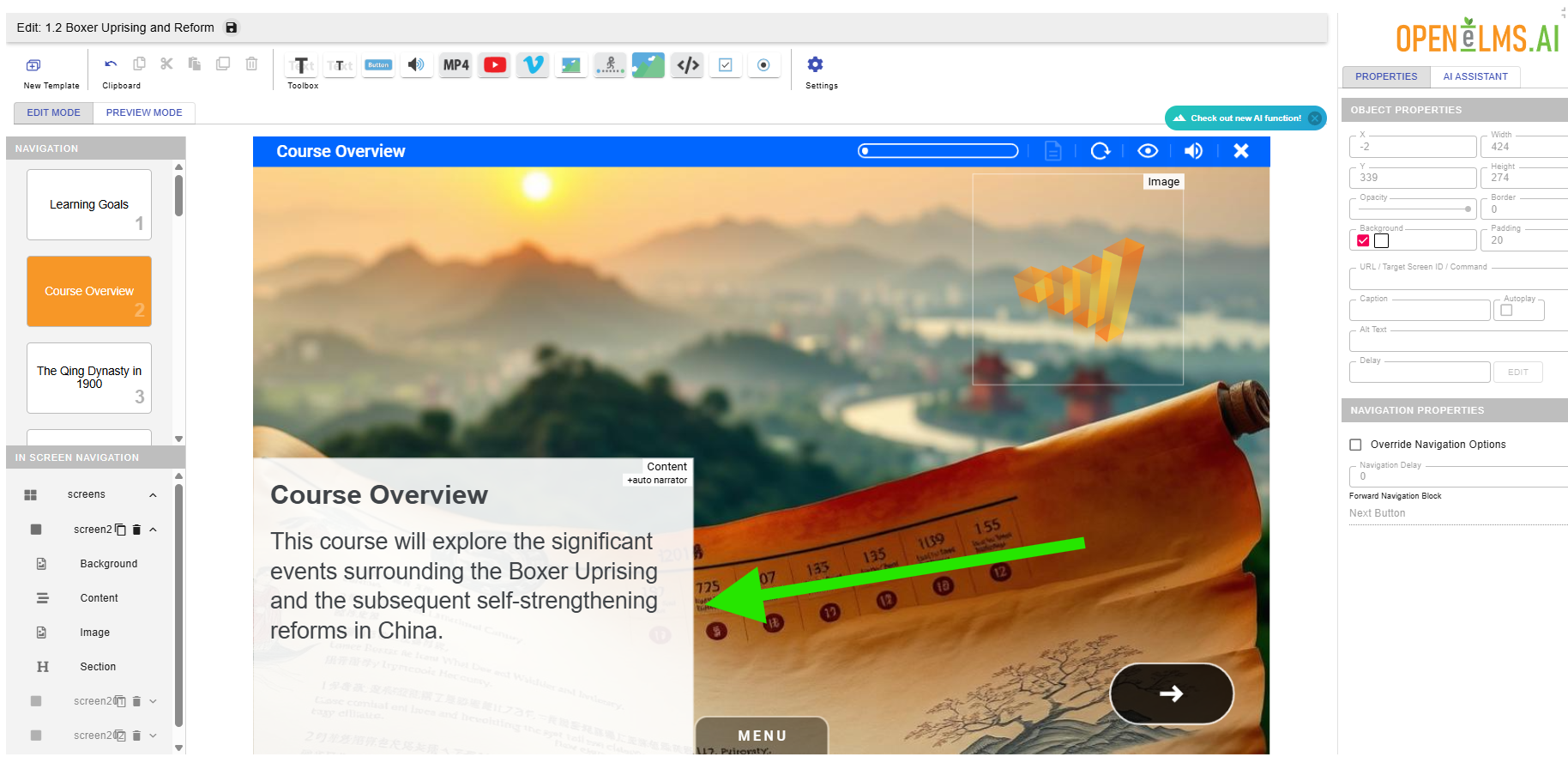
Use Animations as Backgrounds: Here you can see we have a white space we can use for text. The animation adds nothing as it stands.
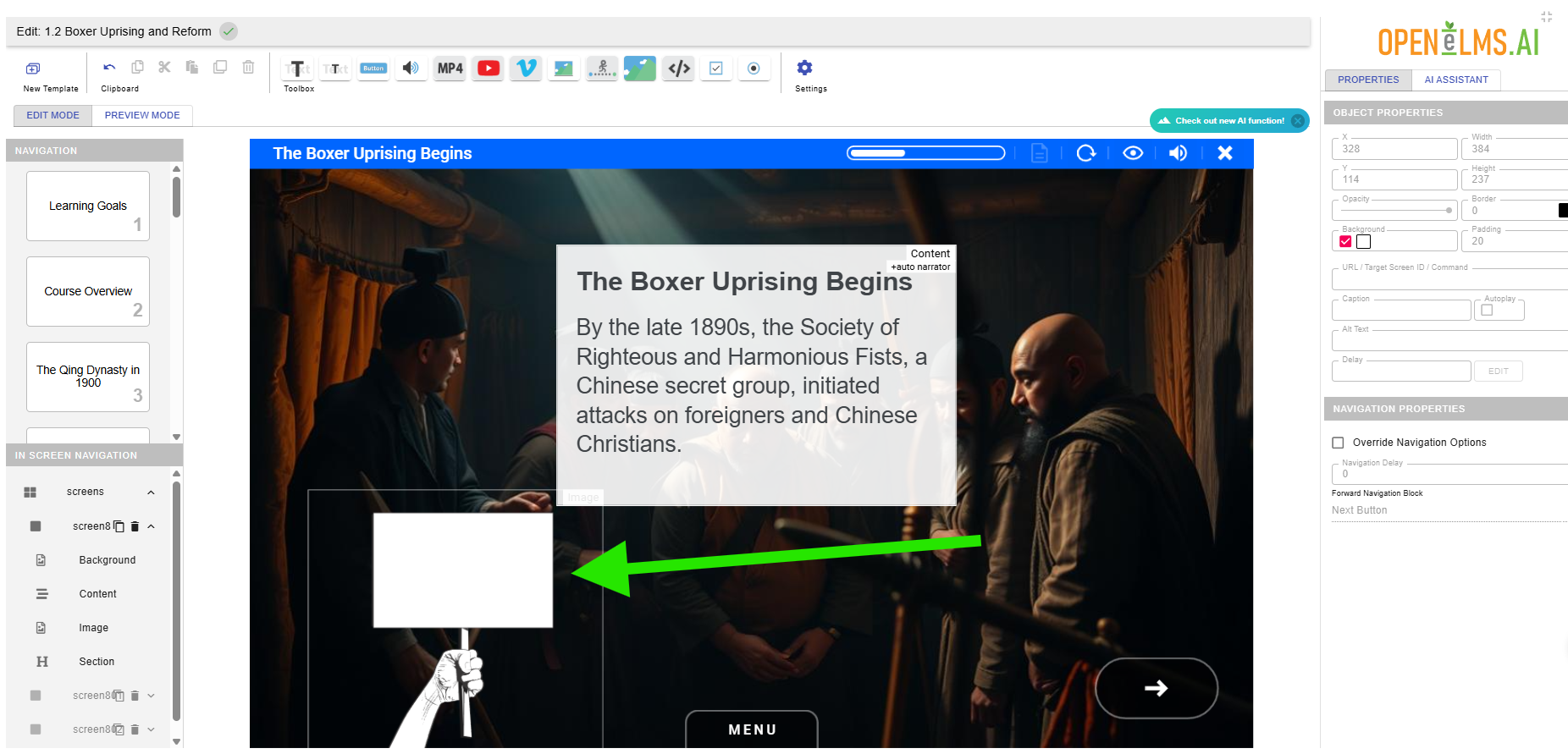
if however we enlarge the animation and add the text over it is makes much more sense. Note we have delayed the working by 1 second so the animation has time to get on screen before the text appears over it.
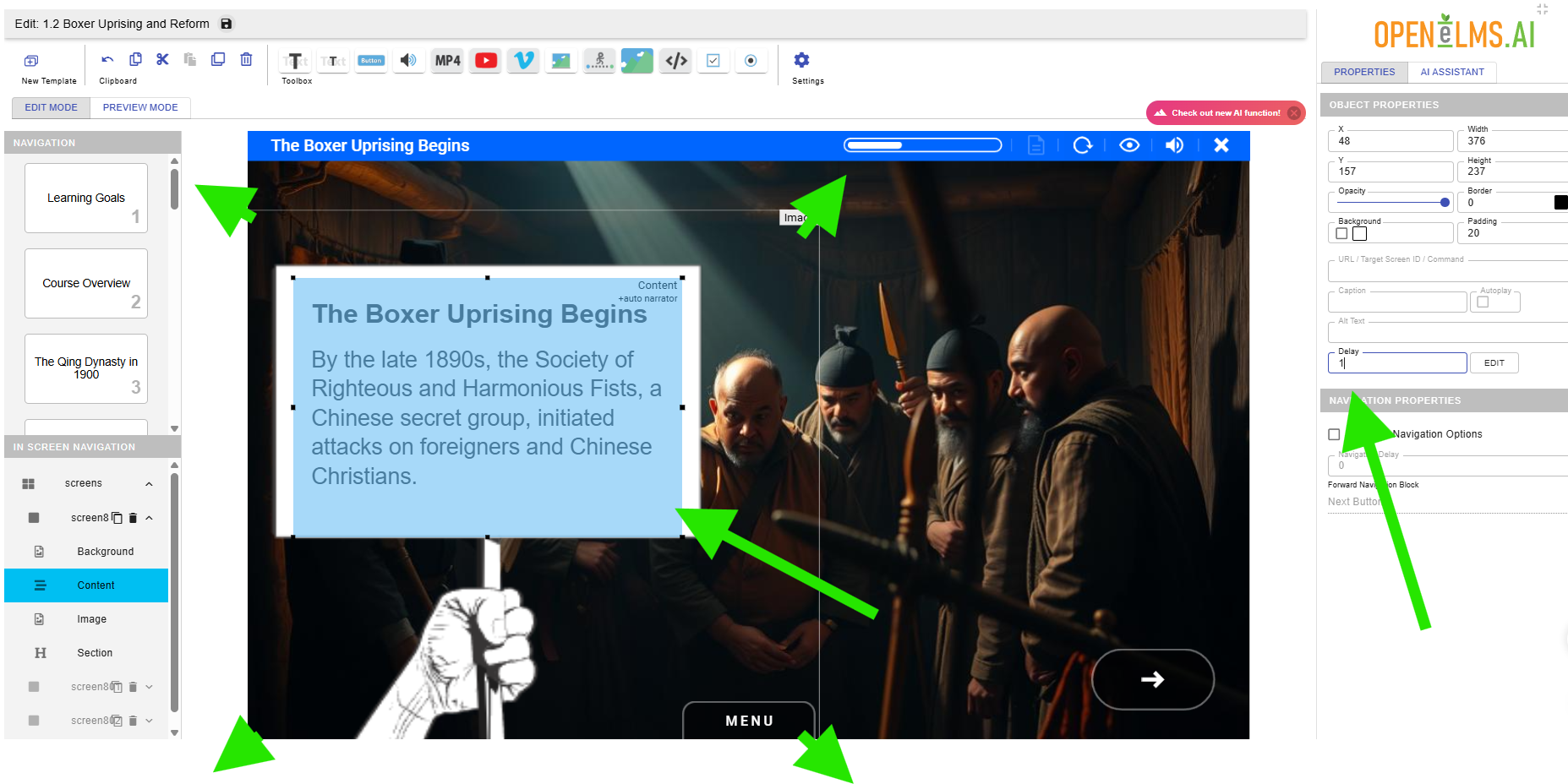
All AI Maps are Unreliable: On first glance the map looks fine but on close inspection it is slop.
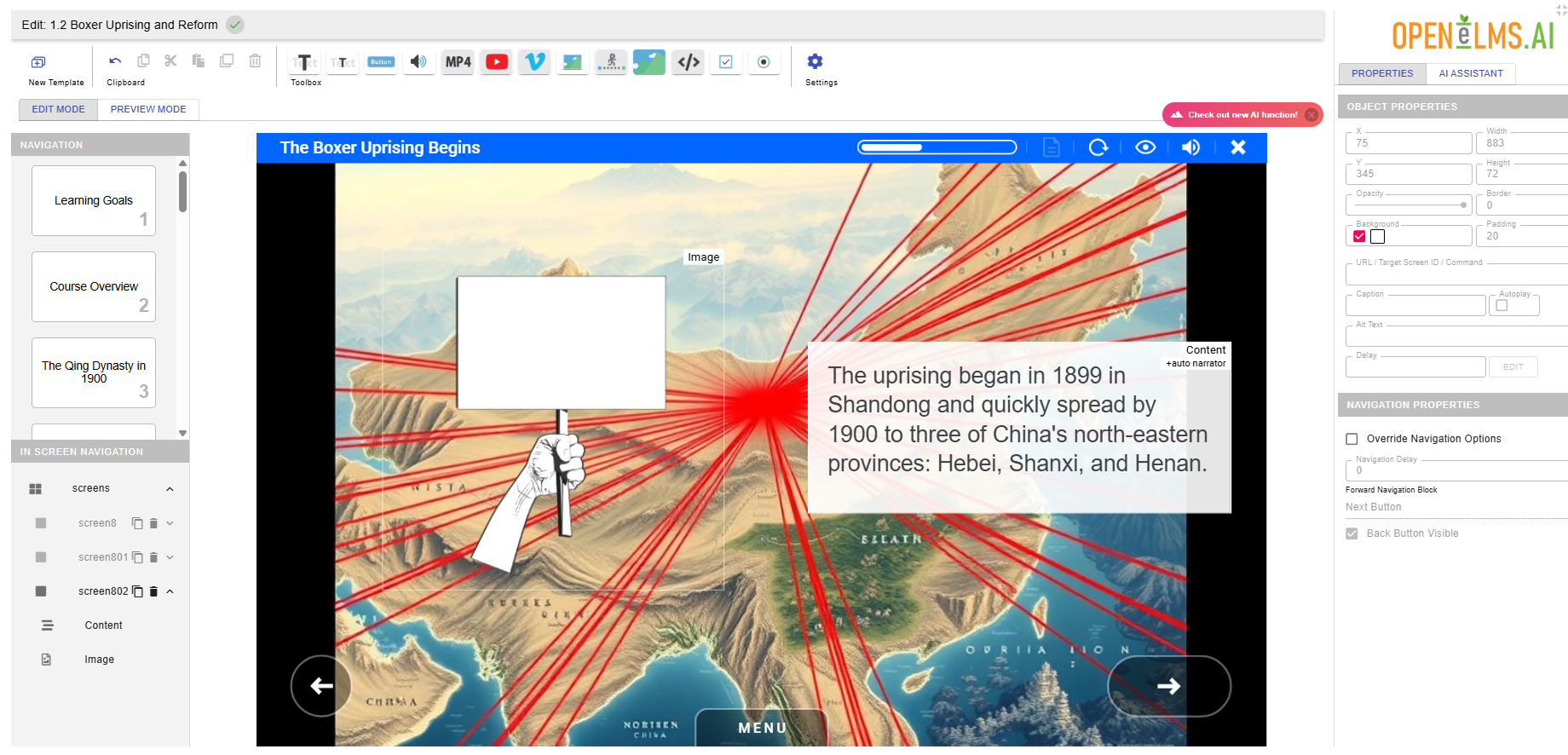
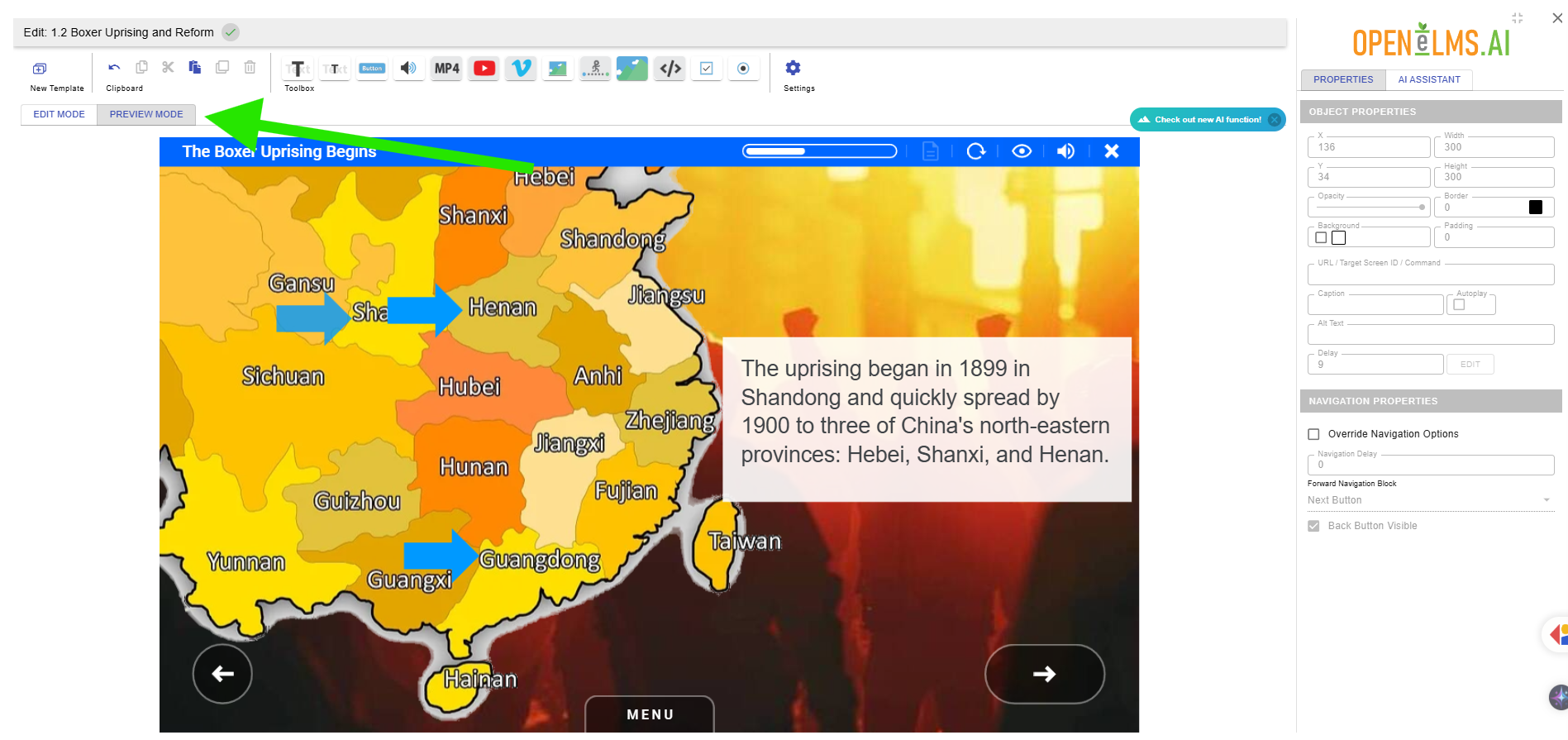
With all maps find a licence free map (e.g. https://pixabay.com/ ) and use it as a png image with a transparent background (insert over the background as a small image as shown) and replace the background). Note that arrows have been delayed to come in at the appropriate time with the voice.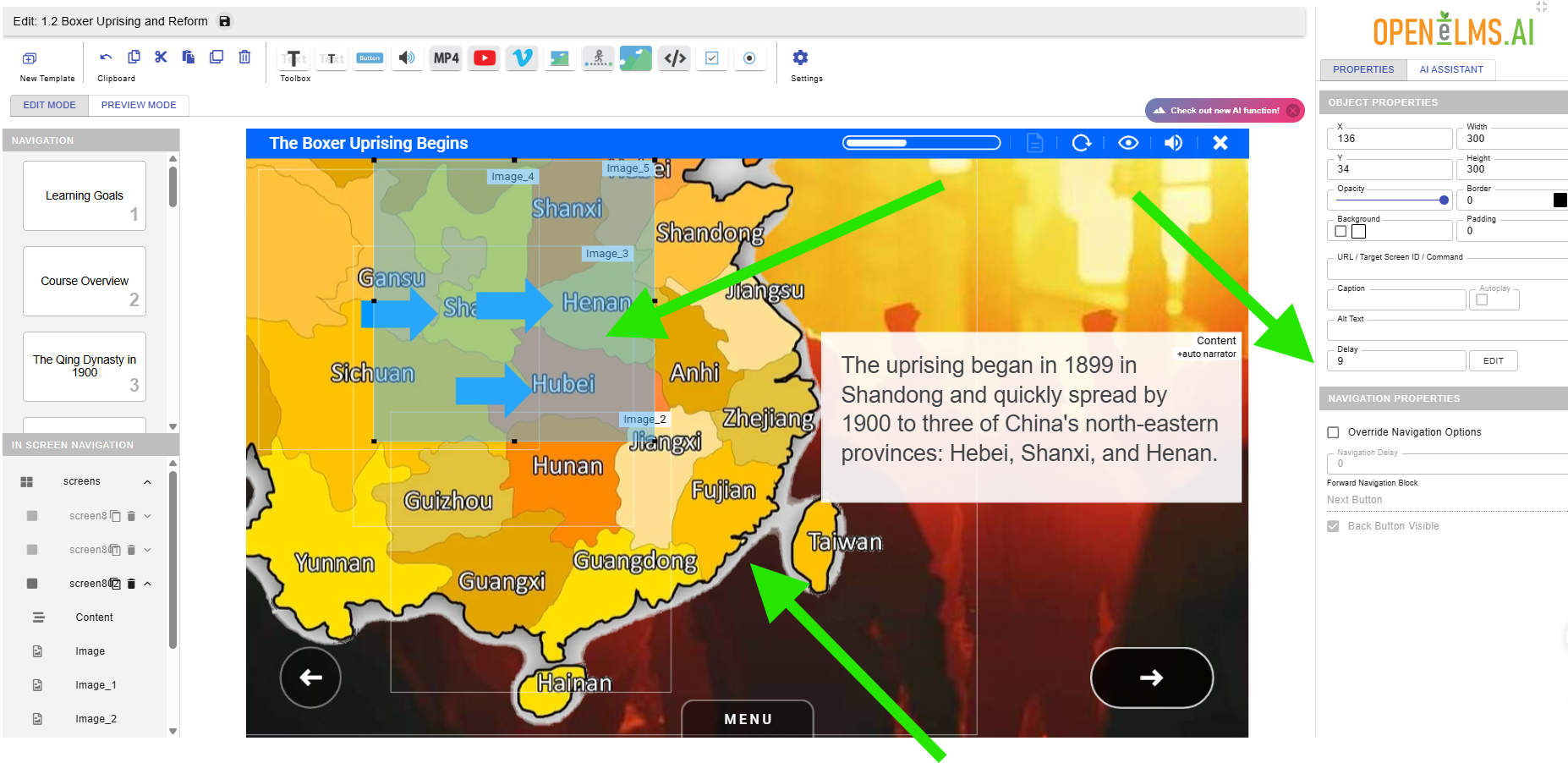
You can test animation and voice synchronisation by refreshing the screen using Preview mode.
Generate Images that Suit the Style: Do not always generate photorealistic images - use art of the time or styles like etchings or oil painting. Use the Advanced mode for such images as quality will be better.
Replicate Introduction as Summary: The summary has the same bullet points as the Introduction.
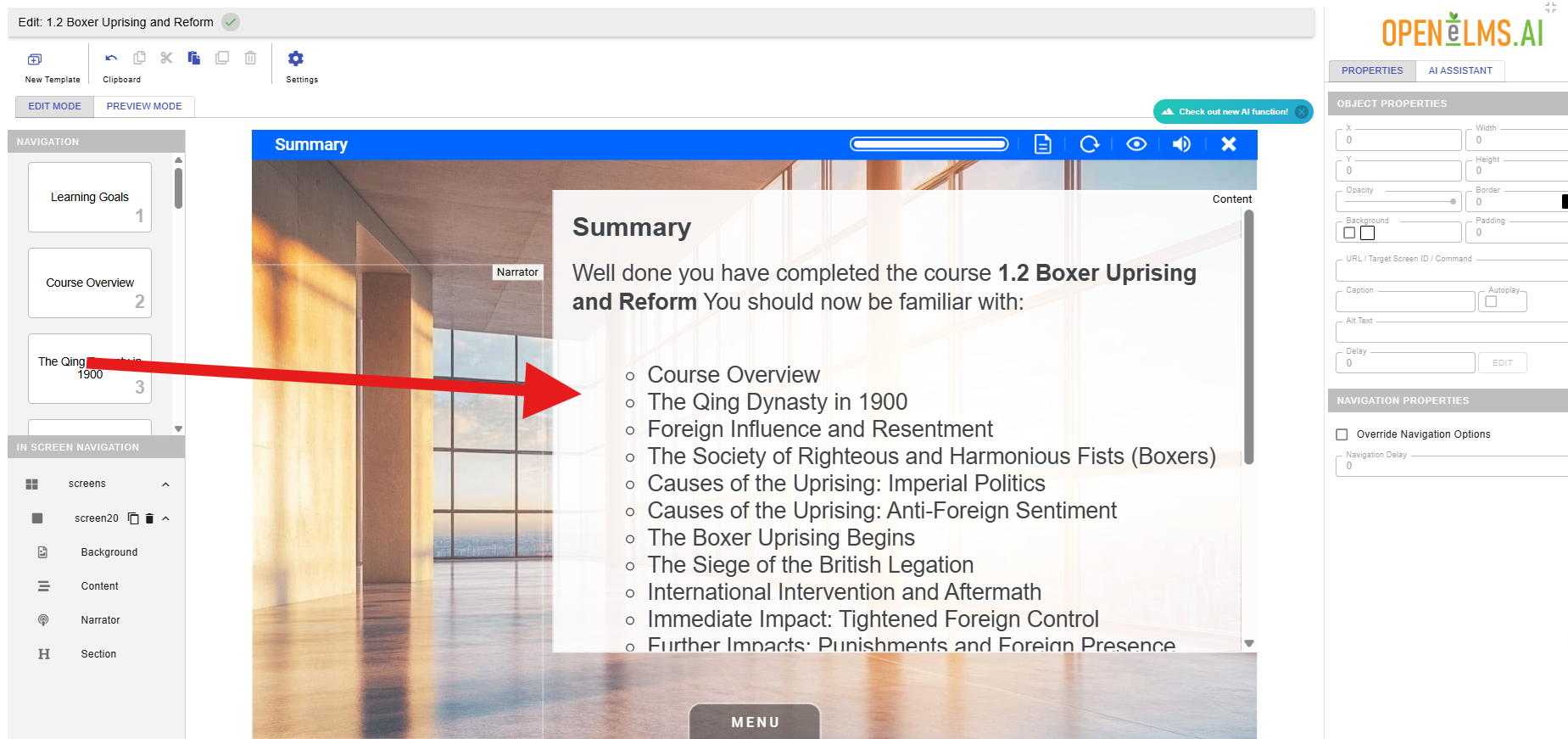
Edit it accordingly so it is the same but cut and pasting the bullet points only from the introduction.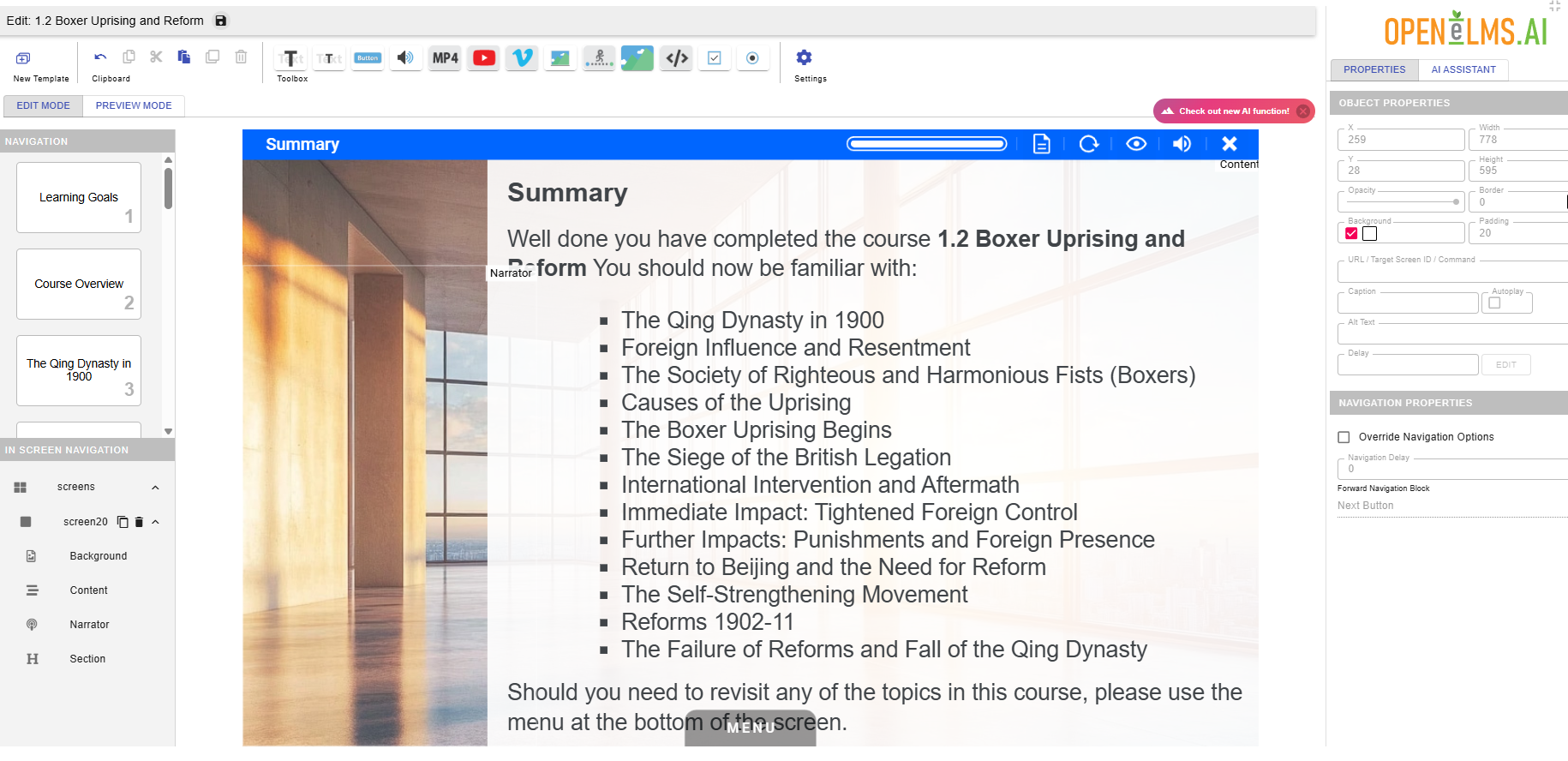
Add images to explain processes. Sometimes there will be processes that require specific diagrams etc. where image detail is important. Examples are listed below.
You may already have example diagram images that you have constructed or images from other sources. In such cases we recommend pasting them into a AI (be careful with simply describing the diagram in the prompt as shown below as AI will make mistakes too often as of June 2025) - e.g. Gemini, ChatGTP and ask it to create a image of no more than 500 pixels (wide or high).
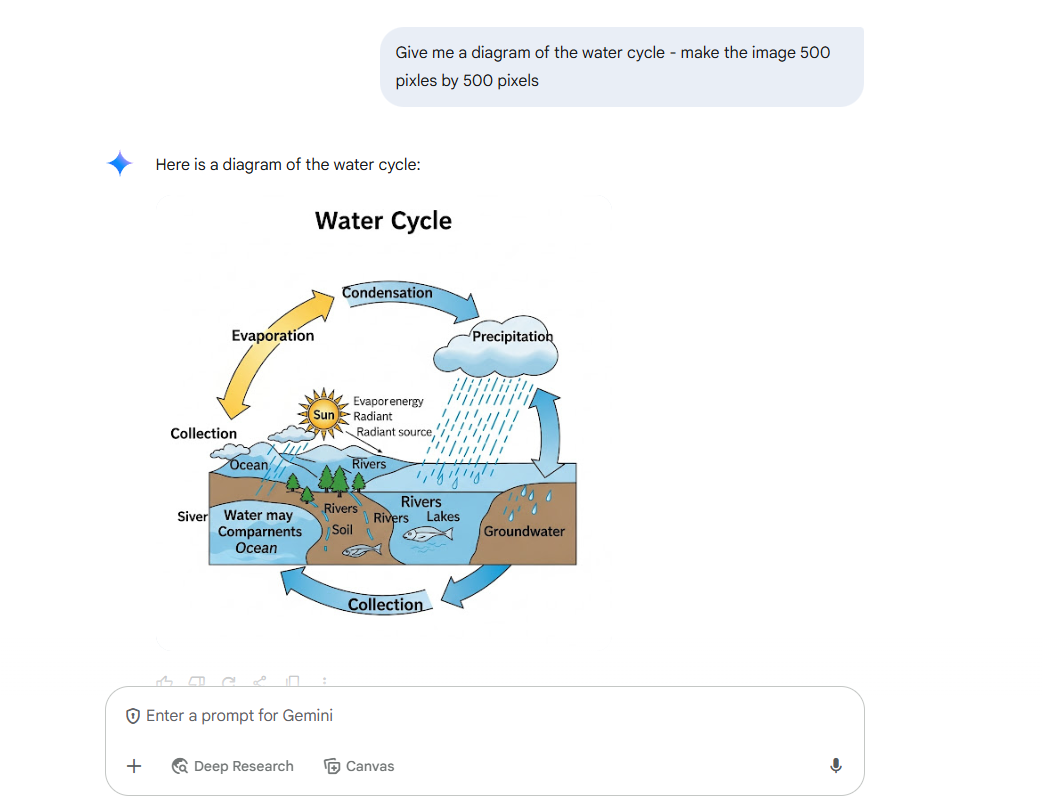
You can then load that in as a small image over the background image.
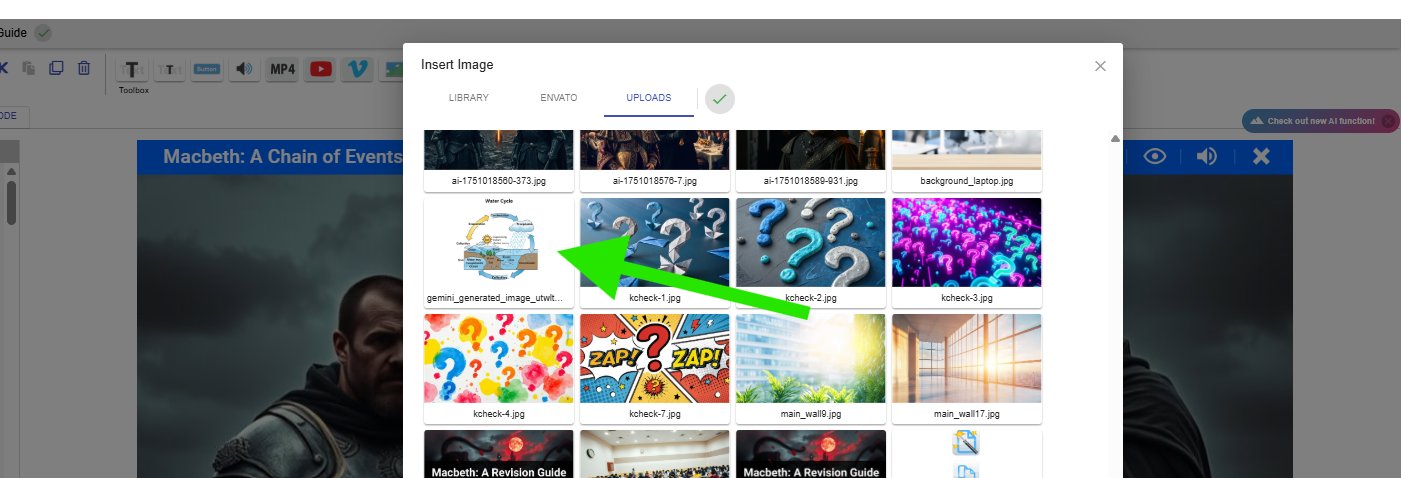
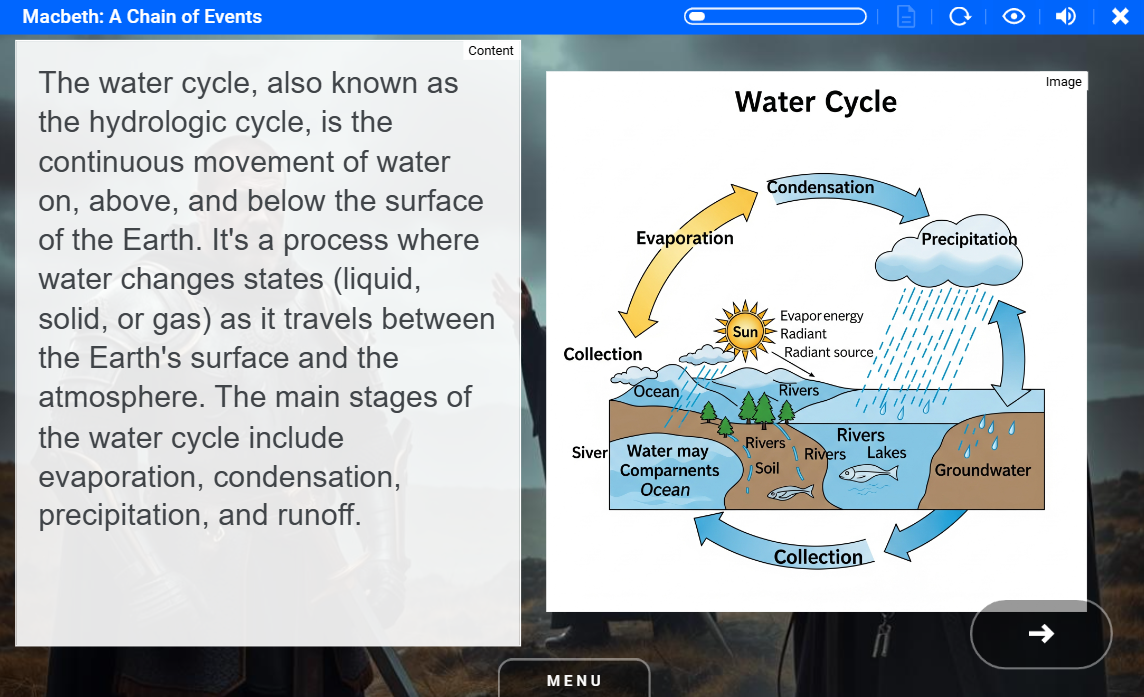
Examples where AI struggles:
1. Scientific Diagrams
Molecular structures (e.g., benzene rings, DNA helices)
Circuit diagrams (transistors, resistors, precise wiring)
Anatomical illustrations (accurate placement of organs, nerves, blood vessels)
❌ AI often:
Invents or misplaces atoms/components.
Connects wires illogically.
Misses or distorts anatomical proportions.
🧠 2. Educational Infographics
Step-by-step process flows (e.g., cell division: prophase → metaphase → anaphase → telophase)
Mathematical graphs (sine waves, parabola vs. hyperbola)
Statistical charts (bar graphs, pie charts with correct labels/values)
❌ AI often:
Misaligns steps or misorders sequences.
Randomly distorts graph axes and scale.
Generates incoherent or made-up text labels.
🧭 3. Technical Schematics
Mechanical parts diagrams (gear systems, engines)
Blueprints and CAD-style layouts (buildings, machines)
Software architecture diagrams (microservices, databases, APIs)
❌ AI often:
Hallucinates impossible mechanics (gears overlapping or floating).
Fails at spatial coherence in rooms/buildings.
Misrepresents relationships between software components.
🧩 4. Logical/Abstract Diagrams
Venn diagrams with correct label placement
Mind maps with accurate branching
Flowcharts with coherent logic
❌ AI often:
Misplaces or repeats labels.
Breaks visual symmetry or creates illogical paths.
Struggles with consistent terminology across branches.
🗺️ 5. Maps and Timelines
Geopolitical maps (country borders, cities)
Transit maps (metro systems with proper connections)
Historical timelines (correct chronology and labels)
❌ AI often:
Hallucinates country shapes or merges locations.
Fails to maintain scale or directionality.
Mismatches dates or introduces fictional events.
Having completed all these steps the course should be ready for a final review before publishing.
📋 Related articles
- Page:
- Page:
- Page:
- Page:
- Page: