Add text to a screen using Open eLMS AI Editor
eLearning can have text added to each screen using the text tool on the toolbar.
📘 Instructions
Follow these steps to add text to your eLearning
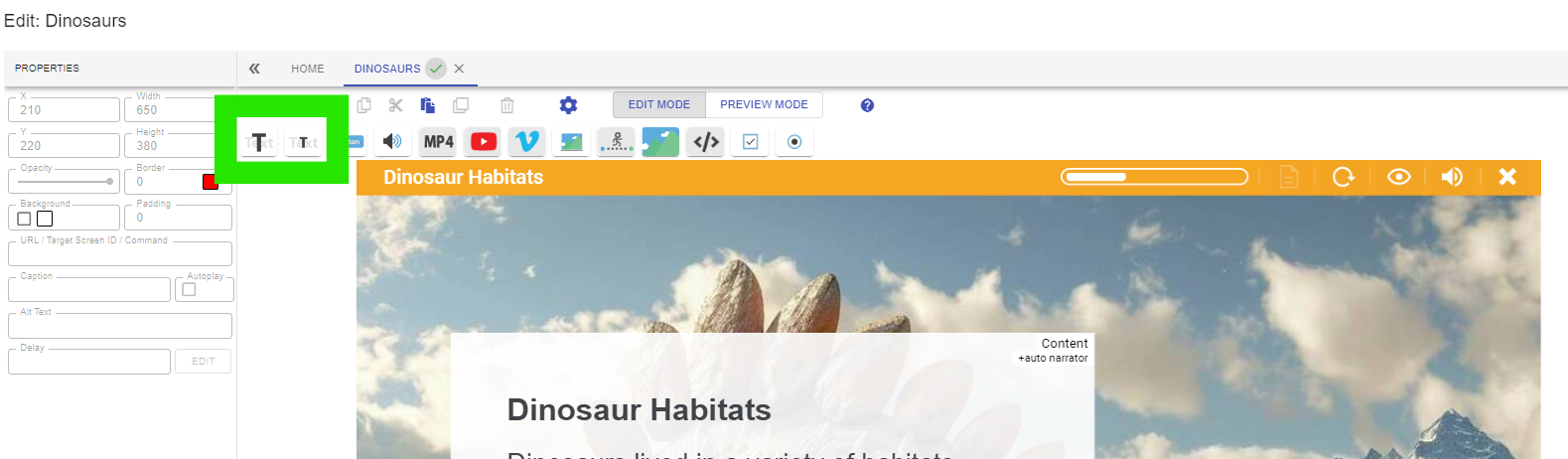
Select either of the text buttons to add large or small size text to the eLearning. We recommend large text as this falls inside the IOS accessibility guidelines.
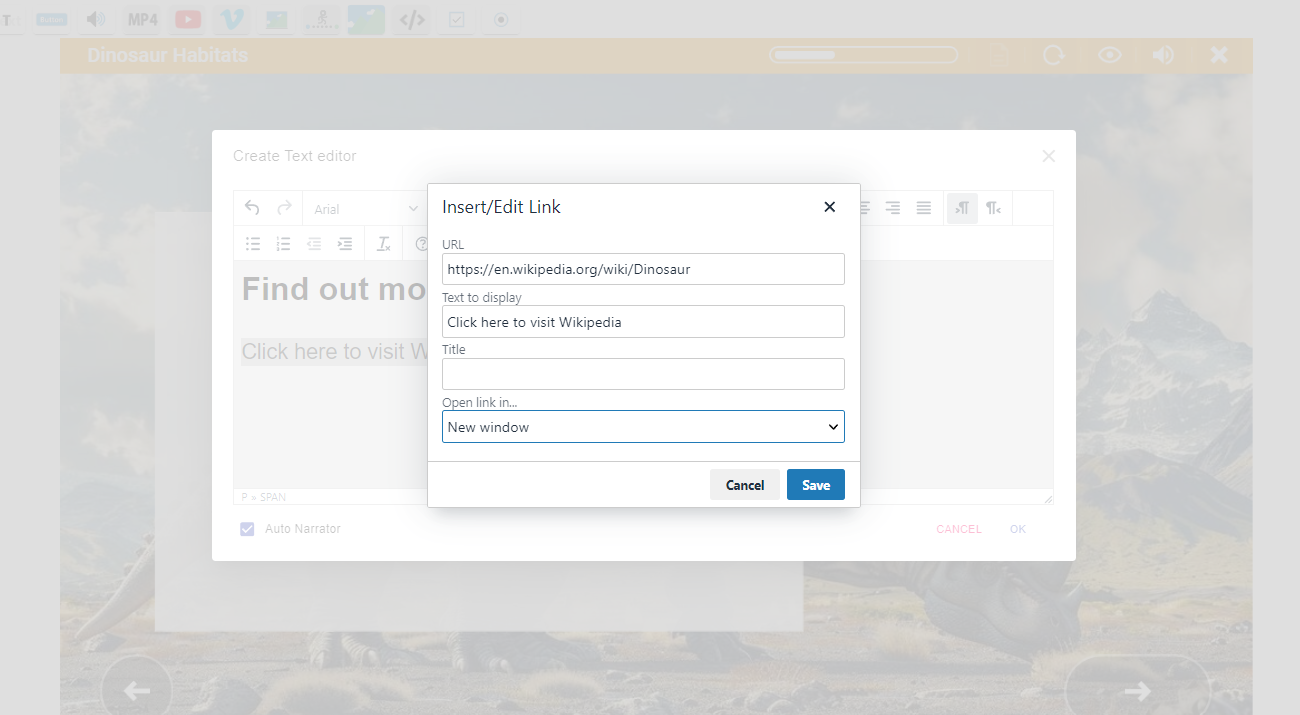
Use the text editor to add further information. You can format the text and even link to external websites as shown.
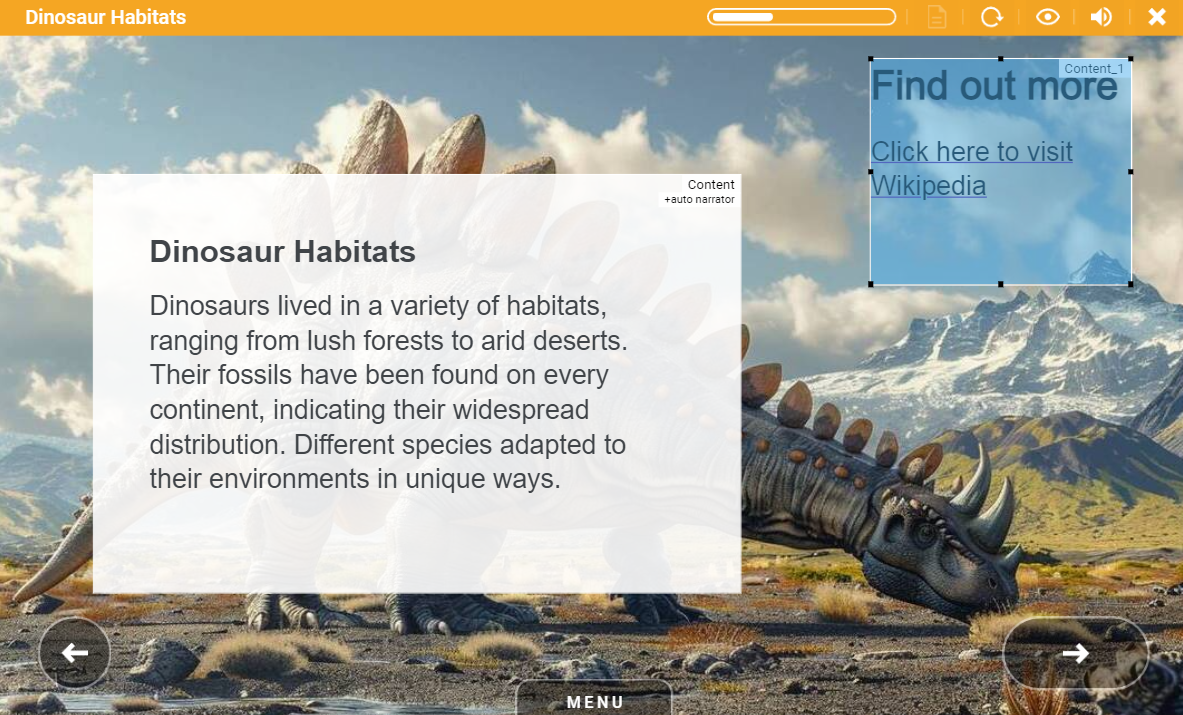
Once the text has been saved, move it to the most suitable location on screen using drag and drop functionality.
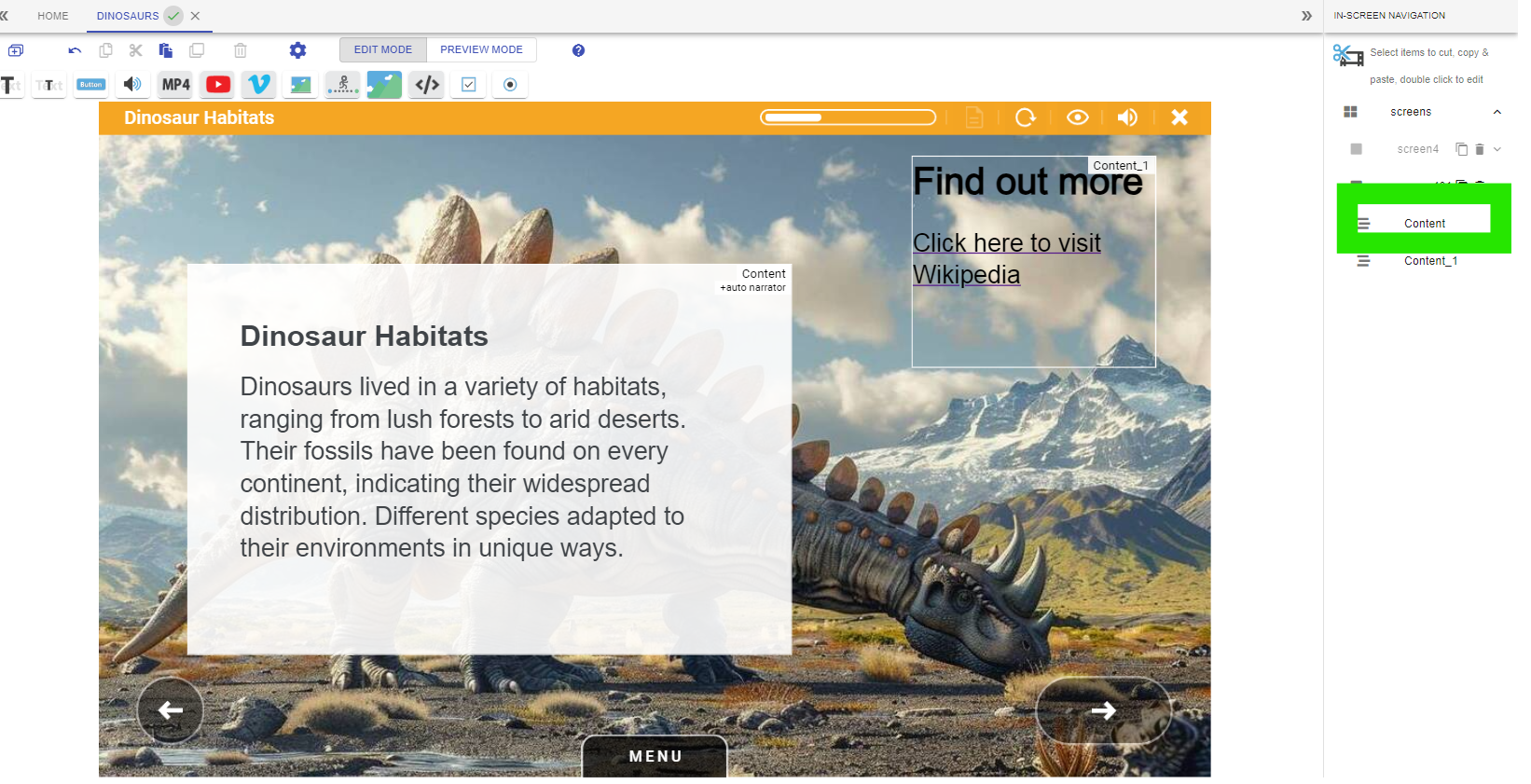
Narration will only work on the first text added (tab labelled ‘Content@, ‘Content_1’, 'Content_2’ etc will not vocalise). We recommend using additional text for labels only.
Narration will only work on the first text added (tab labelled ‘Content@, ‘Content_1’, 'Content_2’ etc will not vocalise). We recommend using additional text for labels only.
📋 Related articles
- Page:
- Page:
- Page:
- Page:
- Page: