Show the QA filter in the learner's interface
Edit the configuration key below to change functionality within the system, there are over 200 such settings in the system.
📘 Instructions
Name | Key | Default Value | Description |
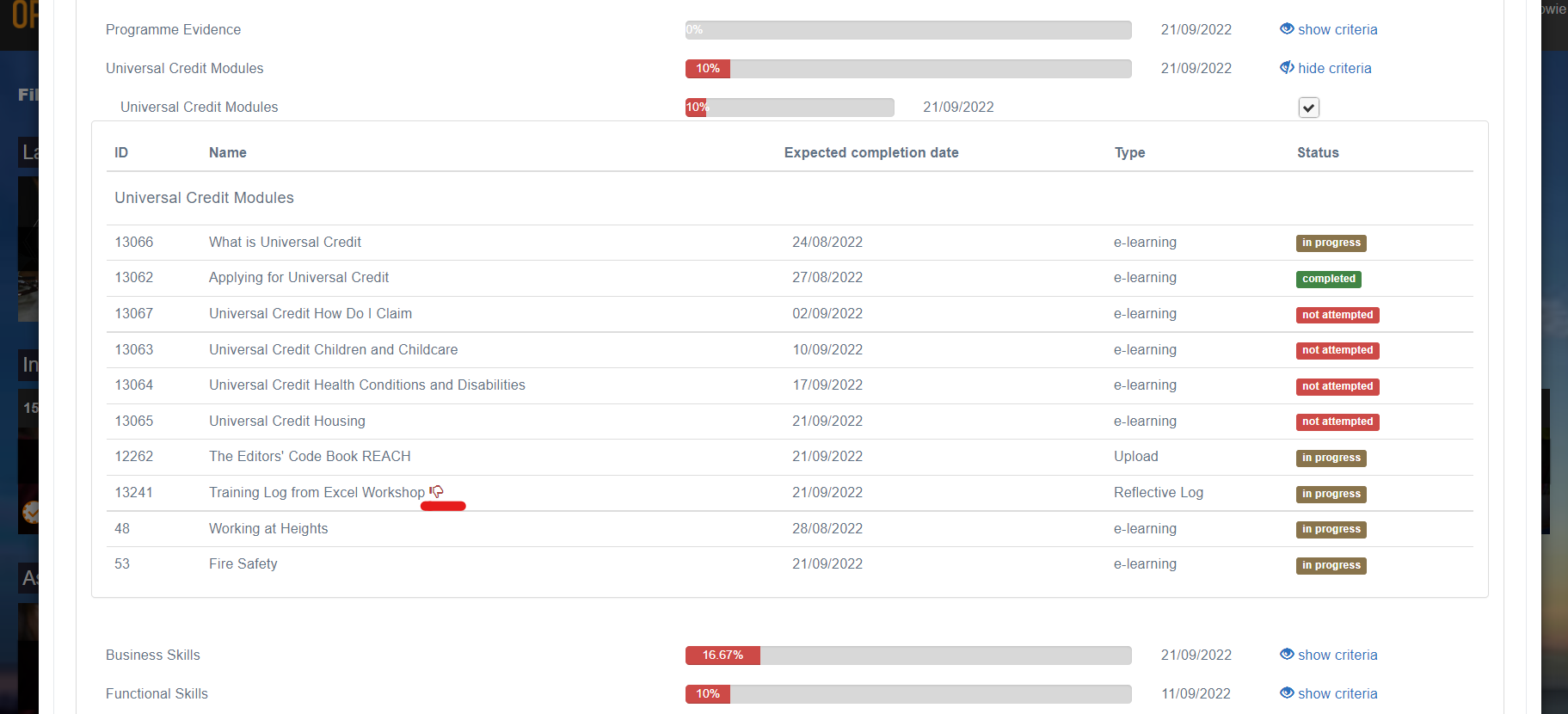
Show QA filter in learners interface | isLearnerQAFilter | This shows QA feedback to the learner if set to true in the 'Progress' button. |
In the example below, this is shown by the thumb up/down icon in the learning prorgamme.
Changing Configuration Settings
Follow the steps below to change any settings
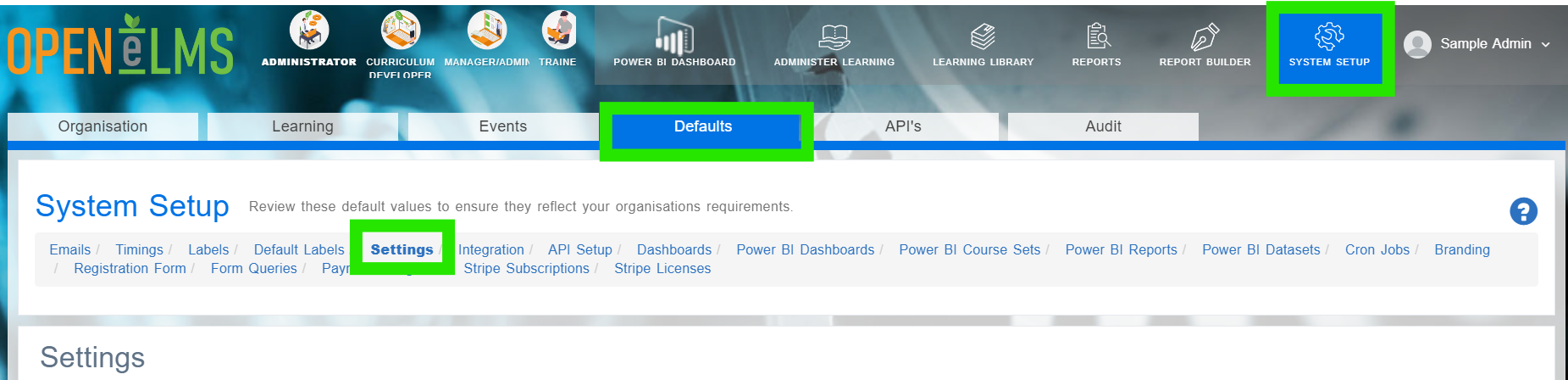
Login as an Administrator and go to System Setup/Defaults/Settings.
Search in the Name column for the key listed in the above table.
Click on Edit.
Scroll down and find the correct key in the settings category.
Edit the Configuration value to the text that you want to appear on the Sign Off form.
This will change the text that appears when a user is signing off.
📋 Related articles
Select any of the following associated articles for further information.
- Page:
- Page:
- Page:
- Page:
- Page: