Set up venue integration with Outlook
These instructions should be followed after setting up the Outlook integration. This process ensures that venue occupancy is checked with Outlook prior to making a booking.
📘 Instructions
Follow these steps …
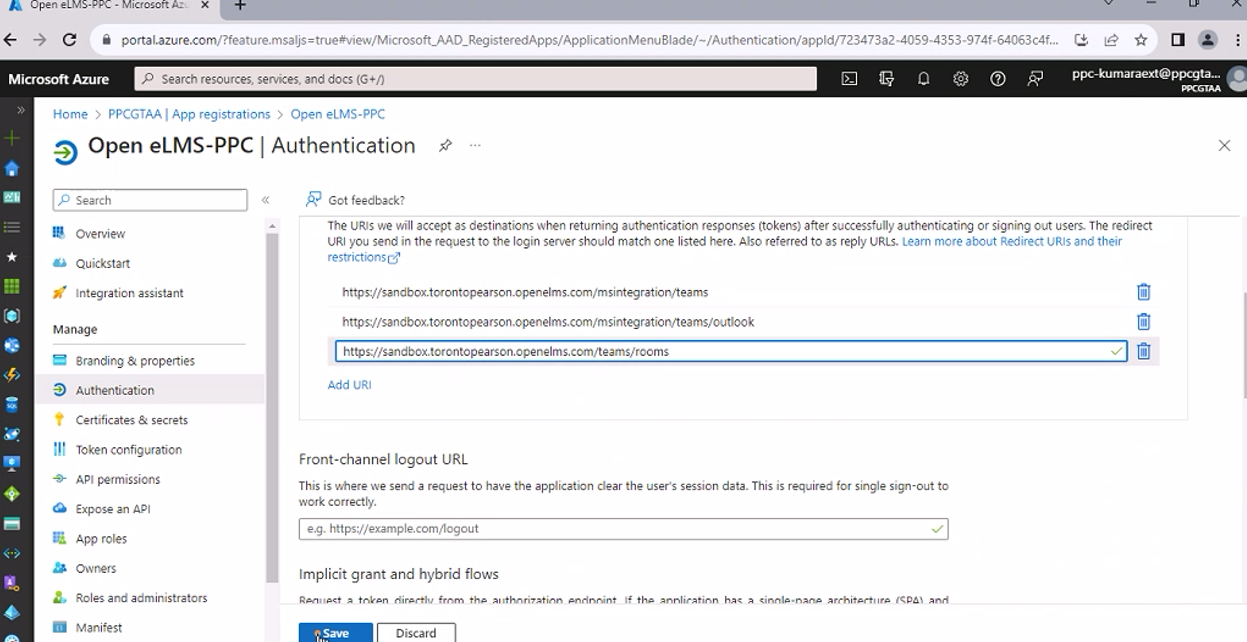
Make sure the system is set up with Azure credentials and redirect URLs including the one to the rooms.
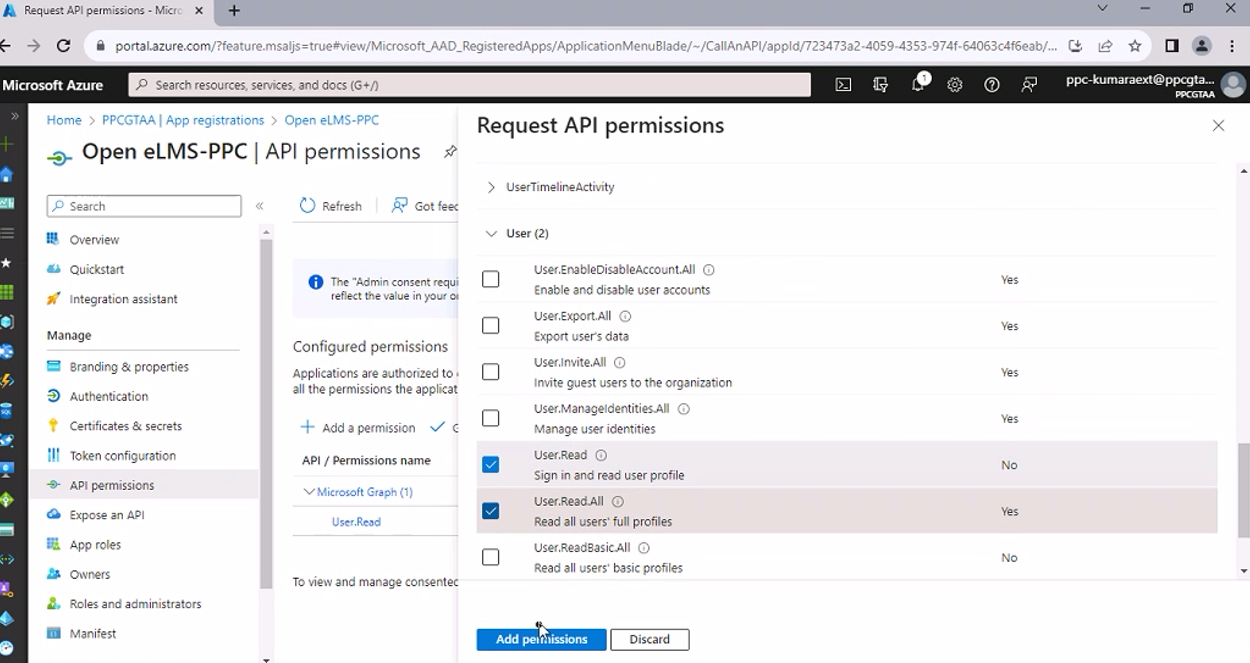
Add permission in Azure for Microsoft Graph, dedicated permission.
Log into the LMS as Superadmin in incognito mode (to use a test Teams account.)
Log in with a Microsoft Account.
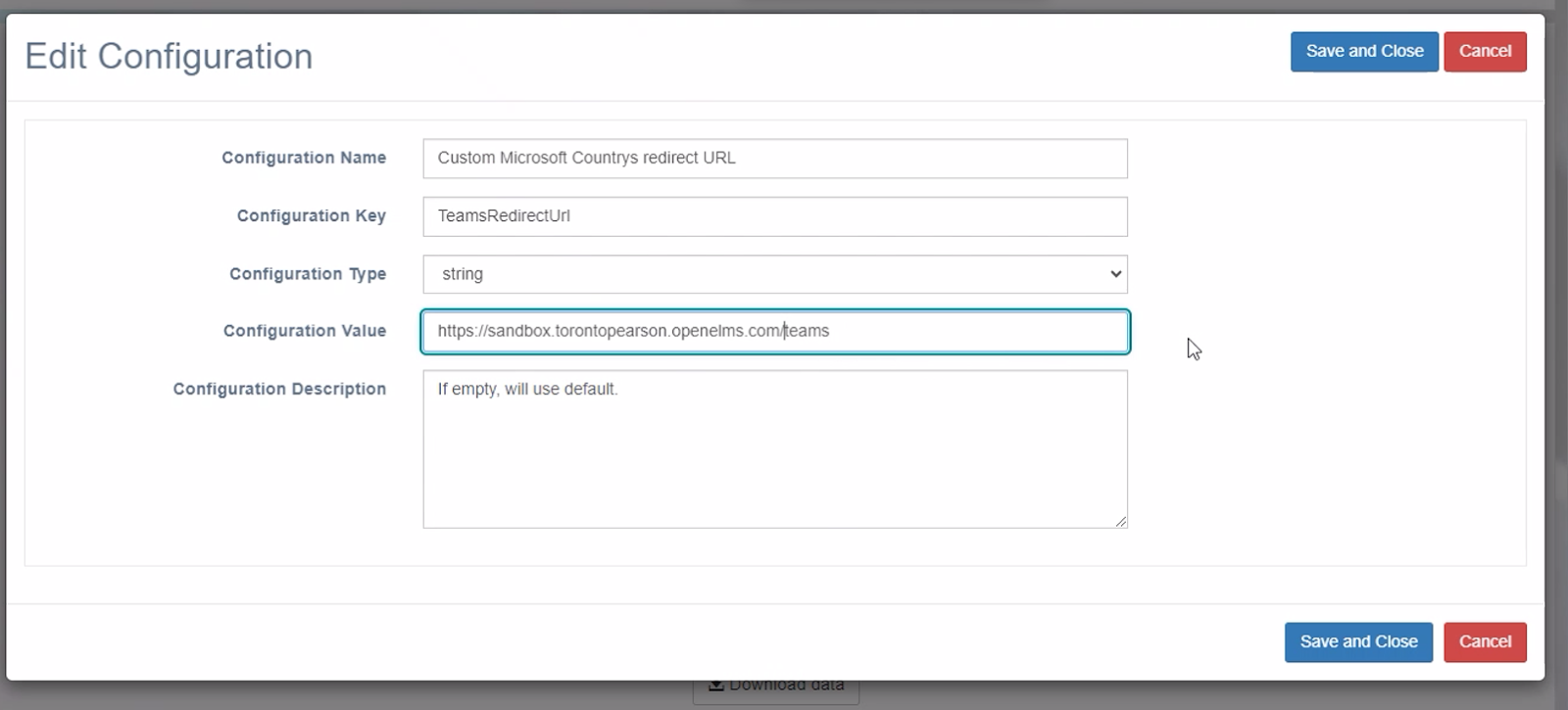
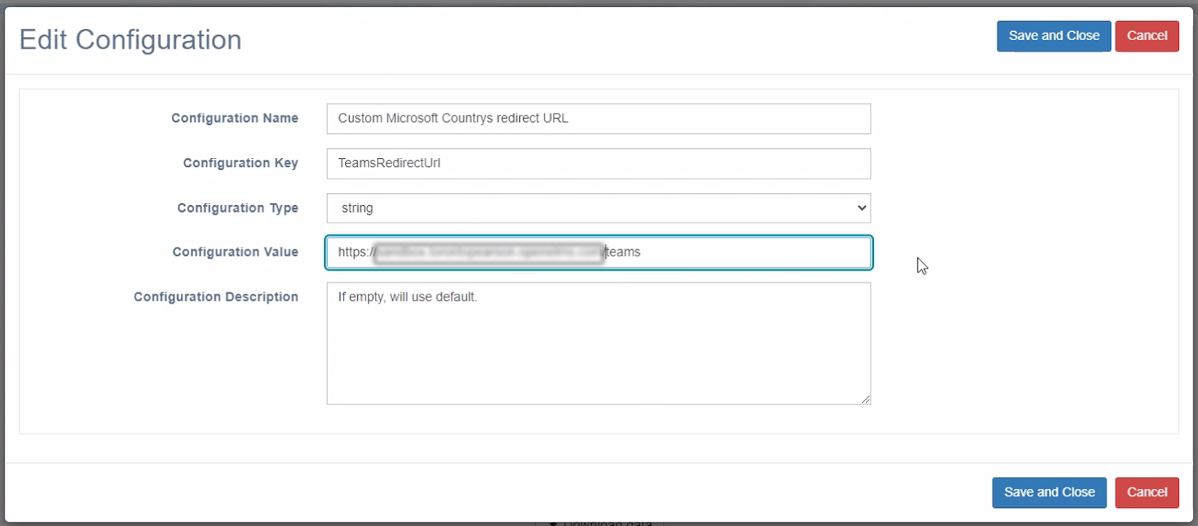
Go to configuration and change the TeamsRedirectUrl and ApplicationClientID.
Return to the Microsoft App press Generate Token, find the Client Secret and copy the value.
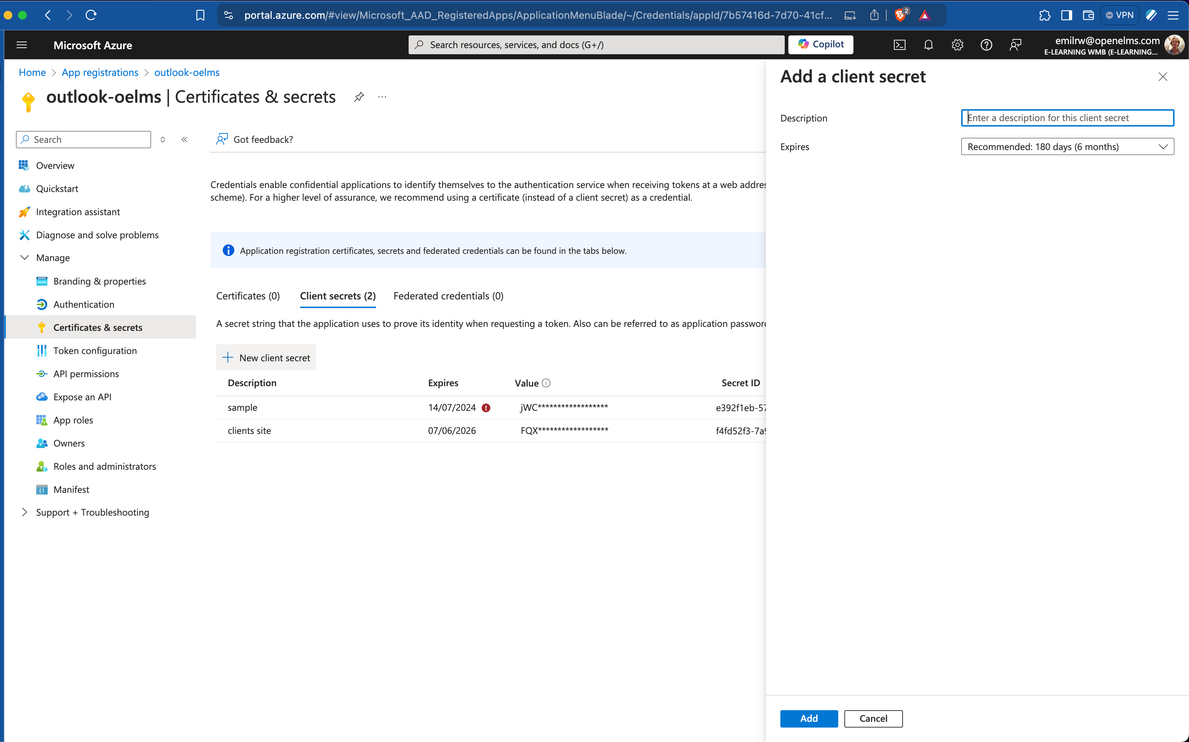
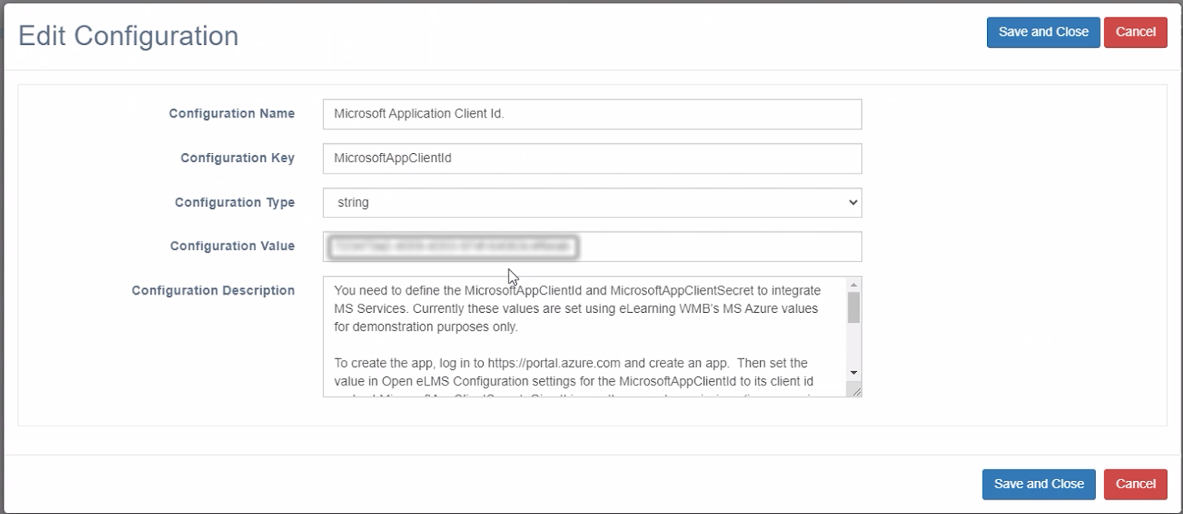
And then enter it in the Configuration settings.
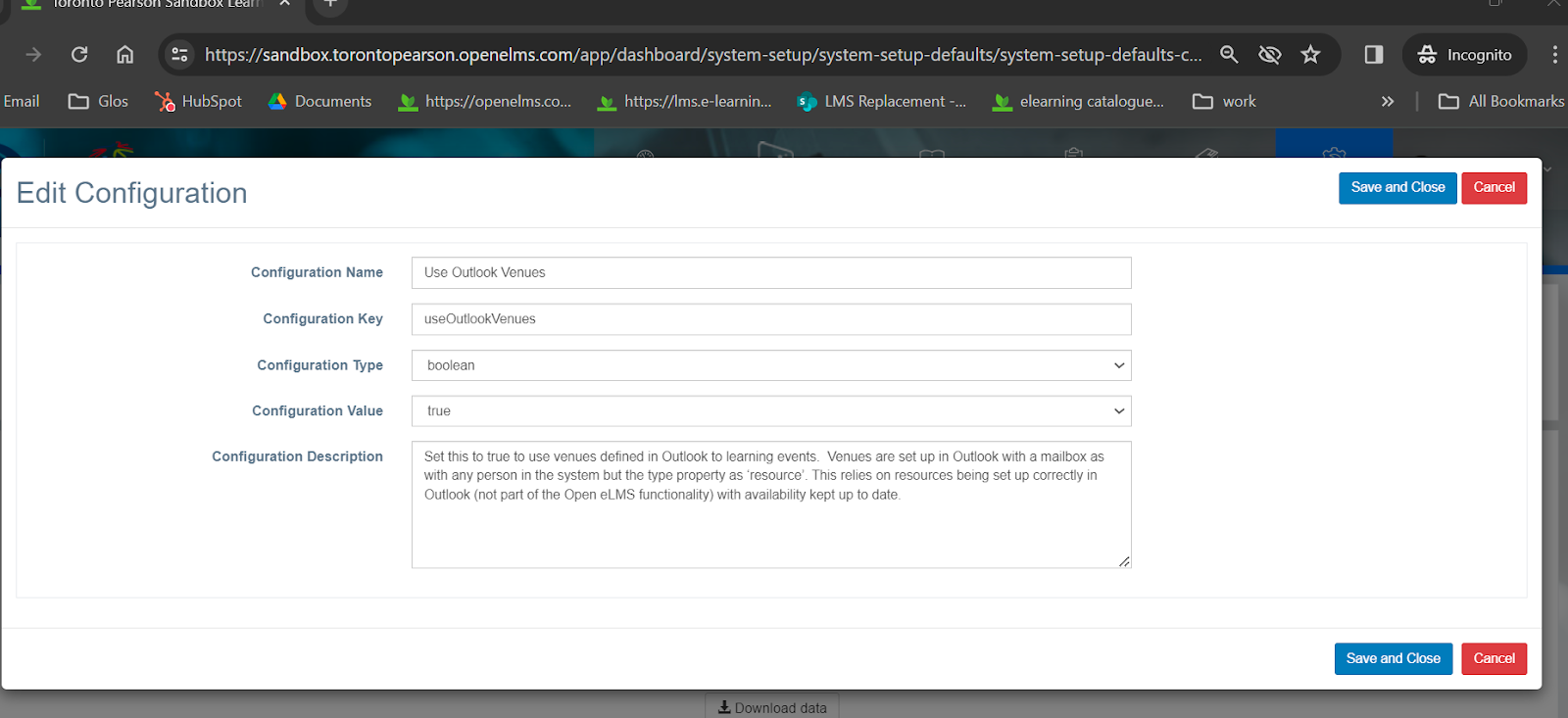
Make sure the config ‘useOutlookVenues’ is set to true
Log in with a Microsoft account
Go to System Setup → Venues → click Add/Generate Token.
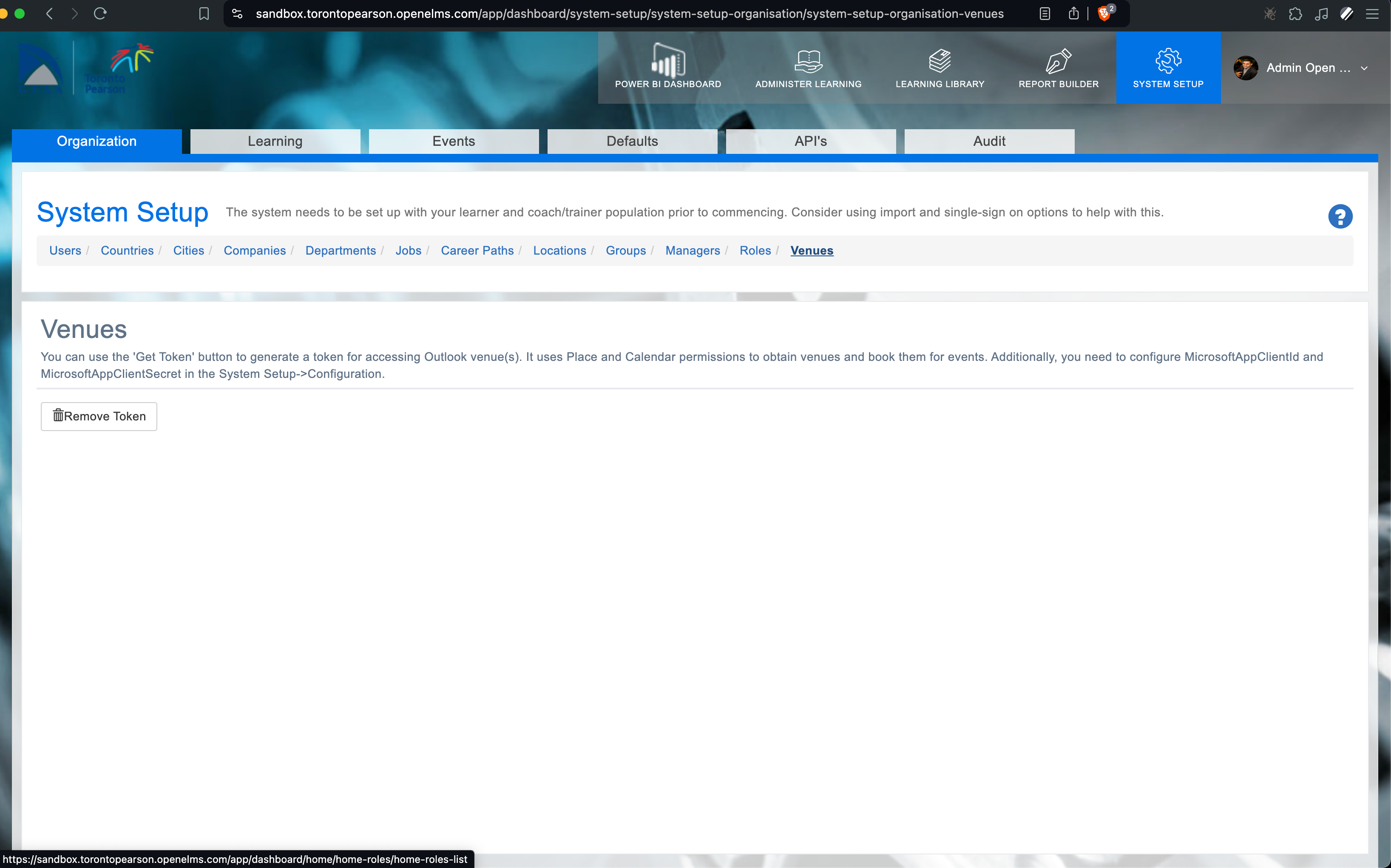
Test this integration thoroughly to ensure that bookings for venues made in Outlook prevent overbooking in Open eLMS. Venues need to have their own accounts set up in Outlook for this to work.
📋 Related articles
- Page:
- Page:
- Page:
- Page:
- Page: