Set up SSO on the login screen
Some clients may wish to host some users who use Single Sign On (SSO) to log into the system, whilst other will need to log in manually. Different URLs can be given to separate types of users or (since it is easier to administer) a SSO login button can be added to the home screen.
📘 Instructions
Before following these steps to set up the SSO button.
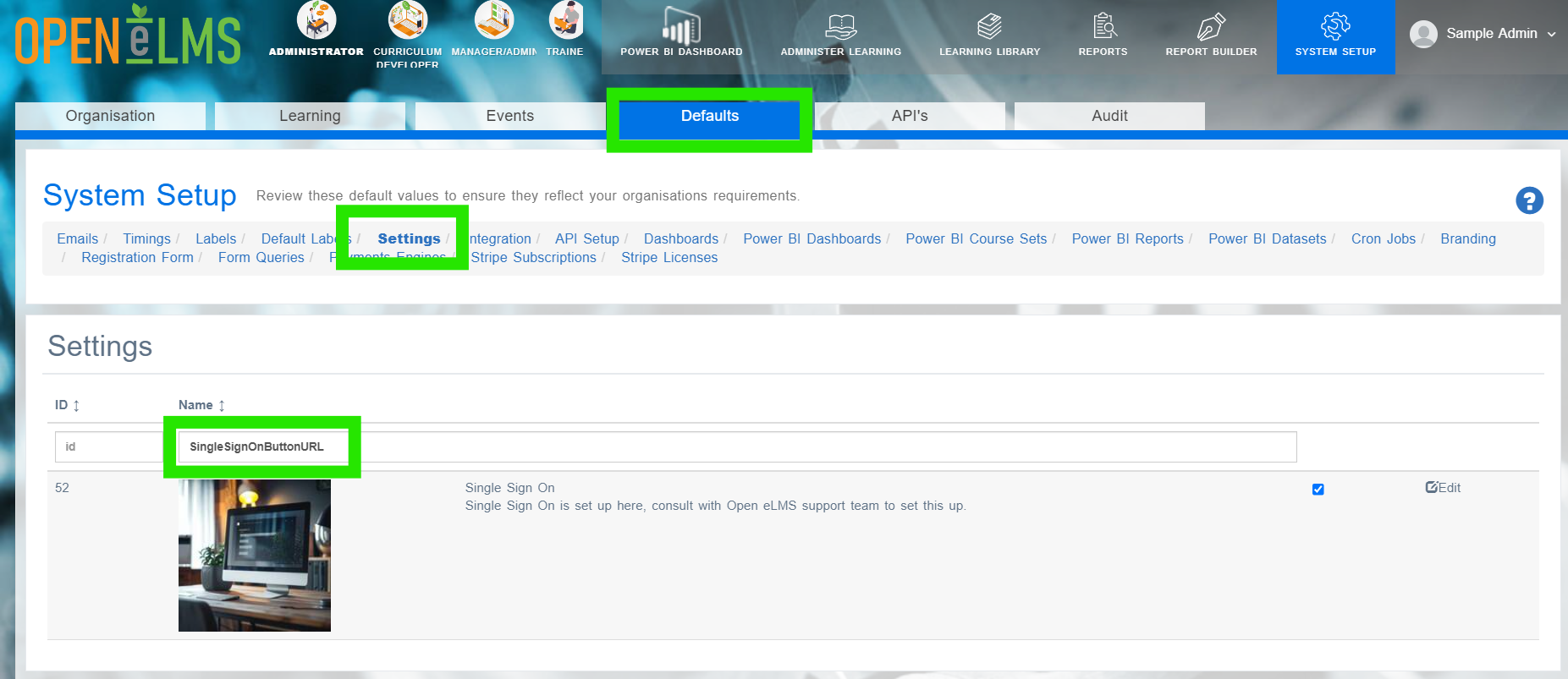
Log in as an Admin and go to Site Setup > Defaults > Settings and search for the key ‘SingleSignOnButtonURL’.
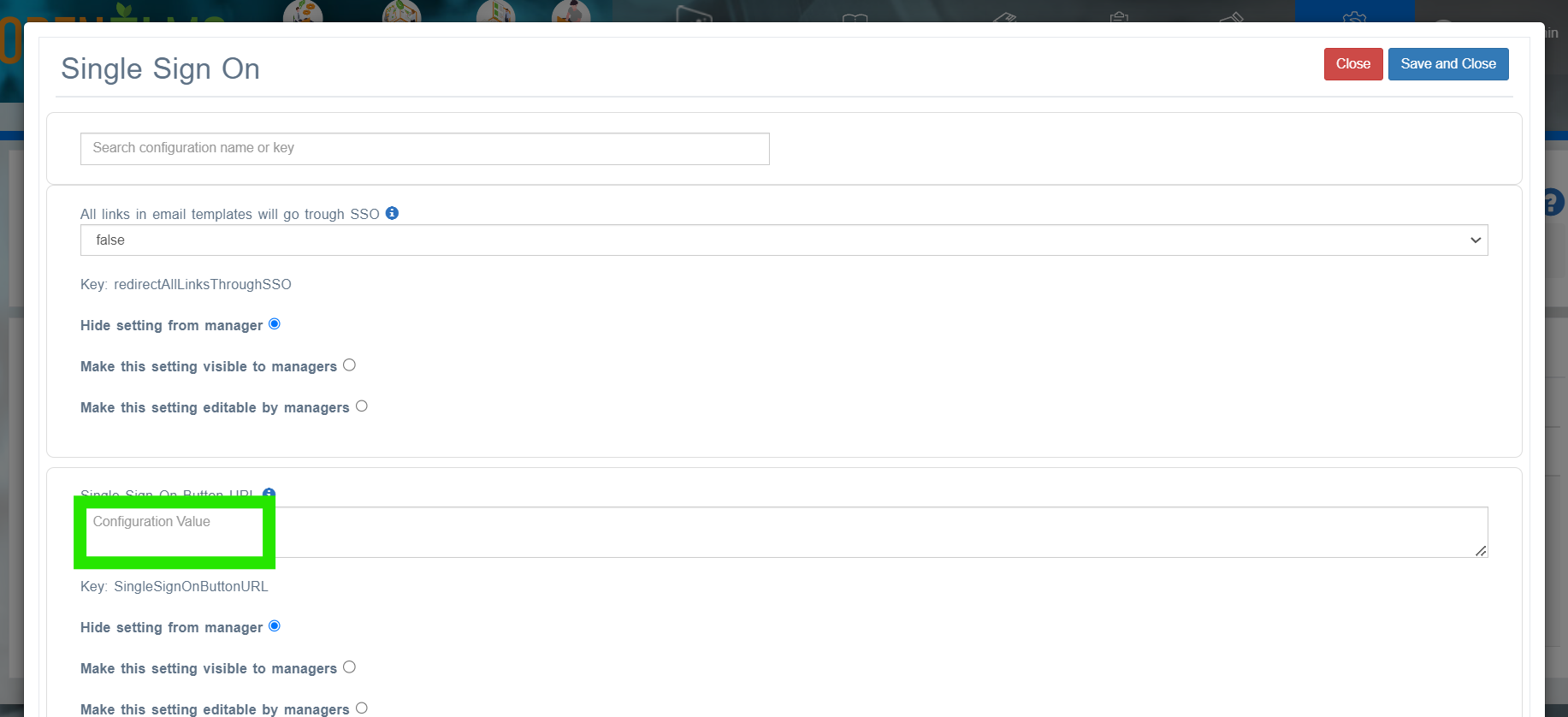
Add in the value text box URL of your login link i.e..
https://learning.openelms.com/[YOURDOMAIN]/saml.
Log out and check the login page - if should show a Single Sign On button above the email/login box as shown.

Check that SSO is set up on your installation first before adding this setting to your installation.
📋 Related articles
- Page:
- Page:
- Page:
- Page:
- Page: