Microsoft Services Integration
Open eLMS is now able to combine the integration of Microsoft services such as Teams, Power BI, Outlook etc. into a single configuration setting.
📘 Instructions
Follow these steps
Login to https://portal.azure.com. At the top of the screen select "Azure Active Directory" icon.

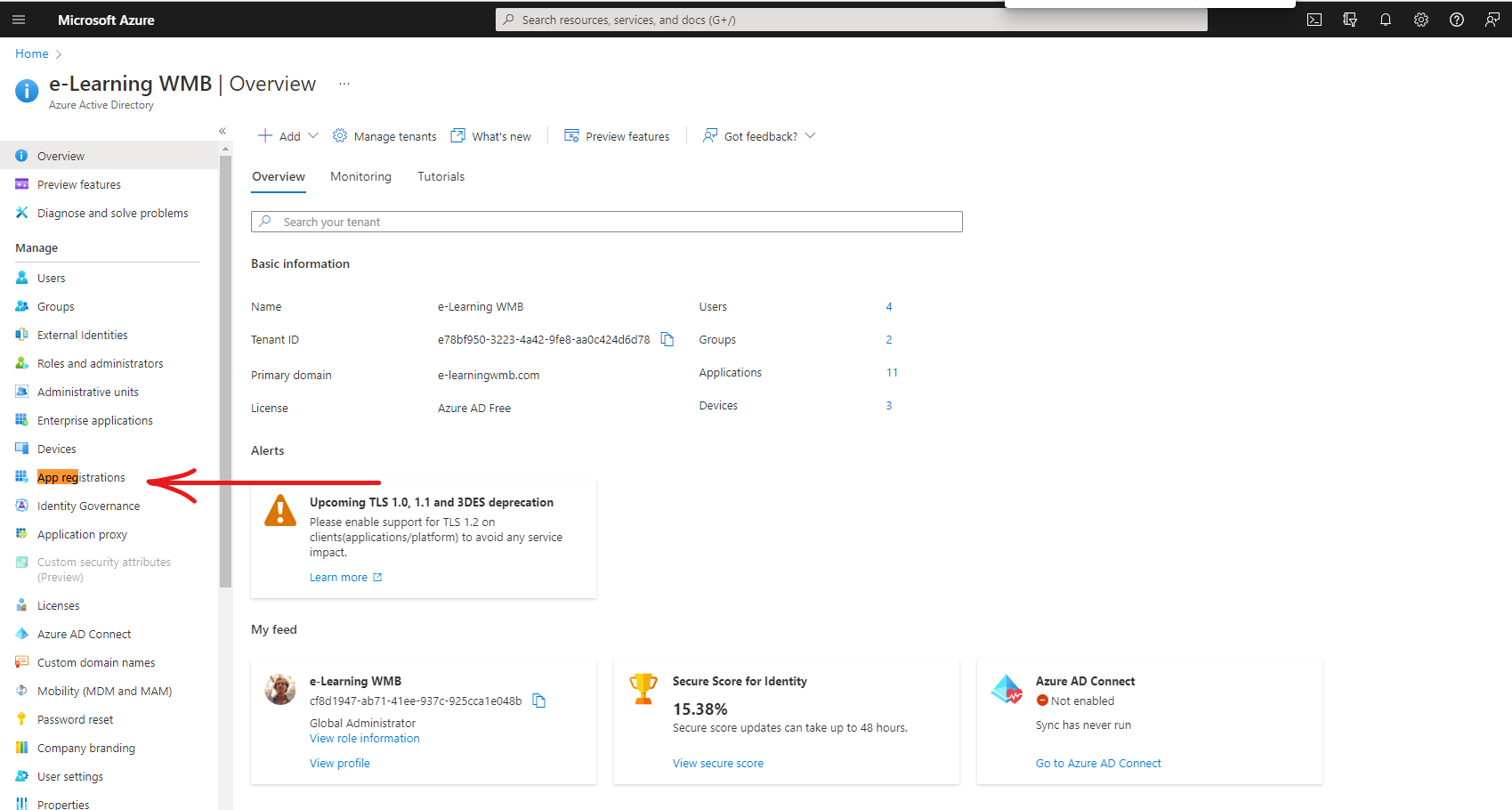
Select "App registrations" on the left.
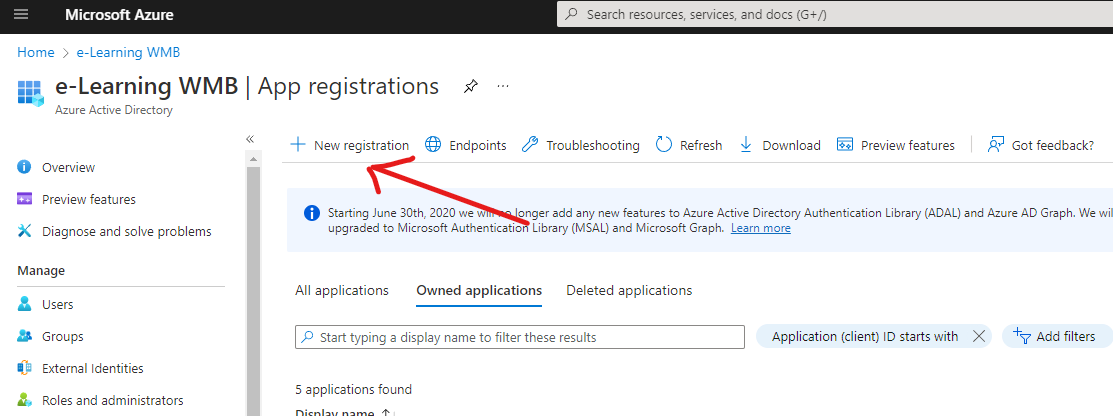
Select "All applications" on the right and click on ‘New Registration’.
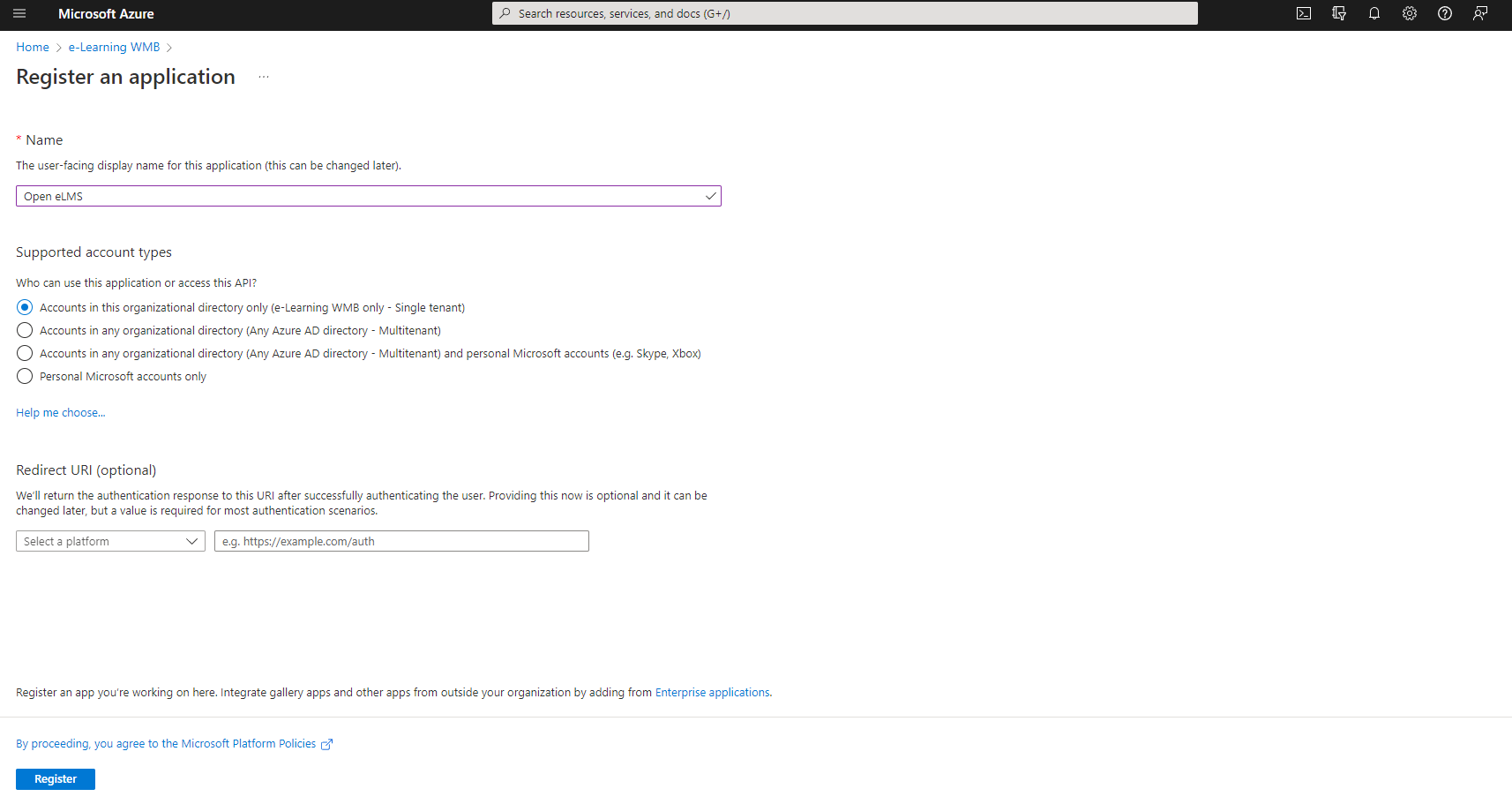
Enter the name of your Azure application (e.g. ‘Open eLMS’) Click on ‘Register’, leaving out the optional ‘Redirect URI’ configuration (we will return to this at the next step).
Go to Authentication and select Add a platform and then Web..
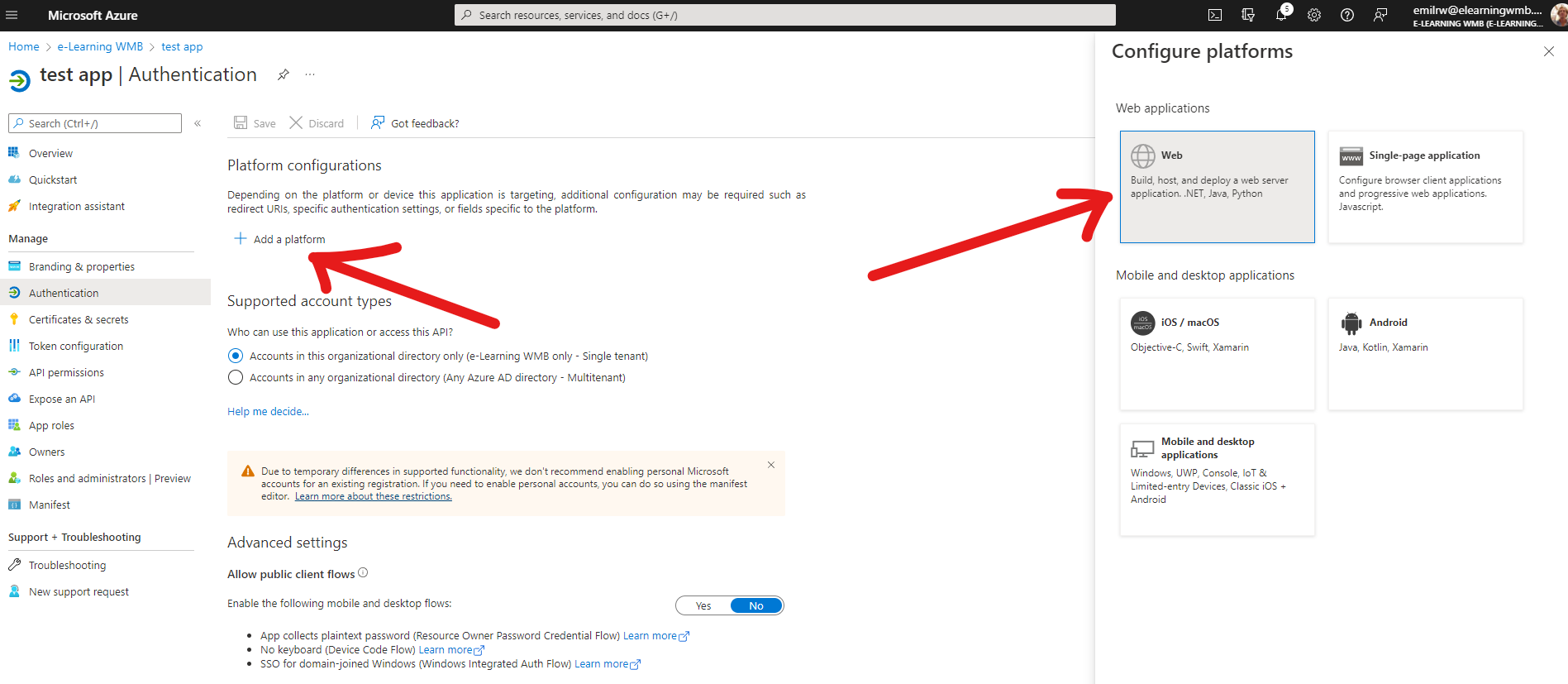
Then add any of the following URLS.
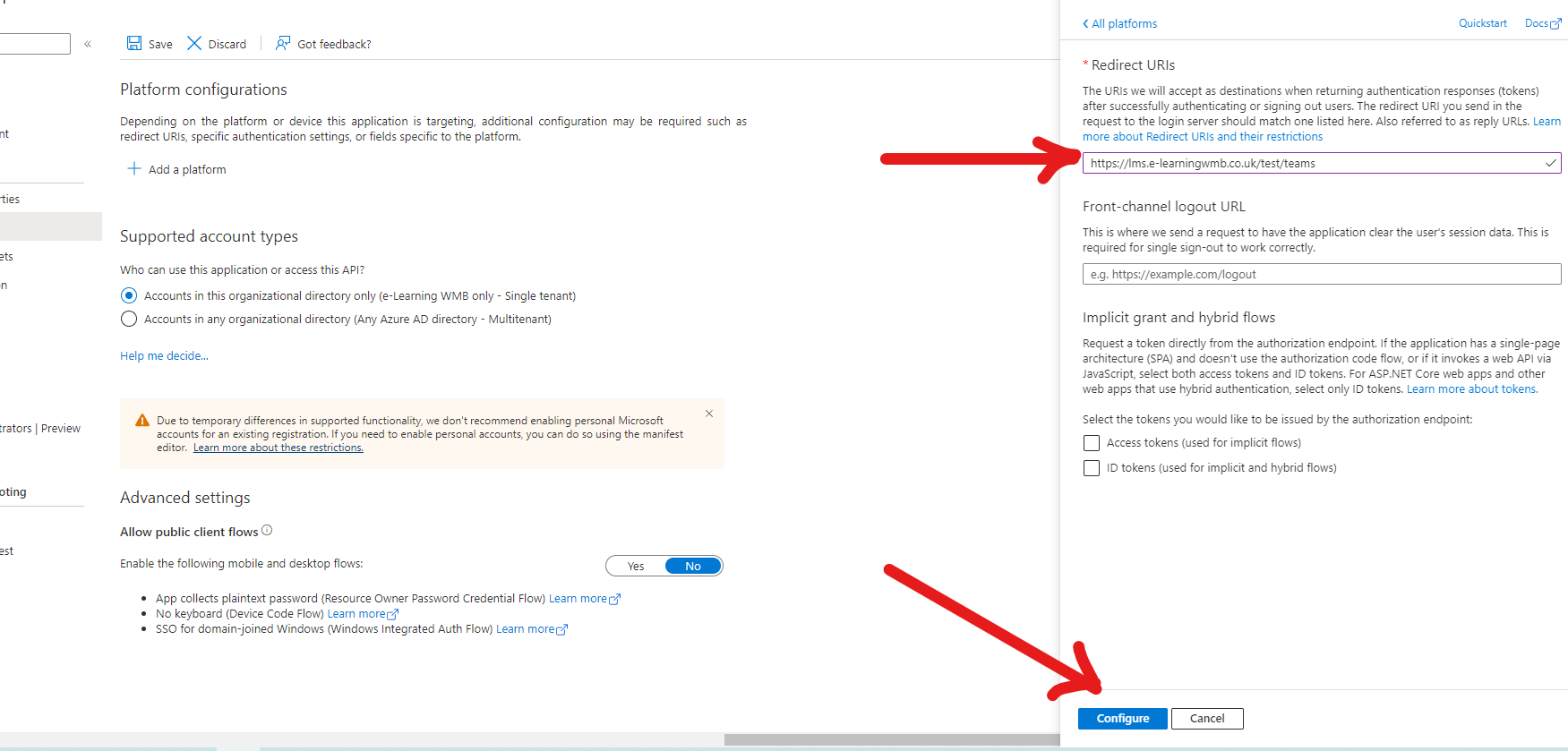
https://learning.openelms.com/msintegration/teams (to enable Teams integration)https://learning.openelms.com/msintegration/powerbi (PowerBI)
https://learning.openelms.com/msintegration/teams/outlook (Outlook)
https://learning.openelms.com/msintegration/teams/onedrive (One Drive, needed to fetch Teams recordings)
https://learning.openelms.com/msintegration/teams/globaloutlooktoken (Global Outlook integration)
… and then press Configure.Repeat step 6 dependent upon the services you will be using.
Now we can link this App to Open eLMS. To do this log in as Admin and go to System Setup > Defaults > Configuration and search for the key MicrosoftAppClientId.
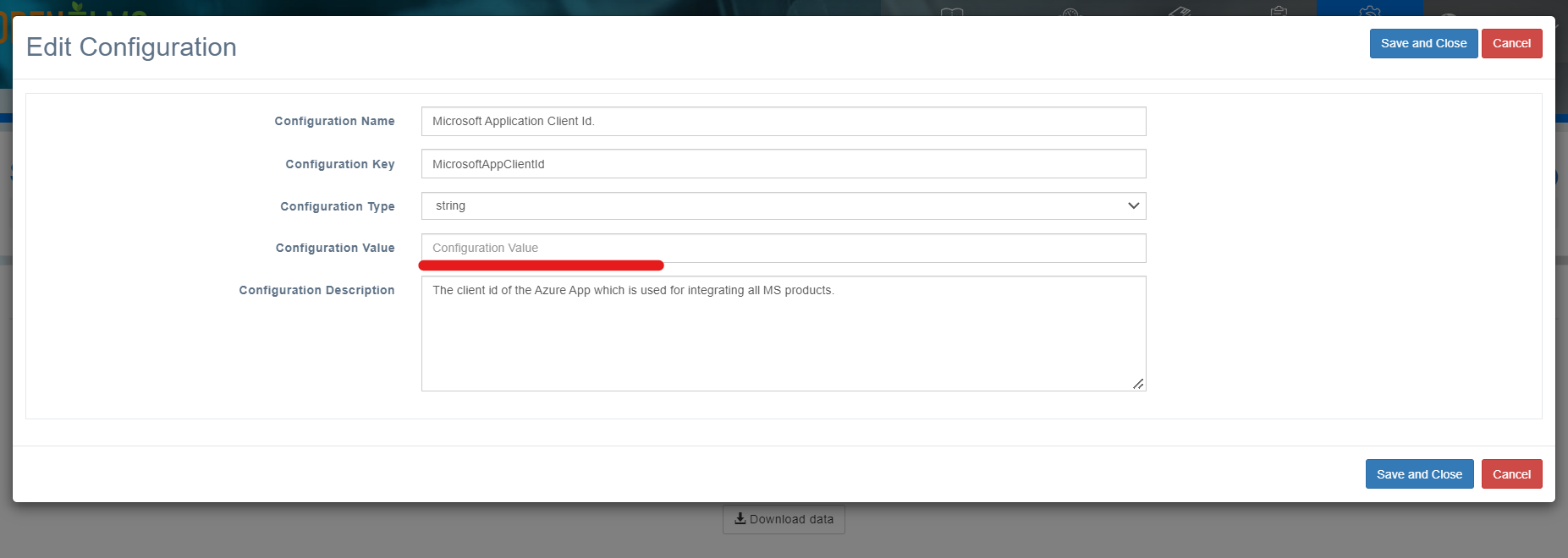
Edit this value and give it the Application (client) ID value from the Azure Service (as shown below).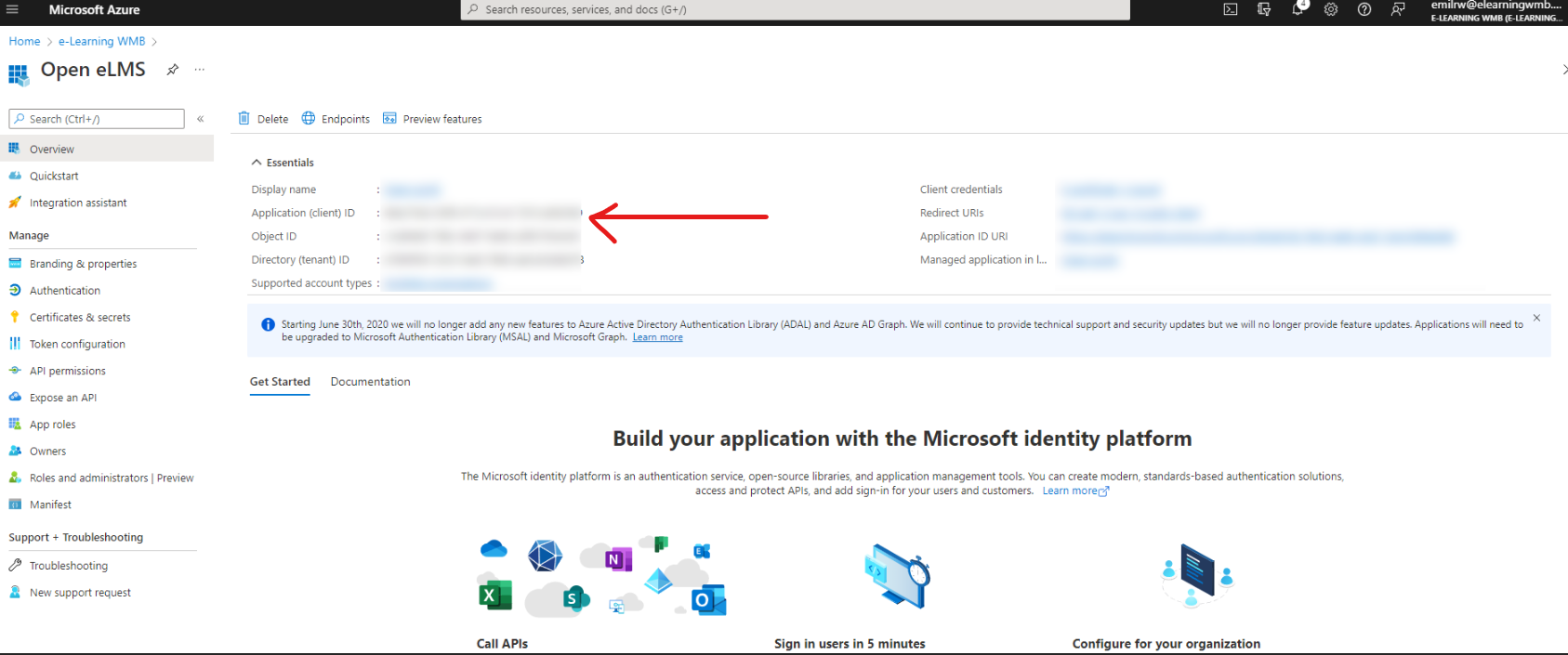
Similarly locate and edit the MicrosoftAppClientSecret in Open eLMS.
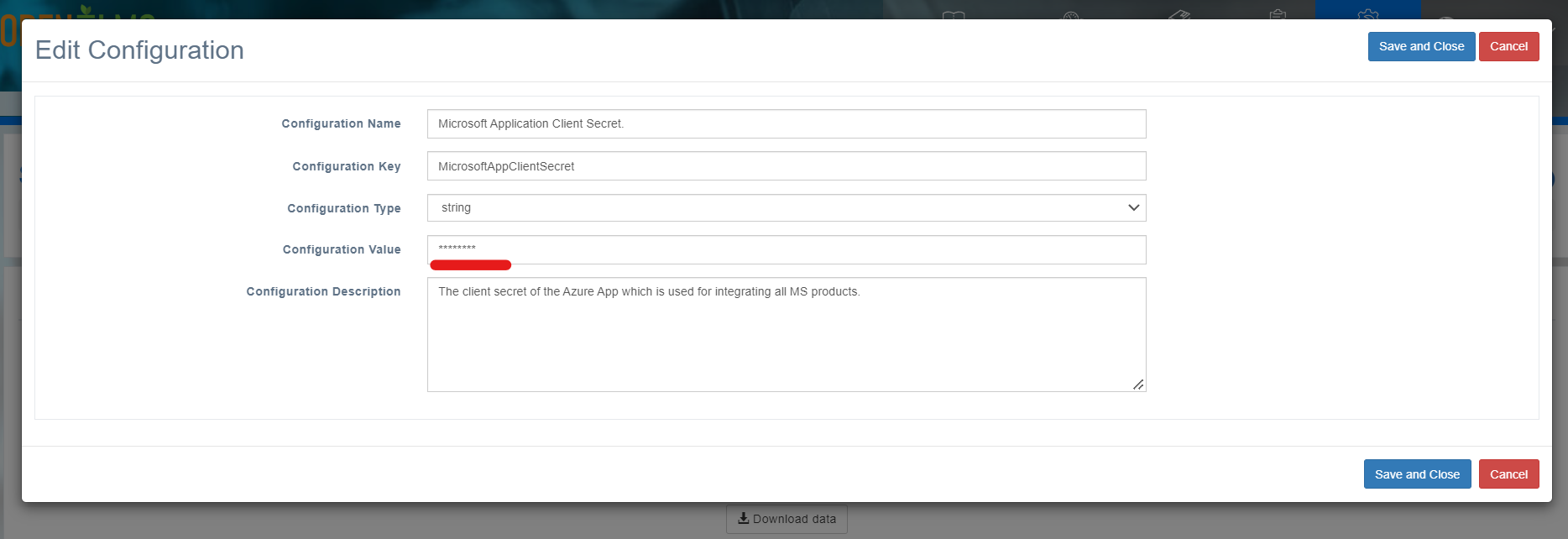
To obtain the secret value that goes here press the link by Client Credentials …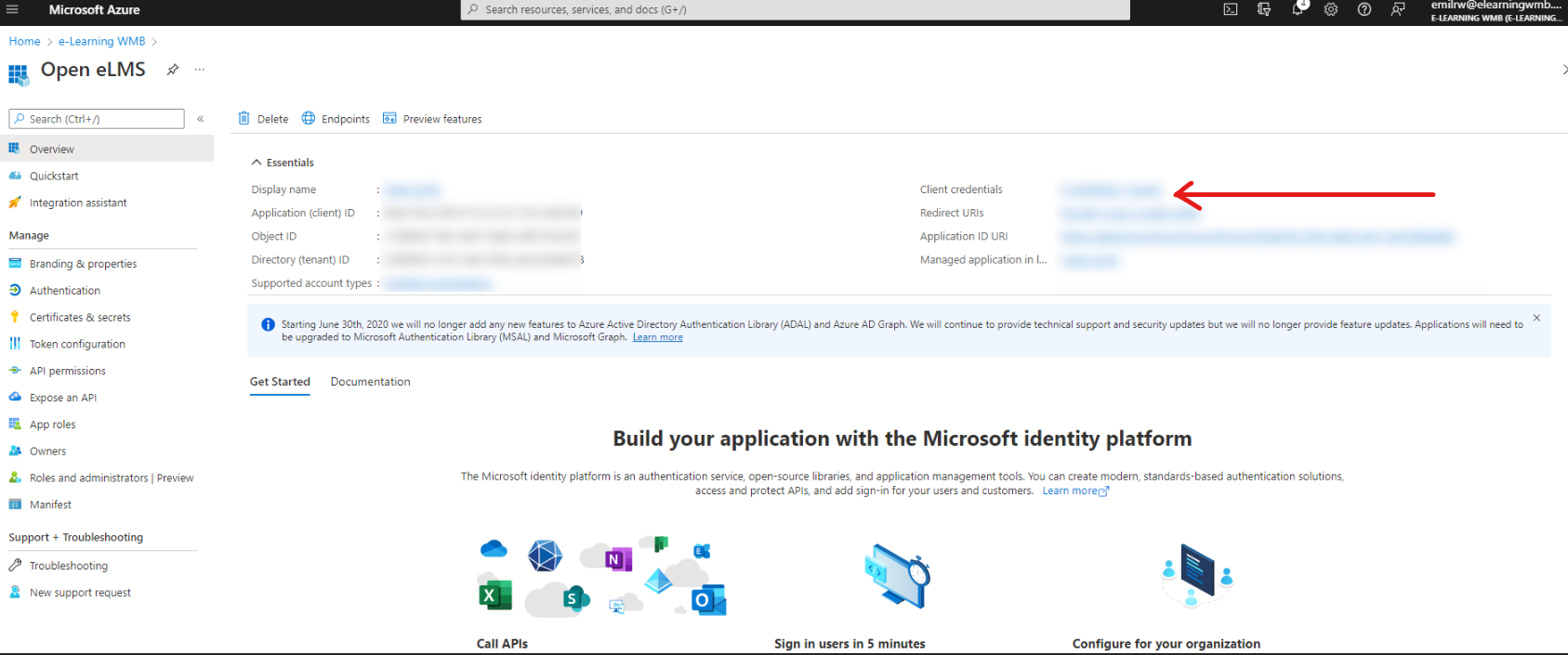
Then select + New client Secret (give it any name e.g. ‘Microsoft Credentials’) and then copy the Value (NOT Secret ID) …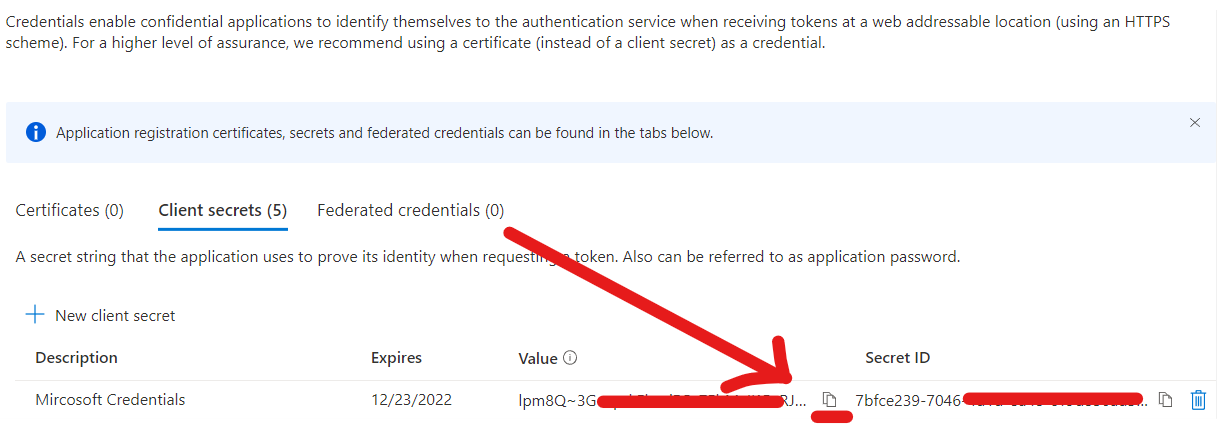
… and paste this into the Open eLMS MicrosoftAppClientSecret configuration above.You will be now ready to use whatever Microsoft integration services (Power BI, Outlook etc.) you have selected within Open eLMS.
Remember to copy over the Value and not Secret ID otherwise you will get an error (step
Remember to set up all the redirect URLs for the applications you are using (step 6). If you are using your own domain then use your own URLs e.g. replace https://lms.e-learningwmb.co.uk/msintegration/teams with e.g. https://www.acme.com/msintegration/teams
📋 Related articles
- Page:
- Page:
- Page:
- Page:
- Page: