Link Open eLMS with MS Teams
Linking Open eLMS with Microsoft Teams gives you the option of holding virtual lessons with learners and trainers using Microsoft’s video communication platform.
📘 Open eLMS Setup Instructions
To link the systems together, it is necessary for the system administrator to enter the Client ID and Client Secret from Azure into Open eLMS.
Note the following can only be carried out by Open eLMS support staff:
Login to https://portal.azure.com
At the top of the screen select “Azure Active Directory” icon
Select “App registrations” on the left
Select “All applications” on the right and click on “Open eLMS” application
Select “Authentication” on the left
You will see a list of redirect URIs on the right – you need to add https://learning.openelms.com/{SITE}/teams to the list and click “Save”
Create Teams meetings using the Calendar Tool
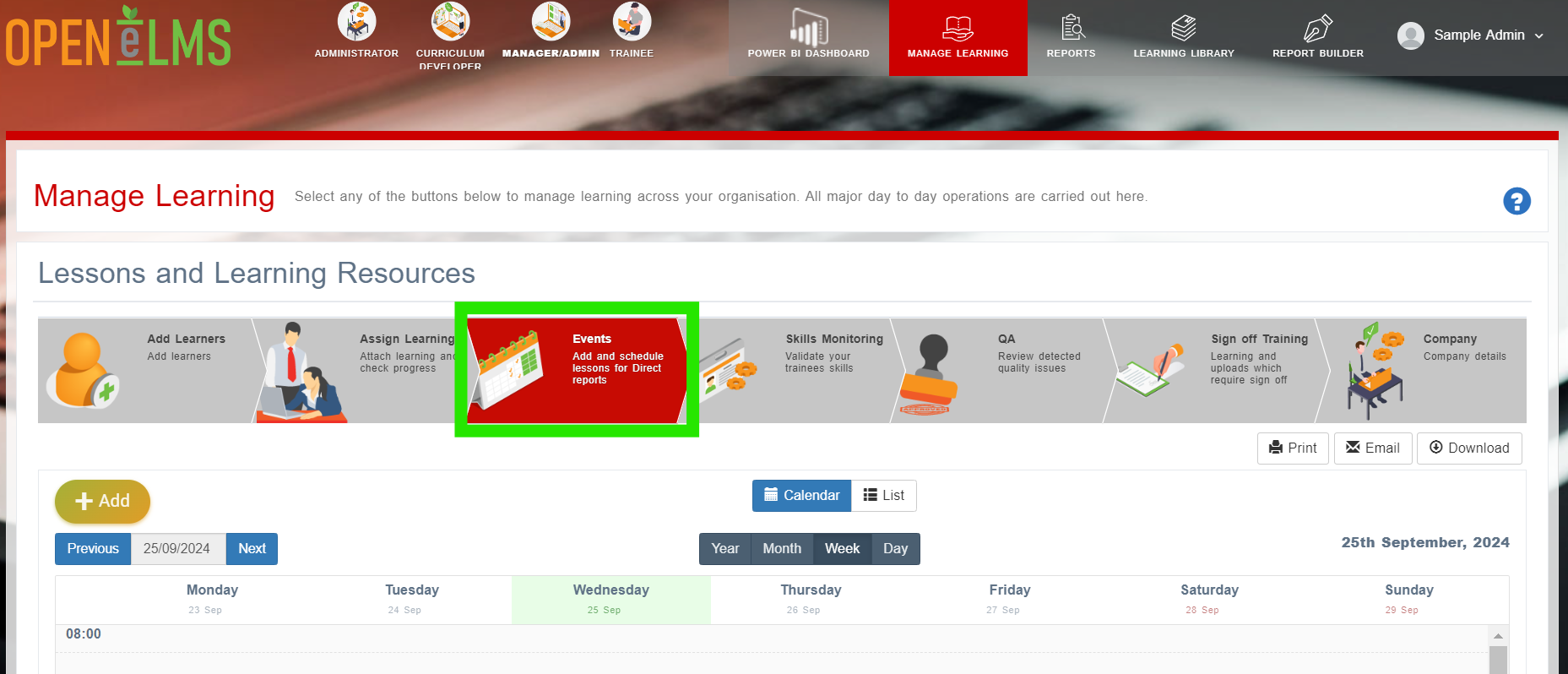
Log into Open eLMS as an manager/coach/trainer and go to the Events tab on the navigation menu.
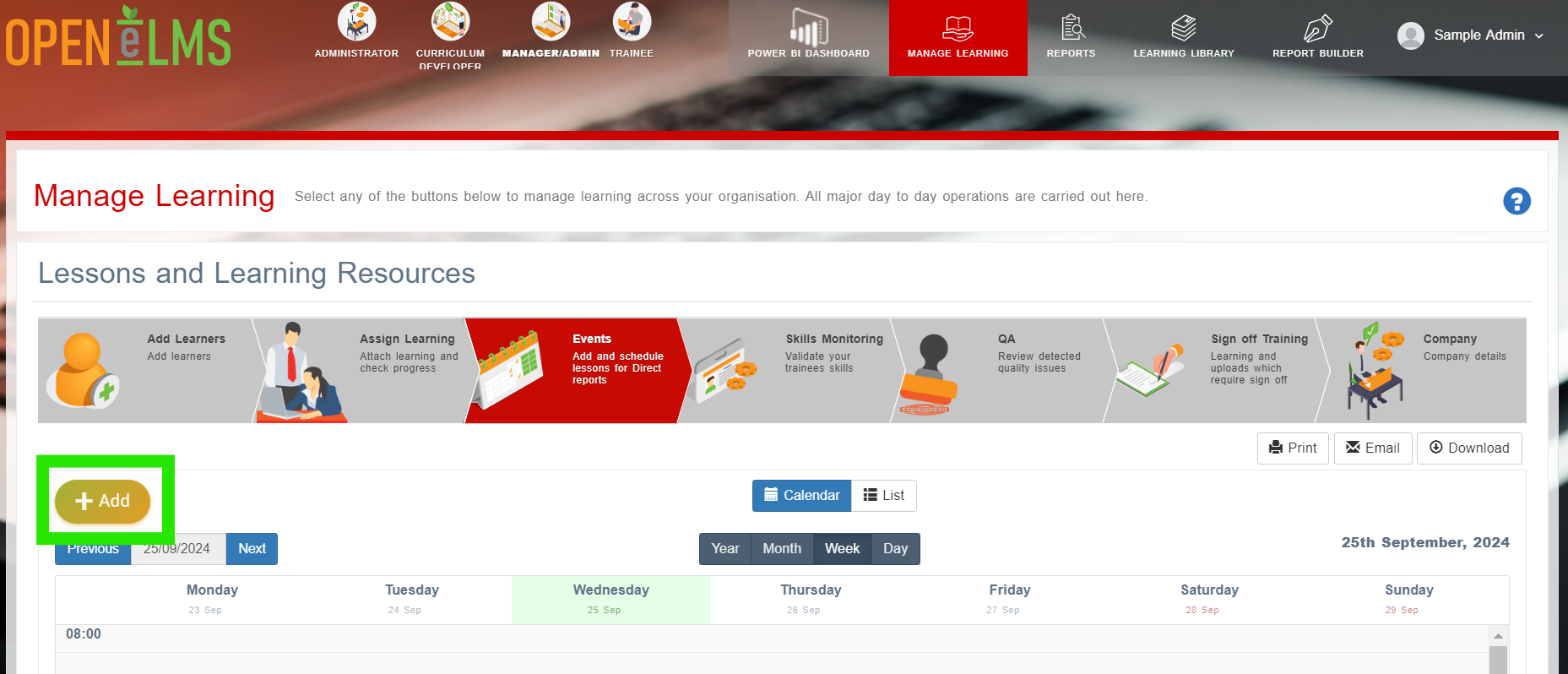
Press the Add button.
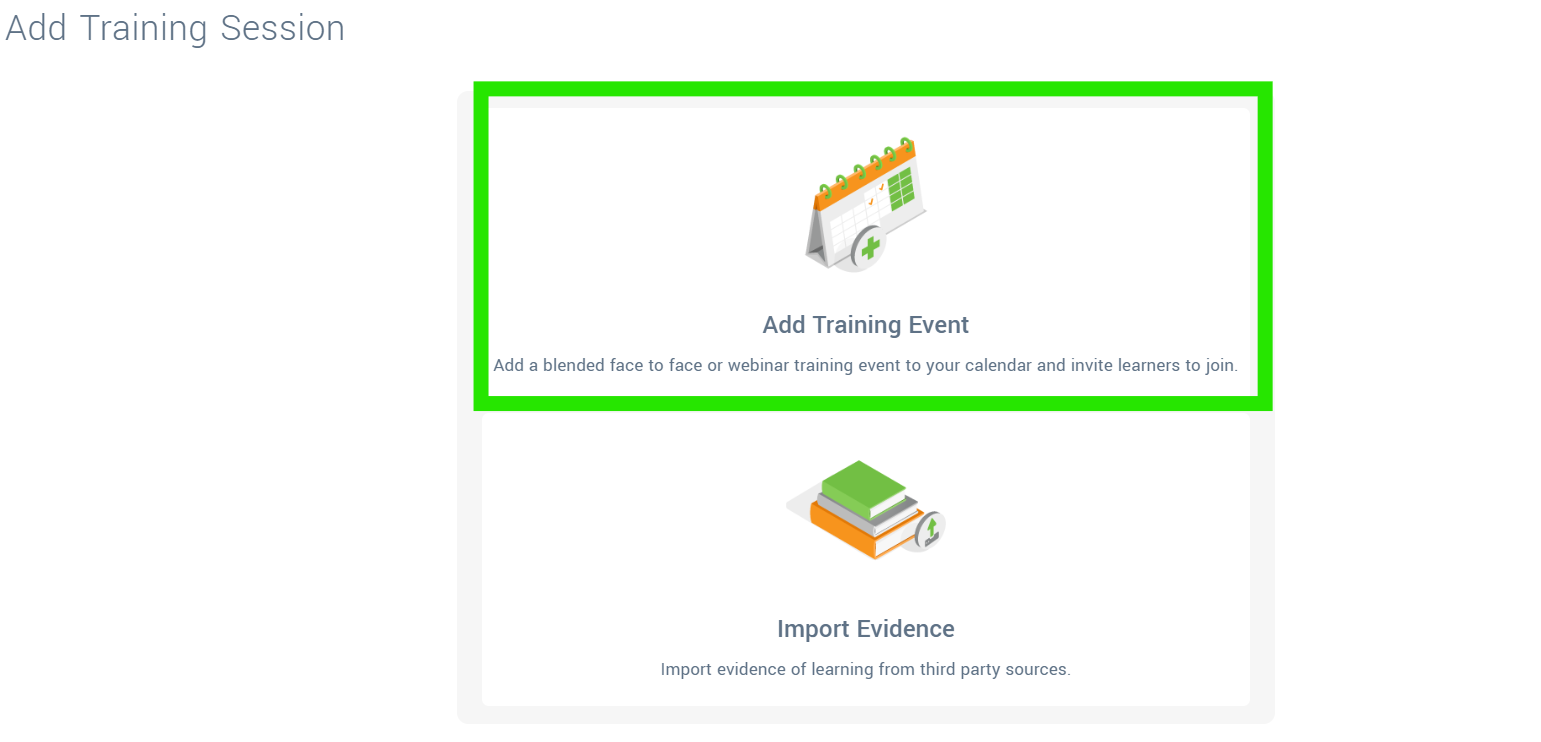
Select to Add a Training Event.
When editing this entry you now have the option of adding a Microsoft Teams meeting.
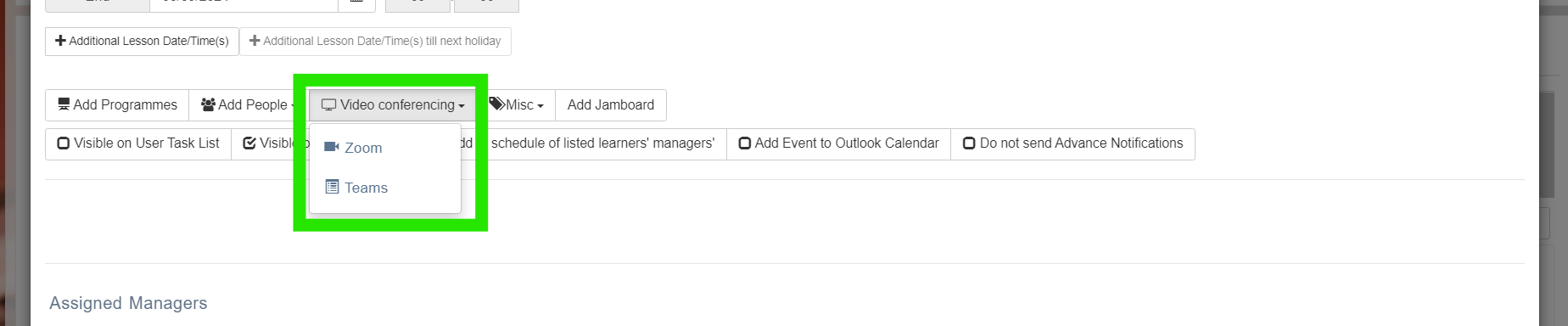
Prior to running MS Teams you will need to ask Open eLMS to enable the Open eLMS Azure App for your site to the list of possible redirects.
📋 Related articles
- Page:
- Page:
- Page:
- Page:
- Page: