How to link Individual Learner Record (ILR) to learning programme on Open eLMS
Information added to learners' ILR can be synced with their learning programmes on Open eLMS. This ensures learner data is consistent.
📘 Instructions
Name | Key | Default Value | Description |
Uses dates in ILR record for standard. | linkIlrToUserProgramme | TRUE | If this value is true, then the programme dates entered into the system will be replaced by the ILR record dates. This setting applies to UK Government apprenticeships. |
When editing a user on the system - click on Edit ILR Fields - Learning Deliveries - Add an Apprenticeship Record

Ensure information is entered correctly for Learning Start Date, Learning Planned End Date, Planned Hours, Programme Type and Apprenticeship Standard Code
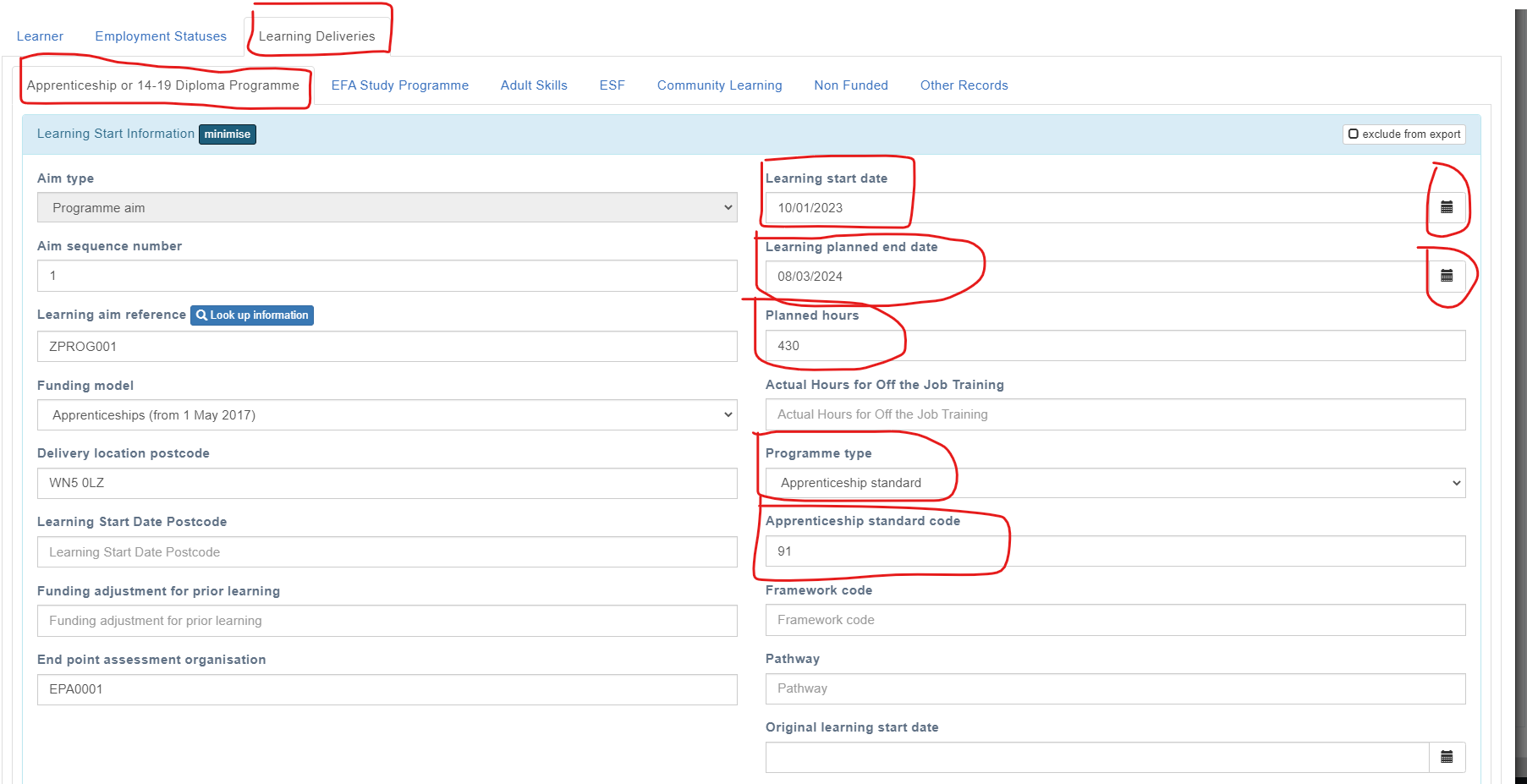
In this example, the learner is doing a Software Tester Apprenticeship Standard.
Next, you need to ensure the programme on Open eLMS has a matching code attached - find the programme in your learning library - click on actions - edit:
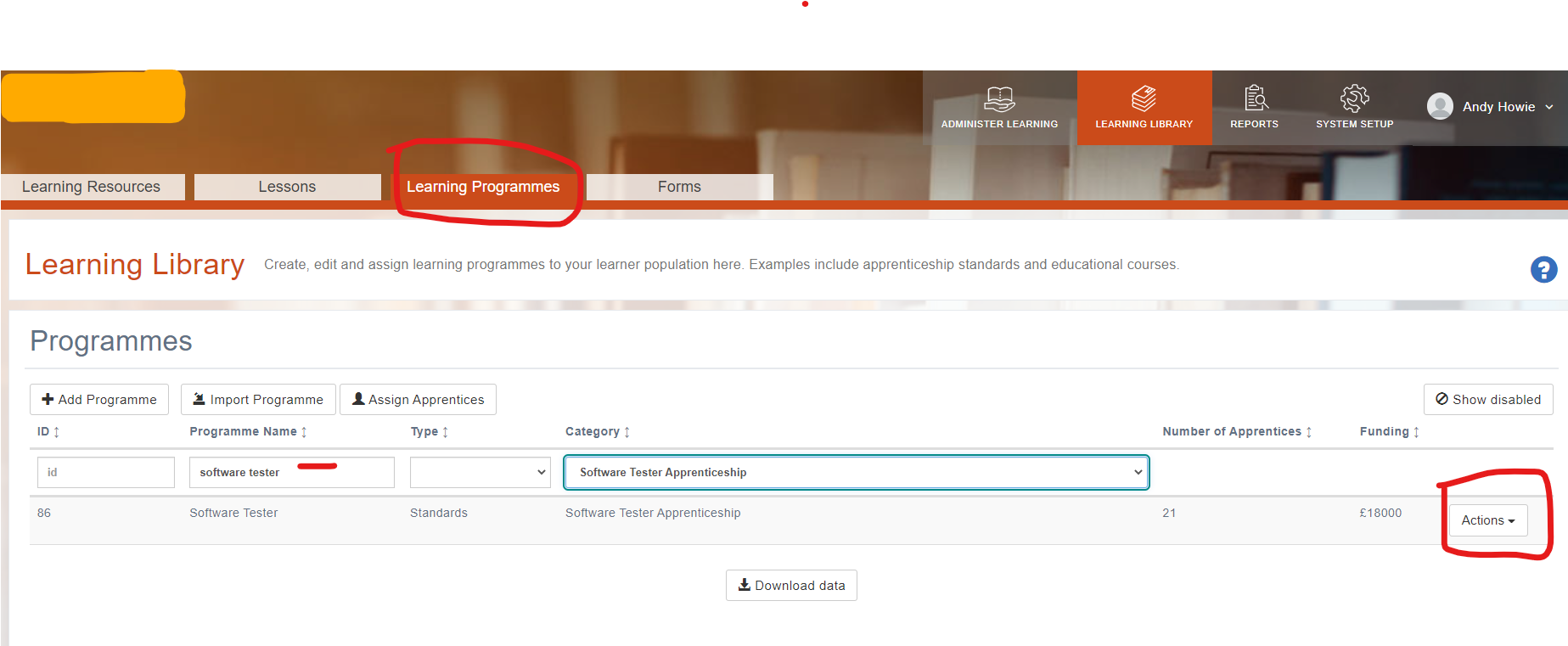
Click on Show Details Button
Enter the Standard Code in Reference Code box
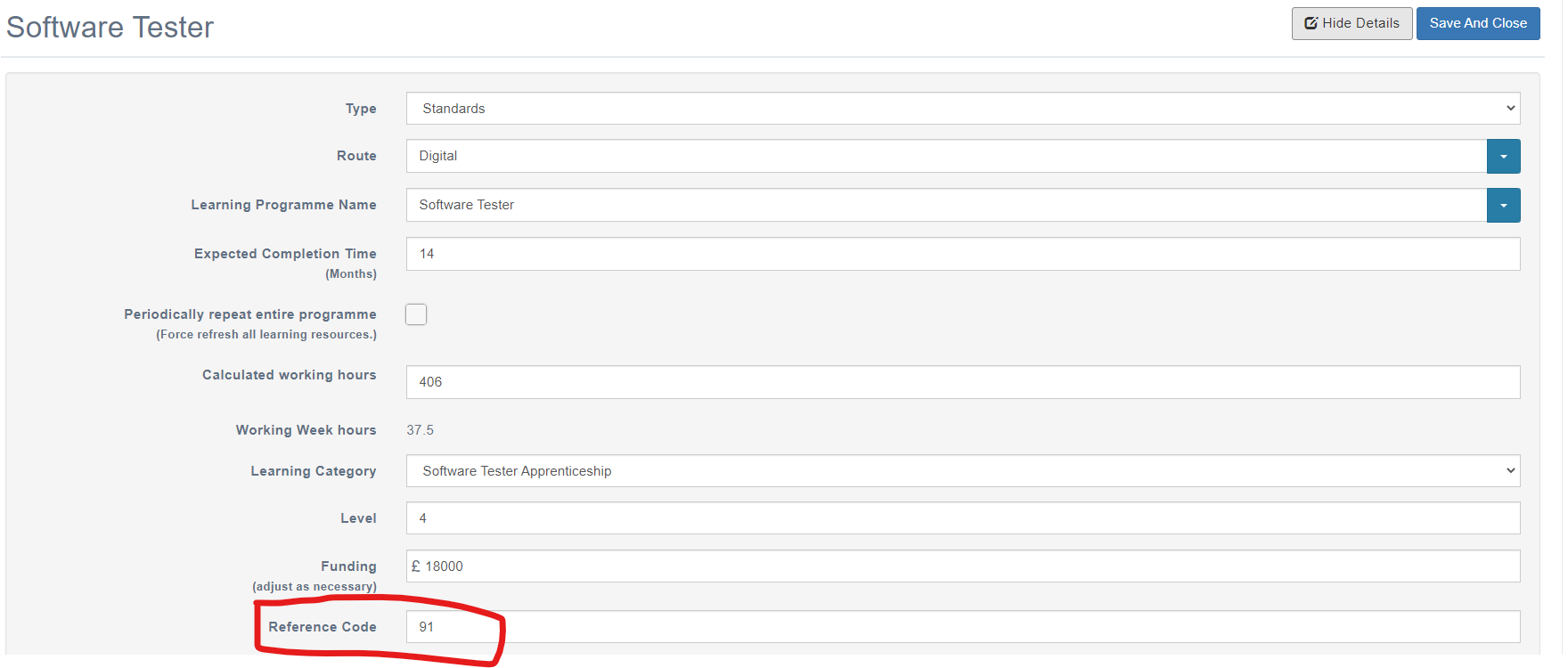
If this matches the Apprenticeship Standard Code in ILR - this will then sync relevant data on to learning programme on Open eLMS - see example below
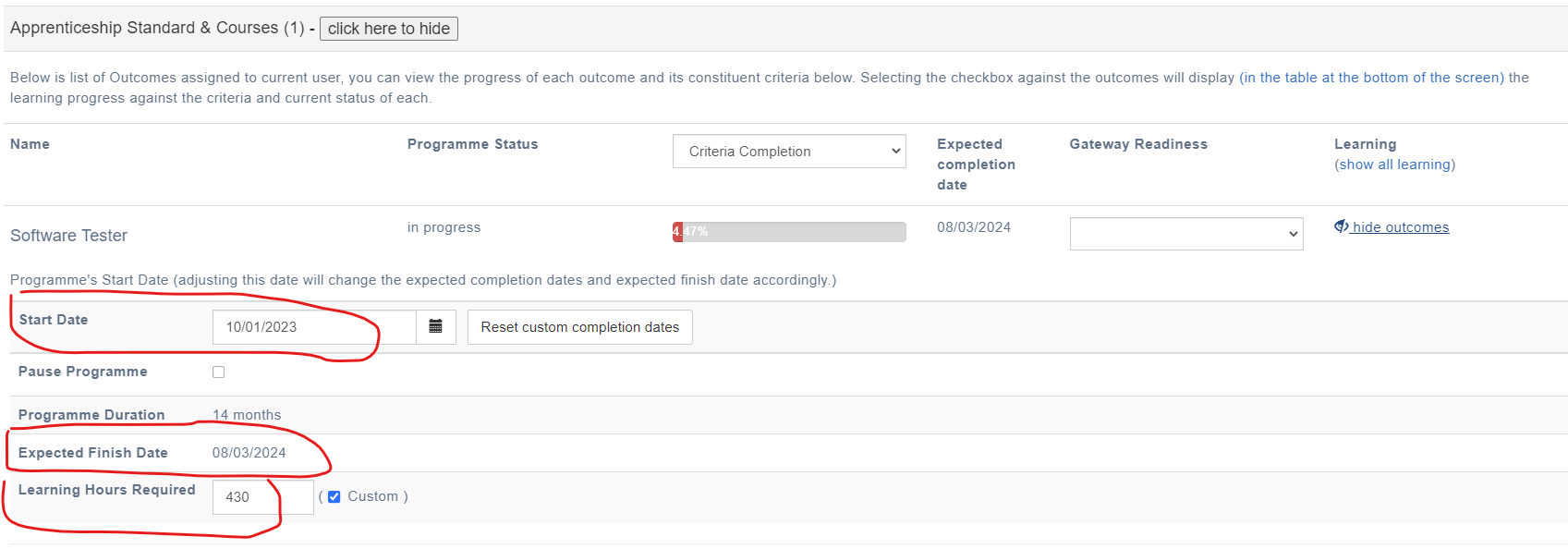
All data and reporting will then mirror this information.
Changing Configuration Settings
Follow the steps below to change any settings
Login as an Administrator and go to System Setup/Defaults/Settings.
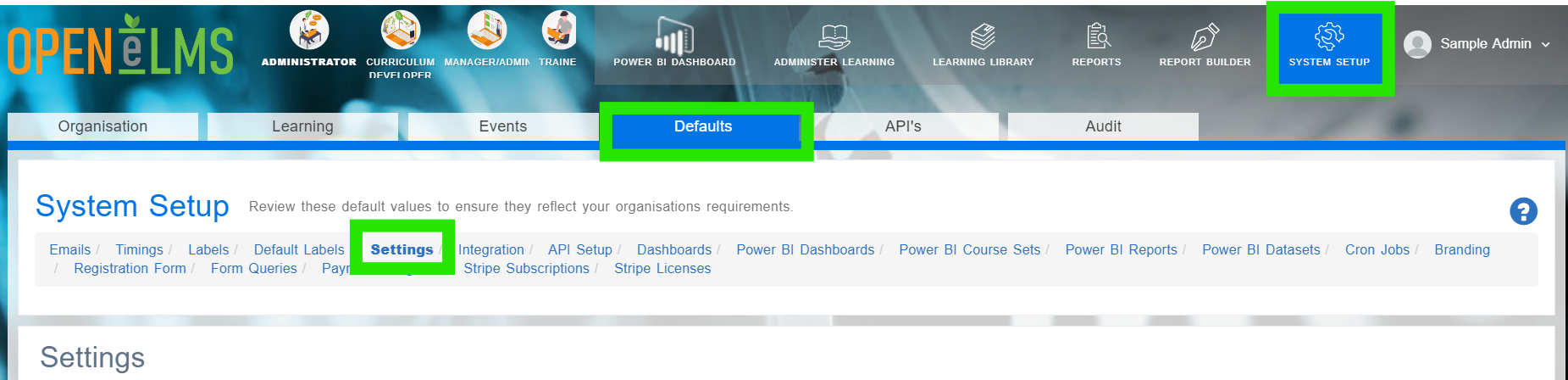
Search in the Name column for the key listed in the above table.
Click on Edit.
Scroll down and find the correct key in the settings category.
Change Configuration Value to ‘true’ if required.
📋 Related articles
Select any of the following associated articles for further information.
- Page:
- Page:
- Page:
- Page:
- Page: