Enable Outlook Calendar Integration
Microsoft Outlook Calendar integration enables events to be recorded in the Outlook calendar of all relevant parties when people enrol on them. These events can be assigned for all users or the system or on a case by case basis.
📘 Instructions
Follow these steps to set up the Outlook integration …
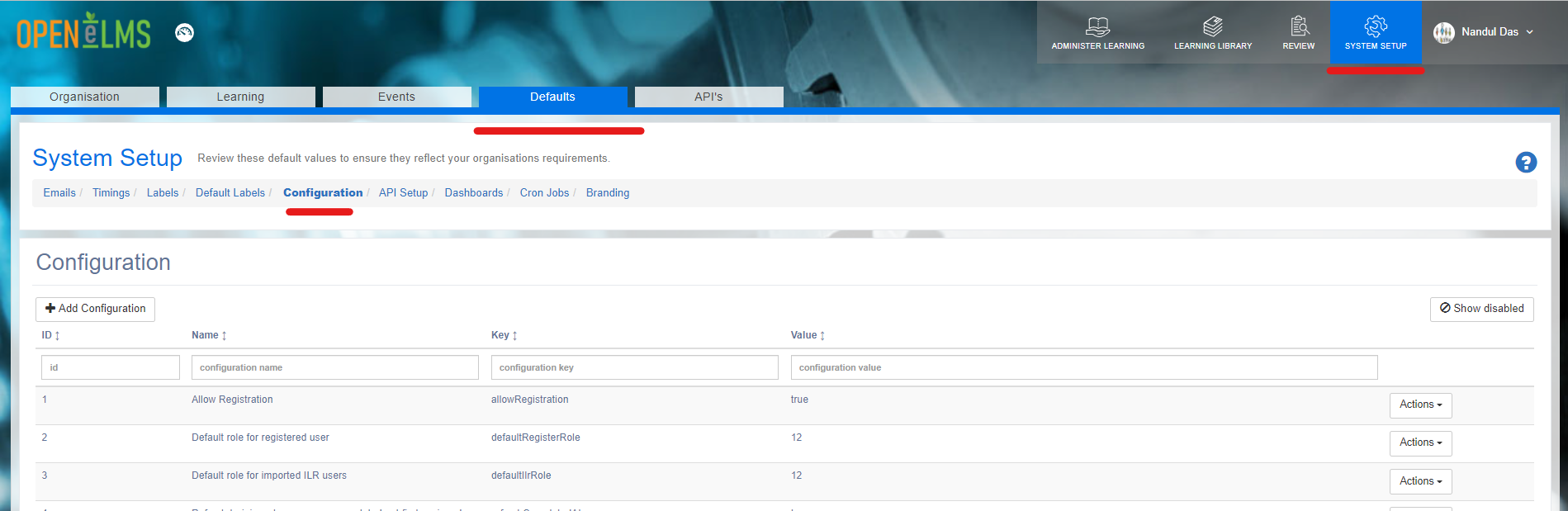
Log in as Admin and go to System Setup > Defaults > Configuration.
Under the Key search box enter ‘outlook’; this will list the 3 Outlook settings.
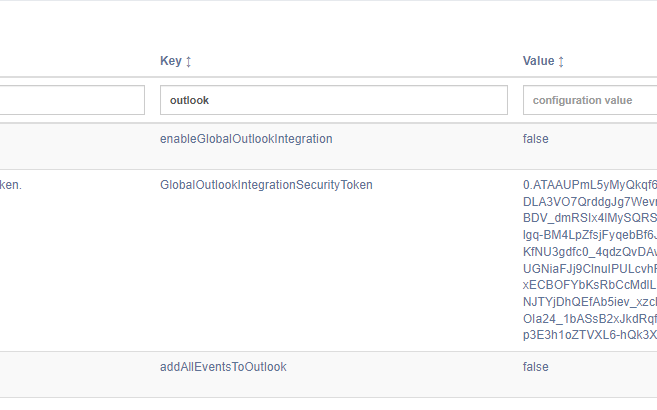
Select by enableGlobalOutlookIntegration the Actions > Edit option. Change this value to true.
Select by GlobalOutlookIntegrationSecurityToken the Actions > Edit option. You will see on screen instructions with a URL to generate the token. Copy this URL into a new browser window …

and you can then generate the token (you will need to log in with a Microsoft Account with appropriate permissions - contact your local administrator if any issues) …
… and then copy all the text in the browser window and save the token as shown.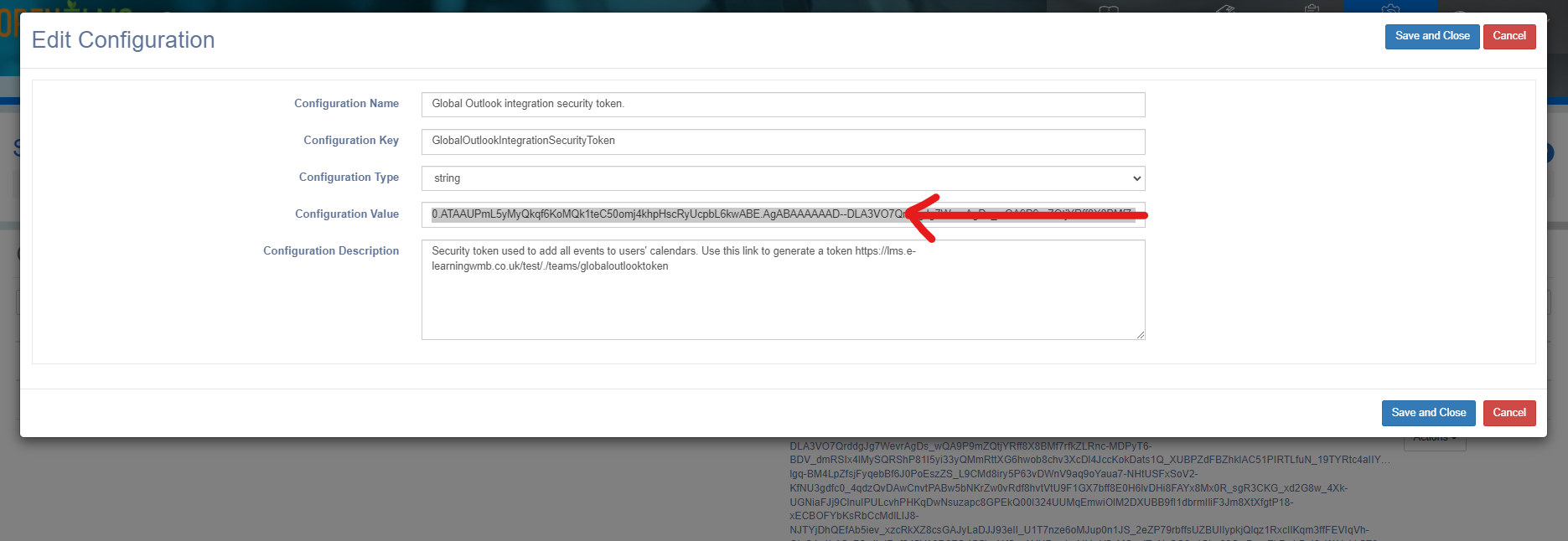
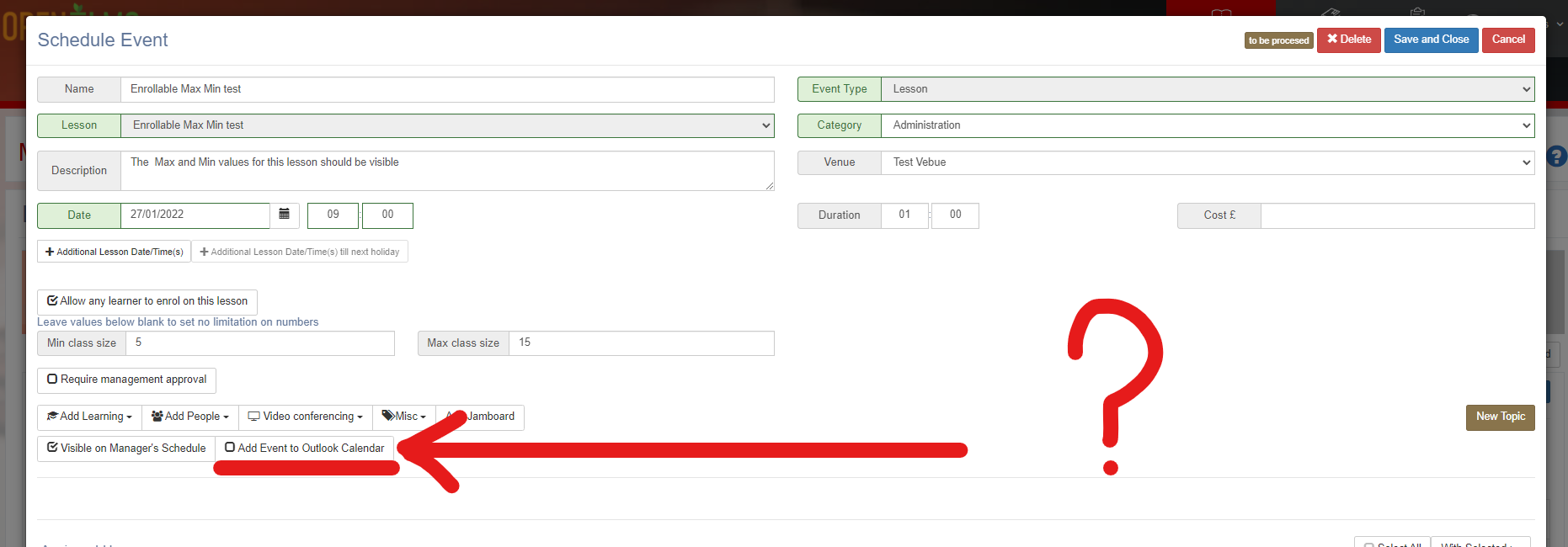
Finally select by addAllEventsToOutlook the Actions > Edit option. Here you can automatically add all events to Outlook OR leave this option in the interface which will allow managers to select whether they want to add each event to Outlook or not.
Please make sure you have appropriate permissions to make these changes - Outlook permissions are not controlled by Open eLMS and would need to be investigated with your local IT department if necessary.
📋 Related articles
- Page:
- Page:
- Page:
- Page:
- Page: