Create a Latest Release
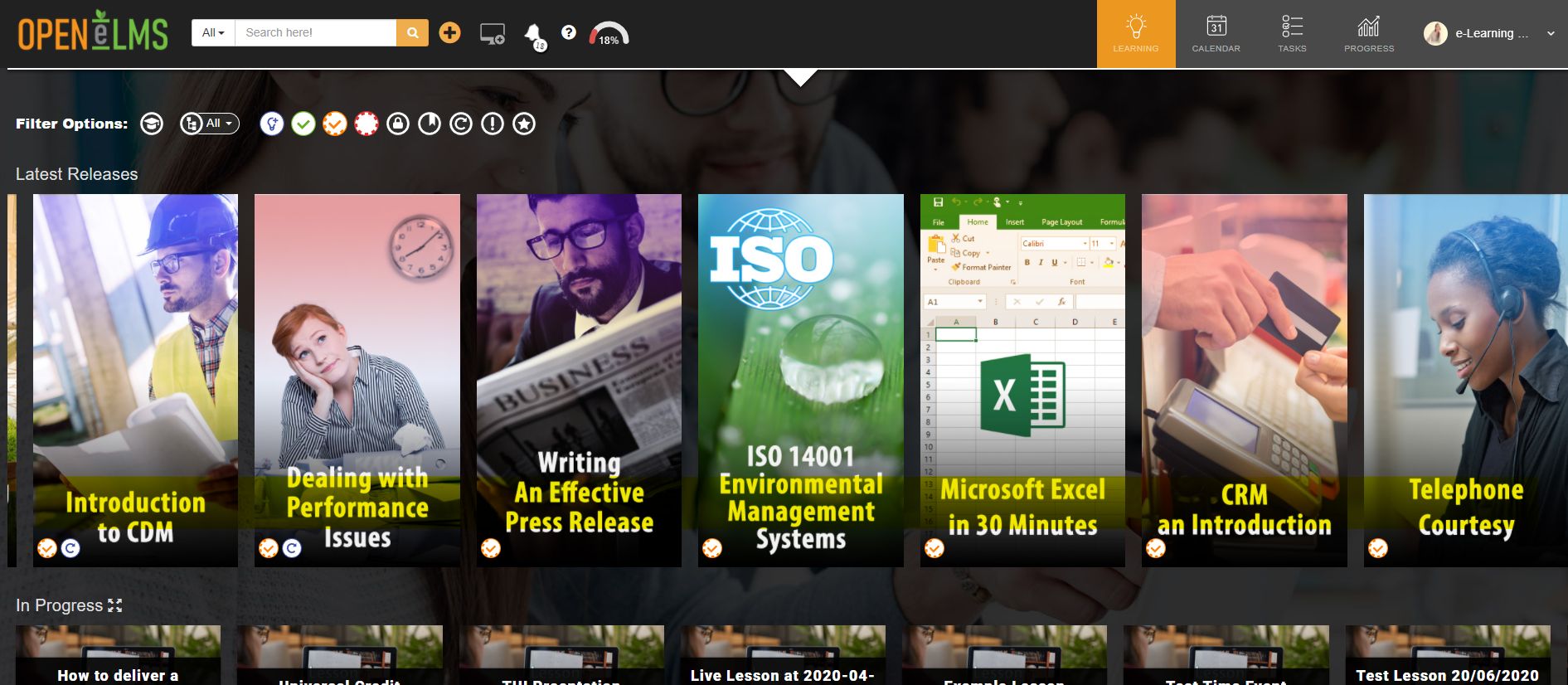
At the top of the learner screen is an array of images which show the 10 latest courses released on the system.
📘 Instructions
Follow these steps to set up latest release learning.
Log in as an Admin and go to Admin > System Setup > Defaults > Configuration.

Find the key in the table called ‘showLatestReleases’.
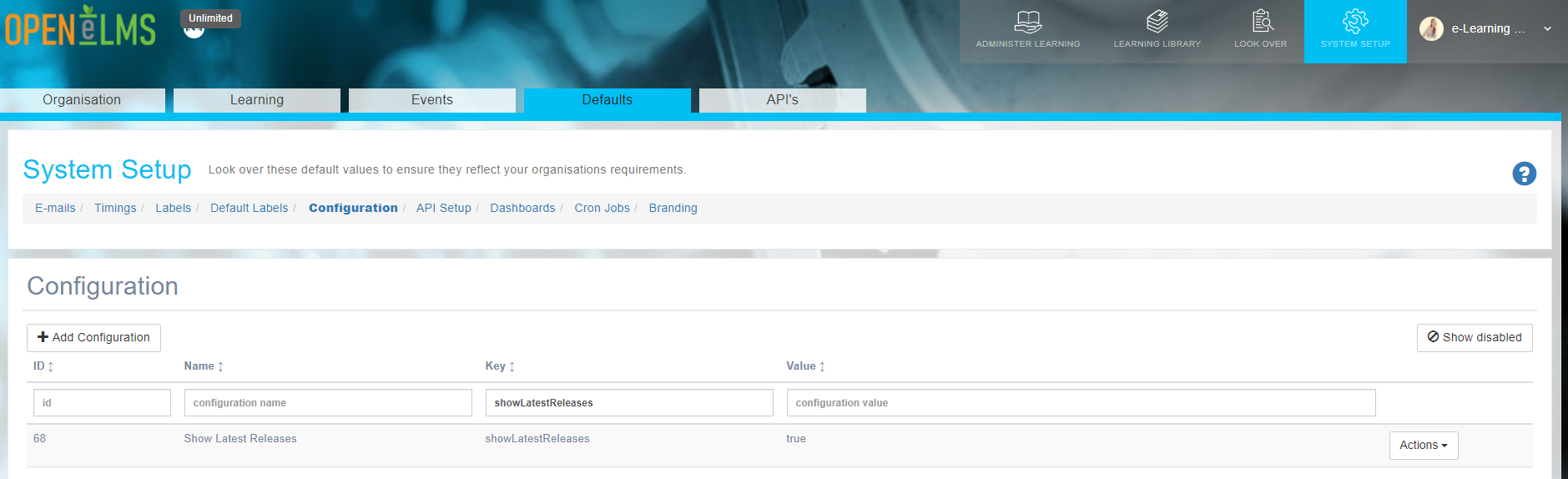
Ensure that this value is 'true'.
Edit any learning resource in the Learning Library > Learning Resources > Edit.
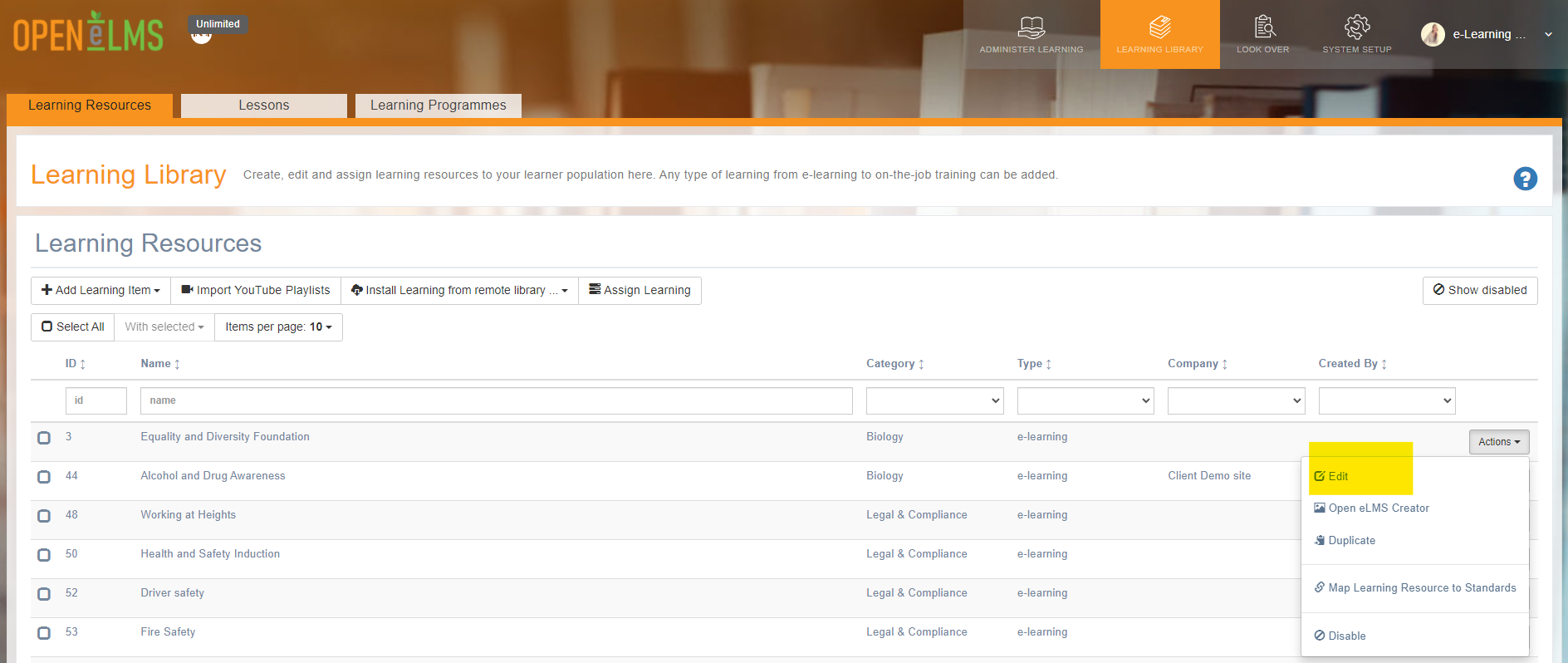
Add an image in the Highlight Image. The image should be 330 x 600 pixels.
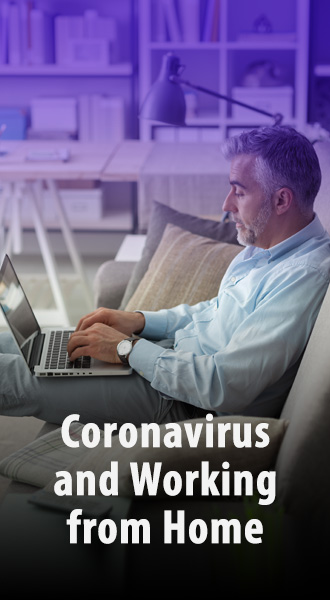
The system will show the 10 most recently updated courses with a highlighted image attached.
📋 Related articles
- Page:
- Page:
- Page:
- Page:
- Page: