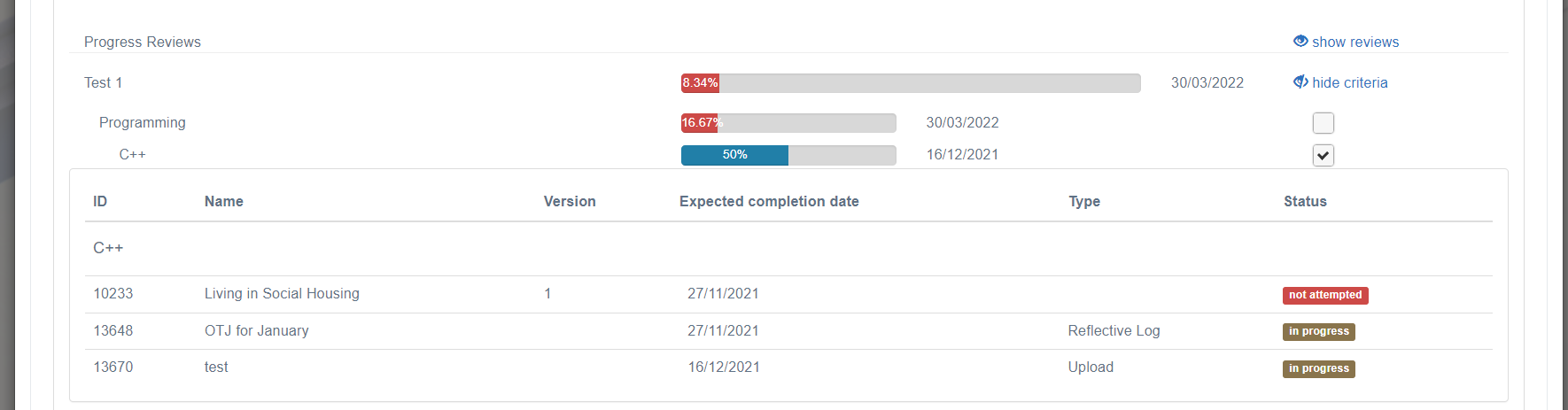
Change the periods for the display of the RAG system in 'Progress' view of learner data
Edit the configuration key below to change functionality within the system, there are over 200 such settings in the system.
📘 Instructions
Name | Key | Default Value | Description |
Traffic light system for next Due Date | nextDueTrafficLight | 4 | When a line manager views the 'Check Progress' table, green indicates the 'Next Due date' is more than 4 weeks from when viewed, amber represents the 'Next Due date' to be less than 4 weeks away, whilst red signifies the due date has been passed (overdue). The 4 week period can be customised here - enter the desired number of weeks. |
This setting affects when the progress bars and other colour indicators go from red to amber to green (i.e RAG rating).
Changing Configuration Settings
Follow the steps below to change any settings
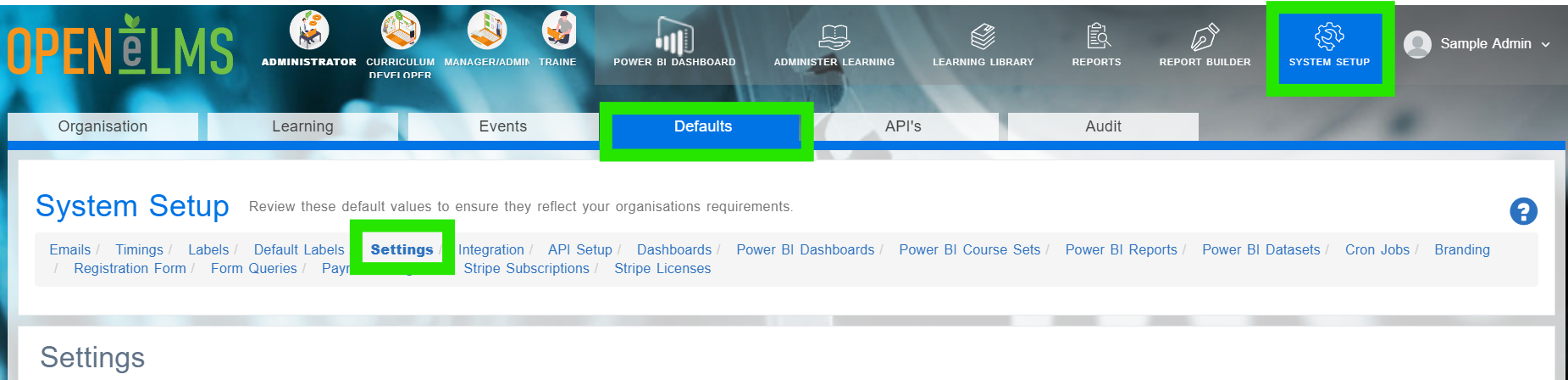
Login as an Administrator and go to System Setup/Defaults/Settings.
Search in the Name column for the key listed in the above table.
Click on Edit.
Scroll down and find the correct key in the settings category.
Edit the Configuration value to the text that you want to appear on the Sign Off form.
This will change the text that appears when a user is signing off.
📋 Related articles
Select any of the following associated articles for further information.
- Page:
- Page:
- Page:
- Page:
- Page: